2015 FORD FOCUS transmission
[x] Cancel search: transmissionPage 291 of 453

Action
Condition
Message
Contact SIRIUS at 1-888-
539-7474 to resolve
subscription issues.
Your satellite service is no
longer available.
Questions? Call
1-888-539-7474
Use the channel guide to
turn off the Lock or Skip
function on that station.
All the channels in the
selected category are either
skipped or locked.
None found
Check Channel Guide
No action required.
SIRIUS has updated the
channels available for your
vehicle.
Subscription Updated
AUDIO INPUT JACK WARNINGS
Driving while distracted can result in
loss of vehicle control, crash and
injury. We strongly recommend that
you use extreme caution when using any
device that may take your focus off the
road. Your primary responsibility is the safe
operation of your vehicle. We recommend
against the use of any hand-held device
while driving and encourage the use of
voice-operated systems when possible.
Make sure you are aware of all applicable
local laws that may affect the use of
electronic devices while driving. Do not connect or adjust the settings
on your portable music player when
your vehicle is moving.
Do not place your portable music
player on the instrument panel. Hard
objects may become projectiles in a
crash or sudden stop, which may increase
the risk of serious injury. The audio input jack allows you to connect
and play music from a portable music
player through your vehicle speakers. You
can use any portable music player
designed for use with headphones.
Your audio extension cable must have
male 1/8th-inch (3.5 millimeter)
connectors at each end.
1.
Switch off the radio and portable music
player. Apply the parking brake and
shift the transmission into park (P) for
automatic transmission or first gear for
manual transmission. Switch the
ignition off.
2. Plug the extension cable from the portable music player into the audio
input jack.
3. Switch the radio on. Select either a tuned FM station or a CD.
4. Adjust the volume as desired.
288
Focus (CDH), enUSA, First Printing Audio SystemE149149
Page 297 of 453

You can switch this feature on or off by speaking one of the following voice
commands:
Action and Description
Voice Command
Makes a best guess from the media
candidate list. The system may still occa-
sionally ask you questions.
media candidate lists off
Clarifies your voice command for media
candidates.
media candidate lists on
Makes a best guess from the phone
candidate list. The system may still occa-
sionally ask you questions.
phone candidate lists off
Clarifies your voice command for phone
candidates.
phone candidate lists on
Changing the Voice Settings
In addition to using voice commands to
change the voice settings, you can also use
the menu in the audio display.
To change the voice settings press the
Menu button then select: Menu Item
SYNC-Settings
Voice settings
USING SYNC™ WITH YOUR
PHONE
Hands-free calling is one of the main
features of SYNC. While the system
supports a variety of features, many are
dependent on your cellular phone's
functionality. At a minimum, most cellular
phones with Bluetooth wireless technology
support the following functions:
• Answering an incoming call.
• Ending a call. •
Using privacy mode.
• Dialing a number.
• Redialing.
• Call waiting notification.
• Caller ID.
Other features, such as text messaging
using Bluetooth and automatic phonebook
download, are phone-dependent features.
To check your phone's compatibility, see
your phone's manual and visit
www.SYNCMyRide.com,
www.SYNCMyRide.ca or
www.syncmaroute.ca.
Pairing a Phone for the First Time
Wirelessly pairing your phone with SYNC
allows you to make and receive hands-free
calls.
Note: SYNC can support downloading up
to approximately 4000 entries per
Bluetooth-enabled cellular phone.
Note: Make sure to switch on the ignition
and the radio. Shift the transmission into
park (P) for automatic transmission or first
gear for manual transmission.
294
Focus (CDH), enUSA, First Printing SYNC™
Page 298 of 453

Using the Audio System
Note:
To scroll through the menus, press
the up and down arrows on your audio
system.
1. Make sure to switch on your phone's Bluetooth feature before starting the
search. See your device's manual if
necessary.
2. Press the PHONE button. When the
audio display indicates there is no
paired phone, select the option to add.
3. When a message to begin pairing appears in the audio display, search for
SYNC on your phone to start the pairing
process.
4. When prompted on your phone's display, enter the six-digit PIN provided
by the system in the radio display. The
display indicates when the pairing is
successful.
Depending on your phone's capability and
your market, the system may prompt you
with questions, such as setting the current
phone as the primary phone (the phone
SYNC automatically tries to connect with
first upon vehicle start-up) and
downloading your phonebook.
Using Voice Commands Make sure to switch on your phone's
Bluetooth feature before starting the
search. See your device's manual if
necessary. Press the voice and when prompted
say: Action and Descrip-
tion
Voice Command
Follow the instruc-
tions on the audio
display.
(pair ([Bluetooth]
device | phone |
Bluetooth audio) |
add [a] phone)
Depending on your phone's capability and
your market, the system may prompt you
with questions, such as setting the current
phone as the primary phone (the phone
SYNC automatically tries to connect with
first upon vehicle start-up) and
downloading your phonebook.
Pairing Subsequent Phones
Note: Make sure to switch on the ignition
and the radio. Shift the transmission into
park (P) for automatic transmission or first
gear for manual transmission..
Note: To scroll through the menus, press
the up and down arrows on your audio
system.
1. Make sure to switch on your phone's Bluetooth feature before starting the
search. See your device's manual if
necessary.
2. Press the
PHONE button.
3. Select the option for Bluetooth Devices.
4. Press the
OK button.
5. Select the option to add. This starts the pairing process.
6. When a message to begin pairing appears in the audio display, search for
SYNC on your device.
295
Focus (CDH), enUSA, First Printing SYNC™E142599
Page 366 of 453
WARNINGS
Store the portable music player in a
secure location, such as the center
console or the glove box, when your
vehicle is moving. Hard objects may
become projectiles in a crash or sudden
stop, which may increase the risk of serious
injury. The audio extension cable must be
long enough to allow the portable music
player to be safely stored while your
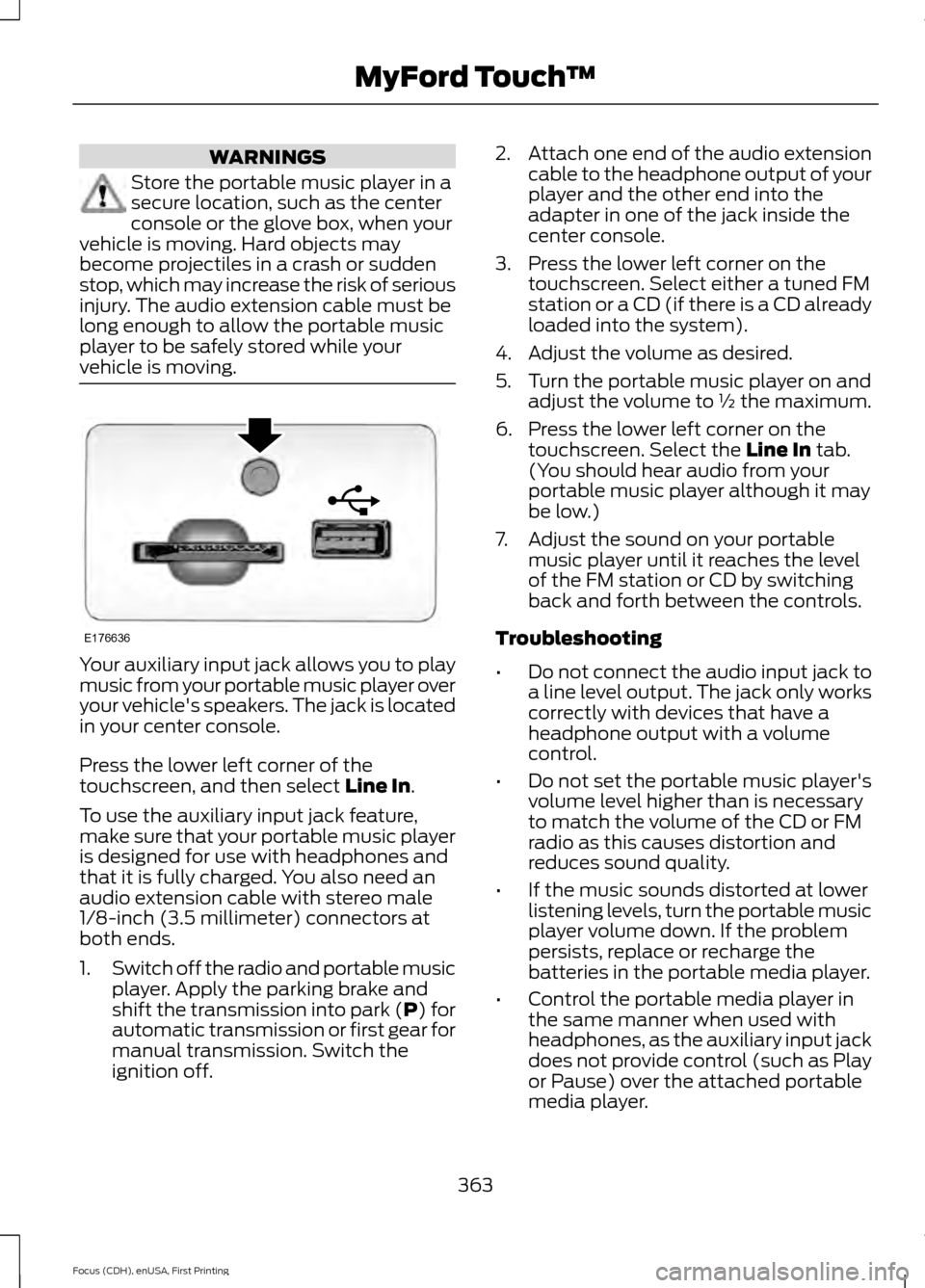
vehicle is moving. Your auxiliary input jack allows you to play
music from your portable music player over
your vehicle's speakers. The jack is located
in your center console.
Press the lower left corner of the
touchscreen, and then select Line In.
To use the auxiliary input jack feature,
make sure that your portable music player
is designed for use with headphones and
that it is fully charged. You also need an
audio extension cable with stereo male
1/8-inch (3.5 millimeter) connectors at
both ends.
1. Switch off the radio and portable music
player. Apply the parking brake and
shift the transmission into park (P) for
automatic transmission or first gear for
manual transmission. Switch the
ignition off. 2.
Attach one end of the audio extension
cable to the headphone output of your
player and the other end into the
adapter in one of the jack inside the
center console.
3. Press the lower left corner on the touchscreen. Select either a tuned FM
station or a CD (if there is a CD already
loaded into the system).
4. Adjust the volume as desired.
5. Turn the portable music player on and adjust the volume to ½ the maximum.
6. Press the lower left corner on the touchscreen. Select the
Line In tab.
(You should hear audio from your
portable music player although it may
be low.)
7. Adjust the sound on your portable music player until it reaches the level
of the FM station or CD by switching
back and forth between the controls.
Troubleshooting
• Do not connect the audio input jack to
a line level output. The jack only works
correctly with devices that have a
headphone output with a volume
control.
• Do not set the portable music player's
volume level higher than is necessary
to match the volume of the CD or FM
radio as this causes distortion and
reduces sound quality.
• If the music sounds distorted at lower
listening levels, turn the portable music
player volume down. If the problem
persists, replace or recharge the
batteries in the portable media player.
• Control the portable media player in
the same manner when used with
headphones, as the auxiliary input jack
does not provide control (such as Play
or Pause) over the attached portable
media player.
363
Focus (CDH), enUSA, First Printing MyFord Touch
™E176636
Page 368 of 453

Pairing Your Cell Phone for the
First Time
WARNING
Driving while distracted can result in
loss of vehicle control, crash and
injury. We strongly recommend that
you use extreme caution when using any
device that may take your focus off the
road. Your primary responsibility is the safe
operation of your vehicle. We recommend
against the use of any hand-held device
while driving and encourage the use of
voice-operated systems when possible.
Make sure you are aware of all applicable
local laws that may affect the use of
electronic devices while driving. The first thing you must do to use the
phone features of SYNC is to pair your
Bluetooth-enabled cell phone with SYNC.
This allows you to use your cell phone in a
hands-free manner.
Note:
Switch off the radio. Apply the
parking brake and shift the transmission into
park (P) for automatic transmission or first
gear for manual transmission. Switch the
ignition off.
Touch the upper left corner of the touchscreen: Action and Description
Message
Add phone Follow the on-screen instructions.
Find SYNC
Make sure that Bluetooth is set to On and that your cell phone
is in the correct mode. See your cell phone ’s manual if
necessary.
Select
SYNC and a six-digit PIN appears on your device.
If you are prompted to enter a PIN on your device, it does not
support Secure Simple Pairing. To pair, enter the PIN
displayed on the touchscreen. Skip the next step.
When prompted on your cell phone ’s display, confirm that
the PIN provided by SYNC matches the PIN displayed on your
cell phone.
The display indicates when the pairing is successful.
SYNC may prompt you with more cell phone options. For
more information on your cell phone's capability, see your
cell phone's manual and visit the website.
Pairing Subsequent Cell Phones
Note: Switch off the radio. Apply the
parking brake and shift the transmission into
park (P) for automatic transmission or first
gear for manual transmission. Switch the
ignition off. Make sure that Bluetooth is set to
On and
that your cell phone is in the correct mode.
See your device's manual if necessary.
365
Focus (CDH), enUSA, First Printing MyFord Touch
™
Page 407 of 453
•
Links to Third Party Sites: The MS
SOFTWARE may provide you with the
ability to link to third party sites through
the use of the SOFTWARE. The third
party sites are not under the control of
MS, Microsoft Corporation, their
affiliates and/or their designated
agent. Neither MS nor Microsoft
Corporation nor their affiliates nor their
designated agent are responsible for
(i) the contents of any third party sites,
any links contained in third party sites,
or any changes or updates to third
party sites, or (ii) webcasting or any
other form of transmission received
from any third party sites. If the
SOFTWARE provides links to third
party sites, those links are provided to
you only as a convenience, and the
inclusion of any link does not imply an
endorsement of the third party site by
MS, Microsoft Corporation, their
affiliates and/or their designated
agent.
• Obligation to Drive Responsibly:
You recognize your obligation to drive
responsibly and keep attention on the
road. You will read and abide with the
DEVICE operating instructions
particularly as they pertain to safety
and assumes any risk associated with
the use of the DEVICE.
UPGRADES AND RECOVERY MEDIA:
If the SOFTWARE is provided by FORD
MOTOR COMPANY separate from the
DEVICE on media such as a ROM chip, CD
ROM disk(s) or via web download or other
means, and is labeled "For Upgrade
Purposes Only" or "For Recovery Purposes
Only" you may install one (1) copy of such
SOFTWARE onto the DEVICE as a
replacement copy for the existing
SOFTWARE, and use it in accordance with
this EULA, including any additional EULA
terms accompanying the upgrade
SOFTWARE. INTELLECTUAL PROPERTY RIGHTS:
All title and intellectual property rights in
and to the SOFTWARE (including but not
limited to any images, photographs,
animations, video, audio, music, text and
"applets" incorporated into the
SOFTWARE), the accompanying printed
materials, and any copies of the
SOFTWARE, are owned by MS, Microsoft
Corporation, FORD MOTOR COMPANY, or
their affiliates or suppliers. The
SOFTWARE is licensed, not sold. You may
not copy the printed materials
accompanying the SOFTWARE. All title
and intellectual property rights in and to
the content which may be accessed
through use of the SOFTWARE is the
property of the respective content owner
and may be protected by applicable
copyright or other intellectual property
laws and treaties. This EULA grants you no
rights to use such content. All rights not
specifically granted under this EULA are
reserved by MS, Microsoft Corporation,
FORD MOTOR COMPANY, third party
software and service providers, their
affiliates and suppliers. Use of any on-line
services which may be accessed through
the SOFTWARE may be governed by the
respective terms of use relating to such
services. If this SOFTWARE contains
documentation that is provided only in
electronic form, you may print one copy of
such electronic documentation.
EXPORT RESTRICTIONS:
You
acknowledge that the SOFTWARE is
subject to U.S. and European Union export
jurisdiction. You agree to comply with all
applicable international and national laws
that apply to the SOFTWARE, including
the U.S. Export Administration Regulations,
as well as end-user, end-use and
destination restrictions issued by U.S. and
other governments. For additional
information, see
http://www.microsoft.com/exporting/.
404
Focus (CDH), enUSA, First Printing Appendices
Page 431 of 453

Multi-Point inspection
Hazard warning system operation
Accessory drive belt(s)
Horn operation
Battery performance
Radiator, cooler, heater and air conditioninghoses
Engine air filter
Suspension components for leaks ordamage
Exhaust system
Steering and linkage
Exterior lamps operation
Tires (including spare) for wear and properpressure**
Fluid levels *
; fill if necessary
Windshield for cracks, chips or pits
For oil and fluid leaks
Washer spray and wiper operation
Half-shaft dust boots
* Brake, coolant recovery reservoir, automatic transmission and window washer
** If your vehicle is equipped with a temporary mobility kit, check the tire sealant expiration
Use By date on the canister. Replace as needed.
Be sure to ask your dealership service
advisor or technician about the multi-point
vehicle inspection. It is a comprehensive
way to perform a thorough inspection of
your vehicle. Your checklist gives you
immediate feedback on the overall
condition of your vehicle.
NORMAL SCHEDULED
MAINTENANCE
Intelligent Oil-Life Monitor®
Your vehicle is equipped with an Intelligent
Oil-Life Monitor that determines when you
should change the engine oil based on how
your vehicle is used. By using several
important factors in its calculations, the
monitor helps reduce the cost of owning
your vehicle and reduces environmental
waste at the same time. This means you do not have to remember
to change the oil on a mileage-based
schedule. Your vehicle lets you know when
an oil change is due by displaying ENGINE
OIL CHANGE DUE or OIL CHANGE
REQUIRED in the information display.
The following table provides examples of
vehicle use and its impact on oil change
intervals. It is a guideline only. Actual oil
change intervals depend on several factors
and generally decrease with severity of
use.
428
Focus (CDH), enUSA, First Printing Scheduled Maintenance
Page 432 of 453

When to expect the OIL CHANGE REQUIRED message
Vehicle use and example
Interval
Normal
7500-10000 miles
(12000-16000 km) Normal commuting with highway driving
No, or moderate, load or towing
Flat to moderately hilly roads
No extended idling
Severe
5000-7499 miles
(8000-11999 km) Moderate to heavy load or towing
Mountainous or off-road conditions
Extended idling
Extended hot or cold operation
Extreme
3000-4999 miles
(4800-7999 km) Maximum load or towing
Extreme hot or cold operation
Normal Maintenance Intervals At every oil change interval as indicated by the information display
1
Change engine oil and filter. 2
Rotate tires, inspect tire wear and measure tread depth.
Perform a multi-point inspection (recommended).
Inspect the automatic transmission fluid level (if equipped with a dipstick). Consult
your dealer for requirements.
Inspect the brake pads, shoes, rotors, drums, brake linings, hoses and parking brake.
Inspect the engine cooling system strength and hoses.
Inspect the exhaust system and heat shields.
Inspect the half-shaft boots.
429
Focus (CDH), enUSA, First Printing Scheduled Maintenance