2015 FORD FOCUS tow
[x] Cancel search: towPage 262 of 453
12. Remove the lug nuts with the lug
wrench.
13. Replace the flat tire with the spare tire, making sure the valve stem is
facing outward. Reinstall the lug nuts
until the wheel is snug against the
hub. Do not fully tighten the lug nuts
until the wheel has been lowered.
14. Lower the wheel by turning the jack handle counterclockwise. 15.
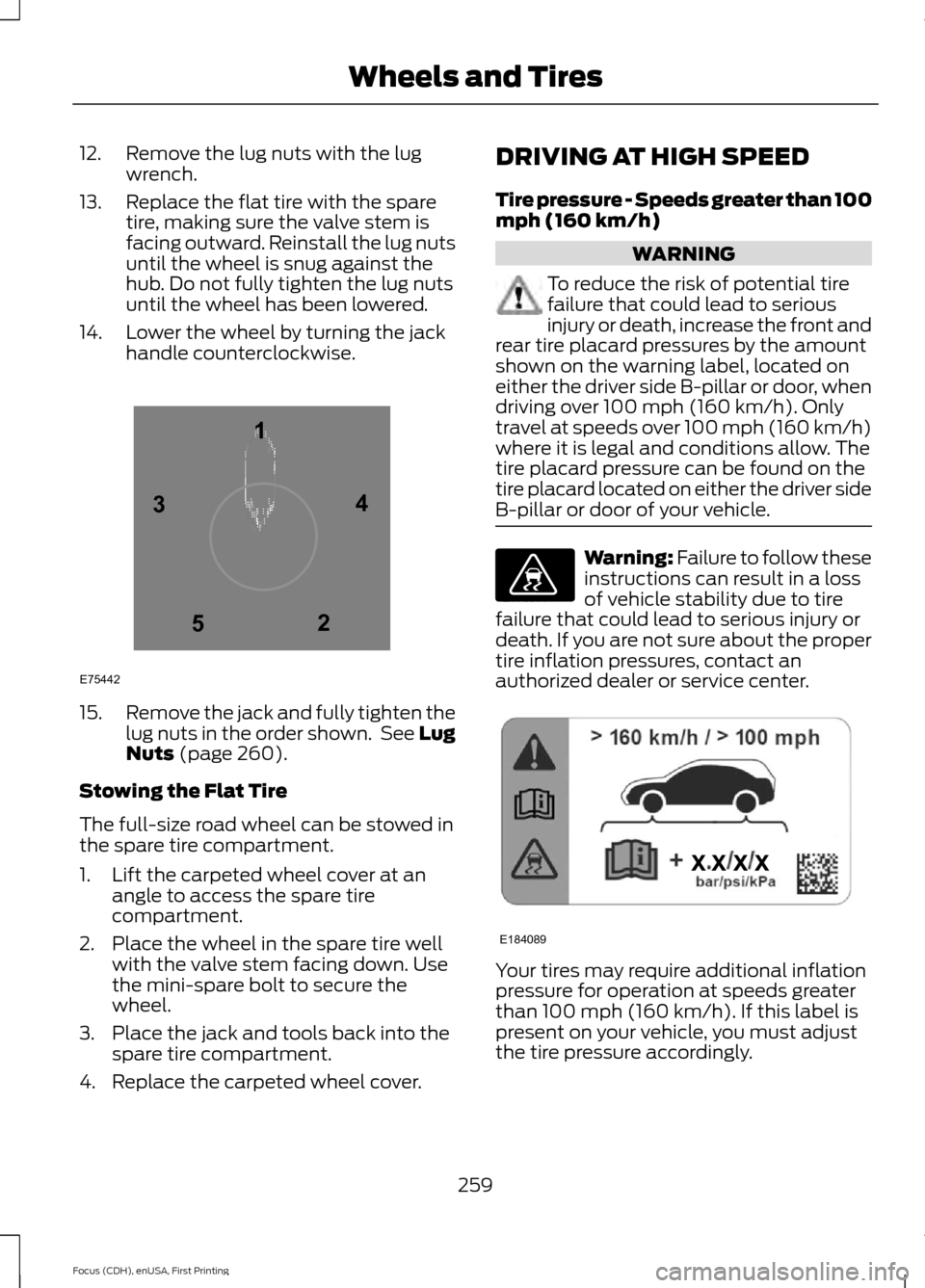
Remove the jack and fully tighten the
lug nuts in the order shown. See Lug
Nuts (page 260).
Stowing the Flat Tire
The full-size road wheel can be stowed in
the spare tire compartment.
1. Lift the carpeted wheel cover at an angle to access the spare tire
compartment.
2. Place the wheel in the spare tire well with the valve stem facing down. Use
the mini-spare bolt to secure the
wheel.
3. Place the jack and tools back into the spare tire compartment.
4. Replace the carpeted wheel cover. DRIVING AT HIGH SPEED
Tire pressure - Speeds greater than 100
mph (160 km/h) WARNING
To reduce the risk of potential tire
failure that could lead to serious
injury or death, increase the front and
rear tire placard pressures by the amount
shown on the warning label, located on
either the driver side B-pillar or door, when
driving over
100 mph (160 km/h). Only
travel at speeds over 100 mph (160 km/h)
where it is legal and conditions allow. The
tire placard pressure can be found on the
tire placard located on either the driver side
B-pillar or door of your vehicle. Warning: Failure to follow these
instructions can result in a loss
of vehicle stability due to tire
failure that could lead to serious injury or
death. If you are not sure about the proper
tire inflation pressures, contact an
authorized dealer or service center. Your tires may require additional inflation
pressure for operation at speeds greater
than
100 mph (160 km/h). If this label is
present on your vehicle, you must adjust
the tire pressure accordingly.
259
Focus (CDH), enUSA, First Printing Wheels and Tires12
3
4
5
E75442 E176077 E184089
Page 276 of 453

GENERAL INFORMATION
Radio Frequencies and Reception
Factors
AM and FM frequencies are established by
the Federal Communications Commission
(FCC) and the Canadian Radio and
Telecommunications Commission (CRTC).
Those frequencies are:
•
AM: 530, 540-1700, 1710 kHz
• FM: 87.9-107.7, 107.9 MHz Radio Reception Factors
The further you travel from an AM or FM station, the
weaker the signal and the weaker the reception.
Distance and strength
Hills, mountains, tall buildings, bridges, tunnels, freeway
overpasses, parking garages, dense tree foliage and
thunderstorms can interfere with the reception.
Terrain
When you pass a ground-based broadcast repeating
tower, a stronger signal may overtake a weaker one and
result in the audio system muting.
Station overload
CD and CD Player Information
Note: CD units play commercially pressed
4.75-inch (12 centimeter) audio compact
discs only. Due to technical incompatibility,
certain recordable and re-recordable
compact discs may not function correctly
when used in Ford CD players.
Note: Do not insert CDs with homemade
paper (adhesive) labels into the CD player
as the label may peel and cause the CD to
become jammed. You should use a
permanent felt tip marker rather than
adhesive labels on your homemade CDs.
Ballpoint pens may damage CDs. Please
contact an authorized dealer for further
information.
Note: Do not use any irregularly shaped
discs or discs with a scratch protection film
attached.
Always handle discs by their edges only.
Clean the disc with an approved CD
cleaner only. Wipe it from the center of the
disc toward the edge. Do not clean in a
circular motion. Do not expose discs to direct sunlight or
heat sources for extended periods.
MP3 Track and Folder Structure
Audio systems capable of recognizing and
playing MP3 individual tracks and folder
structures work as follows:
•
There are two different modes for MP3
disc playback: MP3 track mode
(system default) and MP3 folder
mode.
• MP3 track mode ignores any folder
structure on the MP3 disc. The player
numbers each MP3 track on the disc
(noted by the .mp3 file extension) from
T001 to a maximum of T255. The
maximum number of playable MP3
files may be less depending on the
structure of the CD and exact model
of radio present.
273
Focus (CDH), enUSA, First Printing Audio System
Page 289 of 453
HD Radio Technology manufactured under
license from iBiquity Digital Corp. U.S. and
foreign patents. HD Radio and the HD and
HD Radio logos are proprietary trademarks
of iBiquity Digital Corp. Ford Motor
Company and iBiquity Digital Corp. are not
responsible for the content sent using HD
Radio technology. Content may be
changed, added or deleted at any time at
the station owner's discretion.
SATELLITE RADIO
SIRIUS® broadcasts a variety of music,
news, sports, weather, traffic and
entertainment satellite radio channels. For
more information and a complete list of
SIRIUS satellite radio channels, visit
www.siriusxm.com in the United States,
www.sirius.ca in Canada, or call SIRIUS at
1-888-539-7474.
Note:
This receiver includes the eCos
real-time operating system. eCos is
published under the eCos License.
Satellite Radio Reception Factors Potential satellite radio reception issues
For optimal reception performance, keep the antenna
clear of snow and ice build-up and keep luggage and other
material as far away from the antenna as possible.
Antenna obstructions
Hills, mountains, tall buildings, bridges, tunnels, freeway
overpasses, parking garages, dense tree foliage and
thunderstorms can interfere with your reception.
Terrain
When you pass a ground-based broadcast-repeating
tower, a stronger signal may overtake a weaker one and
the audio system may mute.
Station overload
Your display may show ACQUIRING . . . to indicate the
interference and the audio system may mute.
Satellite radio signal interfer-
ence
SIRIUS® Satellite Radio Service
Note: SIRIUS reserves the unrestricted right
to change, rearrange, add or delete
programming including canceling, moving
or adding particular channels, and its prices,
at any time, with or without notice to you.
Ford Motor Company shall not be
responsible for any such programming
changes. 286
Focus (CDH), enUSA, First Printing Audio SystemE142593
Page 290 of 453

SIRIUS satellite radio is a
subscription-based satellite radio service
that broadcasts a variety of music, sports,
news, weather, traffic and entertainment
programming. Your factory-installed
SIRIUS satellite radio system includes
hardware and a limited subscription term,
which begins on the date of sale or lease
of your vehicle. See an authorized dealer
for availability.
For more information on extended
subscription terms (a service fee is
required), the online media player and a
complete list of SIRIUS satellite radio
channels, and other features, please visit
www.siriusxm.com in the United States,
www.sirius.ca in Canada, or call SIRIUS at
1-888-539-7474.
Satellite Radio Electronic Serial
Number (ESN)
You need your ESN to activate, modify or
track your satellite radio account. When in
satellite radio mode, press Options.
Troubleshooting Action
Condition
Message
No action required. This
message should disappear
shortly.
Radio requires more than
two seconds to produce
audio for the selected
channel.
Acquiring…
If this message does not
clear shortly, or with an igni-
tion key cycle, your receiver
may have a fault. See an
authorized dealer for service.
There is an internal module
or system failure present.
Satellite antenna fault
SIRIUS system failure
Tune to another channel or
choose another preset.
The channel is no longer
available.
Invalid Channel
Contact SIRIUS at 1-888-
539-7474 to subscribe to
the channel, or tune to
another channel.
Your subscription does not
include this channel.
Unsubscribed Channel
The signal is blocked. When
you move into an open area,
the signal should return.
The signal is lost from the
SIRIUS satellite or SIRIUS
tower to your vehicle
antenna.
No Signal
No action required. The
process may take up to
three minutes.
Update of channel
programming in progress.
Updating…
287
Focus (CDH), enUSA, First Printing Audio System
Page 359 of 453
SIRIUS Satellite Radio Information
Note:
SIRIUS reserves the unrestricted right
to change, rearrange, add or delete
programming including canceling, moving
or adding particular channels, and its prices,
at any time, with or without notice to you.
Ford Motor Company shall not be
responsible for any such programming
changes. SIRIUS satellite radio is a
subscription-based satellite radio service
that broadcasts a variety of music, sports,
news, weather, traffic and entertainment
programming. Your factory-installed
SIRIUS satellite radio system includes
hardware and a limited subscription term
that begins on the date of sale or lease of
your vehicle. See an authorized dealer for
availability.
For more information on extended
subscription terms (a service fee is
required), the online media player and a
list of SIRIUS satellite radio channels, and
other features, please visit
www.siriusxm.com in the United States,
www.sirius.ca in Canada, or call SIRIUS at
1-888-539-7474.
Note:
This receiver includes the eCos
real-time operating system. eCos is
published under the eCos License.
Satellite Radio Electronic Serial Number
(ESN)
You need your ESN to activate, modify or
track your satellite radio account. The ESN
is on the System Information Screen (SR
ESN:XXXXXXXXXXXX).
To access your ESN, touch the bottom
left corner of the touchscreen, then
select: Message
SIRIUS
Options
SIRIUS Satellite Radio Reception Factors and Troubleshooting Potential reception issues
For optimal reception performance, keep the antenna clear of snow
and ice build-up and keep luggage and other materials as far away
from the antenna as possible.
Antenna
obstructions
Hills, mountains, tall buildings, bridges, tunnels, freeway overpasses,
parking garages, dense tree foliage and thunderstorms can interfere
with your reception.
Terrain
When you pass a ground-based broadcast-repeating tower, a stronger
signal may overtake a weaker one and the audio system may mute.
Station over-
load
Your display may show ACQUIRING... to indicate the interference and
the audio system may mute.
Satellite radio
signal interfer-
ence
356
Focus (CDH), enUSA, First Printing MyFord Touch
™E142593
Page 360 of 453
Troubleshooting tips
Action
Cause
Message
No action required. This
message should disappear
shortly.
Radio requires more than two
seconds to produce audio for
the selected channel.
Acquiring…
If this message does not clear
shortly, or with an ignition key
cycle, your receiver may have
a fault. See an authorized
dealer for service.
There is an internal module or
system failure present.
Satellite antenna fault
SIRIUS system failure
Tune to another channel or
choose another preset.
The channel is no longer avail-
able.
Invalid Channel
Contact SIRIUS at 1-888-539-
7474 to subscribe to the
channel, or tune to another
channel.
Your subscription does not
include this channel.
Unsubscribed Channel
The signal is blocked. When
you move into an open area,
the signal should return.
The signal is lost from the
SIRIUS satellite or SIRIUS
tower to your vehicle antenna.
No Signal
No action required. The
process may take up to three
minutes.
Update of channel program-
ming in progress.
Updating…
Contact SIRIUS at 1-888-539-
7474 to resolve subscription
issues.
Your satellite service is no
longer available.
Questions? Call
1-888-539-7474
Use the channel guide to turn
off the Lock or Skip function on
that station.
All the channels in the selected
category are either skipped or
locked.
None found
Check Channel Guide
No action required.
SIRIUS has updated the chan-
nels available for your vehicle.
Subscription Updated
SIRIUS Satellite Radio Voice
Commands If you are listening to SIRIUS
satellite radio, press the voice
button on the steering wheel
controls. When prompted, say any of the
following commands.
357
Focus (CDH), enUSA, First Printing MyFord Touch
™E142599
Page 377 of 453
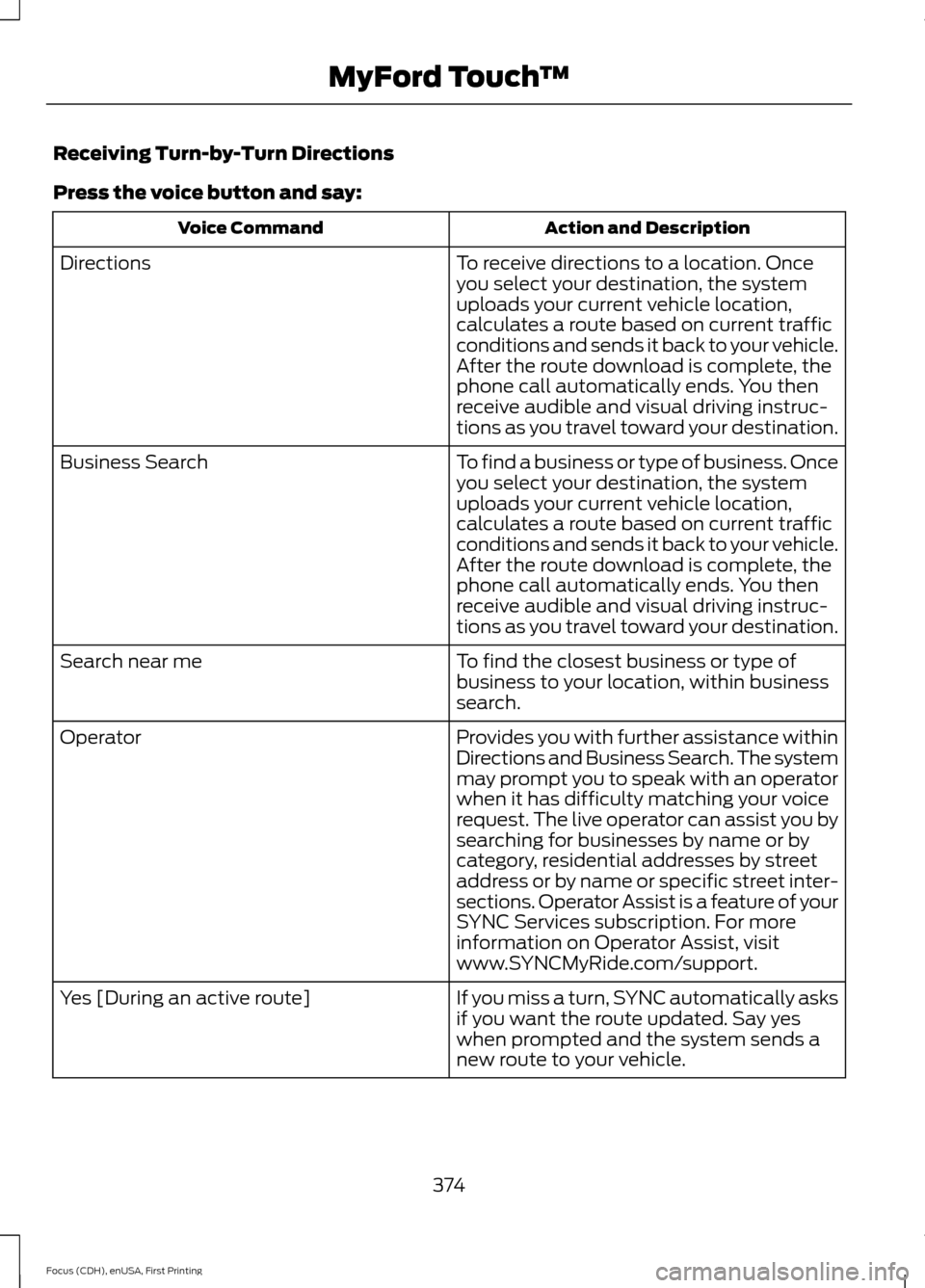
Receiving Turn-by-Turn Directions
Press the voice button and say:
Action and Description
Voice Command
To receive directions to a location. Once
you select your destination, the system
uploads your current vehicle location,
calculates a route based on current traffic
conditions and sends it back to your vehicle.
After the route download is complete, the
phone call automatically ends. You then
receive audible and visual driving instruc-
tions as you travel toward your destination.
Directions
To find a business or type of business. Once
you select your destination, the system
uploads your current vehicle location,
calculates a route based on current traffic
conditions and sends it back to your vehicle.
After the route download is complete, the
phone call automatically ends. You then
receive audible and visual driving instruc-
tions as you travel toward your destination.
Business Search
To find the closest business or type of
business to your location, within business
search.
Search near me
Provides you with further assistance within
Directions and Business Search. The system
may prompt you to speak with an operator
when it has difficulty matching your voice
request. The live operator can assist you by
searching for businesses by name or by
Operator
category, residential addresses by street
address or by name or specific street inter-
sections. Operator Assist is a feature of your
SYNC Services subscription. For more
information on Operator Assist, visit
www.SYNCMyRide.com/support.
If you miss a turn, SYNC automatically asks
if you want the route updated. Say yes
when prompted and the system sends a
new route to your vehicle.
Yes [During an active route]
374
Focus (CDH), enUSA, First Printing MyFord Touch
™
Page 392 of 453
Second Level Messages, Actions and Descriptions
Menu Item
Choose areas which you want the system to avoid when
calculating a route for you
Avoid Areas
Then select any of the following:
Once you make a selection, the system tries to avoid the
area(s) if possible for all routes. Select this button to program
an entry, then choose a destination entry method. You can
edit the name or location of a destination or remove it from
your selections.
Add
To remove an area from your selection, choose the listing on
the screen. The screen will change, then press delete and
confirm the deletion.
Delete
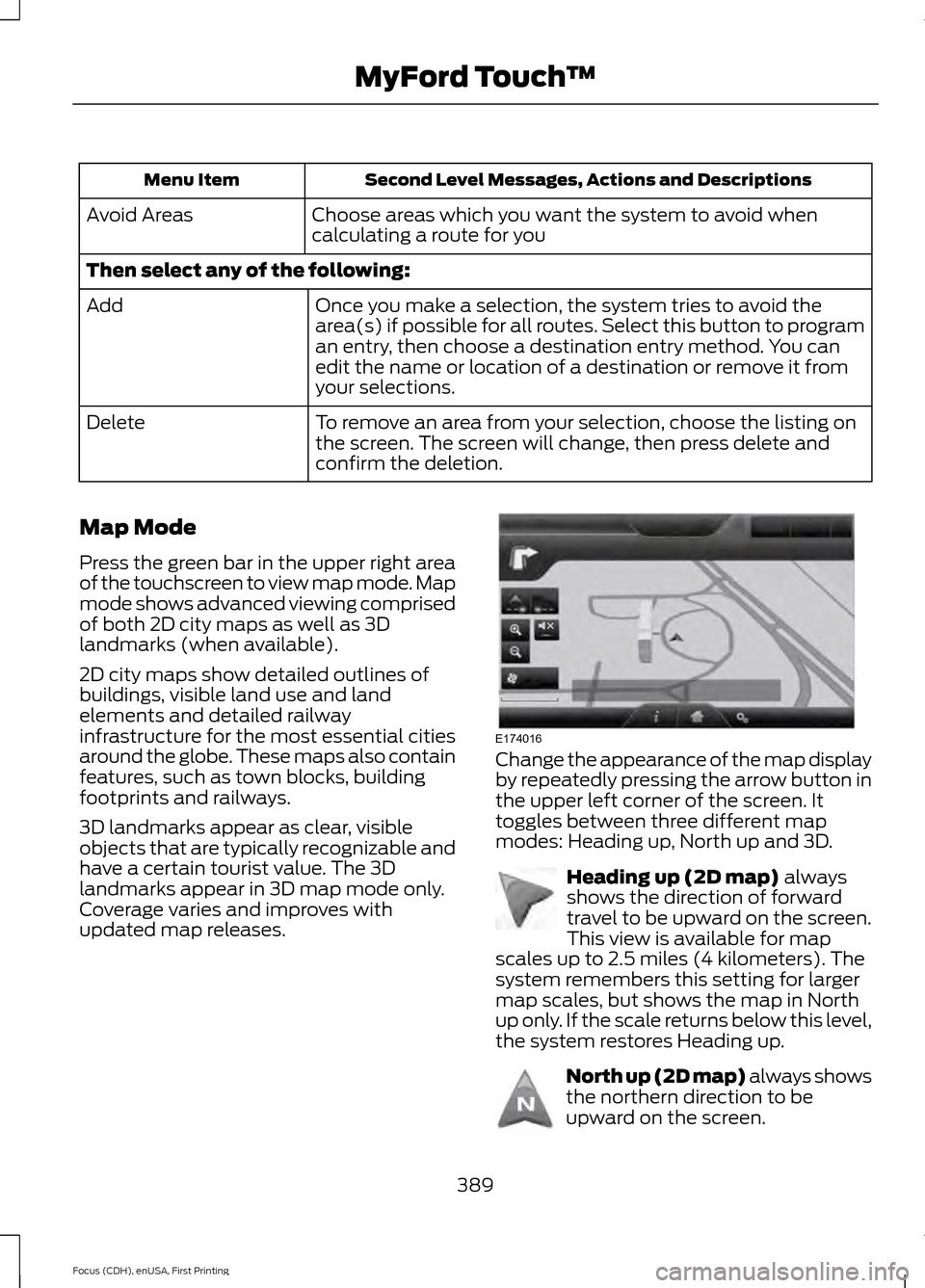
Map Mode
Press the green bar in the upper right area
of the touchscreen to view map mode. Map
mode shows advanced viewing comprised
of both 2D city maps as well as 3D
landmarks (when available).
2D city maps show detailed outlines of
buildings, visible land use and land
elements and detailed railway
infrastructure for the most essential cities
around the globe. These maps also contain
features, such as town blocks, building
footprints and railways.
3D landmarks appear as clear, visible
objects that are typically recognizable and
have a certain tourist value. The 3D
landmarks appear in 3D map mode only.
Coverage varies and improves with
updated map releases. Change the appearance of the map display
by repeatedly pressing the arrow button in
the upper left corner of the screen. It
toggles between three different map
modes: Heading up, North up and 3D.
Heading up (2D map) always
shows the direction of forward
travel to be upward on the screen.
This view is available for map
scales up to 2.5 miles (4 kilometers). The
system remembers this setting for larger
map scales, but shows the map in North
up only. If the scale returns below this level,
the system restores Heading up. North up (2D map) always shows
the northern direction to be
upward on the screen.
389
Focus (CDH), enUSA, First Printing MyFord Touch
™E174016 E142642 E142643