2015 FORD FOCUS CD player
[x] Cancel search: CD playerPage 344 of 453
Action and Description
Message
Have the system ask you short questions if it has not clearly
heard or understood your request.
Confirmation Prompts
Note: Even with confirmation prompts turned off, the system
may occasionally ask you to confirm settings.
Candidate lists are possible results from your voice
commands. The system simply makes a best guess at your
request with these turned off.
Media Candidate Lists
Candidate lists are possible results from your voice
commands. The system simply makes a best guess at your
request with these turned off.
Phone Candidate Lists
This allows you to adjust the system ’s voice volume level.
Voice Control Volume
Media Player To make adjustments using the touchscreen, select:
Action and Description
Message
Press the settings icon.
Settings
Media Player
Then select from the following:
When this feature is on, the system automatically switches
to the media source upon initial connection. This allows you
to listen to music during the indexing process. When this
feature is off, the system does not automatically switch to
the inserted media source.
Autoplay
Select to connect, disconnect, add or delete a device. You
can also set a device as your favorite so that the system
automatically attempts to connect to that device at every
ignition cycle.
Bluetooth Devices
341
Focus (CDH), enUSA, First Printing MyFord Touch
™E142607
Page 345 of 453
Action and Description
Message
This allows you to view the version level of the Gracenote
Database.
Gracenote® Database
Info
With this feature on, the Gracenote Database supplies
metadata information for your music files. This overrides
information from your device. This feature defaults to off.
Gracenote® Manage-
ment
With this feature on, the Gracenote Database supplied cover
art for your music files. This overrides any art from your device.
This feature defaults to Media Player.
Cover Art Priority
Navigation To make adjustments using the touchscreen, select:
Action and Description
Message
Press the settings icon.
Settings
Navigation
Then select from the following:
Turn breadcrumbs on and off.
Map Preferences
Have the system display your turn list top to bottom or
bottom to top.
Turn the Parking POI notification on and off.
Select shortest route, fastest route or ecological route as
your preferred route. This route will be displayed first.
Route Preferences
Always use preferred route. If set to yes, the system will only
calculate a single route. This speeds up your destination entry
process.
Select a low, medium or high cost for the calculated ecolo-
gical route. This may incur a time penalty.
Have the system avoid freeways.
Have the system avoid toll roads.
Have the system avoid ferries or car trains.
342
Focus (CDH), enUSA, First Printing MyFord Touch
™E142607
Page 353 of 453
Action and Description
Menu Item
This allows you to have the system automatically store the six strongest
stations in your current location.
AST
This feature is available when HD Radio is on, and allows you to tag a
song to download later. When you select On, TAG appears on-screen
when HD Radio is active. You can touch TAG to save the information
of the song that is playing. When you plug in your portable music player,
the information transfers, if supported by your device. When you are
connected to iTunes, the tags appear to remind you of the songs you
would like to download. See HD Radio information later in this chapter.
TAG Button
Note: Your vehicle may not have all these sound settings.
HD Radio ™ Information (If Available)
Note: HD Radio broadcasts are not
available in all markets.
HD Radio technology is the digital
evolution of analog AM/FM radio. Your
system has a special receiver that allows
it to receive digital broadcasts (where
available) in addition to the analog
broadcasts, it already receives. Digital
broadcasts provide a better sound quality
than analog broadcasts with free,
crystal-clear audio and no static or
distortion. For more information, and a
guide to available stations and
programming, please visit
www.hdradio.com.
When HD Radio is on and you tune to a
station broadcasting HD Radio technology,
you may notice the following indicators on
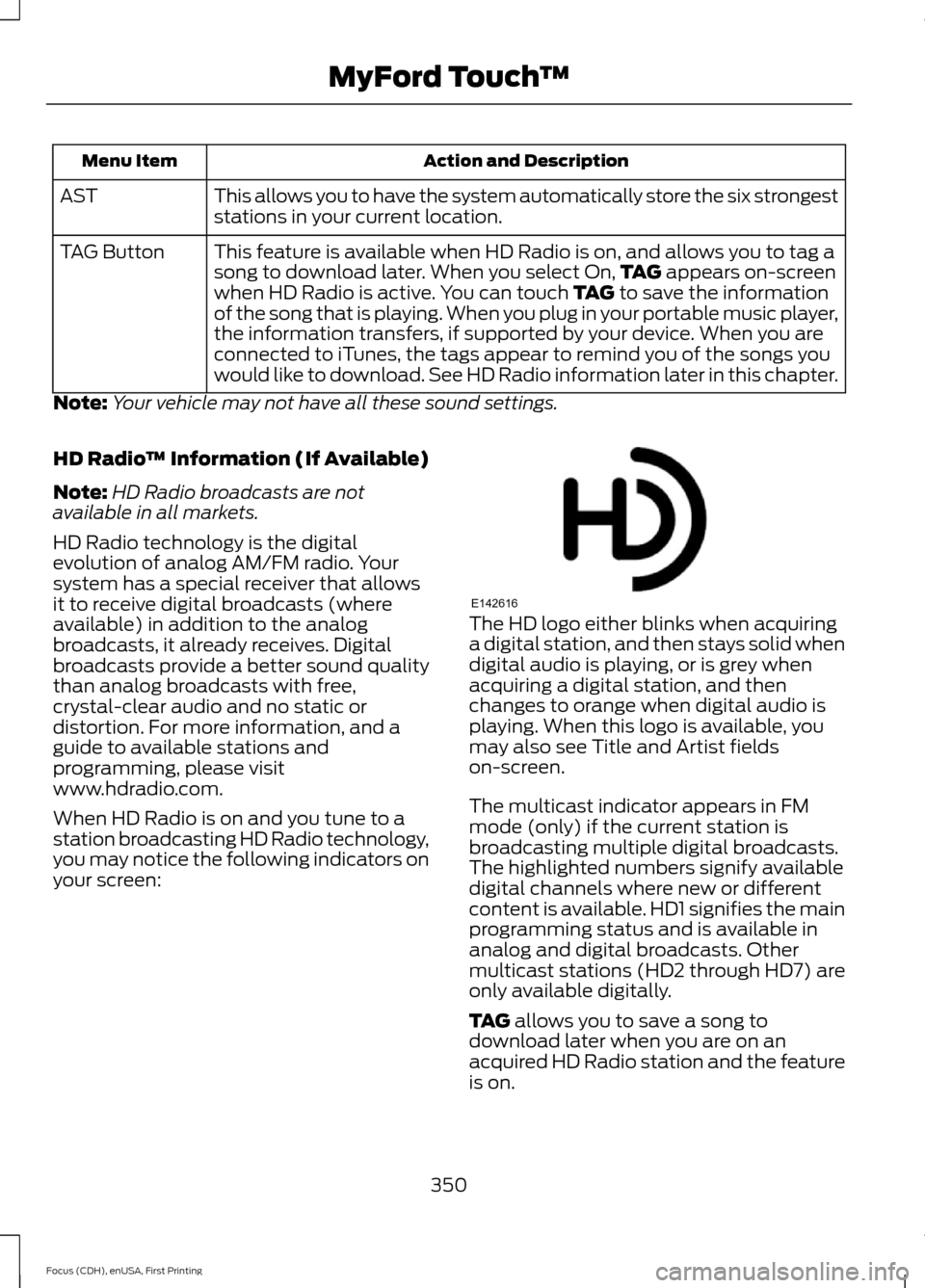
your screen: The HD logo either blinks when acquiring
a digital station, and then stays solid when
digital audio is playing, or is grey when
acquiring a digital station, and then
changes to orange when digital audio is
playing. When this logo is available, you
may also see Title and Artist fields
on-screen.
The multicast indicator appears in FM
mode (only) if the current station is
broadcasting multiple digital broadcasts.
The highlighted numbers signify available
digital channels where new or different
content is available. HD1 signifies the main
programming status and is available in
analog and digital broadcasts. Other
multicast stations (HD2 through HD7) are
only available digitally.
TAG
allows you to save a song to
download later when you are on an
acquired HD Radio station and the feature
is on.
350
Focus (CDH), enUSA, First Printing MyFord Touch
™E142616
Page 354 of 453
To turn the feature on and use it, select AM or FM and the select:
Action and Description
Message
Options
TAG Button When you hear a song you, select:
On
The system automatically saves the song's information and transfers
it to your portable music player (if supported) when you connect it to
the system. The system automatically transfers the tag to your player
(if already connected) and a pop-up confirms the transfer.
TAG
When you access iTunes with your portable music player, the tags
appear to you as a reminder. The system allows you to tag up to
approximately 100 songs. For a list of devices that support tagging, see
www.SYNCMyRide.com, www.SYNCMyRide.ca or www.syncmaroute.ca
When HD Radio broadcasts are active, you can access the following functions: Action and Description
Message
Allows you to hear a brief sampling of all available stations. This feature
still works when HD Radio reception is on, although it does not scan for
HD2-HD7 channels. You may see the HD logo appear if the station has
a digital broadcast.
Scan
Allows you to save an active channel as a memory preset. Touch and
hold a memory preset slot until the sound returns. There is a brief mute
while the radio saves the station. Sound returns when finished. When
switching to an HD2 or HD3 memory preset, the sound mutes before
the digital audio plays, because the system has to reacquire the digital
signal.
Presets
Note: As with any saved radio station, you cannot access the saved station if your vehicle
is outside the station ’s reception area.
351
Focus (CDH), enUSA, First Printing MyFord Touch
™
Page 359 of 453
SIRIUS Satellite Radio Information
Note:
SIRIUS reserves the unrestricted right
to change, rearrange, add or delete
programming including canceling, moving
or adding particular channels, and its prices,
at any time, with or without notice to you.
Ford Motor Company shall not be
responsible for any such programming
changes. SIRIUS satellite radio is a
subscription-based satellite radio service
that broadcasts a variety of music, sports,
news, weather, traffic and entertainment
programming. Your factory-installed
SIRIUS satellite radio system includes
hardware and a limited subscription term
that begins on the date of sale or lease of
your vehicle. See an authorized dealer for
availability.
For more information on extended
subscription terms (a service fee is
required), the online media player and a
list of SIRIUS satellite radio channels, and
other features, please visit
www.siriusxm.com in the United States,
www.sirius.ca in Canada, or call SIRIUS at
1-888-539-7474.
Note:
This receiver includes the eCos
real-time operating system. eCos is
published under the eCos License.
Satellite Radio Electronic Serial Number
(ESN)
You need your ESN to activate, modify or
track your satellite radio account. The ESN
is on the System Information Screen (SR
ESN:XXXXXXXXXXXX).
To access your ESN, touch the bottom
left corner of the touchscreen, then
select: Message
SIRIUS
Options
SIRIUS Satellite Radio Reception Factors and Troubleshooting Potential reception issues
For optimal reception performance, keep the antenna clear of snow
and ice build-up and keep luggage and other materials as far away
from the antenna as possible.
Antenna
obstructions
Hills, mountains, tall buildings, bridges, tunnels, freeway overpasses,
parking garages, dense tree foliage and thunderstorms can interfere
with your reception.
Terrain
When you pass a ground-based broadcast-repeating tower, a stronger
signal may overtake a weaker one and the audio system may mute.
Station over-
load
Your display may show ACQUIRING... to indicate the interference and
the audio system may mute.
Satellite radio
signal interfer-
ence
356
Focus (CDH), enUSA, First Printing MyFord Touch
™E142593
Page 362 of 453
CD Voice Commands
If you are listening to a CD, press
the voice button on the steering
wheel controls. When prompted,
say any of the following commands.
If you are not listening to a CD, press
the voice button and, after the tone,
say: Voice command
CD Player
When listening to a CD you can say
many commands. Following are a few
examples of what you can say. Voice command
Play
Pause
Next Track
Previous Track
Help
SD Card Slot and USB Port
The SD card slot and USB port are located
in the Media Hub. See Media Hub (page
289).
SD Card
Note: Your SD card slot is spring-loaded.
To remove the SD card, press the card in
and the system ejects it. Do not attempt to
pull the card to remove it as this could cause
damage.
Note: The navigation system also uses this
card slot. See
Navigation (page 383). To access and play music from your device,
press the lower left corner of the
touchscreen.
SD logo is a trademark of SD-3C, LLC.
USB Port
To access and play music from your device,
press the lower left corner of the
touchscreen.
359
Focus (CDH), enUSA, First Printing MyFord Touch
™E142599 E176638 E142620 E176639
Page 363 of 453
This feature allows you to plug in media
playing devices, memory sticks, flash drives
or thumb drives, and charge devices if they
support this feature.
Playing Music from Your Device
Note:
The system is capable of indexing up
to 30,000 songs. Insert your device and select:
Action and Description
Message
Once the system recognizes your USB or SD card you can then select
from the following options:
USB
SD Card
This feature replays the currently playing song or album.
Repeat
Touch this button to play music on the selected album or folder in
random order.
Shuffle
This feature allows you to choose music similar to what is currently
playing.
Similar Music
Touch this button to see disc information, for example current track,
artist name, album and genre.
More Info
Touch this button to view and adjust various media settings.
Options
Sound
You can adjust the settings for: Action and Description
Message
Bass
Sound Settings
Midrange
Treble
Set Balance and Fade
DSP
EQ Mode
Speed Compensated Volume
Allows you to select more settings, which is under Media Player. See
Settings (page 335).
Media Player
Settings
360
Focus (CDH), enUSA, First Printing MyFord Touch
™E142611
Page 365 of 453
Voice command
Say the name of what you would like to listen to such as a band, song, album or playlist.
Play
Similar Music
Help
Supported Media Players, Formats
and Metadata Information
SYNC is capable of hosting nearly any
digital media player, including iPod,
Zune ™, plays from device players, and
most USB drives. Supported audio formats
include MP3, WMA, WAV and AAC.
It is also able to organize your indexed
media from your playing device by
metadata tags. Metadata tags, which are
descriptive software identifiers embedded
in the media files, provide information
about the file.
If your indexed media files contain no
information embedded in these metadata
tags, SYNC may classify the empty
metadata tags as unknown.
Bluetooth Audio
The system allows you to stream audio
over your vehicle's speakers from your
connected, Bluetooth-enabled cell phone. To access, press the lower left corner
on the touchscreen, then select:
Message
BT Stereo
Bluetooth Audio Voice Commands The voice system allows you to control
your media with a simple voice command.
For example to change songs, press the
voice button and follow the system
prompts.
Line In
WARNINGS
Driving while distracted can result in
loss of vehicle control, crash and
injury. We strongly recommend that
you use extreme caution when using any
device that may take your focus off the
road. Your primary responsibility is the safe
operation of your vehicle. We recommend
against the use of any handheld device
while driving and encourage the use of
voice-operated systems when possible.
Make sure you are aware of all applicable
local laws that may affect the use of
electronic devices while driving. For safety reasons, do not connect
or adjust the settings on your
portable music player while your
vehicle is moving.
362
Focus (CDH), enUSA, First Printing MyFord Touch
™E142611 E142599