2015 FORD FIESTA audio
[x] Cancel search: audioPage 288 of 423

SYNC Services quick tips
You can personalize your Services feature to provide
quicker access to your most used or favorite information.
You can save address points such as work or home. You
can also save favorite information like sports teams or a
news category. You can learn more about personalization
by logging onto www.SYNCMyRide.com.
Personalizing
Press the voice button at any time (while connected to
SYNC Services) to interrupt a voice prompt or an audio
clip (such as a sports report) and say your voice command.
Push to interrupt
Your subscription is associated with your Bluetooth-
enabled cellular phone number, not your VIN (Vehicle
Identification Number). You can pair and connect your
phone to any vehicle equipped with SYNC Services and
continue enjoying your personalized services.
Portable
You can even access your account outside your vehicle.
Just use the number on your phone's call history. Traffic
and Directions features do not function properly but
information services and the 411 connect and text message
features are available.
SYNC AppLink
Note: This feature is only available in the
United States.
Note: You must pair and connect your
smartphone to SYNC to access AppLink.
Note: iPhone users need to connect the
phone to the USB port in order to start the
application. We recommend you lock your
iPhone after starting an application.
Note: The AppLink feature is not available
if your vehicle is equipped with the MyFord
Touch or MyLincoln Touch system.
Note: Depending on your display type, you
can access AppLink from the media menu,
the phone menu, or by using voice
commands. Once an app is running through
AppLink, you can control main features of
the app through voice commands and
steering wheel controls. To Access Using the Phone Menu
1. Press the phone button to access the
SYNC phone menu on-screen.
2. Scroll to Mobile Apps and press OK to access a list of available applications.
3. Scroll through the list of available applications and press OK to select a
particular app.
4. Once an app is running through SYNC,
you can access an app ’s menu by
pressing the MENU button to first
access the SYNC menu.
5. Select "SYNC-Media" by pressing
OK.
6. Scroll until "
then press
OK. From here, you can
access an application's features, such
as Thumbs up and Thumbs down. For
more information, please visit
www.SYNCMyRide.com.
285
Fiesta (CCT), enUSA, Second Printing SYNC™
Page 289 of 423

To Access Using the Media Menu
1. Press the AUX button on the center
console.
2. Press
MENU to access the SYNC
menu.
3. Select "SYNC-Media" by pressing
OK.
4. Scroll to Mobile Apps and press OK to
access a list of available applications.
5. Scroll through the list of available applications and press
OK to select a
particular app.
6. Once an app is running through SYNC,
you can access an app ’s menu by
pressing the
MENU button to first
access the SYNC menu.
7. Select "SYNC-Media" by pressing
OK.
8. Scroll until "
then press
OK. From here, you can
access an application's features, such
as Thumbs up and Thumbs down. For
more information, please visit
www.SYNCMyRide.com.
To Access Using Voice Commands
1. Press the voice icon.
2. When prompted, say "Mobile Apps".
3. Say the name of the application after the tone.
4. The app should start. While an app is running through SYNC, you can press
the voice button and speak commands
specific to the app, such as "Play
Station Quickmix". Say "Help" to
discover available voice commands. USING SYNC™ WITH YOUR
MEDIA PLAYER
You can access and play music from your
digital music player over your vehicle's
speaker system using the system's media
menu or voice commands. You can also
sort and play your music by specific
categories, for example artist and album.
Note:
The system is capable of indexing up
to 6,000 songs.
SYNC is capable of hosting nearly any
digital media player including: iPod®,
Zune ™, plays from device players, and
most USB drives. SYNC also supports the
following audio formats MP3, WMA, WAV
and ACC.
Connecting Your Digital Media
Player to the USB Port
Note: If your digital media player has a
power switch, make sure you switch it on
before plugging it in.
To Connect Using Voice Commands
Plug the device into the USB port. See
USB Port
(page 263). 286
Fiesta (CCT), enUSA, Second Printing SYNC™E142599
Page 293 of 423
![FORD FIESTA 2015 6.G Owners Manual Action and Description
Voice command
The system searches for specific track information from the
music indexed through the USB port.
play [song | track | title |
file]
The system searches for specific](/manual-img/11/5092/w960_5092-292.png "FORD FIESTA 2015 6.G Owners Manual Action and Description
Voice command
The system searches for specific track information from the
music indexed through the USB port.
play [song | track | title |
file]
The system searches for specific")
Action and Description
Voice command
The system searches for specific track information from the
music indexed through the USB port.
play [song | track | title |
file]
The system searches for specific album information from the
music indexed through the USB port.
play [album] [by [artist]]
This allows you to make your previous command more
specific. For example, if you asked to search and play all music
by a certain artist, you could then say, refine album and
choose a specific album from the list to view. If you then
select Play, the system only plays music from that specific
album.
Refine
* Indexing times can vary from device to device and with regard to the number of songs
the system needs to process.
Bluetooth Audio Command Guide
Press the voice button and when
prompted say any of the following: Voice command
[Phone] Connections | [Media] Connec-
tions | [Bluetooth] Connections
pause
play
[play] next track
[play] previous track Media Menu Features
The media menu allows you to select your
media source, how to play your music, for
example by artist, genre, shuffle or repeat,
and to add, connect or delete devices.
Press the AUX button, then scroll to: Action and Description
Message
Press the
OK button to enter the media menu.
Menu
Select one of the following:
Play your music by artist, album, genre, playlist, track, similar
music or play all music. You can also choose to Explore USB
to view the supported digital music files on your playing
device.
Menu
290
Fiesta (CCT), enUSA, Second Printing SYNC™
Page 294 of 423
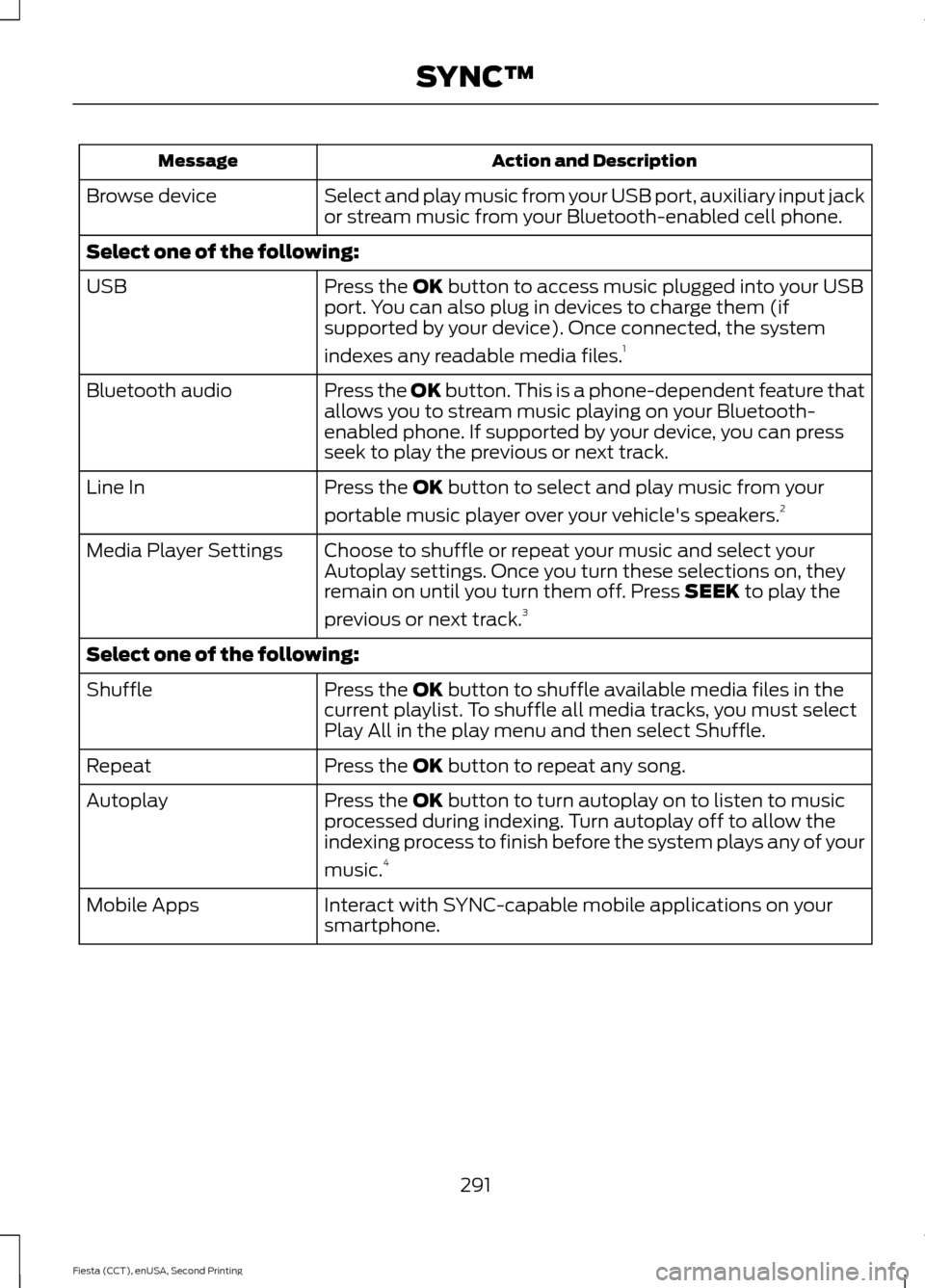
Action and Description
Message
Select and play music from your USB port, auxiliary input jack
or stream music from your Bluetooth-enabled cell phone.
Browse device
Select one of the following:
Press the OK button to access music plugged into your USB
port. You can also plug in devices to charge them (if
supported by your device). Once connected, the system
indexes any readable media files. 1
USB
Press the OK button. This is a phone-dependent feature that
allows you to stream music playing on your Bluetooth-
enabled phone. If supported by your device, you can press
seek to play the previous or next track.
Bluetooth audio
Press the
OK button to select and play music from your
portable music player over your vehicle's speakers. 2
Line In
Choose to shuffle or repeat your music and select your
Autoplay settings. Once you turn these selections on, they
remain on until you turn them off. Press
SEEK to play the
previous or next track. 3
Media Player Settings
Select one of the following:
Press the
OK button to shuffle available media files in the
current playlist. To shuffle all media tracks, you must select
Play All in the play menu and then select Shuffle.
Shuffle
Press the
OK button to repeat any song.
Repeat
Press the
OK button to turn autoplay on to listen to music
processed during indexing. Turn autoplay off to allow the
indexing process to finish before the system plays any of your
music. 4
Autoplay
Interact with SYNC-capable mobile applications on your
smartphone.
Mobile Apps
291
Fiesta (CCT), enUSA, Second Printing SYNC™
Page 300 of 423
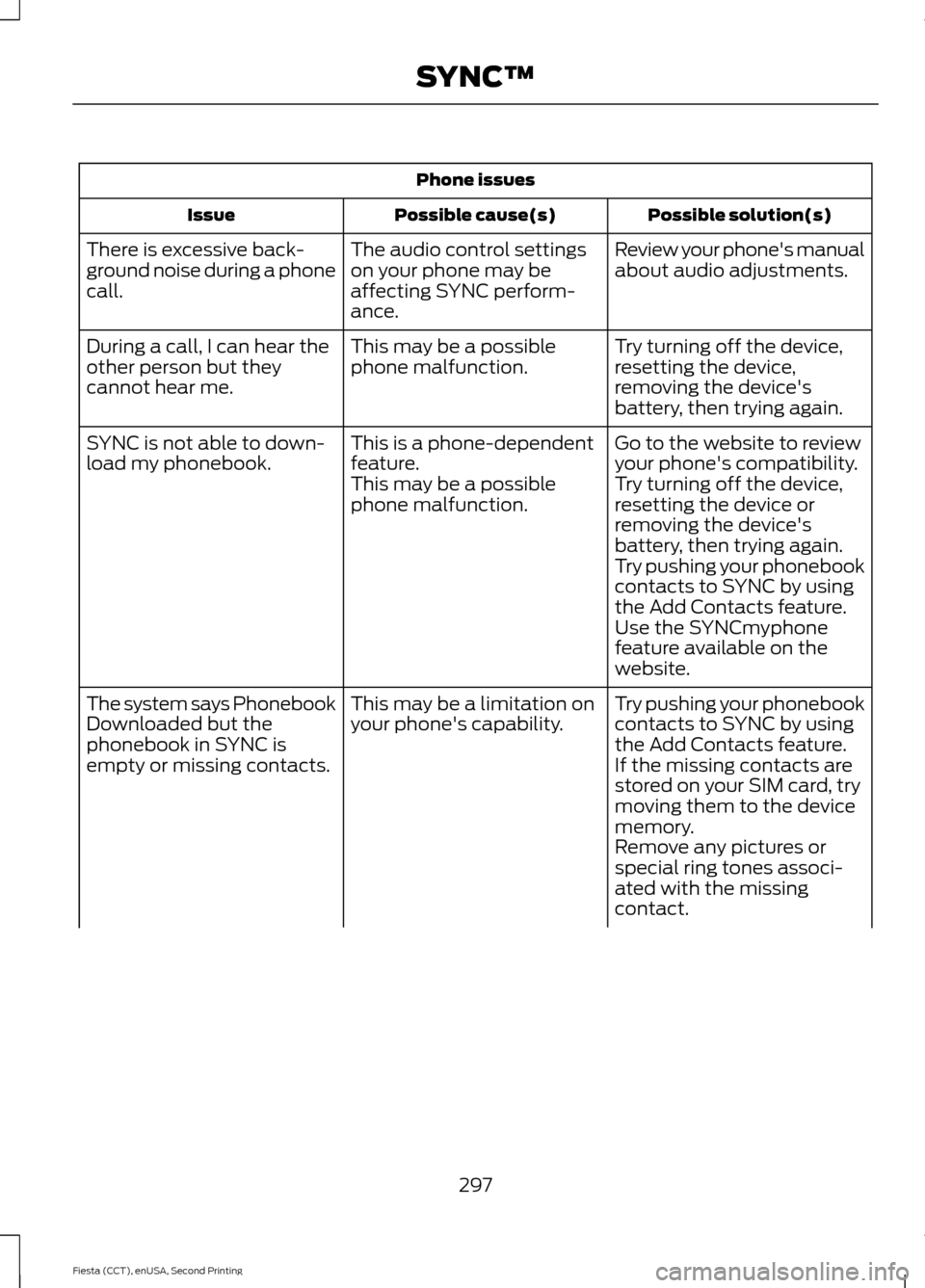
Phone issues
Possible solution(s)
Possible cause(s)
Issue
Review your phone's manual
about audio adjustments.
The audio control settings
on your phone may be
affecting SYNC perform-
ance.
There is excessive back-
ground noise during a phone
call.
Try turning off the device,
resetting the device,
removing the device's
battery, then trying again.
This may be a possible
phone malfunction.
During a call, I can hear the
other person but they
cannot hear me.
Go to the website to review
your phone's compatibility.
This is a phone-dependent
feature.
SYNC is not able to down-
load my phonebook.
Try turning off the device,
resetting the device or
removing the device's
battery, then trying again.
This may be a possible
phone malfunction.
Try pushing your phonebook
contacts to SYNC by using
the Add Contacts feature.
Use the SYNCmyphone
feature available on the
website.
Try pushing your phonebook
contacts to SYNC by using
the Add Contacts feature.
This may be a limitation on
your phone's capability.
The system says Phonebook
Downloaded but the
phonebook in SYNC is
empty or missing contacts.
If the missing contacts are
stored on your SIM card, try
moving them to the device
memory.
Remove any pictures or
special ring tones associ-
ated with the missing
contact.
297
Fiesta (CCT), enUSA, Second Printing SYNC™
Page 302 of 423
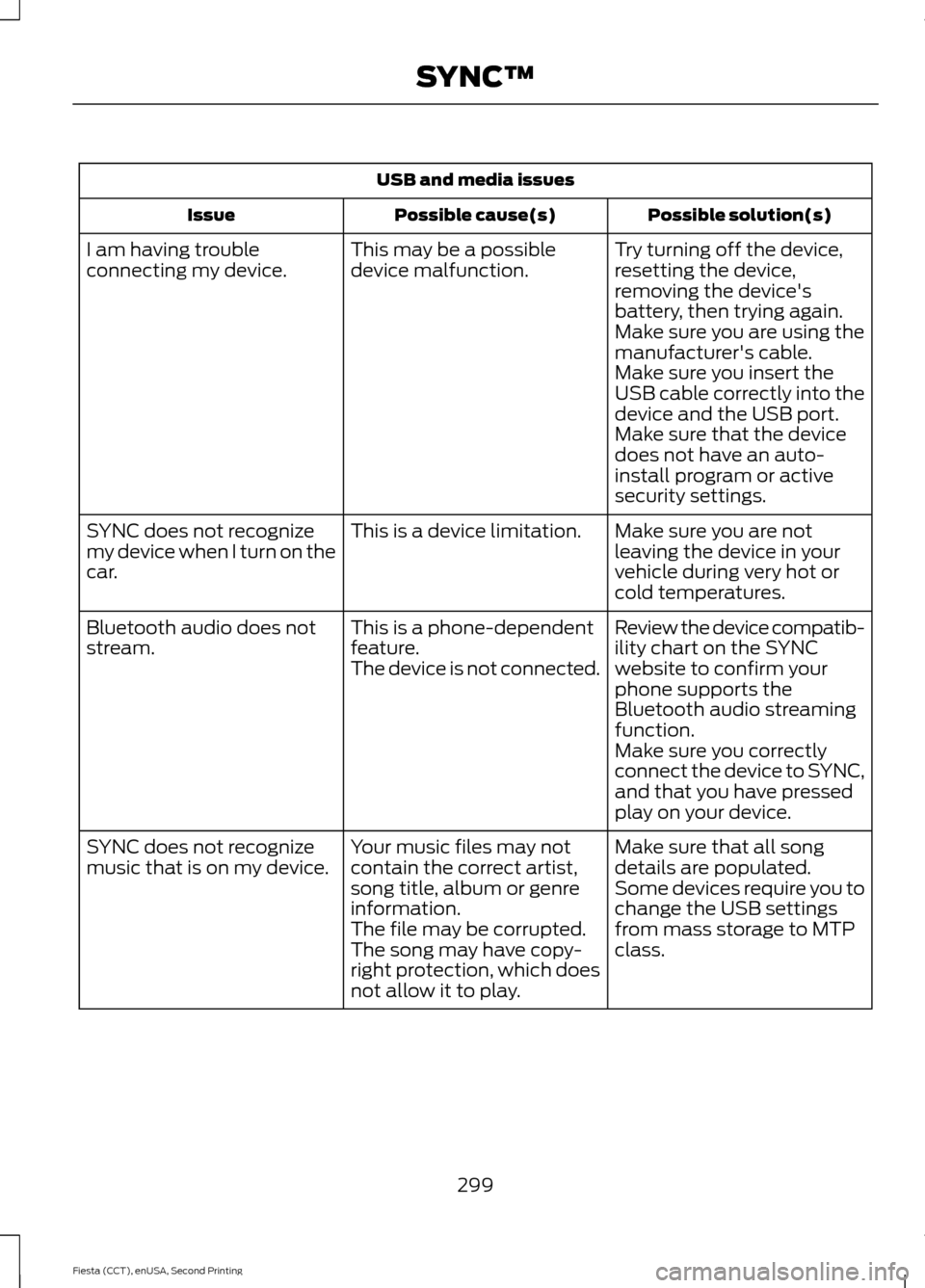
USB and media issues
Possible solution(s)
Possible cause(s)
Issue
Try turning off the device,
resetting the device,
removing the device's
battery, then trying again.
This may be a possible
device malfunction.
I am having trouble
connecting my device.
Make sure you are using the
manufacturer's cable.
Make sure you insert the
USB cable correctly into the
device and the USB port.
Make sure that the device
does not have an auto-
install program or active
security settings.
Make sure you are not
leaving the device in your
vehicle during very hot or
cold temperatures.
This is a device limitation.
SYNC does not recognize
my device when I turn on the
car.
Review the device compatib-
ility chart on the SYNC
website to confirm your
phone supports the
Bluetooth audio streaming
function.
This is a phone-dependent
feature.
The device is not connected.
Bluetooth audio does not
stream.
Make sure you correctly
connect the device to SYNC,
and that you have pressed
play on your device.
Make sure that all song
details are populated.
Your music files may not
contain the correct artist,
song title, album or genre
information.
SYNC does not recognize
music that is on my device.
Some devices require you to
change the USB settings
from mass storage to MTP
class.
The file may be corrupted.
The song may have copy-
right protection, which does
not allow it to play.
299
Fiesta (CCT), enUSA, Second Printing SYNC™
Page 311 of 423
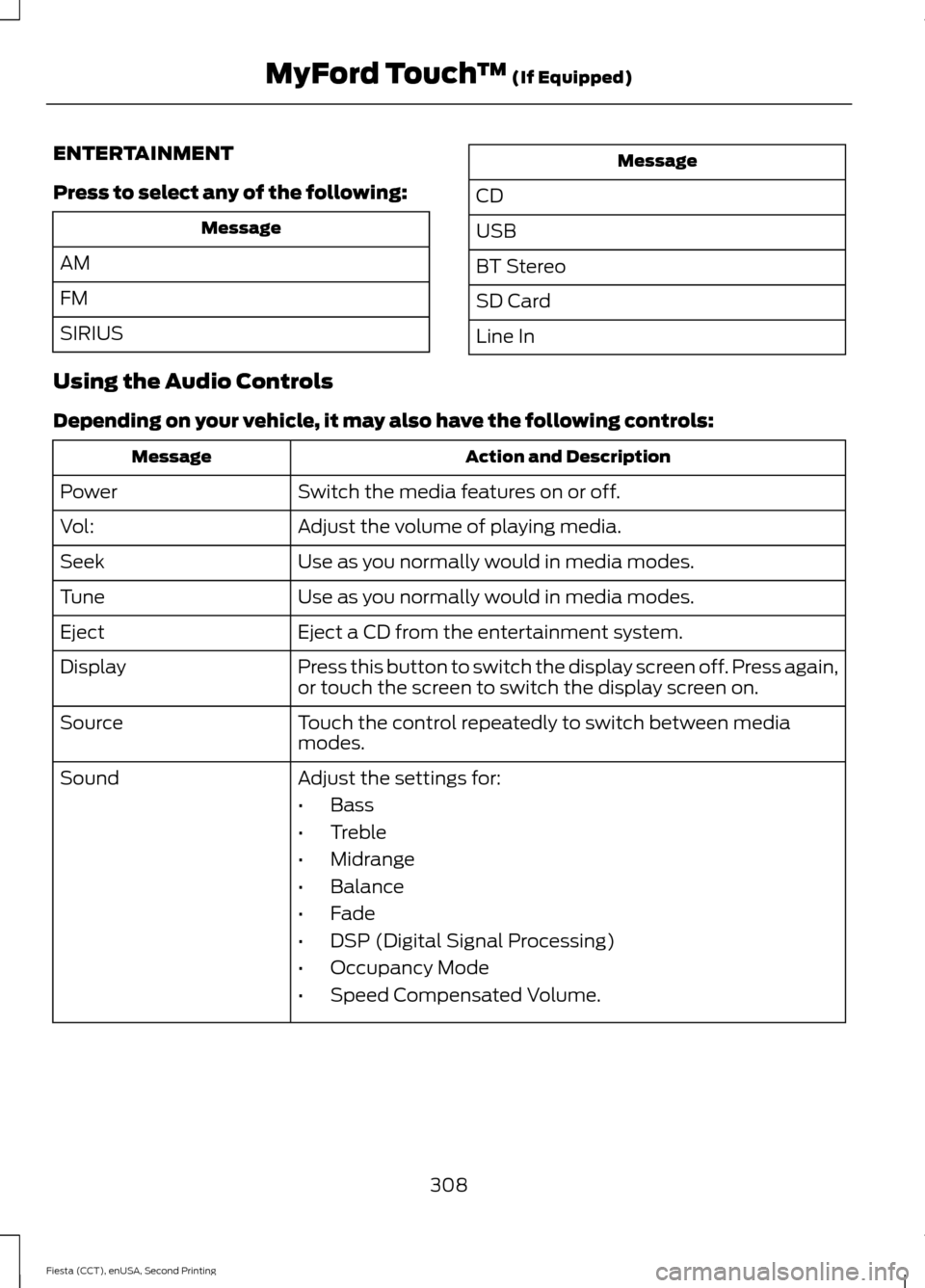
ENTERTAINMENT
Press to select any of the following:
Message
AM
FM
SIRIUS Message
CD
USB
BT Stereo
SD Card
Line In
Using the Audio Controls
Depending on your vehicle, it may also have the following controls: Action and Description
Message
Switch the media features on or off.
Power
Adjust the volume of playing media.
Vol:
Use as you normally would in media modes.
Seek
Use as you normally would in media modes.
Tune
Eject a CD from the entertainment system.
Eject
Press this button to switch the display screen off. Press again,
or touch the screen to switch the display screen on.
Display
Touch the control repeatedly to switch between media
modes.
Source
Adjust the settings for:
Sound
•Bass
• Treble
• Midrange
• Balance
• Fade
• DSP (Digital Signal Processing)
• Occupancy Mode
• Speed Compensated Volume.
308
Fiesta (CCT), enUSA, Second Printing MyFord Touch
™ (If Equipped)
Page 316 of 423

Using the touchscreen, press:
Message
Settings
Help
Voice Command List
Using the steering wheel control, press
the voice button and when prompted
say one of the following: Voice Commands
Audio list of commands
Bluetooth audio list of commands
Browse list of commands
CD list of commands
List of commands *
Navigation list of commands
Phone list of commands
Radio list of commands
SD card list of commands
*
Sirius satellite list of commands
*
Travel link list of commands
USB list of commands
Voice instructions list of commands
Voice settings list of commands
voice settings help
* These voice commands are only available
when your vehicle is fitted with a
navigation system, and the navigation
system SD card is in the SD card slot. Voice Command Settings
These allow you to customize the level of
system interaction, help and feedback. The
system defaults to standard interaction
that uses candidate lists and confirmation
prompts as these provide the highest level
of guidance and feedback.
•
Interaction Mode: Novice mode
provides detailed interaction and
guidance. Advanced mode has less
audible interaction and more tone
prompts.
• Confirmation Prompts:
The system
uses these short questions to confirm
your voice command. If turned off, the
system simply makes a best guess as
to what you requested. The system
may still occasionally ask you to
confirm a voice command.
• Phone and Media Candidate Lists:
Candidate lists are lists of possible
results from your voice commands. The
system creates these lists when it has
the same confidence level of several
options based on your voice command.
Using the touchscreen, press the
settings icon, then press: Message
Voice settings
Voice Control
Select from the following:
Interaction Mode
Confirmation Prompts
Media Candidate Lists
Phone Candidate Lists
Voice Control Volume
313
Fiesta (CCT), enUSA, Second Printing MyFord Touch
™
(If Equipped)