2015 FORD F250 SUPER DUTY ad blue
[x] Cancel search: ad bluePage 335 of 470

You can:When you select:
Note: The system attempts to automatically re-downloadyour phonebook and call history each time your phoneconnects to SYNC (if the auto download feature is on andyour Bluetooth-enabled cellular phone supports thisfeature).
Access and call any contacts in your previously down-loaded phonebook.Phonebook1,2
1. Press OK to confirm and enter. If your phonebook hasfewer than 255 listings, they appear alphabetically in flatfile mode. If there are more than 255 entries, the systemorganizes them into alphabetical categories.2. Scroll until the desired contact appears, then press OK.3. Press OK or the phone button.
Send, download and delete text messages.Text Message1
View your phone's status, set ring tones, select yourmessage notification, change phone book entries andautomatically download your cellular phone among otherfeatures.
Phone Settings 1
Access the SYNC Services portal where you can requestvarious types of information, traffic reports and directions.SYNC Services3
Place an emergency call to a 911 operator for you after anaccident, when used properly.911 Assist4
Create and receive a diagnostic report card on your vehicle.Vehicle Health Report3
Interact with SYNC-capable mobile applications on yoursmartphone.Mobile Apps3
Access Bluetooth Devices menu listings (Add, Connect,Set as Primary, On and Off, Delete) as well as Advancedmenu listings (prompts, languages, defaults, master reset,install application and system information).
System Settings
Exit the phone menu by pressing OK.Exit Phone Menu
1 This is a phone-dependent feature.2 This is a phone-dependent and speed-dependent feature.3 This is an optional feature and available in the United States only.4 This is an optional feature and available in the United States and Canada only.
332
Super Duty (), enUSA
SYNC™ (If Equipped)
Page 336 of 470
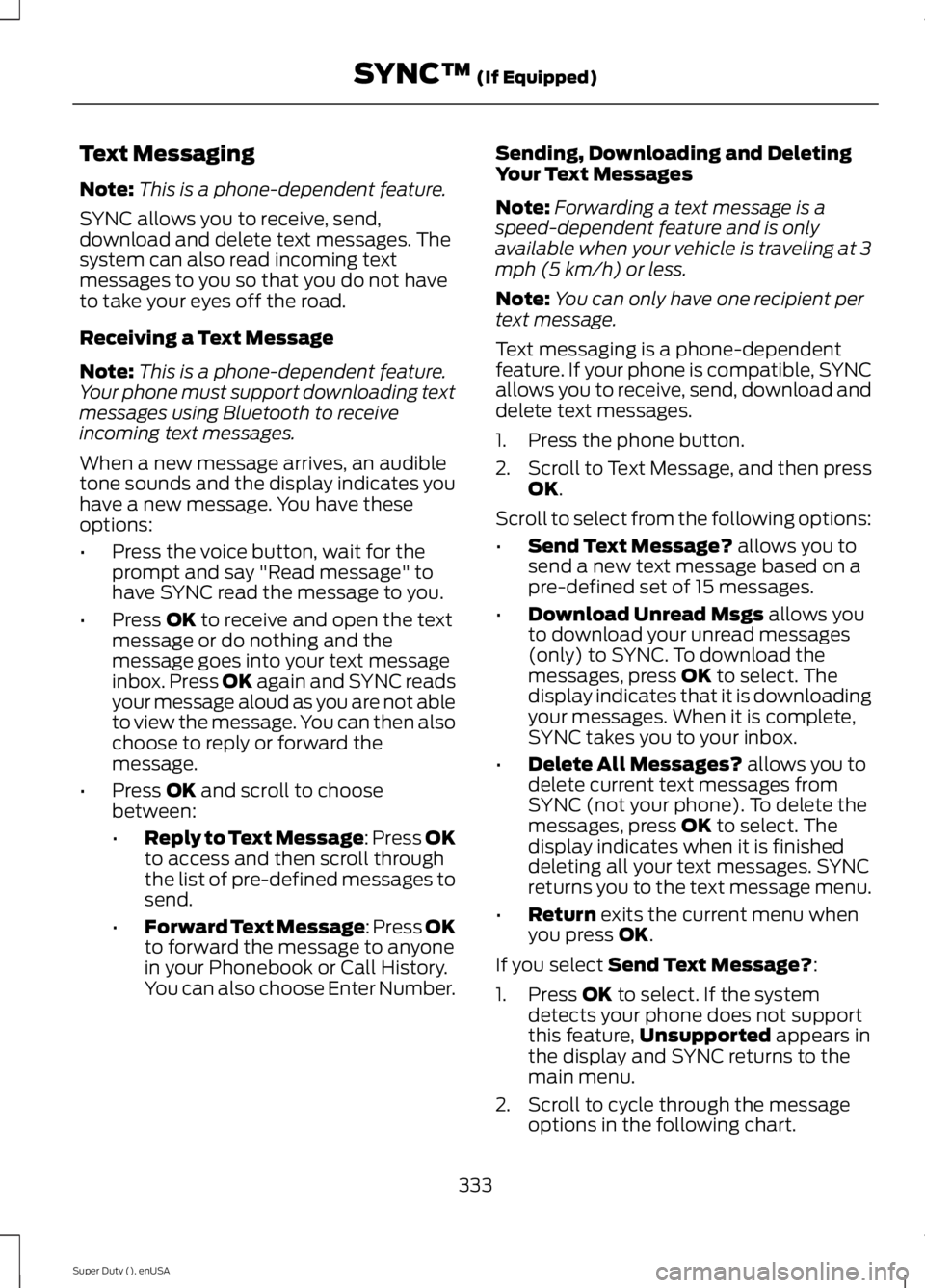
Text Messaging
Note:This is a phone-dependent feature.
SYNC allows you to receive, send,download and delete text messages. Thesystem can also read incoming textmessages to you so that you do not haveto take your eyes off the road.
Receiving a Text Message
Note:This is a phone-dependent feature.Your phone must support downloading textmessages using Bluetooth to receiveincoming text messages.
When a new message arrives, an audibletone sounds and the display indicates youhave a new message. You have theseoptions:
•Press the voice button, wait for theprompt and say "Read message" tohave SYNC read the message to you.
•Press OK to receive and open the textmessage or do nothing and themessage goes into your text messageinbox. Press OK again and SYNC readsyour message aloud as you are not ableto view the message. You can then alsochoose to reply or forward themessage.
•Press OK and scroll to choosebetween:
•Reply to Text Message: Press OKto access and then scroll throughthe list of pre-defined messages tosend.
•Forward Text Message: Press OKto forward the message to anyonein your Phonebook or Call History.You can also choose Enter Number.
Sending, Downloading and DeletingYour Text Messages
Note:Forwarding a text message is aspeed-dependent feature and is onlyavailable when your vehicle is traveling at 3mph (5 km/h) or less.
Note:You can only have one recipient pertext message.
Text messaging is a phone-dependentfeature. If your phone is compatible, SYNCallows you to receive, send, download anddelete text messages.
1. Press the phone button.
2.Scroll to Text Message, and then pressOK.
Scroll to select from the following options:
•Send Text Message? allows you tosend a new text message based on apre-defined set of 15 messages.
•Download Unread Msgs allows youto download your unread messages(only) to SYNC. To download themessages, press OK to select. Thedisplay indicates that it is downloadingyour messages. When it is complete,SYNC takes you to your inbox.
•Delete All Messages? allows you todelete current text messages fromSYNC (not your phone). To delete themessages, press OK to select. Thedisplay indicates when it is finisheddeleting all your text messages. SYNCreturns you to the text message menu.
•Return exits the current menu whenyou press OK.
If you select Send Text Message?:
1. Press OK to select. If the systemdetects your phone does not supportthis feature,Unsupported appears inthe display and SYNC returns to themain menu.
2. Scroll to cycle through the messageoptions in the following chart.
333
Super Duty (), enUSA
SYNC™ (If Equipped)
Page 338 of 470
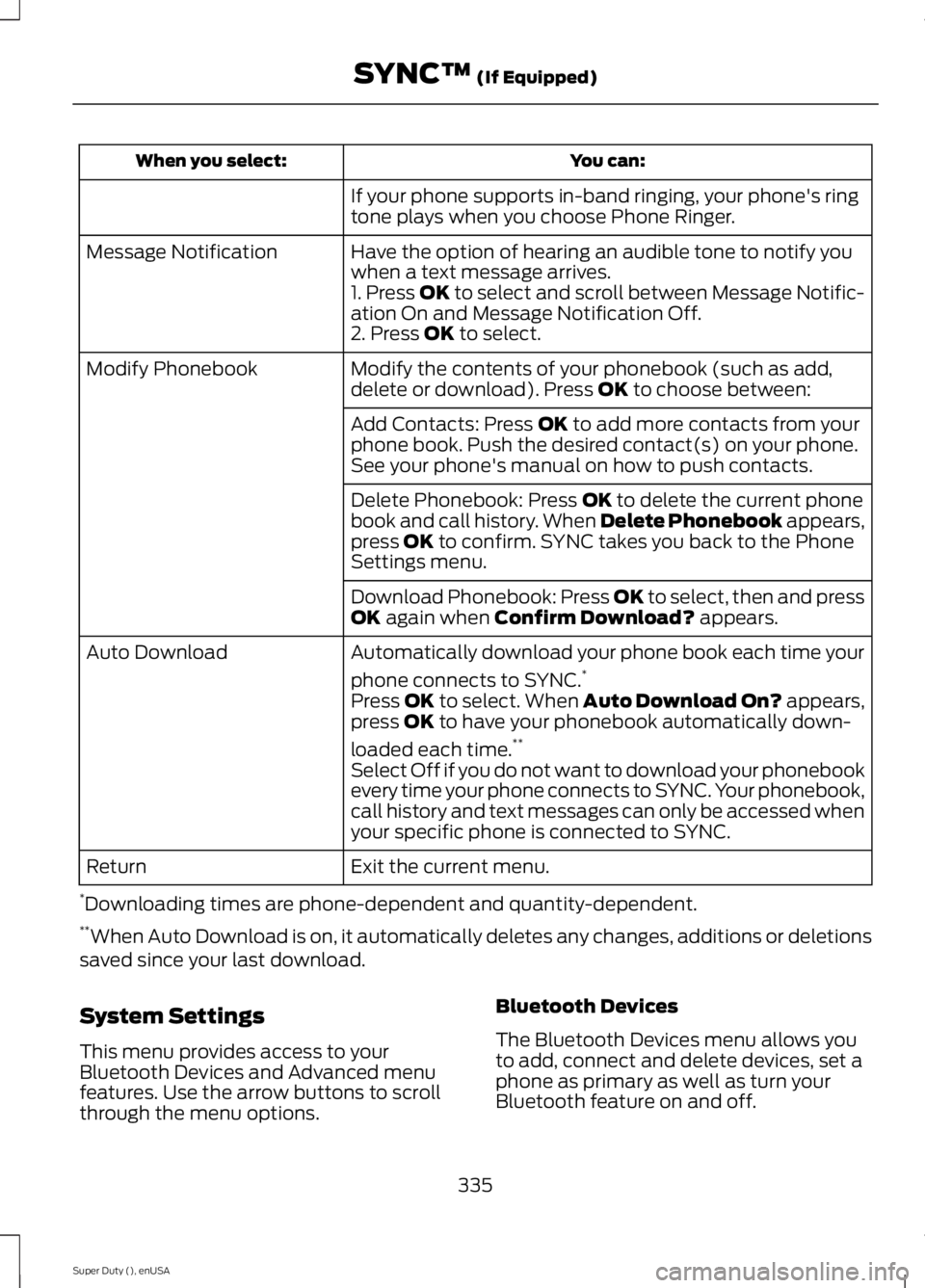
You can:When you select:
If your phone supports in-band ringing, your phone's ringtone plays when you choose Phone Ringer.
Have the option of hearing an audible tone to notify youwhen a text message arrives.Message Notification
1. Press OK to select and scroll between Message Notific-ation On and Message Notification Off.2. Press OK to select.
Modify the contents of your phonebook (such as add,delete or download). Press OK to choose between:Modify Phonebook
Add Contacts: Press OK to add more contacts from yourphone book. Push the desired contact(s) on your phone.See your phone's manual on how to push contacts.
Delete Phonebook: Press OK to delete the current phonebook and call history. When Delete Phonebook appears,press OK to confirm. SYNC takes you back to the PhoneSettings menu.
Download Phonebook: Press OK to select, then and pressOK again when Confirm Download? appears.
Automatically download your phone book each time your
phone connects to SYNC.*Auto Download
Press OK to select. When Auto Download On? appears,press OK to have your phonebook automatically down-
loaded each time.**
Select Off if you do not want to download your phonebookevery time your phone connects to SYNC. Your phonebook,call history and text messages can only be accessed whenyour specific phone is connected to SYNC.
Exit the current menu.Return
*Downloading times are phone-dependent and quantity-dependent.**When Auto Download is on, it automatically deletes any changes, additions or deletionssaved since your last download.
System Settings
This menu provides access to yourBluetooth Devices and Advanced menufeatures. Use the arrow buttons to scrollthrough the menu options.
Bluetooth Devices
The Bluetooth Devices menu allows youto add, connect and delete devices, set aphone as primary as well as turn yourBluetooth feature on and off.
335
Super Duty (), enUSA
SYNC™ (If Equipped)
Page 339 of 470
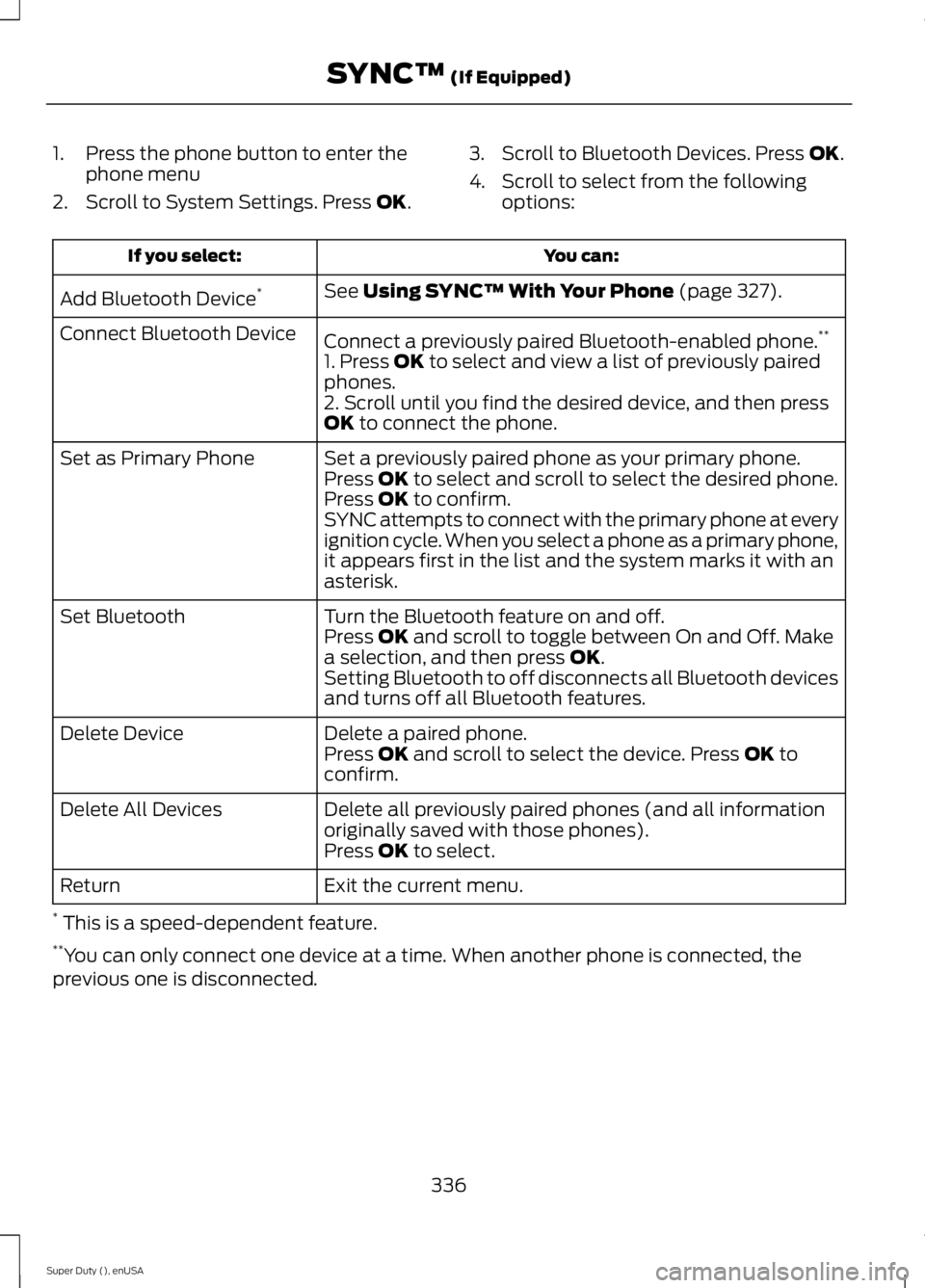
1. Press the phone button to enter thephone menu
2. Scroll to System Settings. Press OK.
3. Scroll to Bluetooth Devices. Press OK.
4. Scroll to select from the followingoptions:
You can:If you select:
See Using SYNC™ With Your Phone (page 327).Add Bluetooth Device*
Connect a previously paired Bluetooth-enabled phone.**Connect Bluetooth Device
1. Press OK to select and view a list of previously pairedphones.2. Scroll until you find the desired device, and then pressOK to connect the phone.
Set a previously paired phone as your primary phone.Set as Primary PhonePress OK to select and scroll to select the desired phone.Press OK to confirm.SYNC attempts to connect with the primary phone at everyignition cycle. When you select a phone as a primary phone,it appears first in the list and the system marks it with anasterisk.
Turn the Bluetooth feature on and off.Set BluetoothPress OK and scroll to toggle between On and Off. Makea selection, and then press OK.Setting Bluetooth to off disconnects all Bluetooth devicesand turns off all Bluetooth features.
Delete a paired phone.Delete DevicePress OK and scroll to select the device. Press OK toconfirm.
Delete all previously paired phones (and all informationoriginally saved with those phones).Delete All Devices
Press OK to select.
Exit the current menu.Return
* This is a speed-dependent feature.**You can only connect one device at a time. When another phone is connected, theprevious one is disconnected.
336
Super Duty (), enUSA
SYNC™ (If Equipped)
Page 341 of 470

You can:If you select:
Press OK to select.
This is a Bluetooth component, which can further helpyour phone with the exchange of text messages.MAP Profile
Exit the current menu.Return
SYNC™ APPLICATIONS AND
SERVICES (IF EQUIPPED)
In order for the following features to work,your cellular phone must be compatiblewith SYNC. To check your phone'scompatibility, visit www.SYNCMyRide.com,www.SYNCMyRide.ca orwww.syncmaroute.ca.
•SYNC Services*: Provides access totraffic, directions and information suchas travel, horoscopes, stock prices andmore.
•911 Assist: Can alert 911 in the event ofan emergency.
•Vehicle Health Report*: Provides adiagnostic and maintenance reportcard of your vehicle.*This is an optional feature and availablein the United States only.
911 Assist
WARNINGS
Unless the 911 Assist setting is set onbefore a crash, the system will notdial for help which could delayresponse time, potentially increasing therisk of serious injury or death after a crash.
WARNINGS
Do not wait for 911 Assist to make anemergency call if you can do ityourself. Dial emergency servicesimmediately to avoid delayed responsetime which could increase the risk ofserious injury or death after a crash. If youdo not hear 911 Assist within five secondsof the crash, the system or phone may bedamaged or non-functional.
Always place your phone in a securelocation in your vehicle so it does notbecome a projectile or get damagedin a crash. Failure to do so may causeserious injury to someone or damage thephone which could prevent 911 Assist fromworking properly.
Note:The SYNC 911 Assist feature must beset on before the incident.
Note:Before setting this feature on, makesure that you read the 911 Assist PrivacyNotice later in this section for importantinformation.
Note:If any user turns 911 Assist on or off,that setting applies for all paired phones. If911 Assist is turned off, either a voicemessage plays or a display message (oricon) comes on (or both) when your vehicleis started after a previously paired phoneconnects.
Note:Every phone operates differently.While SYNC 911 Assist works with mostcellular phones, some may have troubleusing this feature.
338
Super Duty (), enUSA
SYNC™ (If Equipped)
Page 342 of 470
![FORD F250 SUPER DUTY 2015 Owners Manual If a crash deploys an airbag (excludingknee airbags and rear inflatable safetybelts [if equipped]) or activates the fuelpump shut-off, your SYNC-equippedvehicle may be able to contact emergencyservice](/manual-img/11/58785/w960_58785-341.png "FORD F250 SUPER DUTY 2015 Owners Manual If a crash deploys an airbag (excludingknee airbags and rear inflatable safetybelts [if equipped]) or activates the fuelpump shut-off, your SYNC-equippedvehicle may be able to contact emergencyservice")
If a crash deploys an airbag (excludingknee airbags and rear inflatable safetybelts [if equipped]) or activates the fuelpump shut-off, your SYNC-equippedvehicle may be able to contact emergencyservices by dialing 911 through a paired andconnected Bluetooth-enabled phone. Youcan learn more about the 911 Assistfeature, visit www.SYNCMyRide.com,www.SYNCMyRide.ca orwww.syncmaroute.ca.
See Supplementary Restraints System(page 36). Important information aboutairbag deployment is in this chapter.
See Roadside Emergencies (page 212).Important information about the fuel pumpshut-off is in this chapter.
Setting 911 Assist On
1. Press the phone button to enter thephone menu.
2. Scroll to select 911 Assist.
3. Press OK to confirm and enter the 911Assist menu.
4. Scroll to select between On and Off.
5. Press OK when the desired optionappears in the radio display.Set On orSet Off appears in the display asconfirmation.
Off selections include:
•Off with reminder: Provides a displayand voice reminder at phoneconnection at vehicle start.
•Off without reminder: Provides adisplay reminder only without a voicereminder at phone connection.
To make sure that 911 Assist worksproperly:
•SYNC must be powered and workingproperly at the time of the incident andthroughout feature activation and use.
•The 911 Assist feature must be set onbefore the incident.
•You must pair and connect aBluetooth-enabled and compatiblecell phone to SYNC.
•A connected Bluetooth-enabled phonemust have the ability to make andmaintain an outgoing call at the timeof the incident.
•A connected Bluetooth-enabled phonemust have adequate network coverage,battery power and signal strength.
•The vehicle must have battery powerand be located in the U.S., Canada orin a territory in which 911 is theemergency number.
In the Event of a Crash
Not all crashes will deploy an airbag oractivate the fuel pump shut-off (thetriggers for 911 Assist). If a connected cellphone sustains damage or loses itsconnection to SYNC during a crash, SYNCwill search for and try to connect to apreviously paired cell phone; SYNC willthen attempt to call the emergencyservices.
Before making the call:
•SYNC provides a short window of time(about 10 seconds) to cancel the call.If you fail to cancel the call, SYNCattempts to dial 911.
•SYNC says the following, or a similarmessage: "SYNC will attempt to call911, to cancel the call, press Cancel onyour screen or press and hold thephone button on your steering wheel."
If you do not cancel the call, and SYNCmakes a successful call, a pre-recordedmessage plays for the 911 operator, andthen the occupant(s) in your vehicle is ableto talk with the operator. Be prepared toprovide your name, phone number andlocation immediately, because not all 911systems are capable of receiving thisinformation electronically.
339
Super Duty (), enUSA
SYNC™ (If Equipped)
Page 345 of 470
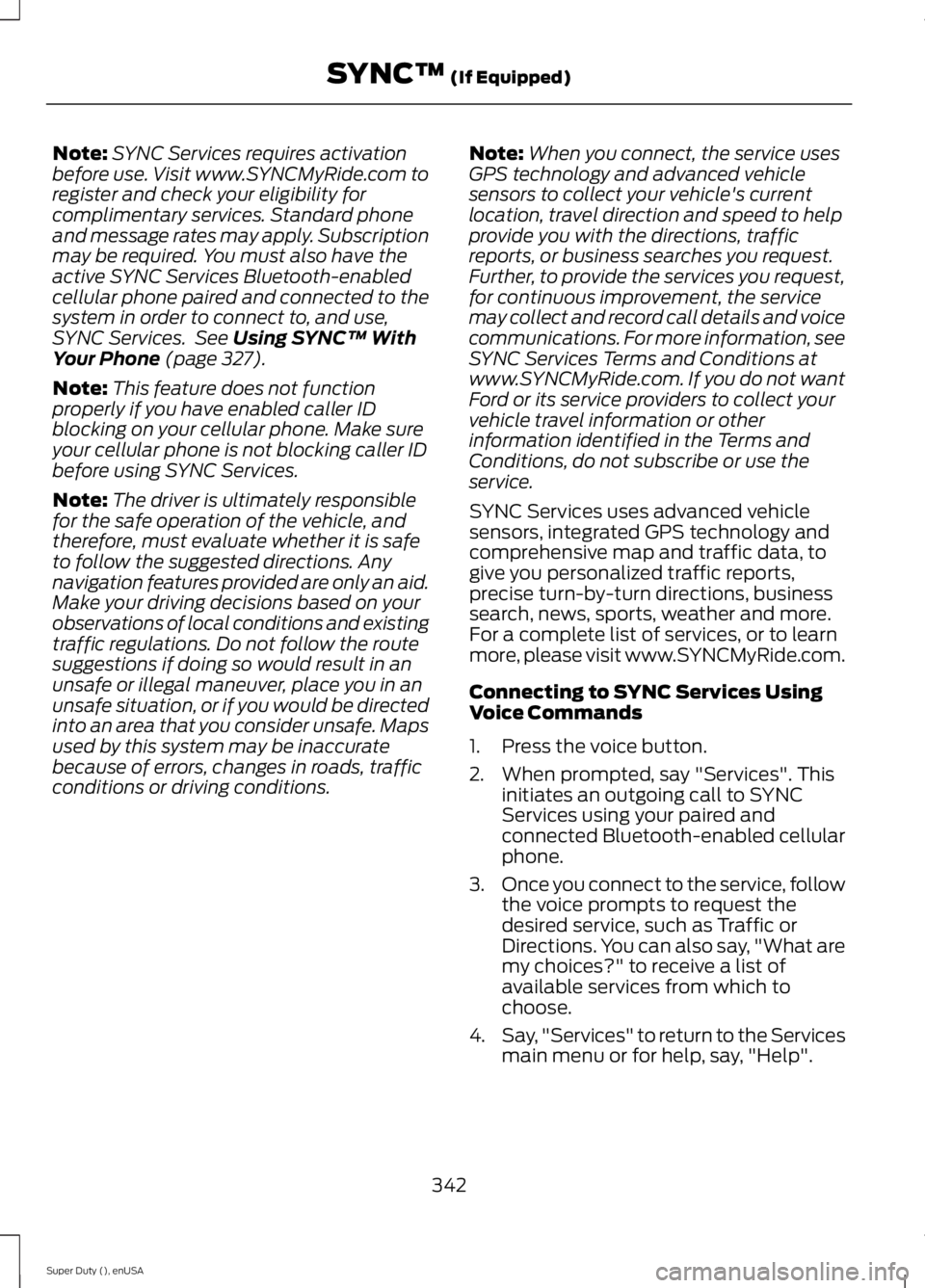
Note:SYNC Services requires activationbefore use. Visit www.SYNCMyRide.com toregister and check your eligibility forcomplimentary services. Standard phoneand message rates may apply. Subscriptionmay be required. You must also have theactive SYNC Services Bluetooth-enabledcellular phone paired and connected to thesystem in order to connect to, and use,SYNC Services. See Using SYNC™ WithYour Phone (page 327).
Note:This feature does not functionproperly if you have enabled caller IDblocking on your cellular phone. Make sureyour cellular phone is not blocking caller IDbefore using SYNC Services.
Note:The driver is ultimately responsiblefor the safe operation of the vehicle, andtherefore, must evaluate whether it is safeto follow the suggested directions. Anynavigation features provided are only an aid.Make your driving decisions based on yourobservations of local conditions and existingtraffic regulations. Do not follow the routesuggestions if doing so would result in anunsafe or illegal maneuver, place you in anunsafe situation, or if you would be directedinto an area that you consider unsafe. Mapsused by this system may be inaccuratebecause of errors, changes in roads, trafficconditions or driving conditions.
Note:When you connect, the service usesGPS technology and advanced vehiclesensors to collect your vehicle's currentlocation, travel direction and speed to helpprovide you with the directions, trafficreports, or business searches you request.Further, to provide the services you request,for continuous improvement, the servicemay collect and record call details and voicecommunications. For more information, seeSYNC Services Terms and Conditions atwww.SYNCMyRide.com. If you do not wantFord or its service providers to collect yourvehicle travel information or otherinformation identified in the Terms andConditions, do not subscribe or use theservice.
SYNC Services uses advanced vehiclesensors, integrated GPS technology andcomprehensive map and traffic data, togive you personalized traffic reports,precise turn-by-turn directions, businesssearch, news, sports, weather and more.For a complete list of services, or to learnmore, please visit www.SYNCMyRide.com.
Connecting to SYNC Services UsingVoice Commands
1. Press the voice button.
2. When prompted, say "Services". Thisinitiates an outgoing call to SYNCServices using your paired andconnected Bluetooth-enabled cellularphone.
3.Once you connect to the service, followthe voice prompts to request thedesired service, such as Traffic orDirections. You can also say, "What aremy choices?" to receive a list ofavailable services from which tochoose.
4.Say, "Services" to return to the Servicesmain menu or for help, say, "Help".
342
Super Duty (), enUSA
SYNC™ (If Equipped)
Page 347 of 470
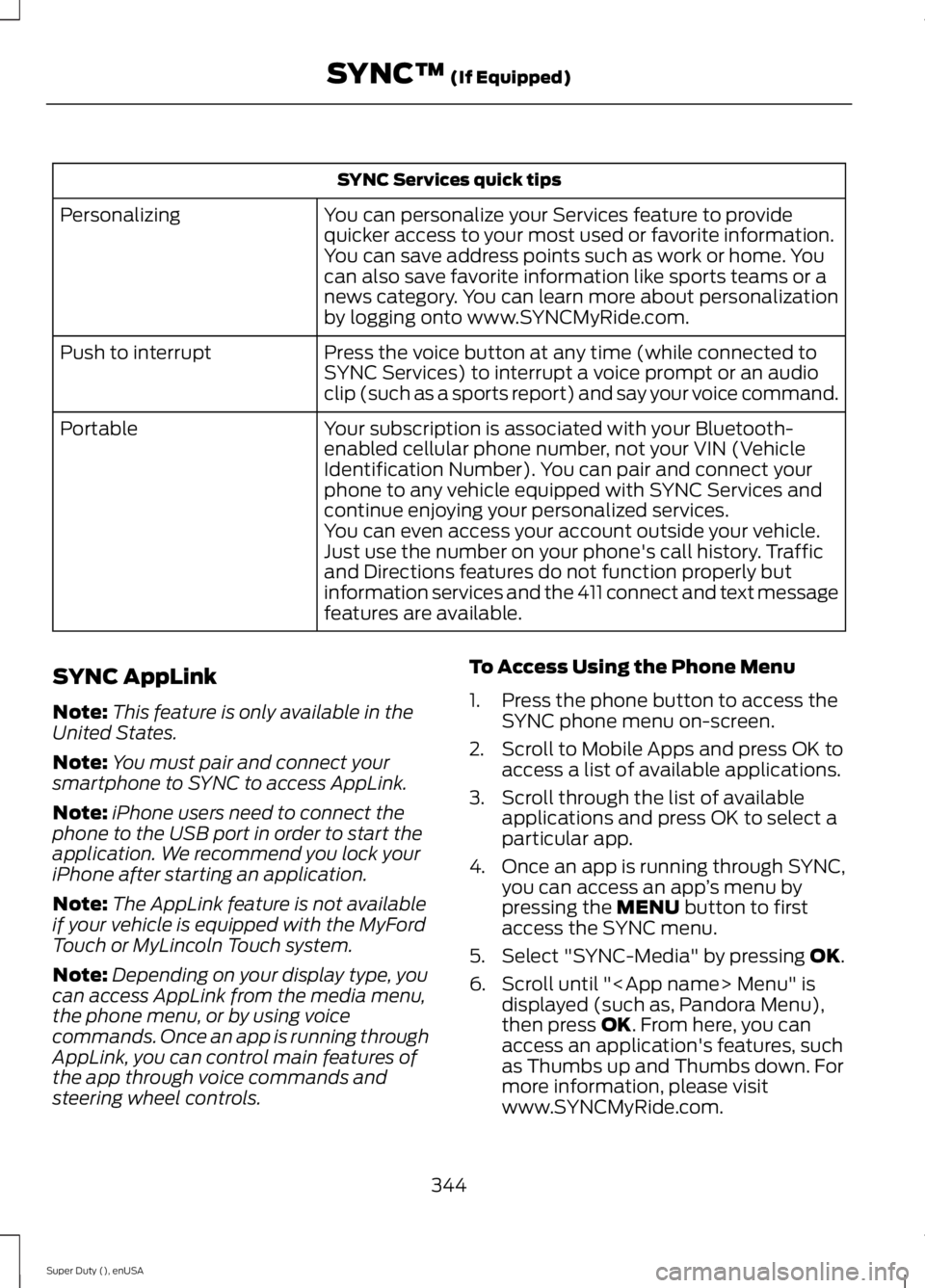
SYNC Services quick tips
You can personalize your Services feature to providequicker access to your most used or favorite information.You can save address points such as work or home. Youcan also save favorite information like sports teams or anews category. You can learn more about personalizationby logging onto www.SYNCMyRide.com.
Personalizing
Press the voice button at any time (while connected toSYNC Services) to interrupt a voice prompt or an audioclip (such as a sports report) and say your voice command.
Push to interrupt
Your subscription is associated with your Bluetooth-enabled cellular phone number, not your VIN (VehicleIdentification Number). You can pair and connect yourphone to any vehicle equipped with SYNC Services andcontinue enjoying your personalized services.
Portable
You can even access your account outside your vehicle.Just use the number on your phone's call history. Trafficand Directions features do not function properly butinformation services and the 411 connect and text messagefeatures are available.
SYNC AppLink
Note:This feature is only available in theUnited States.
Note:You must pair and connect yoursmartphone to SYNC to access AppLink.
Note:iPhone users need to connect thephone to the USB port in order to start theapplication. We recommend you lock youriPhone after starting an application.
Note:The AppLink feature is not availableif your vehicle is equipped with the MyFordTouch or MyLincoln Touch system.
Note:Depending on your display type, youcan access AppLink from the media menu,the phone menu, or by using voicecommands. Once an app is running throughAppLink, you can control main features ofthe app through voice commands andsteering wheel controls.
To Access Using the Phone Menu
1. Press the phone button to access theSYNC phone menu on-screen.
2. Scroll to Mobile Apps and press OK toaccess a list of available applications.
3. Scroll through the list of availableapplications and press OK to select aparticular app.
4.Once an app is running through SYNC,you can access an app’s menu bypressing the MENU button to firstaccess the SYNC menu.
5. Select "SYNC-Media" by pressing OK.
6. Scroll until "
344
Super Duty (), enUSA
SYNC™ (If Equipped)