Page 80 of 549
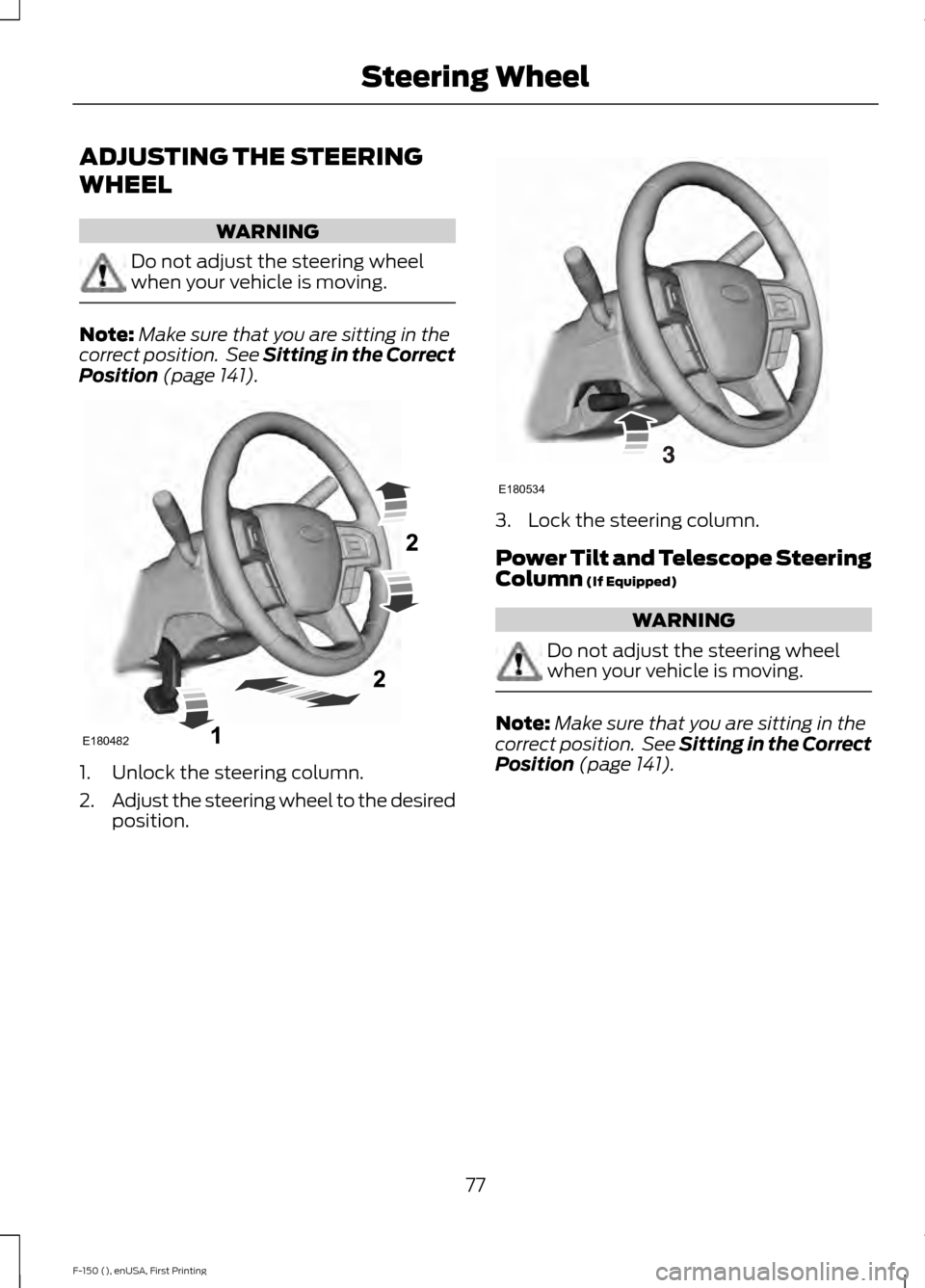
ADJUSTING THE STEERING
WHEEL
WARNING
Do not adjust the steering wheel
when your vehicle is moving.
Note:
Make sure that you are sitting in the
correct position. See Sitting in the Correct
Position (page 141). 1. Unlock the steering column.
2.
Adjust the steering wheel to the desired
position. 3. Lock the steering column.
Power Tilt and Telescope Steering
Column
(If Equipped)
WARNING
Do not adjust the steering wheel
when your vehicle is moving.
Note:
Make sure that you are sitting in the
correct position. See Sitting in the Correct
Position
(page 141).
77
F-150 (), enUSA, First Printing Steering WheelE180482 E180534
Page 81 of 549

Use the control on the side of the steering
column to adjust the position.
To adjust:
•
tilt: press the top or bottom of the
control
• telescope: press the front or rear of the
control.
Memory Feature
You can save and recall the steering
column position with the memory function.
See Memory Function (page 146).
Pressing the adjustment control during
memory recall cancels the operation. The
column responds to the adjustment
control. Easy Entry and Exit Feature
The column moves to the full up and in
position when you switch the ignition off.
It returns to the previous setting when you
switch the ignition on. You can enable or
disable this feature in the information
display.
AUDIO CONTROL
(If Equipped)
You can operate the following functions
with the control: Volume up
A
Media
B
Seek up or next
C
Volume down
D
Seek down or previous
E
Media
Press repeatedly to scroll through available
audio modes.
Seek, Next or Previous
Press the seek button to:
• Tune the radio to the next or previous
stored preset.
• Play the next or previous track.
78
F-150 (), enUSA, First Printing Steering WheelE180535 E191327
Page 82 of 549
Press and hold the seek button to:
•
Tune the radio to the next station up
or down the frequency band.
• Seek through a track.
VOICE CONTROL (If Equipped) Mute
A
Voice recognition
B
End call
C
Answer call
D
See
SYNC™ (page 399). See MyFord
Touch ™ (page 438).
CRUISE CONTROL
(If Equipped)
Type 1 See
Cruise Control (page 213).
Type 2 See
Cruise Control (page 213).
INFORMATION DISPLAY
CONTROL See
Information Displays (page 105).
79
F-150 (), enUSA, First Printing Steering WheelE191328 E191329 E191337 E191336
Page 83 of 549
ADJUSTING THE PEDALS
Note:
Never use the controls when your feet
are on the accelerator or brake pedals,
especially when the vehicle is moving.
Note: Adjust the pedals only when your
vehicle is in park (P).
Depending on your vehicle and equipment
level, the shape and location of your
power-adjustable pedal control can vary.
• If your control is vertical, then it is to
the left of the steering column and on
the instrument panel.
• If your control is horizontal, then it is on
the left side of the steering column.
The Vertical Control Farther.
A.
Closer.
B. The Horizontal Control Farther.
A.
Closer.
B.
Both horizontal and vertical controls
operate the same way:
1. Press and hold A to move the pedals away from you.
2. Press and hold B to move the pedals closer to you.
You can save and recall the pedal positions
with the memory feature. See Memory
Function (page 146).
80
F-150 (), enUSA, First Printing PedalsE176213 AB
E162916
Page 108 of 549

GENERAL INFORMATION
WARNING
Driving while distracted can result in
loss of vehicle control, crash and
injury. We strongly recommend that
you use extreme caution when using any
device that may take your focus off the
road. Your primary responsibility is the safe
operation of your vehicle. We recommend
against the use of any handheld device
while driving and encourage the use of
voice-operated systems when possible.
Make sure you are aware of all applicable
local laws that may affect the use of
electronic devices while driving. Various systems on your vehicle can be
controlled using the information display
controls on the steering wheel.
Corresponding information is displayed in
the information display.
Information Display Controls
(Type 1 and 2) •
Press the up and down arrow buttons
to scroll through and highlight the
options within a menu.
• Press the right arrow button to enter a
sub-menu.
• Press the left arrow button to exit a
menu.
• Press the OK button to choose and
confirm a setting or messages.
Main menu (Type 1)
• Trip 1 & 2
• Fuel economy
• Driver assist
• Settings
105
F-150 (), enUSA, First Printing Information DisplaysE176092
Page 109 of 549

Note:
Some options may appear slightly
different or not at all if the items are
optional.
Trip 1 & 2
Note: Use the arrow buttons to choose between the following trip options. Trip 1 & 2
Digital Speed - Press OK for km/h
Trip Odometer
Trip Timer
Fuel Used
Average Fuel
• Digital Speed - Shows a digital display of your vehicle speed.
• Trip Odometer - Registers the mileage of individual journeys.
• Trip Timer - Registers the time of individual journeys.
• Fuel Used - Shows the amount of fuel used for a given trip.
• Average Fuel - Shows the average fuel economy for a given trip.
Note: Press and hold OK to reset the currently displayed trip information.
Fuel Economy
Note: Use the arrow buttons to choose the desired fuel economy display. Fuel economy
Distance to E
Instant Fuel Economy
Average Fuel Economy
Auto StartStop status
• Distance to E - Shows the approximate distance your vehicle can travel before running
out of fuel.
• Instant Fuel Economy - Shows your instantaneous fuel usage.
• Average Fuel Economy - Shows the average fuel usage based on time. Press and hold
OK to reset this value.
• Auto StartStop status - Shows the current status of the auto startstop system.
Note: You can reset your average fuel economy by pressing and holding the
OK button on
the left hand steering wheel controls.
106
F-150 (), enUSA, First Printing Information Displays
Page 114 of 549
Towing
List of named
trailers, No Stored
Trailers - Press OK
to rename
Rename Trailer
Change Trailer Settings
List of named or
default trailers -
Press OK to select
Reset Trailer
Mileage
Default (Electric,
Surge, None) or
Electric over
Hydraulic
Change Trailer
Brake Type
List of named
trailers, No stored
trailers - Press OK to
select
Delete Trailer
List of named
trailers or default
trailers - Press OK to
Select
Change Trailer
Setup
New Trailer - Press OK to select
Add Trailer
Default (Electric,
Surge, None) or
Elect over Hydraul
Trailer Brake Mode
Conventional, Fifth Wheel or Gooseneck
Connection
Checklist
Note: Some items are optional and may not appear.
Off Road
Note: Use the arrow buttons to configure different off road choices. Off Road
Pitch, steering angle and roll
Power Distribution
111
F-150 (), enUSA, First Printing Information Displays
Page 121 of 549

Off Road
Pitch, steering angle, roll, Elocker and 4X4
Power Distribution
Settings Use the arrow buttons to
configure different driver setting
choices.
Note:
Some items are optional and may
not appear. Settings
Auto High Beam - check enabled or uncheck disabled
Blindspot - check enabled or uncheck disabled
Cross Traffic Alert - check enabled or uncheck disabled
Driver Alert - check enabled or uncheck disabled
Rear Park Aid - check enabled or uncheck disabled High, Normal or Low
Sensitivity
Collision
Warn
On or Off
Warn
Adaptive or Normal
Cruise
Control
Alert only, Aid only or both
Mode
Lane keeping
Sys
High, Normal or Low
Intensity
Normal or Towing
DTE Calcula-
tion
Auto Engine Off - check enabled or uncheck disabled
Vehicle
Easy Entry/Exit - check enabled or uncheck disabled Off or XXX
seconds
Autolamp Delay
Lighting
Daytime Lights - check enabled or
uncheck disabled
Autounlock - check enabled or uncheck
disabled
Locks
118
F-150 (), enUSA, First Printing Information DisplaysE176098