2015 FORD F150 change time
[x] Cancel search: change timePage 156 of 549

3.
Press and hold the function button you
want to program for 2 seconds, then
release. Repeat this step. Depending
on your brand of garage door opener,
you may need to repeat this sequence
a third time.
Erasing the Function Button Codes
Note: You cannot erase individual buttons. 1. Press and hold the outer two function
buttons simultaneously for
approximately 20 seconds until the
indicator lights above the buttons flash
rapidly.
2. When the indicator lights flash, release
the buttons. You erased the codes for
all buttons.
Reprogramming a Single Button
To program a device to a previously trained
button, follow these steps: 1. Press and hold the desired button. Do
NOT release the button.
2. The indicator light begins to flash after
20 seconds. Without releasing the
button, follow Step 1 in the
Programming section.
For questions or comments, contact
HomeLink at www.homelink.com or
1-800-355-3515.
Programming to a Genie Intellicode 2
Garage Door Opener
Note: Make sure to program your Genie
Intellicode 2 transmitter with the garage
door opener before you program the
HomeLink buttons.
Note: To program HomeLink to the
transmitter you must first put the
transmitter into programming mode. Red indicator light.
A.
Green indicator light.
B.
1. Press and hold one of the buttons on the hand-held transmitter for 10
seconds. The indicator light changes
from green to red, and back to green
again.
2. Press the same button twice to confirm
the change to programming mode. If
done properly, the indicator light
appears red.
153
F-150 (), enUSA, First Printing Universal Garage Door Opener (If Equipped)E188212 E188213 BAE142661
Page 157 of 549

3. Hold the transmitter within 1–
3 inches
(2 –8 centimeters) of the button on the
visor you want to program.
4. Press and hold both the programmed Genie button on the hand-held
transmitter and the button you want
to program. The indicator light on the
visor flashes rapidly when the
programming is successful.
Note: The Genie transmitter transmits for
up to 30 seconds. If HomeLink does not
program within 30 seconds, then you need
to press the Genie transmitter again. If the
Genie transmitter indicator light displays
green and red, release the button until the
indicator light turns off before pressing the
button again.
When you program HomeLink successfully,
you need to take the Genie transmitter out
of program mode. To do this:
1. Press and hold the previously programmed Genie button on the
hand-held transmitter for 10 seconds.
The indicator light change from a
steady red light to a red and green light.
2. Press the same button twice to confirm
the change. When the indicator light
turns green, you know you took your
Genie transmitter out of program
mode.
Programming HomeLink to the Genie
Intellicode Garage Door Opener Motor
Note: You may need a ladder to access the
garage door opener motor. 1. Press and hold the program button on
the garage door opener motor until
both blue indicator lights turn on.
2. Release the program button. Only the smaller, round indicator light should be
on.
3. Press and release the program button.
The larger purple indicator light flashes.
Note: You must complete the next two
steps within 30 seconds.
4. Press and release the Genie Intellicode
2 hand-held transmitter ’s previously
programmed button. Both indicator
lights on the garage door opener motor
unit should now flash purple.
5. Press and hold the previously programmed button on the visor for 2
seconds. Repeat this step up to 3 times
until the garage door moves.
Programming is now complete.
Clearing a HomeLink Device
To erase programming from the three
HomeLink buttons, press and hold the two
outer HomeLink buttons until the indicator
light begins to flash. When the indicator
light begins flashing in 10 to 20 seconds.
release both buttons. You erased the
programming. The indicator light should
blink slowly to indicate the device is in train
mode after you press any of the three
HomeLink buttons.
154
F-150 (), enUSA, First Printing Universal Garage Door Opener (If Equipped)E142662
Page 170 of 549

Automatic Engine Restart
Any of the following conditions will result
in an automatic restart of the engine:
•
You have removed your foot from the
brake pedal.
• You press the accelerator pedal.
• You press the accelerator and the
brake pedal at the same time.
• The driver safety belt becomes
unfastened or the driver door is ajar.
• You have moved the transmission from
drive (D) to any gear except park (P).
• Your vehicle is moving.
• The interior compartment does not
meet customer comfort when air
conditioning or heat is on.
• Fogging of the windows could occur
and the air conditioning is on.
• The battery is not within optimal
operating conditions.
• You have exceeded the maximum
engine off time.
• When you press the Auto StartStop
button with the engine automatically
stopped.
• The front defroster is turned to the Max
setting.
Any of the following conditions may result
in an automatic restart of the engine:
• You have increased the blower fan
speed or changed the climate control
temperature.
• You have an electrical accessory
turned on or plugged in.
Note: You may notice that the climate seat
fan fluctuates during an automatic restart. Disabling Auto StartStop
Press the Auto StartStop button located
on the center console to switch the system
off. The button will illuminate. This will only
deactivate the system for the current
ignition cycle. Press the button again to
restore Auto StartStop function.
Note:
If the Shift to P, Restart Engine
message appears and the amber Auto
StartStop indicator light is flashing,
automatic restart is not available. You must
restart the vehicle manually. See
Information Displays (page 105).
If your vehicle is in an engine off Auto
StartStop state and you change the
transmission to reverse (R) while the brake
pedal is not pressed, the message Auto
StartStop Press Brake to Start Engine will
appear. You must press the brake pedal
within 10 seconds or a shift to park (P) and
a manual restart will be required.
167
F-150 (), enUSA, First Printing Unique Driving CharacteristicsE181352
Page 181 of 549

The sport mode feature:
•
Provides additional grade (engine)
braking and extends lower gear
operation to enhance performance for
uphill climbs, hilly terrain or
mountainous areas. This will increase
engine RPM during engine braking.
• Provides additional lower gear
operation through the automatic
transmission shift strategy.
• Selects gears more quickly and at
higher engine speeds.
To deactivate the sport mode feature and
return to normal driving mode, press the
button on the gearshift lever once. The
SPORT or S indicator light will deactivate.
The sport mode feature will also
deactivate when your vehicle is powered
down.
Automatic Transmission Adaptive
Learning
This feature may increase durability and
provide consistent shift feel over the life
of your vehicle. A new vehicle or
transmission may have firm shifts, soft
shifts or both. This operation is considered
normal and will not affect function or
durability of the transmission. Over time,
the adaptive learning process will fully
update transmission operation.
Forced Downshifts
• Allowed in drive (D) with the tow/haul
feature on or off.
• Press the accelerator to the floor.
• Allows transmission to select an
appropriate gear. Understanding your SelectShift
Automatic
™ transmission (If Equipped)
Your vehicle is equipped with a SelectShift
Automatic ™ transmission gearshift lever.
The SelectShift Automatic transmission
gives you the ability to change gears up or
down (without a clutch) as desired.
In order to prevent the engine from running
at too low an RPM, which may cause it to
stall, SelectShift will still automatically
make some downshifts if it has determined
that you have not downshifted in time.
Although SelectShift will make some
downshifts for you, it will still allow you to
downshift at any time as long as the
SelectShift determines that damage will
not be caused to the engine from
over-revving.
SelectShift will not automatically upshift,
even if the engine is approaching the RPM
limit. It must be shifted manually by
pressing the + button.
Note: Engine damage may occur if you
maintain excessive engine revving without
shifting.
The SelectShift Automatic transmission
feature has two modes: PRS and M mode.
PRS (Progressive Range Selection)
Progressive Range Selection gives you the
ability to lockout gears from the automatic
shifting range. This may provide you with
an improved driving experience (for
example, in slippery conditions or when
experiencing a steep grade).
With the gearshift lever in drive (D), press
the – button to active PRS. The available
and selected gears are indicated on the
instrument cluster.
178
F-150 (), enUSA, First Printing Transmission
Page 188 of 549

How Your Vehicle Differs From
Other Vehicles
WARNING
Vehicles with a higher center of
gravity such as utility and four-wheel
drive vehicles handle differently than
vehicles with a lower center of gravity.
Utility and four-wheel drive vehicles are
not designed for cornering at speeds as
high as passenger cars any more than
low-slung sports cars are designed to
perform satisfactorily under off-road
conditions. Avoid sharp turns, excessive
speed and abrupt maneuvers in these
vehicles. Failure to drive cautiously could
result in an increased risk of loss of vehicle
control, vehicle rollover, personal injury and
death. Truck and utility vehicles can differ from
some other vehicles. Your vehicle may be
higher to allow it to travel over rough
terrain without getting hung up or
damaging underbody components.
The differences that make your vehicle so
versatile also make it handle differently
than an ordinary passenger car.
Maintain steering wheel control at all
times, especially in rough terrain. Since
sudden changes in terrain can result in
abrupt steering wheel motion, make sure
you grip the steering wheel from the
outside. Do not grip the spokes.
Drive cautiously to avoid vehicle damage
from concealed objects such as rocks and
stumps.
You should either know the terrain or
examine maps of the area before driving.
Map out your route before driving in the
area. To maintain steering and braking
control of your vehicle, you must have all
four wheels on the ground and they must
be rolling, not sliding or spinning. Driving Off-Road With Truck and
Utility Vehicles
Note:
On some models, the initial shift from
two-wheel drive to four-wheel drive while
your vehicle is moving can cause some
momentary clunk and ratcheting sounds.
This is the front drivetrain coming up to
speed and the automatic locking hubs
engaging and is not cause for concern.
Note: Your vehicle may be equipped with
a front air dam that can become damaged
(due to reduced ground clearance) when
taking your vehicle off-road. You may
remove this air dam by removing two bolts.
Four-wheel drive vehicles are specially
equipped for driving on sand, snow, mud
and rough terrain and have operating
characteristics that are somewhat
different from conventional vehicles, both
on and off the road.
The transfer case supples power to all four
wheels. On Four-wheel drive vehicles, the
transfer case allows you to select 4WD
when necessary. You can find information
on transfer case operation and shifting
procedures in this chapter. You can find
information on transfer case maintenance
in the Maintenance chapter. You should
become thoroughly familiar with this
information before you operate your
vehicle.
Four-wheel drive (when you select a 4WD
mode) uses all four wheels to power your
vehicle. This increases traction, enabling
you to drive over terrain and road
conditions that a conventional two-wheel
drive vehicle cannot.
185
F-150 (), enUSA, First Printing Four-Wheel Drive (If Equipped)
Page 210 of 549
The system does not position the vehicle where I want in the space
A parked vehicle has a high attachment (salt sprayer, snowplow or moving truck bed).
The parking space length or position of parked objects changed after your vehicle passed.
The temperature around your vehicle changes quickly (driving from a heated garage
into the cold, or after leaving a car wash).
REAR VIEW CAMERA (If Equipped) WARNINGS
The rear view camera system is a
reverse aid supplement device that
still requires the driver to use it in
conjunction with the interior and exterior
mirrors for maximum coverage. Objects that are close to either
corner of the bumper or under the
bumper, might not be seen on the
screen due to the limited coverage of the
camera system. Back up as slow as possible since
higher speeds might limit your
reaction time to stop your vehicle.
Use caution when using the rear
video camera when the tailgate is
ajar. If the tailgate is ajar, the camera
will be out of position and the video image
may be incorrect. All guidelines have been
removed when the tailgate is ajar. Use caution when turning camera
features on or off while in reverse
(R). Make sure your vehicle is not
moving. The rear view camera system provides a
video image of the area behind your
vehicle.
During operation, lines appear in the
display which represent your vehicle
’s path
and proximity to objects behind your
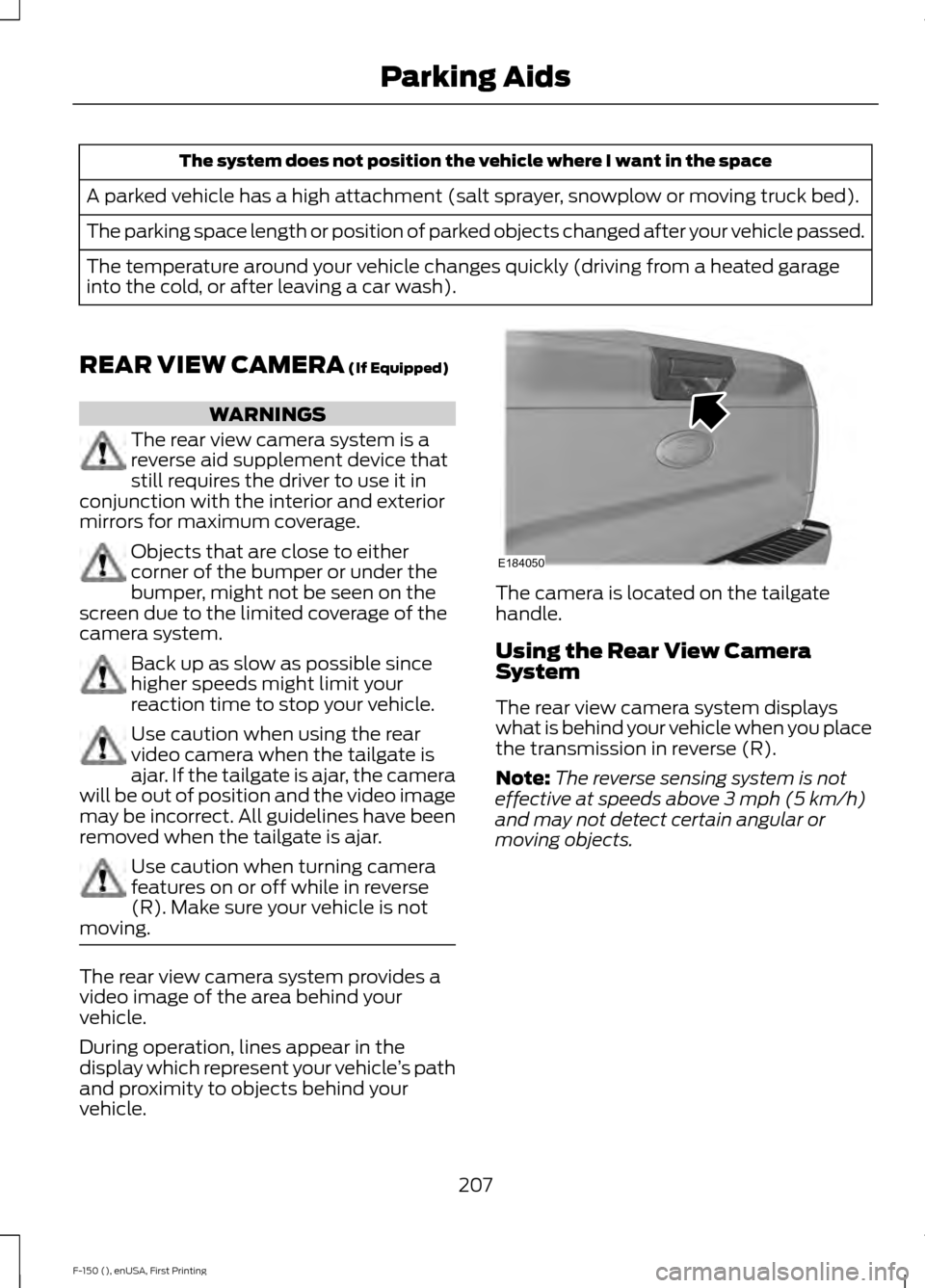
vehicle. The camera is located on the tailgate
handle.
Using the Rear View Camera
System
The rear view camera system displays
what is behind your vehicle when you place
the transmission in reverse (R).
Note:
The reverse sensing system is not
effective at speeds above
3 mph (5 km/h)
and may not detect certain angular or
moving objects.
207
F-150 (), enUSA, First Printing Parking AidsE184050
Page 211 of 549

The system uses three types of guides to
help you see what is behind your vehicle:
•
Active guidelines: Show the intended
path of your vehicle while reversing.
• Fixed guidelines: Show the actual path
your vehicle is moving in while reversing
in a straight line. This can be helpful
when backing into a parking space or
aligning your vehicle with another
object behind you.
• Centerline: Helps align the center of
your vehicle with an object (for
example, a trailer).
Note: If the image comes on while the
transmission is not in reverse (R), have the
system inspected by your authorized dealer.
Note: When towing, the camera only sees
what you are towing behind your vehicle.
This might not provide adequate coverage
as it usually provides in normal operation
and you might not see some objects. In
some vehicles, the guidelines may disappear
once you engage the trailer tow connector.
The camera may not operate correctly
under the following conditions:
• Nighttime or dark areas if the reverse
lamps are not operating.
• Mud, water or debris obstructs the
camera's view. Clean the lens with a
soft, lint-free cloth and non-abrasive
cleaner.
• The rear of your vehicle is hit or
damaged, causing the camera to
become misaligned.
Guidelines and the Centerline
Note: Active guidelines and fixed guidelines
are only available when the transmission is
in reverse (R).
Note: The centerline is only available if
active or fixed guidelines are on. Active guidelines
A
Centerline
B
Fixed guideline: Green zone
C
Fixed guideline: Yellow zone
D
Fixed guideline: Red zone
E
Rear bumper
F
Active guidelines only show with fixed
guidelines. To use active guidelines, turn
the steering wheel to point the guidelines
toward an intended path. If the steering
wheel position changes while reversing,
your vehicle might deviate from the original
intended path.
The fixed and active guidelines fade in and
out depending on the steering wheel
position. The active guidelines do not show
when the steering wheel position is
straight.
208
F-150 (), enUSA, First Printing Parking AidsABCD
F
E
E142436
Page 217 of 549

Changing the Set Speed
Note:
If you accelerate by pressing the
accelerator pedal, the set speed will not
change. When you release the accelerator
pedal, your vehicle returns to the speed that
you previously set.
• Press the accelerator or brake pedal
until you reach the desired speed. Press
and release SET+.
• Press and hold SET+ or SET-. Release
the control when you reach the desired
speed.
• Press and release
SET+ or SET-. The
set speed will change in approximately
1 mph (2 km/h) increments.
Canceling the Set Speed
Press
CNCL or tap the brake pedal, this
action does not erase the set speed.
Resuming the Set Speed
Press and release
RES.
Switching Cruise Control Off
Press and release
OFF or switch the
ignition off.
Note: You will erase the set speed if you
switch the system off.
USING ADAPTIVE CRUISE
CONTROL
(If Equipped) WARNINGS
Always pay close attention to
changing road conditions, especially
when using adaptive cruise control.
Adaptive cruise control cannot replace
attentive driving. Failing to follow any of
the warnings below or failing to pay
attention to the road may result in a crash,
serious injury or death. WARNINGS
Adaptive cruise control is not a crash
warning or avoidance system.
Adaptive cruise control does not
detect stationary or slow moving
vehicles below 6 mph (10 km/h).
Adaptive cruise control does not
detect pedestrians or objects in the
roadway.
Adaptive cruise control does not
detect oncoming vehicles in the
same lane.
Do not use the adaptive cruise
control when entering or leaving a
highway, in heavy traffic or on roads
that are winding, slippery or unpaved. Do not use in poor visibility,
specifically fog, rain, spray or snow.
Note:
It is your responsibility to stay alert,
drive safely and control the vehicle at all
times.
The system adjusts your speed to maintain
a proper distance between you and the
vehicle in front of you in the same lane. You
can select from one of four gap settings. The controls for using your cruise control
are located on the steering wheel.
214
F-150 (), enUSA, First Printing Cruise Control
(If Equipped)E183737