2015 FORD EXPLORER display
[x] Cancel search: displayPage 504 of 596
Composing a Text Message
Note:This is a speed-dependent feature. It is unavailable when your
vehicle is traveling at speeds over 3 mph (5 km/h).
Note:Downloading and sending text messages using Bluetooth are
phone-dependent features.
1. Touch the top left corner of the display to access thePhonemenu.
2. TouchMessaging>Send Text.
3. Enter a phone number or choose from your phone book.
4. You can select from the following options:
•Sendwhich sends the message as it is.
•Edit Textallows you to customize the pre-defined message or
create a message on your own.
You can then preview the message, verify the recipient as well as update
the message list.
Pre-defined text message options
I’ll call you back in a few minutes.
I just left, I’ll be there soon.
Can you give me a call?
I’m on my way.
I’m running a few minutes late.
I’m ahead of schedule, so I’ll be there early.
I’m outside.
I’ll call you when I get there.
OK
Ye s
No
Thanks
Stuck in traffic.
Call me later.
LOL
Receiving a Text Message
When a new message arrives, an audible tone sounds and the screen
displays a pop-up with the caller name and ID, if supported by your
phone. You can press:
•Vi e wto view the text message.
•Listenfor SYNC to read the message to you.
•Dialto call the contact.
MyFord Touch® (If Equipped)503
2015 Explorer(exp)
Owners Guide gf, 2nd Printing, September 2014
USA(fus)
Page 509 of 596
Connecting to SYNC Services Using the Touchscreen
If your vehicle is equipped with Navigation, touch the i
(Information) button to access these features. If your vehicle is
not equipped with Navigation, touch the corner of the
touchscreen with the green tab.
PressServices.
1. SelectConnect to Servicesto initiate an outgoing call to SYNC
Services using your paired and connected Bluetooth-enabled cellular
phone.
2. Once you connect to the service, follow the voice prompts to request
the desired service, such as “Traffic” or “Directions”. You can also
say, “What are my choices?” to receive a list of available services
from which to choose.
3. Say, “Services” to return to the Services main menu or for help, say,
“Help”.
Receiving Turn-by-Turn Directions
1. When connected to SYNC Services, say “Directions” or “Business
Search”. To find the closest business or type of business to your
current location, just say “Business Search” and then “Search Near
Me”. If you need further assistance in finding a location, you can say
“Operator” at any time within a Directions or Business search to
speak with a live operator. The system may prompt you to speak with
an operator when it has difficulty matching your voice request. The
live operator can assist you by searching for businesses by name or
by category, residential addresses by street address or by name or
specific street intersections. Operator Assist is a feature of your
SYNC Services subscription. For more information on Operator
Assist, visit www.SYNCMyRide.com/support.
2. Follow the voice prompts to select your Destination. After the route
download is finished, the phone call automatically ends.
If your vehicle is not equipped with Navigation:
•Turn-by-turn directions appear in the information display, in the
status bar of your touchscreen system and on the SYNC Services
screen. You also receive driving instructions from audible prompts.
•When on an active route, you can selectRoute SummaryorRoute
Statususing the touchscreen controls or voice commands to view
theRoute Summary Turn Listor theRoute Status ETA.You can
also turn voice guidance on or off, cancel the route or update the
route.
508MyFord Touch® (If Equipped)
2015 Explorer(exp)
Owners Guide gf, 2nd Printing, September 2014
USA(fus)
Page 514 of 596
Alerts
If your vehicle is equipped with Navigation, touch the i
(Information) button to access these features. If your vehicle is
not equipped with Navigation, touch the corner of the
touchscreen with the green tab.
PressAlerts,and then choose from any of the following services:
•Vi e wthe message.
•Deletethe message.
•Delete Allmessages.
This screen displays any system messages (such as an SD card fault).
Note:
The system alerts you to any messages by turning the information
icon yellow. After you read or delete the messages, the icon returns to white.
Calendar
If your vehicle is equipped with Navigation, touch the i
(Information) button to access these features. If your vehicle is
not equipped with Navigation, touch the corner of the
touchscreen with the green tab.
PressCalendar.You can view the current calendar by day, week or month.
911 Assist® (If Equipped)
WARNING:Unless the 911 Assist setting is set on before a
crash, the system will not dial for help, which could delay
response time, potentially increasing the risk of serious injury or death
after a crash.
WARNING:Do not wait for 911 Assist to make an emergency
call if you can do it yourself. Dial emergency services
immediately to avoid delayed response time, which could increase the
risk of serious injury or death after a crash. If you do not hear 911
Assist within five seconds of the crash, the system or phone may be
damaged or non-functional.
WARNING:Always place your phone in a secure location in your
vehicle so it does not become a projectile or damaged in a crash.
Failure to do so may cause serious injury to someone or damage the
phone, which could prevent 911 Assist from working properly.
Note:The SYNC 911 Assist feature must be set on prior to the incident.
MyFord Touch® (If Equipped)513
2015 Explorer(exp)
Owners Guide gf, 2nd Printing, September 2014
USA(fus)
Page 515 of 596
Note:Before setting this feature on, make sure that you read the 911
Assist privacy notice later in this section for important information.
Note:If any user turns 911 Assist on or off, that setting applies for all
paired phones. If 911 Assist is turned off, either a voice message plays or
a display message (or icon) comes on (or both) when your vehicle is
started after a previously paired phone connects.
Note:Every phone operates differently. While SYNC 911 Assist works
with most cellular phones, some may have trouble using this feature.
If a crash deploys an airbag (excludes knee airbags and rear inflatable
safety belts [if equipped]) or activates the fuel pump shut-off, your
SYNC-equipped vehicle may be able to contact emergency services by
dialing 911 through a paired and connected Bluetooth-enabled phone.
You can learn more about the 911 Assist feature, visit
www.SYNCMyRide.com, www.SYNCMyRide.ca or www.syncmaroute.ca.
•For information on airbag deployment, see theSupplementary
Restraints Systemchapter.
•For information on the fuel pump shut-off, see theRoadside
Emergencieschapter.
Setting 911 Assist On
If your vehicle is equipped with Navigation, touch the i
(Information) button to access these features. If your vehicle is
not equipped with Navigation, touch the corner of the
touchscreen with the green tab.
PressApps>911 Assist,>On.
You can also access 911 Assist by:
•Pressing the Settings icon >Settings>Phone>911
Assist,or
•Pressing the Settings icon >Help>911 Assist.
To Make Sure that 911 Assist Works Properly
•SYNC must be powered and working properly at the time of the
incident and throughout feature activation and use.
•The 911 Assist feature must be set on before the incident.
•You must pair and connect a Bluetooth-enabled and compatible phone
to SYNC.
•A connected Bluetooth-enabled phone must have the ability to make
and maintain an outgoing call at the time of the incident.
•A connected Bluetooth-enabled phone must have adequate network
coverage, battery power and signal strength.
514MyFord Touch® (If Equipped)
2015 Explorer(exp)
Owners Guide gf, 2nd Printing, September 2014
USA(fus)
Page 519 of 596
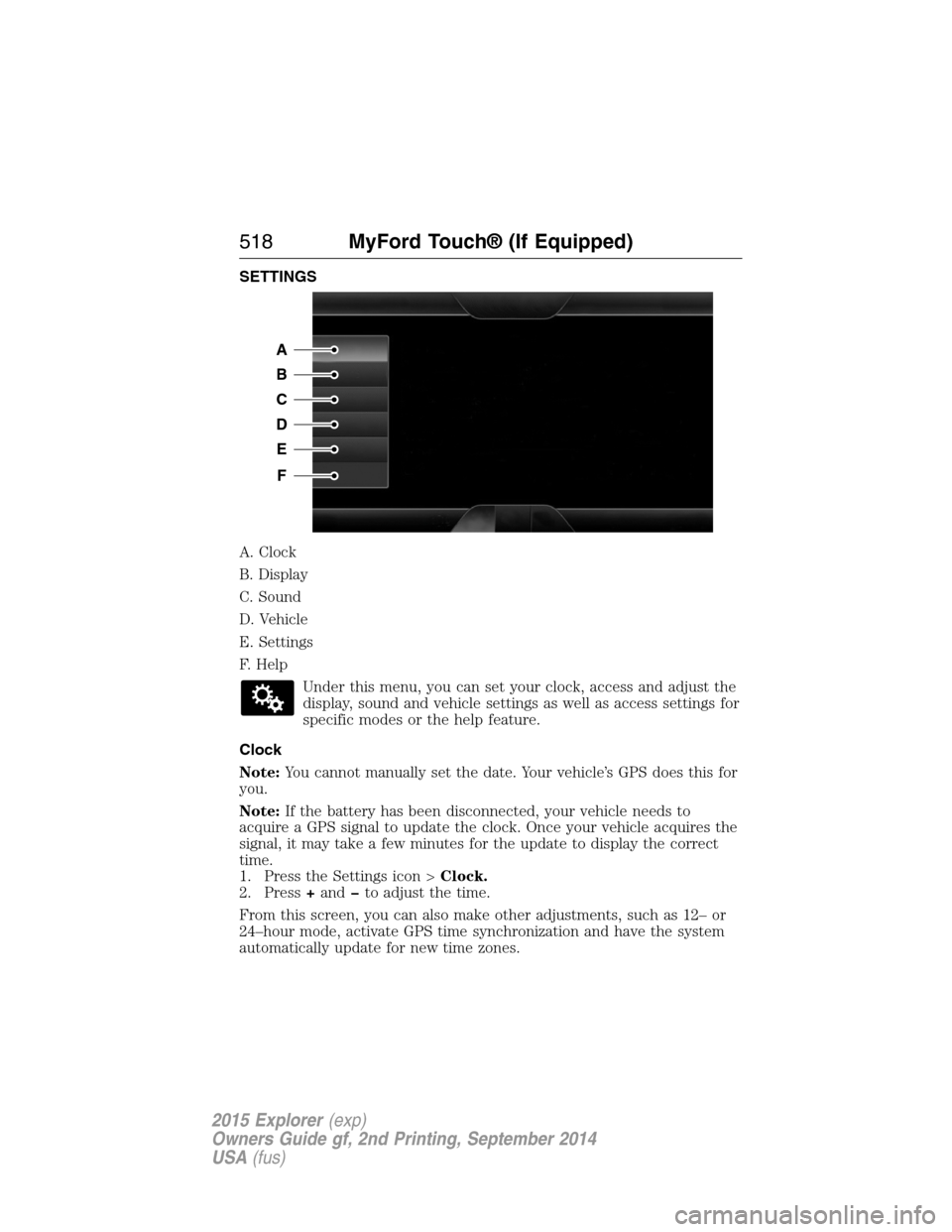
SETTINGS
A. Clock
B. Display
C. Sound
D. Vehicle
E. Settings
F. Help
Under this menu, you can set your clock, access and adjust the
display, sound and vehicle settings as well as access settings for
specific modes or the help feature.
Clock
Note:You cannot manually set the date. Your vehicle’s GPS does this for
you.
Note:If the battery has been disconnected, your vehicle needs to
acquire a GPS signal to update the clock. Once your vehicle acquires the
signal, it may take a few minutes for the update to display the correct
time.
1. Press the Settings icon >Clock.
2. Press+andto adjust the time.
From this screen, you can also make other adjustments, such as 12– or
24–hour mode, activate GPS time synchronization and have the system
automatically update for new time zones.
A
B
C
D
E
F
518MyFord Touch® (If Equipped)
2015 Explorer(exp)
Owners Guide gf, 2nd Printing, September 2014
USA(fus)
Page 520 of 596
You can also turn the outside air temperature display on and off. It
appears at the top center of the touchscreen, next to the time and date.
The system automatically saves any updates you make to the settings.
Display
You can adjust the touchscreen display through the touchscreen or by
pressing the voice button on your steering wheel controls and when
prompted, say, “Display settings”.
Press the Settings icon >Display,to access and make
adjustments using the touchscreen.
•Brightnessallows you to make the screen display brighter or
dimmer.
•Auto DIM, when set toOn,lets you use the Auto Dim Manual Offset
feature. When set toOff,screen brightness does not change.
•Modeallows you to set the screen to a certain brightness or have the
system automatically change based on the outside light level, or turn
the display off.
•If you selectAUTOorNIGHT,you have the options of turning
the display’s Auto Dim feature on or off and changing the Auto
Dim Manual Offset feature.
•Auto Dim Manual Offsetallows you to adjust screen dimming as
the outside lighting conditions change from day to night. This feature
also allows you to adjust screen brightness using the instrument panel
dimming control.
Edit Wallpaper
•You can have your touchscreen display the default photo or upload
your own.
Uploading Photos for Your Home Screen Wallpaper
Note:You cannot load photos directly from your camera. You must
access the photos either from your USB mass storage device or from an
SD card.
Note:Photographs with extremely large dimensions (such as 2048 x
1536) may not be compatible and appear as a blank (black) image on the
display.
Your system allows you to upload and view up to 32 photos.
To access, press the Settings icon >Display>Edit Wallpaper,and
then follow the system prompts to upload your photographs.
Only the photograph(s), which meets the following conditions, display:
•Compatible file formats are as follows: .jpg, .gif, .png, .bmp.
MyFord Touch® (If Equipped)519
2015 Explorer(exp)
Owners Guide gf, 2nd Printing, September 2014
USA(fus)
Page 522 of 596
Door Keypad Code
To change the keypad code for your keyless entry keypad system:
1. Press the Settings icon >Vehicle>Door Keypad Code.
2. Enter your current factory code, then, when prompted, enter your
new code.
Camera Settings
This menu allows you to access settings for your rear view camera.
Press the Settings icon >Vehicle>Camera Settings,then select from
the following settings:
•Enhanced Park Aids.
•Rear Camera Delay.
Enable Valet Mode
Valet mode allows you to lock the system. No information is accessible
until the system is unlocked with the correct PIN.
1. Press the Settings icon >Vehicle>Enable Valet Mode.
2. Enter a four-digit pin twice, as prompted.
After you press Continue, the system locks until you enter the PIN again.
Note:If the system locks, and you need to reset the PIN, enter 3681 and
the system unlocks.
Settings
Access and adjust system settings, voice features, as well as phone,
navigation and wireless settings.
System
Press the Settings icon >Settings>System,then select from
the following:
System
LanguageSelect to have the touchscreen display in
English, Spanish or French.
DistanceSelect to display units in kilometers or miles.
TemperatureSelect to display units in Celsius or
Fahrenheit.
System Prompt
VolumeAdjust the volume of voice prompts from the
system.
Touch Screen Button
BeepSelect to have the system beep to confirm
choices made through the touchscreen.
MyFord Touch® (If Equipped)521
2015 Explorer(exp)
Owners Guide gf, 2nd Printing, September 2014
USA(fus)
Page 523 of 596
System
Touch Panel Button
BeepSelect to have the system beep to confirm
button choices made through the climate or
audio system.
Keyboard LayoutHave the touchscreen keyboard display in
QWERTY or ABC format.
Install ApplicationsInstall any downloaded applications or view
the current software licenses.
Master ResetSelect to restore factory defaults. This erases
all personal settings and personal data.
Voice Control
Press the Settings icon >Settings>Voice Control,then
select from the following:
Voice control
Interaction ModeStandard interaction mode provides more
detailed interaction and guidance. Advanced
mode has less audible interaction and more
tone prompts.
Confirmation
PromptsHave the system ask you short questions if it
has not clearly heard or understood your
request.
Note:Even with confirmation prompts turned
off, the system may occasionally ask you to
confirm settings.
Media Candidate
ListsCandidate lists are possible results from your
voice commands. The system simply makes a
best guess at your request with these turned
off.
Phone Candidate
ListsCandidate lists are possible results from your
voice commands. The system simply makes a
best guess at your request with these turned
off.
Voice Control VolumeThis allows you to adjust the system’s voice
volume level.
522MyFord Touch® (If Equipped)
2015 Explorer(exp)
Owners Guide gf, 2nd Printing, September 2014
USA(fus)