2015 FORD EXPEDITION steering
[x] Cancel search: steeringPage 443 of 564
Privacy Information
When a cellular phone is connected to SYNC, the system creates a
profile within your vehicle that is linked to that cellular phone. This
profile is created in order to offer you more cellular features and to
operate more efficiently. Among other things, this profile may contain
data about your cellular phone book, text messages (read and unread),
and call history, including history of calls when your cell phone was not
connected to the system. In addition, if you connect a media device, the
system creates and retains an index of supported media content. The
system also records a short development log of approximately
10 minutes of all recent system activity. The log profile and other system
data may be used to improve the system and help diagnose any problems
that may occur.
The cellular profile, media device index, and development log remain in
the vehicle unless you delete them and are generally accessible only in
the vehicle when the cellular phone or media player is connected. If you
no longer plan to use the system or the vehicle, we recommend you
perform a Master Reset to erase all stored information.
System data cannot be accessed without special equipment and access to
the vehicle’s SYNC module. Ford Motor Company and Ford of Canada do
not access the system data for any purpose other than as described
absent consent, a court order, or where required by law enforcement,
other government authorities, or other third parties acting with lawful
authority. Other parties may seek to access the information
independently of Ford Motor Company and Ford of Canada. For further
privacy information, see the sections on 911 Assist, Vehicle Health
Report, and Traffic, Directions and Information.
ACCESSING AND ADJUSTING MODES THROUGH YOUR RIGHT
VEHICLE INFORMATION DISPLAY (IF EQUIPPED)
The display is located on the right side of your instrument cluster. You
can use your steering wheel controls to view and make minor
adjustments to active modes without taking your hands off the wheel.
For example:
•In Entertainment mode, you can view what is now playing, change
the audio source (such as AM, FM and CD) and scroll through
memory presets.
•In Phone mode, you can accept or reject an incoming call, or make a
call by choosing from select menus within the Phone menu.
•If your vehicle is equipped with Navigation, you can view the current
route or cancel a route.
442MyFord Touch® (If Equipped)
2015 Expedition(exd)
Owners Guide gf, 1st Printing, July 2014
USA(fus)
Page 444 of 564
Note:If your vehicle is not equipped with Navigation, Compass appears
in the display instead of Navigation. If you press the right arrow to go
into the Compass menu, you can see the compass graphic. The compass
displays the direction in which the vehicle is traveling, not true direction.
(For example, if the vehicle is traveling west, the middle of the compass
graphic displays west; north displays to the left of west though its true
direction is to the right of west).
Audio Sources and Memory Presets
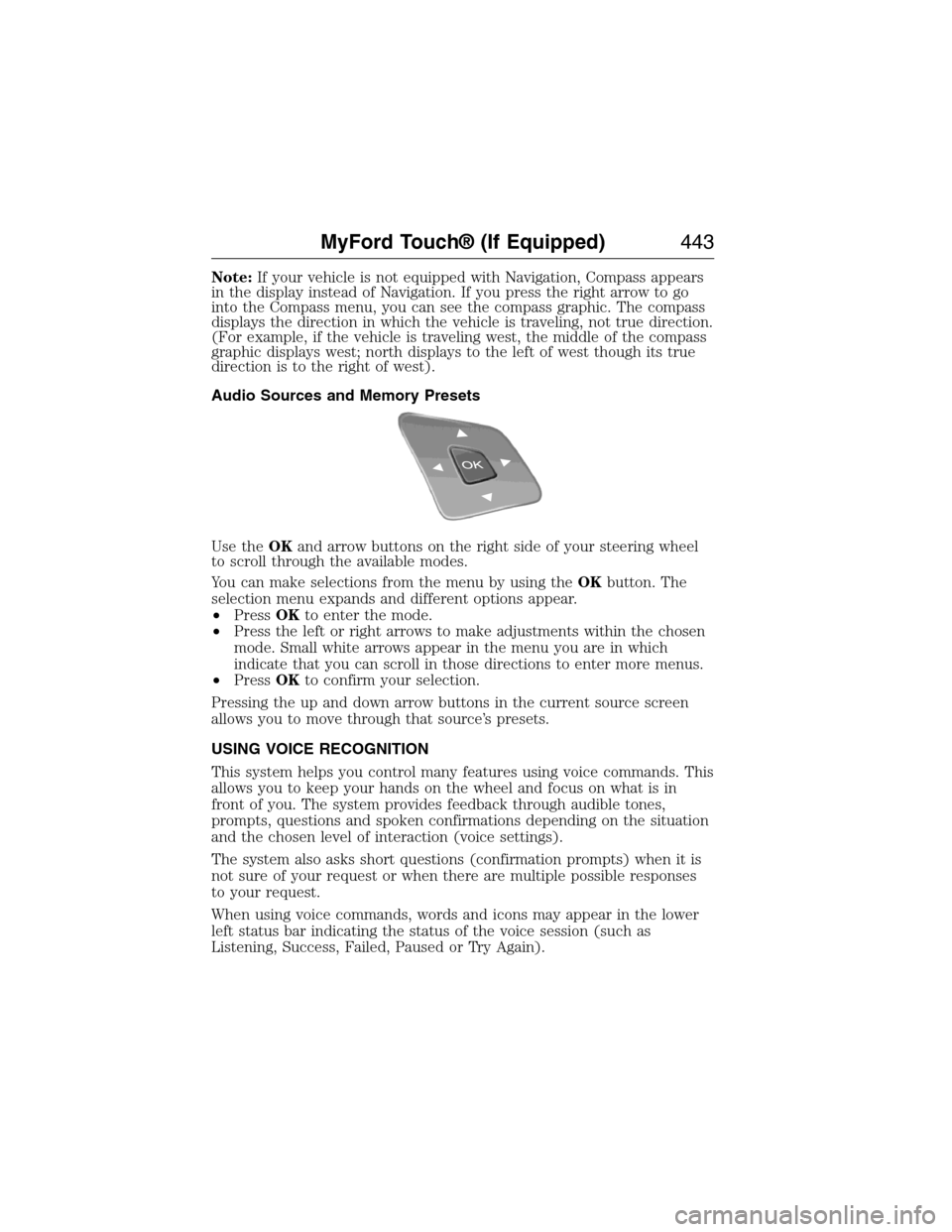
Use theOKand arrow buttons on the right side of your steering wheel
to scroll through the available modes.
You can make selections from the menu by using theOKbutton. The
selection menu expands and different options appear.
•PressOKto enter the mode.
•Press the left or right arrows to make adjustments within the chosen
mode. Small white arrows appear in the menu you are in which
indicate that you can scroll in those directions to enter more menus.
•PressOKto confirm your selection.
Pressing the up and down arrow buttons in the current source screen
allows you to move through that source’s presets.
USING VOICE RECOGNITION
This system helps you control many features using voice commands. This
allows you to keep your hands on the wheel and focus on what is in
front of you. The system provides feedback through audible tones,
prompts, questions and spoken confirmations depending on the situation
and the chosen level of interaction (voice settings).
The system also asks short questions (confirmation prompts) when it is
not sure of your request or when there are multiple possible responses
to your request.
When using voice commands, words and icons may appear in the lower
left status bar indicating the status of the voice session (such as
Listening, Success, Failed, Paused or Try Again).
MyFord Touch® (If Equipped)443
2015 Expedition(exd)
Owners Guide gf, 1st Printing, July 2014
USA(fus)
Page 446 of 564
Accessing a List of Available Commands
•If you use the touchscreen, press the Settings icon >Help>Voice
Command List.
•If you use the steering wheel control, press the voice icon. After the
tone, speak your command clearly.
Voice command list
“Audio list of commands”
“Bluetooth audio list of commands”
“Browse list of commands”
“CD list of commands”
“Climate control list of commands”
“List of commands”
“Navigation list of commands”
*
“Phone list of commands”
“Radio list of commands”
“SD card list of commands”
“Sirius satellite list of commands”
**
“Travel link list of commands”*
“USB list of commands”
“Voice instructions list of commands”
“Voice settings list of commands”
“Help”
*This command is only available when your vehicle is equipped with the
navigation system, and the navigation system SD card is in the card slot.
**This command is only available when you have an active Sirius satellite
radio subscription.
Voice Settings
Voice settings allow you to customize the level of system interaction,
help and feedback. The system defaults to standard interaction that uses
candidate lists and confirmation prompts as these provide the highest
level of guidance and feedback.
Interaction Mode:Novice mode provides detailed interaction and
guidance while the advanced mode has less audible interaction and more
tone prompts.
MyFord Touch® (If Equipped)445
2015 Expedition(exd)
Owners Guide gf, 1st Printing, July 2014
USA(fus)
Page 449 of 564
Browsing Device Content
When listening to audio on a device, you can browse through other
devices without having to change sources. For example, if you are
currently listening to audio on an SD card, you can browse all the artists
that are stored on your USB device.
Press the voice icon on the steering wheel. When prompted,
you can say:
“BROWSE” within devices
“Browse”*
“Browse
“Browse
“Browse Sirius channel guide”**
“Browse SD card”
“Browse USB”
“Help”
*If you have said “Browse”, you can then say any commands in the
following chart.
**This command is only usable if you have an active subscription to
Sirius satellite radio.
“BROWSE”
“
”
“SD card”**
“Sirius channel guide”*
“USB”**
“Help”
*This command is only usable if you have an active subscription to Sirius
satellite radio.
**For more commands in SD card or USB mode, see the “SD card and
USB Port” section of this chapter.
For a complete list of “Browse” voice commands, seeUSB and SD card
voice commandsandBluetooth audio voice commandsin the
following sections.
Your voice system allows you to change audio sources with a simple
voice command. For example, if you are listening to music on a USB
448MyFord Touch® (If Equipped)
2015 Expedition(exd)
Owners Guide gf, 1st Printing, July 2014
USA(fus)
Page 450 of 564
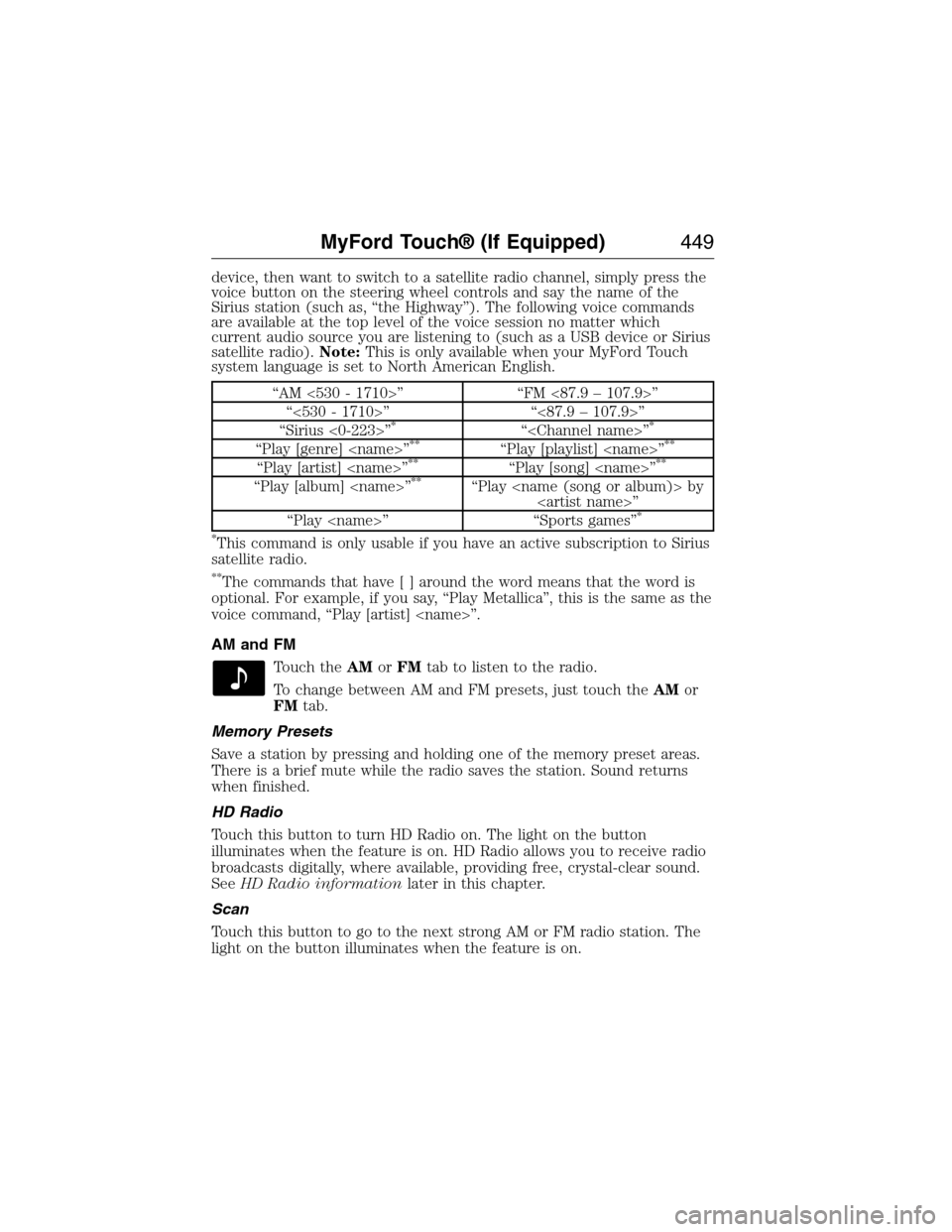
device, then want to switch to a satellite radio channel, simply press the
voice button on the steering wheel controls and say the name of the
Sirius station (such as, “the Highway”). The following voice commands
are available at the top level of the voice session no matter which
current audio source you are listening to (such as a USB device or Sirius
satellite radio).Note:This is only available when your MyFord Touch
system language is set to North American English.
“AM <530 - 1710>” “FM <87.9 – 107.9>”
“<530 - 1710>” “<87.9 – 107.9>”
“Sirius <0-223>”
*“
“Play [genre]
“Play [artist]
“Play [album]
“Play
*
*
This command is only usable if you have an active subscription to Sirius
satellite radio.
**The commands that have[]around the word means that the word is
optional. For example, if you say, “Play Metallica”, this is the same as the
voice command, “Play [artist]
AM and FM
Touch theAMorFMtab to listen to the radio.
To change between AM and FM presets, just touch theAMor
FMtab.
Memory Presets
Save a station by pressing and holding one of the memory preset areas.
There is a brief mute while the radio saves the station. Sound returns
when finished.
HD Radio
Touch this button to turn HD Radio on. The light on the button
illuminates when the feature is on. HD Radio allows you to receive radio
broadcasts digitally, where available, providing free, crystal-clear sound.
SeeHD Radio informationlater in this chapter.
Scan
Touch this button to go to the next strong AM or FM radio station. The
light on the button illuminates when the feature is on.
MyFord Touch® (If Equipped)449
2015 Expedition(exd)
Owners Guide gf, 1st Printing, July 2014
USA(fus)
Page 455 of 564
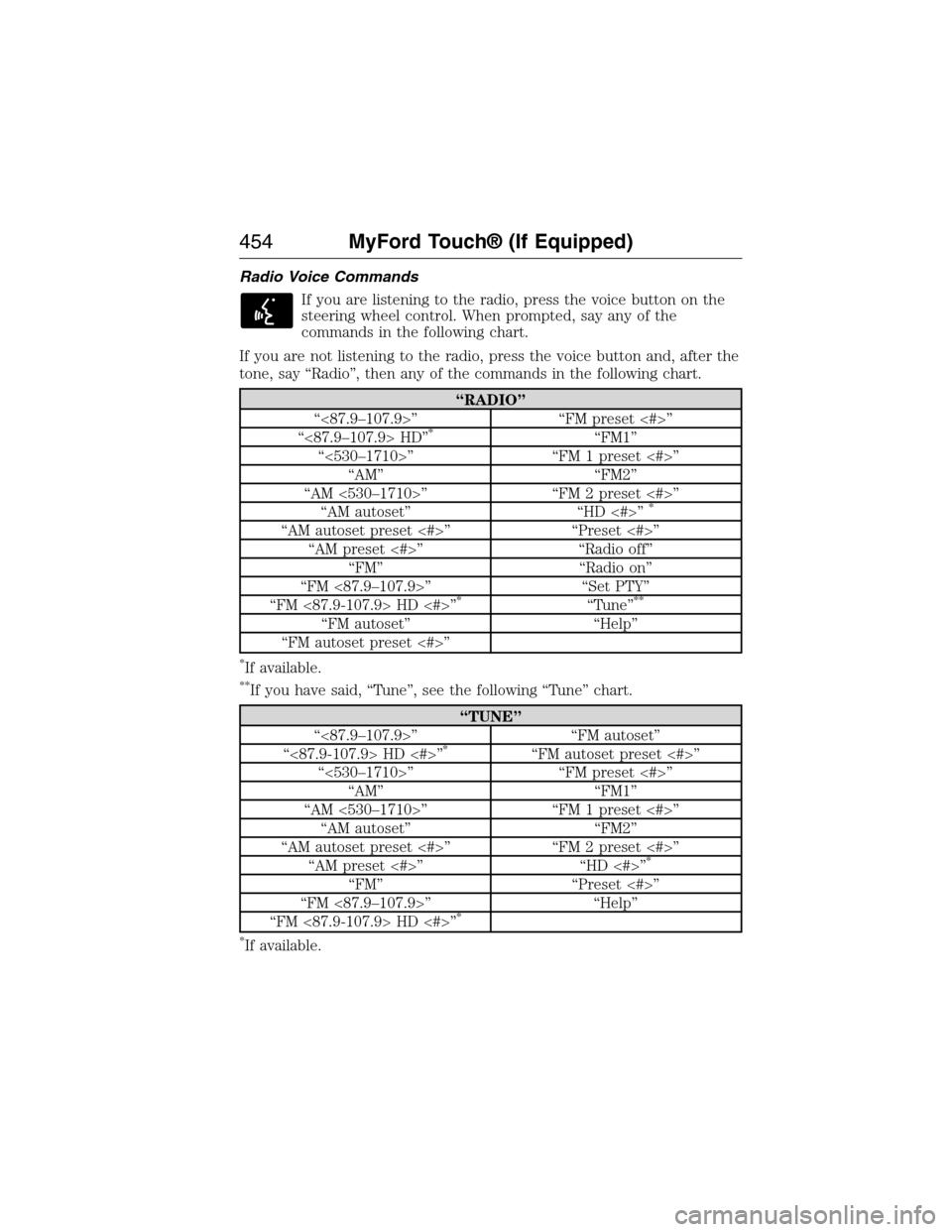
Radio Voice Commands
If you are listening to the radio, press the voice button on the
steering wheel control. When prompted, say any of the
commands in the following chart.
If you are not listening to the radio, press the voice button and, after the
tone, say “Radio”, then any of the commands in the following chart.
“RADIO”
“<87.9–107.9>” “FM preset <#>”
“<87.9–107.9> HD”
*“FM1”
“<530–1710>” “FM 1 preset <#>”
“AM” “FM2”
“AM <530–1710>” “FM 2 preset <#>”
“AM autoset” “HD <#>”
*
“AM autoset preset <#>” “Preset <#>”
“AM preset <#>” “Radio off”
“FM” “Radio on”
“FM <87.9–107.9>” “Set PTY”
“FM <87.9-107.9> HD <#>”
*“Tune”**
“FM autoset” “Help”
“FM autoset preset <#>”
*If available.
**If you have said, “Tune”, see the following “Tune” chart.
“TUNE”
“<87.9–107.9>” “FM autoset”
“<87.9-107.9> HD <#>”
*“FM autoset preset <#>”
“<530–1710>” “FM preset <#>”
“AM” “FM1”
“AM <530–1710>” “FM 1 preset <#>”
“AM autoset” “FM2”
“AM autoset preset <#>” “FM 2 preset <#>”
“AM preset <#>” “HD <#>”
*
“FM” “Preset <#>”
“FM <87.9–107.9>” “Help”
“FM <87.9-107.9> HD <#>”
*
*
If available.
454MyFord Touch® (If Equipped)
2015 Expedition(exd)
Owners Guide gf, 1st Printing, July 2014
USA(fus)
Page 458 of 564
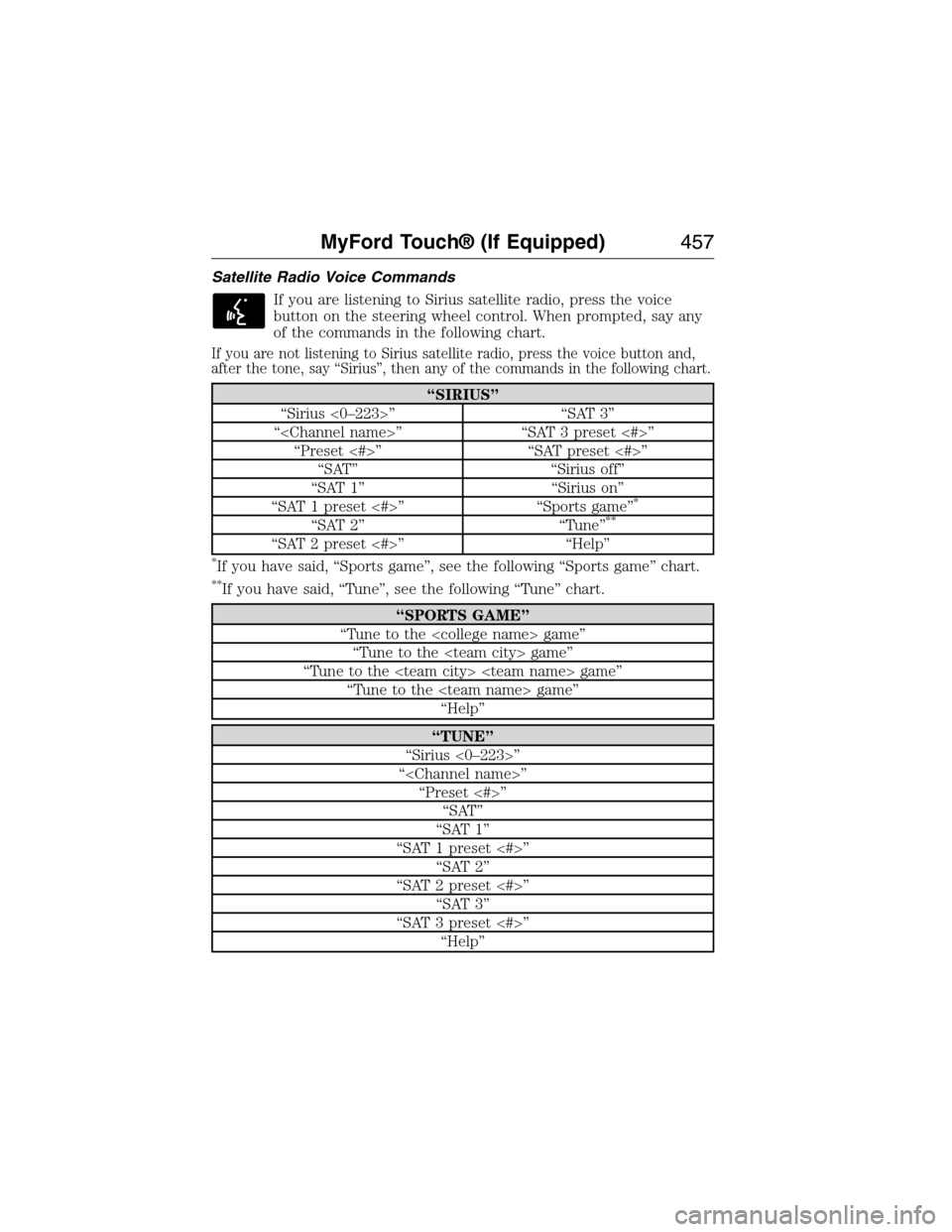
Satellite Radio Voice Commands
If you are listening to Sirius satellite radio, press the voice
button on the steering wheel control. When prompted, say any
of the commands in the following chart.
If you are not listening to Sirius satellite radio, press the voice button and,
after the tone, say “Sirius”, then any of the commands in the following chart.
“SIRIUS”
“Sirius <0–223>” “SAT 3”
“
“Preset <#>” “SAT preset <#>”
“SAT” “Sirius off”
“SAT 1” “Sirius on”
“SAT 1 preset <#>” “Sports game”
*
“SAT 2” “Tune”**
“SAT 2 preset <#>” “Help”
*If you have said, “Sports game”, see the following “Sports game” chart.
**If you have said, “Tune”, see the following “Tune” chart.
“SPORTS GAME”
“Tune to the
“Tune to the
“Tune to the
“Tune to the
“Help”
“TUNE”
“Sirius <0–223>”
“
“Preset <#>”
“SAT”
“SAT 1”
“SAT 1 preset <#>”
“SAT 2”
“SAT 2 preset <#>”
“SAT 3”
“SAT 3 preset <#>”
“Help”
MyFord Touch® (If Equipped)457
2015 Expedition(exd)
Owners Guide gf, 1st Printing, July 2014
USA(fus)
Page 462 of 564
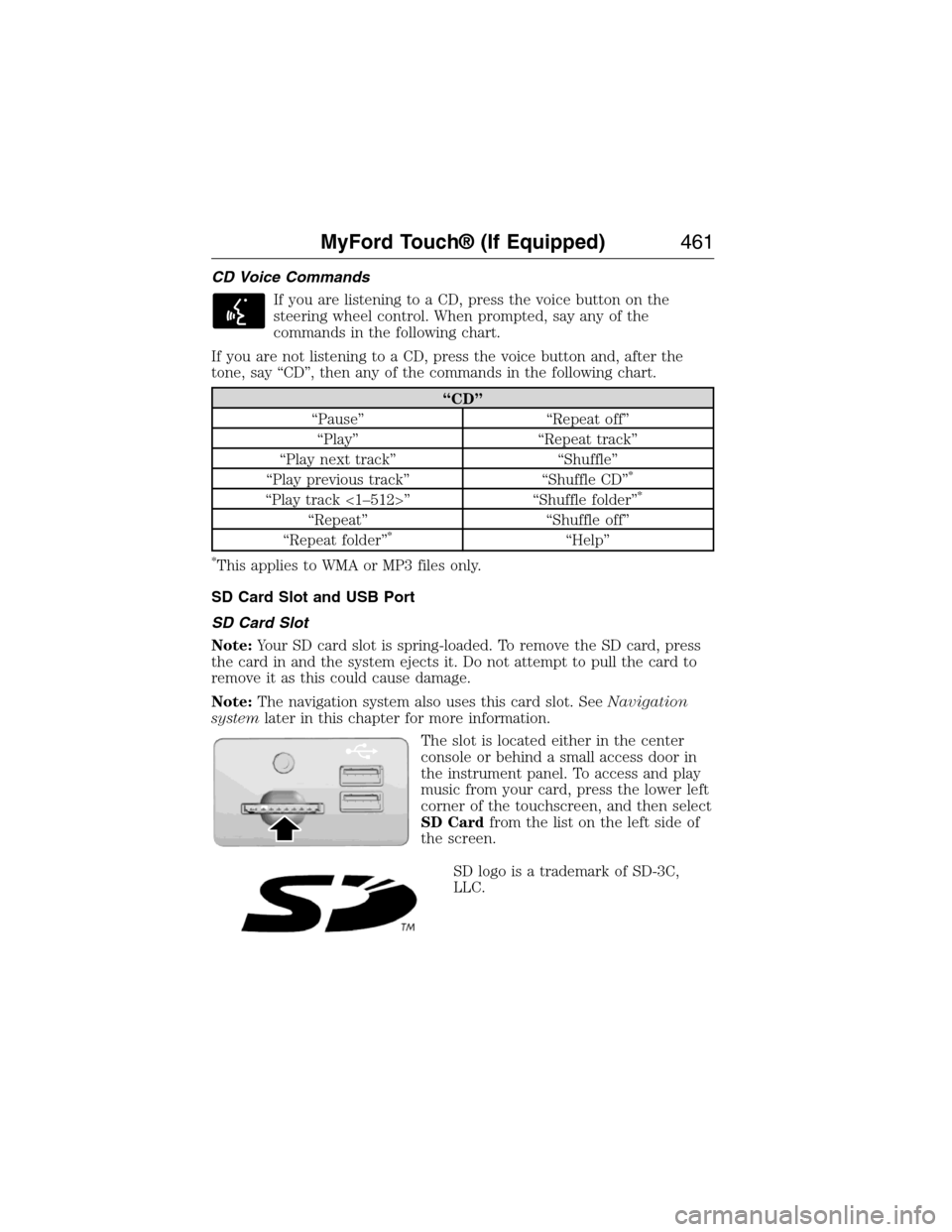
CD Voice Commands
If you are listening to a CD, press the voice button on the
steering wheel control. When prompted, say any of the
commands in the following chart.
If you are not listening to a CD, press the voice button and, after the
tone, say “CD”, then any of the commands in the following chart.
“CD”
“Pause” “Repeat off”
“Play” “Repeat track”
“Play next track” “Shuffle”
“Play previous track” “Shuffle CD”
*
“Play track <1–512>” “Shuffle folder”*
“Repeat” “Shuffle off”
“Repeat folder”*“Help”
*This applies to WMA or MP3 files only.
SD Card Slot and USB Port
SD Card Slot
Note:Your SD card slot is spring-loaded. To remove the SD card, press
the card in and the system ejects it. Do not attempt to pull the card to
remove it as this could cause damage.
Note:The navigation system also uses this card slot. SeeNavigation
systemlater in this chapter for more information.
The slot is located either in the center
console or behind a small access door in
the instrument panel. To access and play
music from your card, press the lower left
corner of the touchscreen, and then select
SD Cardfrom the list on the left side of
the screen.
SD logo is a trademark of SD-3C,
LLC.
MyFord Touch® (If Equipped)461
2015 Expedition(exd)
Owners Guide gf, 1st Printing, July 2014
USA(fus)