Page 422 of 564
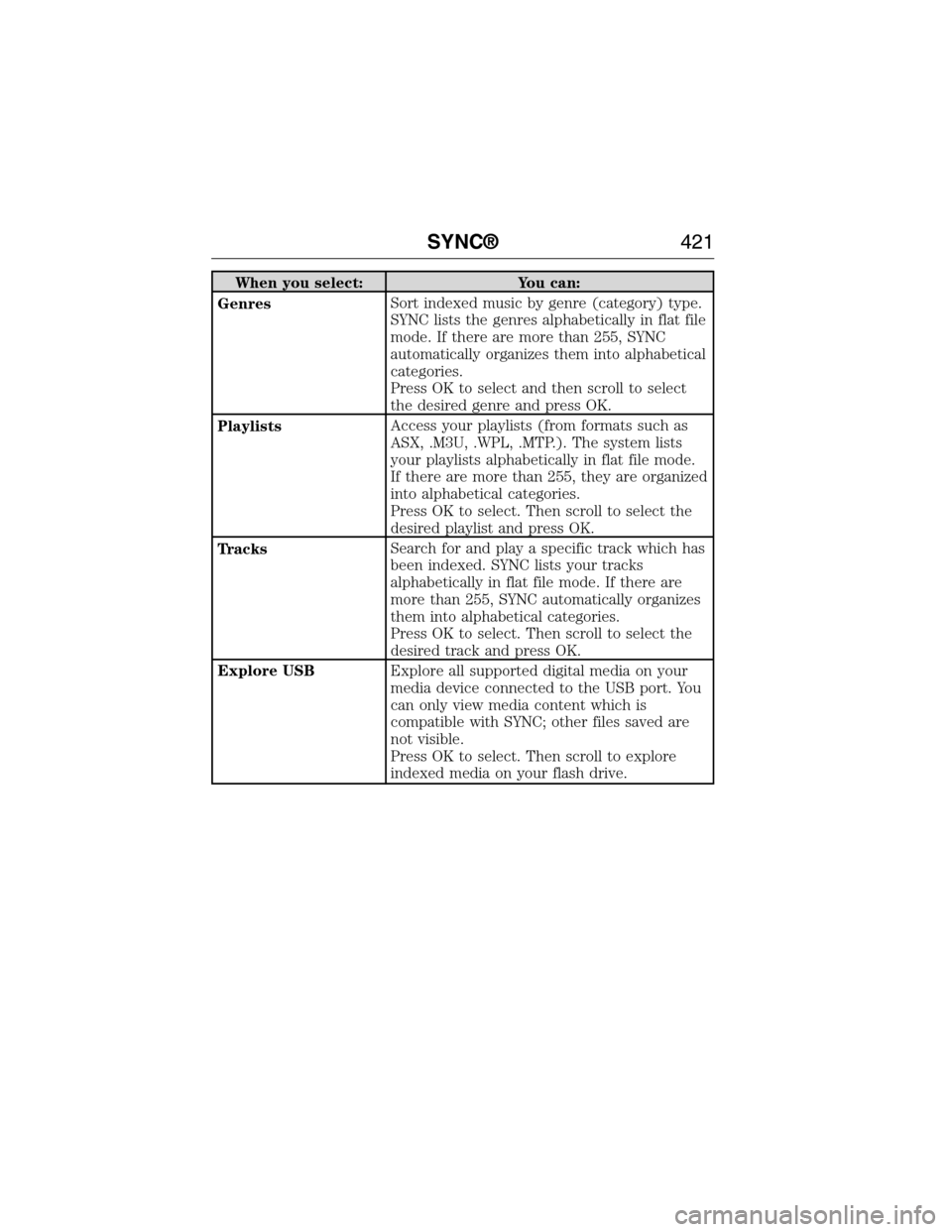
When you select: You can:
GenresSort indexed music by genre (category) type.
SYNC lists the genres alphabetically in flat file
mode. If there are more than 255, SYNC
automatically organizes them into alphabetical
categories.
Press OK to select and then scroll to select
the desired genre and press OK.
PlaylistsAccess your playlists (from formats such as
ASX, .M3U, .WPL, .MTP.). The system lists
your playlists alphabetically in flat file mode.
If there are more than 255, they are organized
into alphabetical categories.
Press OK to select. Then scroll to select the
desired playlist and press OK.
TracksSearch for and play a specific track which has
been indexed. SYNC lists your tracks
alphabetically in flat file mode. If there are
more than 255, SYNC automatically organizes
them into alphabetical categories.
Press OK to select. Then scroll to select the
desired track and press OK.
Explore USBExplore all supported digital media on your
media device connected to the USB port. You
can only view media content which is
compatible with SYNC; other files saved are
not visible.
Press OK to select. Then scroll to explore
indexed media on your flash drive.
SYNC®421
2015 Expedition(exd)
Owners Guide gf, 1st Printing, July 2014
USA(fus)
Page 423 of 564
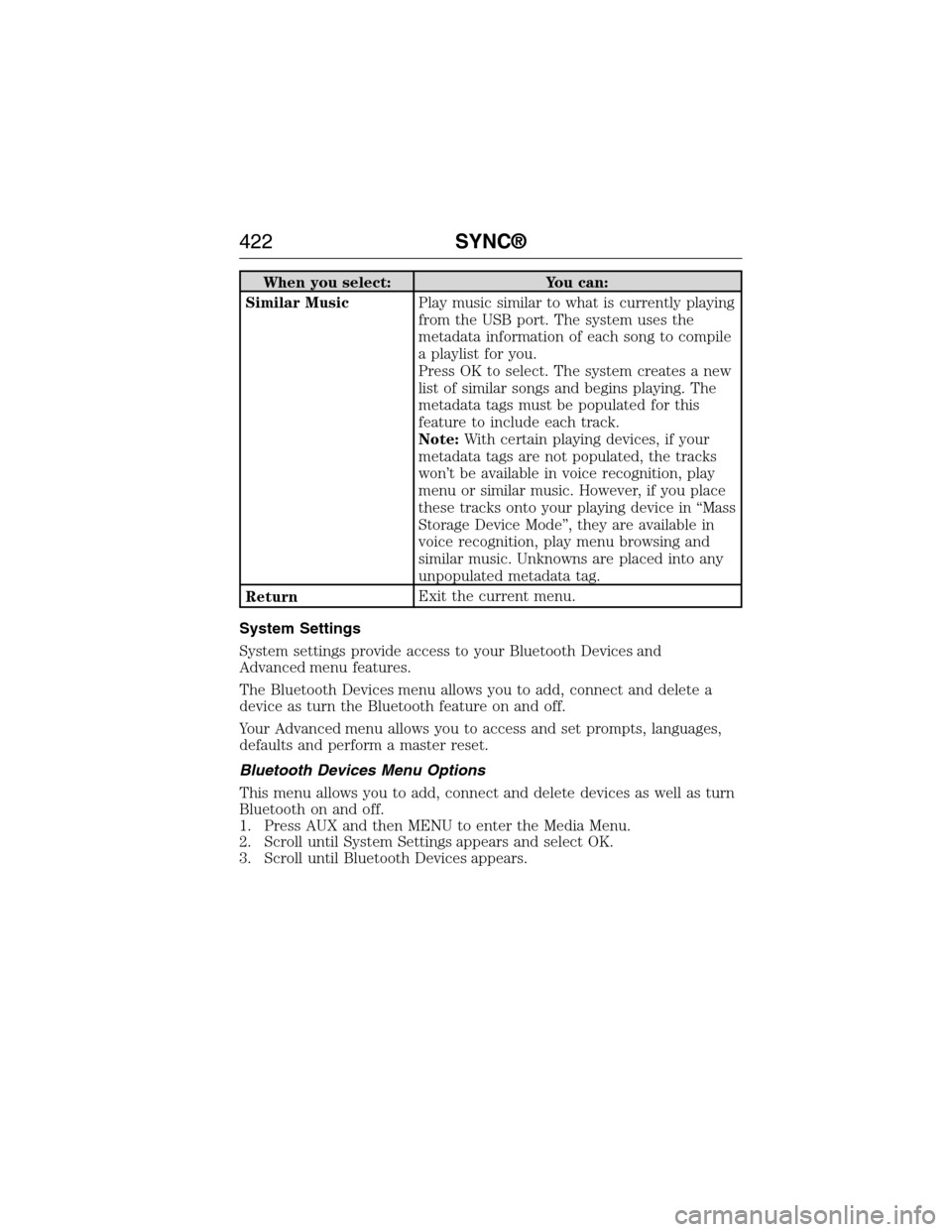
When you select: You can:
Similar MusicPlay music similar to what is currently playing
from the USB port. The system uses the
metadata information of each song to compile
a playlist for you.
Press OK to select. The system creates a new
list of similar songs and begins playing. The
metadata tags must be populated for this
feature to include each track.
Note:With certain playing devices, if your
metadata tags are not populated, the tracks
won’t be available in voice recognition, play
menu or similar music. However, if you place
these tracks onto your playing device in “Mass
Storage Device Mode”, they are available in
voice recognition, play menu browsing and
similar music. Unknowns are placed into any
unpopulated metadata tag.
ReturnExit the current menu.
System Settings
System settings provide access to your Bluetooth Devices and
Advanced menu features.
The Bluetooth Devices menu allows you to add, connect and delete a
device as turn the Bluetooth feature on and off.
Your Advanced menu allows you to access and set prompts, languages,
defaults and perform a master reset.
Bluetooth Devices Menu Options
This menu allows you to add, connect and delete devices as well as turn
Bluetooth on and off.
1. Press AUX and then MENU to enter the Media Menu.
2. Scroll until System Settings appears and select OK.
3. Scroll until Bluetooth Devices appears.
422SYNC®
2015 Expedition(exd)
Owners Guide gf, 1st Printing, July 2014
USA(fus)
Page 426 of 564
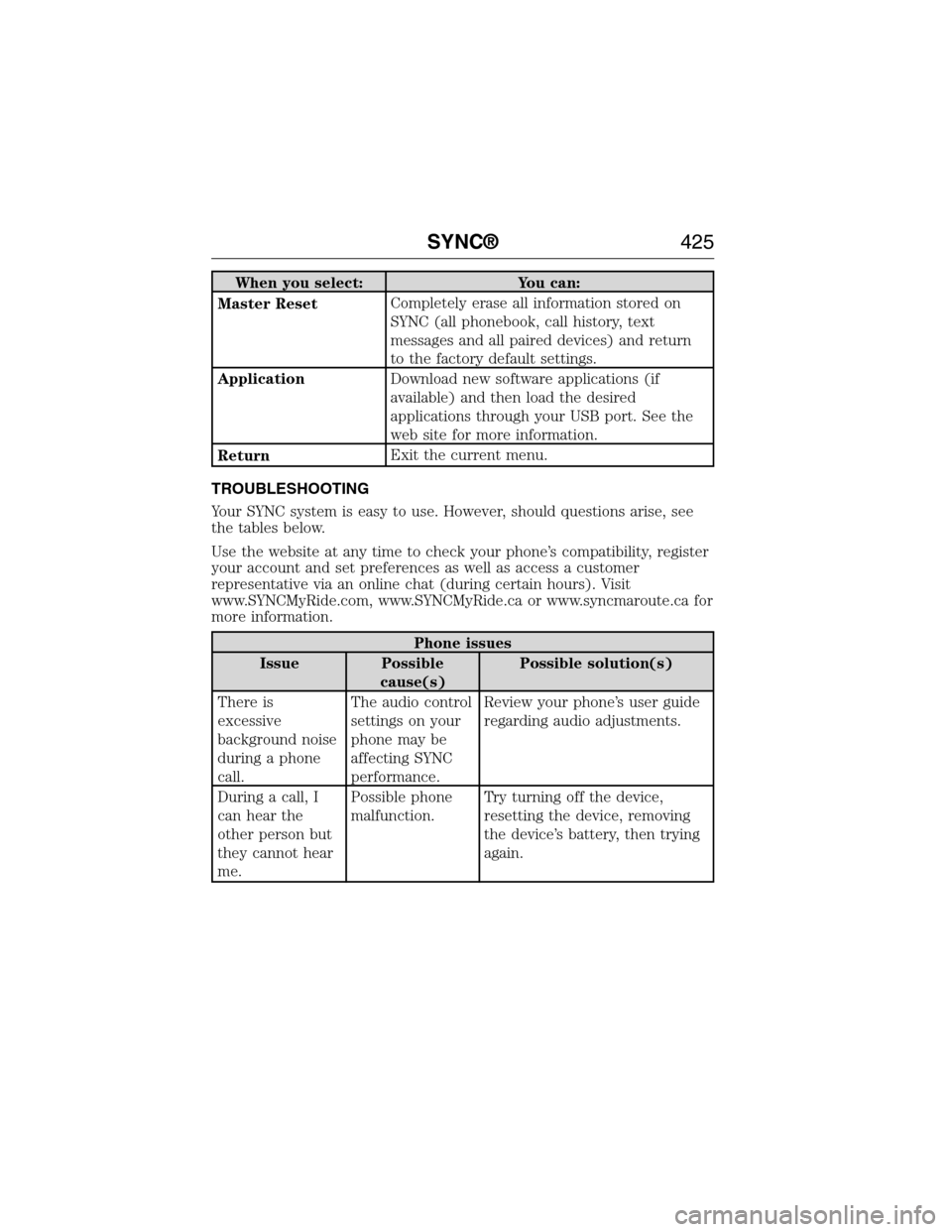
When you select: You can:
Master ResetCompletely erase all information stored on
SYNC (all phonebook, call history, text
messages and all paired devices) and return
to the factory default settings.
ApplicationDownload new software applications (if
available) and then load the desired
applications through your USB port. See the
web site for more information.
ReturnExit the current menu.
TROUBLESHOOTING
Your SYNC system is easy to use. However, should questions arise, see
the tables below.
Use the website at any time to check your phone’s compatibility, register
your account and set preferences as well as access a customer
representative via an online chat (during certain hours). Visit
www.SYNCMyRide.com, www.SYNCMyRide.ca or www.syncmaroute.ca for
more information.
Phone issues
Issue Possible
cause(s)Possible solution(s)
There is
excessive
background noise
during a phone
call.The audio control
settings on your
phone may be
affecting SYNC
performance.Review your phone’s user guide
regarding audio adjustments.
During a call, I
can hear the
other person but
they cannot hear
me.Possible phone
malfunction.Try turning off the device,
resetting the device, removing
the device’s battery, then trying
again.
SYNC®425
2015 Expedition(exd)
Owners Guide gf, 1st Printing, July 2014
USA(fus)
Page 429 of 564
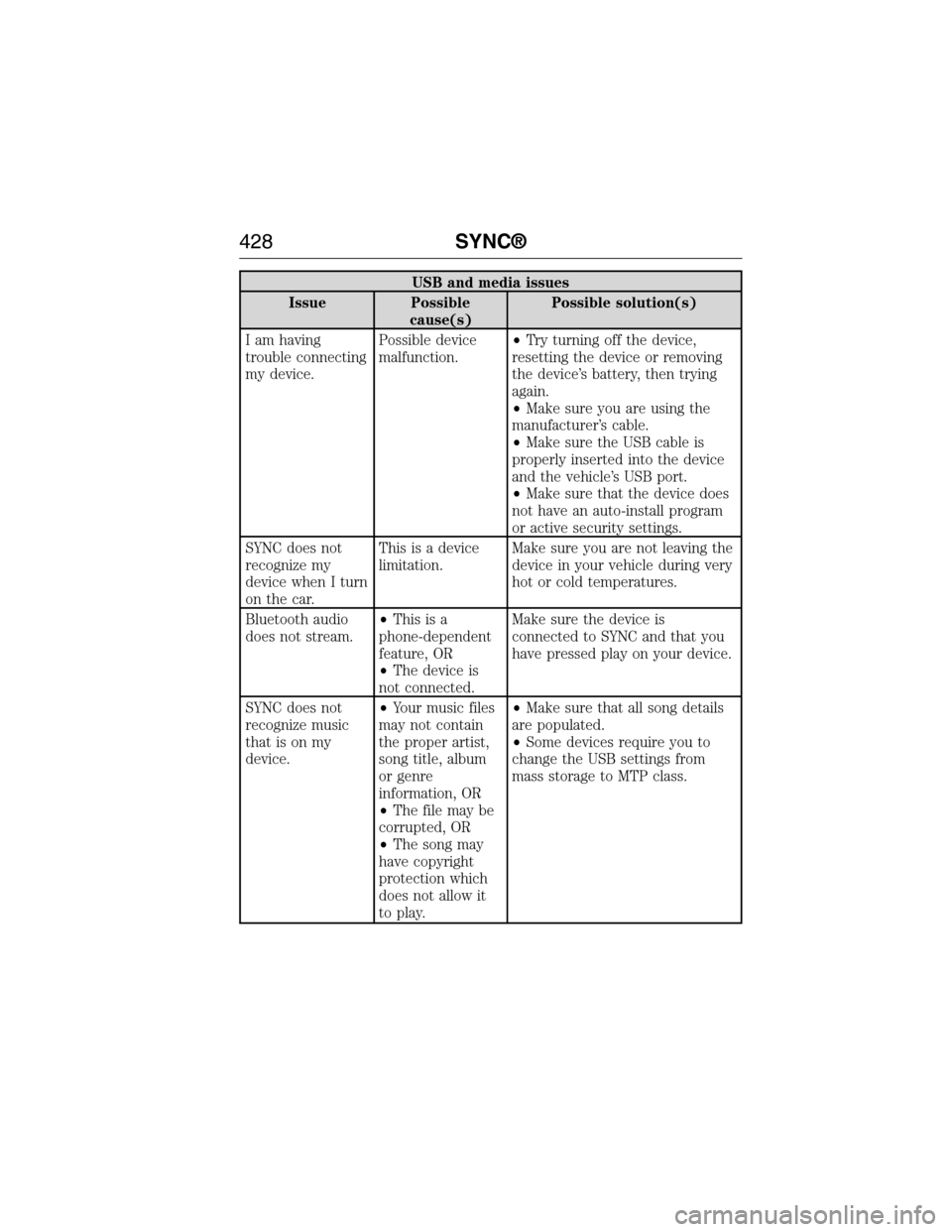
USB and media issues
Issue Possible
cause(s)Possible solution(s)
I am having
trouble connecting
my device.Possible device
malfunction.•Try turning off the device,
resetting the device or removing
the device’s battery, then trying
again.
•Make sure you are using the
manufacturer’s cable.
•Make sure the USB cable is
properly inserted into the device
and the vehicle’s USB port.
•Make sure that the device does
not have an auto-install program
or active security settings.
SYNC does not
recognize my
device when I turn
on the car.This is a device
limitation.Make sure you are not leaving the
device in your vehicle during very
hot or cold temperatures.
Bluetooth audio
does not stream.•Thisisa
phone-dependent
feature, OR
•The device is
not connected.Make sure the device is
connected to SYNC and that you
have pressed play on your device.
SYNC does not
recognize music
that is on my
device.•Your music files
may not contain
the proper artist,
song title, album
or genre
information, OR
•The file may be
corrupted, OR
•The song may
have copyright
protection which
does not allow it
to play.•Make sure that all song details
are populated.
•Some devices require you to
change the USB settings from
mass storage to MTP class.
428SYNC®
2015 Expedition(exd)
Owners Guide gf, 1st Printing, July 2014
USA(fus)
Page 433 of 564
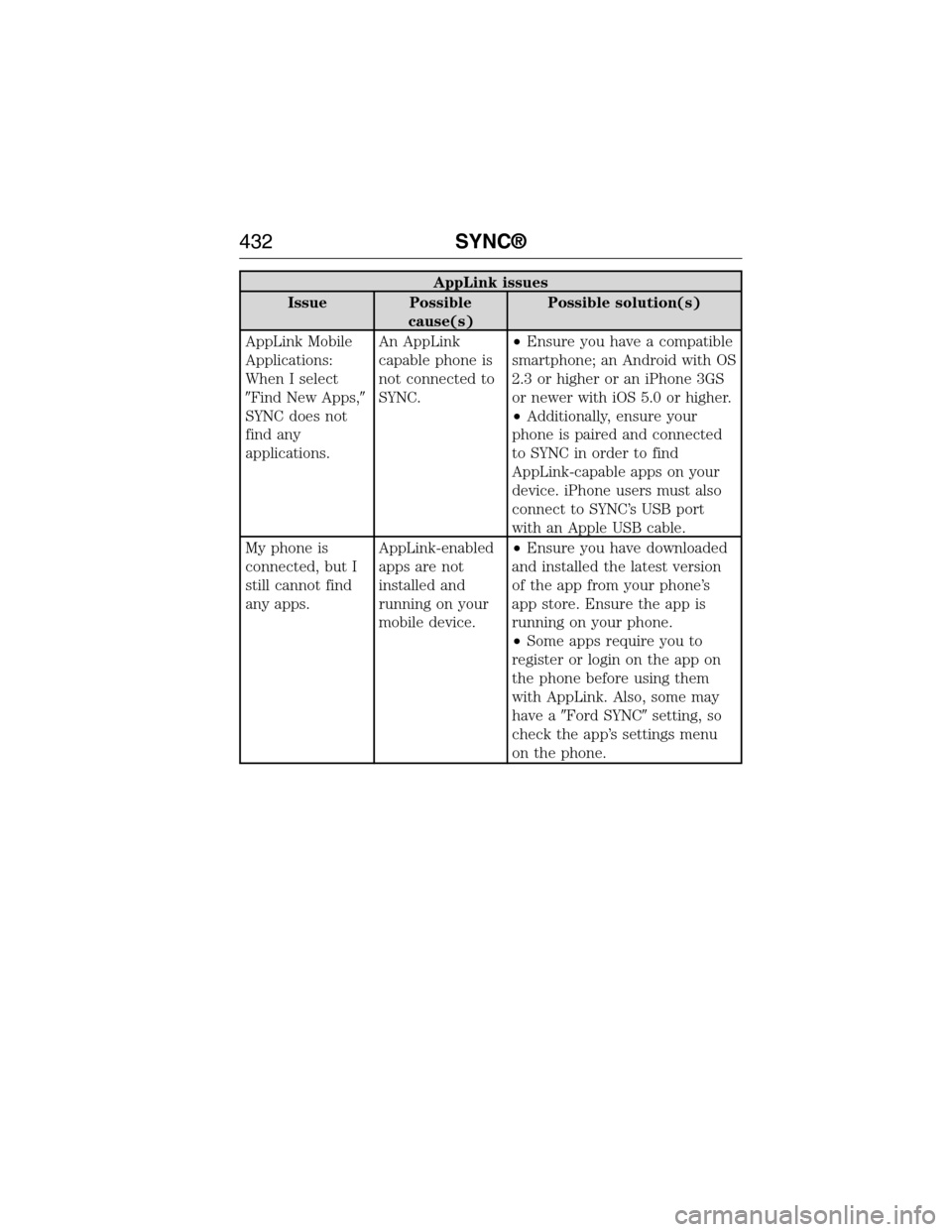
AppLink issues
Issue Possible
cause(s)Possible solution(s)
AppLink Mobile
Applications:
When I select
�Find New Apps,�
SYNC does not
find any
applications.An AppLink
capable phone is
not connected to
SYNC.•Ensure you have a compatible
smartphone; an Android with OS
2.3 or higher or an iPhone 3GS
or newer with iOS 5.0 or higher.
•Additionally, ensure your
phone is paired and connected
to SYNC in order to find
AppLink-capable apps on your
device. iPhone users must also
connect to SYNC’s USB port
with an Apple USB cable.
My phone is
connected, but I
still cannot find
any apps.AppLink-enabled
apps are not
installed and
running on your
mobile device.•Ensure you have downloaded
and installed the latest version
of the app from your phone’s
app store. Ensure the app is
running on your phone.
•Some apps require you to
register or login on the app on
the phone before using them
with AppLink. Also, some may
have a�Ford SYNC�setting, so
check the app’s settings menu
on the phone.
432SYNC®
2015 Expedition(exd)
Owners Guide gf, 1st Printing, July 2014
USA(fus)
Page 435 of 564
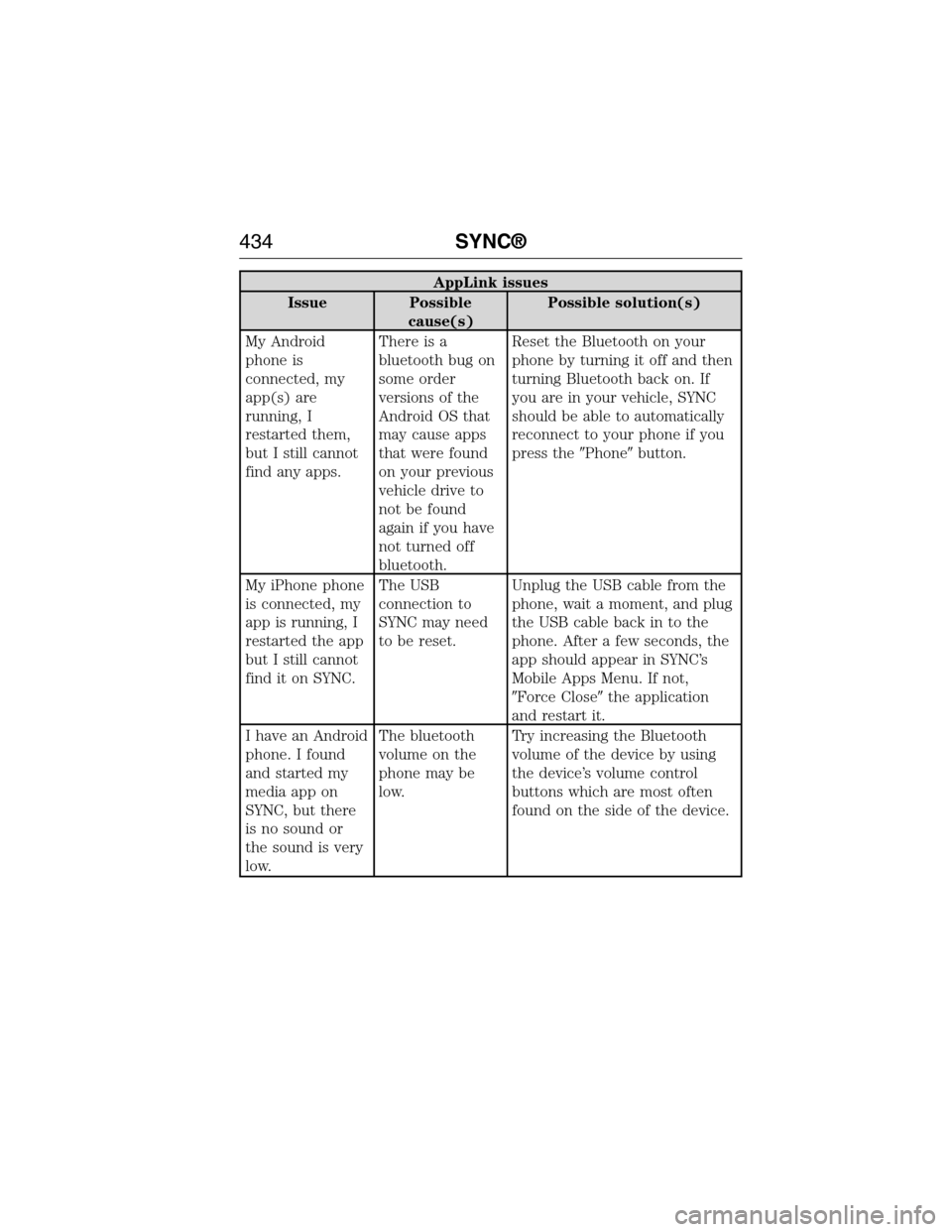
AppLink issues
Issue Possible
cause(s)Possible solution(s)
My Android
phone is
connected, my
app(s) are
running, I
restarted them,
but I still cannot
find any apps.There is a
bluetooth bug on
some order
versions of the
Android OS that
may cause apps
that were found
on your previous
vehicle drive to
not be found
again if you have
not turned off
bluetooth.Reset the Bluetooth on your
phone by turning it off and then
turning Bluetooth back on. If
you are in your vehicle, SYNC
should be able to automatically
reconnect to your phone if you
press the�Phone�button.
My iPhone phone
is connected, my
app is running, I
restarted the app
but I still cannot
find it on SYNC.The USB
connection to
SYNC may need
to be reset.Unplug the USB cable from the
phone, wait a moment, and plug
the USB cable back in to the
phone. After a few seconds, the
app should appear in SYNC’s
Mobile Apps Menu. If not,
�Force Close�the application
and restart it.
I have an Android
phone. I found
and started my
media app on
SYNC, but there
is no sound or
the sound is very
low.The bluetooth
volume on the
phone may be
low.Try increasing the Bluetooth
volume of the device by using
the device’s volume control
buttons which are most often
found on the side of the device.
434SYNC®
2015 Expedition(exd)
Owners Guide gf, 1st Printing, July 2014
USA(fus)
Page 439 of 564
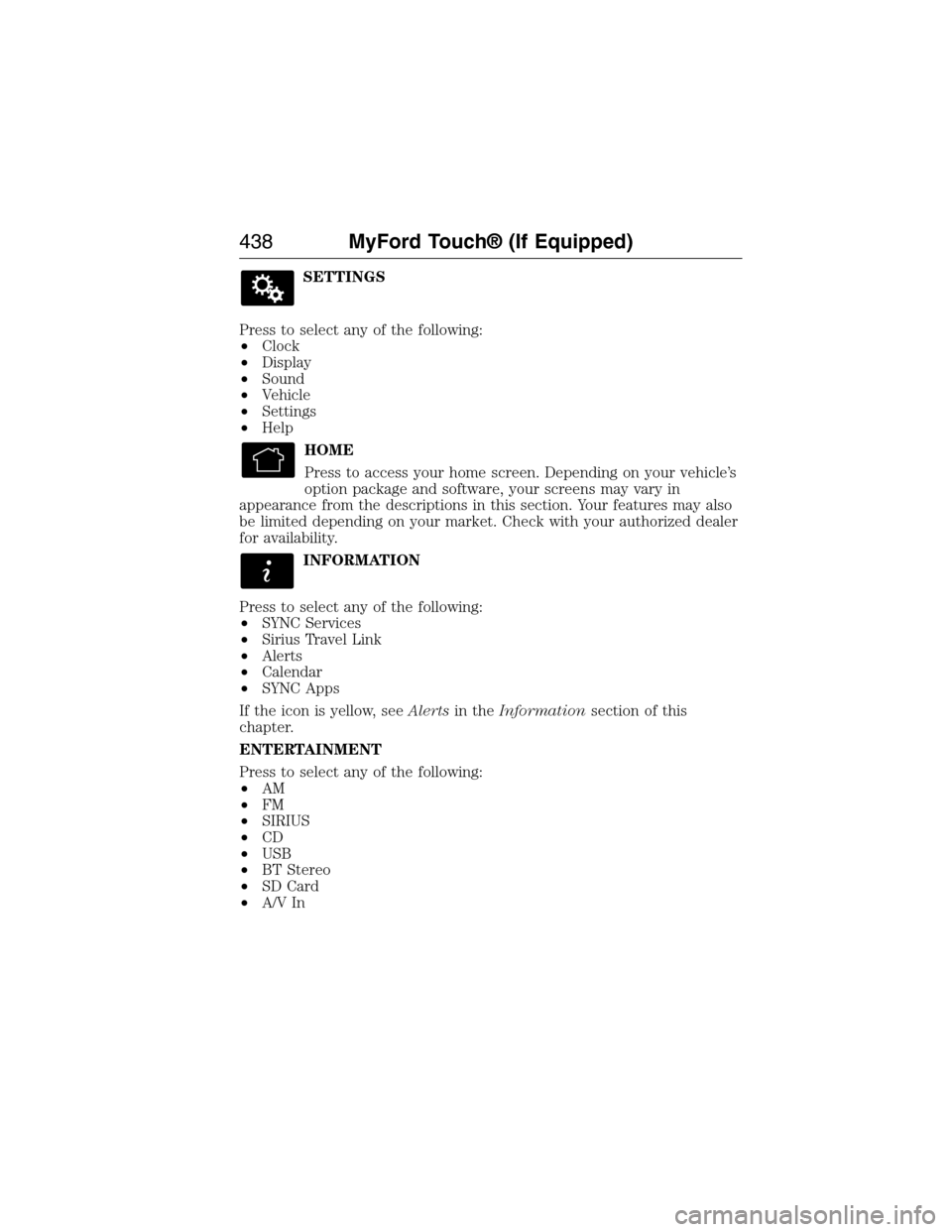
SETTINGS
Press to select any of the following:
•Clock
•Display
•Sound
•Vehicle
•Settings
•Help
HOME
Press to access your home screen. Depending on your vehicle’s
option package and software, your screens may vary in
appearance from the descriptions in this section. Your features may also
be limited depending on your market. Check with your authorized dealer
for availability.
INFORMATION
Press to select any of the following:
•SYNC Services
•Sirius Travel Link
•Alerts
•Calendar
•SYNC Apps
If the icon is yellow, seeAlertsin theInformationsection of this
chapter.
ENTERTAINMENT
Press to select any of the following:
•AM
•FM
•SIRIUS
•CD
•USB
•BT Stereo
•SD Card
•A/V In
438MyFord Touch® (If Equipped)
2015 Expedition(exd)
Owners Guide gf, 1st Printing, July 2014
USA(fus)
Page 440 of 564
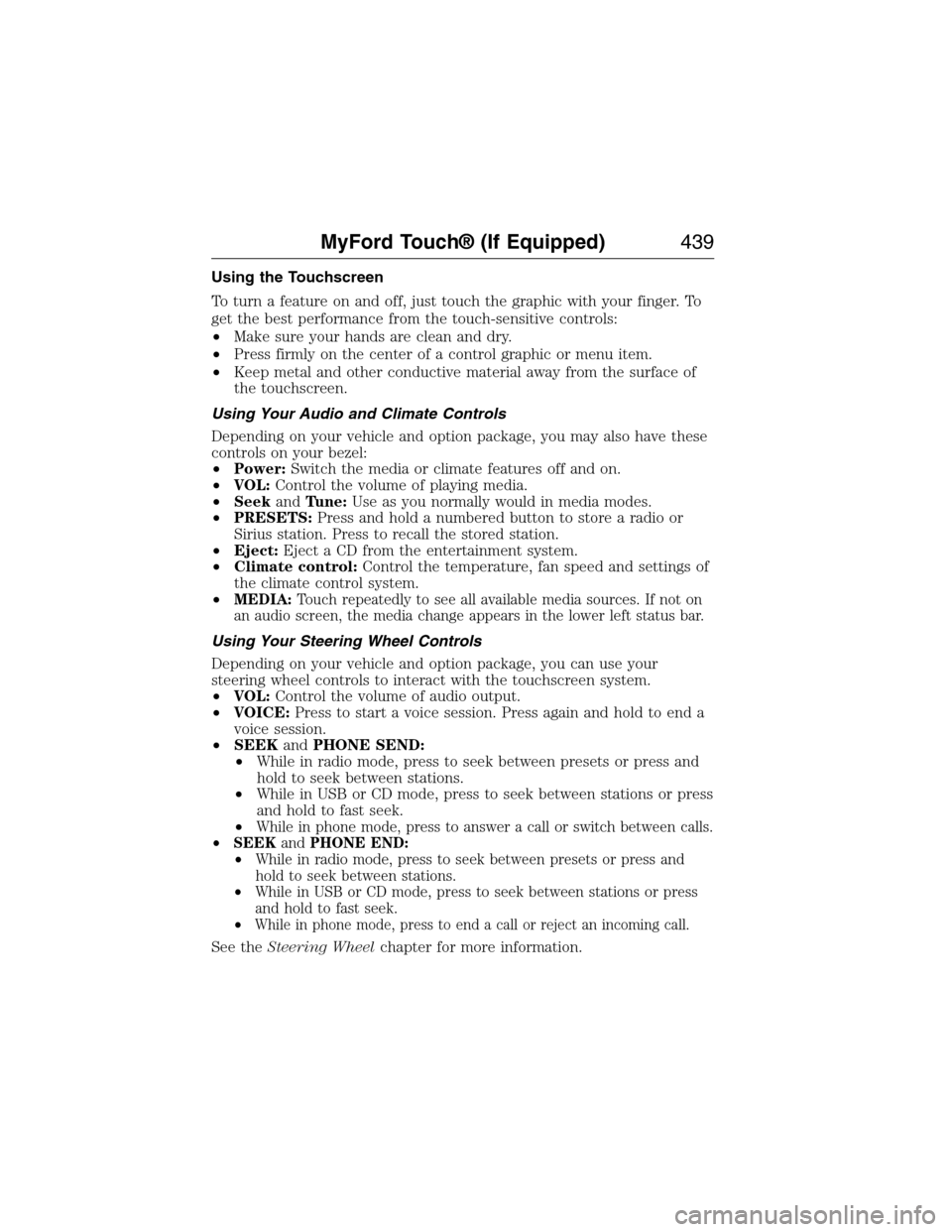
Using the Touchscreen
To turn a feature on and off, just touch the graphic with your finger. To
get the best performance from the touch-sensitive controls:
•Make sure your hands are clean and dry.
•Press firmly on the center of a control graphic or menu item.
•Keep metal and other conductive material away from the surface of
the touchscreen.
Using Your Audio and Climate Controls
Depending on your vehicle and option package, you may also have these
controls on your bezel:
•Power:Switch the media or climate features off and on.
•VOL:Control the volume of playing media.
•SeekandTune:Use as you normally would in media modes.
•PRESETS:Press and hold a numbered button to store a radio or
Sirius station. Press to recall the stored station.
•Eject:Eject a CD from the entertainment system.
•Climate control:Control the temperature, fan speed and settings of
the climate control system.
•
MEDIA:Touch repeatedly to see all available media sources. If not on
an audio screen, the media change appears in the lower left status bar.
Using Your Steering Wheel Controls
Depending on your vehicle and option package, you can use your
steering wheel controls to interact with the touchscreen system.
•VOL:Control the volume of audio output.
•VOICE:Press to start a voice session. Press again and hold to end a
voice session.
•SEEKandPHONE SEND:
•While in radio mode, press to seek between presets or press and
hold to seek between stations.
•While in USB or CD mode, press to seek between stations or press
and hold to fast seek.
•
While in phone mode, press to answer a call or switch between calls.
•SEEKandPHONE END:
•While in radio mode, press to seek between presets or press and
hold to seek between stations.
•While in USB or CD mode, press to seek between stations or press
and hold to fast seek.
•
While in phone mode, press to end a call or reject an incoming call.
See theSteering Wheelchapter for more information.
MyFord Touch® (If Equipped)439
2015 Expedition(exd)
Owners Guide gf, 1st Printing, July 2014
USA(fus)