2015 FORD EXPEDITION lock
[x] Cancel search: lockPage 476 of 564

Note:This feature does not function properly if you have enabled caller
ID blocking on your mobile phone. Make sure your mobile phone is not
blocking caller ID before using SYNC Services.
Note:
The driver is ultimately responsible for the safe operation of the
vehicle, and therefore, must evaluate whether it is safe to follow the
suggested directions. Any navigation features are provided only as an aid.
Make your driving decisions based on your observations of local conditions
and existing traffic regulations. Do not follow the route suggestions if doing
so would result in an unsafe or illegal maneuver, if you would be placed in
an unsafe situation, or if you would be directed into an area that you
consider unsafe. Maps used by this system may be inaccurate because of
errors, changes in roads, traffic conditions or driving conditions.
Note:When you connect, the service uses GPS technology and advanced
vehicle sensors to collect your vehicle’s current location, travel direction
and speed to help provide you with the directions, traffic reports, or
business searches you request. Further, to provide the services you
request, for continuous improvement, the service may collect and record
call details and voice communications. For more information, see SYNC
Services Terms and Conditions at www.SYNCMyRide.com. If you do not
want Ford or its service providers to collect your vehicle travel
information or other information identified in the Terms and Conditions,
do not subscribe or use the service.
SYNC Services uses advanced vehicle sensors, integrated GPS technology
and comprehensive map and traffic data, to give you personalized traffic
reports, precise turn-by-turn directions, business search, news, sports,
weather and more. For a complete list of services, or to learn more,
please visit www.SYNCMyRide.com.
Connecting to SYNC Services Using Voice Commands
Press the voice button on the steering wheel controls.
1. When prompted, say “Services”. This initiates an outgoing call to
SYNC Services using your paired and connected Bluetooth-enabled
cellular phone.
2. Once you connect to the service, follow the voice prompts to request
the desired service, such as “Traffic” or “Directions”. You can also
say, “What are my choices?” to receive a list of available services
from which to choose.
3. Say, “Services” to return to the Services main menu or for help, say,
“Help”.
MyFord Touch® (If Equipped)475
2015 Expedition(exd)
Owners Guide gf, 1st Printing, July 2014
USA(fus)
Page 485 of 564
911 Assist May Not Work If
•Your cellular phone or 911 Assist hardware sustains damage in a
crash.
•The vehicle’s battery or SYNC system has no power.
•The phones(s) previously paired or connected to the system are
thrown from the vehicle.
911 Assist Privacy Notice
When you turn on 911 Assist, it may disclose to emergency services that
your vehicle has been in a crash involving the deployment of an airbag or
activation of the fuel pump shut-off. Certain versions or updates to 911
Assist may also be capable of electronically or verbally disclosing to 911
operators your vehicle location or other details about your vehicle or
crash to assist 911 operators to provide the most appropriate emergency
services. If you do not want to disclose this information, do not turn the
feature on.
Vehicle Health Report (If Equipped, United States Only)
WARNING:Always follow scheduled maintenance instructions,
regularly inspect your vehicle, and seek repair for any damage or
problem you suspect. Vehicle Health Report supplements, but cannot
replace, normal maintenance and vehicle inspection. Vehicle Health
Report only monitors certain systems electronically monitored by your
vehicle and will not monitor or report the status of any other system,
(such as brake lining wear). Failure to perform scheduled maintenance
and regularly inspect your vehicle may result in vehicle damage and
serious injury.
Note:Your Vehicle Health Report feature requires activation prior to
use. Visit www.SYNCMyRide.com to register. There is no fee or
subscription associated with Vehicle Health Report, but you must register
to use this feature.
Note:This feature may not function properly if you have enabled caller
ID blocking on your mobile phone. Before running a report, review the
Vehicle Health Report Privacy Notice.
Note:In order to allow a break-in period for your vehicle, you may not
be able to create a Vehicle Health Report until your vehicle odometer has
reached 200 miles.
Note:Cellular phone and SMS charges may apply when making a report.
484MyFord Touch® (If Equipped)
2015 Expedition(exd)
Owners Guide gf, 1st Printing, July 2014
USA(fus)
Page 487 of 564
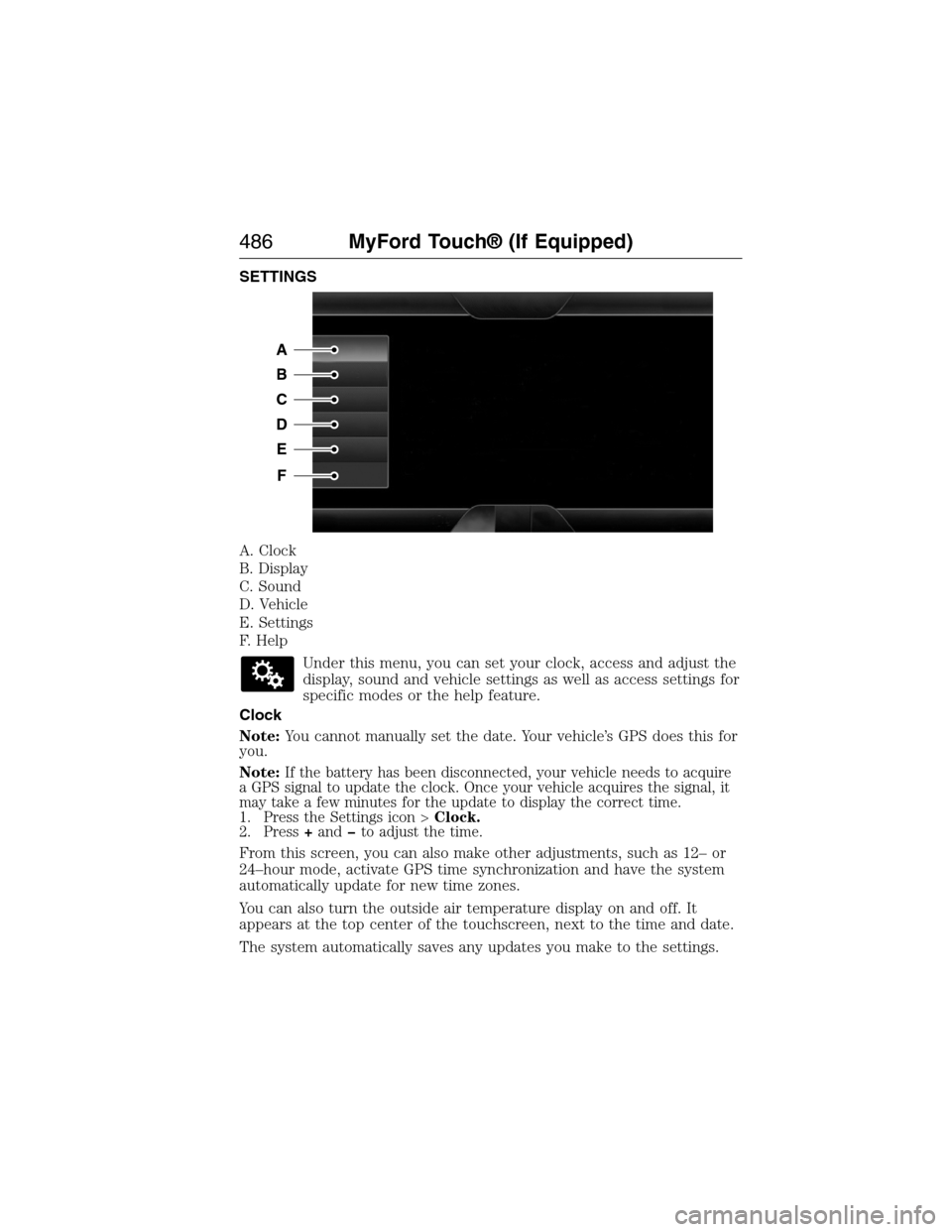
SETTINGS
A. Clock
B. Display
C. Sound
D. Vehicle
E. Settings
F. Help
Under this menu, you can set your clock, access and adjust the
display, sound and vehicle settings as well as access settings for
specific modes or the help feature.
Clock
Note:You cannot manually set the date. Your vehicle’s GPS does this for
you.
Note:
If the battery has been disconnected, your vehicle needs to acquire
a GPS signal to update the clock. Once your vehicle acquires the signal, it
may take a few minutes for the update to display the correct time.
1. Press the Settings icon >Clock.
2. Press+andto adjust the time.
From this screen, you can also make other adjustments, such as 12– or
24–hour mode, activate GPS time synchronization and have the system
automatically update for new time zones.
You can also turn the outside air temperature display on and off. It
appears at the top center of the touchscreen, next to the time and date.
The system automatically saves any updates you make to the settings.
A
B
C
D
E
F
486MyFord Touch® (If Equipped)
2015 Expedition(exd)
Owners Guide gf, 1st Printing, July 2014
USA(fus)
Page 490 of 564
Camera Settings
This menu allows you to access settings for your rear view camera.
Press the Settings icon >Vehicle>Camera Settings,then select from
the following settings:
•Enhanced Park Aids.
•Rear Camera Delay.
Enable Valet Mode
Valet mode allows you to lock the system. No information is accessible
until the system is unlocked with the correct PIN.
1. Press the Settings icon >Vehicle>Enable Valet Mode.
2. Enter a four-digit pin twice, as prompted.
After you press Continue, the system locks until you enter the PIN again.
Note:If the system locks, and you need to reset the PIN, enter 3681 and
the system unlocks.
Settings
Access and adjust system settings, voice features, as well as phone,
navigation and wireless settings.
System
Press the Settings icon >Settings>System,then select from
the following:
System
LanguageSelect to have the touchscreen display in
English, Spanish or French.
DistanceSelect to display units in kilometers or miles.
TemperatureSelect to display units in Celsius or
Fahrenheit.
System Prompt
VolumeAdjust the volume of voice prompts from the
system.
Touch Screen Button
BeepSelect to have the system beep to confirm
choices made through the touchscreen.
Touch Panel Button
BeepSelect to have the system beep to confirm
button choices made through the climate or
audio system.
MyFord Touch® (If Equipped)489
2015 Expedition(exd)
Owners Guide gf, 1st Printing, July 2014
USA(fus)
Page 501 of 564
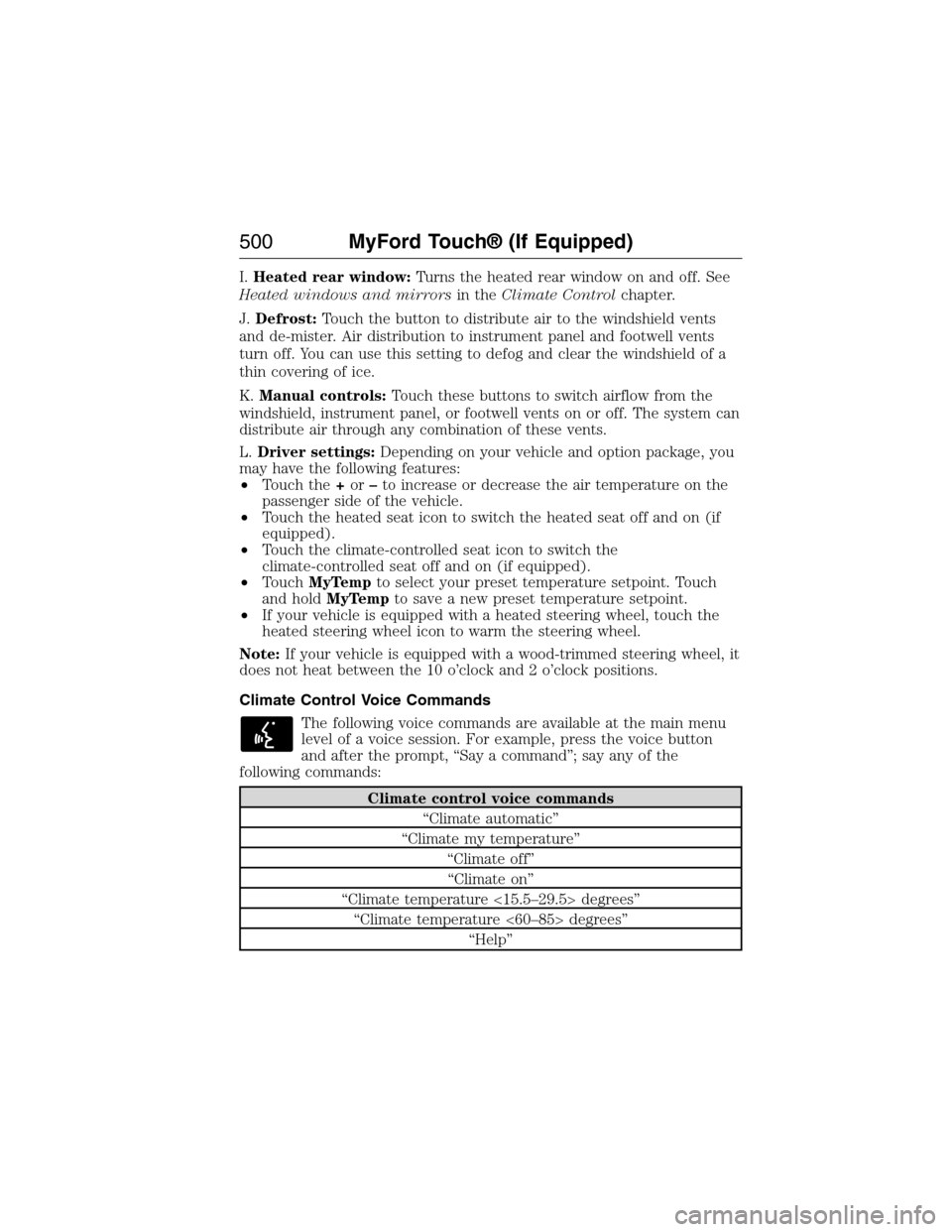
I.Heated rear window:Turns the heated rear window on and off. See
Heated windows and mirrorsin theClimate Controlchapter.
J.Defrost:Touch the button to distribute air to the windshield vents
and de-mister. Air distribution to instrument panel and footwell vents
turn off. You can use this setting to defog and clear the windshield of a
thin covering of ice.
K.Manual controls:Touch these buttons to switch airflow from the
windshield, instrument panel, or footwell vents on or off. The system can
distribute air through any combination of these vents.
L.Driver settings:Depending on your vehicle and option package, you
may have the following features:
•Touch the+or–to increase or decrease the air temperature on the
passenger side of the vehicle.
•Touch the heated seat icon to switch the heated seat off and on (if
equipped).
•Touch the climate-controlled seat icon to switch the
climate-controlled seat off and on (if equipped).
•TouchMyTempto select your preset temperature setpoint. Touch
and holdMyTempto save a new preset temperature setpoint.
•If your vehicle is equipped with a heated steering wheel, touch the
heated steering wheel icon to warm the steering wheel.
Note:If your vehicle is equipped with a wood-trimmed steering wheel, it
does not heat between the 10 o’clock and 2 o’clock positions.
Climate Control Voice Commands
The following voice commands are available at the main menu
level of a voice session. For example, press the voice button
and after the prompt, “Say a command”; say any of the
following commands:
Climate control voice commands
“Climate automatic”
“Climate my temperature”
“Climate off”
“Climate on”
“Climate temperature <15.5–29.5> degrees”
“Climate temperature <60–85> degrees”
“Help”
500MyFord Touch® (If Equipped)
2015 Expedition(exd)
Owners Guide gf, 1st Printing, July 2014
USA(fus)
Page 508 of 564
Traffic Preferences
Avoid Traffic Problemsallows you to choose how you want the system
to handle traffic problems along your route.
•Automatic:Have the system reroute you to avoid traffic incidents
that develop and impact the current route. The system does not
provide a traffic alert notification.
•Manual:Have the system always provide a traffic alert notification
for traffic incidents along the planned route. You have a choice to
accept or ignore the notification before making the route deviation.
Traffic Alert Notificationallows you to choose have the system
display traffic alert notifications.
Other traffic alert features allows you to turn on certain, or all, traffic
icons on the map such as road work, incident, accidents and closed
roads. Scroll down to view all the different types of alerts. Turn these
featuresONorOFF.
Avoid Areas
Avoid Areasallows you to choose areas which you want the system to
avoid when calculating a route for you.
PressAddto program an entry. Once you make a selection, the system
tries to avoid the area(s) if possible for all routes. To delete a selection,
choose the listing on the screen. When the screen changes toAvoid
Areas Edit,you can pressDeleteat the bottom right of the screen.
Map Mode
Press the green bar in the upper right area of the touchscreen to view
map mode. Map mode shows advanced viewing comprised of both 2D
city maps as well as 3D landmarks (when available).
2D city mapsshow detailed outlines of buildings, visible land use and
land elements and detailed railway infrastructure for the most essential
cities around the globe. These maps also contain features, such as town
blocks, building footprints, and railways.
3D landmarksappear as clear, visible objects that are typically
recognizable and have a certain tourist value. The 3D landmarks appear
in 3D map mode only. Coverage varies, and improves with updated map
releases.
MyFord Touch® (If Equipped)507
2015 Expedition(exd)
Owners Guide gf, 1st Printing, July 2014
USA(fus)
Page 518 of 564
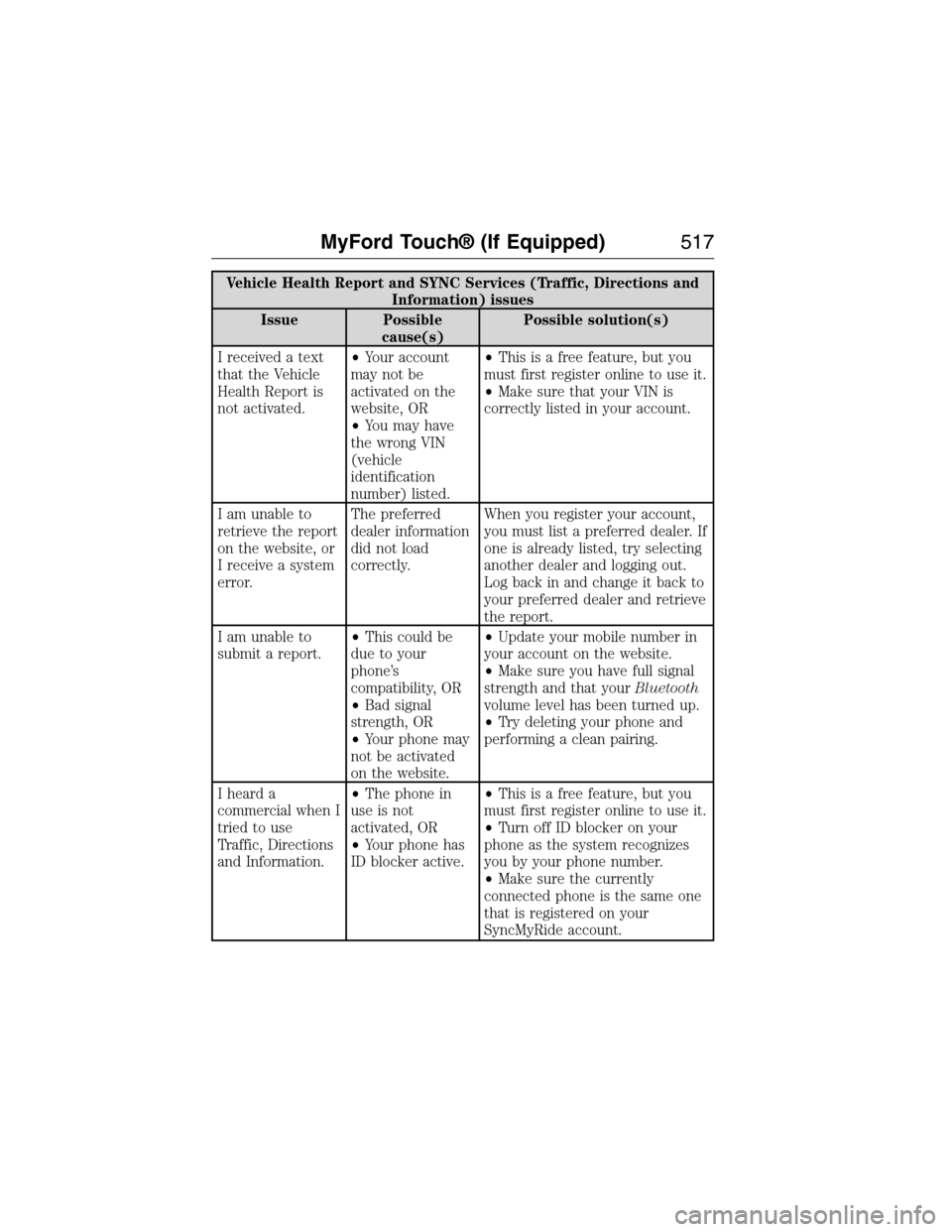
Vehicle Health Report and SYNC Services (Traffic, Directions and
Information) issues
Issue Possible
cause(s)Possible solution(s)
I received a text
that the Vehicle
Health Report is
not activated.•Your account
may not be
activated on the
website, OR
•You may have
the wrong VIN
(vehicle
identification
number) listed.•This is a free feature, but you
must first register online to use it.
•Make sure that your VIN is
correctly listed in your account.
I am unable to
retrieve the report
on the website, or
I receive a system
error.The preferred
dealer information
did not load
correctly.When you register your account,
you must list a preferred dealer. If
one is already listed, try selecting
another dealer and logging out.
Log back in and change it back to
your preferred dealer and retrieve
the report.
I am unable to
submit a report.•This could be
due to your
phone’s
compatibility, OR
•Bad signal
strength, OR
•Your phone may
not be activated
on the website.•Update your mobile number in
your account on the website.
•Make sure you have full signal
strength and that yourBluetooth
volume level has been turned up.
•Try deleting your phone and
performing a clean pairing.
I heard a
commercial when I
tried to use
Traffic, Directions
and Information.•The phone in
use is not
activated, OR
•Your phone has
ID blocker active.•This is a free feature, but you
must first register online to use it.
•Turn off ID blocker on your
phone as the system recognizes
you by your phone number.
•Make sure the currently
connected phone is the same one
that is registered on your
SyncMyRide account.
MyFord Touch® (If Equipped)517
2015 Expedition(exd)
Owners Guide gf, 1st Printing, July 2014
USA(fus)
Page 541 of 564
Oils, Fluids and Flushing
In many cases, fluid discoloration is a normal operating characteristic
and, by itself, does not necessarily indicate a concern or that the fluid
needs to be changed. However, discolored fluids that also show signs of
overheating and foreign material contamination should be inspected
immediately by a qualified expert, such as the factory-trained technicians
at your dealership. Your vehicle’s oils and fluids should be changed at the
specified intervals or in conjunction with a repair. Flushing is a viable
way to change fluid for many vehicle sub-systems during scheduled
maintenance. It is critical that systems are flushed only with new fluid
that is the same as that required to fill and operate the system, or using
a Ford-approved flushing chemical.
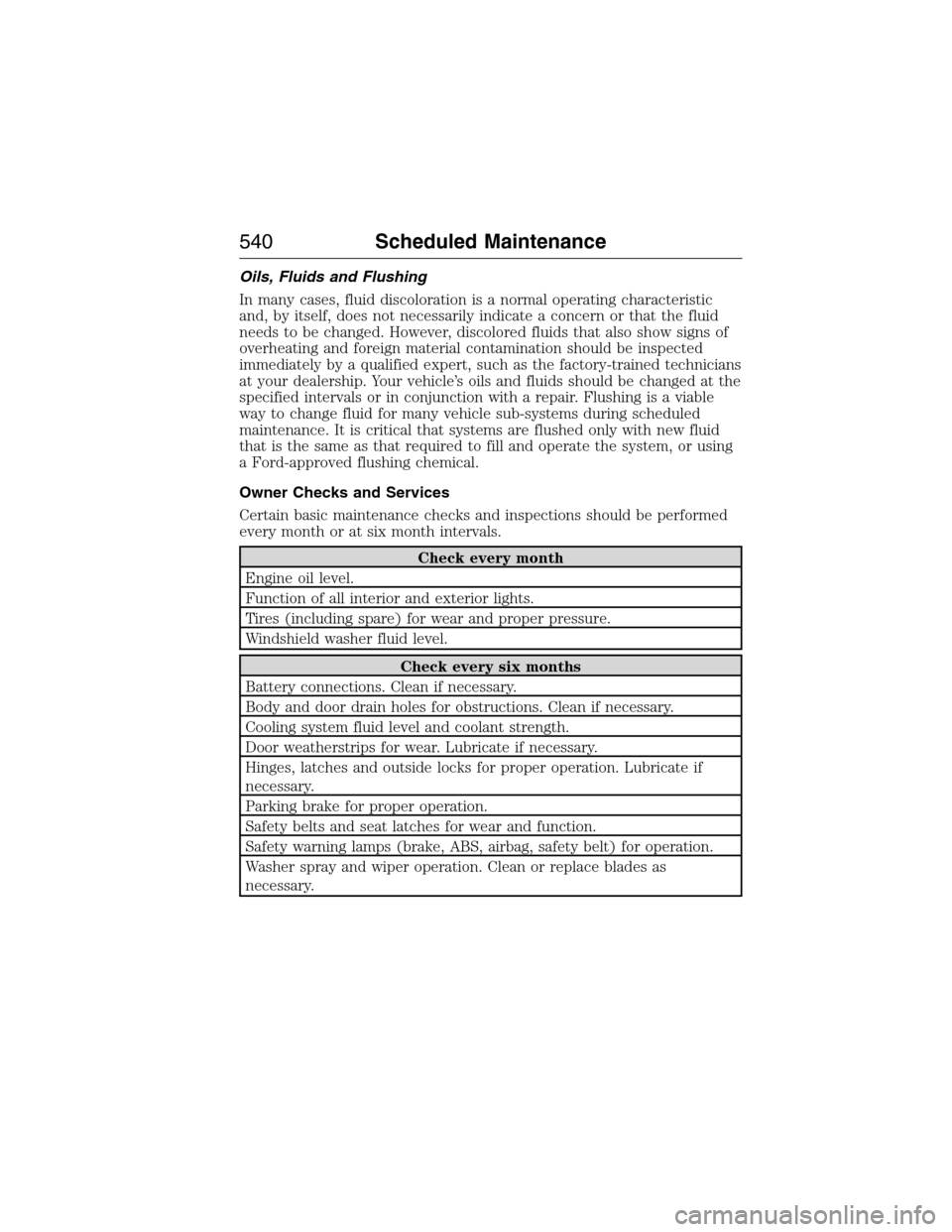
Owner Checks and Services
Certain basic maintenance checks and inspections should be performed
every month or at six month intervals.
Check every month
Engine oil level.
Function of all interior and exterior lights.
Tires (including spare) for wear and proper pressure.
Windshield washer fluid level.
Check every six months
Battery connections. Clean if necessary.
Body and door drain holes for obstructions. Clean if necessary.
Cooling system fluid level and coolant strength.
Door weatherstrips for wear. Lubricate if necessary.
Hinges, latches and outside locks for proper operation. Lubricate if
necessary.
Parking brake for proper operation.
Safety belts and seat latches for wear and function.
Safety warning lamps (brake, ABS, airbag, safety belt) for operation.
Washer spray and wiper operation. Clean or replace blades as
necessary.
540Scheduled Maintenance
2015 Expedition(exd)
Owners Guide gf, 1st Printing, July 2014
USA(fus)