2015 FORD EXPEDITION light
[x] Cancel search: lightPage 452 of 564
When HD Radio is on and you tune to a station broadcasting HD Radio
technology, you may notice the following indicators on your screen:
HD) logois grey when acquiring a digital station, and then
changes to orange when digital audio is playing. When this logo
is available, you may also see Title and Artist fields on-screen.
Multicast indicatorappears in FM mode (only) if the current station is
broadcasting multiple digital broadcasts. The highlighted numbers signify
available digital channels where new or different content is available.
HD1 signifies the main programming status and is available in analog and
digital broadcasts. Other multicast stations (HD2 through HD7) are only
available digitally.
TA Gallows you to save a song to download later when you are on an
acquired HD Radio station and the feature is on. To turn the feature on
and use it:
1. PressAMorFM>Options>TA Gbutton >On.
2. When you hear a song you like, touchTAG.
3. The system automatically saves the song’s information and transfers
it to your portable music player (if supported) when you connect it
to the system. The system automatically transfers the tag to your
player (if already connected) and a pop-up confirms the transfer.
4. When you access iTunes with your portable music player, the tags
appear to you as a reminder. The system allows you to tag up to
approximately 100 songs. For a list of devices that support tagging,
see www.SYNCMyRide.com, www.SYNCMyRide.ca or
www.syncmaroute.ca.
When HD Radio broadcasts are active, you can access the following
functions:
•Scanallows you to hear a brief sampling of all available stations. This
feature still works when HD Radio reception is on, although it does
not scan for HD2-HD7 channels. You may see the HD logo appear if
the station has a digital broadcast.
•Memory presetsallow you to save an active channel as a memory
preset. Touch and hold a memory preset slot until the sound returns.
There is a brief mute while the radio saves the station. Sound returns
when finished. When switching to an HD2 or HD3 memory preset, the
sound mutes before the digital audio plays, because the system has to
reacquire the digital signal.
•Note:As with any saved radio station, you cannot access the
saved station if your vehicle is outside the station’s reception area.
MyFord Touch® (If Equipped)451
2015 Expedition(exd)
Owners Guide gf, 1st Printing, July 2014
USA(fus)
Page 453 of 564
HD Radio Reception and Station Troubleshooting
Potential Reception Issues
Reception areaIf you are listening to a multicast station and
you are on the fringe of the reception area,
the station may mute due to weak signal
strength.
If you are listening to HD1, the system
switches back to the analog broadcast until
the digital broadcast is available again.
However, if you are listening to any of the
possible HD2 through HD7 multicast
channels, the station mutes and stays muted
unless it is able to connect to the digital
signal again.
Station blendingWhen the system first receives a station
(aside from HD2-HD7 multicast stations), it
first plays the station in the analog version.
Once the receiver verifies the station is an HD
Radio station, it shifts to the digital version.
Depending on the station quality, you may
hear a slight sound change when the station
changes from analog to digital. Blending is the
shift from analog to digital sound or digital
back to analog sound.
In order to provide the best possible experience, use the contact form to
report any station issues found while listening to a station broadcasting
with HD Radio technology. Independent entities own and operate each
station. These stations are responsible for making sure all audio streams
and data fields are accurate.
Potential station issues
Issue Cause Action
Echo, stutter, skip or
repeat in audio.
Increase or decrease
in audio volume.This is poor time
alignment by the radio
broadcaster.No action required.
This is a broadcast
issue.
452MyFord Touch® (If Equipped)
2015 Expedition(exd)
Owners Guide gf, 1st Printing, July 2014
USA(fus)
Page 488 of 564
Display
You can adjust the touchscreen display through the touchscreen or by
pressing the voice button on your steering wheel controls and when
prompted, say, “Display settings”.
Press the Settings icon >Display,to access and make
adjustments using the touchscreen.
•Brightnessallows you to make the screen display brighter or
dimmer.
•Auto DIM, when set toOn,lets you use the Auto Dim Manual Offset
feature. When set toOff,screen brightness does not change.
•Modeallows you to set the screen to a certain brightness or have the
system automatically change based on the outside light level, or turn
the display off.
•If you selectAUTOorNIGHT,you have the options of turning
the display’s Auto Dim feature on or off and changing the Auto
Dim Manual Offset feature.
•Auto Dim Manual Offsetallows you to adjust screen dimming as
the outside lighting conditions change from day to night. This feature
also allows you to adjust screen brightness using the instrument panel
dimming control.
Edit Wallpaper
•You can have your touchscreen display the default photo or upload
your own.
Uploading Photos for Your Home Screen Wallpaper
Note:You cannot load photos directly from your camera. You must
access the photos either from your USB mass storage device or from an
SD card.
Note:Photographs with extremely large dimensions (such as 2048 x
1536) may not be compatible and appear as a blank (black) image on the
display.
Your system allows you to upload and view up to 32 photos.
To access, press the Settings icon >Display>Edit Wallpaper,and
then follow the system prompts to upload your photographs.
Only the photograph(s), which meets the following conditions, display:
•Compatible file formats are as follows: .jpg, .gif, .png, .bmp.
•Each file must be 1.5 MB or less.
•Recommended dimensions: 800 x 384.
MyFord Touch® (If Equipped)487
2015 Expedition(exd)
Owners Guide gf, 1st Printing, July 2014
USA(fus)
Page 489 of 564
Sound
Press the Settings icon >Sound,then select from the
following:
Sound Settings
Bass DSP*
Midrange Occupancy Mode*
Treble Speed Compensated Volume
Set Balance and Fade
*If equipped.
Vehicle
Press the Settings icon >Vehicle,then select from the
following:
•Ambient Lighting.
•Vehicle Health Report.
•Door Keypad Code.
•Camera Settings.
•Enable Valet Mode.
Ambient Lighting (If Equipped)
When activated, ambient lighting illuminates footwells and cupholders
with a choice of colors. To access and make adjustments:
1. Press the Settings icon >Vehicle>Ambient Lighting.
2. Touch the desired color.
3. Use the scroll bar to increase or decrease the intensity.
To turn the feature on or off, press the power button.
Vehicle Health Report
Turn Automatic Reminders on and off and set the mileage interval at
which you would like to receive the reports. Press?for more information
on these selections.
When done making your selections, pressRun Vehicle Health Report
Nowif you want your report.
Door Keypad Code
To change the keypad code for your keyless entry keypad system:
1. Press the Settings icon >Vehicle>Door Keypad Code.
2. Enter your current factory code, then, when prompted, enter your
new code.
488MyFord Touch® (If Equipped)
2015 Expedition(exd)
Owners Guide gf, 1st Printing, July 2014
USA(fus)
Page 503 of 564
NAVIGATION SYSTEM (IF EQUIPPED)
Note:The navigation SD card must be in the SD card slot to operate the
navigation system. If you need a replacement SD card, see your
authorized dealer.
Note:The SD card slot is spring-loaded. To remove the SD card, just
push the card in and release it. Do not attempt to pull the card out to
remove it; this could cause damage.
Your navigation system is comprised of two main features, destination
mode and map mode.
To set a destination, press the green corner of your touchscreen, then
Destwhen it appears. SeeSetting a destinationlater in this chapter.
To view the navigation map and your vehicle’s current location, touch the
green bar in the upper right hand corner of the touchscreen, or, press
Dest>Map.SeeMap modelater in this chapter.
Setting a Destination
Press the green corner of your touchscreen, thenDestwhen it appears.
Choose any of the following:
Destination selections
My Home Street Address
Favorites Intersection
Previous Destinations City Center
Point of Interest Map
Emergency Edit Route Cancel Route
1. Enter the necessary information into the highlighted text fields (in
any order). For address destination entry,Go!appears once you
enter all the necessary information. PressingGo!makes the address
location appear on the map. If you choosePrevious Destination,
the last 20 destinations you have selected appear.
2. SelectSet as Destto make this your destination. You can also
choose to set this as a waypoint (have the system route to this point
on the way to your current destination) or save it as a favorite. The
system considers anyAvoid Areasselections in its route calculation.
3. Choose from up to three different types of routes, and then select
Start Route.
•Fastest Route:Uses the fastest moving roads possible.
•Shortest Route:Uses the shortest distance possible.
•Eco Route:Uses the most fuel-efficient route.
502MyFord Touch® (If Equipped)
2015 Expedition(exd)
Owners Guide gf, 1st Printing, July 2014
USA(fus)
Page 509 of 564
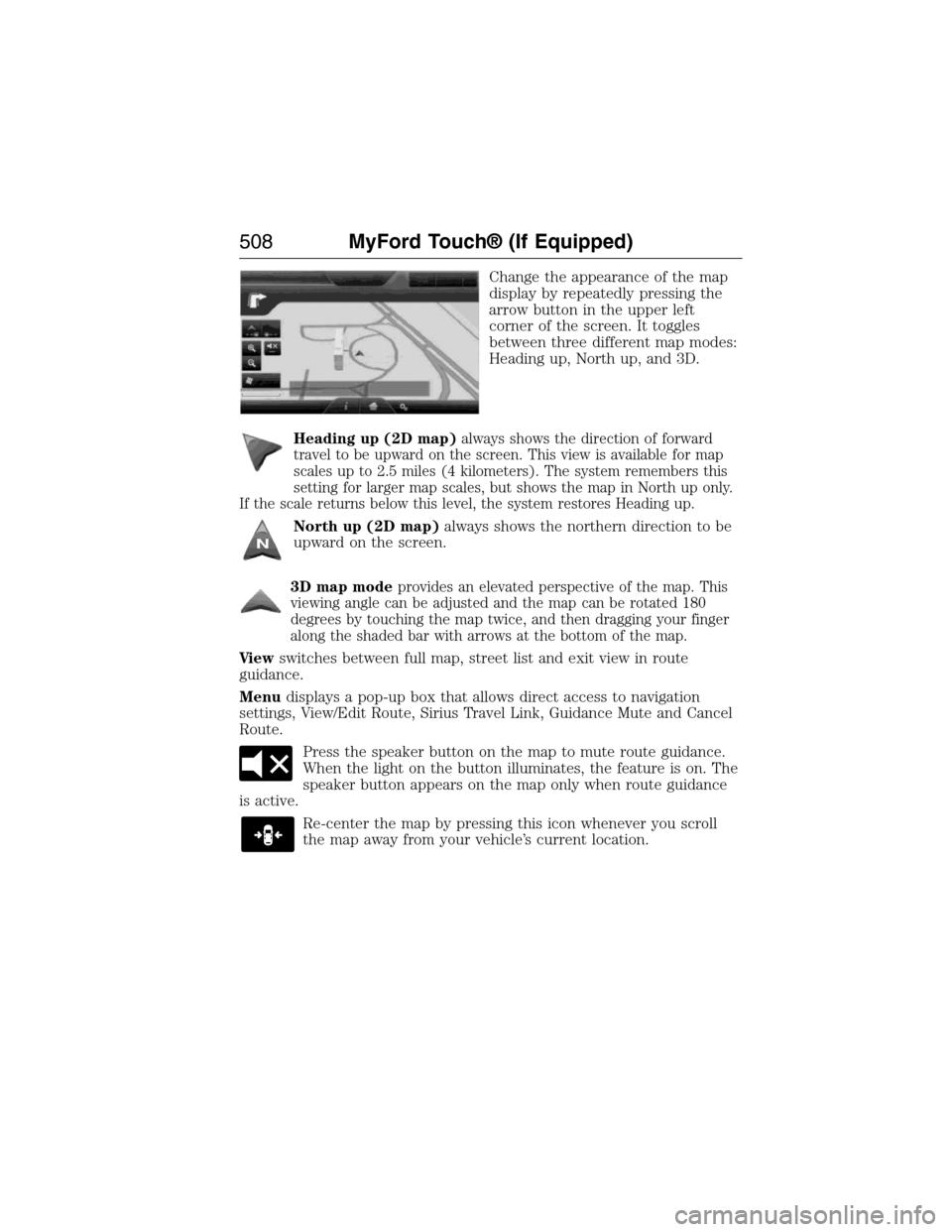
Change the appearance of the map
display by repeatedly pressing the
arrow button in the upper left
corner of the screen. It toggles
between three different map modes:
Heading up, North up, and 3D.
Heading up (2D map)
always shows the direction of forward
travel to be upward on the screen. This view is available for map
scales up to 2.5 miles (4 kilometers). The system remembers this
setting for larger map scales, but shows the map in North up only.
If the scale returns below this level, the system restores Heading up.
North up (2D map)always shows the northern direction to be
upward on the screen.
3D map mode
provides an elevated perspective of the map. This
viewing angle can be adjusted and the map can be rotated 180
degrees by touching the map twice, and then dragging your finger
along the shaded bar with arrows at the bottom of the map.
Vi e wswitches between full map, street list and exit view in route
guidance.
Menudisplays a pop-up box that allows direct access to navigation
settings, View/Edit Route, Sirius Travel Link, Guidance Mute and Cancel
Route.
Press the speaker button on the map to mute route guidance.
When the light on the button illuminates, the feature is on. The
speaker button appears on the map only when route guidance
is active.
Re-center the map by pressing this icon whenever you scroll
the map away from your vehicle’s current location.
508MyFord Touch® (If Equipped)
2015 Expedition(exd)
Owners Guide gf, 1st Printing, July 2014
USA(fus)
Page 541 of 564
Oils, Fluids and Flushing
In many cases, fluid discoloration is a normal operating characteristic
and, by itself, does not necessarily indicate a concern or that the fluid
needs to be changed. However, discolored fluids that also show signs of
overheating and foreign material contamination should be inspected
immediately by a qualified expert, such as the factory-trained technicians
at your dealership. Your vehicle’s oils and fluids should be changed at the
specified intervals or in conjunction with a repair. Flushing is a viable
way to change fluid for many vehicle sub-systems during scheduled
maintenance. It is critical that systems are flushed only with new fluid
that is the same as that required to fill and operate the system, or using
a Ford-approved flushing chemical.
Owner Checks and Services
Certain basic maintenance checks and inspections should be performed
every month or at six month intervals.
Check every month
Engine oil level.
Function of all interior and exterior lights.
Tires (including spare) for wear and proper pressure.
Windshield washer fluid level.
Check every six months
Battery connections. Clean if necessary.
Body and door drain holes for obstructions. Clean if necessary.
Cooling system fluid level and coolant strength.
Door weatherstrips for wear. Lubricate if necessary.
Hinges, latches and outside locks for proper operation. Lubricate if
necessary.
Parking brake for proper operation.
Safety belts and seat latches for wear and function.
Safety warning lamps (brake, ABS, airbag, safety belt) for operation.
Washer spray and wiper operation. Clean or replace blades as
necessary.
540Scheduled Maintenance
2015 Expedition(exd)
Owners Guide gf, 1st Printing, July 2014
USA(fus)
Page 555 of 564

EXCEPTIONS
Normal vehicle axle maintenance:Rear axles and power take-off
units with synthetic fluid and light-duty trucks equipped with
Ford-design axles are lubricated for life; do not check or change fluid
unless a leak is suspected, service is required or the assembly has been
submerged in water. During long periods of trailer towing with outside
temperatures above 70°F (21°C) and at wide-open throttle for long
periods above 45 mph (72 km/h), non-synthetic rear axle fluids should
be changed every 3000 miles (4800 kilometers) or three months,
whichever comes first. This interval can be waived if the axle is filled
with 75W140 synthetic gear fluid meeting Ford specification
WSL-M2C192-A, part number F1TZ-19580-B or equivalent. Add friction
modifier XL-3 (EST-M2C118-A) or equivalent for complete refill of
Traction-Lok rear axles (seeTechnical specificationsin theCapacities
and Specificationschapter for details).
Police/Taxi/Livery vehicle axle maintenance:Change rear axle fluid
every 100000 miles (160000 km). Rear axle fluid change may be waived
if the axle was filled with 75W140 synthetic gear fluid meeting Ford
specification WSL-M2C192-A, part number FITZ-19580-B or equivalent.
Add four ounces (118 mL) of additive friction modifier XL-3
(EST-M2C118-A) or equivalent for complete refill of Traction-Lok rear
axles. The axle fluid should be changed anytime the axle has been
submerged in water.
California fuel filter replacement:If the vehicle is registered in
California, the California Air Resources Board has determined that the
failure to perform this maintenance item will not nullify the emission
warranty or limit recall liability prior to the completion of the vehicle’s
useful life. Ford Motor Company, however, urges you to have all
recommended maintenance services performed at the specified intervals
and to record all vehicle service.
Hot climate oil change intervals:Vehicles operating in the Middle
East, North Africa, Sub-Saharan Africa or locations with similar climates
using an American Petroleum Institute (API) Certified for Gasoline
Engines (Certification mark) oil of SM or SN quality, the normal oil
change interval is 5000 miles (8000 kilometers).
If the available API SM or SN oils are not available, then the oil change
service interval is 3000 miles (4800 kilometers).
Engine air filter replacement:Engine air filter life is dependent on
exposure to dusty and dirty conditions. Vehicles operated in these
conditions require frequent inspection and replacement of the engine air
filter.
554Scheduled Maintenance
2015 Expedition(exd)
Owners Guide gf, 1st Printing, July 2014
USA(fus)