2015 FORD E SERIES automatic
[x] Cancel search: automaticPage 258 of 360

VEHICLE CERTIFICATION LABEL
The National Highway Traffic Safety
Administration Regulations require
that a Safety Compliance
Certification Label be affixed to a
vehicle and prescribe where the
Safety Compliance Certification Label
may be located. The Safety
Compliance Certification Label shall
be affixed to either the door hinge
pillar, the door latch post, or the
edge of the door near the door latch,
next to the driver’s seating position.
VEHICLE CERTIFICATION LABEL
On completed derivations of incomplete vehicles, the certification label is
affixed at a location determined by a subsequent stage manufacturer of
the completed vehicle. In these cases the completed vehicle is
manufactured in two or more stages by two or more separate
manufacturers.
TRANSMISSION CODE DESIGNATION
You can find a transmission code on
the Safety Compliance Certification
Label. The following table tells you
which transmission each code
represents.
Description Code
Five-speed automatic (5R110W) T
Capacities and Specifications257
2015 Econoline(eco)
Owners Guide gf, 1st Printing, June 2014
USA(fus)
Page 281 of 360

Helpful Hints
•Make sure the interior of the vehicle is as quiet as possible. Wind
noise from open windows and road vibrations may prevent the system
from correctly recognizing spoken commands.
•After pressing the voice icon, wait until after the tone sounds and
Listening appears before saying a command. Any command spoken
prior to this does not register with the system.
•Speak naturally, without long pauses between words.
•At any time you can interrupt the system while it is speaking by
pressing the voice icon.
USING SYNC WITH YOUR PHONE
Hands-free calling is one of the main features of SYNC. While the system
supports a variety of features, many are dependent on your cellular
phone’s functionality. At a minimum, most cellular phones with Bluetooth
wireless technology support the following functions:
•Answering an incoming call
•Ending a call
•Using privacy mode
•Dialing a number
•Redialing
•Call waiting notification
•Caller ID.
Other features, such as text messaging using Bluetooth and automatic
phonebook download, are phone-dependent features. To check your
phone’s compatibility, see your phone’s user manual and visit
www.SYNCMyRide.com, www.SYNCMyRide.ca or www.syncmaroute.ca.
Pairing a Phone for the First Time
Note:SYNC can support downloading up to approximately 1000 entries
per Bluetooth-enabled cellular phone.
Note:Make sure the vehicle ignition and radio are turned on and the
transmission is in positionP.
Note:To scroll through the menus, press the up and down arrows on
your audio system.
Wirelessly pairing your phone with SYNC allows you to make and receive
hands-free calls.
280SYNC®
2015 Econoline(eco)
Owners Guide gf, 1st Printing, June 2014
USA(fus)
Page 282 of 360

1. Press the phone button; when the display indicates no phone is
paired, pressOK.
2. WhenFind SYNCappears in the display, pressOK.
3. Put your phone into Bluetooth discovery mode. See your phone’s
user guide if necessary.
4. When prompted on your phone’s display, enter the six-digit PIN
provided by SYNC in the radio display.
5. The display indicates when the pairing is successful.
Depending on your phone’s capability and your market, the system may
prompt you with questions such as setting the current phone as the
primary phone (the phone SYNC automatically tries to connect with first
upon vehicle start-up), downloading your phone book, etc.
Pairing Subsequent Phones
Note:To scroll through the menus, press the up and down arrows on
your audio system.
Note:Make sure the vehicle ignition and radio are turned on and that
the transmission is in positionP.
1. Press the phone button and scroll until System Settings is selected.
2. Press OK and scroll until Bluetooth Devices is selected and press OK.
3. Scroll until Add Bluetooth Device is selected and press OK.
4. When Find SYNC appears in the display, press OK.
5. Put your phone into Bluetooth discovery mode. See your phone’s
user guide if necessary.
6. When prompted on your phone’s display, enter the six-digit PIN
provided by SYNC in the radio display. The display indicates when
the pairing is successful.
7. The system then prompts with questions such as if you would like to
set the current phone as the primary phone (the phone SYNC
automatically tries to connect with first upon vehicle start-up),
download your phone book, etc.
SYNC®281
2015 Econoline(eco)
Owners Guide gf, 1st Printing, June 2014
USA(fus)
Page 287 of 360

Accessing Features through the Phone Menu
The SYNC phone menu allows you to redial a number, access your call
history and phone book and send text messages as well as access phone
and system settings. You can also access advanced features, such as 911
Assist, Vehicle Health Report and SYNC Services.
1. Press the phone button to enter the Phone Menu.
2. Scroll to cycle through:
When you select: You can:
Phone RedialRedial the last number called (if available).
Press OK to select, then press OK again to
confirm.
Call History
1Allows you to access any previously dialed,
received or missed calls while your phone has
been connected to the system.
1. Press OK to select.
2. Scroll to select from Call History Incoming,
Call History Outgoing or Call History Missed.
Press OK make your selection.
3. Press OK or the phone button to call the
desired selection.
Note:The system attempts to automatically
re-download your phone book and call history
each time your phone connects to SYNC (if
the auto download feature is on and your
Bluetooth-enabled cellular phone supports
this feature).
Phonebook
1,2Allows you to access your downloaded
phonebook.
1. Press OK to confirm and enter. If your
phonebook has fewer than 255 listings, they
appear alphabetically in flat file mode. If there
are more, they are organized into alphabetical
categories.
2. Scroll until the desired contact appears,
then press OK.
3. Press OK or the phone button.
286SYNC®
2015 Econoline(eco)
Owners Guide gf, 1st Printing, June 2014
USA(fus)
Page 288 of 360
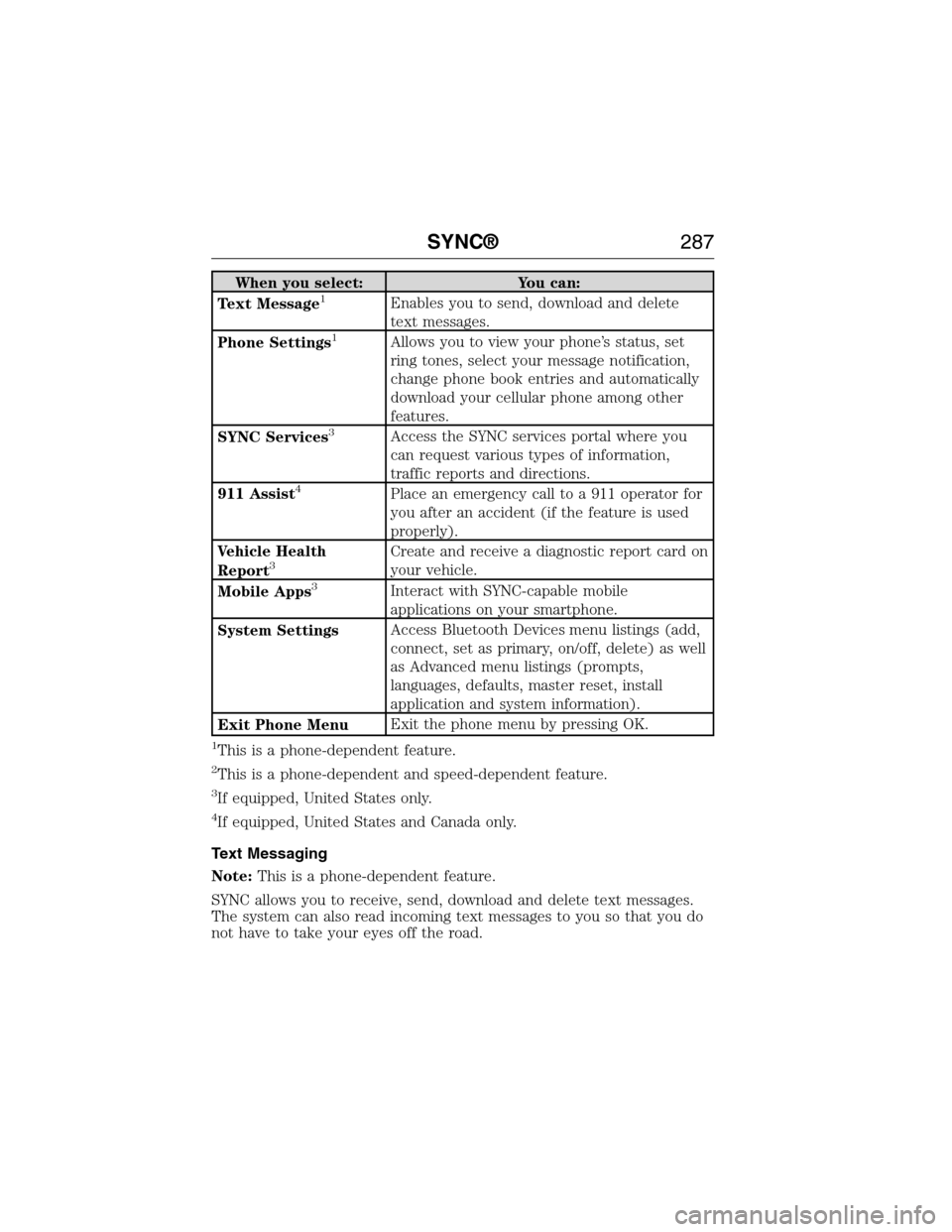
When you select: You can:
Text Message1Enables you to send, download and delete
text messages.
Phone Settings
1Allows you to view your phone’s status, set
ring tones, select your message notification,
change phone book entries and automatically
download your cellular phone among other
features.
SYNC Services
3Access the SYNC services portal where you
can request various types of information,
traffic reports and directions.
911 Assist
4Place an emergency call to a 911 operator for
you after an accident (if the feature is used
properly).
Vehicle Health
Report
3Create and receive a diagnostic report card on
your vehicle.
Mobile Apps
3Interact with SYNC-capable mobile
applications on your smartphone.
System SettingsAccess Bluetooth Devices menu listings (add,
connect, set as primary, on/off, delete) as well
as Advanced menu listings (prompts,
languages, defaults, master reset, install
application and system information).
Exit Phone MenuExit the phone menu by pressing OK.
1This is a phone-dependent feature.
2This is a phone-dependent and speed-dependent feature.
3If equipped, United States only.
4If equipped, United States and Canada only.
Text Messaging
Note:This is a phone-dependent feature.
SYNC allows you to receive, send, download and delete text messages.
The system can also read incoming text messages to you so that you do
not have to take your eyes off the road.
SYNC®287
2015 Econoline(eco)
Owners Guide gf, 1st Printing, June 2014
USA(fus)
Page 290 of 360

Note:SYNC does not automatically download all of your unread text
messages at every ignition cycle (as it does with call history and
phonebook if automatic download is set to on).
Returnexits the current menu when you press OK.
If you selectSend Text Message?:
1. Press OK to select. If the system detects your phone does not
support this feature, Unsupported appears in the display and SYNC
returns to the main menu.
2. Scroll to cycle through the message options in the following chart.
3. Press OK when the desired selection is in the display. The system
now needs to know who to send the message to.
4. Scroll to cycle through Phonebook or Call History entries. You can
also select Enter Number to audibly enter a desired number.
5. Press OK to enter the desired menu and scroll to select the specific
contact.
6. Press OK when the contact appears and press OK again to confirm
when the system asks if you would like to send the message. Each
text message is sent with the following signature: “This message was
sent from my
Pre-defined text message options
Can’t talk right now
Call me
Call you later
Be there in 10 minutes
Be there in 20 minutes
Ye s
No
Why?
Thanks
Where R you?
I need more directions
I love you
Too funny
Can’t wait to see you
I’m stuck in traffic
SYNC®289
2015 Econoline(eco)
Owners Guide gf, 1st Printing, June 2014
USA(fus)
Page 291 of 360

Accessing Your Phone Settings
These are phone-dependent features. Your phone settings allow you to
access and adjust features such as your ring tone, text message
notification, modify your phone book and also set up automatic
download.
1. Press the phone button.
2. Scroll until Phone Settings appears, then press OK.
3. Scroll to select from the following options:
When you select: You can:
Phone StatusSee the provider, name, signal power, battery
power and roaming status of your connected
phone.
Press OK to select and scroll to view the
information. When done, press OK again to
return to the phone status menu.
Set RingerSelect which ring tone sounds during an
incoming call (one of the system’s or your
phone’s).
1. Press OK to select and scroll to hear
Ringer 1, Ringer 2, Ringer 3 and Phone
Ringer.
2. Press OK to select.
Note:If your phone supports in-band ringing,
your phone’s ringer sounds when Phone
Ringer is chosen.
Message NotificationHave the option of hearing an audible tone to
notify you when a text message arrives.
1. Press OK to select and scroll between
Message Notification On or Message
Notification Off.
2. Press OK to select.
290SYNC®
2015 Econoline(eco)
Owners Guide gf, 1st Printing, June 2014
USA(fus)
Page 292 of 360

When you select: You can:
Modify PhonebookModify the contents of your phone book
(such as add, delete, download). Press OK to
select and scroll between:
Add Contacts: Press OK to add more contacts
from your phone book. Push the desired
contact(s) on your phone. See your phone’s
user guide on how to push contacts.
Delete Phonebook: Press OK to delete the
current phone book and call history. When
Delete Phonebook appears, press OK to
confirm. SYNC takes you back to the Phone
Settings menu.
Download Phonebook: Press OK to select and
press OK again when Confirm
Download? appears.
Auto DownloadAutomatically download your phone book
each time your phone connects to SYNC.
Press OK to select. When Auto Download
On? appears, press OK to have your
phonebook automatically downloaded each
time.
Select Off to NOT download your phonebook
every time your phone connects to SYNC.
Your phonebook, call history and text
messages can only be accessed when your
specific phone is connected to SYNC.
Note:Downloading times are phone- and
quantity-dependent.
Note:When auto download is on, any
changes, additions or deletions saved since
your last download are deleted.
ReturnExit the current menu.
SYNC®291
2015 Econoline(eco)
Owners Guide gf, 1st Printing, June 2014
USA(fus)