2015 DODGE CHARGER ad blue
[x] Cancel search: ad bluePage 139 of 236
Select The Android Mobile Phone's Priority Level
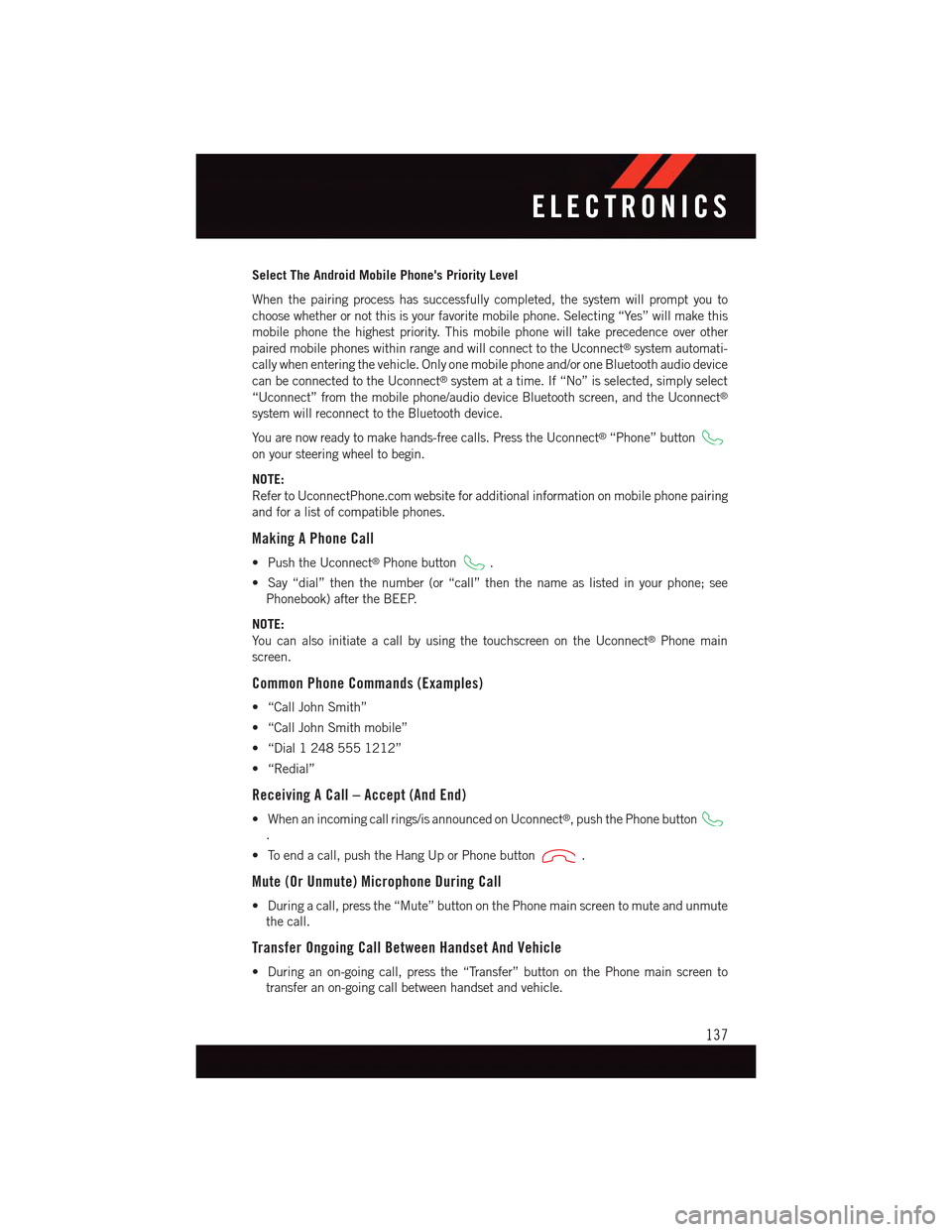
When the pairing process has successfully completed, the system will prompt you to
choose whether or not this is your favorite mobile phone. Selecting “Yes” will make this
mobile phone the highest priority. This mobile phone will take precedence over other
paired mobile phones within range and will connect to the Uconnect®system automati-
cally when entering the vehicle. Only one mobile phone and/or one Bluetooth audio device
can be connected to the Uconnect®system at a time. If “No” is selected, simply select
“Uconnect” from the mobile phone/audio device Bluetooth screen, and the Uconnect®
system will reconnect to the Bluetooth device.
Yo u a r e n o w r e a d y t o m a k e h a n d s - f r e e c a l l s . P r e s s t h e U c o n n e c t®“Phone” button
on your steering wheel to begin.
NOTE:
Refer to UconnectPhone.com website for additional information on mobile phone pairing
and for a list of compatible phones.
Making A Phone Call
•PushtheUconnect®Phone button.
•Say“dial”thenthenumber(or“call”thenthenameaslistedinyourphone;see
Phonebook) after the BEEP.
NOTE:
Yo u c a n a l s o i n i t i a t e a c a l l b y u s i n g t h e t o u c h s c r e e n o n t h e U c o n n e c t®Phone main
screen.
Common Phone Commands (Examples)
•“CallJohnSmith”
•“CallJohnSmithmobile”
•“Dial12485551212”
•“Redial”
Receiving A Call – Accept (And End)
•Whenanincomingcallrings/isannouncedonUconnect®,pushthePhonebutton
.
•Toendacall,pushtheHangUporPhonebutton.
Mute (Or Unmute) Microphone During Call
•Duringacall,pressthe“Mute”buttononthePhonemainscreentomuteandunmute
the call.
Transfer Ongoing Call Between Handset And Vehicle
•Duringanon-goingcall,pressthe“Transfer”buttononthePhonemainscreento
transfer an on-going call between handset and vehicle.
ELECTRONICS
137
Page 140 of 236
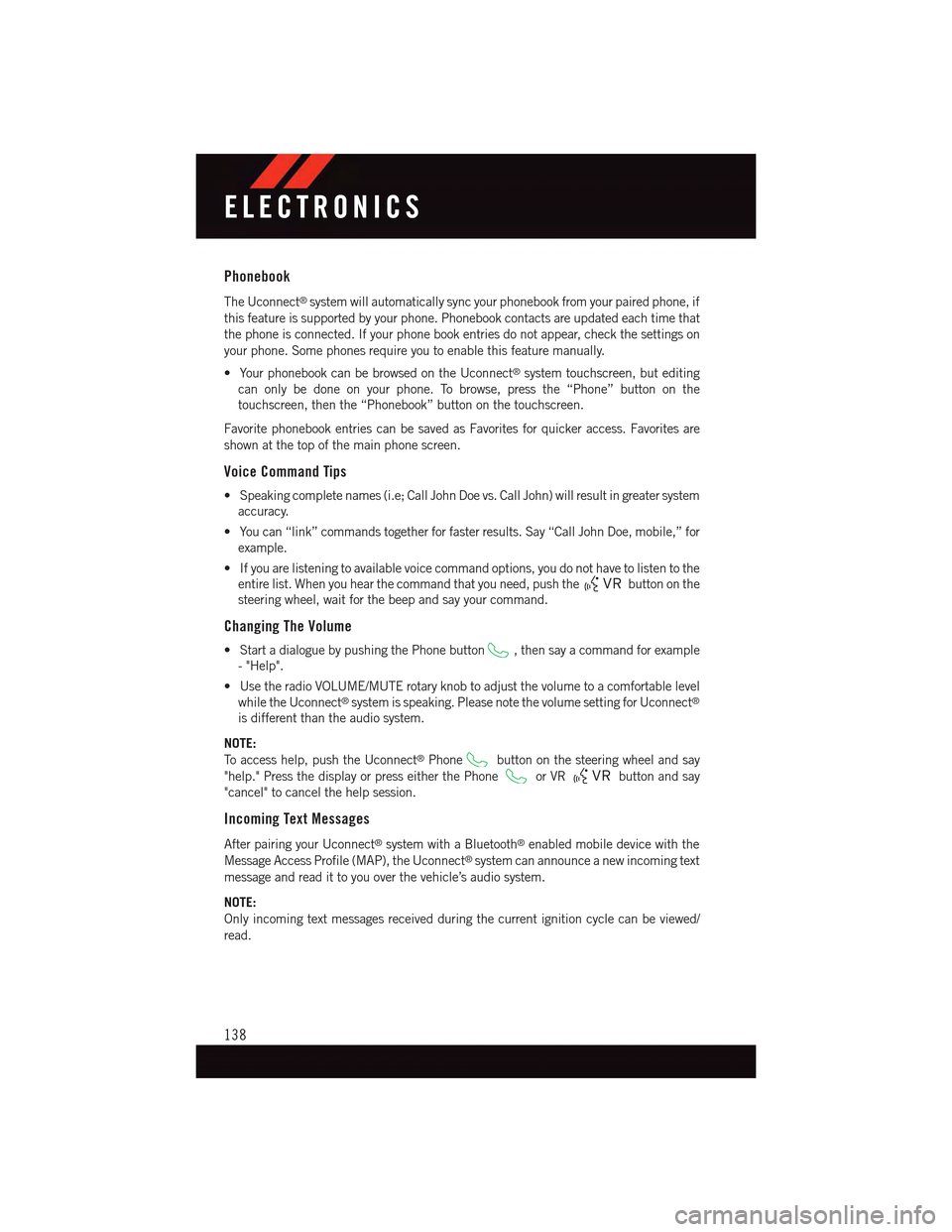
Phonebook
The Uconnect®system will automatically sync your phonebook from your paired phone, if
this feature is supported by your phone. Phonebook contacts are updated each time that
the phone is connected. If your phone book entries do not appear, check the settings on
your phone. Some phones require you to enable this feature manually.
•YourphonebookcanbebrowsedontheUconnect®system touchscreen, but editing
can only be done on your phone. To browse, press the “Phone” button on the
touchscreen, then the “Phonebook” button on the touchscreen.
Favorite phonebook entries can be saved as Favorites for quicker access. Favorites are
shown at the top of the main phone screen.
Voice Command Tips
•Speakingcompletenames(i.e;CallJohnDoevs.CallJohn)willresultingreatersystem
accuracy.
•Youcan“link”commandstogetherforfasterresults.Say“CallJohnDoe,mobile,”for
example.
•Ifyouarelisteningtoavailablevoicecommandoptions,youdonothavetolistentothe
entire list. When you hear the command that you need, push thebutton on the
steering wheel, wait for the beep and say your command.
Changing The Volume
•StartadialoguebypushingthePhonebutton,thensayacommandforexample
-"Help".
•UsetheradioVOLUME/MUTErotaryknobtoadjustthevolumetoacomfortablelevel
while the Uconnect®system is speaking. Please note the volume setting for Uconnect®
is different than the audio system.
NOTE:
To a c c e s s h e l p , p u s h t h e U c o n n e c t®Phonebutton on the steering wheel and say
"help." Press the display or press either the Phoneor VRbutton and say
"cancel" to cancel the help session.
Incoming Text Messages
After pairing your Uconnect®system with a Bluetooth®enabled mobile device with the
Message Access Profile (MAP), the Uconnect®system can announce a new incoming text
message and read it to you over the vehicle’s audio system.
NOTE:
Only incoming text messages received during the current ignition cycle can be viewed/
read.
ELECTRONICS
138
Page 141 of 236

To e n a b l e i n c o m i n g t e x t m e s s a g i n g :
iPhone®
1. Press the settings button on the mobile phone.
2. Select Bluetooth®.
•Ensure Bluetooth is enabled, and the mobile phone is paired to the Uconnect®system.
3.Selectlocated under DEVICES next to Uconnect.
4. Turn “Show Notifications” to On.
Android Devices
1. Push the Menu button on the mobile phone.
2. Select Settings.
3. Select Connections.
4. Turn “Show Notifications” to On.
•A pop up will appear asking you to
accept a request for permission to
connect to your messages. Select
“Don’t ask again” and press OK.
NOTE:
All incoming text messages received during
the current ignition cycle will be deleted
from the Uconnect®system when the igni-
tion is turned to the Off position.
Enable iPhone® Incoming Text Messages
Enable Android Device IncomingText Messages
ELECTRONICS
139
Page 142 of 236
Voice Text Reply (Not Compatible With iPhone®)
NOTE:
Voice texting reply and voice texting features require a compatible mobile device enabled
with Bluetooth®Message Access Profile (MAP). iPhone®,andsomeothersmartphones,
may not entirely support Bluetooth®MAP. Visit UconnectPhone.com for the latest system
and device compatibility.
•Due to the extremely large number of mobile phone manufacturers, your mobile device may
not be listed. For further assistance, contact Uconnect Customer Care @ 1-877-855-8400
for U.S. residents or, 1-800-465-2001 (English) / 1-800-387-9983 (French) for Canadian
residents.
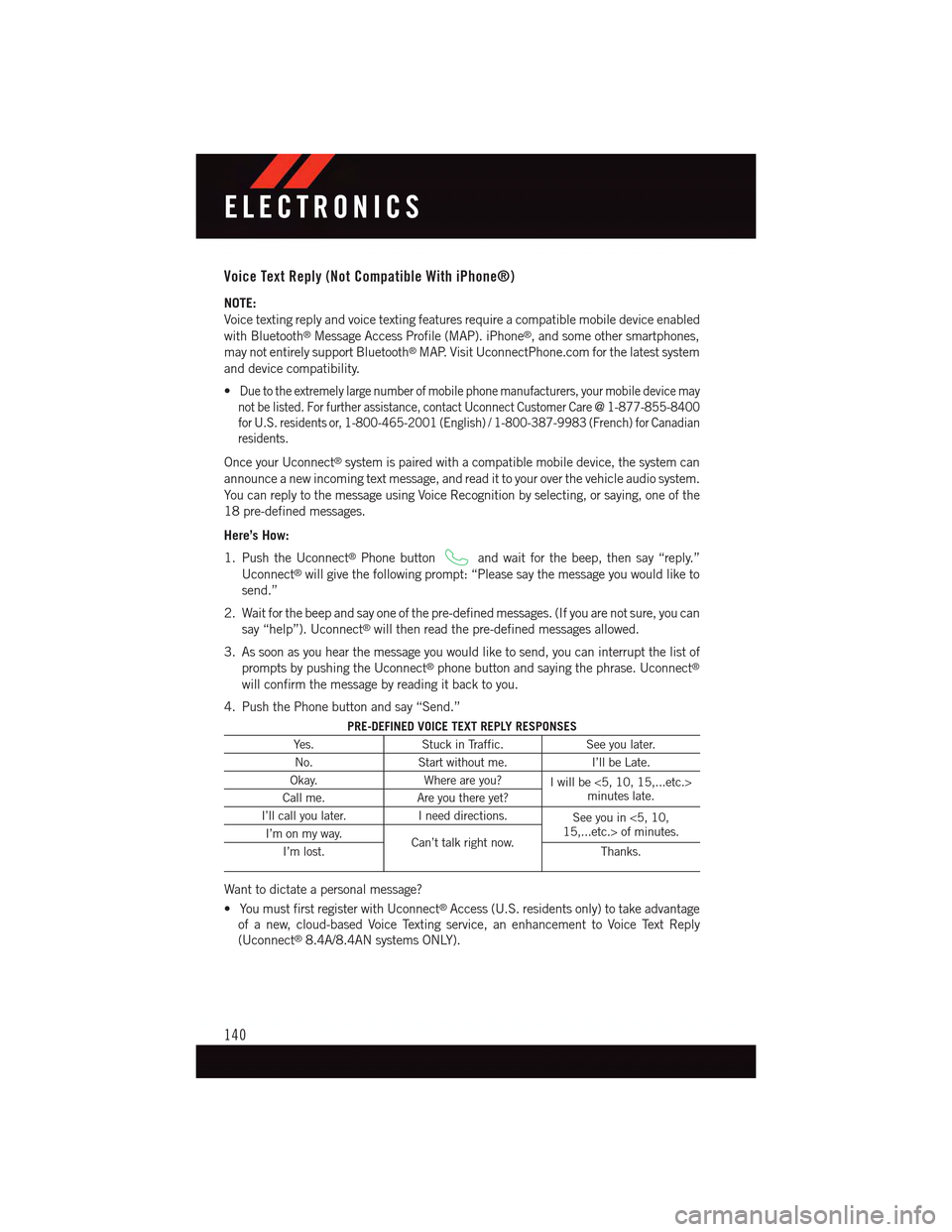
Once your Uconnect®system is paired with a compatible mobile device, the system can
announce a new incoming text message, and read it to your over the vehicle audio system.
Yo u c a n r e p l y t o t h e m e s s a g e u s i n g Vo i c e R e c o g n i t i o n b y s e l e c t i n g , o r s a y i n g , o n e o f t h e
18 pre-defined messages.
Here’s How:
1. Push the Uconnect®Phone buttonand wait for the beep, then say “reply.”
Uconnect®will give the following prompt: “Please say the message you would like to
send.”
2. Wait for the beep and say one of the pre-defined messages. (If you are not sure, you can
say “help”). Uconnect®will then read the pre-defined messages allowed.
3. As soon as you hear the message you would like to send, you can interrupt the list of
prompts by pushing the Uconnect®phone button and saying the phrase. Uconnect®
will confirm the message by reading it back to you.
4. Push the Phone button and say “Send.”
PRE-DEFINED VOICE TEXT REPLY RESPONSES
Ye s .Stuck in Traffic.See you later.
No.Start without me.I’ll be Late.
Okay.Where are you?Iwillbe<5,10,15,...etc.>minutes late.Call me.Are you there yet?
I’ll call you later.Ineeddirections.See you in <5, 10,15,...etc.> of minutes.I’m on my way.Can’t talk right now.I’m lost.Thanks.
Want to dictate a personal message?
•YoumustfirstregisterwithUconnect®Access (U.S. residents only) to take advantage
of a new, cloud-based Voice Texting service, an enhancement to Voice Text Reply
(Uconnect®8.4A/8.4AN systems ONLY).
ELECTRONICS
140
Page 143 of 236
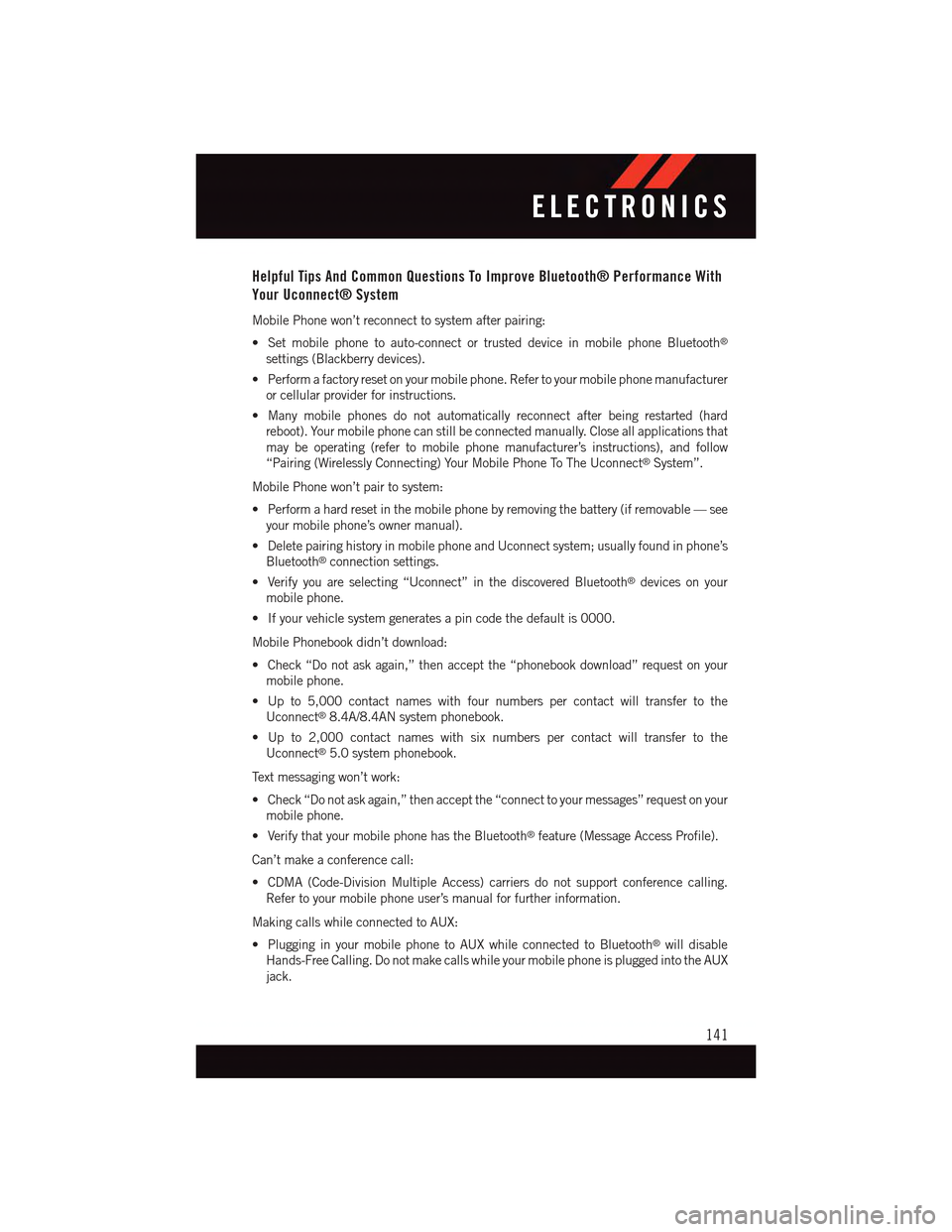
Helpful Tips And Common Questions To Improve Bluetooth® Performance With
Your Uconnect® System
Mobile Phone won’t reconnect to system after pairing:
•Setmobilephonetoauto-connectortrusteddeviceinmobilephoneBluetooth®
settings (Blackberry devices).
•Performafactoryresetonyourmobilephone.Refertoyourmobilephonemanufacturer
or cellular provider for instructions.
•Manymobilephonesdonotautomaticallyreconnectafterbeingrestarted(hard
reboot). Your mobile phone can still be connected manually. Close all applications that
may be operating (refer to mobile phone manufacturer’s instructions), and follow
“Pairing (Wirelessly Connecting) Your Mobile Phone To The Uconnect®System”.
Mobile Phone won’t pair to system:
•Performahardresetinthemobilephonebyremovingthebattery(ifremovable—see
your mobile phone’s owner manual).
•DeletepairinghistoryinmobilephoneandUconnectsystem;usuallyfoundinphone’s
Bluetooth®connection settings.
•Verifyyouareselecting“Uconnect”inthediscoveredBluetooth®devices on your
mobile phone.
•Ifyourvehiclesystemgeneratesapincodethedefaultis0000.
Mobile Phonebook didn’t download:
•Check“Donotaskagain,”thenacceptthe“phonebookdownload”requestonyour
mobile phone.
•Upto5,000contactnameswithfournumberspercontactwilltransfertothe
Uconnect®8.4A/8.4AN system phonebook.
•Upto2,000contactnameswithsixnumberspercontactwilltransfertothe
Uconnect®5.0 system phonebook.
Te x t m e s s a g i n g w o n ’ t w o r k :
•Check“Donotaskagain,”thenacceptthe“connecttoyourmessages”requestonyour
mobile phone.
•VerifythatyourmobilephonehastheBluetooth®feature (Message Access Profile).
Can’t make a conference call:
•CDMA(Code-DivisionMultipleAccess)carriersdonotsupportconferencecalling.
Refer to your mobile phone user’s manual for further information.
Making calls while connected to AUX:
•PlugginginyourmobilephonetoAUXwhileconnectedtoBluetooth®will disable
Hands-Free Calling. Do not make calls while your mobile phone is plugged into the AUX
jack.
ELECTRONICS
141
Page 149 of 236
PROGRAMMABLE FEATURES
Driver Information Display (DID)
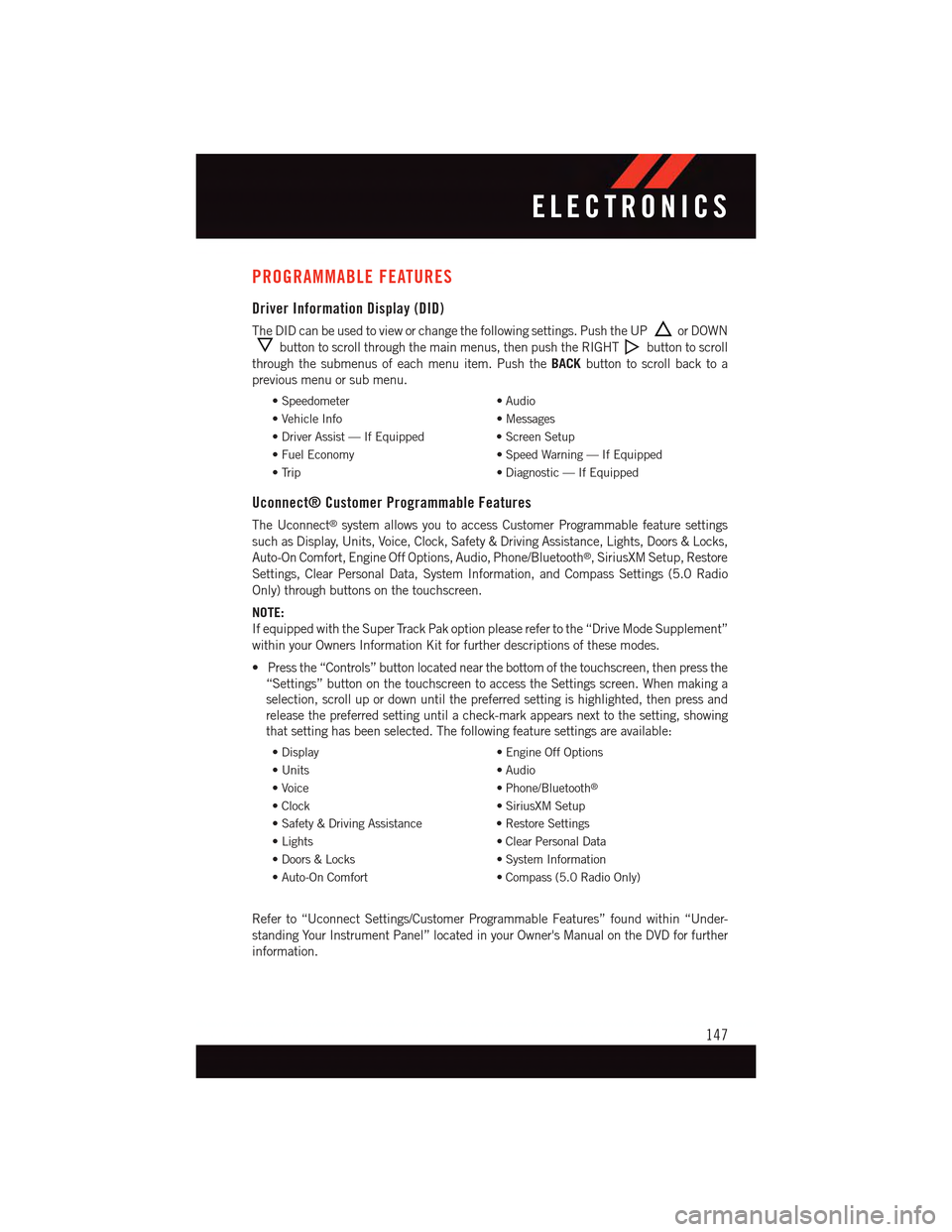
The DID can be used to view or change the following settings. Push the UPor DOWN
button to scroll through the main menus, then push the RIGHTbutton to scroll
through the submenus of each menu item. Push theBACKbutton to scroll back to a
previous menu or sub menu.
•Speedometer•Audio
•VehicleInfo•Messages
•DriverAssist—IfEquipped•ScreenSetup
•FuelEconomy•SpeedWarning—IfEquipped
•Trip•Diagnostic—IfEquipped
Uconnect® Customer Programmable Features
The Uconnect®system allows you to access Customer Programmable feature settings
such as Display, Units, Voice, Clock, Safety & Driving Assistance, Lights, Doors & Locks,
Auto-On Comfort, Engine Off Options, Audio, Phone/Bluetooth®,SiriusXMSetup,Restore
Settings, Clear Personal Data, System Information, and Compass Settings (5.0 Radio
Only) through buttons on the touchscreen.
NOTE:
If equipped with the Super Track Pak option please refer to the “Drive Mode Supplement”
within your Owners Information Kit for further descriptions of these modes.
•Pressthe“Controls”buttonlocatednearthebottomofthetouchscreen,thenpressthe
“Settings” button on the touchscreen to access the Settings screen. When making a
selection, scroll up or down until the preferred setting is highlighted, then press and
release the preferred setting until a check-mark appears next to the setting, showing
that setting has been selected. The following feature settings are available:
•Display•EngineOffOptions
•Units•Audio
•Voice•Phone/Bluetooth®
•Clock•SiriusXMSetup
•Safety&DrivingAssistance•RestoreSettings
•Lights•ClearPersonalData
•Doors&Locks•SystemInformation
•Auto-OnComfort•Compass(5.0RadioOnly)
Refer to “Uconnect Settings/Customer Programmable Features” found within “Under-
standing Your Instrument Panel” located in your Owner's Manual on the DVD for further
information.
ELECTRONICS
147
Page 153 of 236

POWER OUTLET
There are two 12 Volt electrical outlets on
this vehicle.
The front 12 Volt power outlet has power
available only when the ignition is placed in
the ACC or RUN position.
The center console outlet is powered di-
rectly from the battery (power available at
all times). Items plugged into this outlet
may discharge the battery and/or prevent
the engine from starting.
NOTE:
•Donotexceedthemaximumpowerof
160 Watts (13 Amps) at 12 Volts. If the
160 Watt (13 Amp) power rating is ex-
ceeded, the fuse protecting the system
will need to be replaced.
•Power outlets are designed for accessory
plugs only. Do not insert any other object in
the power outlet as this will damage the
outlet and blow the fuse. Improper use of
the power outlet can cause damage not
covered by your new vehicle warranty.
Front Power Outlet
Center Console Power Outlet
Power Outlet Fuses
1—#12Fuse20AYellowCigarLighterIntegratedCenterStack/DualUSBChargeOnly Ports2—#38Fuse15ABluePowerOutletCenterConsole/MediaHub
ELECTRONICS
151
Page 210 of 236
FUSES
WARNING!
•When replacing a blown fuse, always use an appropriate replacement fuse with the
same amp rating as the original fuse. Never replace a fuse with another fuse of higher
amp rating. Never replace a blown fuse with metal wires or any other material. Failure
to use proper fuses may result in serious personal injury, fire and/or property damage.
•Beforereplacingafuse,makesurethattheignitionisoffandthatalltheother
services are switched off and/or disengaged.
•Ifthereplacedfuseblowsagain,contactanauthorizeddealer.
•If a general protection fuse for safety systems (air bag system, braking system), power
unit systems (engine system, gearbox system) or steering system blows, contact an
authorized dealer.
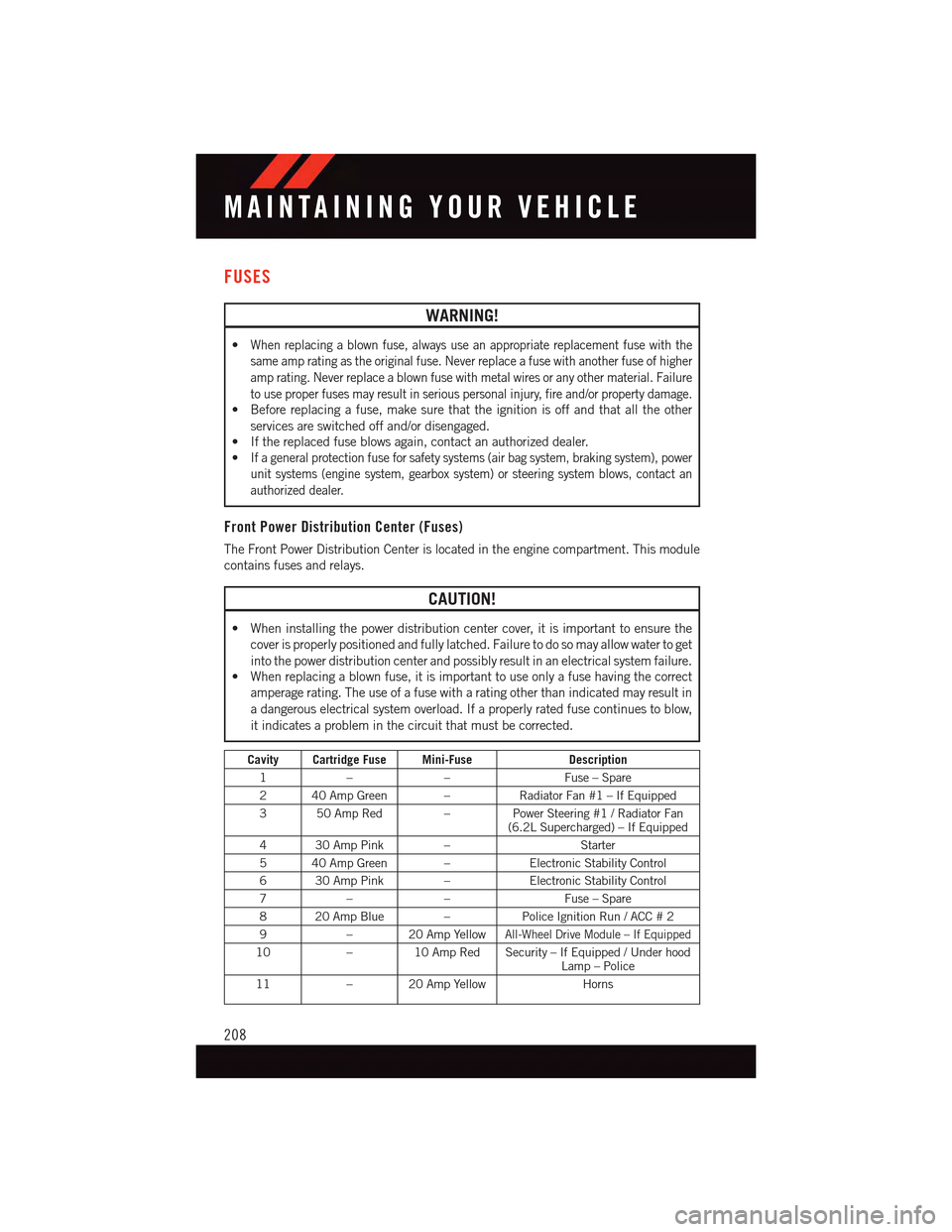
Front Power Distribution Center (Fuses)
The Front Power Distribution Center is located in the engine compartment. This module
contains fuses and relays.
CAUTION!
•Wheninstallingthepowerdistributioncentercover,itisimportanttoensurethe
cover is properly positioned and fully latched. Failure to do so may allow water to get
into the power distribution center and possibly result in an electrical system failure.•Whenreplacingablownfuse,itisimportanttouseonlyafusehavingthecorrect
amperage rating. The use of a fuse with a rating other than indicated may result in
adangerouselectricalsystemoverload.Ifaproperlyratedfusecontinuestoblow,
it indicates a problem in the circuit that must be corrected.
Cavity Cartridge Fuse Mini-FuseDescription
1––Fuse – Spare
240AmpGreen –Radiator Fan #1 – If Equipped
350AmpRed –Power Steering #1 / Radiator Fan(6.2L Supercharged) – If Equipped
430AmpPink –Starter
540AmpGreen –Electronic Stability Control
630AmpPink –Electronic Stability Control
7––Fuse – Spare
820AmpBlue –Police Ignition Run / ACC # 2
9–20AmpYellowAll-Wheel Drive Module – If Equipped
10–10AmpRedSecurity–IfEquipped/UnderhoodLamp – Police
11–20AmpYellowHorns
MAINTAINING YOUR VEHICLE
208