Page 283 of 603

NOTE:If the vehicle is programmed 1st Press Of Key Fob
Unlocks “All Doors,” all doors will unlock no matter
which Passive Entry equipped door handle is grasped. If
1st Press Of Key Fob Unlocks “Driver Door” is pro-
grammed, only the driver ’s door will unlock when the
driver ’s door is grasped. With Passive Entry, if 1st Press
Of Key Fob Unlocks “Driver Door” is programmed,
touching the handle more than once will only result in
the driver ’s door opening. If “Driver Door” is selected,
once the driver door is opened, the interior door lock/
unlock switch can be used to unlock all doors (or use
RKE transmitter).
•Passive Entry
This feature allows you to lock and unlock the vehicles
door(s) without having to push the Remote Keyless Entry
(RKE) transmitter LOCK or UNLOCK buttons. To make
your selection, press the “Passive Entry” button on the
touchscreen, until a check-mark appears next to the
setting, showing that the setting has been selected. Press
the back arrow button on the touchscreen to return to the
previous menu. Refer to “Keyless Enter-N-Go™” in
“Things To Know Before Starting Your Vehicle”.
Auto Comfort Systems — If Equipped
After pressing the “Auto-On Comfort & Remote Start”
button on the touchscreen the following settings will be
available:
•Auto-On Driver Heated/Ventilated Seat & Steering
Wheel With Vehicle Start — If Equipped
When this feature is selected the driver’s heated seat and
heated steering wheel will automatically turn ON when
temperatures are below 40° F (4.4° C). When tempera-
tures are above 80° F (26.7° C) the driver vented seat will
turn ON. To make your selection, press the “Auto Heated
Seats” button on the touchscreen, then select either “Off,”
4
UNDERSTANDING YOUR INSTRUMENT PANEL 281
Page 297 of 603

When G-Force is selected, the following features will be
available:
•Lateral G-Force Left and Right
The lateral g-force measures the (sideways) left and right
force of the vehicle.
•Longitudinal G-Force Fore and Aft
The longitudinal g-force measures the acceleration and
braking force of the vehicle.
•Peak G-Forces Fore Aft, Left and Right
This shows the maximum g-forces that have been
achieved since the last reset from the DID. Peak values
are maintained through ignition cycles by the DID until
they are cleared by the driver.
•Vehicle Speed
Vehicle Speed measures the current speed of the vehicle
in either mph or km/h, starting at 0 with no maximum
value.
•Steering Wheel Angle
Steering Wheel Angle utilizes the steering angle sensor to
measure the degree of the steering wheel relative to zero.
The zero degree measurement indicates a steering wheel
straight ahead position. When the steering angle value is
negative, this indicates a turn to the left, and when the
steering angle value is positive, a turn to the right.
4
UNDERSTANDING YOUR INSTRUMENT PANEL 295
Page 301 of 603
•Launch Control is intended to be used on dry, paved
road surfaces only. Use on slippery or loose surfaces
may cause damage to vehicle components and is not
recommended.
Automatic Transmission — If Equipped
Launch Control is only available when the following
procedure is followed:
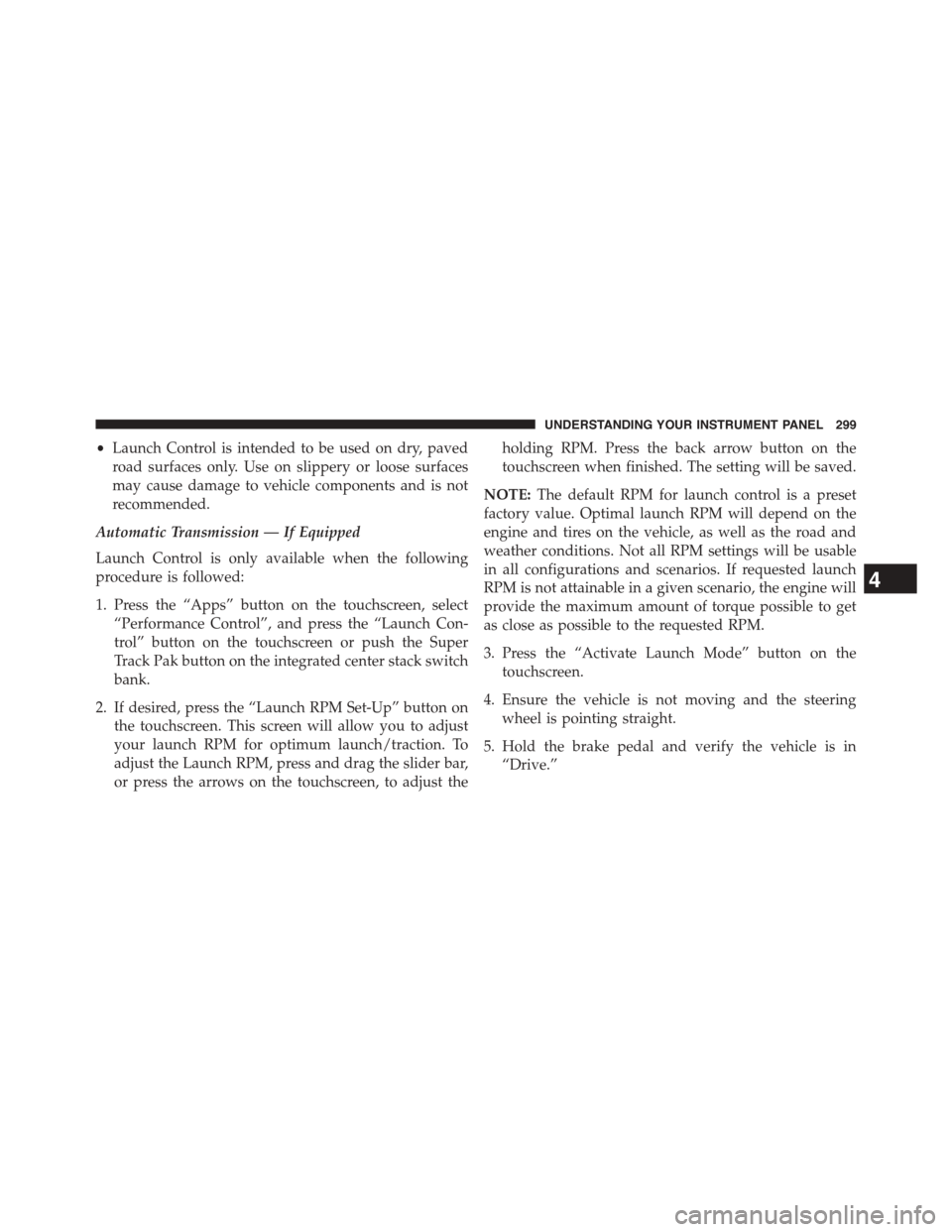
1. Press the “Apps” button on the touchscreen, select
“Performance Control”, and press the “Launch Con-
trol” button on the touchscreen or push the Super
Track Pak button on the integrated center stack switch
bank.
2. If desired, press the “Launch RPM Set-Up” button on
the touchscreen. This screen will allow you to adjust
your launch RPM for optimum launch/traction. To
adjust the Launch RPM, press and drag the slider bar,
or press the arrows on the touchscreen, to adjust the
holding RPM. Press the back arrow button on the
touchscreen when finished. The setting will be saved.
NOTE:The default RPM for launch control is a preset
factory value. Optimal launch RPM will depend on the
engine and tires on the vehicle, as well as the road and
weather conditions. Not all RPM settings will be usable
in all configurations and scenarios. If requested launch
RPM is not attainable in a given scenario, the engine will
provide the maximum amount of torque possible to get
as close as possible to the requested RPM.
3. Press the “Activate Launch Mode” button on the
touchscreen.
4. Ensure the vehicle is not moving and the steering
wheel is pointing straight.
5. Hold the brake pedal and verify the vehicle is in
“Drive.”
4
UNDERSTANDING YOUR INSTRUMENT PANEL 299
Page 303 of 603
the Launch RPM, press and drag the slider bar or press
the arrows on the touchscreen to adjust the holding
RPM. Press the back arrow button when finished. The
setting will be saved.
NOTE:The default for launch control is 3000 RPM.
Optimal launch RPM will depend on the engine and tires
on the vehicle, as well as road and weather conditions.
Not all RPM settings will be usable in all configurations
and scenarios. If requested launch RPM is not attainable
in a given scenario, the engine will provide the maximum
amount of torque possible to get as close as possible to
the requested RPM.
3. Press the “Activate Launch Mode” button on the
touchscreen.
4. Ensure the vehicle is not moving and the steering
wheel is pointing straight.
5. Fully depress the clutch pedal and verify the vehicle is
in first gear.
6. While holding the clutch depressed, rapidly apply the
accelerator pedal to wide open throttle. The engine
speed will hold at the RPM that was set in the “Launch
RPM Set-up” screen.
NOTE:Messages will appear in the Driver Information
Display (DID) to inform the driver if one or more of the
above conditions have not been met.
7. When conditions four through six have been met, the
DID will read “Launch Ready Release Clutch.” Re-
lease the clutch quickly and continue to hold wide
open throttle to launch. Execute shifts as described in
the section “Manual Transmission – Shifting.”
8. Keep the vehicle pointed straight. Launch control will
be active until the vehicle reaches 62 MPH (100 km/h).
4
UNDERSTANDING YOUR INSTRUMENT PANEL 301
Page 307 of 603
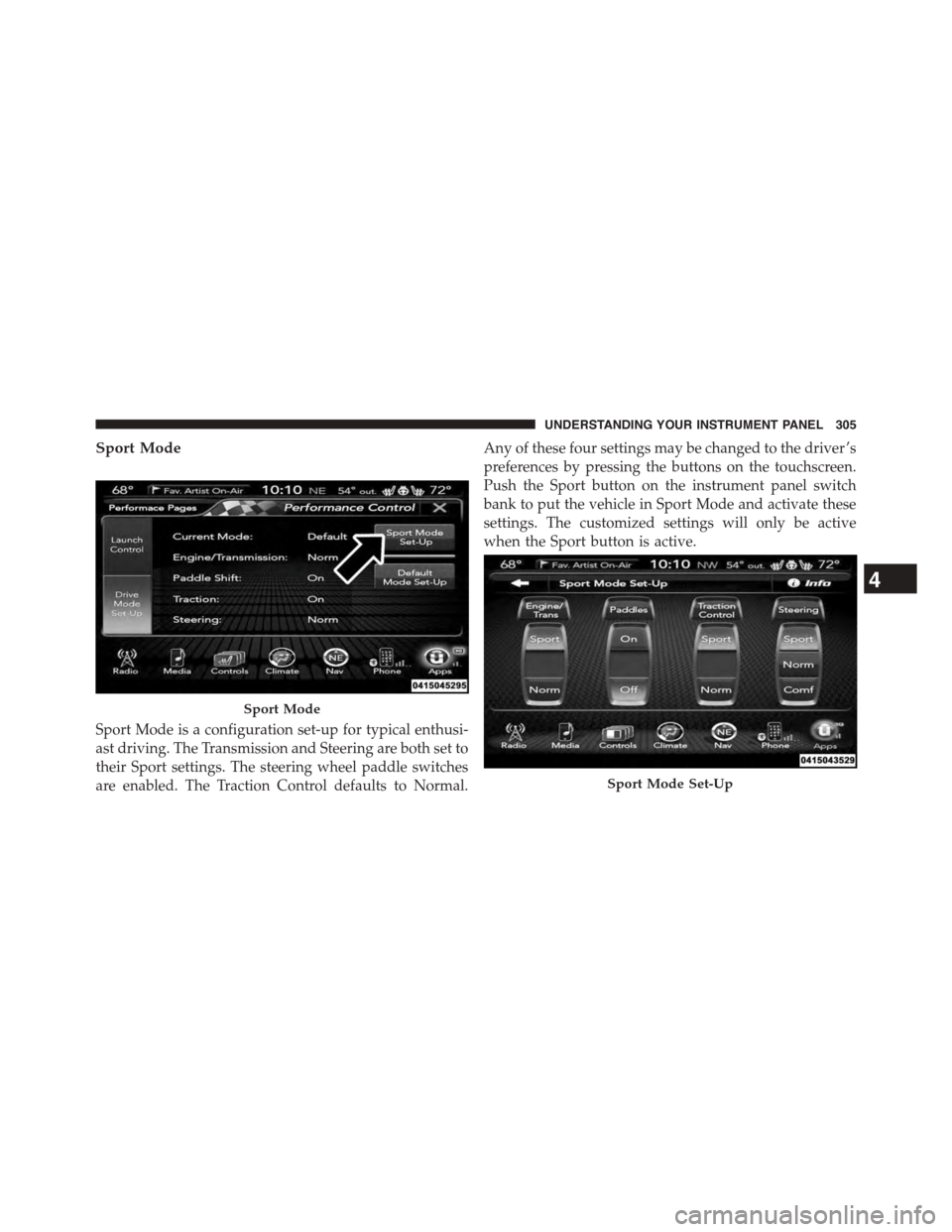
Sport Mode
Sport Mode is a configuration set-up for typical enthusi-
ast driving. The Transmission and Steering are both set to
their Sport settings. The steering wheel paddle switches
are enabled. The Traction Control defaults to Normal.
Any of these four settings may be changed to the driver ’s
preferences by pressing the buttons on the touchscreen.
Push the Sport button on the instrument panel switch
bank to put the vehicle in Sport Mode and activate these
settings. The customized settings will only be active
when the Sport button is active.
Sport Mode
Sport Mode Set-Up
4
UNDERSTANDING YOUR INSTRUMENT PANEL 305
Page 310 of 603
•ON
Press the “ON” button on the touchscreen to enable
steering wheel Paddle Shifters.
•OFF
Press the “OFF” button on the touchscreen to disable
steering wheel Paddle Shifters.
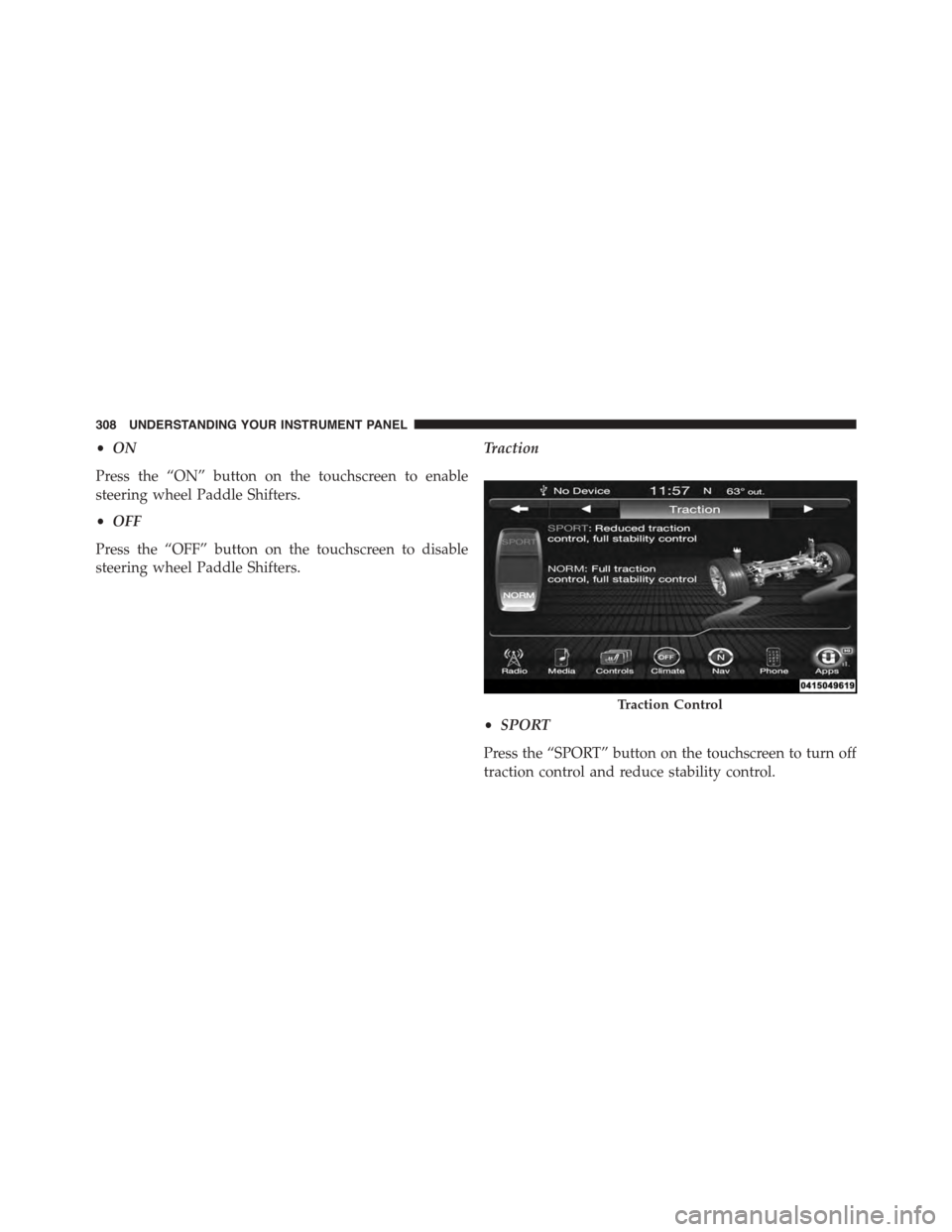
Traction
•SPORT
Press the “SPORT” button on the touchscreen to turn off
traction control and reduce stability control.
Traction Control
308 UNDERSTANDING YOUR INSTRUMENT PANEL
Page 313 of 603
iPod® control supports Mini, 4G, Photo, Nano, 5G iPod®
and iPhone® devices. Some iPod® software versions
may not fully support the iPod® control features. Please
visit Apple’s website for software updates.
For further information, refer to the Uconnect® User ’s
Manual.
STEERING WHEEL AUDIO CONTROLS — IF
EQUIPPED
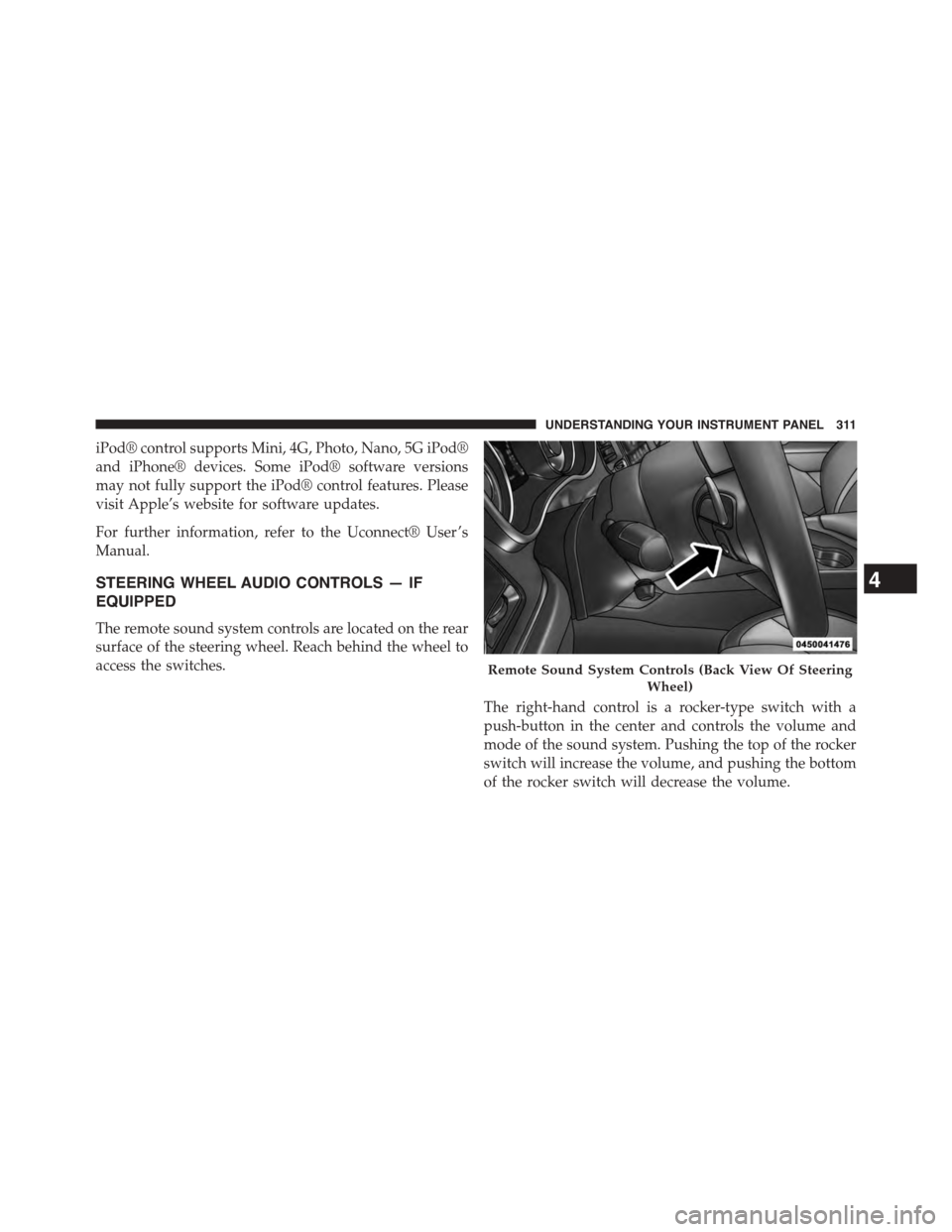
The remote sound system controls are located on the rear
surface of the steering wheel. Reach behind the wheel to
access the switches.
The right-hand control is a rocker-type switch with a
push-button in the center and controls the volume and
mode of the sound system. Pushing the top of the rocker
switch will increase the volume, and pushing the bottom
of the rocker switch will decrease the volume.
Remote Sound System Controls (Back View Of Steering
Wheel)
4
UNDERSTANDING YOUR INSTRUMENT PANEL 311
Page 330 of 603

Get Started
All you need to control your Uconnect® system with
your voice are the buttons on your steering wheel.
1. VisitUconnectPhone.comto check mobile device
and feature compatibility and to find phone pairing
instructions.
2. Reduce background noise. Wind and passenger con-
versations are examples of noise that may impact
recognition.
3. Speak clearly at a normal pace and volume while
facing straight ahead. The microphone is positioned
on the rearview mirror and aimed at the driver.
4. Each time you give a Voice Command, you must first
push either the VR or Phone button, wait untilafter
the beep, then say your Voice Command.
5. You can interrupt the help message or system prompts
by pushing the VR or Phone button and saying a Voice
Command from current category.
Uconnect® Voice Command1—PushToInitiateOrToAnswerAPhoneCall,SendOrRe-ceive A Text2 — For all radios: Push To Begin Radio or Media functions. For8.4A/8.4AN only: Push to begin Navigation, Apps And ClimateFunctions3—PushToEndCall
328 UNDERSTANDING YOUR INSTRUMENT PANEL