Page 198 of 603
When enabled, active guide lines are overlaid on the
image to illustrate the width of the vehicle and its
projected backup path based on the steering wheel
position.
When enabled, fixed guide lines are overlaid on the
image to illustrate the width of the vehicle.
NOTE:The ParkView® Rear Back Up Camera has pro-
grammable modes of operation that may be selected
through the Uconnect® System. Refer to “Uconnect®
Settings” in “Understanding Your Instrument Panel” for
further information.
Different colored zones indicate the distance to the rear of
the vehicle.
The following table shows the approximate distances for
each zone:
ZoneDistance to the rear of the vehicle
Red0 - 1 ft (0 - 30 cm)
Yellow1 ft - 3 ft (30 cm - 1 m)
Green3 ft or greater (1 m or greater)
196 UNDERSTANDING THE FEATURES OF YOUR VEHICLE
Page 221 of 603
UNDERSTANDING YOUR INSTRUMENT PANEL
CONTENTS
!INSTRUMENT PANEL FEATURES..........221
!INSTRUMENT CLUSTER — BASE..........222
!INSTRUMENT CLUSTER — PREMIUM......223
!INSTRUMENT CLUSTER DESCRIPTIONS.....224
!DRIVER INFORMATION DISPLAY (DID).....234
▫Engine Oil Life Reset..................236
▫DID Selectable Menu Items..............238
!Uconnect® SETTINGS...................250
▫Buttons On The Faceplate................251
▫Buttons On The Touchscreen..............252
▫Customer Programmable Features — Uconnect®
5.0 Settings..........................252
▫Customer Programmable Features — Uconnect®
8.4 Settings..........................268
▫Performance Pages — If Equipped.........286
▫Performance Control — If Equipped........296
!Uconnect® RADIOS — IF EQUIPPED........309
!iPod®/USB/MP3 CONTROL — IF EQUIPPED . .310
!STEERING WHEEL AUDIO CONTROLS — IF
EQUIPPED...........................311
▫Radio Operation......................312
4
Page 231 of 603

10. Air Bag Warning Light
This light will turn on for four to eight seconds
as a bulb check when the ignition switch is first
turned to the ON/RUN position. If the light is
either not on during starting, stays on, or turns
on while driving, have the system inspected at an autho-
rized dealer as soon as possible. Refer to “Occupant
Restraints” in “Things To Know Before Starting Your
Vehicle” for further information.
11. Speedometer
Indicates vehicle speed.
12. Front Fog Light Indicator — If Equipped
This indicator will illuminate when the front fog
lights are on.
13. High Beam Indicator
This indicator will turn on when the high beam
headlights are on. Push the multifunction lever
away from the steering wheel to switch the headlights to
high beam.
14. Park/Headlight ON Indicator
This indicator will illuminate when the park
lights or headlights are turned on.
15. Fuel Gauge
The pointer shows the level of fuel in the fuel tank when
the ignition switch is placed in the ON/RUN position.
16. Temperature Gauge
The temperature gauge shows engine coolant tempera-
ture. Any reading within the normal range for a fully
warm vehicle should be 200 F - 230 F which indicates that
the engine cooling system is operating satisfactorily.
4
UNDERSTANDING YOUR INSTRUMENT PANEL 229
Page 236 of 603
DRIVER INFORMATION DISPLAY (DID)
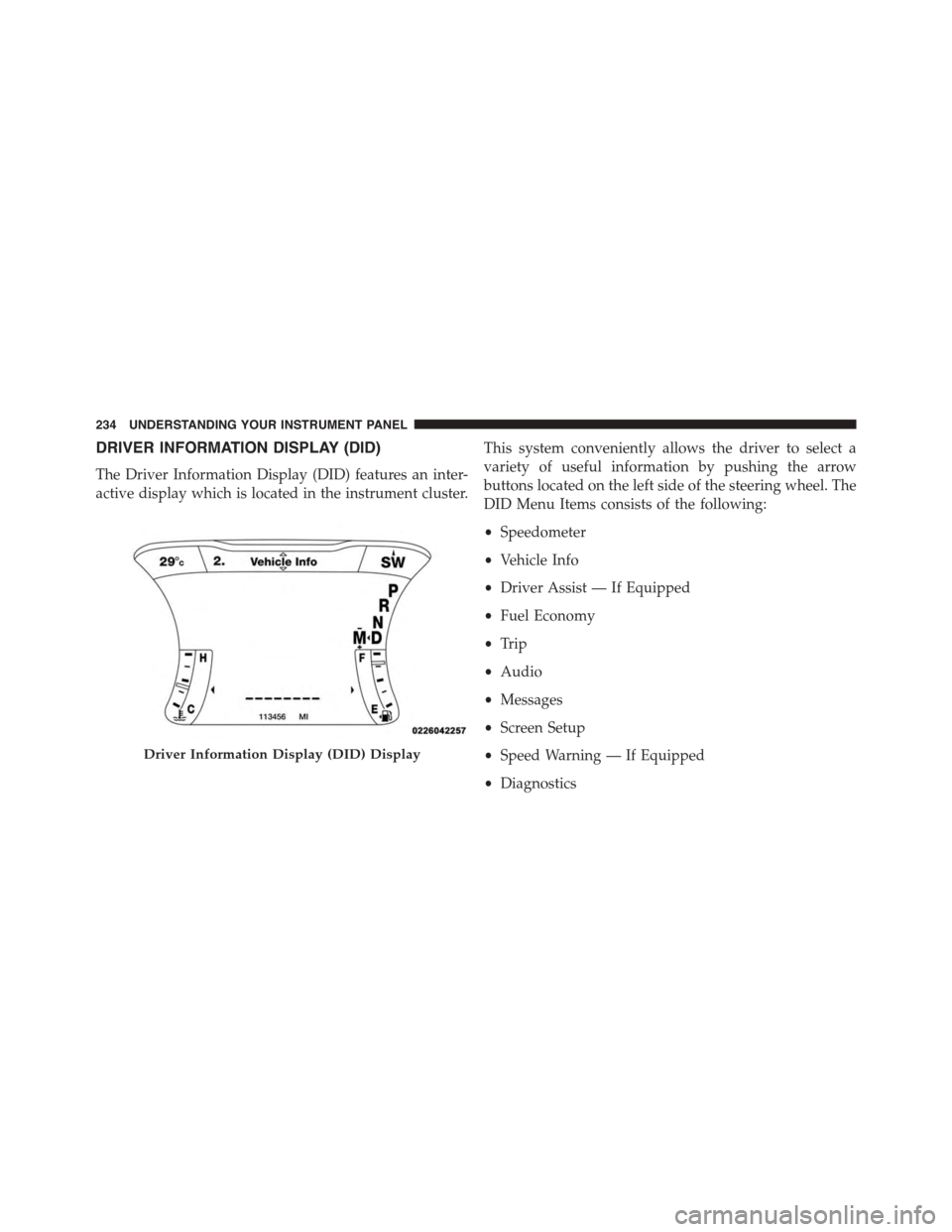
The Driver Information Display (DID) features an inter-
active display which is located in the instrument cluster.
This system conveniently allows the driver to select a
variety of useful information by pushing the arrow
buttons located on the left side of the steering wheel. The
DID Menu Items consists of the following:
•Speedometer
•Vehicle Info
•Driver Assist — If Equipped
•Fuel Economy
•Trip
•Audio
•Messages
•Screen Setup
•Speed Warning — If Equipped
•Diagnostics
Driver Information Display (DID) Display
234 UNDERSTANDING YOUR INSTRUMENT PANEL
Page 237 of 603
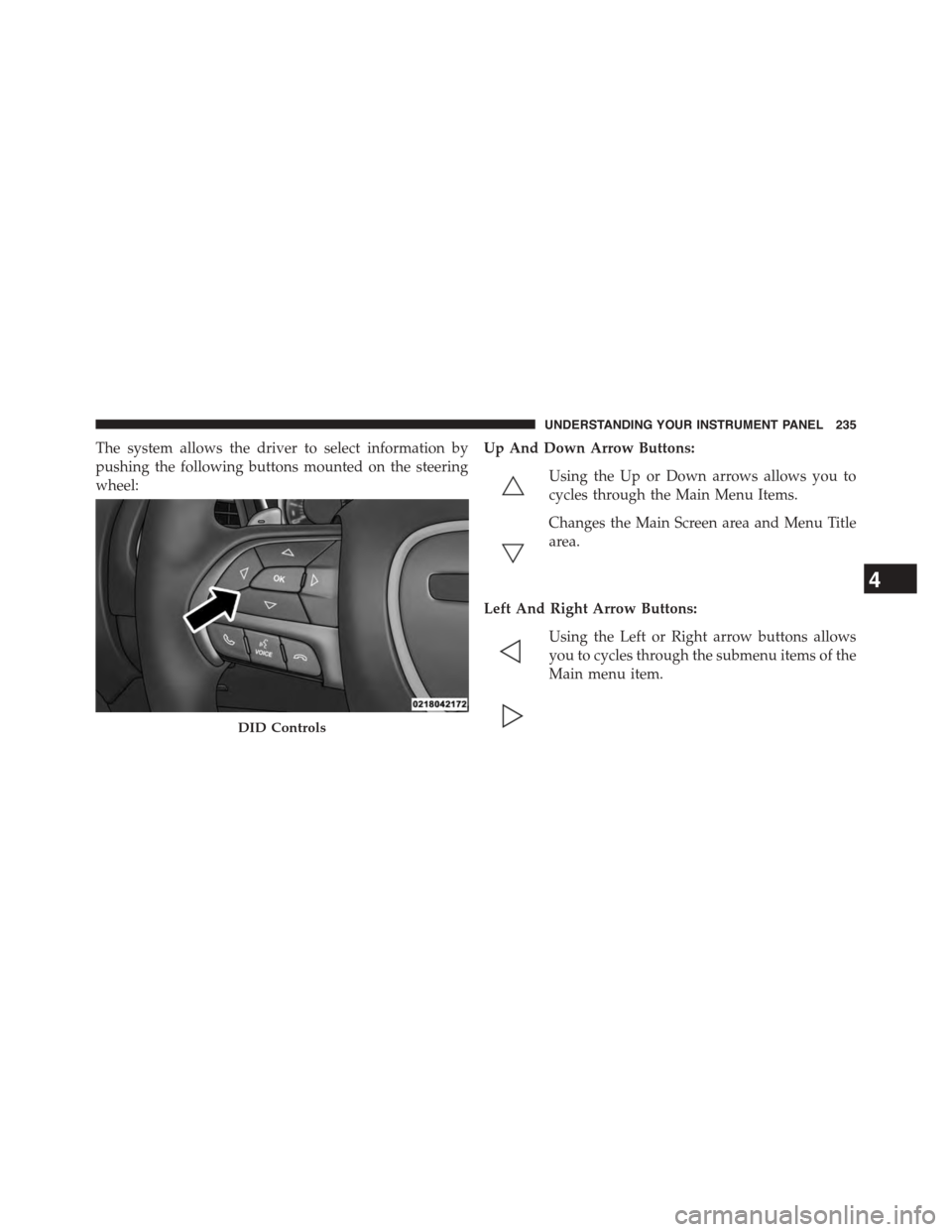
The system allows the driver to select information by
pushing the following buttons mounted on the steering
wheel:
Up And Down Arrow Buttons:
Using the Up or Down arrows allows you to
cycles through the Main Menu Items.
Changes the Main Screen area and Menu Title
area.
Left And Right Arrow Buttons:
Using the Left or Right arrow buttons allows
you to cycles through the submenu items of the
Main menu item.
DID Controls
4
UNDERSTANDING YOUR INSTRUMENT PANEL 235
Page 240 of 603
Use the steering wheel DID controls for the following
procedure(s):
1. Without pushing the brake pedal, cycle the ignition to
the ON/RUN position (do not start the engine.)
2. Push and release theDOWNarrow button to scroll
downward through the main menu to “Vehicle Info”.
3. Push and release theRIGHTarrow button to access
the ”Oil Life” screen.
4. Push and hold theOKbutton until the ”Oil Life”
screen displays.
5. Push and release theDOWNarrow button to select “
Ye s”, then push and release theOKbutton to select
reset of the Oil Life.
6. Push and release theUparrow button to exit the sub
menu screen.
NOTE:If the indicator message illuminates when you
start the vehicle, the oil change indicator system did not
reset. If necessary, repeat this procedure.
DID Selectable Menu Items
Push and release the UP or DOWN arrow buttons until
the desired Selectable Menu item is highlighted in the
DID.
Follow the Menu or submenu prompts as desired.
238 UNDERSTANDING YOUR INSTRUMENT PANEL
Page 248 of 603
Top Speed
When selected, this screen displays the To Speed during
a drive cycle:
•Populates a top speed from first drive cycle and every
time that speed is exceeded that number is stored here
unless/until the driver resets the screen.
•Latching over ignition cycles.
•Units will change with the global change in units.
Driver Assist
Adaptive Cruise Control (ACC) Menu
The DID displays the current ACC system settings. The
information displayed depends on ACC system status.
Push the ADAPTIVE CRUISE CONTROL (ACC) ON/
OFF button (located on the steering wheel) until one of
the following displays in the DID:
Adaptive Cruise Control Off
When ACC is deactivated, the display will read “Adap-
tive Cruise Control Off.”
Adaptive Cruise Control Ready
When ACC is activated but the vehicle speed setting has
not been selected, the display will read “Adaptive Cruise
Control Ready.”
Push the SET + or the SET- button (located on the steering
wheel) and the following will display in the DID:
ACC SET
When ACC is set, the set speed will display in the
instrument cluster.
The ACC screen may display once again if any ACC
activity occurs, which may include any of the following:
•Distance Setting Change
246 UNDERSTANDING YOUR INSTRUMENT PANEL
Page 265 of 603
Auto Comfort Systems — If Equipped
After pressing the “Auto-On Comfort & Remote Start”
button on the touchscreen the following settings will be
available:
•Auto-On Driver Heated/Ventilated Seat & Steering
Wheel With Vehicle Start — If Equipped
When this feature is selected the driver’s heated seat and
heated steering wheel will automatically turn ON when
temperatures are below 40° F (4.4° C). When tempera-
tures are above 80° F (26.7° C) the driver vented seat will
turn ON. To make your selection, press the “Auto Heated
Seats” button on the touchscreen then select either “Off,”
“Remote Start” or “All Starts.” Press the back arrow/
Done button on the touchscreen to return to the previous
menu.
Engine Off Options
After pressing the “Engine Off Options” button on the
touchscreen the following settings will be available.
•Headlight Off Delay
When this feature is selected, the driver can choose to
have the headlights remain on for 0, 30, 60, or 90 seconds
when exiting the vehicle. To change the Headlight Off
Delay status press the “Headlight Off Delay” button on
the touchscreen and select from “0,” “30,” “60,” or “90”
buttons on the touchscreen to select your desired time
interval. Press the back arrow/Done button on the touch-
screen to return to the previous menu.
•Engine Off Power Delay
When this feature is selected, the power window
switches, radio, Uconnect® phone system (if equipped),
DVD video system (if equipped), power sunroof (if
equipped), and power outlets will remain active for up to
4
UNDERSTANDING YOUR INSTRUMENT PANEL 263