Page 194 of 260

192
Radio
* Depending on equipment.
Selecting a station
Press on "Audio source " to display
the carousel of sound sources.
Select " FM".
Select the " Station" tab then select
a radio station from the stations
received. Select the "
Manual" tab to search for
a station.
Select " FM radio configuration "
then " Update the list of stations " to
refresh the list.
If necessary, select change of source
by pressing on the " Audio source"
shortcut in the upper bar of the
carousel.
Select " AM" or " DAB" *. Press on "
Audio source " to display
the carousel of sound sources.
Select " FM".
Press the step by step buttons to
search for frequencies up or down.
Press the automatic buttons to
search for frequencies up or down.
Turn the button at bottom right of the
screen to search for frequencies up
or down.
OR OR
The exterior environment (hills,
buildings, tunnel, car park, below
ground...) may prevent reception, even
in RDS alternative frequencies mode.
This phenomenon is normal in the
propagation of radio waves and is in no
way indicative of a fault with the audio
system.
Changing a radio frequency
Audio and Telematics
Page 195 of 260
193
Select a radio station or frequency
(refer to the "Changing a frequency"
section).Press on "
Audio source " to display
the carousel of audio sources.
Select " FM".
Select " FM radio configuration ".
Activate/deactivate " Change of
regional code ".
Select the "
Presets" tab then make
long press on one of the numbered
preset locations.
Preset a station Activate/ Deactivate RDS
RDS, if activated, allows you to
continue listening to the same station
by automatic retuning to alternative
frequencies. However, in certain
conditions, coverage of an RDS station
may not be assured throughout the
entire country as radio stations do
not cover 100 % of the territory. This
explains the loss of reception of the
station during a journey.
.
Audio and Telematics
Page 196 of 260
194
DAB (Digital Audio Broadcasting) radio
Display "DAB" waveband.Display the name and "Radiotext" for
the current station.
Short-cut: access to the choice of
audio source, telephone functions and
SmartphoneLink
® mode.
Select the radio station.
Preset stations.
Short press: select the preset
radio station.
Long press: preset a radio
station.
"Next multiplex".
Next radio station.
Display the name and number of the
"Multiplex" service being used.
"Previous multiplex". "DAB radio configuration".
Previous radio station. If the "DAB" radio station being listened
to is not available, the "FM" waveband
appears in the screen.
Audio and Telematics
Page 197 of 260

195
Press on "Audio source " to display
the carousel of sound sources. Press "
Audio source " to display the
carousel of audio sources.
Select " DAB". Select "
DAB".
Select " DAB radio configuration ".
Activate " L-band". Select "
DAB radio configuration ".
Activate " Alternative DAB
frequency ".
Select the "
Station" tab then select a
station from those received.
Select the " Manual" tab to search for
a station.
Digital radio provides higher quality
reception and also the display of
additional information (album artwork...)
on the radio station being listened to.
Select "DAB" in the carousel of audio
sources.
The range of multiplexes available is
displayed in alphabetical order.
Digital radio does not cover 100% of the
te r r i to r y.
When the digital signal is weak, the
"Alternative DAB frequency " option
makes it possible to continue listening
to the same station, by automatically
switching to the corresponding "FM"
station (if there is one). If the "DAB" station being listened to
is not available, or if "
L-band" is not
activated, the sound will cut out while
the digital signal is too weak. If " Alternative DAB frequency "
tracking is activated, there is a
difference of a few seconds when the
system switches to the "FM" analogue
radio station with sometimes a variation
in volume.
When the digital signal is restored, the
system automatically changes back
to
"DAB".
DAB / FM station tracking
Digital radio
.
Audio and Telematics
Page 222 of 260

220
Radio
QUESTIONANSWER SOLUTION
The quality of reception of
the radio station listened
to gradually deteriorates
or the stored stations do
not function (no sound,
87.5
Mhz is displayed...). The vehicle is too far from the transmitter used by the station
listened to or there is no transmitter in the geographical area
through which the vehicle is travelling.
Activate the "RDS" function to enable the system
to check whether there is a more power ful
transmitter in the geographical area.
The environment (hills, buildings, tunnels, basement car parks...)
block reception, including in RDS mode. This phenomenon is normal and does not
indicate a fault with the audio system.
The aerial is absent or has been damaged (for example when going
through a car wash or into an underground car park). Have the aerial checked by a CITROËN dealer.
I cannot find some radio
stations in the list of
stations received. The station is not received or its name has changed in the list.
The name of the radio
station changes. Some radio stations send other information in place of their name
(the title of the song for example).
The system interprets this information as the name of the station.
Audio and Telematics
Page 223 of 260
221
Settings, configuration
QUESTIONANSWER SOLUTION
There is a difference in
sound quality between the
different audio sources
(radio, USB...). For optimum sound quality, the audio settings (Volume, Treble,
Medium, Bass) can be adapted to the different sound sources,
which may result in audible differences when changing source
(radio, USB...). Check that the audio settings are adapted to
the sources listened to. It is advisable to select
automatic sound adjustment (Low, Medium,
High).
Check the quality and format of your recording.
With the engine off, the
system switches off after a
few minutes of use. When the engine is switched off, the system's operating time
depends on the battery charge.
The switch-off is normal: the system changes to economy mode
and switches off to preserve the state of charge of the vehicle's
battery. Start the vehicle's engine to increase the battery
charge.
.
Audio and Telematics
Page 225 of 260
223
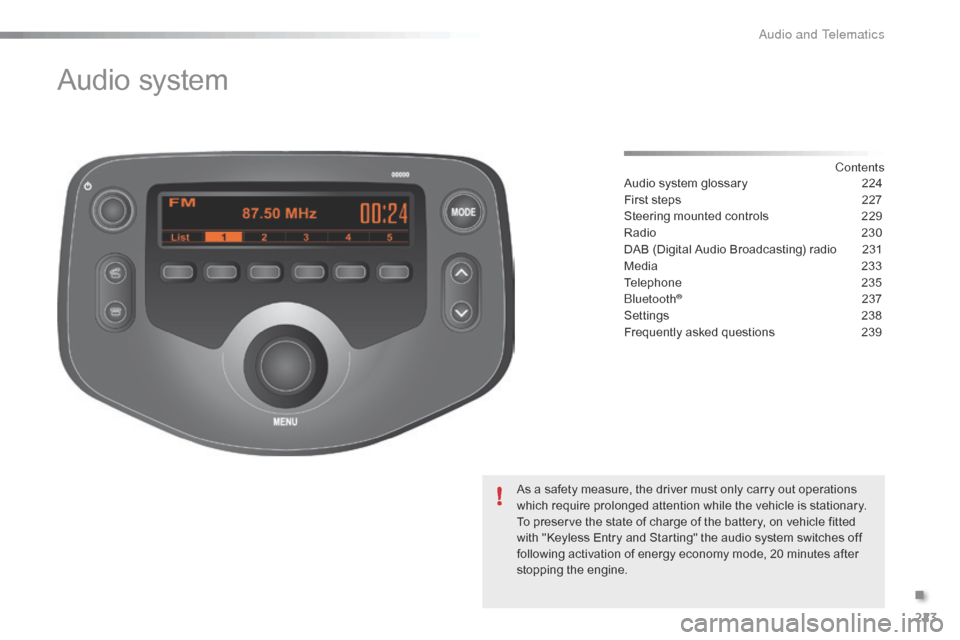
Audio system
Contents
Audio system glossary
2 24
First steps
2
27
Steering mounted controls
2
29
Radio
2
30
DAB (Digital Audio Broadcasting) radio
2
31
Media
23
3
Telephone
2
35
Bluetooth
® 2 37
Settings
2
38
Frequently asked questions
2
39
As a safety measure, the driver must only carry out operations
which require prolonged attention while the vehicle is stationary.
To preserve the state of charge of the battery, on vehicle fitted
with "Keyless Entry and Starting" the audio system switches off
following activation of energy economy mode, 20 minutes after
stopping the engine.
.
Audio and Telematics
Page 227 of 260
225
Menu itemSignificance /
Corresponding action
Incoming calls Incoming calls.
List Audio Display the list of registered audio
devices.
List Phone Display the list of registered
telephones.
Missed calls Missed calls.
No entry No data available.
No history No history available.
No connected Not connected.
Outgoing calls Outgoing calls.
Overwrite all Replace all.
Pairing Connect a device by Bluetooth.
Menu item
Significance /
Corresponding action
Device name Name of the system.
DAB Digital radio.
Dial by number Enter a telephone number.
Disconnect Disconnect your telephone.
Display Setting Activate or deactivate automatic
display of connections.
Enter new passkey Enter a new password.
FM AF On/Off Activate or deactivate FM AF
mode.
FM List Display the list of FM stations.
FM TA On/Off Activate or deactivate FM TA
mode - alert messages.
HF Sound Setting High frequency sound setting.
.
Audio and Telematics