Page 394 of 698

•Passive Entry
This feature allows you to lock and unlock the vehicles
door(s) without having to press the Remote Keyless
Entry (RKE) transmitter lock or unlock buttons. To make
your selection, press the “Passive Entry” button on the
touchscreen, until a check-mark appears next to setting,
showing that setting has been selected. Press the back
arrow button on the touchscreen to return to the previous
menu. Refer to “Keyless Enter-N-Go™” in “Things To
Know Before Starting Your Vehicle”.
• Personal Settings Linked to Key Fob On/Off — If
Equipped
This feature provides automatic driver seat positioning to
enhance driver mobility when entering and exiting the
vehicle. To make your selection, press the “Memory
Linked To FOB” button on the touchscreen, until a
check-mark appears next to setting, showing that setting
has been selected. Press the back arrow button on the
touchscreen to return to the previous menu. NOTE:
The seat will return to the memorized seat
location (if Recall Memory with Remote Key Unlock is set
to ON) when the Remote Keyless Entry (RKE) transmitter
is used to unlock the door. Refer to “Driver Memory
Seat” in “Understanding The Features Of Your Vehicle”
for further information.
Auto-On Comfort — If Equipped
After pressing the “Auto-On Comfort” button on the
touchscreen, one of the following settings will be avail-
able:
• Auto-On Driver Heated Seat OR Auto-On Driver
Heated Seat & Steering wheel OR Auto-On Driver
Heated/Vented Seat OR Auto-On Driver Heated/Vented
Seat & Steering Wheel
When this feature is selected the driver’s heated/vented
seat and heated steering wheel will automatically turn on
392 UNDERSTANDING YOUR INSTRUMENT PANEL
Page 398 of 698

Press the Subscription Info button on the touchscreen to
access the Subscription Information screen.
Write down the SIRIUS ID numbers for your receiver. To
reactivate your service, either call the number listed on
the screen or visit the provider online.
NOTE:SiriusXM Travel Link™ is a separate subscription
and is available for U.S. residents only.
Restore Settings
After pressing the “Restore Settings” button on the
touchscreen the following settings will be available:
• Restore Settings
When this feature is selected it will reset the Display,
Clock, Audio, and Radio Settings to their default settings.
To restore the settings to their default setting, press the
Restore Settings button. A pop-up will appear asking
�Are you sure you want to reset your settings to default?” select Yes to restore, or Cancel to exit. Once the settings
are restored, a pop up appears stating
�settings reset to
default.� Press the okay button on the touchscreen to exit.
Clear Personal Data
After pressing the “Clear Personal Data Settings” button
on the touchscreen the following settings will be avail-
able:
•Clear Personal Data
When this feature is selected it will remove personal data
including Bluetooth® devices and presets. To Clear Per-
sonal Data press the “Yes” or “No” button on the
touchscreen. A check mark will appear in the box when
selected. Then press the back arrow button on the touch-
screen.
396 UNDERSTANDING YOUR INSTRUMENT PANEL
Page 403 of 698
Front Blower Control
There are seven blower speeds. Use
this control to regulate the amount of
air forced through the system in any
mode you select. The blower speed
increases as you move the control
clockwise from the OFF position.
Temperature Control
Use this control to regulate the tem-
perature of the air inside the passenger
compartment. Rotating the knob coun-
terclockwise, from top center into the
blue area of the scale, indicates cooler
temperatures. Rotating the knob clock-
wise, into the red area, indicates
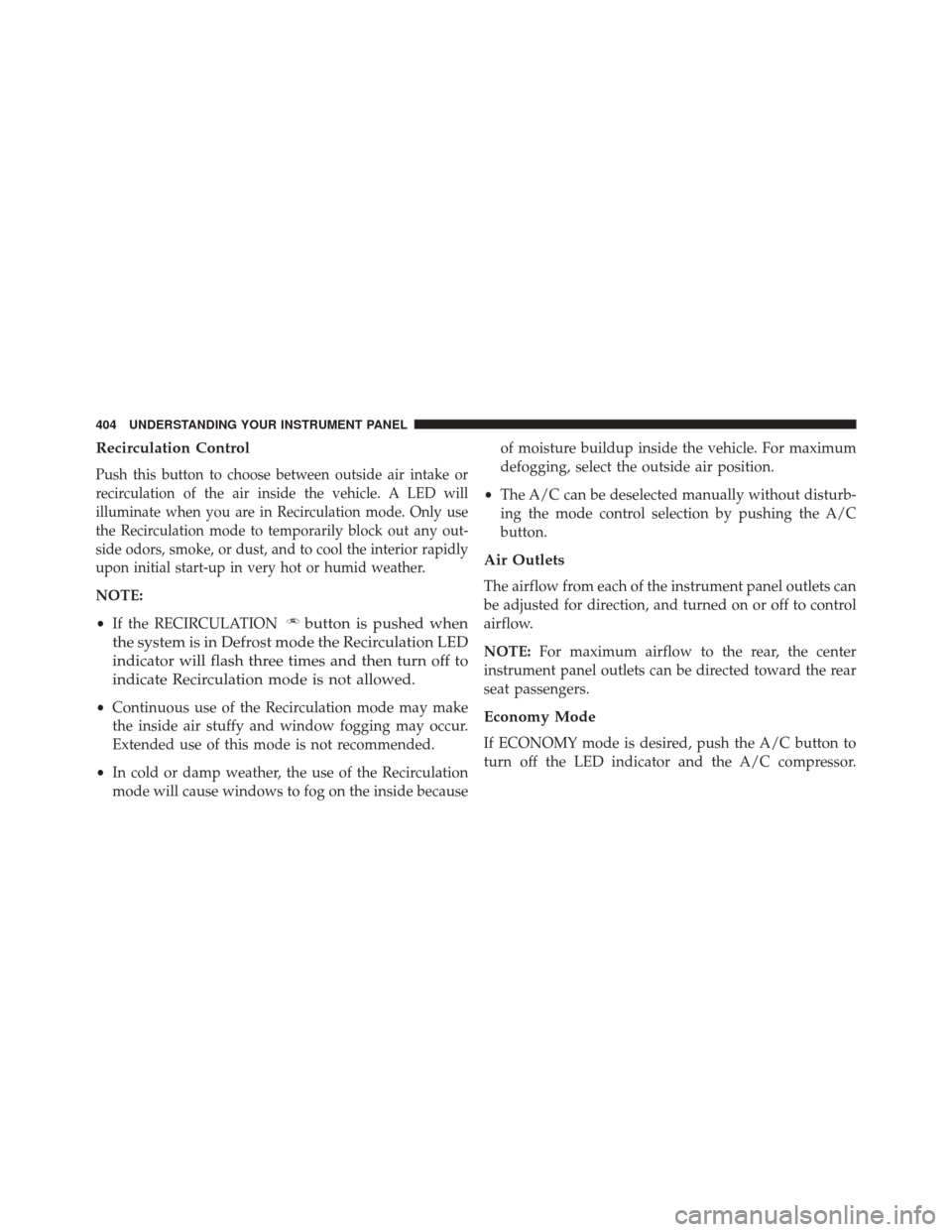
warmer temperatures.Manual Climate Controls
1 — RECIRCULATION Control 5 — Air Conditioning (A/C)
2 — Front Blower Control 6 — REAR DEFROST Mode
3 — MAX Air Conditioning
(A/C) 7 — MODE Control
4 — Temperature Control
4
UNDERSTANDING YOUR INSTRUMENT PANEL 401
Page 406 of 698
Recirculation Control
Push this button to choose between outside air intake or
recirculation of the air inside the vehicle. A LED will
illuminate when you are in Recirculation mode. Only use
the Recirculation mode to temporarily block out any out-
side odors, smoke, or dust, and to cool the interior rapidly
upon initial start-up in very hot or humid weather.
NOTE:
•If the RECIRCULATION
button is pushed when
the system is in Defrost mode the Recirculation LED
indicator will flash three times and then turn off to
indicate Recirculation mode is not allowed.
• Continuous use of the Recirculation mode may make
the inside air stuffy and window fogging may occur.
Extended use of this mode is not recommended.
• In cold or damp weather, the use of the Recirculation
mode will cause windows to fog on the inside because of moisture buildup inside the vehicle. For maximum
defogging, select the outside air position.
• The A/C can be deselected manually without disturb-
ing the mode control selection by pushing the A/C
button.
Air Outlets
The airflow from each of the instrument panel outlets can
be adjusted for direction, and turned on or off to control
airflow.
NOTE: For maximum airflow to the rear, the center
instrument panel outlets can be directed toward the rear
seat passengers.
Economy Mode
If ECONOMY mode is desired, push the A/C button to
turn off the LED indicator and the A/C compressor.
404 UNDERSTANDING YOUR INSTRUMENT PANEL
Page 410 of 698

CAUTION!
Failure to follow these cautions can cause damage to
the heating elements:
•Use care when washing the inside of the rear
window. Do not use abrasive window cleaners on
the interior surface of the window. Use a soft cloth
and a mild washing solution, wiping parallel to the
heating elements. Labels can be peeled off after
soaking with warm water.
• Do not use scrapers, sharp instruments, or abrasive
window cleaners on the interior surface of the
window.
• Keep all objects a safe distance from the window. 6. Blower Control
Blower control is used to regulate the amount of air
forced through the climate system. There are seven
blower speeds available. Adjusting the blower will cause
automatic mode to switch to manual operation. The
speeds can be selected using either buttons on the
faceplate or buttons on the touchscreens as follows:
Knob On The Faceplate
The blower speed increases as you turn the control
clockwise from the lowest blower setting. The blower
speed decreases as you turn the knob counterclockwise.
Buttons On The Touchscreen
Use the small blower icon to reduce the blower setting
and the large blower icon to increase the blower setting.
Blower can also be selected by pressing the blower bar
area between the icons.
408 UNDERSTANDING YOUR INSTRUMENT PANEL
Page 417 of 698
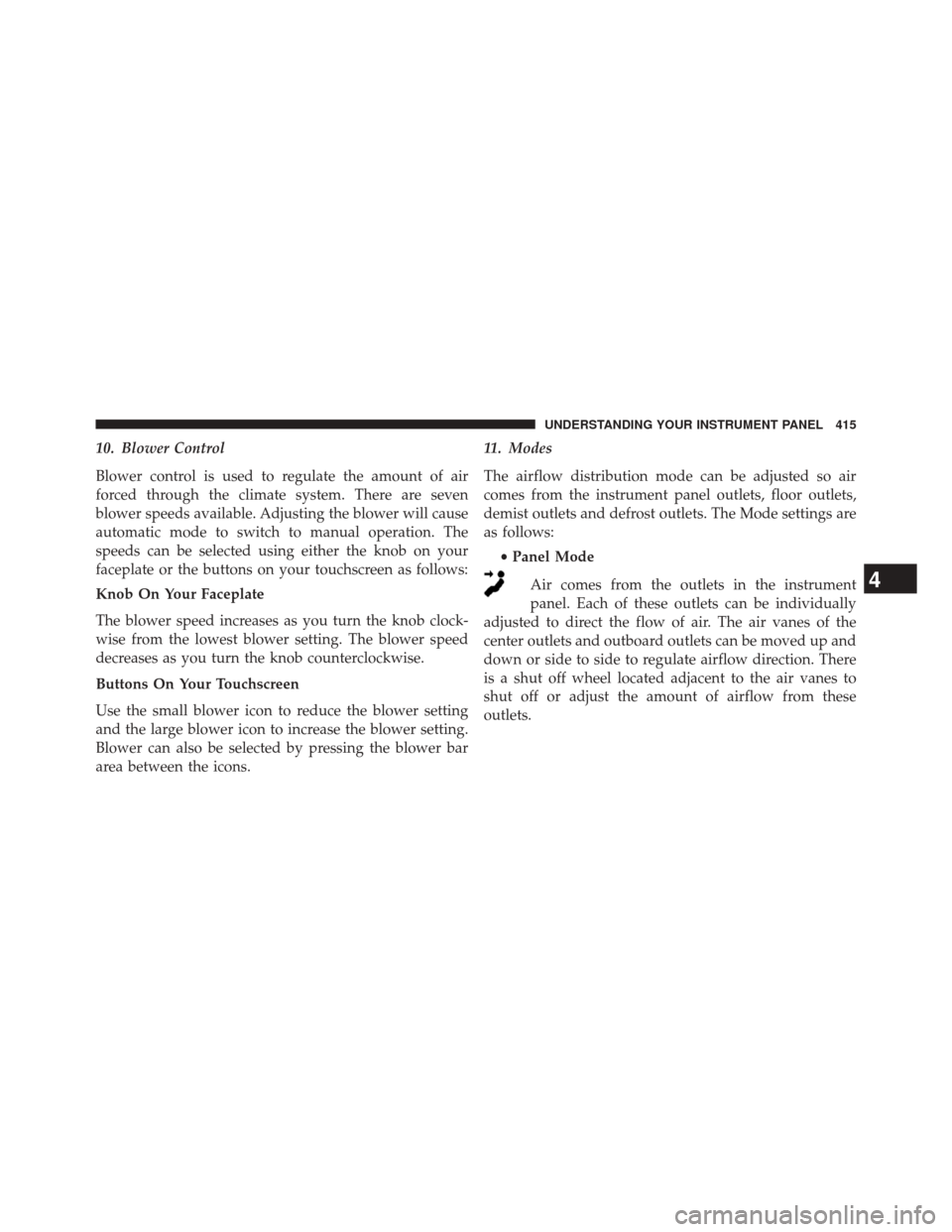
10. Blower Control
Blower control is used to regulate the amount of air
forced through the climate system. There are seven
blower speeds available. Adjusting the blower will cause
automatic mode to switch to manual operation. The
speeds can be selected using either the knob on your
faceplate or the buttons on your touchscreen as follows:
Knob On Your Faceplate
The blower speed increases as you turn the knob clock-
wise from the lowest blower setting. The blower speed
decreases as you turn the knob counterclockwise.
Buttons On Your Touchscreen
Use the small blower icon to reduce the blower setting
and the large blower icon to increase the blower setting.
Blower can also be selected by pressing the blower bar
area between the icons.11. Modes
The airflow distribution mode can be adjusted so air
comes from the instrument panel outlets, floor outlets,
demist outlets and defrost outlets. The Mode settings are
as follows:
•Panel Mode
Air comes from the outlets in the instrument
panel. Each of these outlets can be individually
adjusted to direct the flow of air. The air vanes of the
center outlets and outboard outlets can be moved up and
down or side to side to regulate airflow direction. There
is a shut off wheel located adjacent to the air vanes to
shut off or adjust the amount of airflow from these
outlets.
4
UNDERSTANDING YOUR INSTRUMENT PANEL 415
Page 437 of 698
Uconnect® Access* (8.4A/8.4AN)
An included trial and/or subscription is required to take
advantage of the Uconnect® Access services in the next
section of this guide. To register with Uconnect® Access,
press the Apps button on the 8.4-inch touchscreen to get
started. Detailed registration instructions can be found
on the next page.
*Uconnect® Access is available only on equipped ve-
hicles purchased within the continental United States and
Alaska. Services can only be used where coverage is
available; see coverage map for details.
9-1-1 Call
Theft Alarm Notification
Remote Door Lock/Unlock
Stolen Vehicle Assistance
Remote Vehicle Start**
Remote Horn and Lights
Yelp® Search
Voice Texting
Roadside Assistance Call
Wi-Fi Hotspot***
**If vehicle is equipped.
***Extra charges apply.
4
UNDERSTANDING YOUR INSTRUMENT PANEL 435
Page 439 of 698
Mobile App (8.4A/8.4AN)
Securely link your mobile device to your vehicle with the
Uconnect® Access App. Once you have downloaded the
App, you may start your vehicle or lock it from virtually
any distance. (Vehicle must be properly equipped with
factory-installed Remote Start.)
Download the Uconnect® Access App to a compatible
Apple® or Android® mobile devices. All you need to do is:
1. After registering with Uconnect® Access, log on toyour Mopar® Owner Connect account at
MoparOwnerConnect.com
2. On the Dashboard page, enter your mobile phone number to receive a link to download the App on your
mobile device. Or go to iTunes®, or Google Play, and
search for the Uconnect® Access App.
3. To activate the App, enter your Mopar Owner Connect user name and password and log in. Your vehicle is
then connected to your mobile device.
Mobile App
4
UNDERSTANDING YOUR INSTRUMENT PANEL 437