2015 CHEVROLET MALIBU audio
[x] Cancel search: audioPage 139 of 399
Black plate (32,1)Chevrolet Malibu Owner Manual (GMNA-Localizing-U.S./Canada/Mexico-
7575972) - 2015 - crc - 4/1/14
5-32 Instruments and Controls
.Number of Favorites Pages
.XM Categories
.Software Versions Menu
Auto Volume
This feature adjusts the volume to
minimize the effects of unwanted
background noise that can result
from changing road surfaces, driving
speeds, or open windows. This
feature works best at lower volume
settings where background noise is
typically louder than the sound
system volume.
Select Off, Low, Medium, or High.
Gracenote Options
Select and the following may
display:
.Normalization
Normalization
This feature improves voice
recognition and media groupings.
See “CD Player,” “USB,” “Auxiliary
Devices,” and“Bluetooth Audio” in
the infotainment manual. Select to enable or disable.
XM Channel Art
This feature turns the XM Audio
page background on the XM
Channel display on and off.
Select to enable or disable.
Max Startup Volume
This feature sets the maximum
startup volume. If the vehicle is
started and the volume is greater
than this level, the volume is
adjusted to this level.
Press + or
−to increase or
decrease the volume.
Number of Favorites Pages
Press to set the number of favorites
to display.
Select the desired number.
XM Categories
This allows which available XM
Categories are used and displayed.
Press to enable or disable available
categories. Software Versions Menu
Press to display information about
the system and update software if
available.
Phone Settings
Select and the following may
display:
.Bluetooth
Bluetooth
Select and the following may
display:
.Device List
.Pair Device
Device List
Select to connect to a different
phone source, disconnect a phone,
or delete a phone.
Pair Device
Select to pair a new device. See
“Pairing a Phone/Device” in
“Bluetooth” in the infotainment
manual.
Page 158 of 399
Black plate (1,1)Chevrolet Malibu Owner Manual (GMNA-Localizing-U.S./Canada/Mexico-
7575972) - 2015 - crc - 4/1/14
Infotainment System 7-1
Infotainment
System
Introduction
Infotainment . . . . . . . . . . . . . . . . . . . 7-1
Theft-Deterrent Feature . . . . . . . 7-2
Overview . . . . . . . . . . . . . . . . . . . . . . 7-2
Operation . . . . . . . . . . . . . . . . . . . . . 7-4
Radio
AM-FM Radio . . . . . . . . . . . . . . . . . 7-8
Satellite Radio . . . . . . . . . . . . . . . 7-10
Radio Reception . . . . . . . . . . . . . 7-11
Backglass Antenna . . . . . . . . . . 7-12
Multi-Band Antenna . . . . . . . . . . 7-12
Audio Players
CD Player . . . . . . . . . . . . . . . . . . . 7-13
Auxiliary Devices . . . . . . . . . . . . 7-14
Phone
Bluetooth (Overview) . . . . . . . . 7-19
Bluetooth (InfotainmentControls) . . . . . . . . . . . . . . . . . . . 7-21
Bluetooth (Voice Recognition) . . . . . . . . . . . . . . . 7-24
Introduction
Infotainment
Base radio information is included in
this manual. See the infotainment
manual for information on other
available infotainment systems.
Read the following pages to
become familiar with these features.
{Warning
Taking your eyes off the road for
too long or too often while using
any infotainment feature can
cause a crash. You or others
could be injured or killed. Do not
give extended attention to
infotainment tasks while driving.
Limit your glances at the vehicle
displays and focus your attention
on driving. Use voice commands
whenever possible. The infotainment system has built-in
features intended to help avoid
distraction by disabling some
functions when driving. These
functions may gray out when they
are unavailable. Many infotainment
features are also available through
the instrument cluster and steering
wheel controls.
Before driving:
.Become familiar with the
operation, faceplate buttons, and
screen buttons.
.Set up the audio by presetting
favorite stations, setting the
tone, and adjusting the
speakers.
.Set up phone numbers in
advance so they can be called
easily by pressing a single
button or by using a single voice
command if equipped with
Bluetooth phone capability.
See Defensive Driving on page 9-3.
Page 159 of 399
Black plate (2,1)Chevrolet Malibu Owner Manual (GMNA-Localizing-U.S./Canada/Mexico-
7575972) - 2015 - crc - 4/1/14
7-2 Infotainment System
To play the infotainment system with
the ignition off, seeRetained
Accessory Power (RAP) on
page 9-21.
Theft-Deterrent Feature
The theft-deterrent feature works by
learning a portion of the Vehicle
Identification Number (VIN) to the
infotainment system. The
infotainment system does not
operate if it is stolen or moved to a
different vehicle.
Overview
Infotainment System Overview
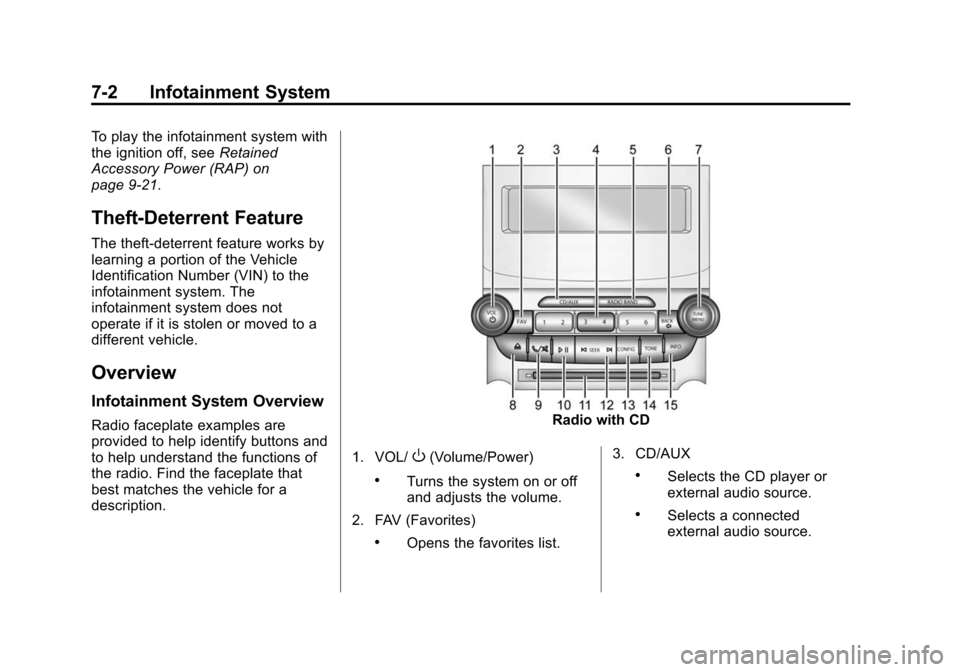
Radio faceplate examples are
provided to help identify buttons and
to help understand the functions of
the radio. Find the faceplate that
best matches the vehicle for a
description.Radio with CD
1. VOL/
O(Volume/Power)
.Turns the system on or off
and adjusts the volume.
2. FAV (Favorites)
.Opens the favorites list. 3. CD/AUX
.Selects the CD player or
external audio source.
.Selects a connected
external audio source.
Page 160 of 399

Black plate (3,1)Chevrolet Malibu Owner Manual (GMNA-Localizing-U.S./Canada/Mexico-
7575972) - 2015 - crc - 4/1/14
Infotainment System 7-3
4. Buttons 1 to 6
.Saves and selects favorite
stations.
5. RADIO/BAND
.Changes the band while
listening to the radio.
.Selects the radio when
listening to a different audio
source.
6. BACK
/
.Menu: Moves one
level back.
.Character Input: Deletes
the last character.
7. TUNE/MENU
.Radio: Manually selects
radio stations.
.CD: Selects tracks.
8.
Z(CD Eject)
.Removes a disc from the
CD slot. 9.
v/>(Phone/Mute)
.Opens the Phone menu.
.Mutes the audio system.
10.
w j(Play/Pause)
.Press to start, pause, and
resume playback. See CD
Player on page 7-13.
11. CD Slot
.Insert a CD.
12.
©SEEK¨
.Press©to seek to the
beginning of the current or
previous track. If the track
has been playing for less
than five seconds, it seeks
the previous track.
If longer than
five seconds, the current
track starts from the
beginning.
.Press and hold©to
quickly reverse through a
track. Release the button to return to playing speed.
See
CD Player on
page 7-13.
.For AM or FM, press©to
seek to the previous
strong station.
.Press¨to seek the next
track.
.Press and hold¨to fast
forward through a track.
.Release¨to return to
playing speed. See CD
Player on page 7-13.
.For AM or FM, press¨to
seek to the next strong
station.
13. CONFIG (Configuration)
.Opens the
Configuration menu.
Page 161 of 399
Black plate (4,1)Chevrolet Malibu Owner Manual (GMNA-Localizing-U.S./Canada/Mexico-
7575972) - 2015 - crc - 4/1/14
7-4 Infotainment System
14. TONE
.Press to access the Tone
Settings menu to adjust
bass, midrange, and
treble. SeeOperation on
page 7-4.
15. INFO
.Radio: Shows available
information about the
current station.
.CD: Shows available
information about the
current track.
Configuration Setup Menu
Press the CONFIG button to display
the Configuration menu. The
Configuration menu is used for
changing the settings for the audio,
phone, vehicle configuration, and
time features.
Turn the TUNE/MENU knob to scroll
through the available setup features.
Once the desired feature displays,
press the TUNE/MENU knob or press the desired feature on the
screen, to display more options
within that feature.
Languages
To change the display language,
see
Vehicle Personalization on
page 5-31.
The vehicle supports English,
French, and Spanish. The default
language is English.
Operation
Controls
The infotainment system is operated
by using the pushbuttons,
multifunction knobs, menus shown
on the display, and steering wheel
controls, if equipped.
Turning the System On or Off
VOL/O(Volume/Power): Press to
turn the system on and off. Automatic Switch-Off
If the infotainment system has been
turned on after the ignition is turned
off, the system will turn off
automatically after 10 minutes.
Volume Control
VOL/O(Volume/Power):
Turn to
adjust the volume.
v/>(Phone): For vehicles with
OnStar, press and hold
v/>to
mute the infotainment system. Press
and hold
v/>again, or turn the
VOL/
Oknob to cancel mute.
For vehicles without OnStar
®, pressv/>to mute the infotainment
system. Press
v/>again, or turn
the VOL/
Oknob to cancel mute.
Menu System
Controls
The TUNE/MENU knob and the
BACK
/button are used to
navigate the menu system.
Page 163 of 399
Black plate (6,1)Chevrolet Malibu Owner Manual (GMNA-Localizing-U.S./Canada/Mexico-
7575972) - 2015 - crc - 4/1/14
7-6 Infotainment System
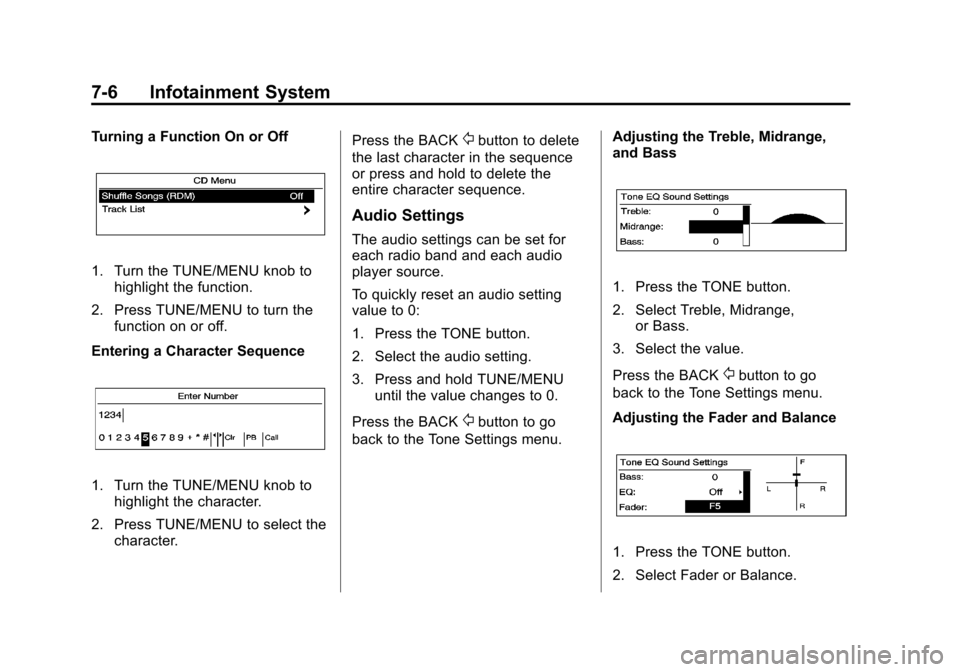
Turning a Function On or Off
1. Turn the TUNE/MENU knob tohighlight the function.
2. Press TUNE/MENU to turn the function on or off.
Entering a Character Sequence
1. Turn the TUNE/MENU knob to highlight the character.
2. Press TUNE/MENU to select the character. Press the BACK
/button to delete
the last character in the sequence
or press and hold to delete the
entire character sequence.
Audio Settings
The audio settings can be set for
each radio band and each audio
player source.
To quickly reset an audio setting
value to 0:
1. Press the TONE button.
2. Select the audio setting.
3. Press and hold TUNE/MENU until the value changes to 0.
Press the BACK
/button to go
back to the Tone Settings menu. Adjusting the Treble, Midrange,
and Bass
1. Press the TONE button.
2. Select Treble, Midrange,
or Bass.
3. Select the value.
Press the BACK
/button to go
back to the Tone Settings menu.
Adjusting the Fader and Balance
1. Press the TONE button.
2. Select Fader or Balance.
Page 170 of 399
Black plate (13,1)Chevrolet Malibu Owner Manual (GMNA-Localizing-U.S./Canada/Mexico-
7575972) - 2015 - crc - 4/1/14
Infotainment System 7-13
Audio Players
CD Player
The player can be used for CDs
and MP3s.
With the ignition on, insert a CD into
the slot, label side up. The player
pulls it in and begins playing.
The vehicle must be in P (Park) for
video to display.
The system is capable of playing:
.Most audio CDs
.CD-R
.CD-RW
.MP3 or unprotected WMA
formats
When playing any compatible
recordable disc, the sound quality
can be reduced due to disc quality,
the method of recording, the quality
of the music or video that has been
recorded, or the way the disc has
been handled. To avoid damage to the CD player:
.Do not use scratched or
damaged discs.
.Do not apply labels to discs. The
labels could get caught in the
player.
.Insert only one disc at a time.
.Keep the loading slot free of
foreign materials, liquids, and
debris.
If a description label is needed, try
labeling the top of the disc using a
marking pen.
Loading and Ejecting Discs
To load a disc:
1. Turn the ignition on.
2. Insert a disc into the slot. The player pulls it in the rest of the
way. If the disc is damaged or
improperly loaded, there is an
error and the disc ejects.
The disc automatically plays once
loaded. Press
Zto eject a disc from the
CD player.
Playing an Audio CD
CD/AUX: Press to use the CD
player.
w j(Play/Pause): Use to start,
pause, or resume play.
©SEEK¨:
.Press©to seek to the beginning
of the current or previous track.
If the track has been playing for
less than five seconds, it seeks
the previous track. If longer than
five seconds, the current track
starts from the beginning.
.Press and hold©to quickly
reverse through a track. Release
the button to return to playing
speed.
.For AM or FM, press©to seek
to the previous strong station.
.Press¨to seek the next track.
Page 171 of 399
Black plate (14,1)Chevrolet Malibu Owner Manual (GMNA-Localizing-U.S./Canada/Mexico-
7575972) - 2015 - crc - 4/1/14
7-14 Infotainment System
.Press and hold¨to fast forward
through a track.
.Release¨to return to playing
speed.
TUNE/MENU: Turn to the right or
left to select the next or previous
track. Press this knob to select the
menu. If a track is selected from the
list, the system plays the track and
returns to the CD screen.
Error Messages
If Disc Read Error displays and/or
the disc comes out, it could be for
one of the following reasons:
.The disc has an invalid or
unknown format.
.The disc is not from a correct
region.
.The disc is very hot. Try the disc
again when the temperature
returns to normal.
.The road is very rough. Try the
disc again when the road is
smoother.
.The disc is dirty, scratched, wet,
or upside down.
.The air is very humid. Try the
disc again later.
.There was a problem while
burning the disc.
.The label is caught in the CD
player.
If the CD is not playing correctly, for
any other reason, try a known
good CD.
If any error continues, contact your
dealer.
Auxiliary Devices
This vehicle may have an auxiliary
input jack and USB port in the
center console. See Center Console
Storage on page 4-2.
Portable devices are controlled by
using the menu system described in
Overview on page 7-2.
Keep the storage area closed when
not in use.
Auxiliary Input Jack
Possible auxiliary audio sources
include:
.Laptop computer
.MP3 player
.Tape player
This jack is not an audio output. Do
not plug headphones into the
auxiliary input jack. Auxiliary
devices should be set up while the
vehicle is in P (Park).
Connect a 3.5 mm (1/8 in) cable
from the auxiliary device to the
auxiliary input jack. When a device
is connected, the system
automatically begins playing audio
from the device over the vehicle
speakers.
If an auxiliary device has already
been connected, but a different
source is currently active, press the
CD/AUX button on the radio
faceplate, then press SOURCE