2015 CHEVROLET IMPALA USB port
[x] Cancel search: USB portPage 10 of 413

Black plate (3,1)Chevrolet Impala Owner Manual (GMNA-Localizing-U.S./Canada-7576026) -
2015 - crc 2nd edition - 8/21/14
In Brief 1-3
1.Instrument Panel Illumination
Control on page 6-4.
2. Air Vents on page 8-7.
3. Trunk Release. See Trunk on
page 2-15.
Parking Assist Button. See
Assistance Systems for Parking
or Backing on page 9-44 (If
Equipped).
Lane Departure Warning (LDW)
Button. See Lane Departure
Warning (LDW) on page 9-52.
4. Turn Signal Lever. See Turn and
Lane-Change Signals on
page 6-4.
5. Instrument Cluster on page 5-9.
Driver Information Center (DIC)
on page 5-25.
6. Windshield Wiper/Washer on
page 5-4.
7. Hazard Warning Flashers on
page 6-3.
8. Light Sensor. See Automatic
Headlamp System on page 6-2. 9. Storage Area with USB Port
Inside (If Equipped). See
Instrument Panel Storage on
page 4-1 andUSB Port on
page 7-14.
10. Infotainment on page 7-1.
11. CD Player on page 7-11.
12. Electric Parking Brake. See Parking Brake on page 9-29.
13. Data Link Connector (Out of View). See Malfunction
Indicator Lamp on page 5-17.
14. Hood Release. See Hood on
page 10-4.
15. Instrument Panel Storage on
page 4-1 (If Equipped).
Fuse Cover. See Instrument
Panel Fuse Block on
page 10-35. 16.
Cruise Control on page 9-33 (If
Equipped).
Adaptive Cruise Control on
page 9-35 (If Equipped).
Heated Steering Wheel on
page 5-3 (If Equipped).
Forward Collision Alert (FCA)
System on page 9-46 (If
Equipped).
17. Steering Wheel Controls on
page 5-3 (Out of View).
18. Steering Wheel Adjustment on
page 5-2.
19. Horn on page 5-3.
20. Steering Wheel Controls on
page 5-3.
Driver Information Center
Buttons. See Driver Information
Center (DIC) on page 5-25.
21. Ignition Positions (Keyless
Access) on page 9-14 or
Ignition Positions (Key Access)
on page 9-16.
Page 25 of 413
Black plate (18,1)Chevrolet Impala Owner Manual (GMNA-Localizing-U.S./Canada-7576026) -
2015 - crc 2nd edition - 8/21/14
1-18 In Brief
.www.xmradio.ca or call
1-877-209-0079 (Canada).
See Satellite Radio on page 7-9.
Portable Audio Devices
This vehicle has a 3.5 mm (1/8 in)
auxiliary input jack. If equipped, up
to two USB ports in the center
console and one in the storage
behind the radio. External devices
such as iPods
®, laptop computers,
MP3 players, CD changers, and
USB storage devices may be
connected, depending on the audio
system.
See Auxiliary Jack on page 7-17
andUSB Port on page 7-14.
Bluetooth®
The Bluetooth®system allows users
with a Bluetooth-enabled cell phone
to make and receive hands-free
calls using the vehicle audio system
and controls. The Bluetooth-enabled cell phone
must be paired with the in-vehicle
Bluetooth system before it can be
used in the vehicle. Not all phones
will support all functions.
See
Bluetooth (Overview) on
page 7-19 orBluetooth
(Infotainment Controls - Base
Radio) on page 7-21 orBluetooth
(Voice Recognition - Base Radio) on
page 7-25.
Steering Wheel Controls
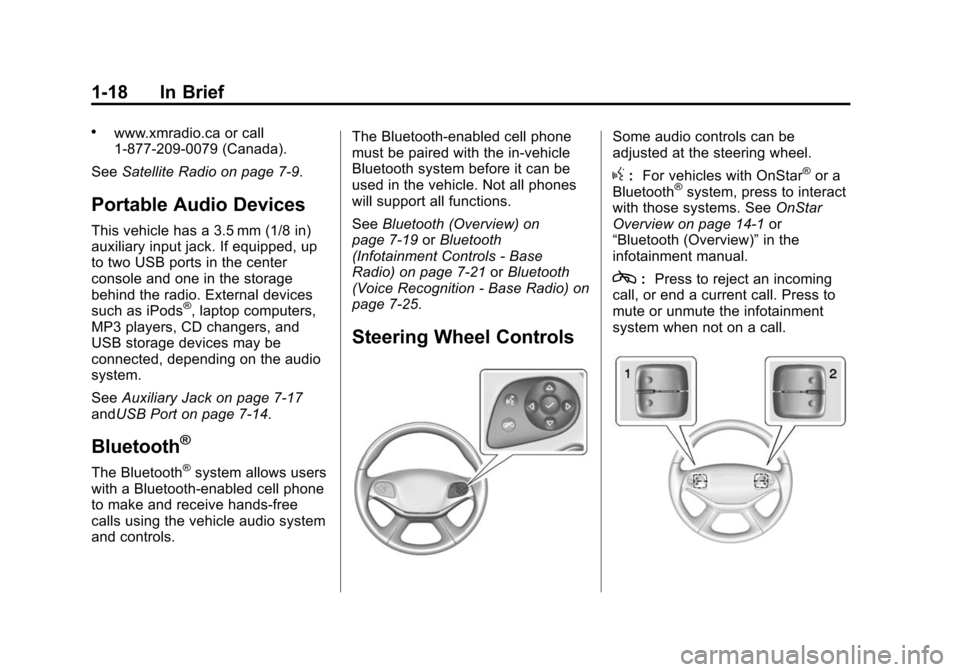
Some audio controls can be
adjusted at the steering wheel.
g: For vehicles with OnStar®or a
Bluetooth®system, press to interact
with those systems. See OnStar
Overview on page 14-1 or
“Bluetooth (Overview)” in the
infotainment manual.
c: Press to reject an incoming
call, or end a current call. Press to
mute or unmute the infotainment
system when not on a call.
Page 112 of 413
Black plate (1,1)Chevrolet Impala Owner Manual (GMNA-Localizing-U.S./Canada-7576026) -
2015 - crc 2nd edition - 8/21/14
Storage 4-1
Storage
Storage Compartments
Storage Compartments . . . . . . . 4-1
Instrument Panel Storage . . . . . 4-1
Glove Box . . . . . . . . . . . . . . . . . . . . 4-2
Cupholders . . . . . . . . . . . . . . . . . . . 4-2
Center Console Storage . . . . . . 4-2
Umbrella Storage . . . . . . . . . . . . . 4-3
Additional Storage Features
Cargo ManagementSystem . . . . . . . . . . . . . . . . . . . . . . 4-3
Convenience Net . . . . . . . . . . . . . 4-4
Storage
Compartments
{Warning
Do not store heavy or sharp
objects in storage compartments.
In a crash, these objects may
cause the cover to open and
could result in injury.
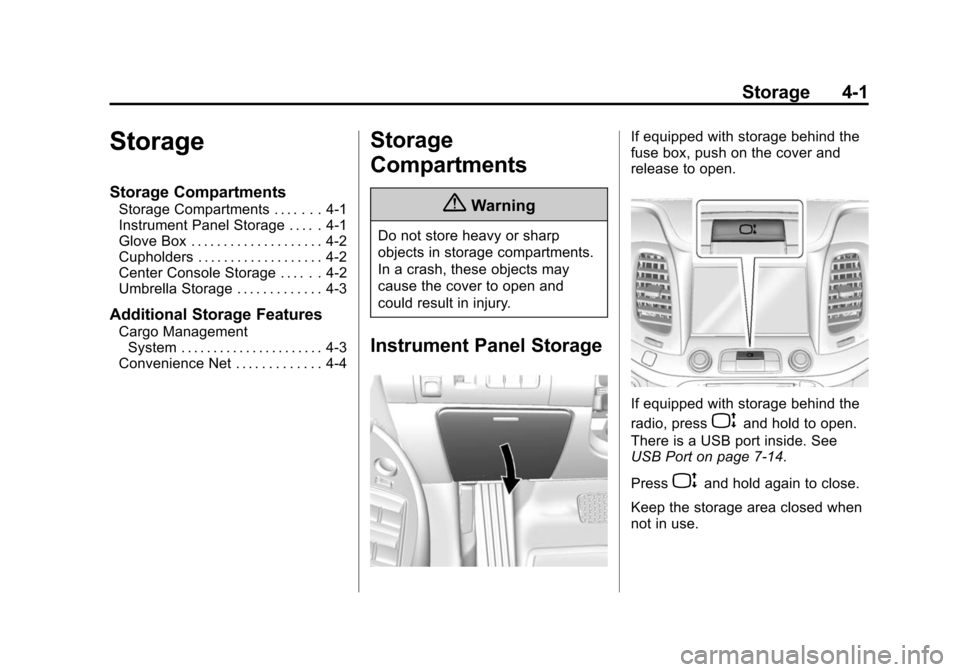
Instrument Panel Storage
If equipped with storage behind the
fuse box, push on the cover and
release to open.
If equipped with storage behind the
radio, press
Pand hold to open.
There is a USB port inside. See
USB Port on page 7-14.
Press
Pand hold again to close.
Keep the storage area closed when
not in use.
Page 114 of 413
Black plate (3,1)Chevrolet Impala Owner Manual (GMNA-Localizing-U.S./Canada-7576026) -
2015 - crc 2nd edition - 8/21/14
Storage 4-3
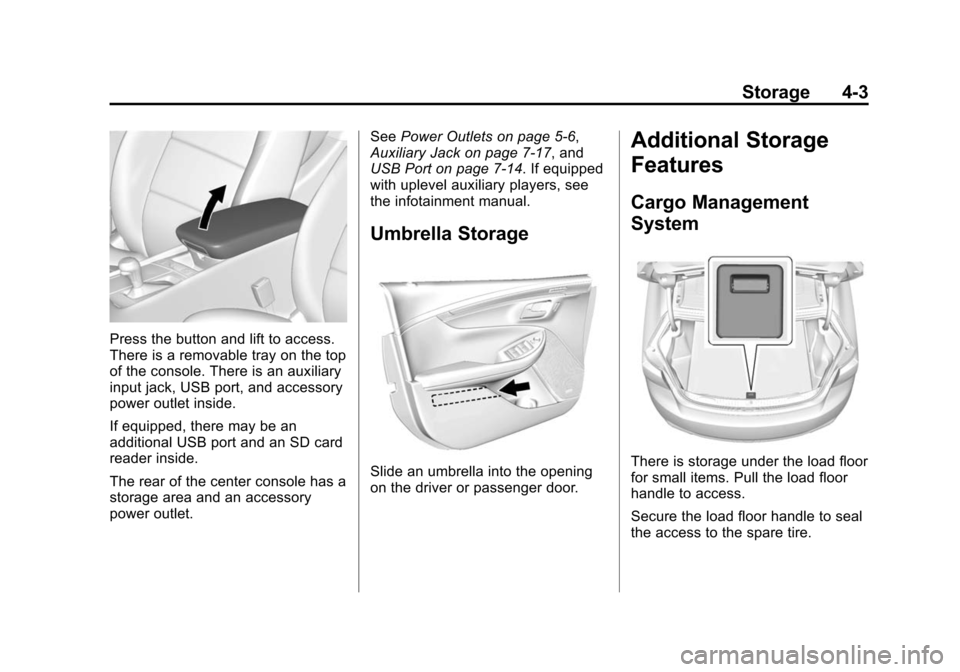
Press the button and lift to access.
There is a removable tray on the top
of the console. There is an auxiliary
input jack, USB port, and accessory
power outlet inside.
If equipped, there may be an
additional USB port and an SD card
reader inside.
The rear of the center console has a
storage area and an accessory
power outlet.See
Power Outlets on page 5-6,
Auxiliary Jack on page 7-17, and
USB Port on page 7-14. If equipped
with uplevel auxiliary players, see
the infotainment manual.
Umbrella Storage
Slide an umbrella into the opening
on the driver or passenger door.
Additional Storage
Features
Cargo Management
System
There is storage under the load floor
for small items. Pull the load floor
handle to access.
Secure the load floor handle to seal
the access to the spare tire.
Page 172 of 413
Black plate (1,1)Chevrolet Impala Owner Manual (GMNA-Localizing-U.S./Canada-7576026) -
2015 - crc 2nd edition - 8/21/14
Infotainment System 7-1
Infotainment
System
Introduction
Infotainment . . . . . . . . . . . . . . . . . . . 7-1
Theft-Deterrent Feature . . . . . . . 7-2
Overview . . . . . . . . . . . . . . . . . . . . . . 7-3
Home Page . . . . . . . . . . . . . . . . . . . 7-4
Software Updates . . . . . . . . . . . . . 7-7
Radio
AM-FM Radio . . . . . . . . . . . . . . . . . 7-7
Satellite Radio . . . . . . . . . . . . . . . . 7-9
Radio Reception . . . . . . . . . . . . . 7-10
Backglass Antenna . . . . . . . . . . 7-10
Multi-Band Antenna . . . . . . . . . . 7-11
Audio Players
CD Player . . . . . . . . . . . . . . . . . . . . 7-11
USB Port . . . . . . . . . . . . . . . . . . . . 7-14
SD Card Reader . . . . . . . . . . . . . 7-17
Auxiliary Jack . . . . . . . . . . . . . . . . 7-17
Navigation
OnStar®System . . . . . . . . . . . . . 7-18
Phone
Bluetooth (Overview) . . . . . . . . 7-19
Bluetooth (InfotainmentControls - Base Radio) . . . . . 7-21
Bluetooth (Voice Recognition - Base Radio) . . . . . . . . . . . . . . . . 7-25
Trademarks and License
Agreements
Trademarks and License
Agreements . . . . . . . . . . . . . . . . 7-31
Introduction
Infotainment
Base radio information is included in
this manual. See the infotainment
manual for information on other
available infotainment systems.
Read the following pages to
become familiar with these features.
{Warning
Taking your eyes off the road for
too long or too often while using
any infotainment feature can
cause a crash. You or others
could be injured or killed. Do not
give extended attention to
infotainment tasks while driving.
Limit your glances at the vehicle
displays and focus your attention
on driving. Use voice commands
whenever possible.
Page 185 of 413
Black plate (14,1)Chevrolet Impala Owner Manual (GMNA-Localizing-U.S./Canada-7576026) -
2015 - crc 2nd edition - 8/21/14
7-14 Infotainment System
.Recorded on a CD-R or CD-RW.
Root Directory
The root directory is treated as a
folder. All files contained directly
under the root directory are
accessed prior to any root directory
folders.
Empty Folders
If a root directory or folder is empty
or contains only folders, the player
advances to the next folder in the
file structure that contains a
compressed audio file. The empty
folder(s) are not displayed or
numbered.
No Folder
When the CD only contains
compressed audio files without any
folders, all files are under the root
folder.USB Port
Playing from a USB
A USB mass storage device or
Media Transfer Protocol (MTP)
device can be connected to the
USB port.
If equipped, the USB ports are in
the center console and if equipped
with storage behind the radio, there
is a USB port inside.
USB MP3 Player and USB Drives
.The USB MP3 players and USB
drives connected must comply
with the USB Mass Storage
Class specification (USB MSC).
.Hard disk drives are not
supported.
To play a USB device:
.Connect the USB.
.Press the MEDIA button on the
faceplate until the connected
device is shown. While the USB source is active, use
the icons on the screen to operate
USB function:
.t(Seek Previous/Fast
Reverse)
.u(Seek Next/Fast Forward)
.j/r(Play/Pause)
.Z(Shuffle)
For information on how to use the
screen icons, see “Playing an Audio
CD” previously in this section.
USB Menu
Press the MENU knob to display the
USB menu and the following may
display:
Browse: Select to display the files
and folders on the USB device.
Tone Settings: Select to adjust
Bass, Midrange, Treble, Balance,
Fade, and EQ (Equalizer). See
“Tone Settings” under“Playing an
Audio CD.”
Page 186 of 413
Black plate (15,1)Chevrolet Impala Owner Manual (GMNA-Localizing-U.S./Canada-7576026) -
2015 - crc 2nd edition - 8/21/14
Infotainment System 7-15
Auto Volume:If equipped, see
“Playing an Audio CD.”
EQ (Equalizer) Settings:
If equipped, this feature adjusts the
pre-defined EQ Modes. See “EQ
(Equalizer) Settings” inAM-FM
Radio on page 7-7.
DSP Modes: If equipped, this
feature adjusts the DSP Modes.
See “DSP Modes” inAM-FM Radio
on page 7-7.
Playing from an iPod®
This feature supports the following
iPod models:
.iPod nano®(1st, 2nd, 3rd, and
4th generation)
.iPod with video (5.0 and 5.5
generation).
.iPod classic®(6th generation)
.iPod touch®(1st and 2nd
generation) There may be problems with
operation and function in the
following situations:
.When connecting an iPod on
which a more recent version of
the firmware is installed than is
supported by the infotainment
system.
.When connecting an iPod on
which firmware from other
providers is installed.
To connect and control an iPod:
1. Connect one end of the standard iPod USB cable to the iPod's
dock connector.
2. Connect the other end to the USB port in the center console.
3. Press the MEDIA button to select the source.
iPod music information displays on
the radio’s display and begins
playing through the vehicle’s audio
system. The iPod battery recharges
automatically while the vehicle is on.
When the vehicle is off while an
iPod is connected using the iPod
USB cable, the iPod battery stops
charging and the iPod automatically
turns off.
If the iPod is an unsupported model,
it can still be listened to in the
vehicle by connecting to the
auxiliary input jack using a standard
3.5 mm (1/8 in) stereo cable.
iPod Menu
Press the MENU knob to display the
iPod Menu and the following may
display:
Browse:
Select to display the files
or songs on the iPod. See “Browse
iPod Media” later in this section.
Tone Settings: Select to adjust
Bass, Midrange, Treble, Balance,
Fade, and EQ (Equalizer). See
“Tone Settings” under“Playing an
Audio CD.”
Auto Volume: If equipped, see
“Playing an Audio CD.”
Page 188 of 413
Black plate (17,1)Chevrolet Impala Owner Manual (GMNA-Localizing-U.S./Canada-7576026) -
2015 - crc 2nd edition - 8/21/14
Infotainment System 7-17
Playing from an iPhone®
or iPad®
This feature supports iPhone 3G,
iPhone 3GS, iPhone 4, and iPad.
Follow the same instructions as
stated earlier for using an iPod.
SD Card Reader
If equipped, the SD card reader is in
the center console. SeeCenter
Console Storage on page 4-2.
1. Plug the SD card into the reader.
2. Press the MEDIA button to select the SD device.
If an SD card has already been
connected, but a different source is
currently active, press the MEDIA
screen button repeatedly to cycle
through all of the available audio
source screens, until the SD card
screen is shown.
Playing Music from the SD Card
An SD card is played the same way
a USB device is played. See USB
Port on page 7-14.
Auxiliary Jack
The AUX jack is in the center
console. See Center Console
Storage on page 4-2.
Possible auxiliary audio sources
include:
.Laptop computer
.Audio music player
This jack is not an audio output. Do
not plug headphones into the
auxiliary input jack. Auxiliary
devices should be set up while the
vehicle is in P (Park).
Connect a 3.5 mm (1/8 in) cable
from the auxiliary device to the
auxiliary input jack.
If an auxiliary device has already
been connected, but a different
source is currently active, press the
MEDIA faceplate button repeatedly
to scroll through all of the available
audio source screens, until the AUX
source screen is shown. Playing from the AUX Jack
An auxiliary device is played
through the audio system and
controlled through the device itself.
AUX Menu
Press the MENU knob to display the
AUX menu and the following may
display:
Tone Settings:
Select to adjust
Bass, Midrange, Treble, Balance,
Fade, and EQ (Equalizer). See
“Tone Settings” underAM-FM Radio
on page 7-7.
Auto Volume: If equipped, see
“Playing an Audio CD.”
DSP: If equipped, this feature
adjusts the pre-defined settings.
See “DSP” inAM-FM Radio on
page 7-7.
EQ (Equalizer): If equipped, this
feature adjusts the pre-defined
equalizer settings. See “EQ
(Equalizer)” inAM-FM Radio on
page 7-7.