Page 77 of 289
▷The remaining range is shown on the com‐
puter.▷When a dynamic driving style is used, such
as when corners are taken rapidly, engine
functions are not ensured.
Below a range of approx. 30 miles/50 km, the
message is displayed continuously.
Refuel promptly
At the latest, refuel at a range of
30 miles/50 km; otherwise, the engine function
is not ensured and damage may occur.◀
Computer Displays in the instrument cluster
Calling up information
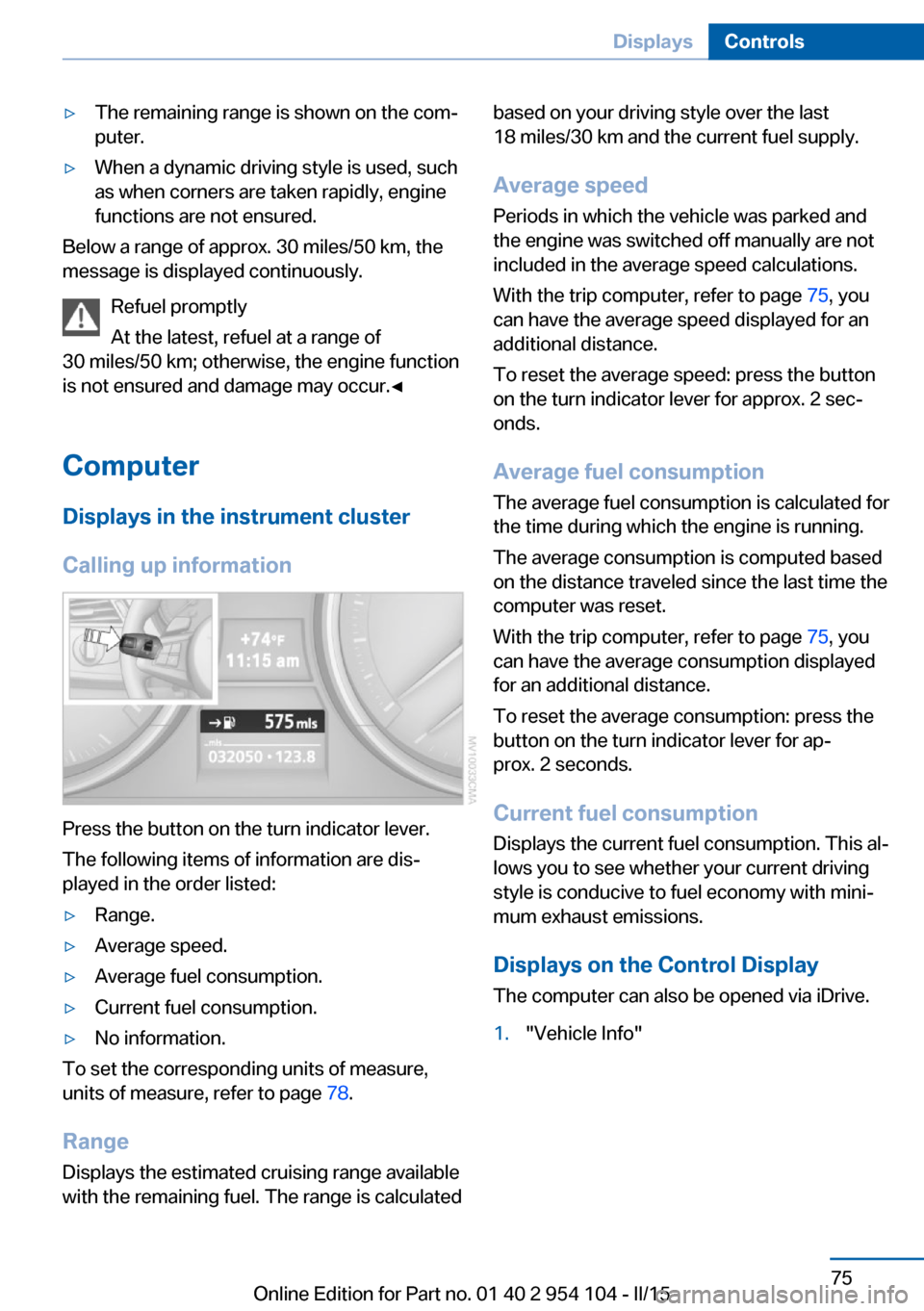
Press the button on the turn indicator lever.
The following items of information are dis‐
played in the order listed:
▷Range.▷Average speed.▷Average fuel consumption.▷Current fuel consumption.▷No information.
To set the corresponding units of measure,
units of measure, refer to page 78.
Range
Displays the estimated cruising range available
with the remaining fuel. The range is calculated
based on your driving style over the last
18 miles/30 km and the current fuel supply.
Average speed
Periods in which the vehicle was parked and
the engine was switched off manually are not
included in the average speed calculations.
With the trip computer, refer to page 75, you
can have the average speed displayed for an
additional distance.
To reset the average speed: press the button
on the turn indicator lever for approx. 2 sec‐
onds.
Average fuel consumption
The average fuel consumption is calculated for
the time during which the engine is running.
The average consumption is computed based
on the distance traveled since the last time the
computer was reset.
With the trip computer, refer to page 75, you
can have the average consumption displayed
for an additional distance.
To reset the average consumption: press the
button on the turn indicator lever for ap‐
prox. 2 seconds.
Current fuel consumption Displays the current fuel consumption. This al‐
lows you to see whether your current driving
style is conducive to fuel economy with mini‐
mum exhaust emissions.
Displays on the Control Display
The computer can also be opened via iDrive.1."Vehicle Info"Seite 75DisplaysControls75
Online Edition for Part no. 01 40 2 954 104 - II/15
Page 79 of 289
Settings and information
Operating concept1Button for:▷Selecting the display▷Setting values2Button for:▷Confirming selected display or set val‐
ues▷Calling up computer information 753With the lights switched on: dimming the
instrument lighting 904Calling up Check Control 845Checking the engine oil level 2386Setting the time 787Setting the date 798Viewing service requirement display 80Exiting displays
The external temperature reading and the time
reappear when you press button 2 or if you
make no entries within approx. 15 seconds. If
required, complete the current setting first.Seite 77DisplaysControls77
Online Edition for Part no. 01 40 2 954 104 - II/15
Page 80 of 289

Units of measureYou can change the units for fuel consumption,
route/distance, temperature and pressure.1."Settings"2."Language/Units"3.Select the desired menu item.4.Select the desired unit.
The settings are stored for the remote control
currently in use.
Clock
Setting the time
In the instrument cluster To set the 12h/24h format, refer to Setting the
time format below.
1.Press button 1 in the turn indicator lever up
or down repeatedly until the appropriate
symbol appears in the display, accompa‐
nied by the time and the word "SET".2.Press button 2.3.Use button 1 to set the hours.4.Press button 2 to confirm the entry.5.Use button 1 to set the minutes.6.Press button 2 to confirm the entry.7.Press button 2.
The system accepts the new time.
Via the iDrive
1. Press the button.
The main menu is displayed.2."Settings"
Setting the time zone
1."Settings"2."Time/Date"3."Time zone:"4.Select the desired time zone.
The time zone is stored.
Setting the time
1."Settings"2."Time/Date"Seite 78ControlsDisplays78
Online Edition for Part no. 01 40 2 954 104 - II/15
Page 81 of 289

3."Time:"4.Turn the controller until the desired hours
are displayed, and then press the control‐
ler.5.Turn the controller until the desired mi‐
nutes are displayed, and then press the
controller.
The time is stored.
Setting the time format
1."Settings"2."Time/Date"3."Format:"4.Select the desired format.
The time format is stored.
The settings are stored for the remote control
currently in use, Personal Profile, refer to
page 32.
Date
The settings are stored for the remote control
currently in use, Personal Profile, refer to
page 32.
Setting the date
In the instrument cluster To set the dd/mm or mm/dd date format, refer
to Setting the date format below.
1.Push button 1 in the turn indicator lever up
or down repeatedly until the appropriate
symbol appears in the display, accompa‐
nied by the date and the word "SET".2.Press button 2.3.Use button 1 to set the day of the month.4.Press button 2 to confirm the entry.5.Set the month and the year in the same
way.6.Press button 2.
The system stores the new date.
Via the iDrive
1."Settings"2."Time/Date"3."Date:"4.Turn the controller until the desired day is
displayed, and then press the controller.5.Make the necessary settings for the month
and year.
The date is stored.
Setting the date format
1."Settings"2."Time/Date"Seite 79DisplaysControls79
Online Edition for Part no. 01 40 2 954 104 - II/15
Page 83 of 289
The current service requirements can be read
out from the remote control by the service
specialist.
Data regarding the maintenance status or le‐
gally mandated inspections of the vehicle are
automatically transmitted to your service cen‐
ter before a service due date, Automatic Serv‐
ice Request, refer to page 217.
The remaining driving distance or the due date
can be displayed individually for certain main‐
tenance procedures.1.Switch on the ignition.2.Press button 1 in the turn indicator lever up
or down repeatedly until the appropriate
symbol appears in the display, accompa‐
nied by the words "SERVICE INFO".3.Press button 2.4.Use button 1 to scroll through the individ‐
ual service items.Seite 81DisplaysControls81
Online Edition for Part no. 01 40 2 954 104 - II/15
Page 84 of 289
Possible displays1Button for selecting functions2Service requirements3Engine oil4Roadworthiness test5Front brake pads6Rear brake pads7Brake fluidThe sequence of displayed service items may
vary. The data for the next service appointment
is shown first.Seite 82ControlsDisplays82
Online Edition for Part no. 01 40 2 954 104 - II/15
Page 87 of 289

Hiding Check Control messages
Press the button on the turn indicator lever.
Some Check Control messages are displayed
until the malfunctions have been rectified.
They cannot be hidden. If several malfunctions
occur at the same time, they are displayed in
succession.
They are marked with the symbol
shown here.
Other messages are automatically hidden after
approx. 20 seconds, but are kept in memory.
They are marked with the symbol
shown here.
Viewing stored Check Control
messages
1.Press button 1 in the turn indicator lever up
or down repeatedly until the appropriate
symbol appears in the display, accompa‐
nied by the words "CHECK CONTROL".2.Press button 2. If there is no Check Control
message, this is indicated by "CHECK
OK".If a Check Control message has been
stored, the corresponding lamp comes on.
It is accompanied by a text message on the
Control Display.3.Press button 1 to check for other mes‐
sages.4.Press button 2.
The display again shows the external tem‐
perature and the time.
Displaying stored Check Control
messages
1. Press the button.2."Vehicle Info"3."Vehicle status"4."Check Control"5.Select the text message.
Messages after trip completion
Special messages that were displayed during a
trip are displayed again after the ignition is
switched off.
Speed limit
You can enter a speed, and a Check Control
message will indicate when you reach this
speed. This enables you to receive warnings if
you exceed a speed limit in an urban area, for
example. You are only warned of reaching this
Seite 85DisplaysControls85
Online Edition for Part no. 01 40 2 954 104 - II/15
Page 92 of 289

▷High-beams off/headlamp flasher, arrow 2.
To reactivate the High-beam Assistant, briefly
push the turn indicator lever toward the high-
beams.
Activating/deactivating via iDrive
1."Settings"2."Lighting"3."High beam assistant"
The setting is stored for the remote control
currently in use.
System limits Personal responsibility
The High-beam Assistant cannot serve
as a substitute for the driver's personal judg‐
ment of when to use the high beams. There‐
fore, manually switch off the high beams in sit‐
uations where this is required to avoid a safety
risk.◀
The system is not fully functional in situations
such as the following, and driver intervention
may be necessary:
▷In very unfavorable weather conditions,
such as fog or heavy precipitation.▷In detecting poorly-lit road users, such as
pedestrians, cyclists, horseback riders and
wagons; when driving close to train or ship
traffic; and at animal crossings.▷In tight curves, on hilltops or in depres‐
sions, in cross traffic or half-obscured on‐
coming traffic on freeways.▷In poorly-lit towns and cities and in the
presence of highly reflective signs.▷At low speeds.▷When the windshield in front of the interior
rearview mirror is fogged over, dirty or cov‐
ered with stickers, etc.
Sensor view field
The view field of the sensor is located on thefront of the interior rearview mirror.
Do not cover this area with stickers, etc.
Clean the view field, refer to page 260.
Instrument lighting The parking lights or low beams must be
switched on to adjust the brightness.
1.Push button 1 up or down repeatedly until
the appropriate symbol appears in the dis‐
play, accompanied by the brightness set‐
ting and the word "SET".2.Press button 2.Seite 90ControlsLamps90
Online Edition for Part no. 01 40 2 954 104 - II/15


