2015 BMW Z4 instrument
[x] Cancel search: instrumentPage 79 of 289

Settings and information
Operating concept1Button for:▷Selecting the display▷Setting values2Button for:▷Confirming selected display or set val‐
ues▷Calling up computer information 753With the lights switched on: dimming the
instrument lighting 904Calling up Check Control 845Checking the engine oil level 2386Setting the time 787Setting the date 798Viewing service requirement display 80Exiting displays
The external temperature reading and the time
reappear when you press button 2 or if you
make no entries within approx. 15 seconds. If
required, complete the current setting first.Seite 77DisplaysControls77
Online Edition for Part no. 01 40 2 954 104 - II/15
Page 80 of 289

Units of measureYou can change the units for fuel consumption,
route/distance, temperature and pressure.1."Settings"2."Language/Units"3.Select the desired menu item.4.Select the desired unit.
The settings are stored for the remote control
currently in use.
Clock
Setting the time
In the instrument cluster To set the 12h/24h format, refer to Setting the
time format below.
1.Press button 1 in the turn indicator lever up
or down repeatedly until the appropriate
symbol appears in the display, accompa‐
nied by the time and the word "SET".2.Press button 2.3.Use button 1 to set the hours.4.Press button 2 to confirm the entry.5.Use button 1 to set the minutes.6.Press button 2 to confirm the entry.7.Press button 2.
The system accepts the new time.
Via the iDrive
1. Press the button.
The main menu is displayed.2."Settings"
Setting the time zone
1."Settings"2."Time/Date"3."Time zone:"4.Select the desired time zone.
The time zone is stored.
Setting the time
1."Settings"2."Time/Date"Seite 78ControlsDisplays78
Online Edition for Part no. 01 40 2 954 104 - II/15
Page 81 of 289

3."Time:"4.Turn the controller until the desired hours
are displayed, and then press the control‐
ler.5.Turn the controller until the desired mi‐
nutes are displayed, and then press the
controller.
The time is stored.
Setting the time format
1."Settings"2."Time/Date"3."Format:"4.Select the desired format.
The time format is stored.
The settings are stored for the remote control
currently in use, Personal Profile, refer to
page 32.
Date
The settings are stored for the remote control
currently in use, Personal Profile, refer to
page 32.
Setting the date
In the instrument cluster To set the dd/mm or mm/dd date format, refer
to Setting the date format below.
1.Push button 1 in the turn indicator lever up
or down repeatedly until the appropriate
symbol appears in the display, accompa‐
nied by the date and the word "SET".2.Press button 2.3.Use button 1 to set the day of the month.4.Press button 2 to confirm the entry.5.Set the month and the year in the same
way.6.Press button 2.
The system stores the new date.
Via the iDrive
1."Settings"2."Time/Date"3."Date:"4.Turn the controller until the desired day is
displayed, and then press the controller.5.Make the necessary settings for the month
and year.
The date is stored.
Setting the date format
1."Settings"2."Time/Date"Seite 79DisplaysControls79
Online Edition for Part no. 01 40 2 954 104 - II/15
Page 86 of 289

6.Create the settings.7.Confirm.
The entered date is stored.
Automatic Service Request
Data regarding the maintenance status or le‐
gally mandated inspections of the vehicle are
automatically transmitted to your service cen‐
ter before a service due date.
You can check when your service center was
notified.
1."Vehicle Info"2."Vehicle status"3.Open "Options".4."Last Service Request"
Check Control
The concept The Check Control monitors vehicle functions
and alerts you to any malfunctions in the sys‐
tems monitored.
Such Check Control messages involve indica‐
tor or warning lamps in the instrument cluster
and, in some circumstances, an acoustic signal
and text messages at the bottom of the Con‐
trol Display.
Indicator/warning lights
The indicator and warning lights can light up in
a variety of combinations and colors.
indicates that Check Control messages
have been stored. You can view the Check
Control messages whenever it is convenient
for you.
Explanatory text messages Text messages at the upper edge of the Con‐
trol Display explain the meaning of the dis‐
played indicator and warning lights.
For most Check Control messages, you can
view more information later, e.g., regarding the
cause of a malfunction and how to respond; re‐
fer to the information provided below.
In urgent cases, this information will be shown
as soon as the corresponding light comes on.
Symbols The following functions can be selected within
the supplementary text message, depending
on the Check Control message.
▷ "Service request"
Contact the service partner.▷ "Roadside Assistance"
Contact Roadside Assistance.Seite 84ControlsDisplays84
Online Edition for Part no. 01 40 2 954 104 - II/15
Page 91 of 289

To avoid blinding oncoming traffic, the Adap‐
tive Light Control does not swivel to the driv‐
er's side when the vehicle is at a standstill.
Malfunction The warning lamp lights up. A mes‐
sage appears on the Control Display.
Adaptive Light Control is malfunc‐
tioning or has failed. Have the system checked
as soon as possible.
High-beams/roadside
parking lights1High-beams2Headlamp flasher3Roadside parking lamps
Left and right roadside parking lamps
There is an additional option of switching on
the lamps on the side of the car facing the road
when parked.
Switching on After parking the vehicle, press the lever up or
down beyond the pressure point for a longer
period, arrow 3.
The roadside parking lights drain the battery.
Therefore, do not leave them on for unduly
long periods of time; otherwise, the battery
might not have enough power to start the en‐
gine.
Switching off
Press the lever in the opposite direction to the
pressure point, arrow 3.
High-beam Assistant The concept
When the lights are switched on, this system
automatically switches the high-beams on and
off. The procedure is controlled by a sensor on
the front of the interior rearview mirror. The as‐
sistant ensures that the high-beams are
switched on whenever the traffic situation al‐
lows. The driver can intervene at any time and
switch the high-beams on and off as usual.
Activating the High-beam Assistant1.Turn the light switch to position.2.With the low beams switched on, briefly
push the turn indicator lever in the direc‐
tion of the high-beam.
The indicator lamp in the instrument
cluster lights up.
When the lights are switched on, the
high-beams are switched on and off automati‐
cally.
The system responds to light from oncoming
traffic and traffic driving ahead of you, and to
adequate illumination, e.g., in towns and cities.
Switching the high-beams on and off
manually
▷High-beams on, arrow 1.Seite 89LampsControls89
Online Edition for Part no. 01 40 2 954 104 - II/15
Page 92 of 289

▷High-beams off/headlamp flasher, arrow 2.
To reactivate the High-beam Assistant, briefly
push the turn indicator lever toward the high-
beams.
Activating/deactivating via iDrive
1."Settings"2."Lighting"3."High beam assistant"
The setting is stored for the remote control
currently in use.
System limits Personal responsibility
The High-beam Assistant cannot serve
as a substitute for the driver's personal judg‐
ment of when to use the high beams. There‐
fore, manually switch off the high beams in sit‐
uations where this is required to avoid a safety
risk.◀
The system is not fully functional in situations
such as the following, and driver intervention
may be necessary:
▷In very unfavorable weather conditions,
such as fog or heavy precipitation.▷In detecting poorly-lit road users, such as
pedestrians, cyclists, horseback riders and
wagons; when driving close to train or ship
traffic; and at animal crossings.▷In tight curves, on hilltops or in depres‐
sions, in cross traffic or half-obscured on‐
coming traffic on freeways.▷In poorly-lit towns and cities and in the
presence of highly reflective signs.▷At low speeds.▷When the windshield in front of the interior
rearview mirror is fogged over, dirty or cov‐
ered with stickers, etc.
Sensor view field
The view field of the sensor is located on thefront of the interior rearview mirror.
Do not cover this area with stickers, etc.
Clean the view field, refer to page 260.
Instrument lighting The parking lights or low beams must be
switched on to adjust the brightness.
1.Push button 1 up or down repeatedly until
the appropriate symbol appears in the dis‐
play, accompanied by the brightness set‐
ting and the word "SET".2.Press button 2.Seite 90ControlsLamps90
Online Edition for Part no. 01 40 2 954 104 - II/15
Page 94 of 289

SafetyVehicle equipment
This chapter describes all series equipment as
well as country-specific and special equipment
offered for this model series. Therefore, it also
describes equipment that may not be found in
your vehicle, for instance due to the selected
special equipment or the country version. This
also applies to safety-related functions and
systems.
When using the features and systems descri‐
bed here, adhere to local regulations.
Airbags The following airbags are located under the
marked covers:1Front airbags2Side airbags in the seat backrests3Knee airbag
Front airbags
Front airbags help protect the driver and pas‐
senger by responding to frontal impacts in
which safety belts alone cannot provide ade‐
quate restraint.
Side airbags
In a lateral impact, the side airbag protects the
side of the body in the chest area.
Knee airbag
The knee airbag supports the legs in a frontal
impact.
Protective action
Airbags are not triggered in every impact situa‐
tion, e.g., in less severe accidents or rear-end
collisions.
Even when all instructions are followed closely,
injury from contact with the airbags cannot be
ruled out in certain situations.
The ignition and inflation noise may lead to
short-term and, in most cases, temporary
hearing impairment in sensitive individuals.
Information on how to ensure the optimal
protective effect of the airbags▷Keep at a distance from the airbags.▷Always grasp the steering wheel on the
steering wheel rim, holding your hands at
the 3 o'clock and 9 o'clock positions, to
keep the danger of injury to your hands or
arms as low as possible if the airbag is trig‐
gered.▷There should be no people, animals, or ob‐
jects between an airbag and a person.▷Do not use the cover of the front airbag on
the front passenger side as a storage area.▷Keep the dashboard and window on the
front passenger side clear, i.e., do not
cover with adhesive labels or coverings,
and do not attach holders such as for navi‐
gation instruments and mobile phones.▷Make sure that the front passenger is sit‐
ting correctly, i.e., keeps his or her feet and
legs in the footwell; otherwise, leg injuries
can occur if the front airbag is triggered.Seite 92ControlsSafety92
Online Edition for Part no. 01 40 2 954 104 - II/15
Page 104 of 289
Dynamic Traction Control
DTC
The concept The DTC system and the TRACTION program
are a variant of the DSC in which forward mo‐
mentum is optimized.
The system ensures maximum forward mo‐
mentum on special road conditions, e.g., unp‐
lowed snowy roads, but driving stability is lim‐
ited.
It is therefore necessary to drive with appropri‐
ate caution.
You may find it useful to briefly activate DTC
under the following special circumstances:▷When driving in slush or on uncleared,
snow-covered roads.▷When rocking the vehicle or driving off in
deep snow or on loose surfaces.▷When driving with snow chains.
Deactivating/activating Dynamic
Traction Control DTC
The system and program can be deactivated/
activated via Dynamic Driving Control, refer to
page 103.
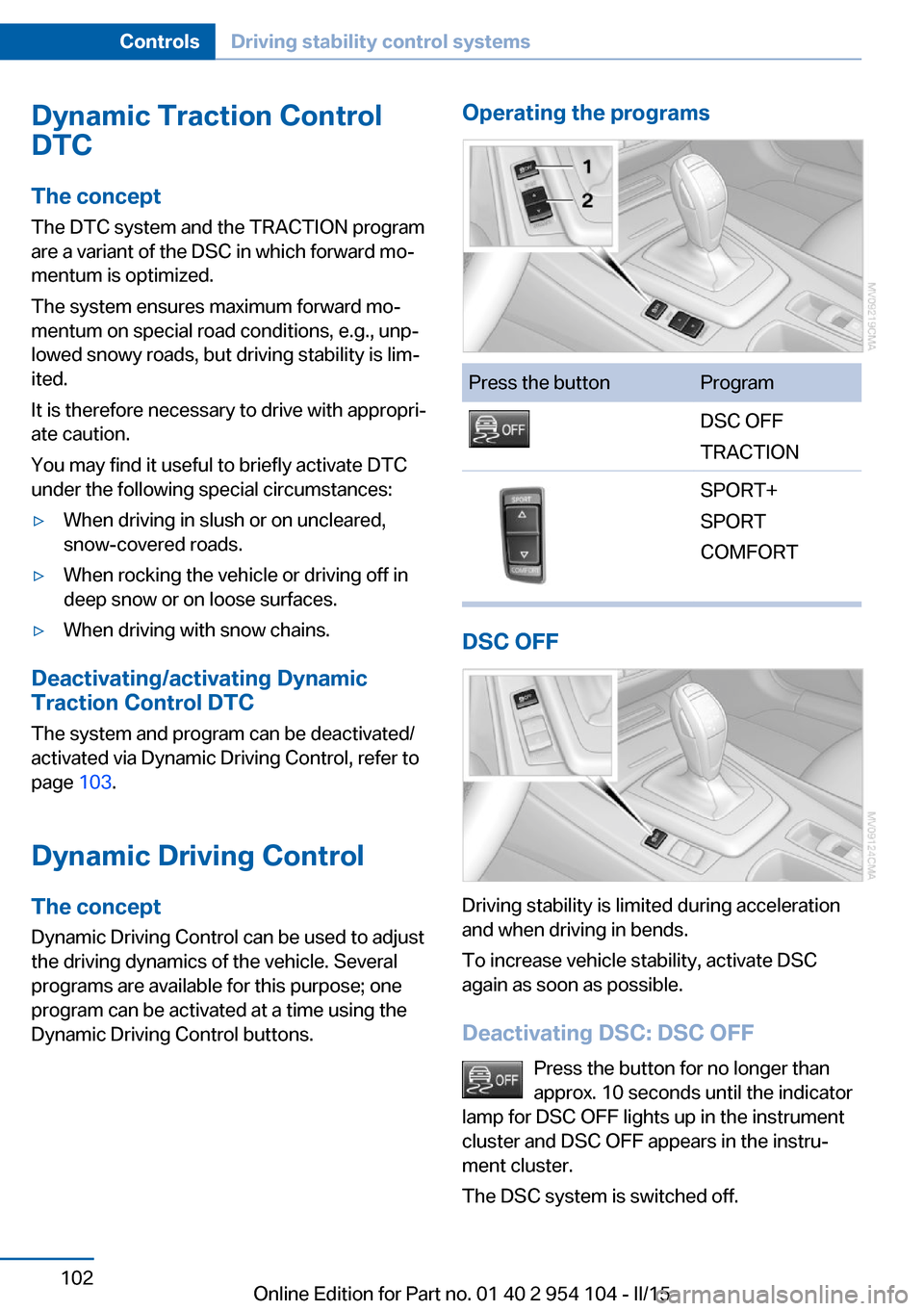
Dynamic Driving Control The concept
Dynamic Driving Control can be used to adjust
the driving dynamics of the vehicle. Several
programs are available for this purpose; one
program can be activated at a time using the
Dynamic Driving Control buttons.
Operating the programsPress the buttonProgramDSC OFF
TRACTIONSPORT+
SPORT
COMFORT
DSC OFF
Driving stability is limited during acceleration
and when driving in bends.
To increase vehicle stability, activate DSC
again as soon as possible.
Deactivating DSC: DSC OFF Press the button for no longer than
approx. 10 seconds until the indicator
lamp for DSC OFF lights up in the instrument
cluster and DSC OFF appears in the instru‐
ment cluster.
The DSC system is switched off.
Seite 102ControlsDriving stability control systems102
Online Edition for Part no. 01 40 2 954 104 - II/15