2015 BMW 7 SERIES idrive
[x] Cancel search: idrivePage 185 of 314

Overview
Button in the vehicle
Rearview camera
Camera
The camera lens is located in the handle of the
tailgate.
The image quality may be impaired by dirt.
Clean the camera lens, refer to page 294.
Switching on/off
Switching on automatically With the engine running, engage lever in posi‐
tion P R.
Automatic deactivation during forward travel
The system switches off when a certain driving
distance or speed is exceeded.
Switch the system back on if needed.
Switching on/off manually
Press button.▷On: the LED lights up.▷Off: the LED goes out.
The PDC is shown on the Control Display.
The rearview camera image is displayed when
the reverse gear is engaged by pressing the
button.
Switching the view via iDrive With PDC activated:
"Rear view camera"
The rearview camera image is displayed.
Display on the Control Display
Functional requirement
▷The rearview camera is switched on.▷The trunk lid is fully closed.
Assistance functions
Activate/deactivate assistance
functions
More than one assistance function can be ac‐
tive at the same time.
▷ "Parking aid lines"
Pathway lines and turning radius lines are
displayed, refer to page 186.▷ "Obstacle marking"
Spatially-shaped markings are displayed,
refer to page 186.Seite 185Driver assistance systemsControls185
Online Edition for Part no. 0140 2 964 330 - VI/15
Page 186 of 314

Parking aid linesPathway lines
Pathway lines help you to estimate the space
required when parking and maneuvering on
level roads.
Pathway lines depend on the current steering
angle and are continuously adjusted to the
steering wheel movements.
Turning circle lines
Turning circle lines can only be superimposed
on the rearview camera image together with
pathway lines.
Turning circle lines show the course of the
smallest possible turning radius on a level
road.
Only one turning radius line is displayed after
the steering wheel is turned past a certain an‐
gle.
Parking using pathway and turning radius
lines1.Position the vehicle so that the red turning
radius line leads to within the limits of the
parking space.2.Turn the steering wheel to the point where
the green pathway line covers the corre‐
sponding turning radius line.
Obstacle marking
Obstacles behind the vehicle are detected by
the PDC sensors.
Obstacle markings can be faded into the image
of the rearview camera.
Their colored margins of the obstacle mark‐
ings match the markings of the PDC.
Setting brightness and contrast via
iDrive
With the rearview camera switched on:
1.Move the controller to the left.2.▷ "Brightness"▷ "Contrast"3.Set the desired value.
System limits
Deactivated camera If the camera is deactivated, e.g. if the tailgate
is open, the camera image is displayed
hatched in gray.
Seite 186ControlsDriver assistance systems186
Online Edition for Part no. 0140 2 964 330 - VI/15
Page 187 of 314

Detection of objects
Very low obstacles as well as high, protruding
objects such as ledges may not be detected by
the system.
Assistance functions also take into account
data of the PDC.
Follow instructions in the PDC chapter, refer to
page 180.
The objects displayed on the Control Display
under certain circumstances are closer than
they appear. Do not estimate the distance from
the objects on the display.
Malfunction
A camera malfunction is displayed on the Con‐
trol Display.
A red symbol is displayed and the re‐
cording range of the malfunctioning
camera is displayed in black on the
Control Display.
Surround View
The concept The system provides assistance in parking and
maneuvering. The area around the vehicle is
shown on the Control Display.
Several cameras display the area from different
selectable perspectives. In addition, assistance
functions, e.g. guidelines, can be faded into the
camera image.
General information
The following camera perspectives can be dis‐
played:▷Automatic camera perspective: the system
shows the camera perspective suitable for
the respective driving situation, refer to
page 188.▷Rearview camera: to represent the areas
behind the vehicle, refer to page 188.▷Top view onto the vehicle, Top View, refer
to page 188.▷Right-hand and left-hand side view for rep‐
resenting the areas on the sides of the ve‐
hicle, refer to page 191.▷Camera perspective movable via iDrive, re‐
fer to page 188.▷Panorama View: to present cross traffic,
e.g. at junctions and driveways, depending
on the currently engaged gear, refer to
page 191.
Depending on the view, the environment
around the vehicle or a part of it is depicted.
Information WARNING
The system does not relieve from the
personal responsibility to correctly assess the
traffic situation. There is risk of an accident.
Adjust the driving style to the traffic condi‐
tions. Watch traffic and vehicle surroundings
closely and actively interfere in the respective
situations.◀
Overview
Buttons in the vehicle
Surround View
Panorama View
Seite 187Driver assistance systemsControls187
Online Edition for Part no. 0140 2 964 330 - VI/15
Page 189 of 314

Selecting the camera perspectiveGeneral information
The individual camera perspectives can be se‐
lected in the selection window via iDrive.
Side view
The side view can be selected for the right or
left vehicle side.
This view helps when positioning the vehicle at
the curb or with other obstacles on the side by
displaying the side surroundings.
The side view looks from rear to front and in
case of danger, focuses automatically on pos‐
sible obstacles.
Automatic camera perspective
The automatic camera perspective shows a
steering-dependent view in the respective
driving direction.
This perspective adapts to the respective driv‐ ing situation.
As soon as obstacles are detected, the view
changes to a fixed display of the area in front or
at the rear behind the bumper or if necessary,
changes to a side view.
Movable camera perspective
With selection of the movable camera per‐
spective, a circle appears on the Control Dis‐
play.
By turning the controller or via touch function,
specified perspectives on the circle can be se‐
lected.
The current perspective is marked with a cam‐
era symbol.
With BMW Gesture Control: an additional cam‐
era symbols appears on the circuit. This cam‐
era symbol is freely movable via BMW Gesture
Control, refer to page 30.
Exit the circle by pressing the controller or via
touch function on the active camera symbol.Top view
The top view shows the vehicle and surround‐
ings from above.
Rearview camera
This view shows the picture of the rearview
camera.
Function bar
Assistance functions can be activated, refer to
page 189, via the function bar and settings ap‐
plied.▷ "Parking Assistant", refer to page 193.▷ "Brightness", refer to page 192.▷ "Contrast", refer to page 192.▷ "Parking aid lines", refer to page 190.▷ "Obstacle marking", refer to page 190.▷ "Car wash", refer to page 190.▷ "Settings": apply settings, e.g. to use
the activation points for Panorama View.
Assistance functions
Activate/deactivate assistance
functions
More than one assistance function can be ac‐
tive at the same time.
The following assistance functions can be
manually activated:
▷ "Parking aid lines"▷ "Obstacle marking"▷ "Car wash"
The following assistance functions are auto‐
matically displayed:
▷Side protection, refer to page 191.▷Rim protection, refer to page 191.▷Door opening angle, refer to page 191.Seite 189Driver assistance systemsControls189
Online Edition for Part no. 0140 2 964 330 - VI/15
Page 192 of 314
relatively late from the driver's seat. The cam‐
eras in the front and rear capture the sideways
traffic area to improve the view.
Yellow lines in the screen display mark the
front and rear end of the vehicle.
The camera image shows different levels of
distortion in some areas and is thus not suita‐
ble for distance estimations.
Display on the Control Display Press the button when the engine is run‐
ning.
Depending on the driving direction, the image
of the respective camera is displayed:▷"front": front camera image.▷"rear": rear camera image.
The cross traffic warning, refer to page 197,
can additionally warn against oncoming vehi‐
cles using radar sensors.
With navigation system: activation
points
The concept
Positions at which Panorama View is to switch
on automatically can be stored as activation
points as soon as a GPS signal is received.
Up to ten activation points can be stored.
Activation points can be used when driving for‐
ward for the front camera.
Storing activation points
1.Drive to the position at which the system is
to be switched on, and stop.2. Press button.3.Move the controller to the left.4. "Add activation point"
The current position is displayed.5."Add activation point"Activation points are, if possible, stored with
town/city and street address or with the GPS
coordinates.
Using activation points
The use of activation points can be switched
on and off.1. Press button.2.Move the controller to the left.3. "Settings"4."Panorama view, GPS-based"5."Panorama view, GPS-based"
Displaying or deleting activation points
1. Press button.2.Move the controller to the left.3. "Show activation points"
A list of all activation points is displayed.4."Delete this activation point" or "Delete all activation points"
Setting brightness and contrast viaiDrive
With Surround View or Panorama View
switched on:
1.Move the controller to the left.2.▷ "Brightness"▷ "Contrast"3.Set the desired value.
Functional limitations
The system can be used only to a limited ex‐
tent in the following situations:
▷In poor light.▷In case of soiled cameras.▷With a door open.▷With the tailgate open.▷With exterior mirrors folded in.Seite 192ControlsDriver assistance systems192
Online Edition for Part no. 0140 2 964 330 - VI/15
Page 195 of 314

▷Width of gap between two objects: your
vehicle's width plus approx. 2.3 ft/0.7 m up
to maximum 16 ft/5 m.▷Minimum depth: your vehicle's length.
The depth of diagonal parking spaces must
be estimated by the driver. Dur to technical
limitations, the system can approximate
the depth of diagonal parking spaces only.
Regarding the parking procedure
▷Doors and trunk lid closed.▷Parking brake released.▷Driver's safety belt fastened.
Switching on/off
Switching on with the button Press button.
The LED lights up.
The current status of the parking space search
is indicated on the Control Display.
Parking assistant is activated automatically.
Switching on with reverse gear
Shift into reverse.
The current status of the parking space search
is indicated on the Control Display.
To activate:
"Parking Assistant"
Switch off
The system can be deactivated as follows:
▷Press button.
Signal tone for switching suitable
parking spaces on/off
About iDrive:
1."My Vehicle"2."Vehicle settings"3."Parking"4."Parking Assistant"5."Sound if parking space detected"
Settings are stored.
Display on the Control Display
System activated/deactivated
SymbolMeaning Gray: the system is not available.
White: the system is available but
not activated. The system is activated.
System status
▷Colored symbols, arrows, on the side of
the vehicle illustrated. Parking assistant is
activated and search for parking space ac‐
tive.▷Control Display shows suitable parking
spaces at the edge of the road next to the
vehicle symbol. When the parking assistant
is active, suitable parking spaces are high‐
lighted in color and a signal tone sounds.
Switch signal tone on/off, refer to
page 195.▷If a diagonal or parallel parking space is
clearly detected, the system automatically
adjusts the suitable parking method. In the
case of parking spaces suitable for parallel
and diagonal parking, a selection menu is
displayed. In this case, the desired parking
method must be selected manually.Seite 195Driver assistance systemsControls195
Online Edition for Part no. 0140 2 964 330 - VI/15
Page 205 of 314

Automatic recirculated-air control
AUC
The concept
The automatic recirculated air control AUC au‐
tomatically recognizes odors or pollutants in
the outside air. The outside air supply is then
automatically shut off, the interior air is recircu‐
lated.
General information
If the system is activated, a sensor detects pol‐
lutants in the outside air and controls the shut-
off automatically.
If the system is deactivated, outside air contin‐ uously flows into the car's interior.
With constant recirculated-air mode, the air
quality in the car's interior deteriorates and the
fogging of the windows increases.
If there is window condensation,
switch off the recirculated-air mode
and press the button on the driver's side to uti‐ lize the condensation sensor. Make sure that
air can flow to the windshield.
Switching on/off
About iDrive:1."My Vehicle"2."Vehicle settings"3."Climate functions"4."Air quality"5."Automatic air recirculation"
Recirculated-air mode
The concept
You may respond to unpleasant odors or pollu‐
tants in the immediate environment by tempo‐
rarily suspending the supply of outside air. The
system then recirculates the air currently
within the vehicle.
Operating via button
Press button repeatedly to select an
operating mode:▷LED off: outside air flows in continuously.▷LED on: the supply of outside air is perma‐
nently shut off.
With constant recirculated-air mode, the air
quality in the car's interior deteriorates and the
fogging of the windows increases.
If there is window condensation,
switch off the recirculated-air mode
and press the button on the driver's side to uti‐
lize the condensation sensor. Make sure that
air can flow to the windshield.
Air flow, manual
To manually adjust air flow turn off AUTO pro‐
gram first.
Press the left or right side of the but‐
ton: decrease or increase air flow.
The selected air flow is shown on the display of
the automatic climate control.
The air flow of the automatic climate control
may be reduced automatically to save battery
power.
Manual air distribution Press button repeatedly to select a
program:
▷Windows, upper body region, and footwell.▷Upper body region and footwell.▷Footwell.▷Windows and footwell.▷Windows.▷Windows and upper body.▷Upper body region.
The selected air distribution is shown on the
display of the automatic climate control.
Seite 205Climate controlControls205
Online Edition for Part no. 0140 2 964 330 - VI/15
Page 207 of 314
The set interior temperature for the driver
and passenger are not changed.
Adjusting the ventilation
▷Ventilation for cooling:
Direct vent in your direction when vehicle's
interior is too hot.▷Draft-free ventilation:
Adjust the vent to let the air flow past the
occupants.
Indirect ventilation
Air is indirectly routed into the car's interior.
About iDrive:
1."My Vehicle"2."Vehicle settings"3."Climate functions"4."Indirect ventilation"
Ventilation in rear, center
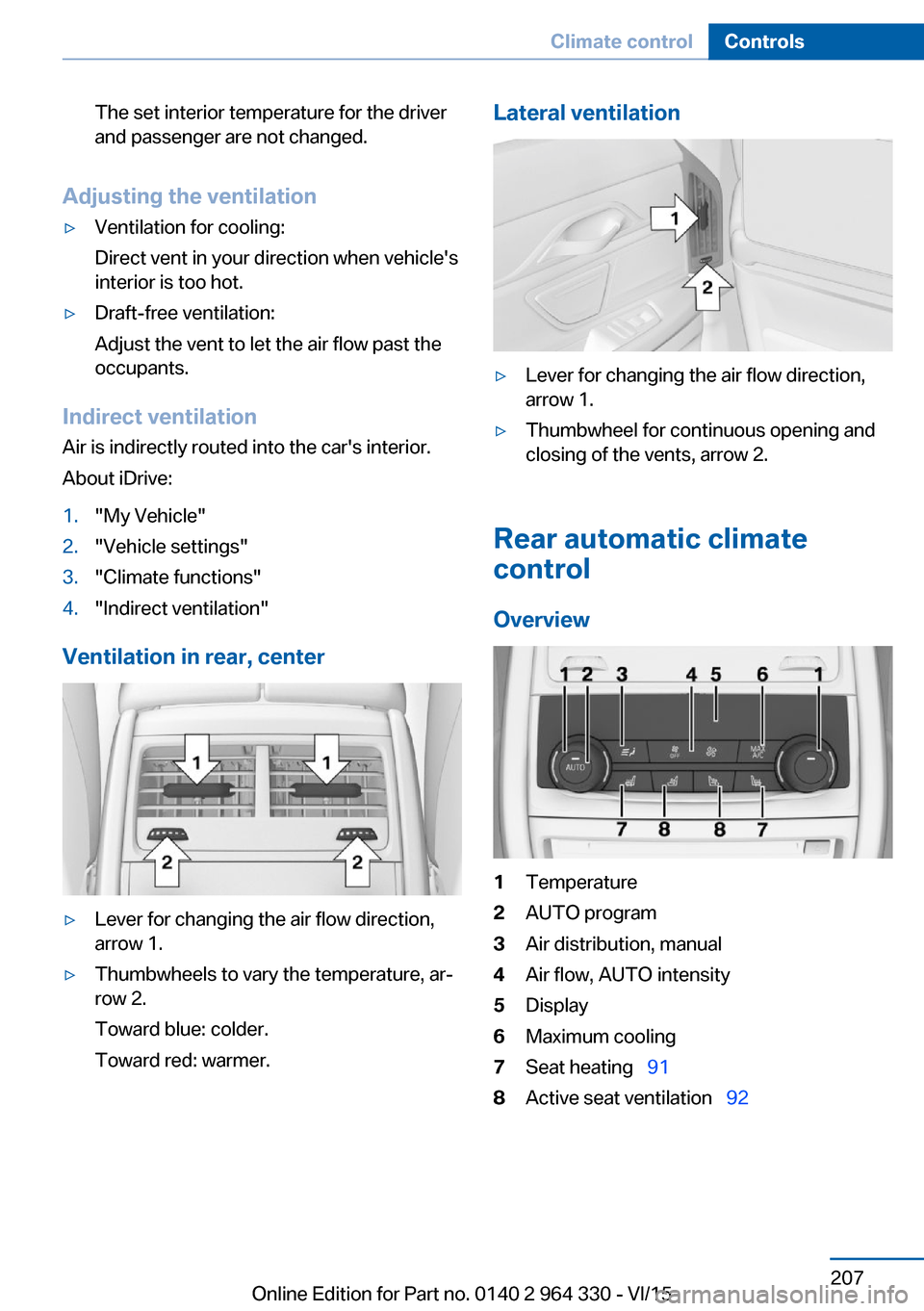
▷Lever for changing the air flow direction,
arrow 1.▷Thumbwheels to vary the temperature, ar‐
row 2.
Toward blue: colder.
Toward red: warmer.Lateral ventilation▷Lever for changing the air flow direction,
arrow 1.▷Thumbwheel for continuous opening and
closing of the vents, arrow 2.
Rear automatic climate
control
Overview
1Temperature2AUTO program3Air distribution, manual4Air flow, AUTO intensity5Display6Maximum cooling7Seat heating 918Active seat ventilation 92Seite 207Climate controlControls207
Online Edition for Part no. 0140 2 964 330 - VI/15