Page 122 of 365

121
uuOperating the Switches Around the Steering Wheel uENGINE START/STOP Button
Controls
Warning buzzers may sound from inside or/
and outside the vehicle to remind you that the
keyless access remote is out of the vehicle. If
the buzzer continues even after the remote is
put back inside, place it within its operational
range.
■When the power mode is in ON
If the keyless access remote is taken out of the
vehicle, and the driver's door is closed,
warning buzzers sound from both inside and
outside the vehicle. A warning message on
the multi-information display notifies the
driver inside that the remote is out.
■When the power mode is in
ACCESSORY or in VEHICLE OFF (LOCK)
If the keyless access remote is taken out of the
vehicle, and the driver's door is closed, a
warning buzzer sounds from outside the
vehicle.
■Keyless Access Remote Reminder1 Keyless Access Remote Reminder
When the keyless access remote is within the
system's operational range, and the driver's door is
closed, the warni ng function cancels.
If the keyless access remote is taken out of the vehicle
after the engine has been started, you can no longer
change the ENGINE START/STOP button mode or
restart the engine. Always make sure if the remote is
in your vehicle when you operate the ENGINE
START/STOP button.
Removing the keyless access remote from the vehicle
through a window does not activate the warning
buzzer.
Do not put a keyless access remote on the dashboard
or in the glove box. It may cause the warning buzzer
to go off. Under some other conditions that can
prevent the vehicle from locating the remote, the
warning buzzer may al so go off even if the remote is
within the system's operational range.
Page 125 of 365

uuOperating the Switches Around the Steering Wheel uLight Switches
124
Controls
The headlights automatically co me on when the wipers are used several times within
certain number of intervals while the headlight switch is in
#Y.The headlights
automatically go off a few minutes after the wipers are stopped.
The headlights, all other exterior lights, an d the instrument panel lights turn off 15
seconds after you set the power mode to VEHICLE OFF(LOCK), take the remote with
you, and close the driver's door.
If you set the power mode to VEHICLE OFF (LOCK) with the headlight switch on, but
do not open the door, the lights turn o ff after 10 minutes (three minutes, if the
switch is in the
#Y position).
The lights turn on again when you unlock or open the driver's door. If you unlock
the door, but do not open it within 15 seconds, the lights go off. If you open the
driver's door, you will hear a lights on reminder chime.
■Headlight Integration with Wiper
■Automatic Lighting Off Feature
1Headlight Integration with Wiper*
This feature activates while the headlights are in
#Y. The instrument pane l brightness does not
change when the headlights come on.
If the ambient light is da rk, the automatic lighting
control overrides this feat ure, and the headlights
come on whether or not the wipers cycle several
times.
1 Automatic Lighting Off Feature
You can change the headlight auto off timer setting.
2 Customized Features P. 87
* Not available on all models
Page 131 of 365
130
uuOperating the Switches Around the Steering Wheel uDriving Position Memory System
Controls
Driving Position Memory System
You can store two driver’s seat and door mirror positions with the driving position
memory system.
When you unlock and open the driver’s door with a remote transmitter, the seat and
door mirrors adjust automatically to one of the two preset positions.
The multi-information display shows you which remote transmitter you used to
unlock the vehicle when you enter.
• Driver 1 transmitter is linked to memory button 1.
• Driver 2 transmitter is linked to memory button 2.1Driving Position Memory System
Using the multi-information display, you can disable
the automatic seat adjustment function. 2 Customized Features P. 87
Driver 1
Driver 2
Page 158 of 365
157
Features
This chapter describes how to operate technology features.
Audio SystemAbout Your Audio System ................ 158
USB Adapter Cable .......................... 159
Auxiliary Input Jack .......................... 159
Audio System Theft Protection ......... 160
Audio System Basic Operation ........ 161
Audio/Information Screen
*.............. 162
Audio Remote Controls .................... 165
Adjusting the Sound ........................ 166
Playing the AM/FM Radio ................. 167
Playing the XM ® Radio ..................... 169
Playing a CD .................................... 171
Playing an iPod ................................ 174 Playing Pandora
®............................. 177
Playing a USB Flash Drive ................. 179
Playing Bluetooth ® Audio................. 182
Wallpaper Setup .............................. 184
Display Setup ................................... 186
Audio Error Messages ...................... 187
General Information on the Audio System ............................................. 190
HomeLink ® Universal Transceiver
Training HomeLink ........................... 194
Bluetooth® HandsFreeLink®
Using HFL ........................................ 196
HFL Menus....................................... 198 Compass
*.......................................... 225
* Not available on all models
Page 159 of 365
158
Features
Audio System
About Your Audio System
On models with navigation system, see Navigation System Manual for operation of
the audio system, Bluetooth® HandsFreeLink ®, and voice commands for these
features.
The audio system features AM/FM radio and the XM ® Radio service. It can also play
audio CDs, WMA/MP3/AAC files, iP od, iPhone, USB flash drives, and Bluetooth®
devices.
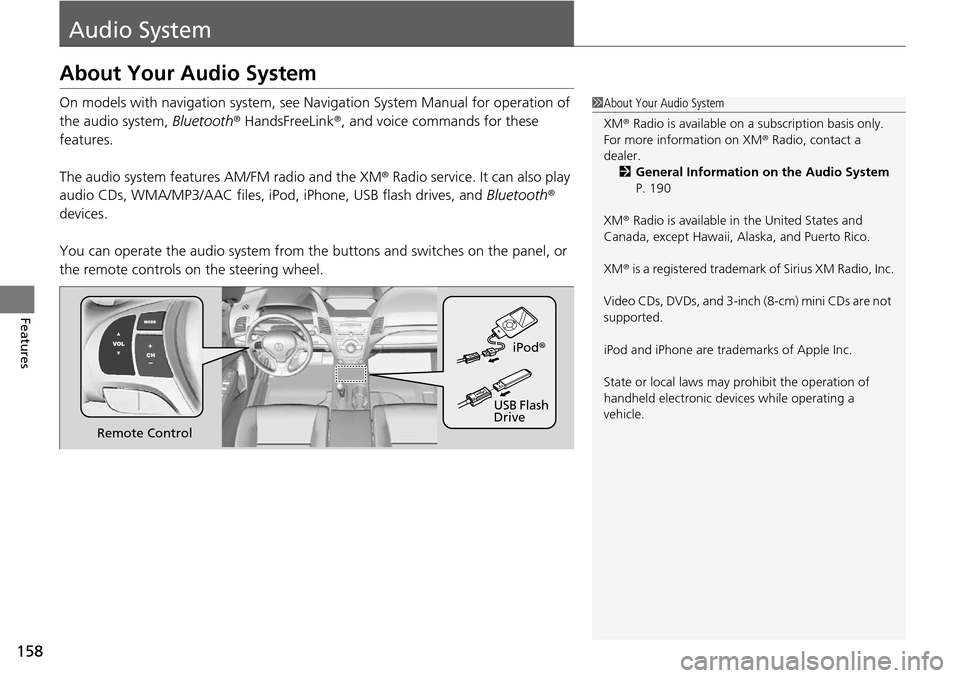
You can operate the audio system from the buttons and switches on the panel, or
the remote controls on the steering wheel.1About Your Audio System
XM ® Radio is available on a subscription basis only.
For more information on XM ® Radio, contact a
dealer.
2 General Information on the Audio System
P. 190
XM ® Radio is available in the United States and
Canada, except Ha waii, Alaska, and Puerto Rico.
XM ® is a registered trademark of Sirius XM Radio, Inc.
Video CDs, DVDs, and 3-inch (8-cm) mini CDs are not
supported.
iPod and iPhone are trademarks of Apple Inc.
State or local laws may pr ohibit the operation of
handheld electronic devices while operating a
vehicle.
Remote Control iPod
®
USB Flash
Drive
Page 162 of 365
161
Features
Audio System Basic Operation
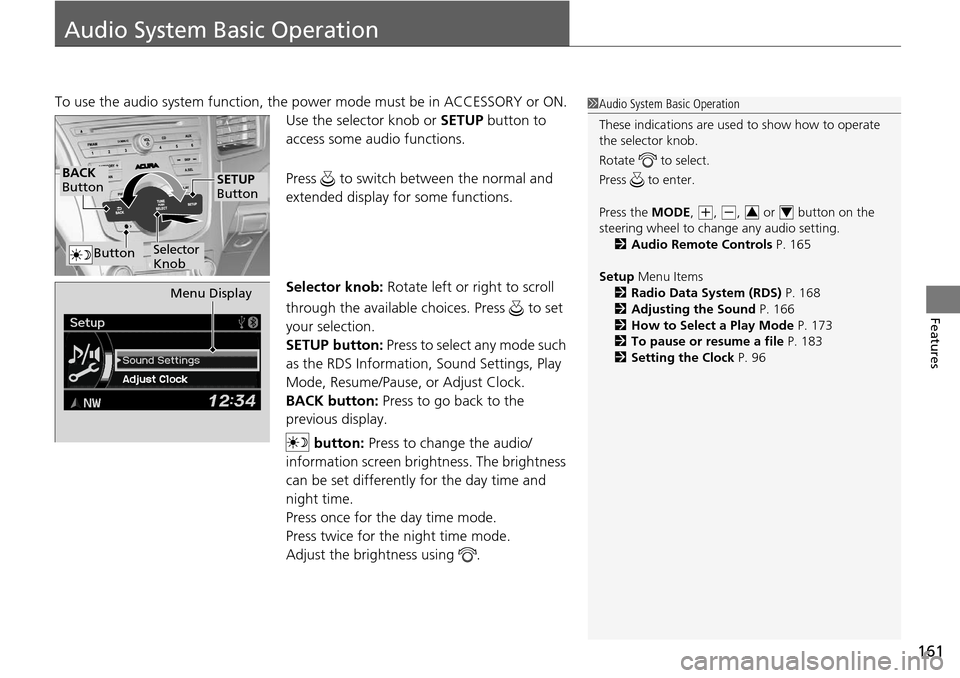
To use the audio system function, the power mode must be in ACCESSORY or ON.
Use the selector knob or SETUP button to
access some au dio functions.
Press to switch between the normal and
extended display fo r some functions.
Selector knob: Rotate left or right to scroll
through the available choices. Press to set
your selection.
SETUP button: Press to select any mode such
as the RDS Information, Sound Settings, Play
Mode, Resume/Pause, or Adjust Clock.
BACK button: Press to go back to the
previous display.
button: Press to change the audio/
information screen brightness. The brightness
can be set differently for the day time and
night time.
Press once for the day time mode.
Press twice for the night time mode.
Adjust the brightness using . 1 Audio System Basic Operation
These indications are used to show how to operate
the selector knob.
Rotate to select.
Press to enter.
Press the MODE,
( +, (-, or button on the
steering wheel to cha nge any audio setting.
2 Audio Remote Controls P. 165
Setup Menu Items
2 Radio Data System (RDS) P. 168
2 Adjusting the Sound P. 166
2 How to Select a Play Mode P. 173
2 To pause or resume a file P. 183
2 Setting the Clock P. 9634
BACK
Button
Selector
Knob
SETUP
Button
Button
Menu Display
Page 166 of 365
165
uuAudio System Basic Operation uAudio Remote Controls
Features
Audio Remote Controls
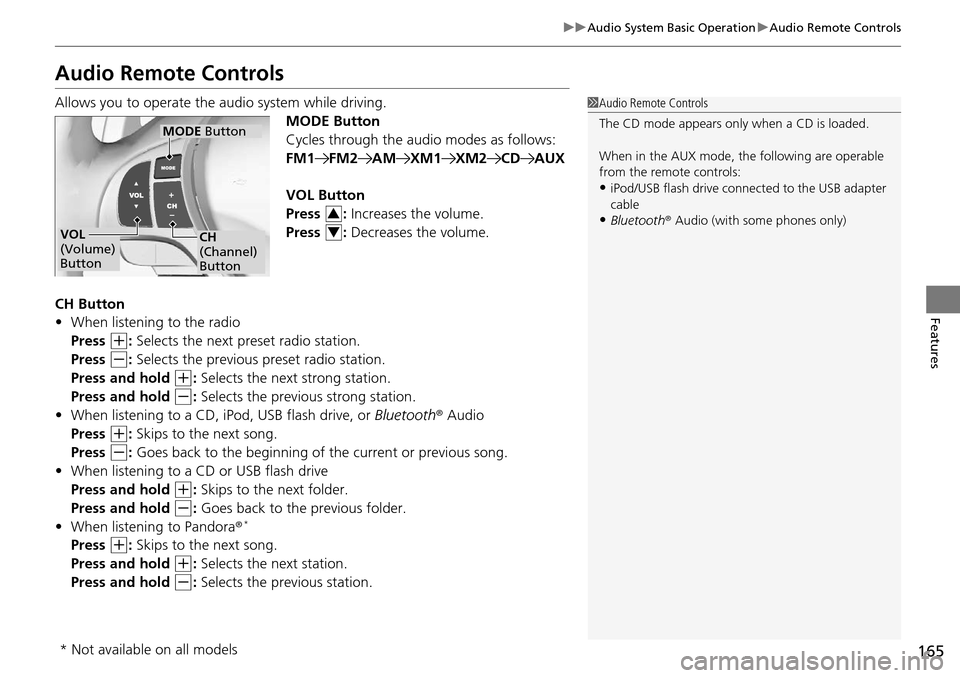
Allows you to operate the audio system while driving.
MODE Button
Cycles through the audio modes as follows:
FM1FM2AMXM1XM2CDAUX
VOL Button
Press : Increases the volume.
Press : Decreases the volume.
CH Button
• When listening to the radio
Press
(+: Selects the next preset radio station.
Press
(-: Selects the previous preset radio station.
Press and hold
(+: Selects the next strong station.
Press and hold
(-: Selects the previous strong station.
• When listening to a CD, iPod, USB flash drive, or Bluetooth® Audio
Press
(+: Skips to the next song.
Press
(-: Goes back to the beginning of the current or previous song.
• When listening to a CD or USB flash drive
Press and hold
(+: Skips to the next folder.
Press and hold
(-: Goes back to the previous folder.
• When listening to Pandora ®*
Press (+: Skips to the next song.
Press and hold
(+: Selects the next station.
Press and hold
(-: Selects the previous station.
1 Audio Remote Controls
The CD mode appears only when a CD is loaded.
When in the AUX mode, the following are operable
from the remote controls:
•iPod/USB flash drive connect ed to the USB adapter
cable
•Bluetooth ® Audio (with some phones only)VOL
(Volume)
Button
MODE Button
CH
(Channel)
Button
3
4
* Not available on all models
Page 169 of 365
uuAudio System Basic Operation uPlaying the AM/FM Radio
168
Features
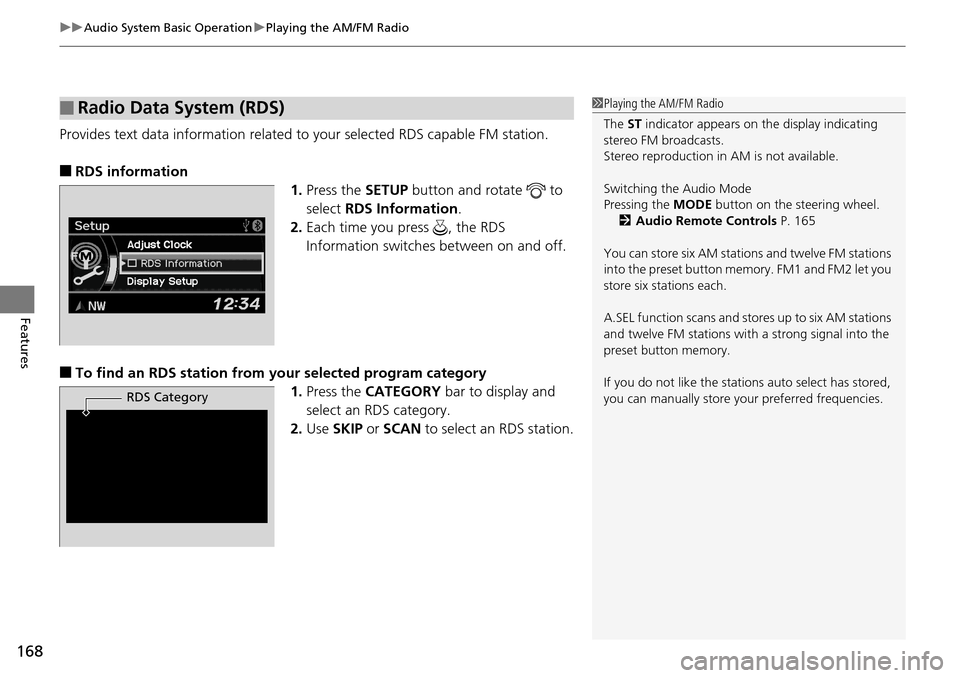
Provides text data information related to your selected RDS capable FM station.
■RDS information
1.Press the SETUP button and rotate to
select RDS Information .
2. Each time you press , the RDS
Information switches between on and off.
■To find an RDS station from your selected program category
1.Press the CATEGORY bar to display and
select an RDS category.
2. Use SKIP or SCAN to select an RDS station.
■Radio Data System (RDS)1Playing the AM/FM Radio
The ST indicator appears on the display indicating
stereo FM broadcasts.
Stereo reproduction in AM is not available.
Switching the Audio Mode
Pressing the MODE button on the steering wheel.
2 Audio Remote Controls P. 165
You can store six AM stations and twelve FM stations
into the preset button me mory. FM1 and FM2 let you
store six stations each.
A.SEL function scans and stor es up to six AM stations
and twelve FM stations wi th a strong signal into the
preset button memory.
If you do not like the stati ons auto select has stored,
you can manually store your preferred frequencies.
RDS Category
