Page 91 of 576
912. Instrument cluster
2
Instrument cluster
Trip information display
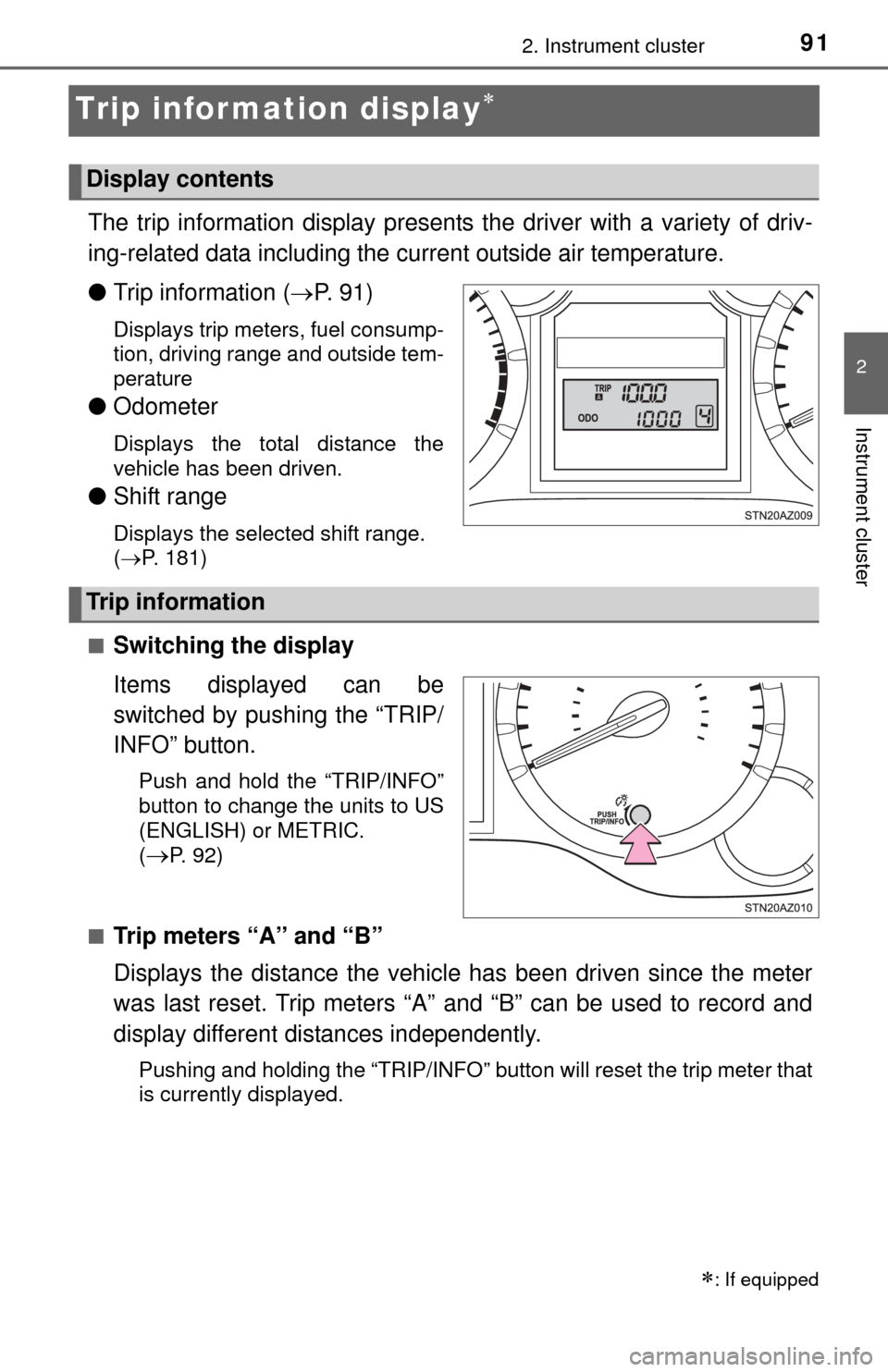
The trip information display presents the driver with a variety of driv-
ing-related data including the current outside air temperature.
● Trip information ( P. 9 1 )
Displays trip meters, fuel consump-
tion, driving range and outside tem-
perature
● Odometer
Displays the total distance the
vehicle has been driven.
●Shift range
Displays the selected shift range.
(P. 181)
■
Switching the display
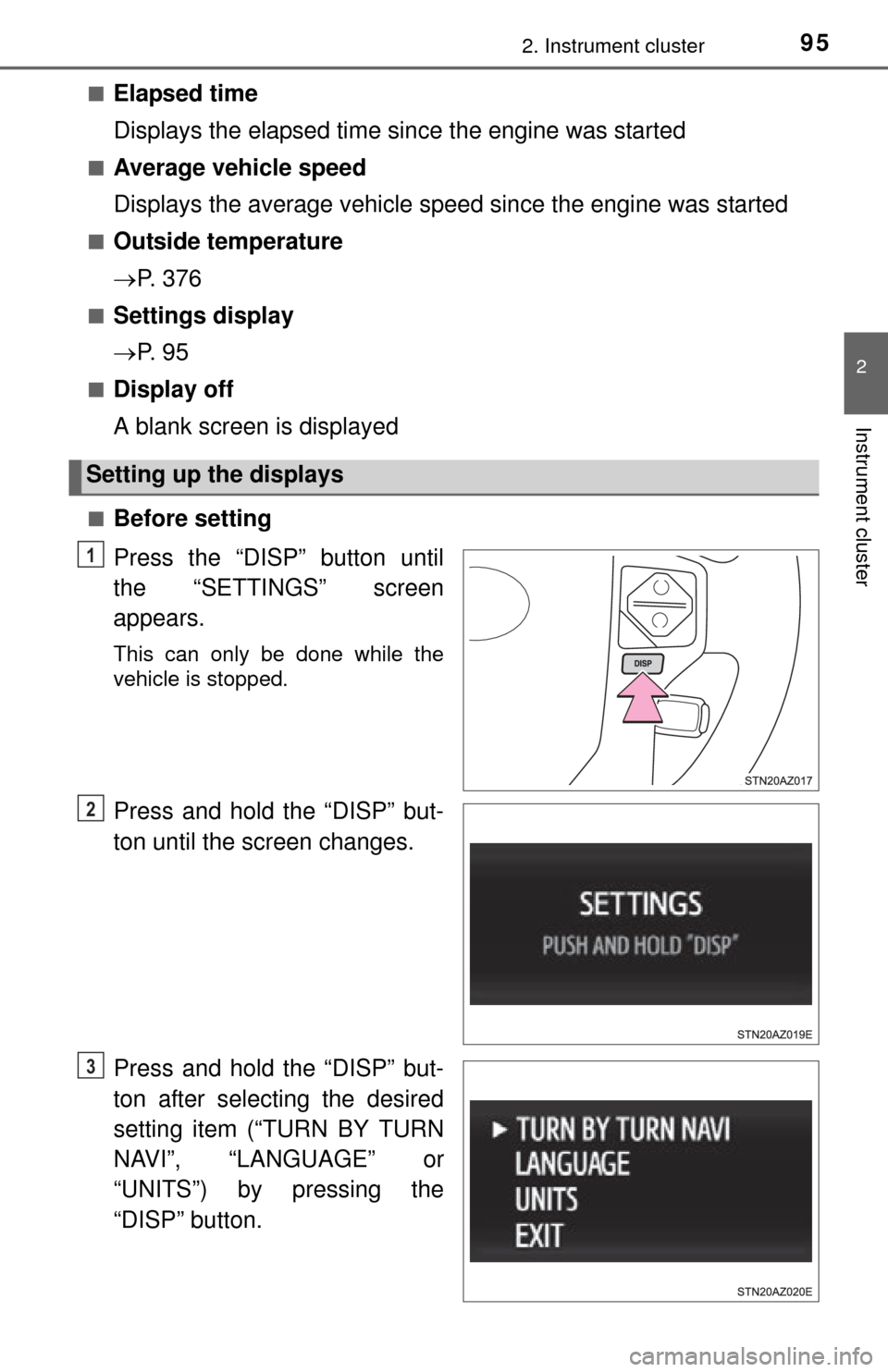
Items displayed can be
switched by pushing the “TRIP/
INFO” button.
Push and hold the “TRIP/INFO”
button to change the units to US
(ENGLISH) or METRIC.
(
P. 92)
■
Trip meters “A” and “B”
Displays the distance the vehicle has been driven since the meter
was last reset. Trip meters “A” and “B” can be used to record and
display different distances independently.
Pushing and holding the “TRIP/INFO” button will reset the trip meter that
is currently displayed.
: If equipped
Display contents
Trip information
Page 92 of 576
922. Instrument cluster
■Average fuel consumption
Displays the average fuel consumption since the function was reset
• The function can be reset by pushing the “TRIP/INFO” button forlonger than 1 second when the average fuel consumption is dis-
played.
• Use the displayed average fuel consumption as a reference.
■
Driving range
Displays the estimated approxim ate distance that can be driven
with the quantity of fuel remaining
• This distance is computed based on your average fuel consumption.
As a result, the actual distance that can be driven may differ from that
displayed.
• When only a small amount of fuel is added to the tank, the display
may not be updated.
When refueling, turn the engine switch off. If the vehicle is refueled
without turning the engine switch off, the display may not be updated.
■
Outside temperature
P. 3 7 6
■When disconnecting and reco nnecting battery terminals
The following information data will be reset:
● Trip meters “A” and “B”
● Average fuel consumption
● Driving range
■ Liquid crystal display
Small spots or light spots may appear on the display. This phenomenon is
characteristic of liquid crystal displays, and there is no problem continuing to
use the display.
■ To select the US (ENGLISH) or METRIC
InformationUS (ENGLISH)METRIC
Average fuel consumptionMPGL/100 km
Driving rangemileskm
Outside temperature displayFC
NOTICE
■ The trip information display at low temperatures
Allow the interior of the vehicle to warm up before using the liquid crystal
information display. At extremely low temperatures, the information display
monitor may respond slowly, and display changes may be delayed.
Page 93 of 576
932. Instrument cluster
2
Instrument cluster
Multi-infor mation display
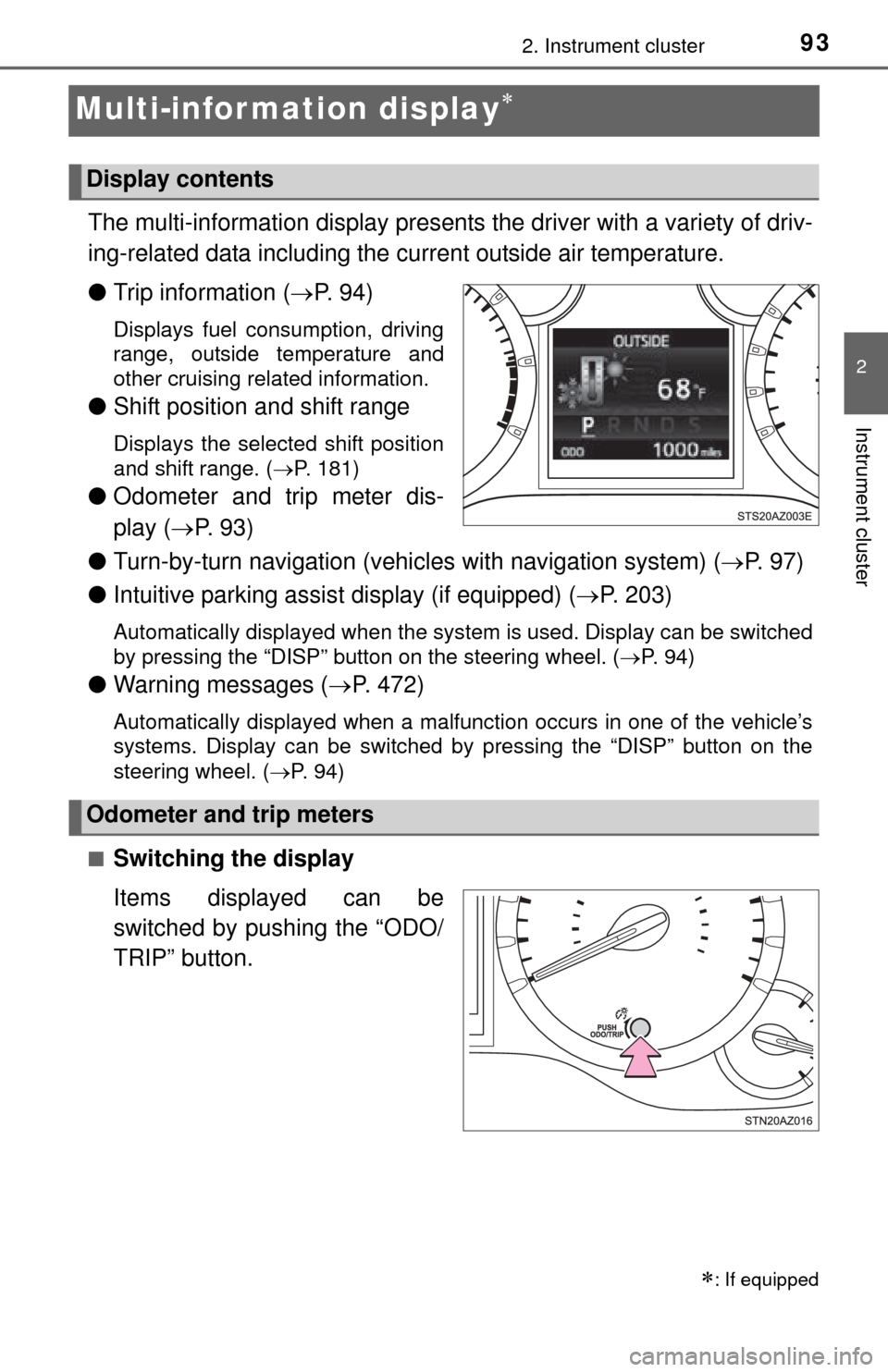
The multi-information display presents the driver with a variety of driv-
ing-related data including the current outside air temperature.
● Trip information ( P. 9 4 )
Displays fuel consumption, driving
range, outside temperature and
other cruising related information.
● Shift position and shift range
Displays the selected shift position
and shift range. ( P. 181)
●Odometer and trip meter dis-
play ( P. 9 3 )
● Turn-by-turn navigation (vehicl es with navigation system) (P. 9 7 )
● Intuitive parking assist display (if equipped) ( P. 203)
Automatically displayed when the system is used. Display can be switched
by pressing the “DISP” button on the steering wheel. ( P. 9 4 )
● Warning messages ( P. 472)
Automatically displayed when a malfunction occurs in one of the vehicle’s
systems. Display can be switched by pressing the “DISP” button on the
steering wheel. ( P. 94)
■
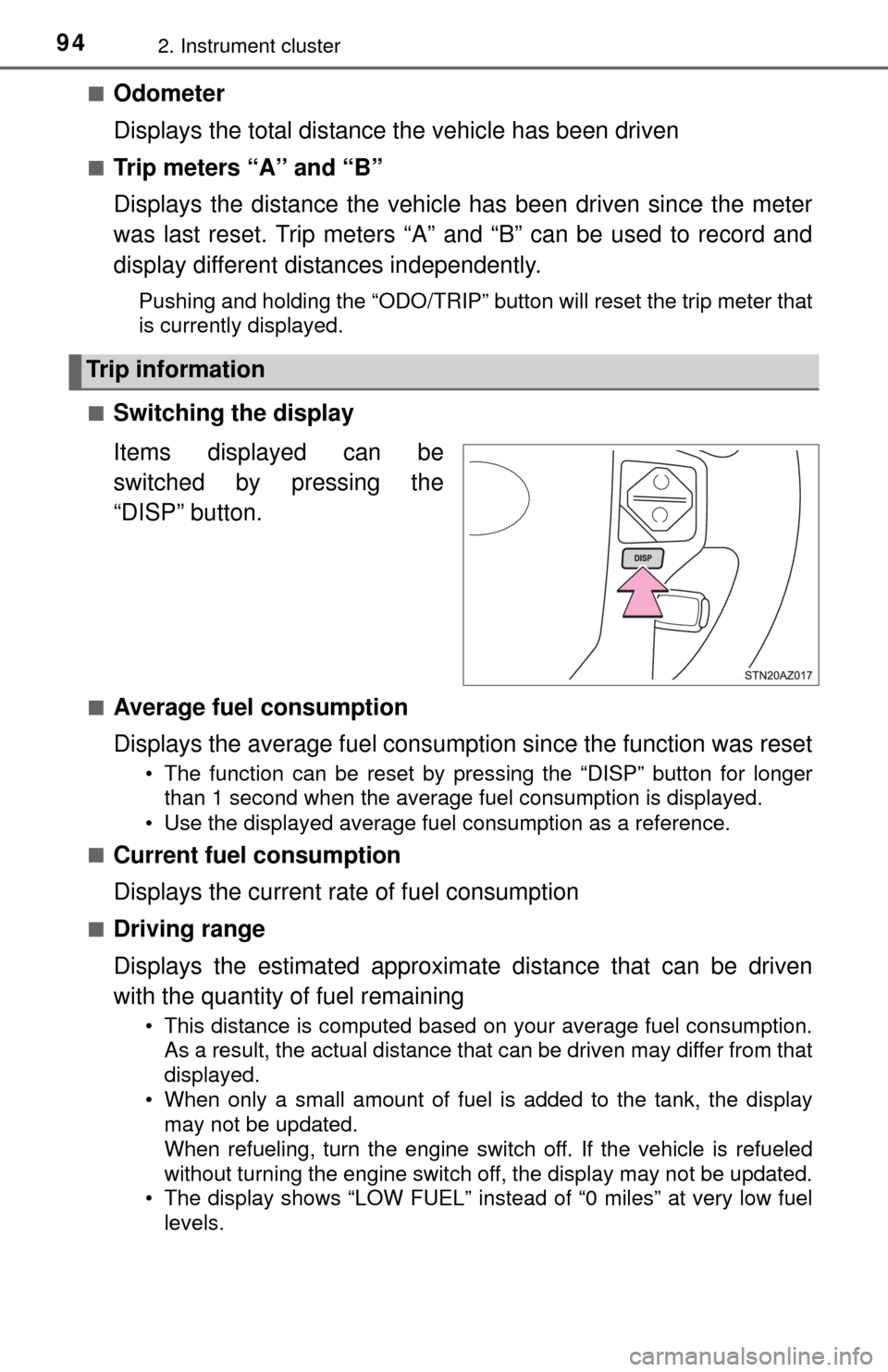
Switching the display
Items displayed can be
switched by pushing the “ODO/
TRIP” button.
: If equipped
Display contents
Odometer and trip meters
Page 94 of 576
942. Instrument cluster
■Odometer
Displays the total distance the vehicle has been driven
■Trip meters “A” and “B”
Displays the distance the vehicle has been driven since the meter
was last reset. Trip meters “A” and “B” can be used to record and
display different distances independently.
Pushing and holding the “ODO/TRIP” button will reset the trip meter that
is currently displayed.
■
Switching the display
Items displayed can be
switched by pressing the
“DISP” button.
■Average fuel consumption
Displays the average fuel consumption since the function was reset
• The function can be reset by pressing the “DISP” button for longer than 1 second when the average fuel consumption is displayed.
• Use the displayed average fuel consumption as a reference.
■
Current fuel consumption
Displays the current rate of fuel consumption
■Driving range
Displays the estimated approxim ate distance that can be driven
with the quantity of fuel remaining
• This distance is computed based on your average fuel consumption.
As a result, the actual distance that can be driven may differ from that
displayed.
• When only a small amount of fuel is added to the tank, the display may not be updated.
When refueling, turn the engine switch off. If the vehicle is refueled
without turning the engine switch off, the display may not be updated.
• The display shows “LOW FUEL” instead of “0 miles” at very low fuel
levels.
Trip information
Page 95 of 576
952. Instrument cluster
2
Instrument cluster
■Elapsed time
Displays the elapsed time since the engine was started
■Average vehicle speed
Displays the average vehicle speed since the engine was started
■Outside temperature
P. 3 7 6
■Settings display
P. 9 5
■Display off
A blank screen is displayed
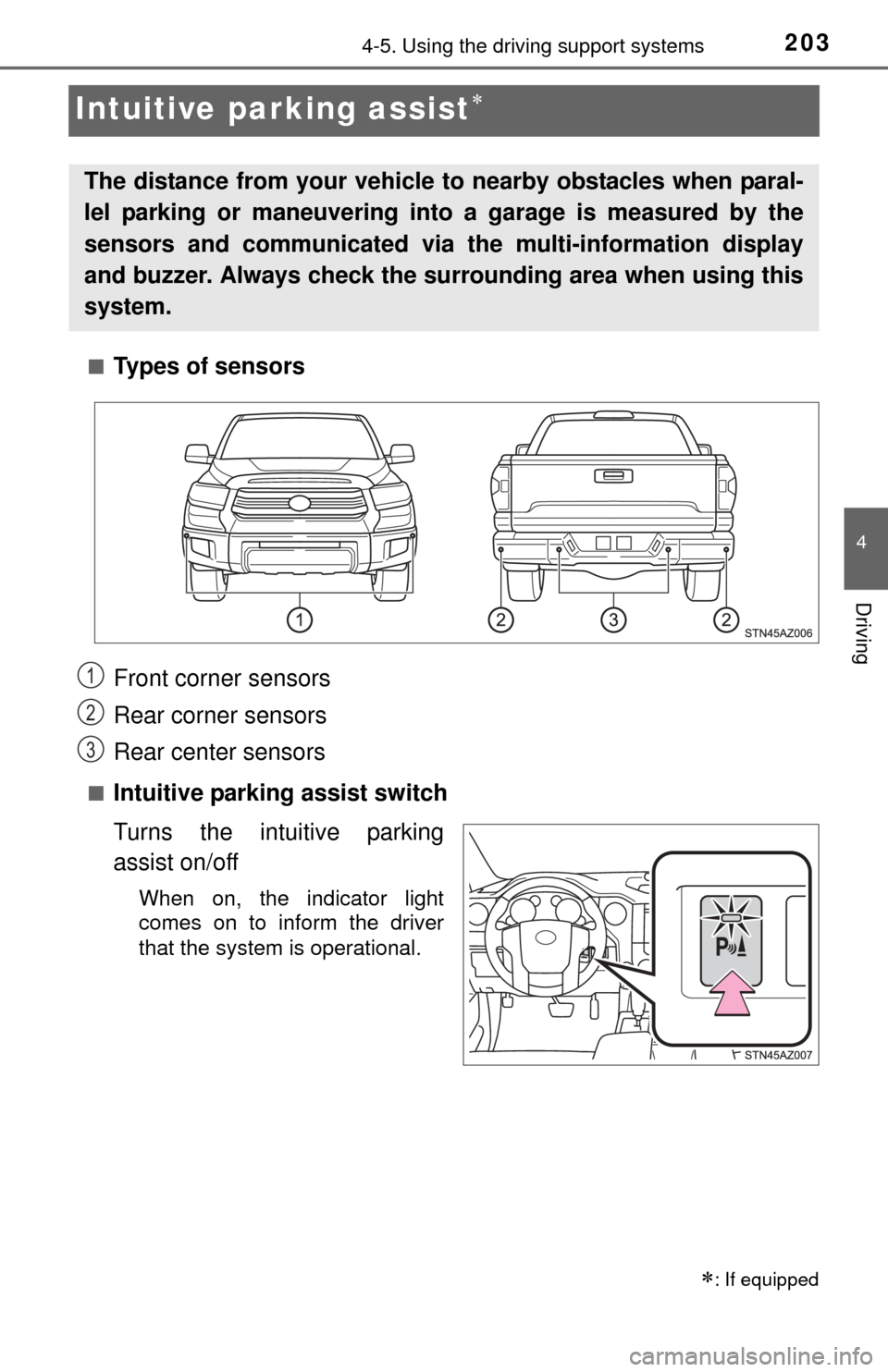
■Before setting
Press the “DISP” button until
the “SETTINGS” screen
appears.
This can only be done while the
vehicle is stopped.
Press and hold the “DISP” but-
ton until the screen changes.
Press and hold the “DISP” but-
ton after selecting the desired
setting item (“TURN BY TURN
NAVI”, “LANGUAGE” or
“UNITS”) by pressing the
“DISP” button.
Setting up the displays
1
2
3
Page 97 of 576
972. Instrument cluster
2
Instrument cluster
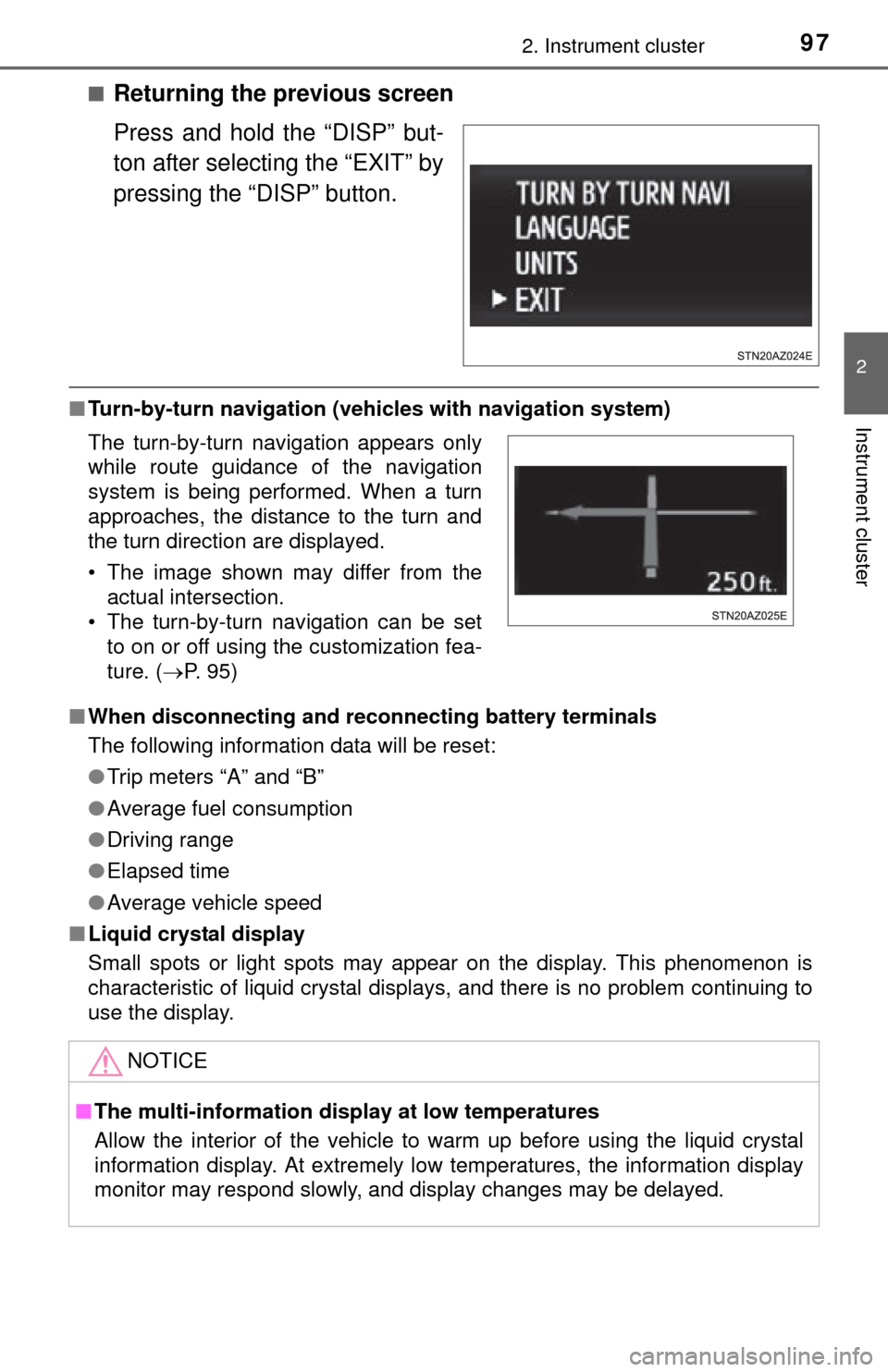
■Returning the previous screen
Press and hold the “DISP” but-
ton after selecting the “EXIT” by
pressing the “DISP” button.
■Turn-by-turn navigation (veh icles with navigation system)
■ When disconnecting and reco nnecting battery terminals
The following information data will be reset:
● Trip meters “A” and “B”
● Average fuel consumption
● Driving range
● Elapsed time
● Average vehicle speed
■ Liquid crystal display
Small spots or light spots may appear on the display. This phenomenon is
characteristic of liquid crystal displays, and there is no problem continuing to
use the display.
The turn-by-turn navigation appears only
while route guidance of the navigation
system is being performed. When a turn
approaches, the distance to the turn and
the turn direction are displayed.
• The image shown may differ from the
actual intersection.
• The turn-by-turn navigation can be set to on or off using the customization fea-
ture. ( P. 95)
NOTICE
■The multi-information disp lay at low temperatures
Allow the interior of the vehicle to warm up before using the liquid crystal
information display. At extremely low temperatures, the information display
monitor may respond slowly, and display changes may be delayed.
Page 203 of 576
2034-5. Using the driving support systems
4
Driving
Intuitive parking assist
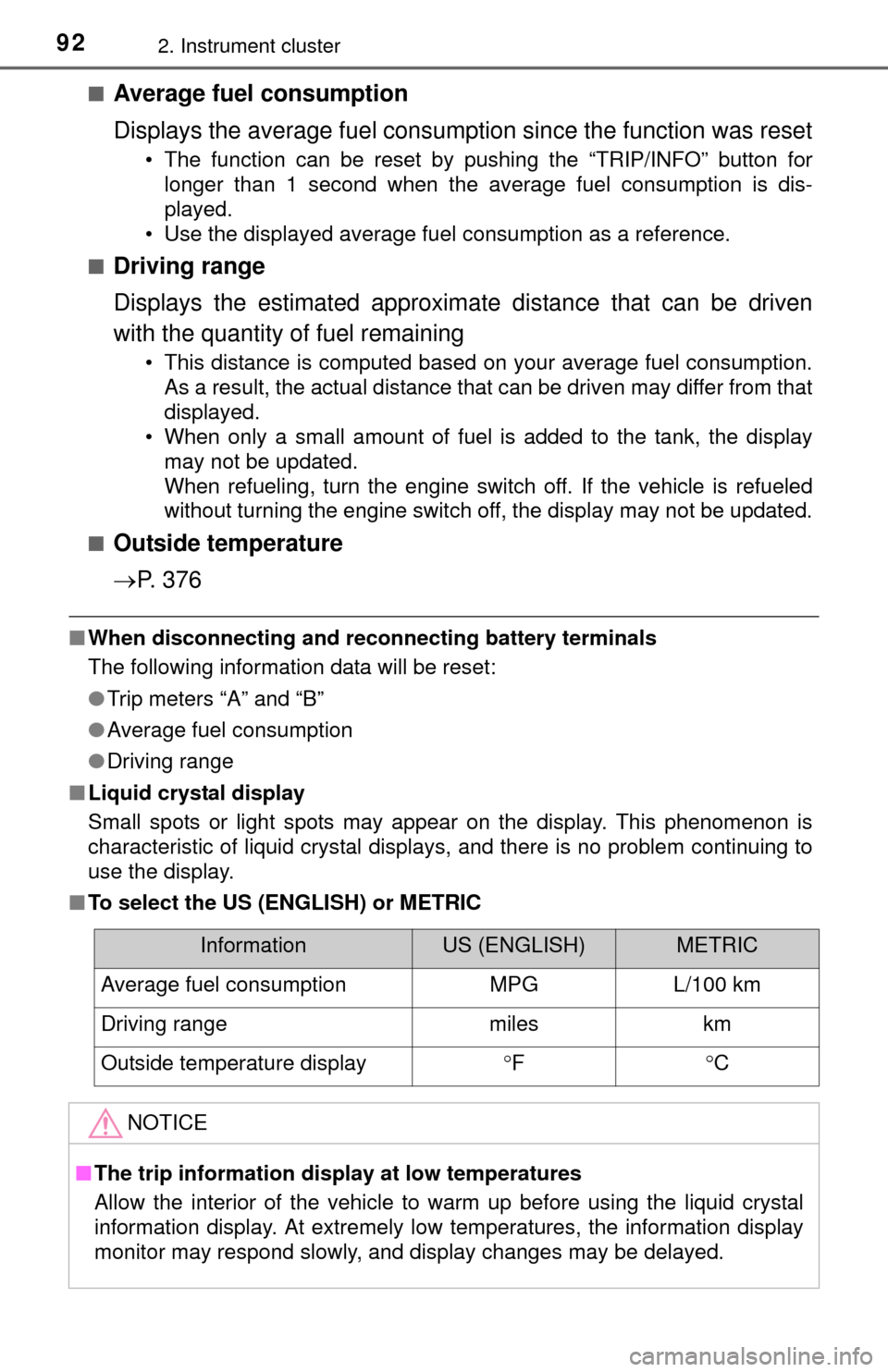
■Types of sensors
■Intuitive parking assist switch
Turns the intuitive parking
assist on/off
When on, the indicator light
comes on to inform the driver
that the system is operational.
: If equipped
The distance from your vehicle to nearby obstacles when paral-
lel parking or maneuvering into a garage is measured by the
sensors and communicated via the multi-information display
and buzzer. Always check the su rrounding area when using this
system.
Front corner sensors
Rear corner sensors
Rear center sensors1
2
3
Page 204 of 576
2044-5. Using the driving support systems
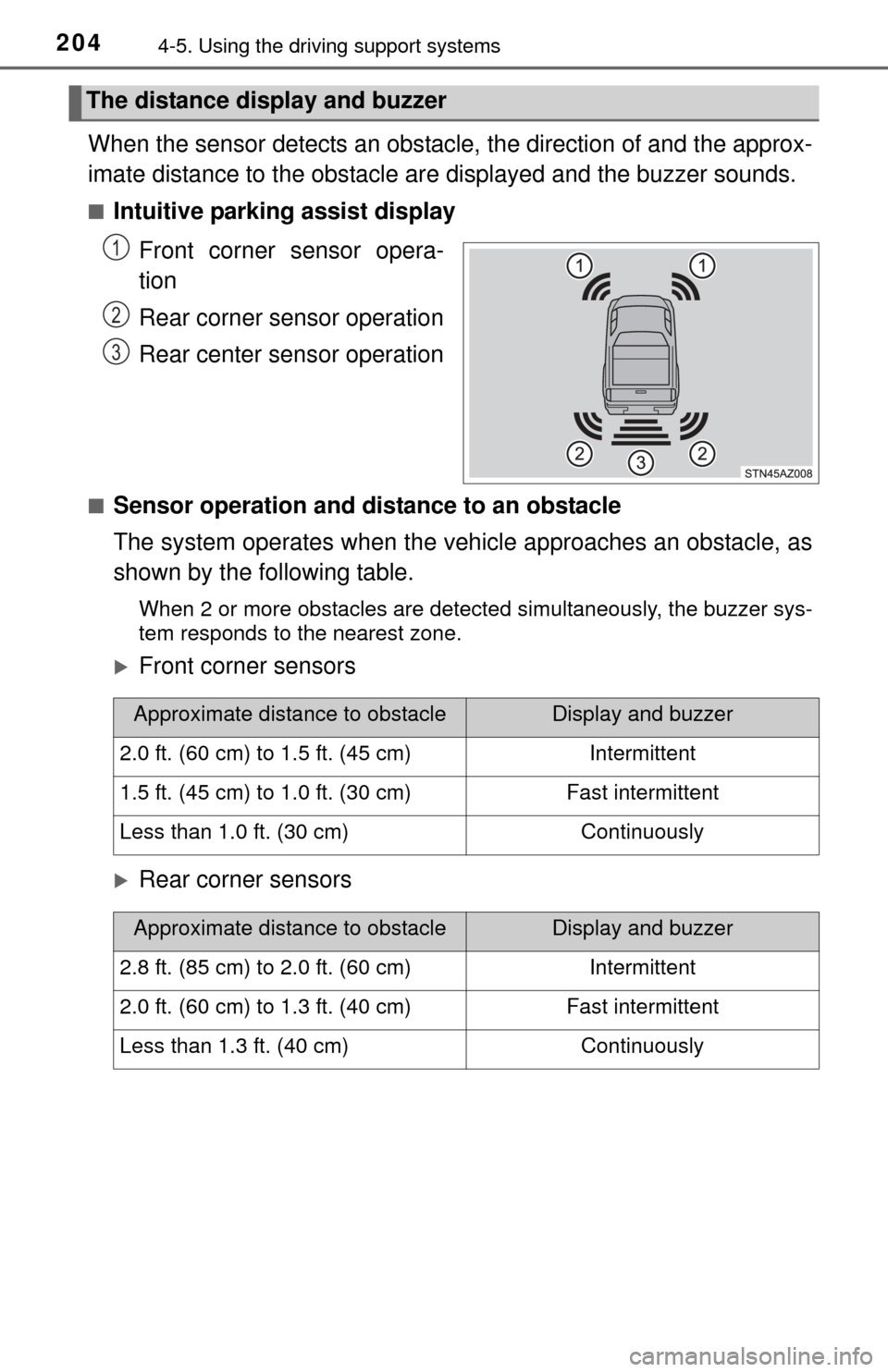
When the sensor detects an obstacle, the direction of and the approx-
imate distance to the obstacle ar e displayed and the buzzer sounds.
■Intuitive parking assist display
Front corner sensor opera-
tion
Rear corner sensor operation
Rear center sensor operation
■Sensor operation and distance to an obstacle
The system operates when the vehicle approaches an obstacle, as
shown by the following table.
When 2 or more obstacles are detected simultaneously, the buzzer sys-
tem responds to the nearest zone.
Front corner sensors
Rear corner sensors
The distance display and buzzer
1
2
3
Approximate distance to obstacleDisplay and buzzer
2.0 ft. (60 cm) to 1.5 ft. (45 cm)Intermittent
1.5 ft. (45 cm) to 1.0 ft. (30 cm)Fast intermittent
Less than 1.0 ft. (30 cm)Continuously
Approximate distance to obstacleDisplay and buzzer
2.8 ft. (85 cm) to 2.0 ft. (60 cm)Intermittent
2.0 ft. (60 cm) to 1.3 ft. (40 cm)Fast intermittent
Less than 1.3 ft. (40 cm)Continuously