Page 303 of 612
303
3-2. Using the audio system
3
Interior features
Connecting a Bluetooth® device
Press the “SETUP” button.
Select “Bluetooth*”.
*: Bluetooth is a registered trademark of Bluetooth SIG, Inc.
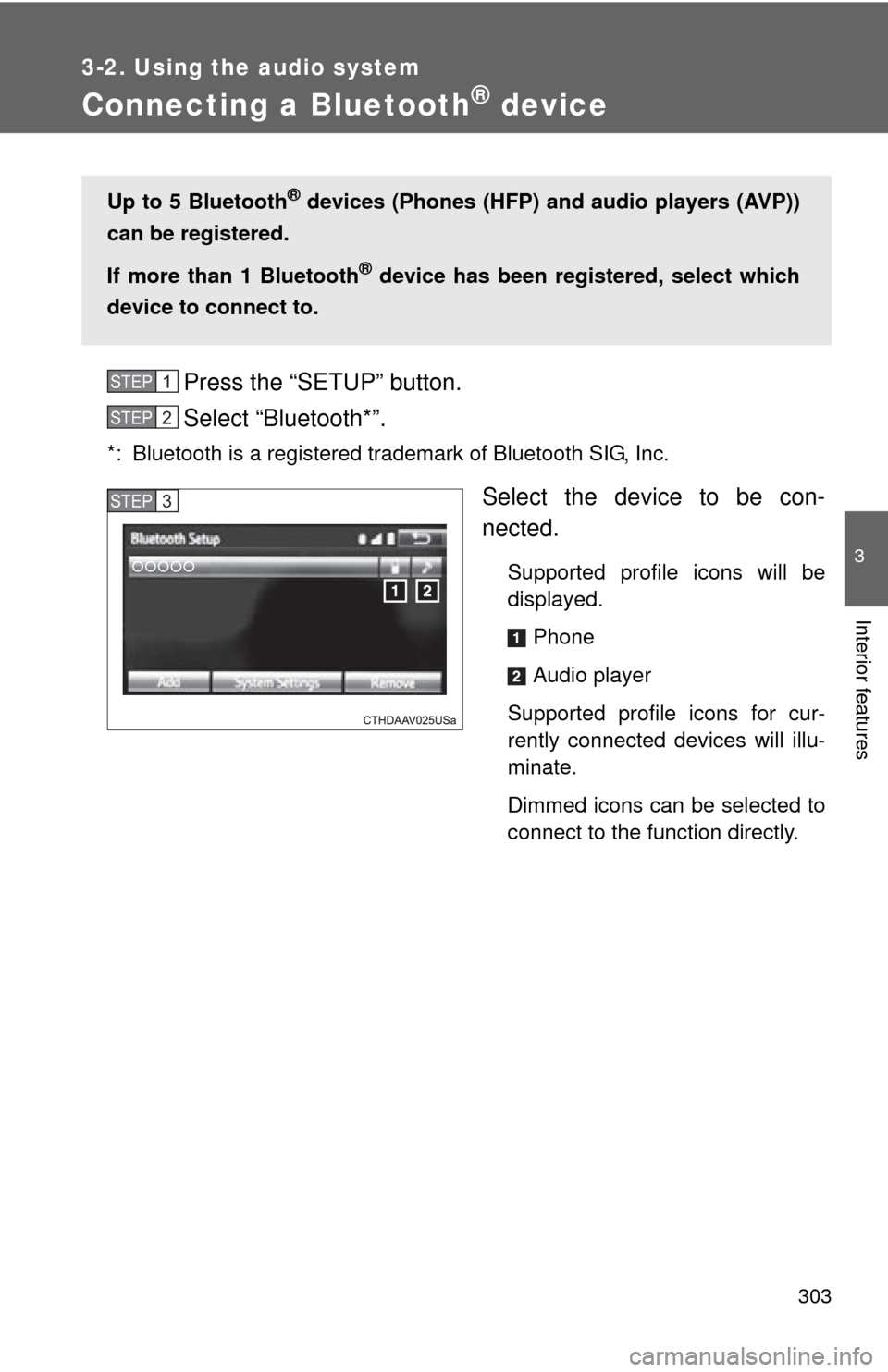
Select the device to be con-
nected.
Supported profile icons will be
displayed.Phone
Audio player
Supported profile icons for cur-
rently connected devices will illu-
minate.
Dimmed icons can be selected to
connect to the function directly.
Up to 5 Bluetooth® devices (Phones (HFP) and audio players (AVP))
can be registered.
If more than 1 Bluetooth
® device has been registered, select which
device to connect to.
STEP1
STEP2
STEP3
Page 304 of 612
304 3-2. Using the audio system
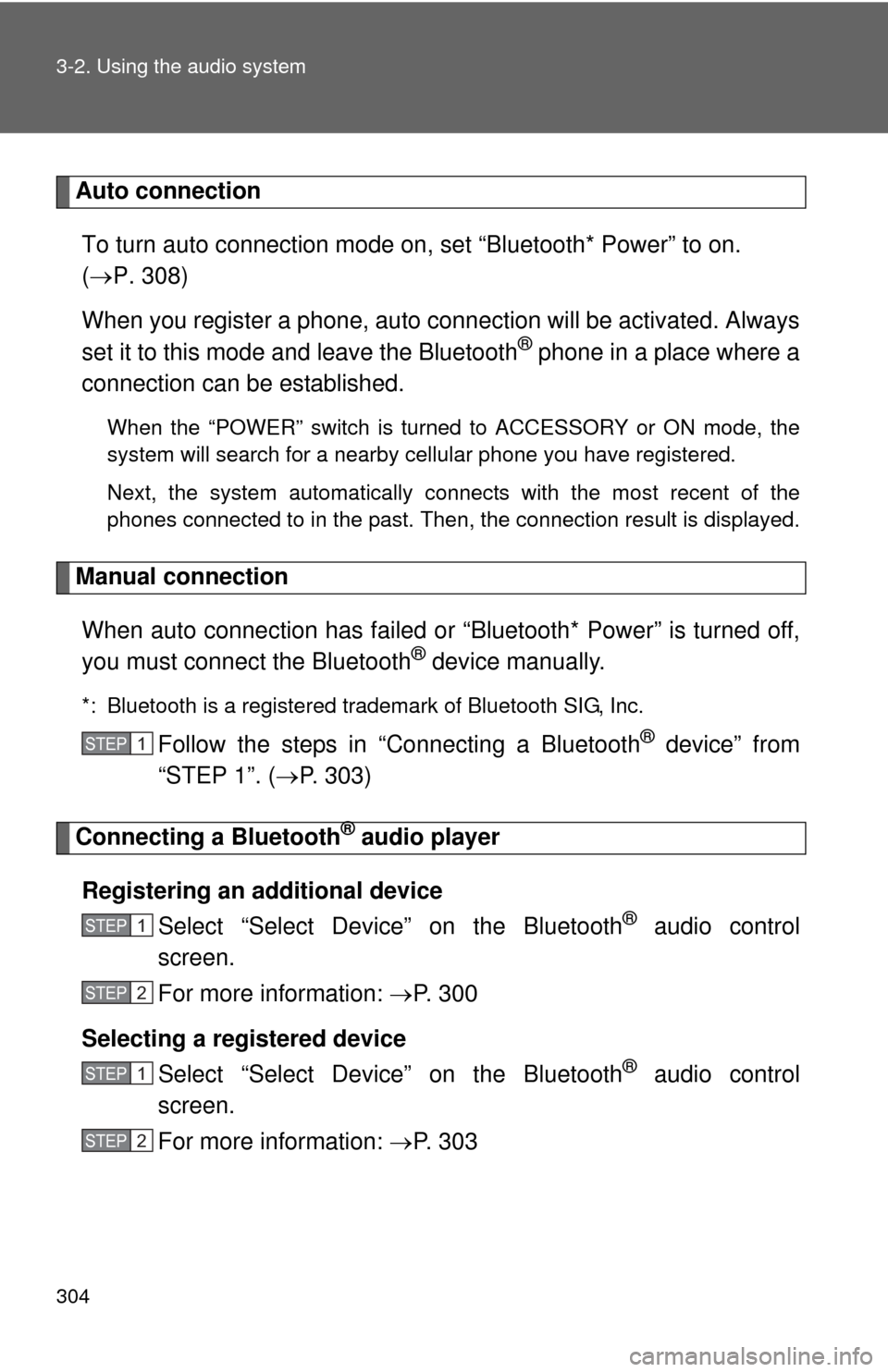
Auto connectionTo turn auto connection mode on, set “Bluetooth* Power” to on.
( P. 308)
When you register a phone, auto connection will be activated. Always
set it to this mode and leave the Bluetooth
® phone in a place where a
connection can be established.
When the “POWER” switch is turned to ACCESSORY or ON mode, the
system will search for a nearby cellular phone you have registered.
Next, the system automatically connects with the most recent of the
phones connected to in the past. Then, the connection result is displayed.
Manual connection
When auto connection has failed or “Bluetooth* Power” is turned off,
you must connect the Bluetooth
® device manually.
*: Bluetooth is a registered trademark of Bluetooth SIG, Inc.
Follow the steps in “Connecting a Bluetooth® device” from
“STEP 1”. ( P. 303)
Connecting a Bluetooth® audio player
Registering an additional device Select “Select Devi ce” on the Bluetooth
® audio control
screen.
For more information: P. 3 0 0
Selecting a registered device Select “Select Devi ce” on the Bluetooth
® audio control
screen.
For more information: P. 3 0 3
STEP1
STEP1
STEP2
STEP1
STEP2
Page 307 of 612
307
3-2. Using the audio system
3
Interior features
Changing connection method
Select “Connect Audio Player from”.
Select “Vehicle” or “Device”.
“Vehicle”: Connect the audio system to the portable audio player.
“Device”: Connect the portable audio player to the audio system.
STEP1
STEP2
Page 308 of 612
308
3-2. Using the audio system
Detailed Bluetooth® system settings
How to check and change detailed Bluetooth® settings
Display the “Bluetooth* Setup” screen. ( P. 297)
Select “System Settings”.
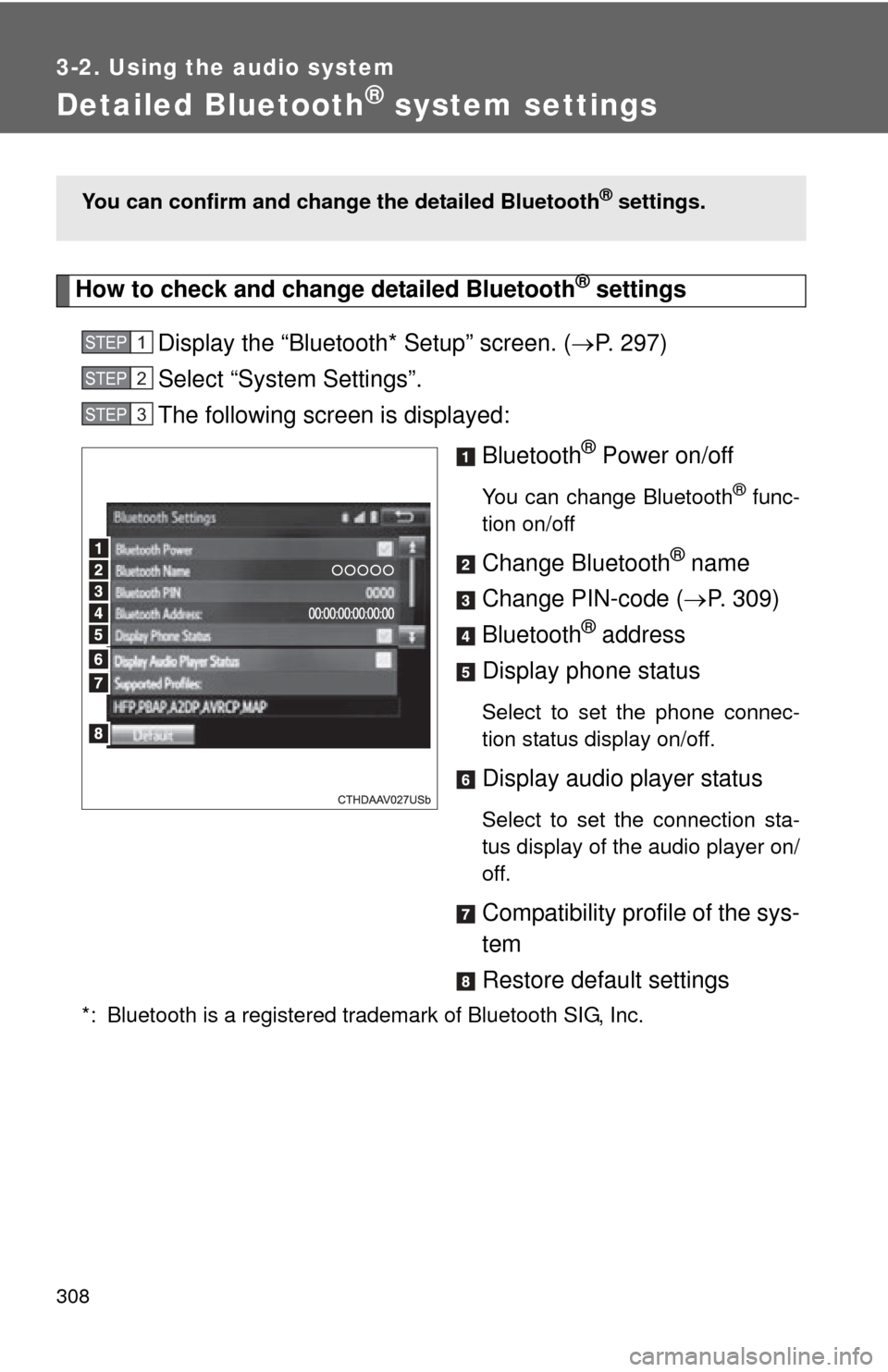
The following screen is displayed:
Bluetooth
® Power on/off
You can change Bluetooth® func-
tion on/off
Change Bluetooth® name
Change PIN-code ( P. 309)
Bluetooth
® address
Display phone status
Select to set the phone connec-
tion status display on/off.
Display audio player status
Select to set the connection sta-
tus display of the audio player on/
off.
Compatibility profile of the sys-
tem
Restore default settings
*: Bluetooth is a registered trademark of Bluetooth SIG, Inc.
You can confirm and change the detailed Bluetooth® settings.
STEP1
STEP2
STEP3
Page 310 of 612
310
3-2. Using the audio system
Listening to Bluetooth® audio
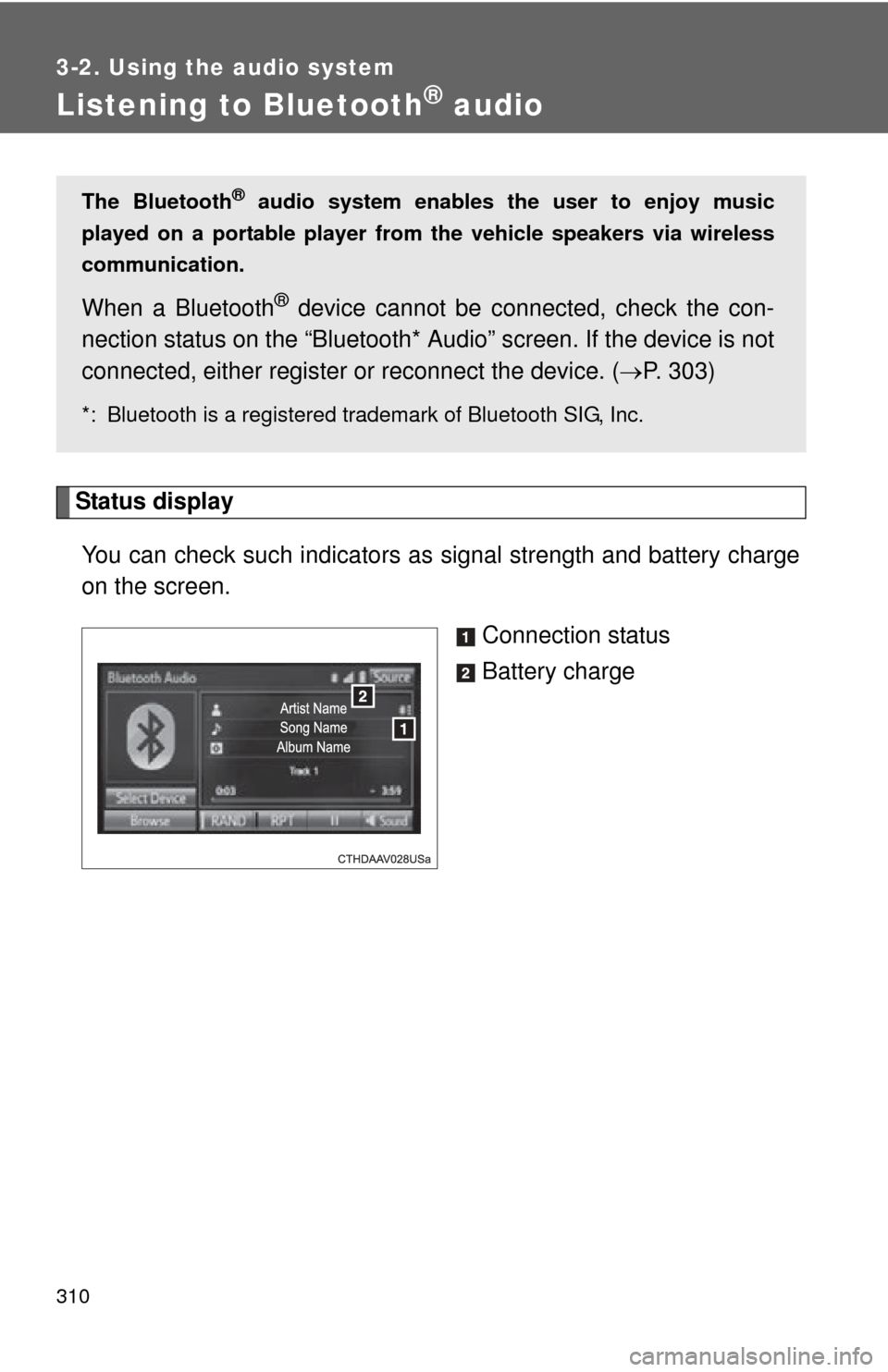
Status displayYou can check such indicators as signal strength and battery charge
on the screen.
Connection status
Battery charge
The Bluetooth® audio system enables the user to enjoy music
played on a portable player from the vehicle speakers via wireless
communication.
When a Bluetooth® device cannot be con nected, check the con-
nection status on the “Bluetooth* Audio” screen. If the device is not
connected, either register or reconnect the device. ( P. 303)
*: Bluetooth is a registered trademark of Bluetooth SIG, Inc.
Page 346 of 612
346
3-2. Using the audio system
Bluetooth®
■When using the Bluetooth® audio system
● In the following conditions, the system may not function.
• If the portable audio player is turned off
• If the portable audio player is not connected
• If the portable audio player’s battery is low
● There may be a delay if a cellular phone connection is made during
Bluetooth
® audio play.
● Depending on the type of portable audio player that is connected to the
system, operation may differ slightly and certain functions may not be
available.
■ When using the hands-free system
●The audio system is muted when making a call.
● If both parties speak at the same time, it may be difficult to hear.
● If the received call volume is overly loud, an echo may be heard.
If the Bluetooth
® phone is too close to the system, quality of the sound
may deteriorate and connection status may deteriorate.
● In the following circumstances, it may be difficult to hear the other party:
• When driving on unpaved roads
• When driving at high speeds
• If a window is open
• If the air conditioning is blowing directly on the microphone
• If there is interference from the network of the cellular phone
■ Conditions under which th e system will not operate
● If using a cellular phone that does not support Bluetooth
®
●If the cellular phone is turned off
● If you are outside of cellular phone service coverage
● If the cellular phone is not connected
● If the cellular phone’s battery is low
● When outgoing calls are controlled, due to heavy traffic on telephone
lines, etc.
● When the cellular phone itself cannot be used
● When transferring phonebook data from the cellular phone
Page 347 of 612
347
3-2. Using the audio system
3
Interior features
■
Bluetooth® antenna
The antenna is built into the display.
If the portable audio player is behind the seat or in the glove box or console
box, or is touching or covered by metal objects, the connection status may
deteriorate.
If the cellular phone is behind the seat or in the console box, or touching or
covered by metal objects, the connection status may deteriorate.
■ Battery charge/signal status
●This display may not correspond exactly with the portable audio player or
cellular phone itself.
● This system does not have a charging function.
● The portable audio player or cellular phone battery will be depleted
quickly when the device is connected to Bluetooth
®.
■ When using the Bluetooth
® audio and hands-free system at the same
time
The following problems may occur.
● The Bluetooth
® audio connection may be interrupted.
● Noise may be heard during Bluetooth
® audio playback.
■ About the contact in this system
The following data is stored for every registered cellular phone. When
another phone is connecting, you cannot read the registered data.
●Contact data
● Call history
● Favorite
● Message
When removing a Bluetooth
® phone from the system, the above-mentioned
data is also deleted.
Page 348 of 612
348 3-2. Using the audio system
■Compatible models
The Bluetooth
® audio system supports portable audio players with the fol-
lowing specifications
● Bluetooth
® specifications:
Ver. 2.0, or higher (Recommended: Ver. 3.0+EDR or higher)
● Profiles:
• A2DP (Advanced Audio Distribution Profile) Ver. 1.0, or higher
(Recommended: Ver. 1.2 or higher)
This is a profile to transmit stereo audio or high quality sound to the
audio system.
• AVRCP (Audio/Video Remote Control Profile) Ver. 1.0 or higher (Recommended: Ver. 1.4 or higher)
This is a profile to allow remote control the A/V equipment.
However, please note that some functions may be limited depending on the
type of portable audio player connected.
The hands-free system supports cellular phones with the following specifica-
tions.
● Bluetooth
® specification:
Ver. 2.0, or higher (Recommended: Ver. 3.0+EDR or higher)
● Profiles:
• HFP (Hands Free Profile) Ver. 1.0 or higher (Recommended: Ver. 1.6
or higher)
This is a profile to allow hands-free phone calls using a cellular phone
or head set. It has outgoing and incoming call functions.
• OPP (Object Push Profile) Ver. 1. 1 or higher (Recommended: Ver. 1.2)
This is a profile to transfer phonebook data. When a Bluetooth
® com-
patible cellular phone has both PBAP and OPP, OPP cannot be used.
• PBAP (Phone Book Access Profile) Ver. 1.0 or higher (Recommended:
Ver. 1.1)
This is a profile to transfer contact data.
• MAP (Message Access Profile) Ver.1.0 or higher This is a profile to using phone message.
If the cellular phone does not support HFP, you cannot register it with the
hands-free system. OPP, PBAP or MAP services must be selected individu-
ally.