2014 SUBARU IMPREZA WRX lock
[x] Cancel search: lockPage 196 of 414

&Band selection
Type A audio
Type B audio
Push the “SAT ”button when the radio is
off to turn on the radio.
Push the “SAT ”button when the radio is
on to select SAT1, SAT2 or SAT3 recep- tion.
& Channel and category selec- tion
! Channel selection
Type A audio
Type B audio
Turn the “TUNE/TRACK/CH ”dial clock-
wise to select the next channel and turn the “TUNE/TRACK/CH ”dial counterclock-
wise to select the previous channel. !
Skip channel selection
When in the SAT mode, press and hold
the following buttons to change to the
channel selection mode.
Type A audio:
Channel up by 10 steps
Channel down by 10 steps
Type B audio:
Channel up by 10 steps
Channel down by 10 steps
! Category selection
Type A audio
Type B audio
To activate the category search mode,
press the “PTY/CAT ”button. To deactivate
the category search mode, press the“ PTY/CAT ”button again.
When in the category search mode, press
the following buttons to change the cate-
gory up or down.
Type A audio:
Category up by one step
Category down by
one step
Type B audio:
Category up by one step
Category down by
one step
When a category is selected, turning the “ TUNE/TRACK/CH ”dial selects channels
only within the selected category.
The control function returns to the normal
mode after approximately 10 seconds.
Audio/Satellite radio operation5-15
– CONTINUED –
Page 199 of 414

5-18Audio/CD player operation
!Loading all the magazine (full disc
loading mode)
1. If you press and hold the
button,
the player will produce beep sound and
will enter the full disc loading mode.
2. When the disc number indicator
flashes and “ALL LOAD ”indicator illumi-
nates, insert a disc within 15 seconds. If a
disc is successfully loaded during this
period, the disc number indicator will stop
blinking and will steadily light.
3. When the loading of a disc is com-
plete, the next disc number indicator will
blink. Then repeat step 2.
4. When the magazine is filled with discs
by repeating steps 2 and 3, the player will
start playback of the discs, beginning with
the one inserted first.
If you fail to insert any disc during each 15
seconds interval, the full disc loading
mode will be canceled, and the player will
start playback of the disc inserted first.
& How to insert a CD (type B)
Hold the disc with a finger in the center
hole while gripping the edge of the disc,
then insert it into the slot (with the label
side up) and the player will automatically
pull the disc into position. NOTE
DO NOT INSERT TWO DISCS INTO THE DISC INSERTION SLOT AT THE SAME TIME.
& How to play back a CD
! When there is no CD inserted
Properly insert a CD. Refer to “How to
insert a CD(s) (type A) ”F 5-17/ “How to
insert a CD (type B) ”F 5-18.
When a CD is loaded, the player will start
playback of the CD, beginning with the
first track. ! When there are CDs loaded (type A)
Press the preferred disc select button (from
to). If a disc is loaded
in any slot, the corresponding disc number
indicator will be constantly illuminated.
The player will then start playback of the
selected CD, beginning with the first track.
If a disc that the player cannot read has
been loaded, the player will display themessage “CHECK DISC ”.
! When CD is in the player (type B)
Each brief press of the
button
changes the modes in the following sequence.
When the CD mode is selected, the player
will start playback. & To select a track from the beginning
Type A audio
Type B audio
Turn the “TUNE/TRACK/CH ”dial clock-
wise to skip to the beginning of the next
track/file. Each time the dial is turned, the
indicated track/file number will increase.
Turn the “TUNE/TRACK/CH ”dial counter-
clockwise to skip to the beginning of the
current track/file. Each time the dial is
turned, the indicated track/file number willdecrease.
Page 202 of 414

resumed. To cancel the scan mode, press the“SCAN ”button again.
NOTE
The scan mode will be cancelled if you
perform any of the following steps. . Press the “RPT/RDM ”button
. Turn the “TUNE/TRACK/CH ”dial
. Press the “
”or “”side of the
“ FOLDER/PTY/CAT ”button
. Press the “
”button
. Press the disc select button (type A
audio) . Select the radio or AUX mode
. Press the “LOAD ”button when
there is free space in the CD magazine
(type A audio). Press the “PTY/CAT ”button
. Turn off the power of the audio
equipment. Turn the ignition switch to the
“ LOCK ”position
& Display selection
Type A audio
Type B audio
If you press the “TEXT ”button during playback, the indication will change to the
next one in the following sequence.
For CD-DA:
For MP3/WMA/AAC:
For iPod®:
*1: For type B audio,
“ARTIST TITLE ”is
displayed.
*2: For type B audio, “FOLDER TITLE ”is
displayed.
*3: For type B audio, “FILE TITLE ”is displayed.
! Page (track/folder title) scroll
If you press the “TEXT ”button while the
title (name) is displayed again and hold it,
the title will be scrolled so you can see all
of it. NOTE .
The display is designed to show
titles for up to 24 characters. . If no operations are performed for 10
seconds, the screen that was displayed
before pressing and holding the“ TEXT ”button will be shown.
& Folder selection
NOTE . Selecting folders in this way is
possible only within a single disc. . Only MP3/WMA/AAC folders are re-
cognized when an attempt to select the
next or previous folder is made. If no
appropriate folder exists on the disc,
pressing the “”or “”side of the
“ FOLDER/PTY/CAT ”button starts play-
back beginning with the first track/file.
Press the following buttons briefly.
Type A audio:
To select the next folder
To go back to the
previous folder
Audio/CD player operation5-21
– CONTINUED –
Page 211 of 414

5-30Audio/USB storage device / iPod®operations (type B audio)
iPod®. It randomly repeats all of the
tracks on the iPod®.
. When an iPod®is connected, the
files are played back at random by the
shuffle function of the iPod
®. There-
fore, iPod®operation may be different
depending on the model of the con-
nected iPod
®.
. When an audiobook or a podcast is
playing, the mode does not change
even if you press and hold the
button.
To cancel the random playback mode,
press and hold the
button and select
CANCEL. The “RDM ”indication will turn
off, and the normal playback mode will resume. & SCAN (only when connecting
USB storage device)
Scan is operated in the same way as for a
CD. For details, refer to “Scan ”F 5-20.
NOTE
When an iPod
®is connected, you
cannot select the SCAN mode.
& Selecting category (only
when connecting iPod
®)
When the
button is pressed briefly,
the iPod®menu is displayed. Each time you turn the
“TUNE/TRACK/
CH ”dial clockwise, the displayed category
changes in the following sequence. Each
time you turn the “TUNE/TRACK/CH ”dial
counterclockwise, the displayed category
changes in the opposite sequence.
To select the category, press the “TUNE/
TRACK/CH ”dial. To close the iPod®
menu, press and hold thebutton.
To return to the previous screen, briefly
press the
button.
& Display selection
Refer to “Display selection ”F 5-21.
! Page scroll
Refer to “Page (track/folder title) scroll ”
F 5-21.
& Folder selection (only when
connecting USB storage de- vice)
Refer to “Folder selection ”F 5-21. NOTE
When an iPod
®is connected, you
cannot select a folder. & When “CHECK DEVICE ”is
displayed
This message is displayed under the
following conditions. . When there is a short in the USB bus
. When an unsupported device (for ex-
ample a USB mouse) is connected. When an unsupported iPod
®is con-
nected . When a connected iPod
®is frozen
. When a transmission malfunction oc-
curs . When an iPod
®confirmation malfunc-
tion occurs. When a HUB class USB storage
device is connected
Disconnect the USB storage device/iPod
®
and check it.
Page 216 of 414

!Folder selection
Select a folder in the same way as for a
CD. Refer to “Folder selection ”F 5-21. Hands-free system (if equipped) NOTE .
For models with the genuine
SUBARU navigation system, refer to
the Owner ’s Manual supplement for the
navigation system.. When selling your vehicle, make
sure that you initialize the Hands-free
system to prevent personal data from
being improperly accessed.
The Hands-free system operates while the
ignition switch is in the “Acc ”or “ON ”
position.
& Tips for the Hands-free sys- tem
! Bluetooth
®
It is possible to connect a cell phone to the
in-vehicle equipment through the Blue-
tooth
®format (wireless) to make a phone
call from the in-vehicle equipment or take
an incoming phone call.
Since the Bluetooth
®format is wireless, a
connection between the in-vehicle equip-
ment and the cell phone can be made
without placing them in close proximity of
each other. The cell phone can be used
with it left in the breast pocket or bag. NOTE .
The Hands-free system may not
operate properly under the following conditions.
–The cell phone is turned off.
– The cell phone is not in the
phone call area. – The battery of the cell phone has
run down.– The cell phone is not connected
to the Hands-free system.– The cell phone is behind the seat
or in the glove box.– A metal material covers or
touches the cell phone.
. Depending on the type of cell phone
that is used, the screen on the cell
phone may remain illuminated while
the ignition switch is in the “ON ”
position. If this occurs, turn the illumi-
nation off by adjusting the cell phonesettings. . Depending on the setting of the cell
phone, the dial lock function may be
activated after making a call. Deacti-
vate the automatic dial lock function of
the cell phone before using the Hands-
free system. . Depending on the type of cell phone
that is used, operation and the sound
volume may be different from those of
cell phones currently used.
Audio/Hands –free system5-35
– CONTINUED –
Page 217 of 414

5-36Audio/Hands–free system
. When the ignition switch is turned to
the “LOCK ”position during a call, the
call may be disconnected or continued
on the cell phone depending on the
type of cell phone that is used. Note
that operation of the cell phone may be
necessary if the call is continued on the
cell phone. . Do not speak at the same time as the
other party during a call. If you and the
party speak at the same time, it may be
difficult for the other party to hear your
voice and vice versa. This is normal. . The receiver sound volume should
be set as low as possible. Otherwise,
the party you are calling may notice an
undesirable echo sound. . Speak clearly and loudly.
. Your voice may be difficult to be
heard by the party under the following conditions.
–Driving on a rough road.
– Driving at a high speed.
– Driving with a window open.
– When air from the ventilator
blows directly towards the micro-phone. – When the sound coming from the
ventilator is loud.– When the cell phone is too close
to the microphone. .
The sound quality may degrade due
to the influence of the cell phone that is
connected to the system or the circum-
stances of the Bluetooth network. . When another Bluetooth
®device is
simultaneously connected, noise may
be heard in the voice coming from the
hands-free phone. ! Corresponding profiles for the cell phone
. HFP (Hands Free Profile): Ver. 1.0
. OPP (Object Push Profile): Ver. 1.1
& Certification for the Hands-
free system
CAUTION
FCC WARNING
Changes or modifications not ex-
pressly approved by the party re-
sponsible for compliance could void
the user ’s authority to operate the
equipment.
NOTE
This device complies with Part 15 of
the FCC Rules and RSS-Gen of IC
Rules. Operation is subject to the
following two conditions: (1) this de- vice may not cause harmful interfer-
ence, and (2) this device must accept
any interference received, including
interference that may cause undesiredoperation. NOTE
This equipment has been tested and
found to comply with the limits for a
Class B digital device, pursuant to Part
15 of the FCC Rules. These limits are
designed to provide reasonable protec-
tion against harmful interference in a
residential installation. This equipment
may cause harmful interference to
radio communications, if it is not
installed and used in accordance with
the instructions. However, there is no
guarantee that interference will not
occur in a particular installation. If this
equipment does cause harmful inter-
ference to radio or television reception,
which can be determined by turning the
equipment off and on, the user is
encouraged to try to correct the inter-
ference by one or more of the followingmeasures. .
Reorient or relocate the receiving
antenna. . Increase the separation between the
equipment and receiver.. Connect the equipment into an out-
Page 221 of 414

5-40Audio/Hands–free system
First menu Second menu Third menu Details Page
SETUP SECURITY SET PIN Setting a PIN code 5-46
PHBK LOCK* Locking the phonebook 5-46
PHBK UNLOCK* Unlocking the phonebook 5-46
GO BACK
PHONE SETUP PAIR PHONE Registering a new cell phone 5-38
SELECT PHONE Selecting a cell phone to be used 5-47
CHANGE NAME Changing the registered name of the cell phone 5-47
LIST PHONES Showing the list of the registered cell phones 5-47
SET PASSKEY Changing the pass key 5-48
DELETE Deleting the registered cell phone 5-48
GO BACK
SYSTEM SETUP GUIDANCE VOL Setting the volume of the voice guidance 5-48
INITIALIZE Initialization 5-48
SEL LANGUAGE Selecting the language (using the Hands-free system) 5-48
GO BACK
GO BACK —
*: If a PIN code is not registered, the menu described in the chart is not available.
Page 222 of 414
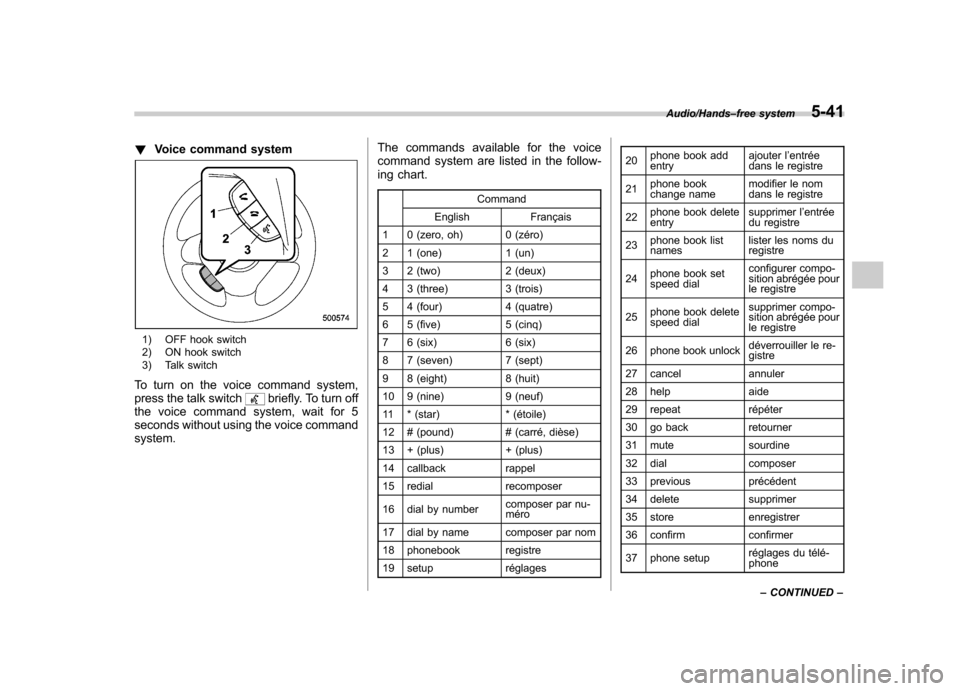
!Voice command system
1) OFF hook switch
2) ON hook switch
3) Talk switch
To turn on the voice command system,
press the talk switch
briefly. To turn off
the voice command system, wait for 5
seconds without using the voice commandsystem. The commands available for the voice
command system are listed in the follow-
ing chart.
Command
English Français
1 0 (zero, oh) 0 (zéro)
2 1 (one) 1 (un)
3 2 (two) 2 (deux)
4 3 (three) 3 (trois)
5 4 (four) 4 (quatre)
6 5 (five) 5 (cinq)
7 6 (six) 6 (six)
8 7 (seven) 7 (sept)
9 8 (eight) 8 (huit)
10 9 (nine) 9 (neuf)
11 * (star) * (étoile)
12 # (pound) # (carré, dièse)
13 + (plus) + (plus)
14 callback rappel
15 redial recomposer
16 dial by number composer par nu- méro
17 dial by name composer par nom
18 phonebook registre
19 setup réglages 20
phone book add entry ajouter l
’entrée
dans le registre
21 phone book
change name modifier le nom
dans le registre
22 phone book deleteentry supprimer l
’entrée
du registre
23 phone book listnames lister les noms duregistre
24 phone book set
speed dial configurer compo-
sition abrégée pour
le registre
25 phone book delete
speed dial supprimer compo-
sition abrégée pour
le registre
26 phone book unlock déverrouiller le re-gistre
27 cancel annuler
28 help aide
29 repeat répéter
30 go back retourner
31 mute sourdine
32 dial composer
33 previous précédent
34 delete supprimer
35 store enregistrer
36 confirm confirmer
37 phone setup réglages du télé- phone
Audio/Hands
–free system5-41
– CONTINUED –