2014 SKODA RAPID phone
[x] Cancel search: phonePage 80 of 200
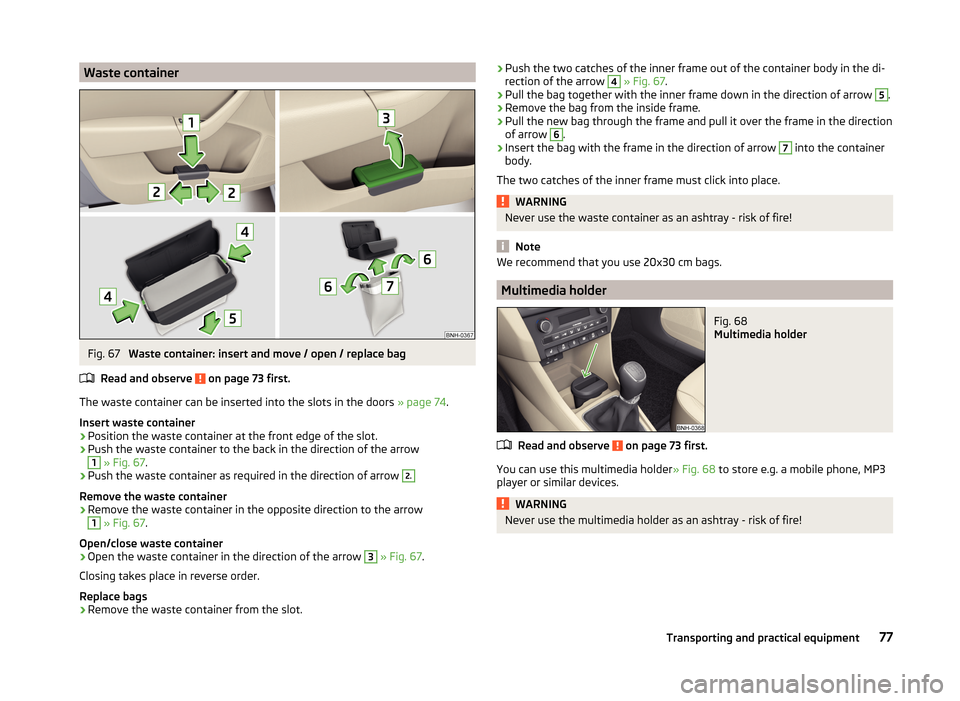
Waste containerFig. 67
Waste container: insert and move / open / replace bag
Read and observe
on page 73 first.
The waste container can be inserted into the slots in the doors » page 74.
Insert waste container
›
Position the waste container at the front edge of the slot.
›
Push the waste container to the back in the direction of the arrow
1
» Fig. 67 .
›
Push the waste container as required in the direction of arrow
2.
Remove the waste container
›
Remove the waste container in the opposite direction to the arrow
1
» Fig. 67 .
Open/close waste container
›
Open the waste container in the direction of the arrow
3
» Fig. 67 .
Closing takes place in reverse order.
Replace bags
›
Remove the waste container from the slot.
› Push the two catches of the inner frame out of the container body in the di-
rection of the arrow 4 » Fig. 67 .›
Pull the bag together with the inner frame down in the direction of arrow
5
.
›
Remove the bag from the inside frame.
›
Pull the new bag through the frame and pull it over the frame in the direction
of arrow
6
.
›
Insert the bag with the frame in the direction of arrow
7
into the container
body.
The two catches of the inner frame must click into place.
WARNINGNever use the waste container as an ashtray - risk of fire!
Note
We recommend that you use 20x30 cm bags.
Multimedia holder
Fig. 68
Multimedia holder
Read and observe on page 73 first.
You can use this multimedia holder » Fig. 68 to store e.g. a mobile phone, MP3
player or similar devices.
WARNINGNever use the multimedia holder as an ashtray - risk of fire!77Transporting and practical equipment
Page 83 of 200

Net pockets on the front seat restFig. 73
Meshed pocket
Read and observe on page 73 first.
The net pockets are used for storage of small and light objects, such as mobile
phones and the like.
The net pockets are located on the inner sides of the front seat backr-
ests » Fig. 73 .
WARNINGDo not exceed the maximum permissible load of the meshed pockets.
Heavy objects are not secured sufficiently – risk of injury!
CAUTION
■ The maximum permissible load of the meshed pockets is 150 g.■Never put large objects, e.g. bottles or objects with sharp edges into the
mesh pockets - risk of damaging the mesh pockets and seat coverings.
Luggage compartment
Introduction
This chapter contains information on the following subjects:
Fastening elements
81
Fixing nets
81
Hooks
82
Luggage compartment cover
82
“Parking position” of the boot cover
83
Storage compartment in the boot
83
Cargo elements
83Double-sided floor covering84Class N1 vehicles84
Please observe the following for the purpose of maintaining good handling
characteristics of your vehicle:
›
Distribute loads as evenly as possible.
›
Place heavy objects as far forward as possible.
›
Attach the items of luggage to the lashing eyes or by using the fixing
nets » page 81 .
In the event of an accident, even small and light objects gain so much kinetic
energy that they can cause severe injuries.
The magnitude of the kinetic energy is dependent on the speed at which the
vehicle is travelling and the weight of the object.
Example: In the event of a frontal collision at a speed of 50 km/h, an object
with a weight of 4.5 kg produces an energy, which corresponds to 20 times its
own weight. This means that it results in a weight of approx. 90 kg “ ”.
Luggage compartment light
The warning light turns on when tailgate is opened.
The warning light turns off when the tailgate is closed.
If the boot lid is open and the ignition switched off, the light will extinguish
automatically after around 10 minutes.
WARNING■ Always store transported objects in the boot and attach them to the lash-
ing eyes.■
Loose objects can be thrown forward during a sudden manoeuvre or in
case of an accident and can injure the occupants or other road users.
■
Loose objects could hit a deployed airbag and injure occupants – danger
of death!
■
Please note that transporting heavy objects alters the handling proper-
ties of the vehicle due to the displacement of the centre of gravity – risk of
accident! The speed and style of driving must be adjusted accordingly.
■
If the items of luggage or objects are attached to the lashing eyes with
unsuitable or damaged lashing straps, injuries can occur in the event of
braking manoeuvres or accidents. To prevent items of luggage from moving
around, always use suitable lashing straps that are firmly attached to the
lashing eyes.
80Using the system
Page 93 of 200

If you are not able to resolve the operational problem yourself, or if the cooler
output has reduced, switch off the cooling system and seek assistance from a
specialist garage.Communication and multimedia
Universal telephone installation GSM II
Introduction
This chapter contains information on the following subjects:
Introductory information
91
Phone Phonebook
91
Operating the phone on the multifunction steering wheel
92
Symbols in the display
93
Connecting the mobile phone to the hands-free system
93
Telephone operation in the MAXI DOT display
94
ŠKODA permits the operation of mobile phones and two-way radio systems
with a professionally installed external aerial and a maximum transmission
power of up to 10 watts.
Please consult a ŠKODA Partner for information about the possibility of instal-
ling and operating mobile phones and two-way radio systems with a transmis-
sion power of more than 10 W.
Operating mobile phones or two-way radio systems may interfere with the
functionality of the electronic systems in your vehicle.
This could be for the following reasons.
› no external aerial.
› external aerial incorrectly installed.
› transmission power greater than 10 watts.
WARNING■
Concentrate fully at all times on your driving! As the driver, you are fully
responsible for the operation of your vehicle.■
The national regulations for using a mobile phone in a vehicle must be
observed.
■
If a mobile phone or a two-way radio system is operated in a vehicle with-
out an external aerial or an external aerial which has been installed incor-
rectly, this can increase the strength of the electromagnetic field inside the
vehicle.
■
Two-way radio systems, mobile phones or mounts must not be installed
on airbag covers or within the immediate deployment range of the airbags.
90Using the system
Page 94 of 200

WARNING (Continued)■Never leave a mobile phone on a seat, on the dash panel or in any area
where it can become a projectile during a sudden braking manoeuvre, an
accident or a collision — risk of injury.■
The Bluetooth ®
function must be switched off by a specialist company
before the vehicle can be transported by air.
Note
■ We recommend that the installation of mobile phones and two-way radio
systems in a vehicle be carried out by a specialist garage.■
Not all mobile phones that enable Bluetooth ®
communication are compatible
with the universal telephone preinstallation GSM II. You can ask a ŠKODA Part- ner whether your telephone is compatible with the GSM II universal telephone
fitting.
■
The range of the Bluetooth ®
connection to the hands-free system is restric-
ted to the vehicle interior. The range is dependent on local factors, e.g. obsta-
cles between the devices and mutual interferences with other devices. If your
mobile phone is in a jacket pocket, for example, this can lead to difficulties
when establishing a connection with the hands-free-system or transferring
data.
Introductory information
Read and observe
on page 90 first.
The universal telephone preinstallation GSM II (hands-free system) includes a
convenience mode for the mobile phone via voice control, the multifunction
steering wheel, the radio or navigation system.
The universal telephone preinstallation GSM II comprises the following func-
tions.
› Phone Phonebook
» page 91.
› Convenience operation of the telephone via the multifunction steering
wheel » page 92 .
›Telephone operation in the MAXI DOT display
» page 94.
› Voice control of the telephone
» page 94.
› Music playback from the telephone or other multimedia units
» page 96.
All communication between a mobile phone and your vehicle's hands-free sys- tem is established with the help of Bluetooth ®
technology.
Phone Phonebook
Read and observe
on page 90 first.
A phone phonebook is part of the hands-free system. This phone phonebook
can be used depending on the type of mobile phone.
After the first connection of the telephone, the system begins to load the
phone book from the phone and the SIM card into the memory of the control
unit.
Each time the telephone has established a new connection with the hands-
free system, an update of the relevant phone book is performed. The updating
can take a few minutes. During this time the phone book, which was stored af-
ter the last update was completed, is available. Newly stored telephone num-
bers are only shown after the updating has ended.
The update is interrupted if a telephone event (e.g. incoming or outgoing call,
voice control dialogue) occurs during the updating procedure. After the tele-
phone event has ended, the updating starts anew.
The internal phonebook provides 2 500 free memory locations. Each contact
can contain up to 4 numbers.
If the number of contacts loaded exceeds 2 500, the phone book is not com-
plete.
91Communication and multimedia
Page 95 of 200

Operating the phone on the multifunction steering wheelFig. 87
Multifunction steering wheel: Control buttons for the telephone
Read and observe
on page 90 first.
To minimize driver distraction when operating the telephone, the basic tele-
phone's functions can be set by simply operating the buttons located on the
steering wheel » Fig. 87.
This applies only if your vehicle has been equipped with the universal tele-
phone installation at the factory.
The buttons control the functions for the operating mode of the current tele-
phone.
If the side lights are switched on, the buttons on the multifunction steering
wheel are illuminated.Button/
wheel » Fig. 87ActionOperation1Press briefly(MUTE )1Turn upwardsIncrease volume1Turn downwardsDecrease volume2Press brieflyAccept a call/end a call
Display of the basic Phone menu → a)
Main Phone menu → List of dialled numbers → Call selected contact2Press and hold buttonReject the incoming call3Turn up/downPrevious / next menu item3Press brieflyConfirm selected menu item3Press and hold buttonContinuously display first letter of the phone book3Quickly turn upwardsTo the previous initial letter in the telephone book3Quickly turn downwardsTo the next initial letter in the telephone book4Press brieflyReturn to a previous level in the menu4Press and hold buttonExit telephone menua)
The symbol The → symbol means briefly press button again.
92Using the system
Page 96 of 200

Symbols in the displayRead and observe
on page 90 first.
The following symbols are displayed in the MAXI DOT display:
SymbolMeaningCharge status of the telephone battery a)Signal strengtha)a phone is connected to the hands-free system.The hands-free system is visible to other devices.A multimedia unit is connected to the hands-free system.a)
This function is only supported by some mobile phones.
Connecting the mobile phone to the hands-free system
Read and observe
on page 90 first.
To connect a mobile phone with the hands-free system, the two devices mustbe paired. Detailed information on this is provided in the operating instructions
for your mobile phone.
The following steps must be carried out for pairing 1)
.
›
Activate Bluetooth ®
and the visibility of your mobile phone on your tele-
phone.
›
Switch on the ignition.
›
Select the Phone - New user menu in the MAXI DOT display and wait until
the hands-free system has completed the search.
›
Select the phone you wish to connect from the list of units found.
›
Confirm the PIN 2)
.
›
If the hands-free system announces (as standard SKODA_BT) on the display
of the mobile phone, enter the PIN 2)
within 30 seconds and wait, until the
connection is established 3)
.
› To finish pairing in the MAXI DOT display, confirm the creation of the new
user profile.
If there is no free space available to create a new user profile, delete an exist- ing user profile.
During the connecting procedure, no other mobile phone may be connected
with the hands-free system.
Up to four mobile phones can be paired with the hands-free system, whereby
only one mobile phone can communicate with the hands-free system.
The visibility of the hands-free system is automatically switched off 3 minutes
after the ignition is switched on and is also deactivated when the mobile
phone has connected to the hands-free system.
Restoring the visibility of the hands-free system
If you have not managed to connect your mobile phone with the hands-free
system within 3 minutes of switching on the ignition, the visibility of the
hands-free system can be re-established for 3 minutes in one of the following
ways.
› By turning the ignition off and on.
› By turning voice control off and on.
› In the MAXI DOT display under menu item
Bluetooth - Visibility .
Creating a connection with an already paired mobile phone
After switching on the ignition, the connection is automatically established for
the already paired mobile phone 3)
. Check on your mobile phone if the automat-
ic connection has been established.
Disconnecting the connection
The connection to a connected mobile phone can be ended in the following
ways.
› By withdrawing the ignition key.
› By disconnecting the hands-free system in the mobile phone.
› By disconnecting from the user in the MAXI DOT display under the menu item
Bluetooth - User . 1)
On vehicles fitted with the Amundsen+ navigation system, this function can be accessed via the naviga-
tion system menu; refer to the » operating instructions for the Amundsen+ navigation system .
2)
Depending on the Bluetooth®
version on the mobile phone, an automatically generated 6-digit PIN (SSP)
is either displayed, or the PIN 1234 has to be entered manually.
3)
Some mobile phones have a menu, in which the authorisation for establishing a Bluetooth ®
connection
is completed by inputting a PIN number. If the authorisation input is required, it must always be per-
formed when re-establishing the Bluetooth connection.
93Communication and multimedia
Page 97 of 200

Solving connection problems
If the hands-free system reports No paired phone found, check the operating
status of the mobile phone.
› Is the mobile phone switched on?
› Is the PIN code entered?
› Is Bluetooth ®
active?
› Is the visibility of the mobile phone active?
› Has the mobile phone already been paired with the hands-free system?
Telephone operation in the MAXI DOT display
Read and observe
on page 90 first.
The following menu items can be selected from the Phone menu.
› Phone book
› Dial number 1)
› Call register
› Voice mailbox
› Bluetooth 1)
› Settings 2)
› Back
Phone book
The Phone book menu item lists the contacts downloaded from the telephone
memory and the mobile phone SIM card.
Dial number
Any telephone number can be entered in the Dial number menu item. The re-
quired numbers must be selected one after the other using adjustment wheel
and confirmed by pressing the adjustment wheel. You can select digits 0 - 9,
symbols ,
, # and the Cancel, Call and Delete functions.
Call register
The following menu items can be selected in the Call register menu item.
■ Missed calls
■ Dialled numbers
■ Received calls
Voice mailbox
In the Voice mailbox menu item, you can set the number of the voice mailbox 1)
and then dial the number.
Bluetooth
The following menu items can be selected from the Bluetooth menu item.
■ User - Overview of the stored telephones
■ New user - Search for new mobile phones that are in the reception range
■ Visibility - Switches on the visibility of the hands-free system for other devi-
ces
■ Media player - Playback via Bluetooth ®
■ Active device - Connected device
■ Paired devices - List of paired devices
■ Find - Device search
■ Phone name - option to change the name of the phone (default SKODA_BT)
Settings
The following menu items can be selected from the Settings menu item.
■ Phone book - Phonebook
■ Update - Update the phone book 1)
■ List - Arrange the entries in the phone book
■ Surname - Arrange according to surname
■ Surname - Sort by contact name
■ Ring tone - Ring tone setting
Back
Return in the Start menu of the telephone.
Voice control
Introduction
This chapter contains information on the following subjects:
Dialogue
95
Voice commands
951)
On vehicles fitted with the Amundsen+ navigation system, this function can be accessed via the naviga-
tion system menu; refer to the » operating instructions for the Amundsen+ navigation system .
2)
This function is not available in vehicles fitted with the Amundsen+ navigation system.
94Using the system
Page 98 of 200

DialogueFig. 88
Multifunction steering wheel:
Voice control
The period of time during which the system is ready to receive voice com-
mands and to carry them out is called "dialogue". The system gives audible
feedback and guides you through the relevant functions if necessary.
Optimum understanding of the voice commands depends on several factors. › Speak at a normal volume without intonation or excessive pauses.
› Avoid poor pronunciation.
› Close the doors, windows and sliding roof in order to reduce or eliminate dis-
turbing noise from outside.
› It is recommended to speak louder at higher speeds, so that your voice is
louder than the increased surrounding noise.
› During the dialogue, limit background noise in the vehicle, e.g. passengers
talking at the same time.
› Do not speak when the system is making an announcement.
The microphone for voice control is housed in the moulded headliner and di-
rected towards the driver and front passenger. Therefore, the driver and the
front passenger can operate the equipment.
Entering a phone number
The telephone number can be entered as a continuous sequence of numbers
spoken one after the other (the whole number at once) or in the form of digit
blocks (separated by short pauses). After each string of digits (separated by a
brief pause in speaking), all of the digits detected up to now are repeated by
the system.
The digits 0-9 and symbols +,
, #
are permitted. The system does not recog-
nize any combination of connected numbers, e.g. "twenty-three".
Switching on voice control
Briefly press the button
1
» Fig. 88 on the multifunction steering wheel.
Switching off voice control
If the system is currently playing a message, the message that is currently be-
ing played must be terminated by briefly pressing button 1
» Fig. 88 on the
multifunction steering wheel.
If the system is expecting a voice command, you can end the dialogue yourself
as follows.
› With the
CANCEL voice command.
› Briefly press the button
1
» Fig. 88 on the multifunction steering wheel.
Note
■
The dialogue is immediately terminated in the event of an incoming call.■The voice control is only possible in vehicles fitted with a multifunction
steering wheel with telephone control.
Voice commands
Basic voice commands
Voice commandActionHELPAfter this command the system repeats all possible
commands.CALL XYZThis command calls up the contact from the phone
book.PHONE BOOKAfter this command, for example, the phone book
can be repeated back to you, a voice entry for the
contact can be updated or deleted, etc.CALL HISTORYLists of dialled numbers, missed calls, etc.DIAL NUMBERAfter this command, a telephone number can be
entered to establish a connection with the reques-
ted party.REDIALAfter this command the system calls the last dial-
led number.MUSIC a)Play music from the mobile phone or another
paired device.FURTHER OPTIONSAfter this command the system offers additional
context-dependent commands. 95Communication and multimedia