2014 SKODA OCTAVIA cruise control
[x] Cancel search: cruise controlPage 5 of 50
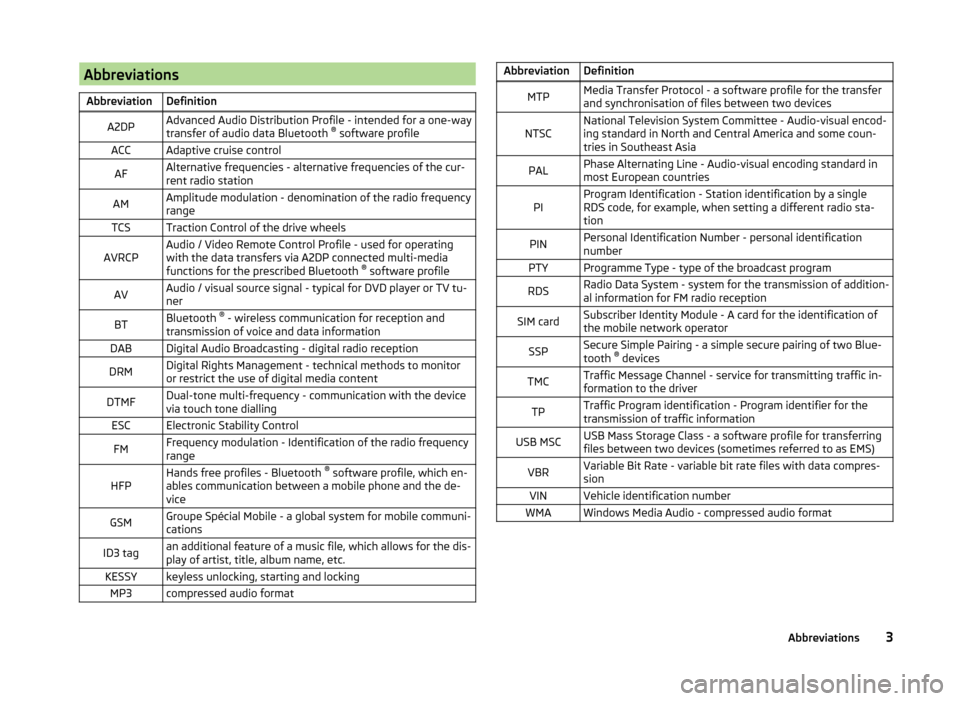
AbbreviationsAbbreviationDefinitionA2DPAdvanced Audio Distribution Profile - intended for a one-way
transfer of audio data Bluetooth ®
software profileACCAdaptive cruise controlAFAlternative frequencies - alternative frequencies of the cur-
rent radio stationAMAmplitude modulation - denomination of the radio frequency
rangeTCSTraction Control of the drive wheelsAVRCPAudio / Video Remote Control Profile - used for operating
with the data transfers via A2DP connected multi-media
functions for the prescribed Bluetooth ®
software profileAVAudio / visual source signal - typical for DVD player or TV tu-
nerBTBluetooth ®
- wireless communication for reception and
transmission of voice and data informationDABDigital Audio Broadcasting - digital radio receptionDRMDigital Rights Management - technical methods to monitor
or restrict the use of digital media contentDTMFDual-tone multi-frequency - communication with the device
via touch tone diallingESCElectronic Stability ControlFMFrequency modulation - Identification of the radio frequency
rangeHFPHands free profiles - Bluetooth ®
software profile, which en-
ables communication between a mobile phone and the de-
viceGSMGroupe Spécial Mobile - a global system for mobile communi-
cationsID3 tagan additional feature of a music file, which allows for the dis-
play of artist, title, album name, etc.KESSYkeyless unlocking, starting and lockingMP3compressed audio formatAbbreviationDefinitionMTPMedia Transfer Protocol - a software profile for the transfer
and synchronisation of files between two devicesNTSCNational Television System Committee - Audio-visual encod-
ing standard in North and Central America and some coun-
tries in Southeast AsiaPALPhase Alternating Line - Audio-visual encoding standard in
most European countriesPIProgram Identification - Station identification by a single
RDS code, for example, when setting a different radio sta-
tionPINPersonal Identification Number - personal identification
numberPTYProgramme Type - type of the broadcast programRDSRadio Data System - system for the transmission of addition-
al information for FM radio receptionSIM cardSubscriber Identity Module - A card for the identification of
the mobile network operatorSSPSecure Simple Pairing - a simple secure pairing of two Blue-
tooth ®
devicesTMCTraffic Message Channel - service for transmitting traffic in-
formation to the driverTPTraffic Program identification - Program identifier for the
transmission of traffic informationUSB MSCUSB Mass Storage Class - a software profile for transferring
files between two devices (sometimes referred to as EMS)VBRVariable Bit Rate - variable bit rate files with data compres-
sionVINVehicle identification numberWMAWindows Media Audio - compressed audio format3Abbreviations
Page 40 of 50

■Engine: - Set the engine (drive) characteristics
■ Normal - Normal
■ Sport - Sports
■ Eco - Economical
■ ACC: - Set the vehicle acceleration when adaptive cruise control is activa-
ted
■ Normal - Normal
■ Sport - Sports
■ Eco - Economical
■ Cornering light: - Set the characteristics of the adaptive headlights
■ Normal - Normal
■ Sport - Sports
■ Eco - Economical
■ Air conditioning - Sets the characteristics of Climatronic
■ Normal - Normal
■ Eco - Economical
■ Reset mode - Setting for all menu items in the Individual mode to Normal
■ Cancel - Keep the current settings
■ Reset - Set all menu items to Normal
Note
If you do not operate the unit for longer than approx. 10 seconds in the "Select
driving mode" menu, it will switch to the last selected menu or switch itself off.
Vehicle data
Fig. 21
Travel data / vehicle status
Fig. 22
Tyre Press. Loss Indicator - Dis-
play example: Check the right
rear tyre and its filling pressure
Call up the main menu
›
Press the button
→
.
Displaying vehicle data » Fig. 21
Distance travelled
Driving time
Average speed
Average fuel consumption
Approximate range 1)
Range (if the estimated range is less than 300 km, the vehicle starts to ap-
proach the symbol )
Vehicle representation (the zones of the vehicle are shown in different
colours, corresponding to any warning messages that occur. The warning
messages are displayed once you touch vehicle)
■ Driving data - Display travel data
You can display one of three trip memories on the screen » Fig. 21.
■ Since start - Driving data for the individual trip
■ Long-term - Long-term driving data
■ Since refuelling - Data since last refuelling
Switching between the individual driving data storage locations can be done
by using the function keys
.
ABCDEFG1)
For vehicles with CNG drive the approximate range with gasoline and CNG is displayed separately.
38Vehicle systems
Page 42 of 50

■ACC (adaptive cruise control) - Sets the adaptive cruise control
■ Driving program: - Set the vehicle acceleration when adaptive cruise con-
trol is activated 1)
■ Normal - Normal
■ Sport - Sports
■ Eco - Economical
■ Last distance selected - Switch last selected distance on/off
■ Distance: - Set the distance monitoring to the vehicles ahead
■ Very close - Very small distance
■ Close - Small distance
■ Medium - Medium distance
■ Far - Large distance
■ Very far - Very large distance
■ Front Assist - Sets the assistant for monitoring the distance to the vehicles
ahead
■ Active - Activate/deactivate the assistant
■ Advance warning - Activate/deactivate advance warning
■ Display distance warning - Activate/deactivate distance warnings
■ Lane Assist - Settings for Lane Assist
■ Active - Activate/deactivate the assistant
■ Adaptive lane guidance - Activate/deactivate adaptive lane guidance
■ Driver Alert System - Activate/deactivate the driver alert system
■ Proactive pass. protection - Activate/deactivate proactive passenger protec-
tion
Parking and manoeuvring
Fig. 24
Display of optical parking aid
Parking sensors - function keys and obstacle warning » Fig. 24
Change to rear-view camera display
Switch off the optical parking aid Enabling or disabling the audible parking aid
Message: Look! Safe to move?
An obstacle in the lane which is currently outside of the collision area is
shown by the yellow segment
a detected obstacle in the collision region is represented by the red seg-
ment
Do not continue driving in the direction of an obstacle!
An area without detected obstacles is shown as a transparent segment An obstacle in the sensor range which lies outside of the collision area is
shown by the white segment
there is a system error (there is no indication of any obstacles)›
Press the button
→
→ Parking and manoeuvring .
■ ParkPilot - Settings for the parking aid
■ Active - Activate/deactivate the parking aid
■ Activate automatically - Activate/deactivate the compact parking aid dis-
play (when driving forward)
■ Front volume - Adjust the volume of the beeps for obstacle detection in
front
■ Front tone setting - Setting the pitch of the beeps for obstacle detection in
front
■ Rear volume - Set the volume level of the beeps for the rear obstacle de-
tection
■ Rear tone setting - Setting the pitch of the beeps for the rear obstacle de-
tection
■ Lower. entertain. - lowering the volume of the speakers (audio)
Note
The compact display of the parking aid can be switched to a full screen view by
touching the screen within the display.
Light
›
Press the button
→
→ Light .
ABCDE1)
This can be set in the menu on vehicles with a travel mode option » page 37, Selection of travel mode
(Driving Mode Selection) .
40Vehicle systems