Page 296 of 404
294
07
MEDIA
2ABC3DEF5JKL4GHI6MNO8TU V7PQRS9WXYZ0*#
1RADIOM EDIA NA
V ESC TRAFFIC
SETUPADDR
BOOK
2AB C3DEF5JKL4GHI6MNO8TUV7PQR S9WXYZ0*#
1RADIO MEDIA NA
V TRAFFIC
SETUPADDR
BOOK
2ABC3DEF5JKL4GHI6MNO8TUV7PQR S9WXYZ0*#
1RADIO MEDIA NA
V TRAFFIC
SETUPADDR
BOOK
2ABC3DEF5JKL4GHI6MNO8TUV7PQR S9WXYZ0*#
1RADIO MEDIA NA
V TRAFFIC
SETUPADDR
BOOK
2ABC3DEF5JKL4GHI6MNO8TUV7PQR S9WXYZ0*#
1RADIO MEDIA NA
V TRAFFIC
SETUPADDR
BOOK
2ABC3DEF5JKL4GHI6MNO8TUV7PQR S9WXYZ0*#
1RADIO MEDIA NA
V TRAFFIC
SETUPADDR
BOOK
2ABC3DEF5JKL4GHI6MNO8TUV7PQR S9WXYZ0*#
1RADIO MEDIA NA
V TRAFFIC
SETUPADDR
BOOK
2ABC3DEF5JKL4GHI6MNO8TUV7PQR S9WXYZ0*#
1RADIO MEDIA NA
V TRAFFIC
SETUPADDR
BOOK
RADIO NA
V TRAFFICMEDIA
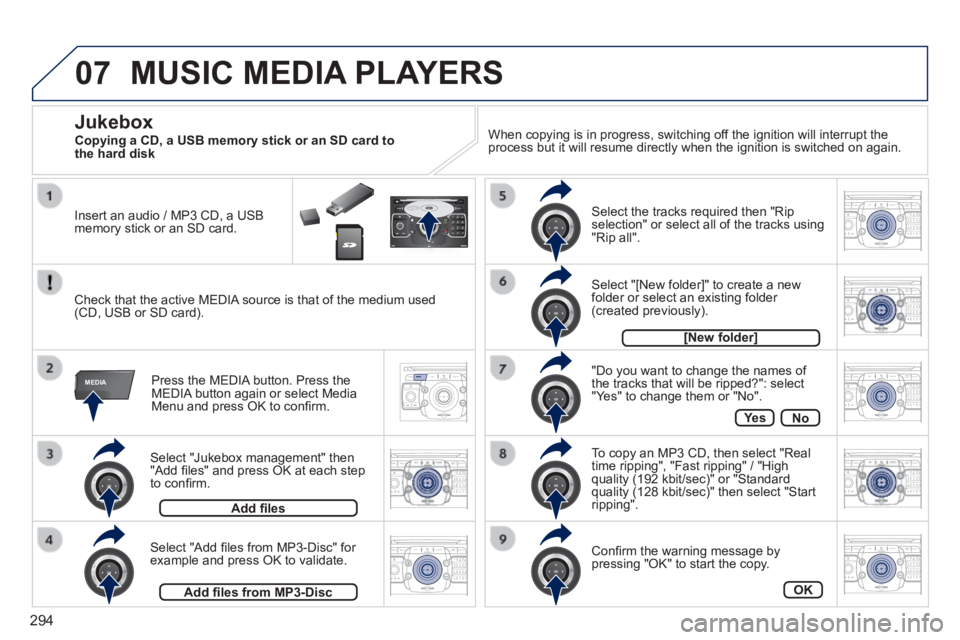
Select "Jukebox management" then "Add fi les" and press OK at each step to confi rm.
Press the MEDIA button. Press the MEDIA button again or select Media Menu and press OK to confi rm.
Insert an audio / MP3 CD, a USB memory stick or an SD card.
Jukebox
Add fi les
Check that the active MEDIA source is that of the medium used (CD, USB or SD card).
Select "Add fi les from MP3-Disc" for example and press OK to validate.
Select the tracks required then "Rip selection" or select all of the tracks using "Rip all".
Select "[New folder]" to create a new folder or select an existing folder (created previously).
Add fi les from MP3-Disc
[New folder]
"Do you want to change the names of the tracks that will be ripped?": select "Yes" to change them or "No".
To copy an MP3 CD, then select "Real time ripping", "Fast ripping" / "High quality (192 kbit/sec)" or "Standard quality (128 kbit/sec)" then select "Start ripping".
Confi rm the warning message by pressing "OK" to start the copy.
OK
Ye sNo
When copying is in progress, switching off the ignition will interrupt the process but it will resume directly when the ignition is switched on aga\
in.
MUSIC MEDIA PLAYERS
Copying a CD, a USB memory stick or an SD card to the hard disk
Page 304 of 404
302
09
MEDIA
TRAFFIC
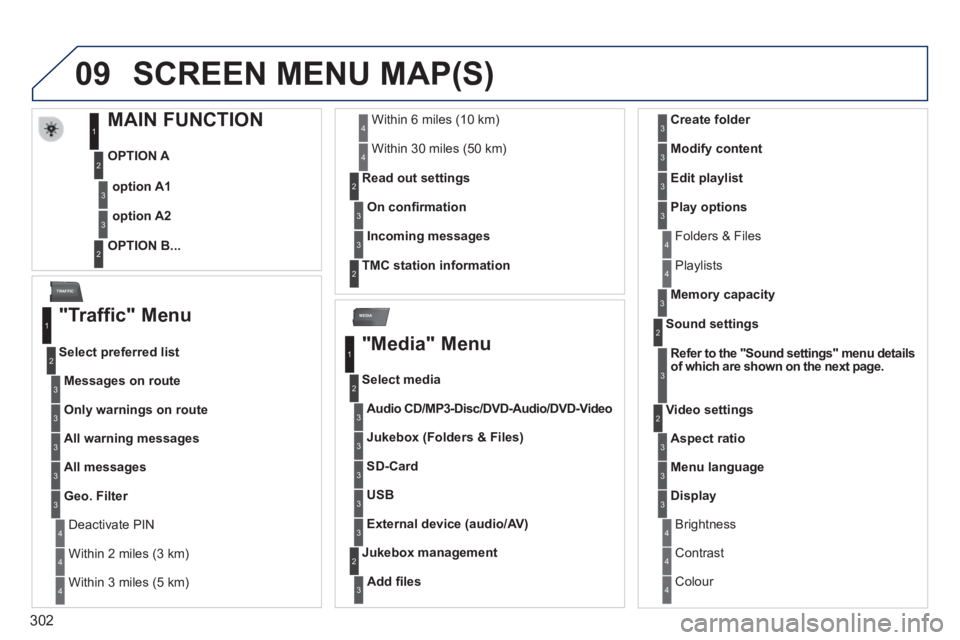
SCREEN MENU MAP(S)
MAIN FUNCTION
OPTION A
OPTION B...
option A1
option A2
1
2
3
2
3
"Traffic" Menu
Messages on route
Select preferred list
1
2
3
Deactivate PIN 4
Only warnings on route3
All warning messages3
All messages3
Geo. Filter3
Within 2 miles (3 km) 4
Within 3 miles (5 km) 4
Within 6 miles (10 km) 4
Within 30 miles (50 km) 4
On confi rmation
Read out settings 2
3
Incoming messages3
TMC station information 2
"Media" Menu
Audio CD/MP3-Disc / Audio CD/MP3-Disc / Audio CD/MP3-DiscDVD-Audio / DVD-Audio / DVD-AudioDVD-Video
Select media
1
2
3
Jukebox (Folders & Files)3
SD-Card3
USB3
External device (audio/AV)3
Add fi les
Jukebox management 2
3
Folders & Files 4
Create folder3
Modify content3
Edit playlist3
Play options3
Playlists 4
Memory capacity3
Refer to the "Sound settings" menu details of which are shown on the next page.
Sound settings 2
3
Aspect ratio
Video settings 2
3
Menu language3
Display3
Brightness 4
Contrast 4
Colour 4
Page 313 of 404
3 11
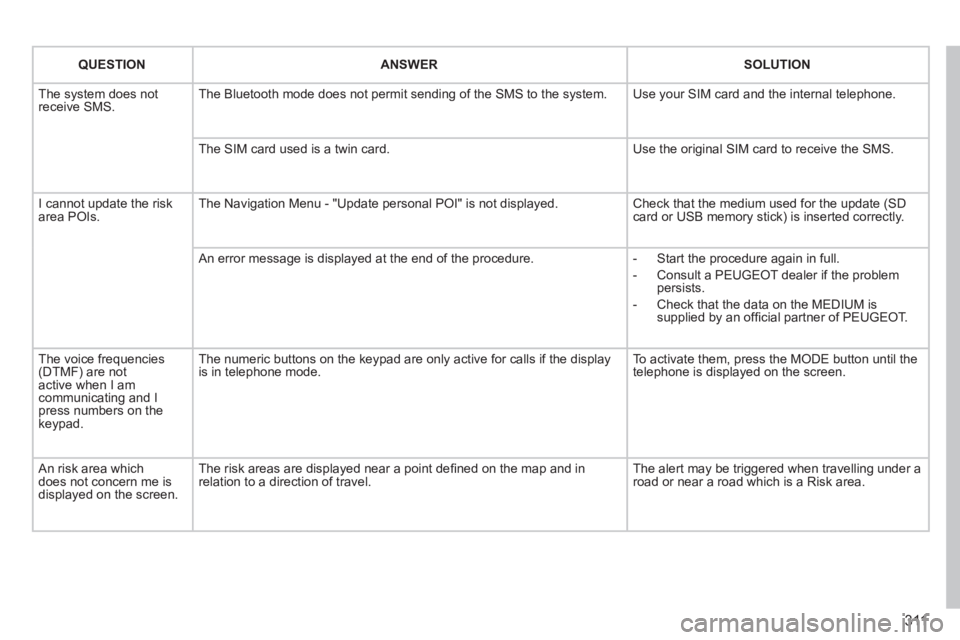
QUESTIONANSWERSOLUTION
The system does not receive SMS. The Bluetooth mode does not permit sending of the SMS to the system. Use your SIM card and the internal telephone.
The SIM card used is a twin card. Use the original SIM card to receive the SMS.
I cannot update the risk area POIs. The Navigation Menu - "Update personal POI" is not displayed. Check that the medium used for the update (SD card or USB memory stick) is inserted correctly.
An error message is displayed at the end of the procedure. - Start the procedure again in full.
- Consult a PEUGEOT dealer if the problem persists.
- Check that the data on the MEDIUM is supplied by an offi cial partner of PEUGEOT.
The voice frequencies (DTMF) are not active when I am communicating and I press numbers on the keypad.
The numeric buttons on the keypad are only active for calls if the displ\
ay is in telephone mode. To activate them, press the MODE button until the telephone is displayed on the screen.
An risk area which does not concern me is displayed on the screen.
The risk areas are displayed near a point defi ned on the map and in relation to a direction of travel. The alert may be triggered when travelling under a road or near a road which is a Risk area.
Page 317 of 404
315
01
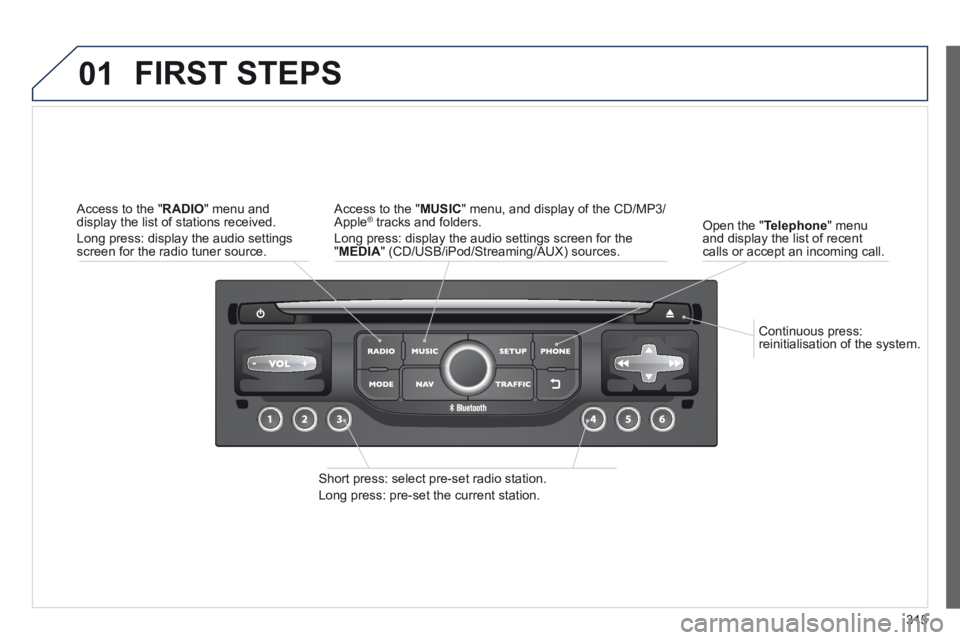
Continuous press: reinitialisation of the system.
Open the " Telephone " menu and display the list of recent calls or accept an incoming call.
FIRST STEPS
Short press: select pre-set radio station.
Long press: pre-set the current station.
Access to the " MUSIC " menu, and display of the CD/MP3/Apple ® tracks and folders. ® tracks and folders. ®
Long press: display the audio settings screen for the " MEDIA " (CD/USB/iPod/Streaming/AUX) sources.
Access to the " RADIO " menu and display the list of stations received.
Long press: display the audio settings screen for the radio tuner source.
Page 320 of 404
318
03
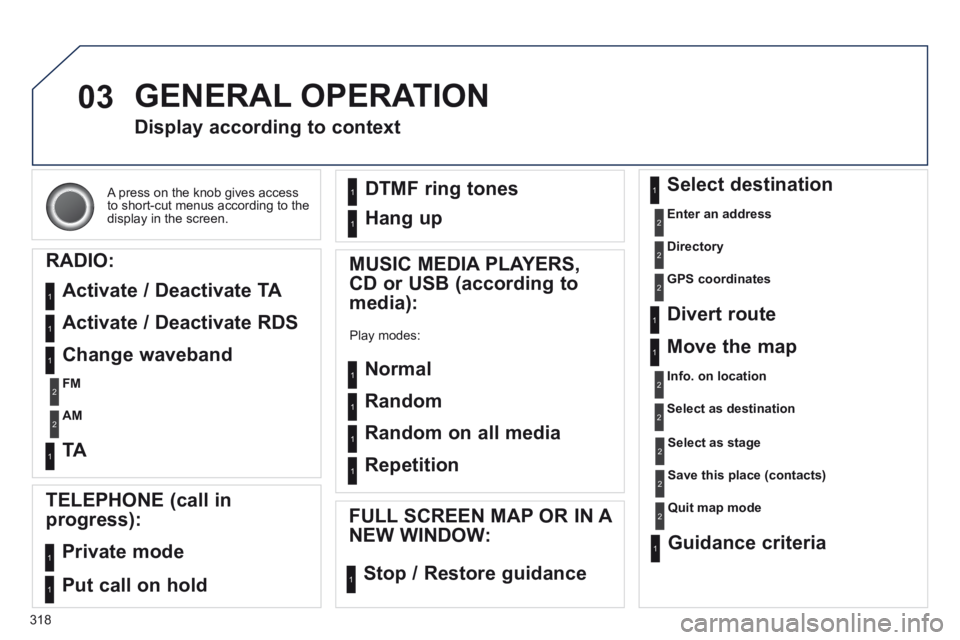
A press on the knob gives access to short-cut menus according to the display in the screen.
Display according to context
RADIO:
Activate / Deactivate TA
Activate / Deactivate RDS
MUSIC MEDIA PLAYERS,
CD or USB (according to
media):
Play modes:
Normal
Random
Random on all media
Repetition
TELEPHONE (call in
progress):
Private mode
FULL SCREEN MAP OR IN A
NEW WINDOW:
Stop / Restore guidance
Select destination
Enter an address
Directory
GPS coordinates
Divert route
Move the map
Info. on location
Select as destination
Select as stage
Save this place (contacts)
Quit map mode
Guidance criteria
Put call on hold
DTMF ring tones
Hang up
1
1
1
1
1
1
1
1
2
2
2
2
2
1
2
2
2
1
1
1
1
1
1
Change waveband
FM
AM
2
2
1
TA 1
GENERAL OPERATION
Page 336 of 404
334
05
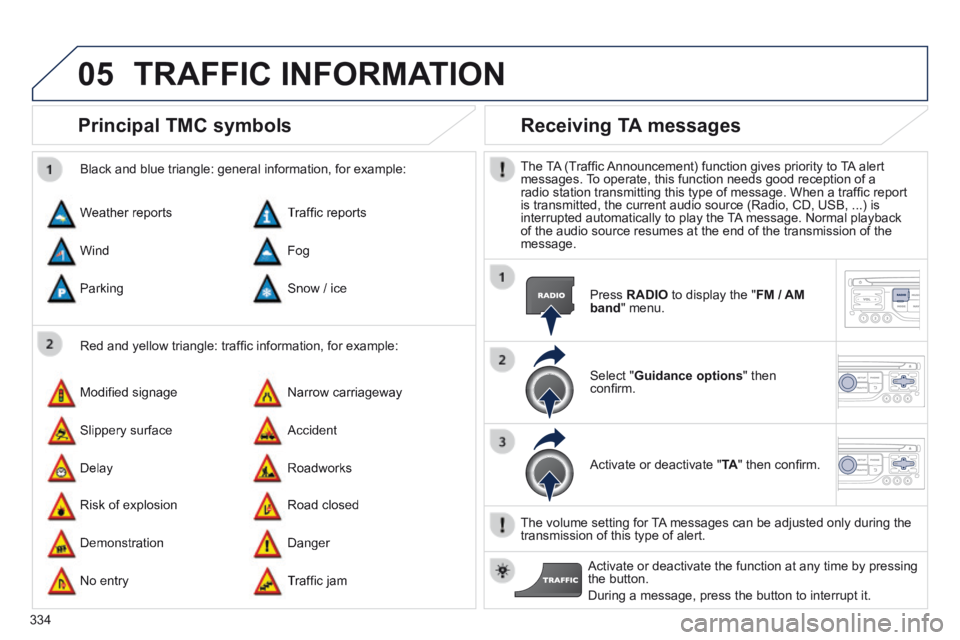
Principal TMC symbols
Red and yellow triangle: traffi c information, for example:
Black and blue triangle: general information, for example:
Weather reports
Modifi ed signage
Risk of explosion
Traffi c reports
Narrow carriageway
Road closed
Wind
Slippery surface
Demonstration
Fog
Accident
Danger
Parking
Delay
No entry
Snow / ice
Roadworks
Traffi c jam
Receiving TA messages
The TA (Traffi c Announcement) function gives priority to TA alert messages. To operate, this function needs good reception of a radio station transmitting this type of message. When a traffi c report is transmitted, the current audio source (Radio, CD, USB, ...) is interrupted automatically to play the TA message. Normal playback of the audio source resumes at the end of the transmission of the message.
Press RADIO to display the " FM / AM band " menu.
Select " Guidance options " then confi rm.
Activate or deactivate " TA " then confi rm.
The volume setting for TA messages can be adjusted only during the transmission of this type of alert.
Activate or deactivate the function at any time by pressing the button.
During a message, press the button to interrupt it.
TRAFFIC INFORMATION
Page 350 of 404
348
08
" " " " " " " " " " " " " " " " " " " MEDIAMEDIAMEDIAMEDIAMEDIAMEDIAMEDIAMEDIAMEDIAMEDIAMEDIAMEDIAMEDIAMEDIAMEDIAMEDIAMEDIAMEDIAMEDIA " " " " " " " " " " " " " " " " " " "
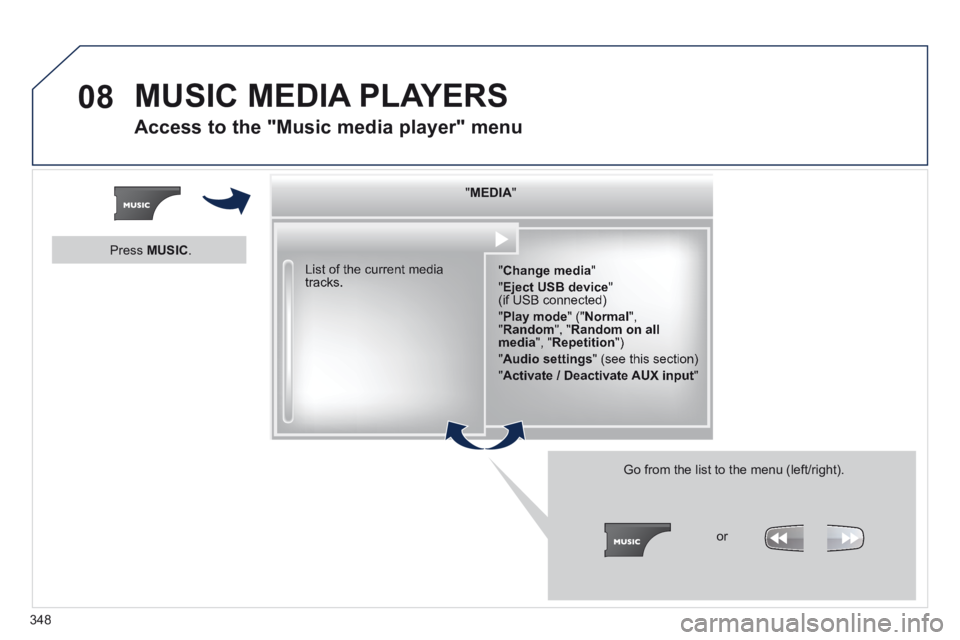
" Change media "
" Eject USB device " (if USB connected)
" Play mode " (" Normal ", " Random ", " Random on all media ", " Repetition ")
" Audio settings " (see this section)
" Activate / Deactivate AUX input "
List of the current media tracks.
Go from the list to the menu (left/right).
or
Press MUSIC .
MUSIC MEDIA PLAYERS
Access to the "Music media player" menu
Page 351 of 404
349
08
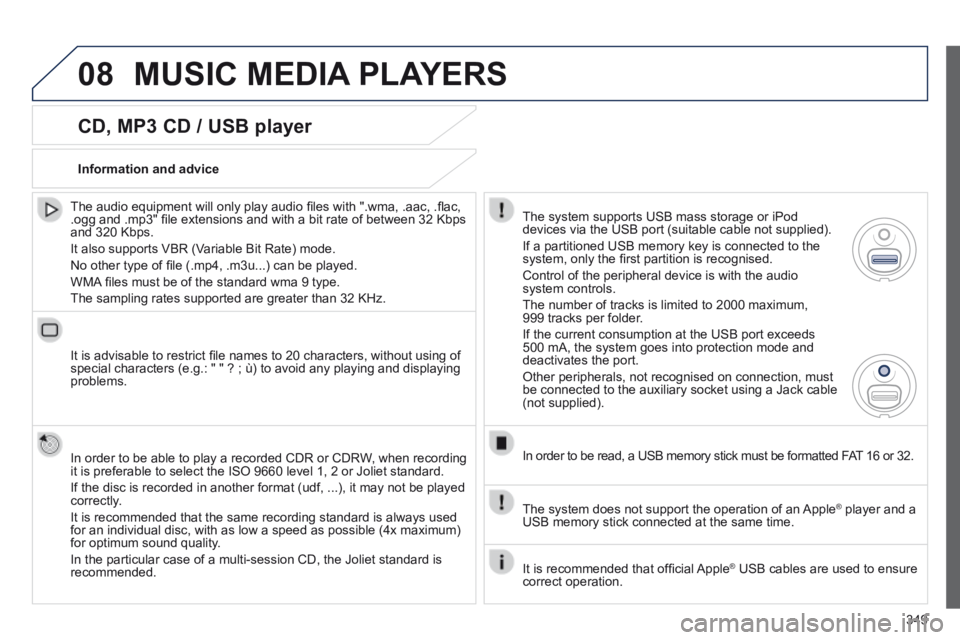
CD, MP3 CD / USB player
The audio equipment will only play audio fi les with ".wma, .aac, .fl ac, .ogg and .mp3" fi le extensions and with a bit rate of between 32 Kbps and 320 Kbps.
It also supports VBR (Variable Bit Rate) mode.
No other type of fi le (.mp4, .m3u...) can be played.
WMA fi les must be of the standard wma 9 type.
The sampling rates supported are greater than 32 KHz.
It is advisable to restrict fi le names to 20 characters, without using of special characters (e.g.: " " ? ; ù) to avoid any playing and displ\
aying problems.
In order to be able to play a recorded CDR or CDRW, when recording it is preferable to select the ISO 9660 level 1, 2 or Joliet standard.
If the disc is recorded in another format (udf, ...), it may not be pl\
ayed correctly.
It is recommended that the same recording standard is always used for an individual disc, with as low a speed as possible (4x maximum) for optimum sound quality.
In the particular case of a multi-session CD, the Joliet standard is recommended.
Information and advice
The system supports USB mass storage or iPod devices via the USB port (suitable cable not supplied).
If a partitioned USB memory key is connected to the system, only the fi rst partition is recognised.
Control of the peripheral device is with the audio system controls.
The number of tracks is limited to 2000 maximum, 999 tracks per folder.
If the current consumption at the USB port exceeds 500 mA, the system goes into protection mode and deactivates the port.
Other peripherals, not recognised on connection, must be connected to the auxiliary socket using a Jack cable (not supplied).
In order to be read, a USB memory stick must be formatted FAT 16 or 32.
The system does not support the operation of an Apple ® player and a ® player and a ®
USB memory stick connected at the same time.
It is recommended that offi cial Apple ® USB cables are used to ensure ® USB cables are used to ensure ®
correct operation.
MUSIC MEDIA PLAYERS