Page 208 of 372
Audio main operation
To switch to the Bluetooth® audio mode, press
the AUX button repeatedly until the Bluetooth®
audio mode is displayed on the screen.
The controls for the Bluetooth® audio are dis-
played on the screen.
PANDORA® AUDIO (if so equipped)
The vehicle’s audio system is capable of playing
audio streaming through a compatible, USB-
connected audio device using the Pandora® mu-
sic service.
Connecting a device for use with
Pandora® audio
Devices capable of streaming Pandora® audio
can be connected to the vehicle’s audio system
via the USB input jack. The USB input jack is
located in the center console.
Launch the Pandora® application on the phone
and then connect with the USB jack. Once con-
nected, the Pandora® controls will be displayed
on the control panel display screen.
Compatibility
The following iPhone® models are compatible
with the system:● iPhone® 3GS
● iPhone® 4
● iPhone® 4S
● iPhone® 5
The latest Pandora® application should be in-
stalled on the phone.
Audio main operation
To switch to the Pandora® audio mode, press
the AUX button repeatedly until the Pandora®
audio mode is displayed on the screen.
The controls for the Pandora® audio are dis-
played on the screen. Touch the keys on the
screen to play or pause the audio. Touch
the
key to select “thumbs up” or thekey to select “thumbs down”.
LHA2269
Monitor, climate, audio, phone and voice recognition systems4-65
Page 209 of 372
NOTE:
There is a limit of six skips per station per
hour. If a “
” (thumbs down) is given
after the skip limit has been reached, the
current track will continue to play but the
feedback will be saved.
Pandora® audio settings
To adjust the Pandora® audio settings, select the
“Menu” key.
● Station List
Select to display a list of available Pandora®
stations.
● Bookmark
Select to bookmark the current station.
● Delete Station
Select to remove the current station.
CD CARE AND CLEANING
● Handle a CD by its edges. Do not bend the
disc. Never touch the surface of the disc.
● Always place the discs in the storage case
when they are not being used.
● To clean a disc, wipe the surface from the
center to the outer edge using a clean, soft
cloth. Do not wipe the disc using a circular
motion.
● Do not use a conventional record cleaner or
alcohol intended for industrial use.
LHA2270LHA0049
4-66Monitor, climate, audio, phone and voice recognition systems
Page 218 of 372
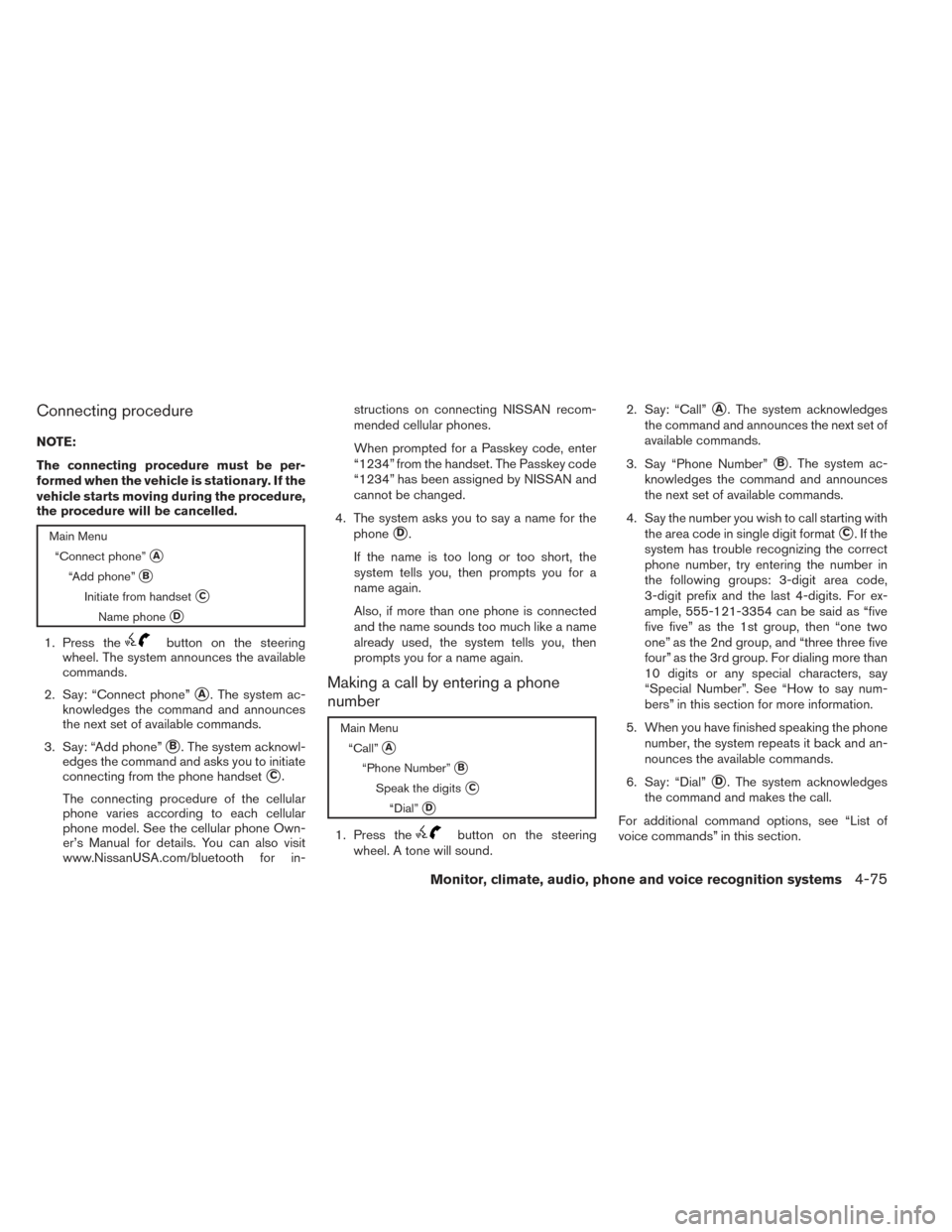
Connecting procedure
NOTE:
The connecting procedure must be per-
formed when the vehicle is stationary. If the
vehicle starts moving during the procedure,
the procedure will be cancelled.
Main Menu“Connect phone”
�A
“Add phone”�B
Initiate from handset�C
Name phone�D
1. Press thebutton on the steering
wheel. The system announces the available
commands.
2. Say: “Connect phone”
�A. The system ac-
knowledges the command and announces
the next set of available commands.
3. Say: “Add phone”
�B. The system acknowl-
edges the command and asks you to initiate
connecting from the phone handset
�C.
The connecting procedure of the cellular
phone varies according to each cellular
phone model. See the cellular phone Own-
er’s Manual for details. You can also visit
www.NissanUSA.com/bluetooth for in- structions on connecting NISSAN recom-
mended cellular phones.
When prompted for a Passkey code, enter
“1234” from the handset. The Passkey code
“1234” has been assigned by NISSAN and
cannot be changed.
4. The system asks you to say a name for the phone
�D.
If the name is too long or too short, the
system tells you, then prompts you for a
name again.
Also, if more than one phone is connected
and the name sounds too much like a name
already used, the system tells you, then
prompts you for a name again.
Making a call by entering a phone
number
Main Menu “Call”
�A
“Phone Number”�B
Speak the digits�C
“Dial”�D
1. Press thebutton on the steering
wheel. A tone will sound. 2. Say: “Call”
�A. The system acknowledges
the command and announces the next set of
available commands.
3. Say “Phone Number”
�B. The system ac-
knowledges the command and announces
the next set of available commands.
4. Say the number you wish to call starting with the area code in single digit format
�C.Ifthe
system has trouble recognizing the correct
phone number, try entering the number in
the following groups: 3-digit area code,
3-digit prefix and the last 4-digits. For ex-
ample, 555-121-3354 can be said as “five
five five” as the 1st group, then “one two
one” as the 2nd group, and “three three five
four” as the 3rd group. For dialing more than
10 digits or any special characters, say
“Special Number”. See “How to say num-
bers” in this section for more information.
5. When you have finished speaking the phone number, the system repeats it back and an-
nounces the available commands.
6. Say: “Dial”
�D. The system acknowledges
the command and makes the call.
For additional command options, see “List of
voice commands” in this section.
Monitor, climate, audio, phone and voice recognition systems4-75
Page 229 of 372
2. this device must accept any interference,including interference that may cause unde-
sired operation of the device.
IC Regulatory information
– Operation is subject to the following two con- ditions: (1) this device may not cause interfer-
ence, and (2) this device must accept any
interference, including interference that may
cause undesired operation of the device.
– This Class B digital apparatus meets all re- quirements of the Canadian Interference-
Causing Equipment Regulations.
BLUETOOTH® is a
trademark owned by
Bluetooth SIG, Inc.
and licensed to
Bosch.
VOICE COMMANDS
You can use voice commands to operate various
Bluetooth® Hands-Free Phone System features
using the NISSAN Voice Recognition system. For
more details, see “NISSAN Voice Recognition
System” in this section.
Voice Prompt Interrupt
While using the voice recognition system, the
system voice can be interrupted to allow the user
to speak commands. While the system is speak-
ing, press the
button on the steering
wheel. The system voice will stop and a tone will
be heard. After the tone, speak desired command
(displayed on the touch-screen) .
One Shot Call
To use the system faster, you may speak the
second level commands with the main menu
command on the main menu. For example, press
the
button and after the tone say, “Call
Redial”.
CONNECTING PROCEDURE
NOTE:
The connecting procedure must be per-
formed when the vehicle is stationary. If the
vehicle starts moving during the procedure,
the procedure will be cancelled.
1. Press the MENU button on the control panel. 2. Select the “Settings” key.
LHA2253
4-86Monitor, climate, audio, phone and voice recognition systems
Page 230 of 372
3. Select the “Phone & Bluetooth” key.4. Select the “Connect New Device” key.
5. Initiate the connecting process from the handset. The system will display the mes-
sage: “Is PIN XXXXXX displayed on your
Bluetooth device?”. If the PIN is displayed
on your Bluetooth® device, select “Yes” to
complete the connecting process.
For more information, see the Bluetooth® de-
vice’s Owner’s Manual.VEHICLE PHONEBOOK
To access the vehicle phonebook:
1. Press the
button on the control panel.
2. Select the “Phonebook” key.
LHA2248LHA2265LHA2297
Monitor, climate, audio, phone and voice recognition systems4-87
Page 231 of 372
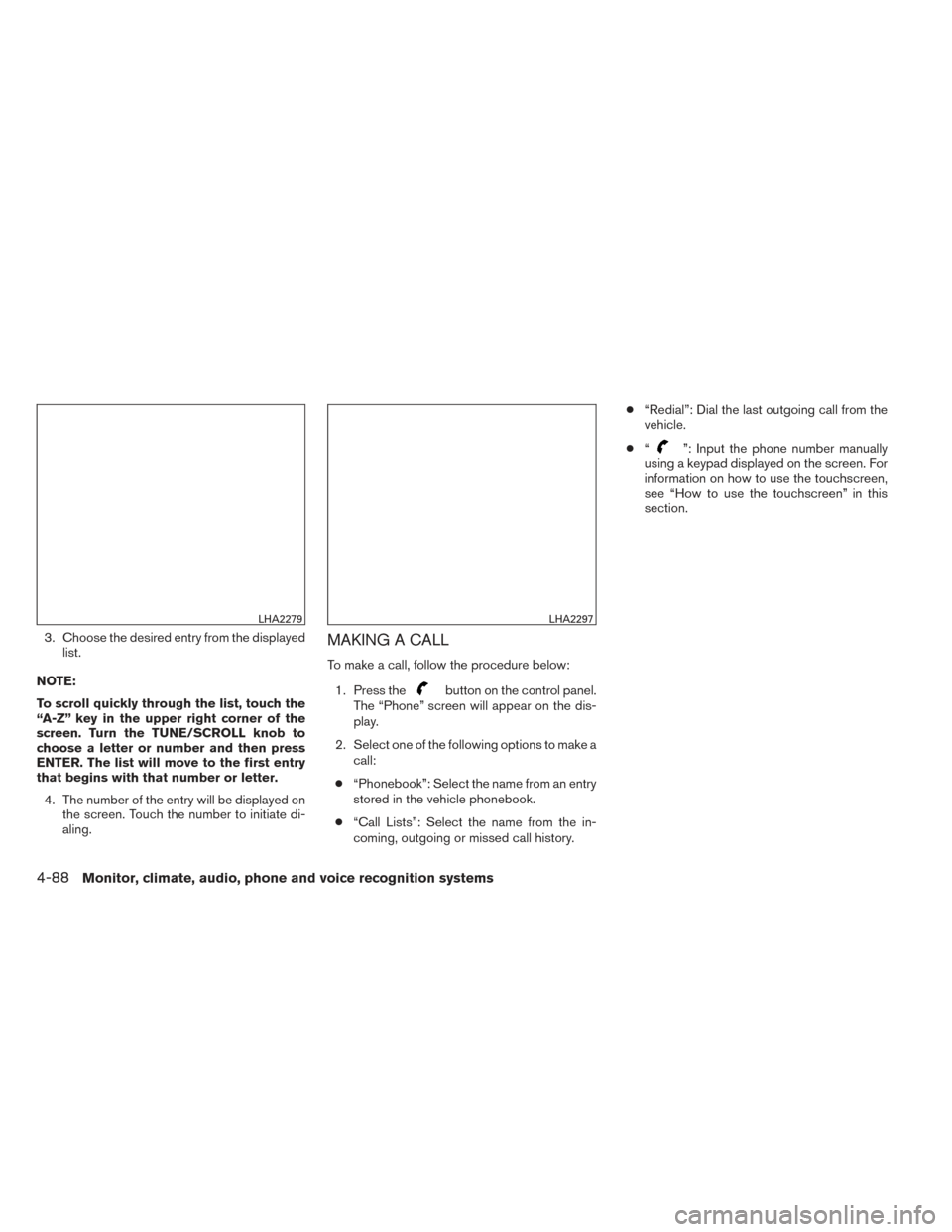
3. Choose the desired entry from the displayedlist.
NOTE:
To scroll quickly through the list, touch the
“A-Z” key in the upper right corner of the
screen. Turn the TUNE/SCROLL knob to
choose a letter or number and then press
ENTER. The list will move to the first entry
that begins with that number or letter. 4. The number of the entry will be displayed on the screen. Touch the number to initiate di-
aling.MAKING A CALL
To make a call, follow the procedure below:
1. Press the
button on the control panel.
The “Phone” screen will appear on the dis-
play.
2. Select one of the following options to make a call:
● “Phonebook”: Select the name from an entry
stored in the vehicle phonebook.
● “Call Lists”: Select the name from the in-
coming, outgoing or missed call history. ●
“Redial”: Dial the last outgoing call from the
vehicle.
● “
”: Input the phone number manually
using a keypad displayed on the screen. For
information on how to use the touchscreen,
see “How to use the touchscreen” in this
section.
LHA2279LHA2297
4-88Monitor, climate, audio, phone and voice recognition systems
Page 234 of 372
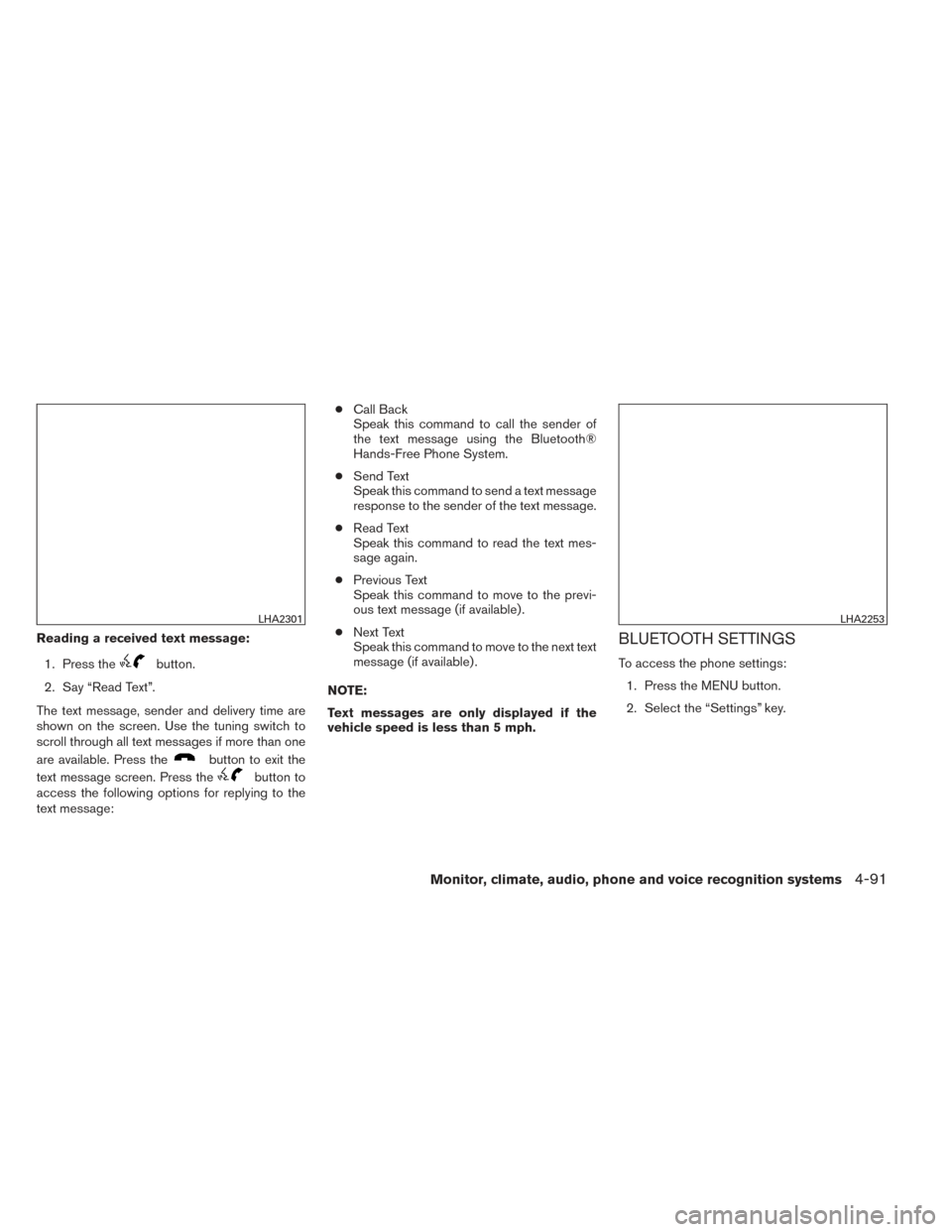
Reading a received text message:1. Press the
button.
2. Say “Read Text”.
The text message, sender and delivery time are
shown on the screen. Use the tuning switch to
scroll through all text messages if more than one
are available. Press the
button to exit the
text message screen. Press the
button to
access the following options for replying to the
text message: ●
Call Back
Speak this command to call the sender of
the text message using the Bluetooth®
Hands-Free Phone System.
● Send Text
Speak this command to send a text message
response to the sender of the text message.
● Read Text
Speak this command to read the text mes-
sage again.
● Previous Text
Speak this command to move to the previ-
ous text message (if available) .
● Next Text
Speak this command to move to the next text
message (if available) .
NOTE:
Text messages are only displayed if the
vehicle speed is less than 5 mph.
BLUETOOTH SETTINGS
To access the phone settings: 1. Press the MENU button.
2. Select the “Settings” key.
LHA2301LHA2253
Monitor, climate, audio, phone and voice recognition systems4-91
Page 235 of 372
3. Select the “Phone & Bluetooth” key.●Phone Settings
See “Phone settings” in this section for more
information.
● Connect New Device
Select to connect a new Bluetooth® device
to the Bluetooth® Hands-Free Phone Sys-
tem.
● Select Connected Device
Select to choose a Bluetooth® device from
a list of those devices connected to the
Bluetooth® Hands-Free Phone System. ●
Replace Connected Device
Select to replace a Bluetooth® device from
a list of those devices connected to the
Bluetooth® Hands-Free Phone System.
● Delete Connected Device
Select to delete a Bluetooth® device from a
list of those devices connected to the
Bluetooth® Hands-Free Phone System.
● Bluetooth
Select to toggle the Bluetooth® on and off.
LHA2248LHA2265
4-92Monitor, climate, audio, phone and voice recognition systems