Page 192 of 372
*When the XM button is pressed, the satellite
radio mode will be skipped unless an optional
satellite receiver and antenna are installed and a
SiriusXM Satellite Radio service subscription is
active. Satellite radio is not available in Alaska,
Hawaii and Guam.
If a compact disc is playing when the XM button
is pressed, the compact disc will automatically be
turned off and the last radio station played will
come on.While the radio is in XM mode, the operation can
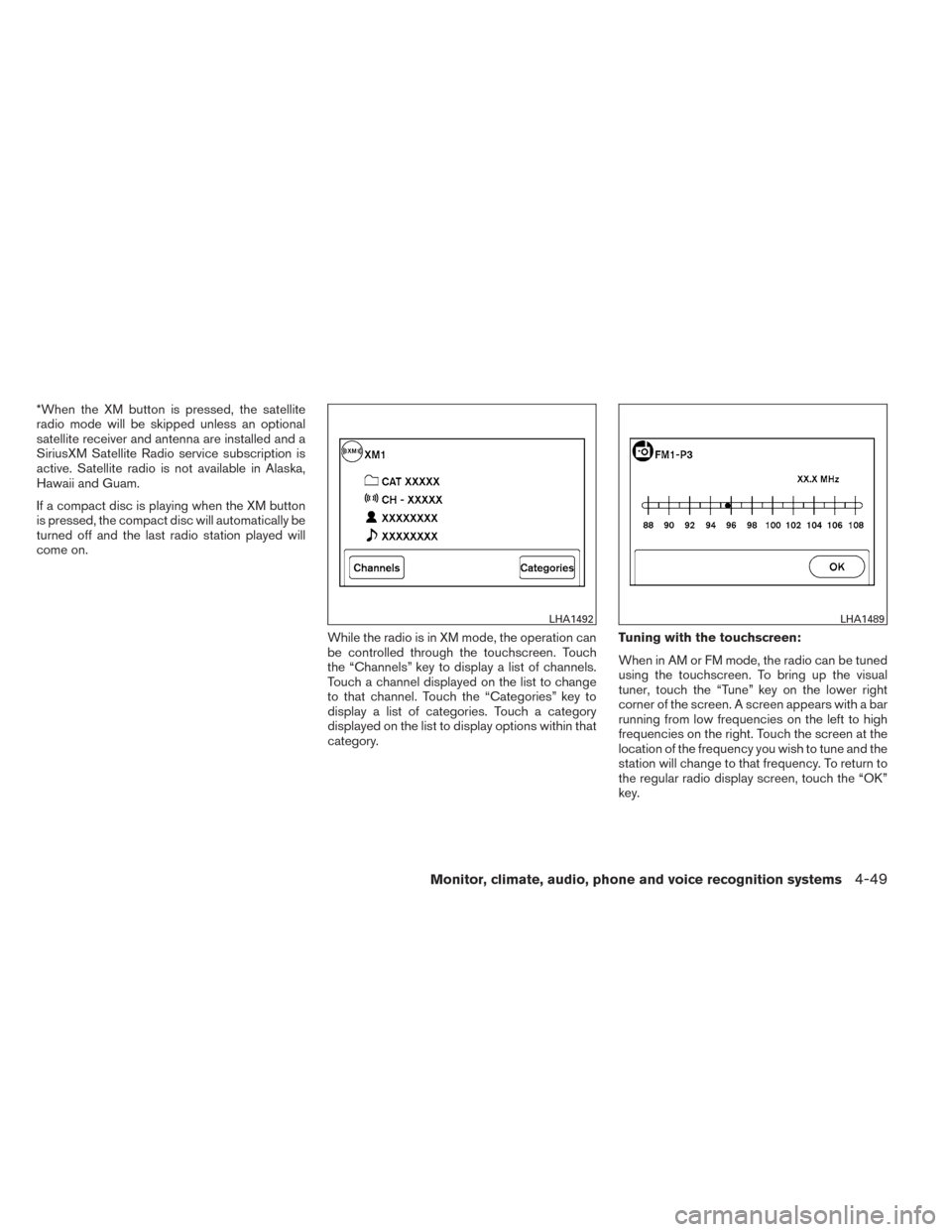
be controlled through the touchscreen. Touch
the “Channels” key to display a list of channels.
Touch a channel displayed on the list to change
to that channel. Touch the “Categories” key to
display a list of categories. Touch a category
displayed on the list to display options within that
category.Tuning with the touchscreen:
When in AM or FM mode, the radio can be tuned
using the touchscreen. To bring up the visual
tuner, touch the “Tune” key on the lower right
corner of the screen. A screen appears with a bar
running from low frequencies on the left to high
frequencies on the right. Touch the screen at the
location of the frequency you wish to tune and the
station will change to that frequency. To return to
the regular radio display screen, touch the “OK”
key.
LHA1492LHA1489
Monitor, climate, audio, phone and voice recognition systems4-49
Page 194 of 372
CD/MP3 display mode
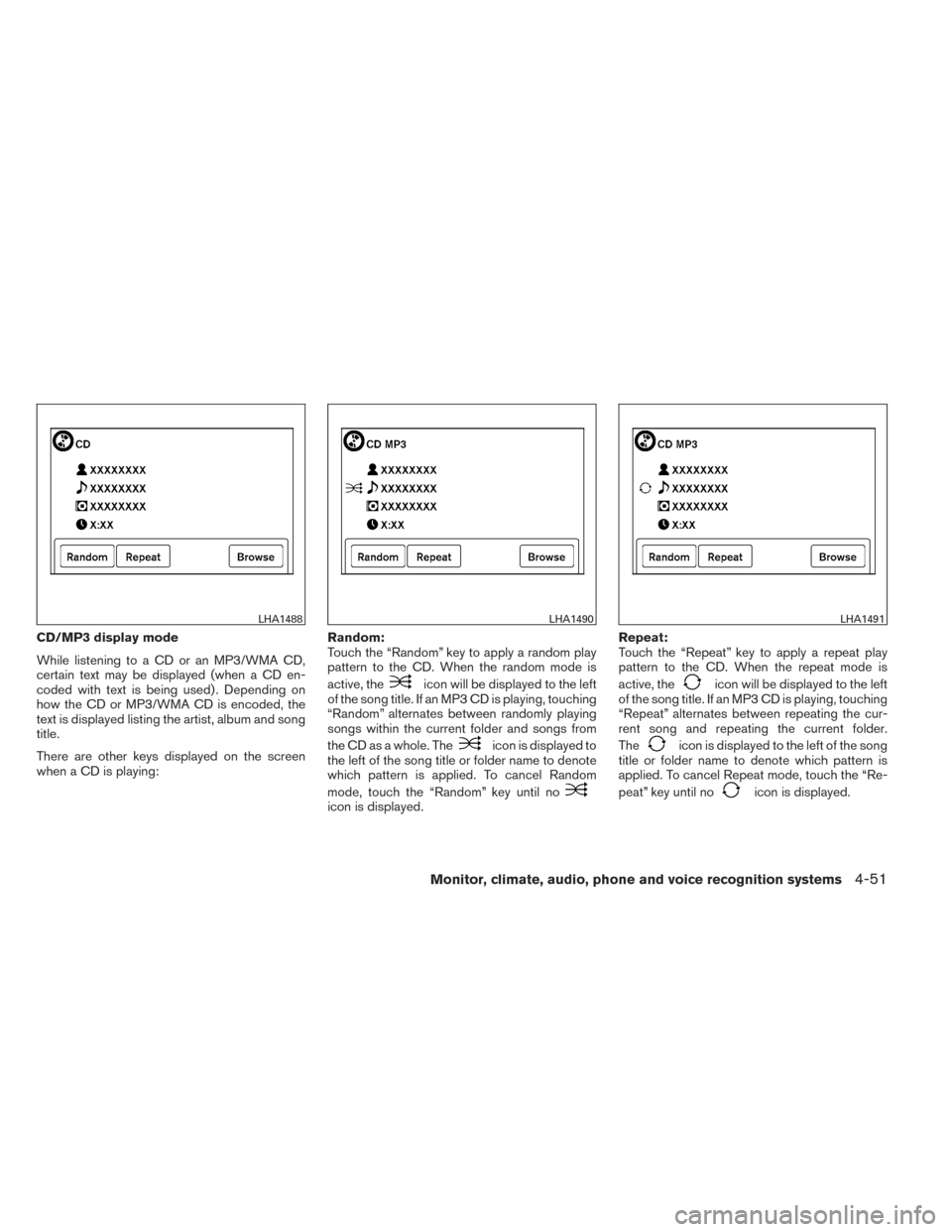
While listening to a CD or an MP3/WMA CD,
certain text may be displayed (when a CD en-
coded with text is being used) . Depending on
how the CD or MP3/WMA CD is encoded, the
text is displayed listing the artist, album and song
title.
There are other keys displayed on the screen
when a CD is playing:Random:
Touch the “Random” key to apply a random play
pattern to the CD. When the random mode is
active, the
icon will be displayed to the left
of the song title. If an MP3 CD is playing, touching
“Random” alternates between randomly playing
songs within the current folder and songs from
the CD as a whole. The
icon is displayed to
the left of the song title or folder name to denote
which pattern is applied. To cancel Random
mode, touch the “Random” key until no
icon is displayed. Repeat:
Touch the “Repeat” key to apply a repeat play
pattern to the CD. When the repeat mode is
active, the
icon will be displayed to the left
of the song title. If an MP3 CD is playing, touching
“Repeat” alternates between repeating the cur-
rent song and repeating the current folder.
The
icon is displayed to the left of the song
title or folder name to denote which pattern is
applied. To cancel Repeat mode, touch the “Re-
peat” key until no
icon is displayed.
LHA1488LHA1490LHA1491
Monitor, climate, audio, phone and voice recognition systems4-51
Page 195 of 372
Browse:
Touch the “Browse” key to display the titles on
the CD in list format. Touch the title of a song in
the list to begin playing that song. If an MP3 CD is
playing, touching the “Browse” key will also list
the folders on the disc. Follow the procedure for
selecting a song with the touchscreen to choose
a folder.
SEEK (Reverse or FastForward) buttons:
Press and hold the seek buttons
orfor 1.5 seconds while the compact disc is playing
to reverse or fast forward the track being played.
The compact disc plays at an increased speed
while reversing or fast forwarding. When the but-
ton is released, the compact disc returns to nor-
mal play speed.
SEEK buttons:
Press the seek button
while a CD or
MP3/WMA CD is playing to return to the begin-
ning of the current track. Press the seek
button
several times to skip backward sev-
eral tracks. Press the seek button
while a CD or
MP3/WMA CD is playing to advance one track.
Press the seek button
several times to skip
forward several tracks. If the last track on a CD is
skipped, the first track on the disc is played. If the
last track in a folder of an MP3/WMA CD is
skipped, the first track of the next folder is played.
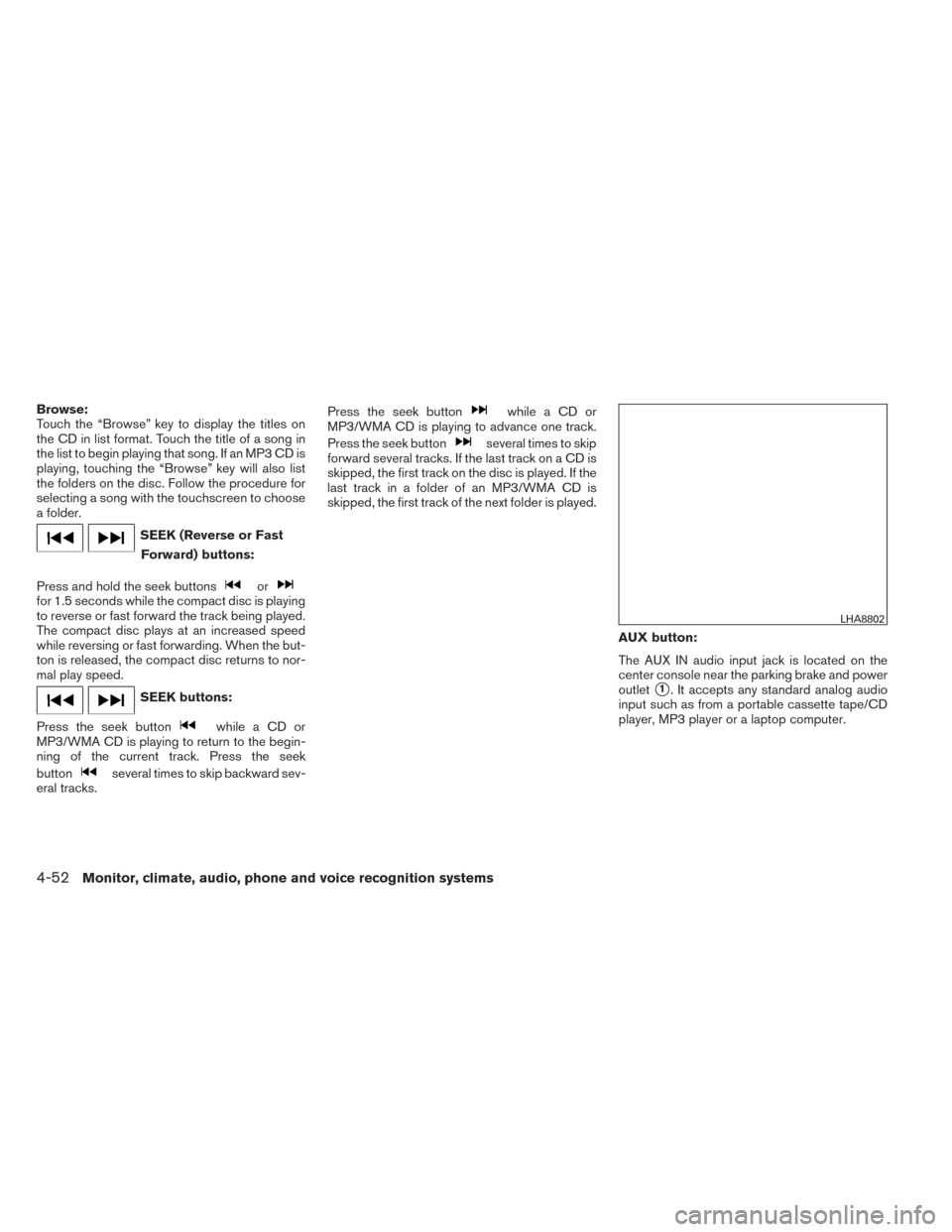
AUX button:
The AUX IN audio input jack is located on the
center console near the parking brake and power
outlet
�1. It accepts any standard analog audio
input such as from a portable cassette tape/CD
player, MP3 player or a laptop computer.
LHA8802
4-52Monitor, climate, audio, phone and voice recognition systems
Page 199 of 372
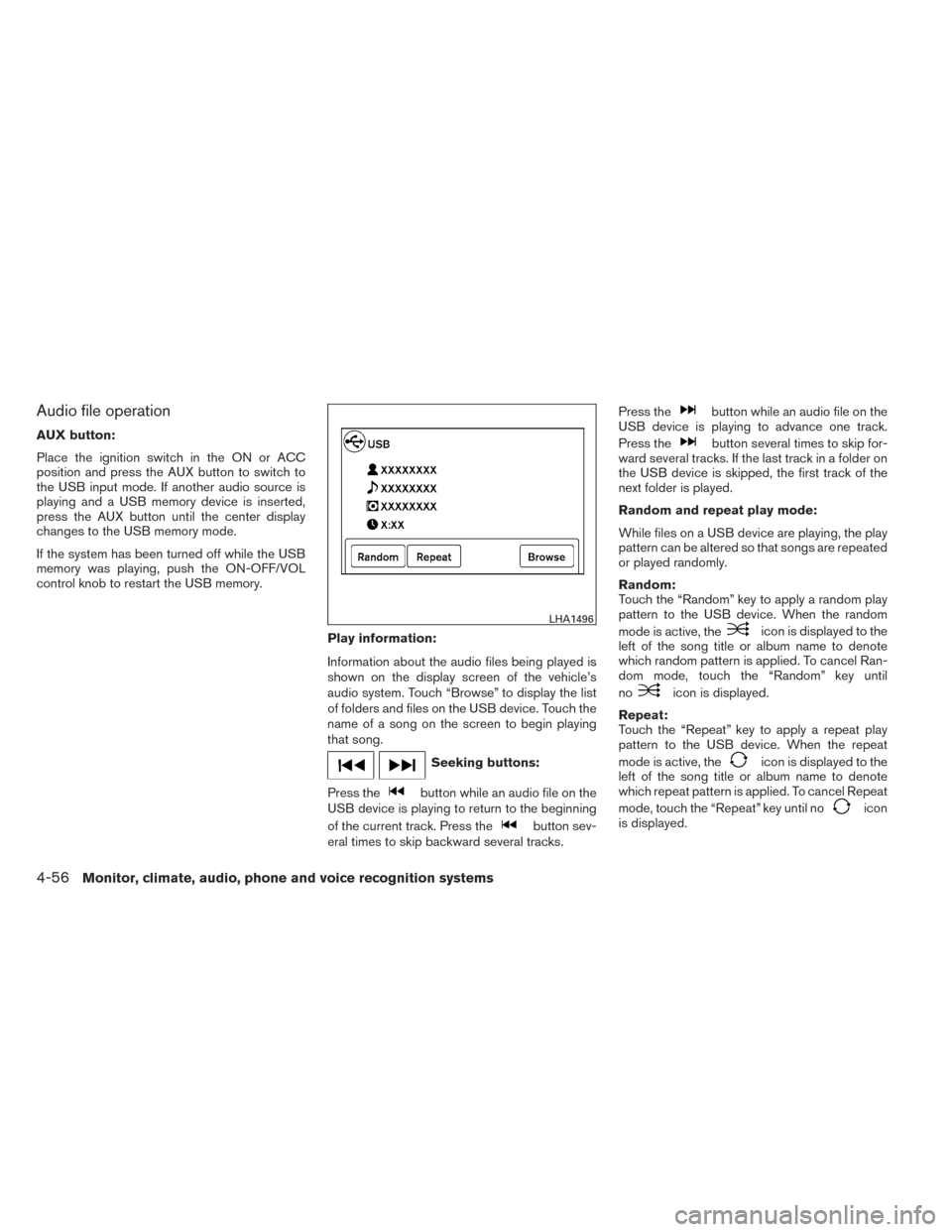
Audio file operation
AUX button:
Place the ignition switch in the ON or ACC
position and press the AUX button to switch to
the USB input mode. If another audio source is
playing and a USB memory device is inserted,
press the AUX button until the center display
changes to the USB memory mode.
If the system has been turned off while the USB
memory was playing, push the ON-OFF/VOL
control knob to restart the USB memory.Play information:
Information about the audio files being played is
shown on the display screen of the vehicle’s
audio system. Touch “Browse” to display the list
of folders and files on the USB device. Touch the
name of a song on the screen to begin playing
that song.
Seeking buttons:
Press the
button while an audio file on the
USB device is playing to return to the beginning
of the current track. Press the
button sev-
eral times to skip backward several tracks. Press the
button while an audio file on the
USB device is playing to advance one track.
Press the
button several times to skip for-
ward several tracks. If the last track in a folder on
the USB device is skipped, the first track of the
next folder is played.
Random and repeat play mode:
While files on a USB device are playing, the play
pattern can be altered so that songs are repeated
or played randomly.
Random:
Touch the “Random” key to apply a random play
pattern to the USB device. When the random
mode is active, the
icon is displayed to the
left of the song title or album name to denote
which random pattern is applied. To cancel Ran-
dom mode, touch the “Random” key until
no
icon is displayed.
Repeat:
Touch the “Repeat” key to apply a repeat play
pattern to the USB device. When the repeat
mode is active, the
icon is displayed to the
left of the song title or album name to denote
which repeat pattern is applied. To cancel Repeat
mode, touch the “Repeat” key until no
icon
is displayed.
LHA1496
4-56Monitor, climate, audio, phone and voice recognition systems
Page 204 of 372
Interface:
The interface for iPod® operation shown on the
vehicle’s audio system display screen is similar to
the iPod® interface. Use the touchscreen,
BACK button or the TUNE/SCROLL knob to
navigate the menus on the screen.
When the iPod® is playing, touch the “Menu” key
to bring up the iPod® interface.Depending on the iPod® model, the following
items may be available on the menu list screen.
For further information about each item, see the
iPod® Owner’s Manual.
● Playlists
● Artists
● Albums
● Genres
● Songs
● Composers
● Audiobooks
● Podcasts
Random and repeat play mode:
While the iPod® is playing, the play pattern can
be altered so that songs are repeated or played
randomly.
Random:
Touch the “Random” key to apply a random play
pattern to the iPod®. When the random mode is
active, the
icon is displayed to the left of
the song title or album name to denote which
random pattern is applied. To cancel Random
mode, touch the “Random” key until no
icon is displayed. Repeat:
Touch the “Repeat” key to apply a repeat play
pattern to the iPod®. When the repeat mode is
active, the
icon is displayed to the left of
the song title or album name to denote which
repeat pattern is applied. To cancel Repeat
mode, touch the “Repeat” key until no
icon
is displayed.
Seek buttons:
Press the seek button
orto skip
backward or forward one track.
Press and hold the seek button
orfor 1.5 seconds while a track is playing to reverse
or fast forward the track being played. The track
plays at an increased speed while reversing or
fast forwarding. When the button is released, the
track returns to normal play speed.LHA2783
Monitor, climate, audio, phone and voice recognition systems4-61
Page 205 of 372
Scrolling menus:
While navigating long lists of artists, albums or
songs in the music menu, it is possible to scroll
the list by the first character in the name. To
activate character indexing, touch and hold the
“A-Z” key in the upper right corner of the screen.
Turn the TUNE knob to choose the number or
letter to jump to in the list and then press the
ENTER button.
If no character is selected after two seconds, the
display returns to normal.
BLUETOOTH® STREAMING AUDIO
WITHOUT NAVIGATION SYSTEM (if
so equipped)
If you have a compatible Bluetooth® audio de-
vice that is capable of playing audio files, the
device can be connected to the vehicle’s audio
system so that the audio files on the device play
through the vehicle’s speakers.
Connecting Bluetooth® audio
To connect your Bluetooth® audio device to the
vehicle, follow the procedure below:1. Press the SETTING button.
2. Select the “Bluetooth” key.
LHA2279LHA2257
4-62Monitor, climate, audio, phone and voice recognition systems
Page 206 of 372
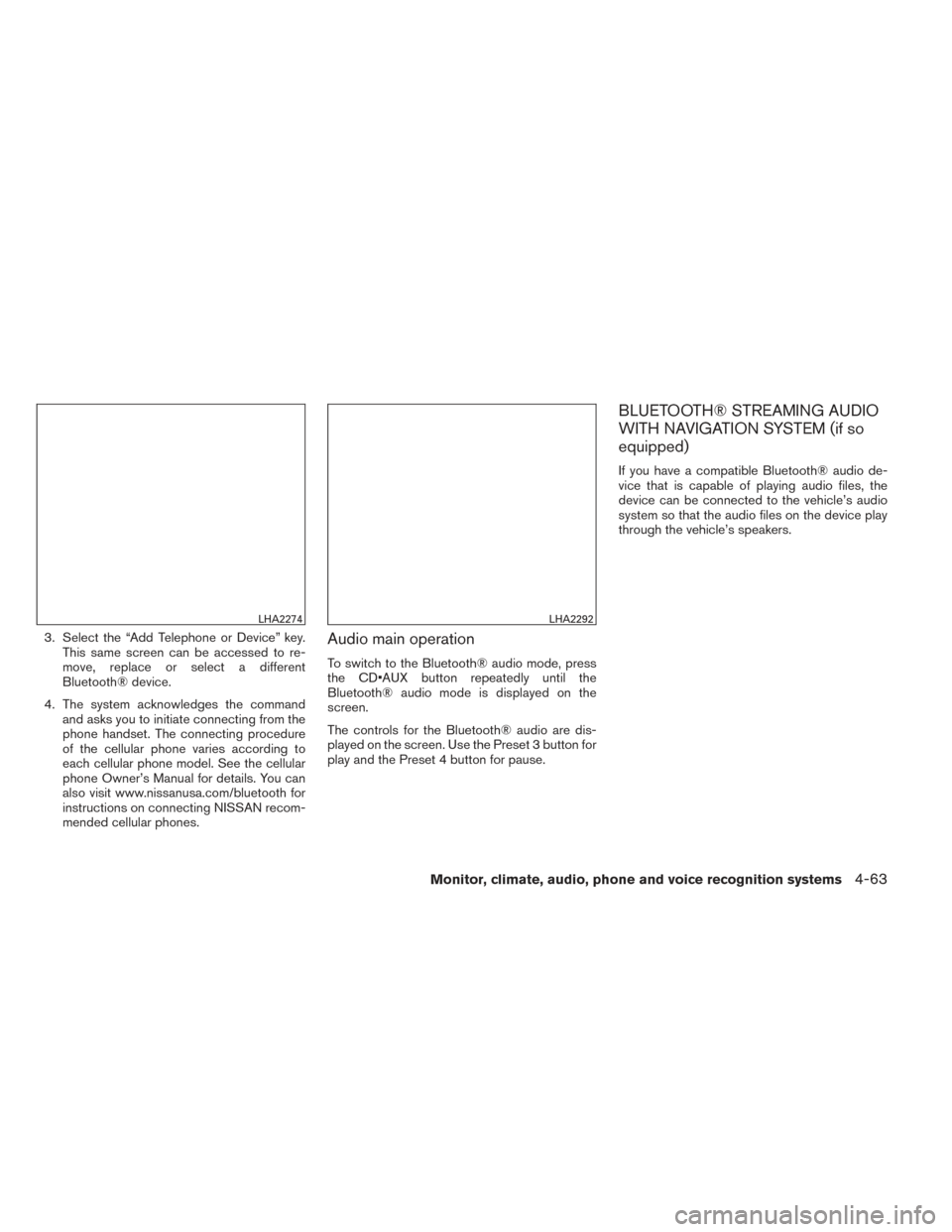
3. Select the “Add Telephone or Device” key.This same screen can be accessed to re-
move, replace or select a different
Bluetooth® device.
4. The system acknowledges the command and asks you to initiate connecting from the
phone handset. The connecting procedure
of the cellular phone varies according to
each cellular phone model. See the cellular
phone Owner’s Manual for details. You can
also visit www.nissanusa.com/bluetooth for
instructions on connecting NISSAN recom-
mended cellular phones.Audio main operation
To switch to the Bluetooth® audio mode, press
the CD•AUX button repeatedly until the
Bluetooth® audio mode is displayed on the
screen.
The controls for the Bluetooth® audio are dis-
played on the screen. Use the Preset 3 button for
play and the Preset 4 button for pause.
BLUETOOTH® STREAMING AUDIO
WITH NAVIGATION SYSTEM (if so
equipped)
If you have a compatible Bluetooth® audio de-
vice that is capable of playing audio files, the
device can be connected to the vehicle’s audio
system so that the audio files on the device play
through the vehicle’s speakers.
LHA2274LHA2292
Monitor, climate, audio, phone and voice recognition systems4-63
Page 207 of 372
Connecting Bluetooth® audio
To connect your Bluetooth® audio device to the
vehicle, follow the procedure below:1. Press the MENU button.
2. Select the “Settings” key. 3. Select the “Phone & Bluetooth” key.
4. Select the “Connect New Device” key.
5. The system acknowledges the command and asks you to initiate connecting from the
phone handset. The connecting procedure
of the cellular phone varies according to
each cellular phone model. See the cellular
phone Owner’s Manual for details. You can
also visit www.nissanusa.com/bluetooth for
instructions on connecting NISSAN recom-
mended cellular phones.
LHA2253LHA2248LHA2265
4-64Monitor, climate, audio, phone and voice recognition systems