Page 238 of 455
Connecting Bluetooth�audio
To connect your Bluetooth� audio device to the
vehicle, follow the procedure below:
1. Press the SETTING button.
2. Select the “Bluetooth” key. 3. Select the “Add Telephone or Device” key.
This same screen can be accessed to re-
move, replace or select a different
Bluetooth� device.
4. The system acknowledges the command and asks you to initiate connecting from the
phone handset. The connecting procedure
of the cellular phone varies according to
each cellular phone model. See the cellular
phone Owner’s Manual for details. You can
also visit www.nissanusa.com/bluetooth for
instructions on connecting NISSAN recom-
mended cellular phones.
Audio main operation
To switch to the Bluetooth� audio mode, press
the CD•AUX button repeatedly until the
Bluetooth� audio mode is displayed on the
screen.
The controls for the Bluetooth� audio are dis-
played on the screen. Use the Preset 3 button for
play and the Preset 4 button for pause.
LHA2257LHA2274LHA2292
Monitor, climate, audio, phone and voice recognition systems4-67
Page 240 of 455
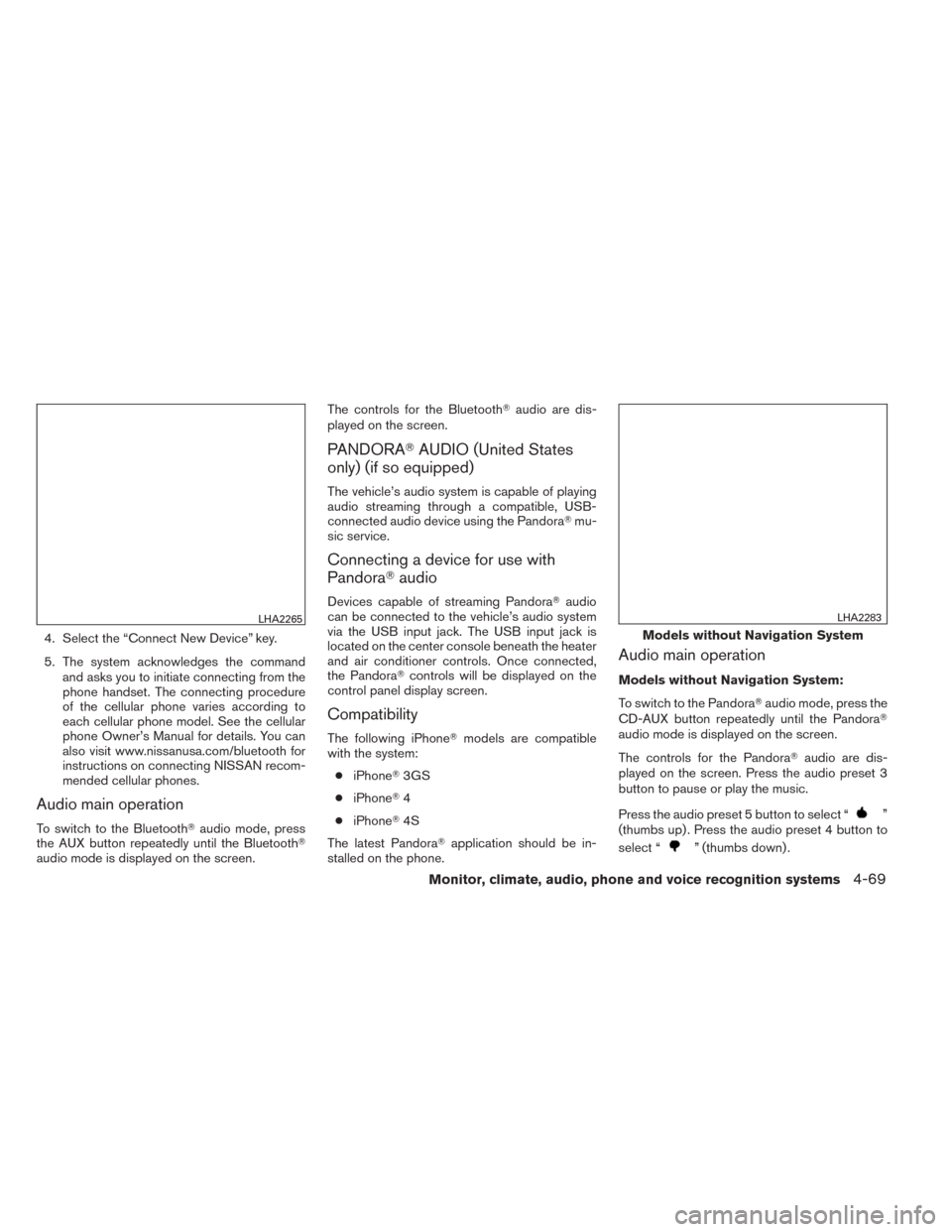
4. Select the “Connect New Device” key.
5. The system acknowledges the commandand asks you to initiate connecting from the
phone handset. The connecting procedure
of the cellular phone varies according to
each cellular phone model. See the cellular
phone Owner’s Manual for details. You can
also visit www.nissanusa.com/bluetooth for
instructions on connecting NISSAN recom-
mended cellular phones.
Audio main operation
To switch to the Bluetooth� audio mode, press
the AUX button repeatedly until the Bluetooth�
audio mode is displayed on the screen. The controls for the Bluetooth�
audio are dis-
played on the screen.
PANDORA� AUDIO (United States
only) (if so equipped)
The vehicle’s audio system is capable of playing
audio streaming through a compatible, USB-
connected audio device using the Pandora� mu-
sic service.
Connecting a device for use with
Pandora� audio
Devices capable of streaming Pandora� audio
can be connected to the vehicle’s audio system
via the USB input jack. The USB input jack is
located on the center console beneath the heater
and air conditioner controls. Once connected,
the Pandora� controls will be displayed on the
control panel display screen.
Compatibility
The following iPhone� models are compatible
with the system:
● iPhone� 3GS
● iPhone� 4
● iPhone� 4S
The latest Pandora� application should be in-
stalled on the phone.
Audio main operation
Models without Navigation System:
To switch to the Pandora� audio mode, press the
CD-AUX button repeatedly until the Pandora�
audio mode is displayed on the screen.
The controls for the Pandora� audio are dis-
played on the screen. Press the audio preset 3
button to pause or play the music.
Press the audio preset 5 button to select “
”
(thumbs up) . Press the audio preset 4 button to
select “
” (thumbs down) .
LHA2265
Models without Navigation System
LHA2283
Monitor, climate, audio, phone and voice recognition systems4-69
Page 241 of 455
NOTE:
There is a limit of six skips per station per
hour. If a “
” (thumbs down) is given
after the skip limit has been reached, the
current track will continue to play but the
feedback will be saved.
Models with Navigation System:
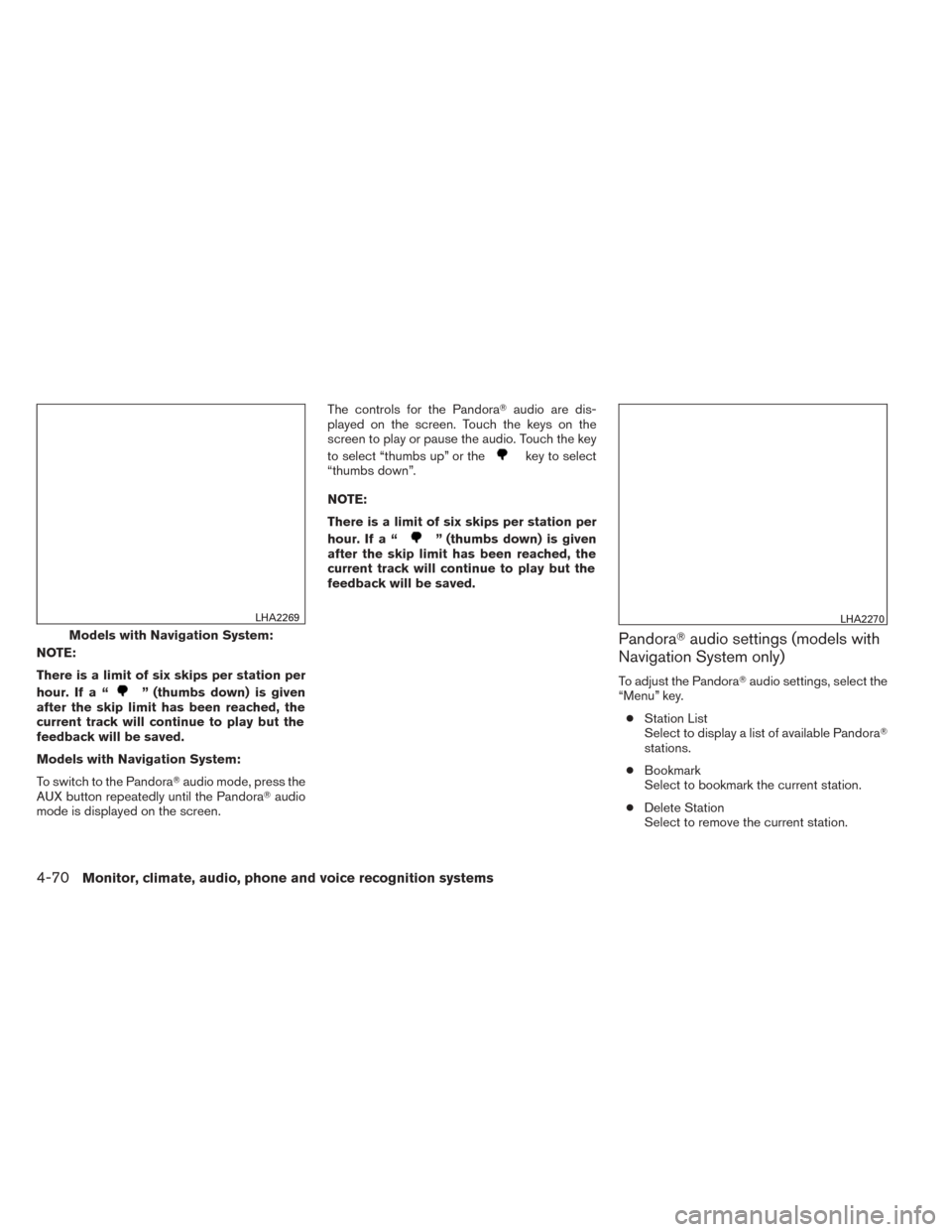
To switch to the Pandora� audio mode, press the
AUX button repeatedly until the Pandora� audio
mode is displayed on the screen. The controls for the Pandora�
audio are dis-
played on the screen. Touch the keys on the
screen to play or pause the audio. Touch the key
to select “thumbs up” or the
key to select
“thumbs down”.
NOTE:
There is a limit of six skips per station per
hour. If a “
” (thumbs down) is given
after the skip limit has been reached, the
current track will continue to play but the
feedback will be saved.
Pandora� audio settings (models with
Navigation System only)
To adjust the Pandora� audio settings, select the
“Menu” key.
● Station List
Select to display a list of available Pandora�
stations.
● Bookmark
Select to bookmark the current station.
● Delete Station
Select to remove the current station.
Models with Navigation System:
LHA2269LHA2270
4-70Monitor, climate, audio, phone and voice recognition systems
Page 242 of 455
CD CARE AND CLEANING
●Handle a CD by its edges. Do not bend the
disc. Never touch the surface of the disc.
● Always place the discs in the storage case
when they are not being used.
● To clean a disc, wipe the surface from the
center to the outer edge using a clean, soft
cloth. Do not wipe the disc using a circular
motion.
● Do not use a conventional record cleaner or
alcohol intended for industrial use. ●
A new disc may be rough on the inner and
outer edges. Remove the rough edges by
rubbing the inner and outer edges with the
side of a pen or pencil as illustrated.
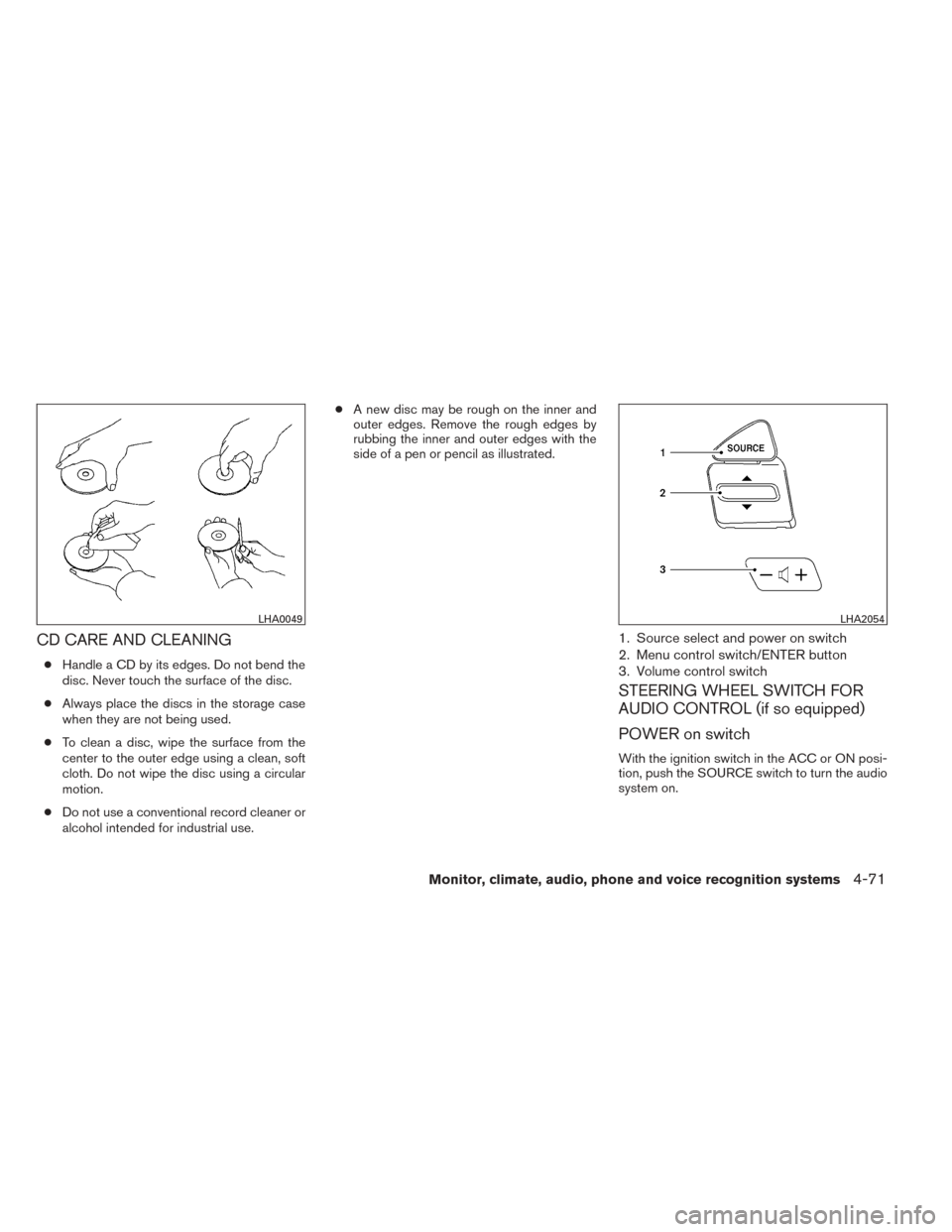
1. Source select and power on switch
2. Menu control switch/ENTER button
3. Volume control switch
STEERING WHEEL SWITCH FOR
AUDIO CONTROL (if so equipped)
POWER on switch
With the ignition switch in the ACC or ON posi-
tion, push the SOURCE switch to turn the audio
system on.
LHA0049LHA2054
Monitor, climate, audio, phone and voice recognition systems4-71
Page 243 of 455
SOURCE select switch
Push the source select switch to change the
mode in the following sequence:
AM→FM1 →FM2 →XM1 (satellite radio, if so
equipped) →XM2 (satellite radio, if so equipped)
→ XM3 (satellite radio, if so equipped) →CD* →
USB/iPod�* (if so equipped) →Bluetooth� Au-
dio* →AUX* →AM.
* These modes are only available when compat-
ible media storage is inserted into the device or
connected to the system.
Volume control switch
Push the volume control switch to increase or
decrease the volume.
Tuning
While the display is showing a map or audio
screen, tilt the Menu Control switch upward or
downward to select a station, track, CD or folder.
For most audio sources, tilting the switch
up/down for more than 1.5 seconds provides a
different function than a tilting up/down for less
than 1.5 seconds. AM and FM:
● Tilt up/down for less than 1.5 seconds to
increase or decrease the preset station.
● Tilt up/down for more than 1.5 seconds to
seek up or down to the next station.
XM (if so equipped): ● Tilt up/down for less than 1.5 seconds to
increase or decrease the preset station.
● Tilt up/down for more than 1.5 seconds to
go to the next or previous category.
iPod� (if so equipped):
● Tilt up/down for less than 1.5 seconds to
increase or decrease the track number.
CD: ● Tilt up/down for less than 1.5 seconds to
increase or decrease the track number.
● Tilt up/down for more than 1.5 seconds to
increase or decrease the folder number (if
playing compressed audio files) .
USB (if so equipped): ● Tilt up/down for less than 1.5 seconds to
increase or decrease the track number.
● Tilt up/down for more than 1.5 seconds to
increase or decrease the folder number. Bluetooth�
Audio (if so equipped):
● Tilt up/down for less than 1.5 seconds to
skip ahead or back to the next song.
● Tilt up/down for more than 1.5 seconds to
reverse or fast forward the current song.
Pandora� Audio (if so equipped):
● Tilt up for less than 1.5 seconds to input
“thumbs up” for the current song.
● Tilt down for less than 1.5 seconds to input
“thumbs down” for the current song.
● Tilt up for more than 1.5 seconds to skip to
the next song (if the maximum of six skips per
station per hour has not been exceeded) .
ANTENNA
The antenna cannot be shortened, but can be
removed. When you need to remove the antenna,
turn the antenna rod counterclockwise.
To install the antenna rod, turn the antenna clock-
wise. Tighten the antenna rod to specification
using a suitable tool such as an open-end
wrench. The antenna rod tightening specification
is 3.4 – 3.6 N·m (30 – 32 in-lb) . Do not use pliers
to tighten the antenna as they can leave marks on
the antenna surface. The antenna rod cannot be
hand tightened to the proper specification.
4-72Monitor, climate, audio, phone and voice recognition systems
Page 245 of 455
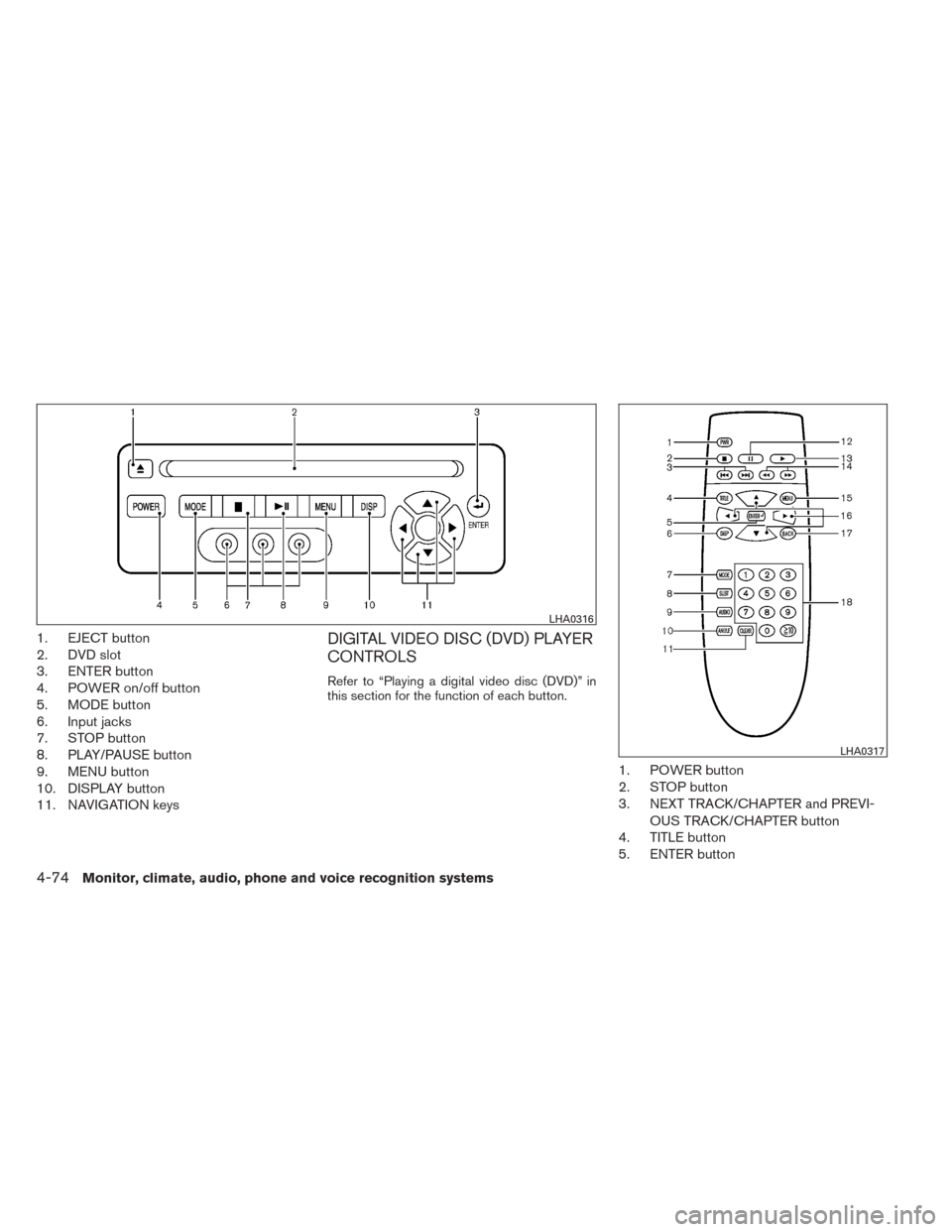
1. EJECT button
2. DVD slot
3. ENTER button
4. POWER on/off button
5. MODE button
6. Input jacks
7. STOP button
8. PLAY/PAUSE button
9. MENU button
10. DISPLAY button
11. NAVIGATION keysDIGITAL VIDEO DISC (DVD) PLAYER
CONTROLS
Refer to “Playing a digital video disc (DVD)” in
this section for the function of each button.
1. POWER button
2. STOP button
3. NEXT TRACK/CHAPTER and PREVI-OUS TRACK/CHAPTER button
4. TITLE button
5. ENTER button
LHA0316
LHA0317
4-74Monitor, climate, audio, phone and voice recognition systems
Page 246 of 455
6. DISPLAY button
7. MODE button
8. SUBTITLE button
9. AUDIO button
10. ANGLE button
11. CLEAR button
12. PAUSE button
13. PLAY button
14. FAST FORWARD/FAST RE VERSEbutton
15. MENU button
16. NAVIGATION keys
17. BACK button
18. Numeric keypad
REMOTE CONTROL
Refer to “Playing a digital video disc (DVD)” in
this section for the function of each button.
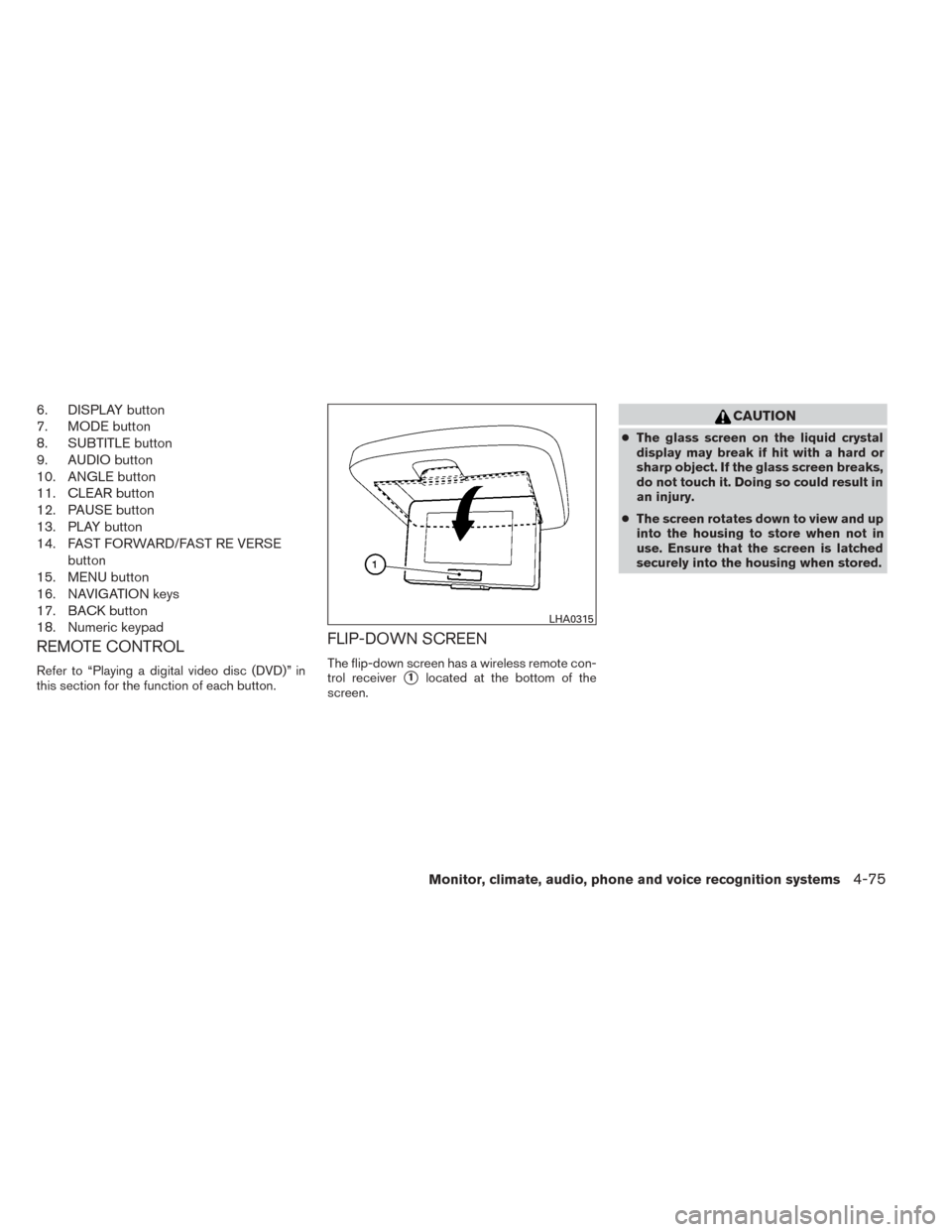
FLIP-DOWN SCREEN
The flip-down screen has a wireless remote con-
trol receiver
�1located at the bottom of the
screen.
CAUTION
● The glass screen on the liquid crystal
display may break if hit with a hard or
sharp object. If the glass screen breaks,
do not touch it. Doing so could result in
an injury.
● The screen rotates down to view and up
into the housing to store when not in
use. Ensure that the screen is latched
securely into the housing when stored.
LHA0315
Monitor, climate, audio, phone and voice recognition systems4-75
Page 247 of 455
Headphones
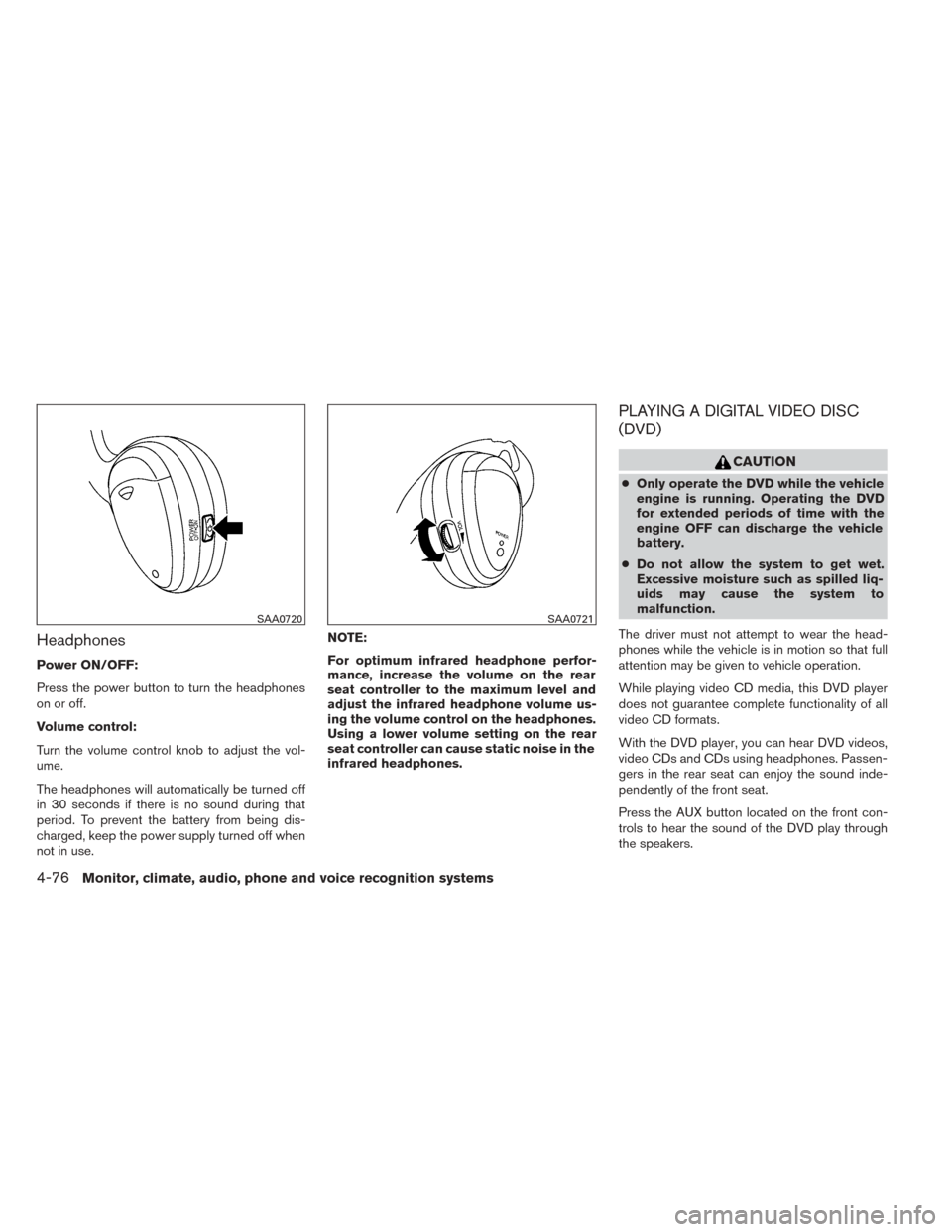
Power ON/OFF:
Press the power button to turn the headphones
on or off.
Volume control:
Turn the volume control knob to adjust the vol-
ume.
The headphones will automatically be turned off
in 30 seconds if there is no sound during that
period. To prevent the battery from being dis-
charged, keep the power supply turned off when
not in use.NOTE:
For optimum infrared headphone perfor-
mance, increase the volume on the rear
seat controller to the maximum level and
adjust the infrared headphone volume us-
ing the volume control on the headphones.
Using a lower volume setting on the rear
seat controller can cause static noise in the
infrared headphones.
PLAYING A DIGITAL VIDEO DISC
(DVD)
CAUTION
●
Only operate the DVD while the vehicle
engine is running. Operating the DVD
for extended periods of time with the
engine OFF can discharge the vehicle
battery.
● Do not allow the system to get wet.
Excessive moisture such as spilled liq-
uids may cause the system to
malfunction.
The driver must not attempt to wear the head-
phones while the vehicle is in motion so that full
attention may be given to vehicle operation.
While playing video CD media, this DVD player
does not guarantee complete functionality of all
video CD formats.
With the DVD player, you can hear DVD videos,
video CDs and CDs using headphones. Passen-
gers in the rear seat can enjoy the sound inde-
pendently of the front seat.
Press the AUX button located on the front con-
trols to hear the sound of the DVD play through
the speakers.
SAA0720SAA0721
4-76Monitor, climate, audio, phone and voice recognition systems