2014 NISSAN ROGUE AUX
[x] Cancel search: AUXPage 240 of 442
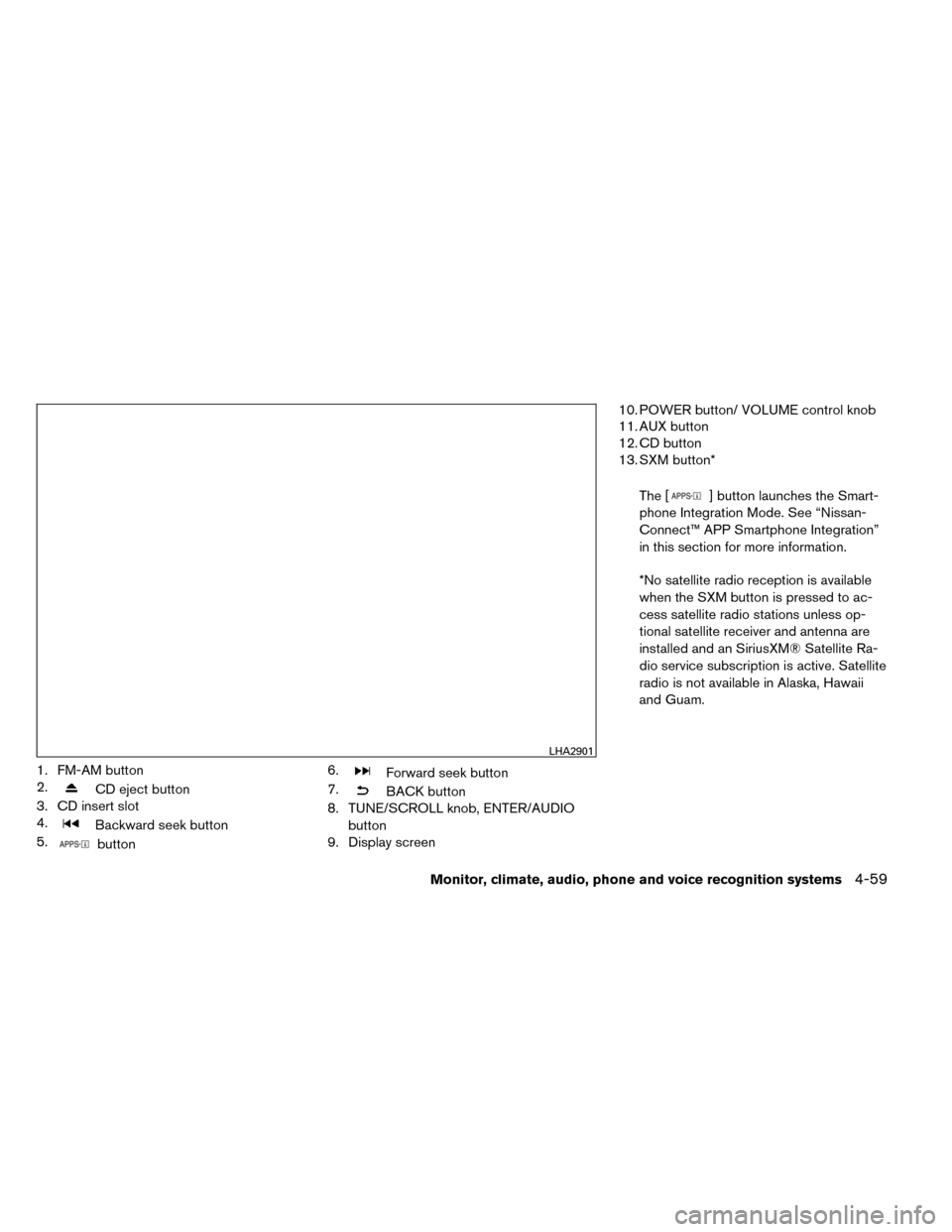
1. FM-AM button
2.
CD eject button
3. CD insert slot
4.
Backward seek button
5.
button 6.
Forward seek button
7.
BACK button
8. TUNE/SCROLL knob, ENTER/AUDIO
button
9. Display screen 10. POWER button/ VOLUME control knob
11. AUX button
12. CD button
13. SXM button*
The [
] button launches the Smart-
phone Integration Mode. See “Nissan-
Connect™ APP Smartphone Integration”
in this section for more information.
*No satellite radio reception is available
when the SXM button is pressed to ac-
cess satellite radio stations unless op-
tional satellite receiver and antenna are
installed and an SiriusXM® Satellite Ra-
dio service subscription is active. Satellite
radio is not available in Alaska, Hawaii
and Guam.
LHA2901
Monitor, climate, audio, phone and voice recognition systems4-59
Page 241 of 442
FM/AM/SAT RADIO WITH
COMPACT DISC (CD) PLAYER (Type
B) (if so equipped)
For all operation precautions, see “Audio opera-
tion precautions” in this section.
Audio main operation
POWER button/ VOLUME control knob:
Place the ignition switch in the ACC or ON
position, and then push the POWER button/VOLUME control knob while the system is off to
call up the mode (radio or CD) which was playing
immediately before the system was turned off.
To turn the system off, press the POWER button/
VOLUME control knob.
Turn the POWER button/VOLUME control knob
to adjust the volume.
This vehicle may be equipped with Speed Sen-
sitive Volume (SSV) for audio. The audio volume
changes as the driving speed changes.Audio settings:
1. Press the [
] button.
2. Touch the “Settings” key.
3. Touch the “Audio” key.
Use the touch-screen to adjust the following
items to the desired setting:
Audio Bass Adjusts the bass to the desired level.
Treble Adjusts the treble to the desired level.
Balance Adjusts the balance to the desired level. Balance adjusts the sound level between the left and right speakers.
Fade Adjusts the fade to the desired level. Fade adjusts the sound level between the front and rear speakers.
Speed Sensitive Vol. Adjusts the speed sensitive volume function, which increases the volume of the audio system as the speed of the ve-
hicle increases. Set to “OFF” to disable the feature. The higher the setting, the more the volume increases in relation to
vehicle speed.
AUX Volume Level/AUX Level Controls the volume level of incoming sound when an auxiliary device is connected to the system. Available options are
Low (Quiet) , Medium, and High (Loud) .
Bass, treble, balance and fade can also be adjusted by pressing the AUDIO control knob and turning it to select the item to adjust. When the desired item
is shown on the display, turn the tuning to adjust and then press the AUDIO button until the display returns to the main audio screen. If the button is not
pressed for approximately 10 seconds, the radio or CD display will automatically reappear.
4-60Monitor, climate, audio, phone and voice recognition systems
Page 245 of 442
SEEK (Reverse or FastForward) buttons:
Press and hold the seek buttons
orfor 1.5 seconds while the compact disc is playing
to reverse or fast forward the track being played.
The compact disc plays at an increased speed
while reversing or fast forwarding. When the but-
ton is released, the compact disc returns to nor-
mal play speed.
SEEK buttons:
Press the seek button
while a CD or
MP3/WMA CD is playing to return to the begin-
ning of the current track. Press the seek
button
several times to skip backward sev-
eral tracks.
Press the seek button
while a CD or
MP3/WMA CD is playing to advance one track.
Press the seek button
several times to skip
forward several tracks. If the last track on a CD is
skipped, the first track on the disc is played. If the
last track in a folder of an MP3/WMA CD is
skipped, the first track of the next folder is played. AUX button:
The AUX IN audio input jack accepts any stan-
dard analog audio input such as from a portable
cassette tape/CD player, MP3 player or a laptop
computer. Press the AUX button to play a com-
patible device plugged into the AUX IN jack.
EJECT button:
When the
button is pressed with a com-
pact disc loaded, the compact disc will eject and
the last source will be played.
If the disc is not removed within 10 seconds, the
disc will reload.
Additional features
For more information about the iPod® player
available with this system, see “iPod® player
operation with Navigation System” in this section.
For more information about the USB interface
available with this system, see “USB interface
(models with Navigation System)” in this section.
For more information about the Bluetooth® audio
interface available with this system, see
“Bluetooth® streaming audio with Navigation
System” in this section.
USB INTERFACE (models without
Navigation System) (if so equipped)
Connecting a device to the USB input
jack
WARNING
Do not connect, disconnect, or operate the
USB device while driving. Doing so can be
a distraction. If distracted you could lose
control of your vehicle and cause an acci-
dent or serious injury.
LHA2929
4-64Monitor, climate, audio, phone and voice recognition systems
Page 246 of 442
CAUTION
●To avoid damage and loss of function
when using a USB device, note the fol-
lowing precautions.
● Do not force the USB device into the
USB port. Inserting the USB device
tilted or up-side-down into the port may
damage the port. Make sure that the
USB device is connected correctly into
the USB port.
● Do not grab the USB port cover (if so
equipped) when pulling the USB device
out of the port. This could damage the
port and the cover.
● Do not leave the USB cable in a place
where it can be pulled unintentionally.
Pulling the cable may damage the port.
Refer to your device manufacturer’s owner infor-
mation regarding the proper use and care of the
device.
The USB input jack is located on the center
console beneath the heater and air conditioner
controls. Insert the USB device into the jack.
When a compatible storage device is plugged
into the jack, compatible audio files on the stor-
age device can be played through the vehicle’s
audio system.
Audio file operation
MEDIA button:
Place the ignition switch in the ON or ACC
position and press the MEDIA button to switch to
the USB input mode. If a CD is playing or another
audio source is plugged in through the AUX IN
jack located in the center console, the MEDIA
button toggles between the three sources.
Play information:
Information about the audio files being played
can be displayed on the display screen of the
vehicle’s audio system. Depending on how the
audio files are encoded, information such as
Folder, Song and Artist will be displayed.
The track number and number of total tracks in
the folder are displayed on the screen as well.
SEEK•CAT/TRACK (Re- verse or Fast Forward)
button:
Press and hold the SEEK•CAT/TRACK
button
(rewind) or SEEK•CAT/TRACK
button
(fast forward) for 1.5 seconds while
an audio file on the USB device is playing to
reverse or fast forward the track being played. The
track plays at an increased speed while reversing or fast forwarding. When the button is released, the
audio file returns to normal play speed.
SEEK/CAT and TRACK
buttons:
Press the SEEK/CAT button
while an au-
dio file on the USB device is playing to return to
the beginning of the current track. Press the
SEEK/CAT button
several times to skip
backward several tracks.
Press the TRACK button
while an audio
file on the USB device is playing to advance one
track. Press the TRACK button
several
times to skip forward several tracks. If the last
track in a folder on the USB device is skipped, the
first track of the next folder is played.
RDM button:
When the RDM button is pressed while an audio
file on the USB device is playing, the play pattern
can be changed as follows:
All Random →1 Folder Random →OFF
All Random: all tracks on the USB device will be
played randomly.
1 Folder Random: all tracks in the current folder
will be played randomly.
Monitor, climate, audio, phone and voice recognition systems4-65
Page 248 of 442
CAUTION
●To avoid damage and loss of function
when using a USB device, note the fol-
lowing precautions.
● Do not force the USB device into the
USB port. Inserting the USB device
tilted or up-side-down into the port may
damage the port. Make sure that the
USB device is connected correctly into
the USB port.
● Do not grab the USB port cover (if so
equipped) when pulling the USB device
out of the port. This could damage the
port and the cover.
● Do not leave the USB cable in a place
where it can be pulled unintentionally.
Pulling the cable may damage the port.
Refer to your device manufacturer’s owner infor-
mation regarding the proper use and care of the
device.
The USB input jack is located on the center
console beneath the heater and air conditioner
controls. Insert the USB device into the jack.
When a compatible storage device is plugged
into the jack, compatible audio files on the stor-
age device can be played through the vehicle’s
audio system.
Audio file operation
AUX button:
Place the ignition switch in the ON or ACC
position and press the AUX button to switch to
the USB input mode. If another audio source is
playing and a USB memory device is inserted,
press the AUX button until the center display
changes to the USB memory mode.
If the system has been turned off while the USB
memory was playing, push the
POWER/VOLUME button/control knob to re-
start the USB memory.
Play information:
Information about the audio files being played is
shown on the display screen of the vehicle’s
audio system. Touch “Browse” to display the list
of folders and files on the USB device. Touch the
name of a song on the screen to begin playing
that song.
Seeking buttons
Press the
button while an audio file on the
USB device is playing to return to the beginning
of the current track. Press the
button sev-
eral times to skip backward several tracks.
LHA2923
Monitor, climate, audio, phone and voice recognition systems4-67
Page 253 of 442
Audio main operation
AUX button:
When the AUX button is pressed with the system
off and the iPod® connected, the system will turn
on. If another audio source is playing and the
iPod® is connected, press the AUX button re-
peatedly until the center display changes to the
iPod® mode.Interface:
The interface for iPod® operation shown on the
vehicle’s audio system display screen is similar to
the iPod® interface. Use the touchscreen, BACK
button or the scrolling knob to navigate the
menus on the screen.
When the iPod® is playing, touch the “Menu” key
to bring up the iPod® interface.
Depending on the iPod® model, the following
items may be available on the menu list screen.
For further information about each item, see the
iPod® Owner’s Manual. ●
Playlists
● Artists
● Albums
● Genres
● Songs
● Composers
● Audiobooks
● Podcasts
Shuffle and repeat play mode:
While the iPod® is playing, the play pattern can
be altered so that songs are repeated or played
randomly.
Shuffle:
Touch the “Shuffle” key to apply a random play
pattern to the iPod®. When the Shuffle mode is
active, the text is illuminated. Touching the
“Shuffle” key once more will display the “Shuffle
songs” key. To cancel Shuffle mode, touch the
“Shuffle” key again until the text is no longer
illuminated.
LHA2911LHA2907
4-72Monitor, climate, audio, phone and voice recognition systems
Page 256 of 442
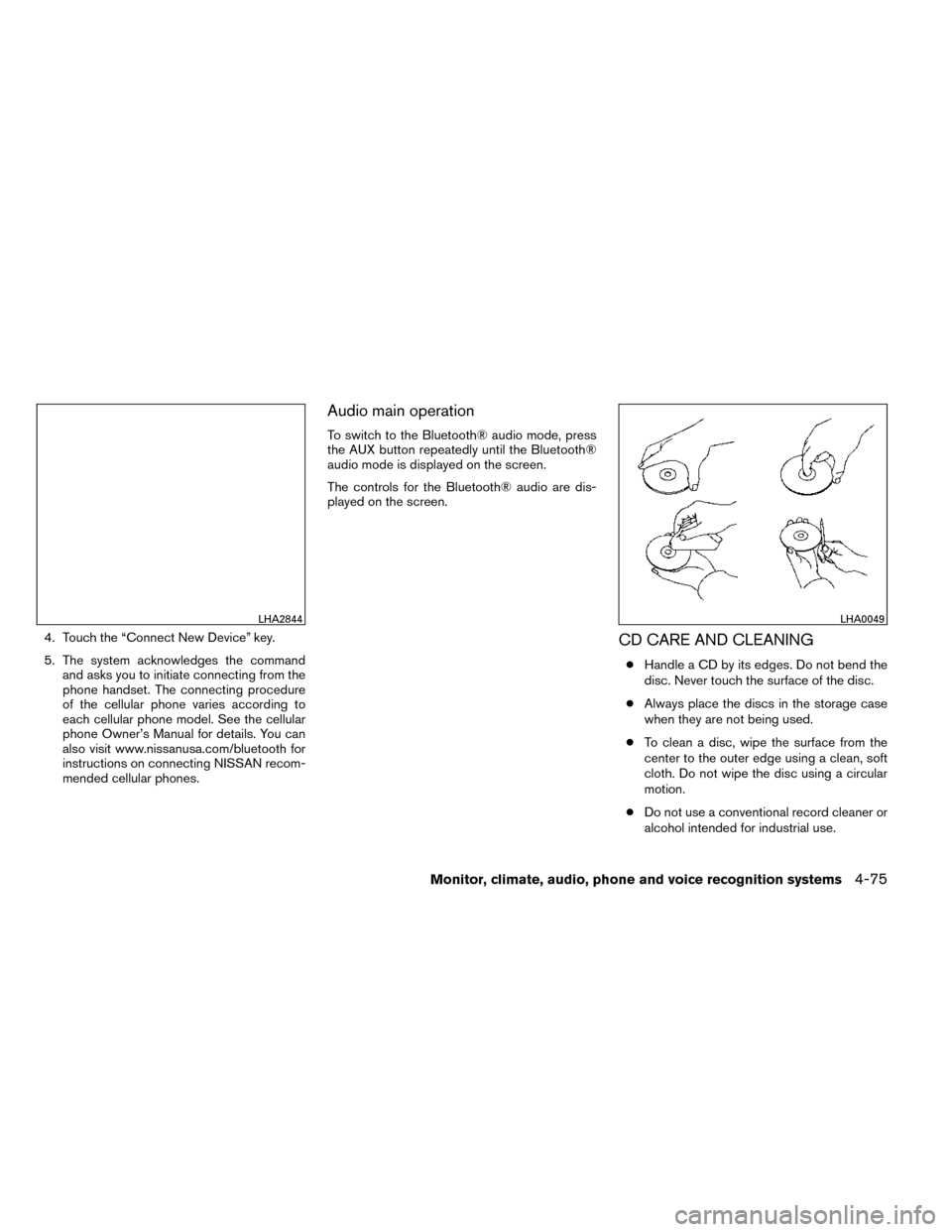
4. Touch the “Connect New Device” key.
5. The system acknowledges the commandand asks you to initiate connecting from the
phone handset. The connecting procedure
of the cellular phone varies according to
each cellular phone model. See the cellular
phone Owner’s Manual for details. You can
also visit www.nissanusa.com/bluetooth for
instructions on connecting NISSAN recom-
mended cellular phones.
Audio main operation
To switch to the Bluetooth® audio mode, press
the AUX button repeatedly until the Bluetooth®
audio mode is displayed on the screen.
The controls for the Bluetooth® audio are dis-
played on the screen.
CD CARE AND CLEANING
●Handle a CD by its edges. Do not bend the
disc. Never touch the surface of the disc.
● Always place the discs in the storage case
when they are not being used.
● To clean a disc, wipe the surface from the
center to the outer edge using a clean, soft
cloth. Do not wipe the disc using a circular
motion.
● Do not use a conventional record cleaner or
alcohol intended for industrial use.
LHA2844LHA0049
Monitor, climate, audio, phone and voice recognition systems4-75
Page 257 of 442
●A new disc may be rough on the inner and
outer edges. Remove the rough edges by
rubbing the inner and outer edges with the
side of a pen or pencil as illustrated.
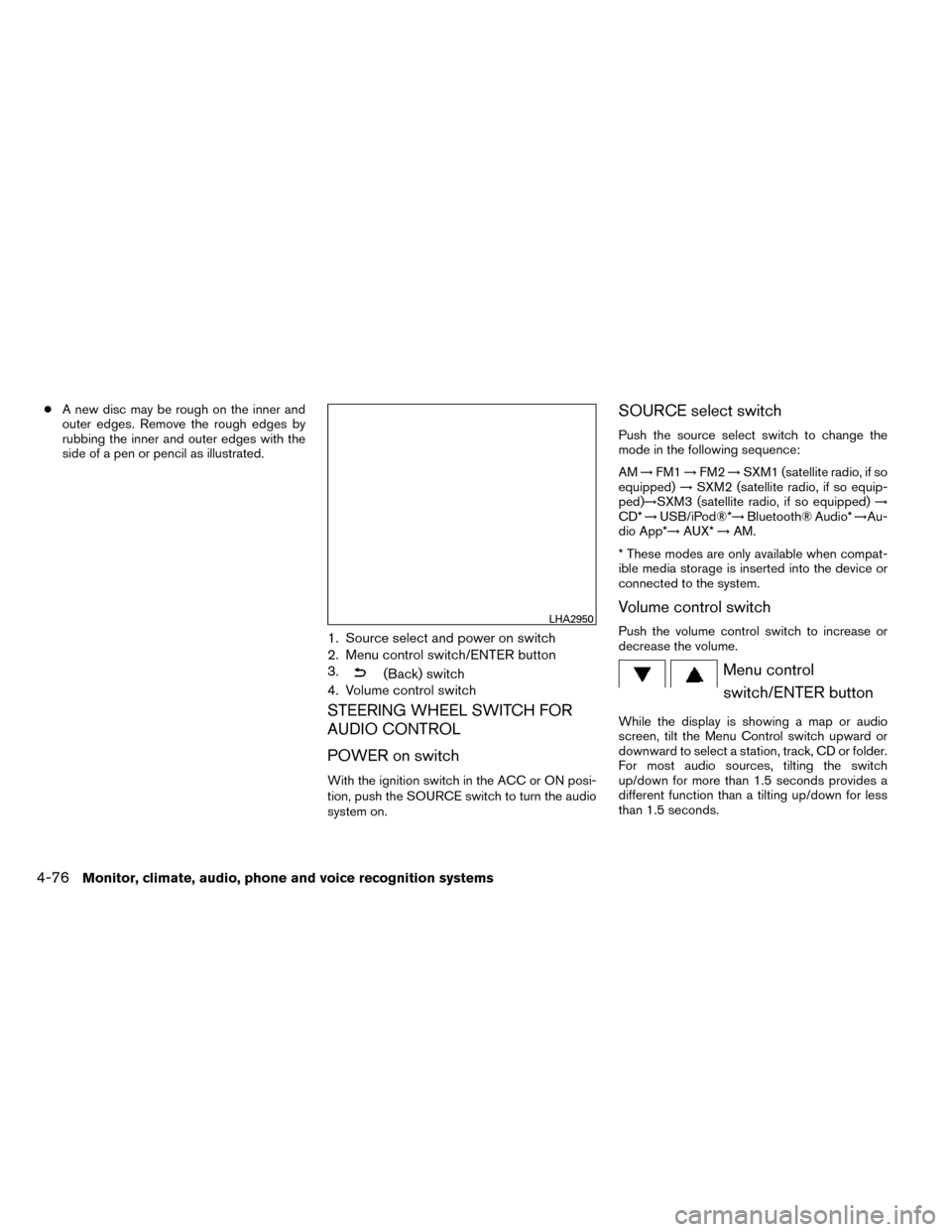
1. Source select and power on switch
2. Menu control switch/ENTER button
3.
(Back) switch
4. Volume control switch
STEERING WHEEL SWITCH FOR
AUDIO CONTROL
POWER on switch
With the ignition switch in the ACC or ON posi-
tion, push the SOURCE switch to turn the audio
system on.
SOURCE select switch
Push the source select switch to change the
mode in the following sequence:
AM →FM1 →FM2 →SXM1 (satellite radio, if so
equipped) →SXM2 (satellite radio, if so equip-
ped)→SXM3 (satellite radio, if so equipped) →
CD* →USB/iPod®*→ Bluetooth® Audio* →Au-
dio App*→ AUX*→AM.
* These modes are only available when compat-
ible media storage is inserted into the device or
connected to the system.
Volume control switch
Push the volume control switch to increase or
decrease the volume.
Menu control switch/ENTER button
While the display is showing a map or audio
screen, tilt the Menu Control switch upward or
downward to select a station, track, CD or folder.
For most audio sources, tilting the switch
up/down for more than 1.5 seconds provides a
different function than a tilting up/down for less
than 1.5 seconds.
LHA2950
4-76Monitor, climate, audio, phone and voice recognition systems