2014 NISSAN QUEST fuel
[x] Cancel search: fuelPage 173 of 482
3-30Pre-driving checks and adjustments
SPA2824
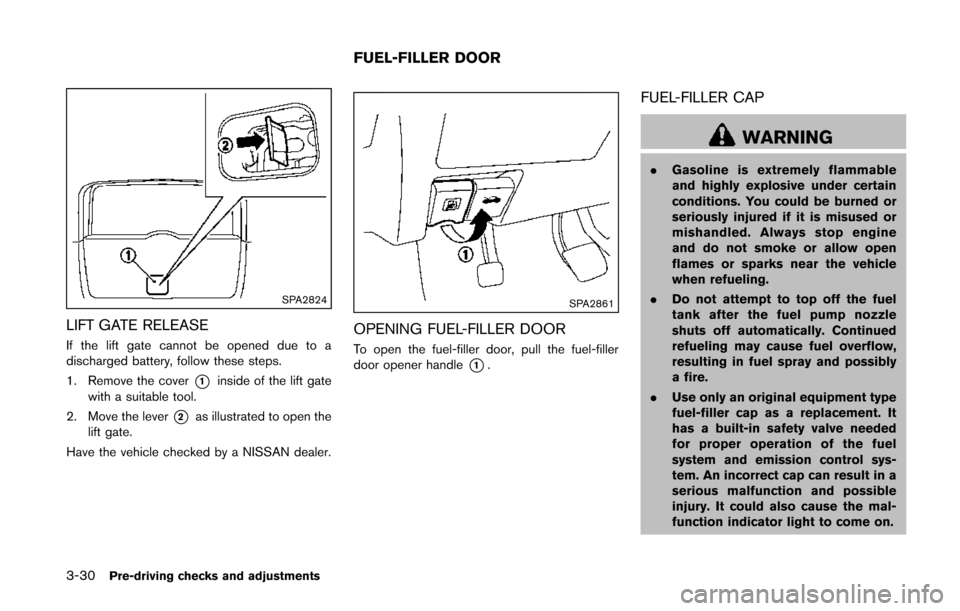
LIFT GATE RELEASE
If the lift gate cannot be opened due to a
discharged battery, follow these steps.
1. Remove the cover
*1inside of the lift gate
with a suitable tool.
2. Move the lever
*2as illustrated to open the
lift gate.
Have the vehicle checked by a NISSAN dealer.
SPA2861
OPENING FUEL-FILLER DOOR
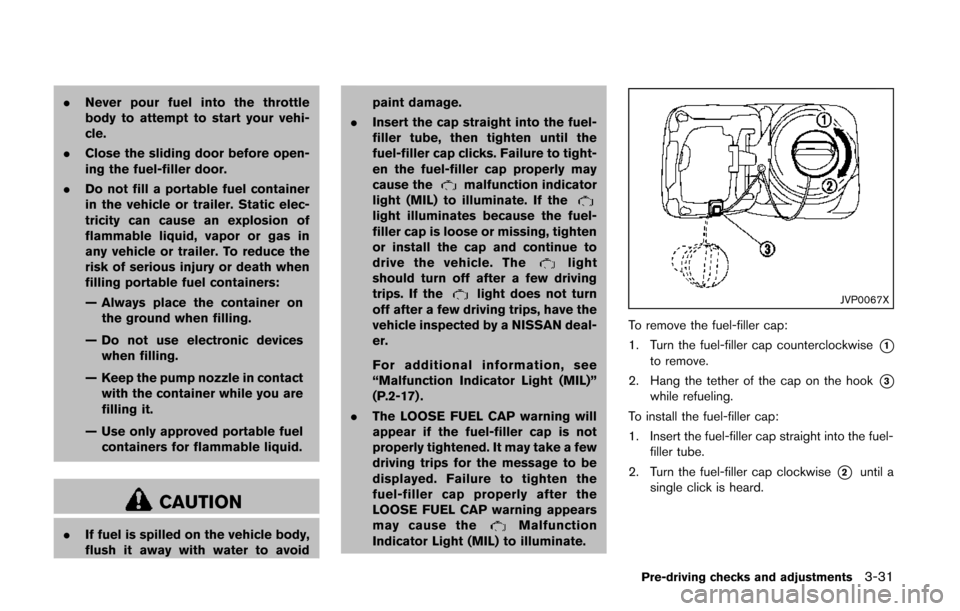
To open the fuel-filler door, pull the fuel-filler
door opener handle
*1.
FUEL-FILLER CAP
WARNING
. Gasoline is extremely flammable
and highly explosive under certain
conditions. You could be burned or
seriously injured if it is misused or
mishandled. Always stop engine
and do not smoke or allow open
flames or sparks near the vehicle
when refueling.
. Do not attempt to top off the fuel
tank after the fuel pump nozzle
shuts off automatically. Continued
refueling may cause fuel overflow,
resulting in fuel spray and possibly
a fire.
. Use only an original equipment type
fuel-filler cap as a replacement. It
has a built-in safety valve needed
for proper operation of the fuel
system and emission control sys-
tem. An incorrect cap can result in a
serious malfunction and possible
injury. It could also cause the mal-
function indicator light to come on.
FUEL-FILLER DOOR
Page 174 of 482
.Never pour fuel into the throttle
body to attempt to start your vehi-
cle.
. Close the sliding door before open-
ing the fuel-filler door.
. Do not fill a portable fuel container
in the vehicle or trailer. Static elec-
tricity can cause an explosion of
flammable liquid, vapor or gas in
any vehicle or trailer. To reduce the
risk of serious injury or death when
filling portable fuel containers:
— Always place the container on
the ground when filling.
— Do not use electronic devices when filling.
— Keep the pump nozzle in contact with the container while you are
filling it.
— Use only approved portable fuel containers for flammable liquid.
CAUTION
. If fuel is spilled on the vehicle body,
flush it away with water to avoid paint damage.
. Insert the cap straight into the fuel-
filler tube, then tighten until the
fuel-filler cap clicks. Failure to tight-
en the fuel-filler cap properly may
cause the
malfunction indicator
light (MIL) to illuminate. If the
light illuminates because the fuel-
filler cap is loose or missing, tighten
or install the cap and continue to
drive the vehicle. The
light
should turn off after a few driving
trips. If the
light does not turn
off after a few driving trips, have the
vehicle inspected by a NISSAN deal-
er.
For additional information, see
“Malfunction Indicator Light (MIL)”
(P.2-17) .
. The LOOSE FUEL CAP warning will
appear if the fuel-filler cap is not
properly tightened. It may take a few
driving trips for the message to be
displayed. Failure to tighten the
fuel-filler cap properly after the
LOOSE FUEL CAP warning appears
may cause the
Malfunction
Indicator Light (MIL) to illuminate.
JVP0067X
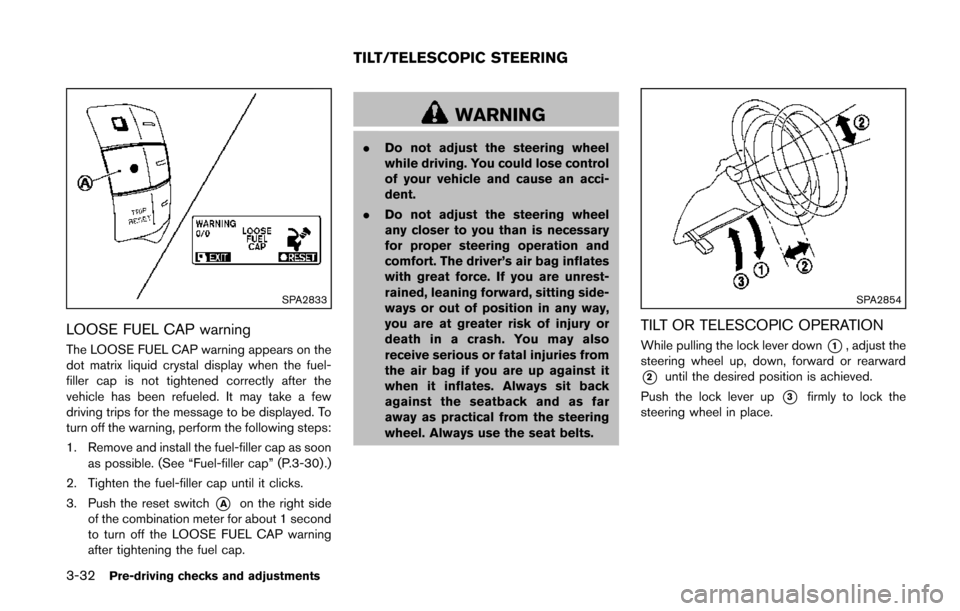
To remove the fuel-filler cap:
1. Turn the fuel-filler cap counterclockwise
*1to remove.
2. Hang the tether of the cap on the hook
*3while refueling.
To install the fuel-filler cap:
1. Insert the fuel-filler cap straight into the fuel- filler tube.
2. Turn the fuel-filler cap clockwise
*2until a
single click is heard.
Pre-driving checks and adjustments3-31
Page 175 of 482
3-32Pre-driving checks and adjustments
SPA2833
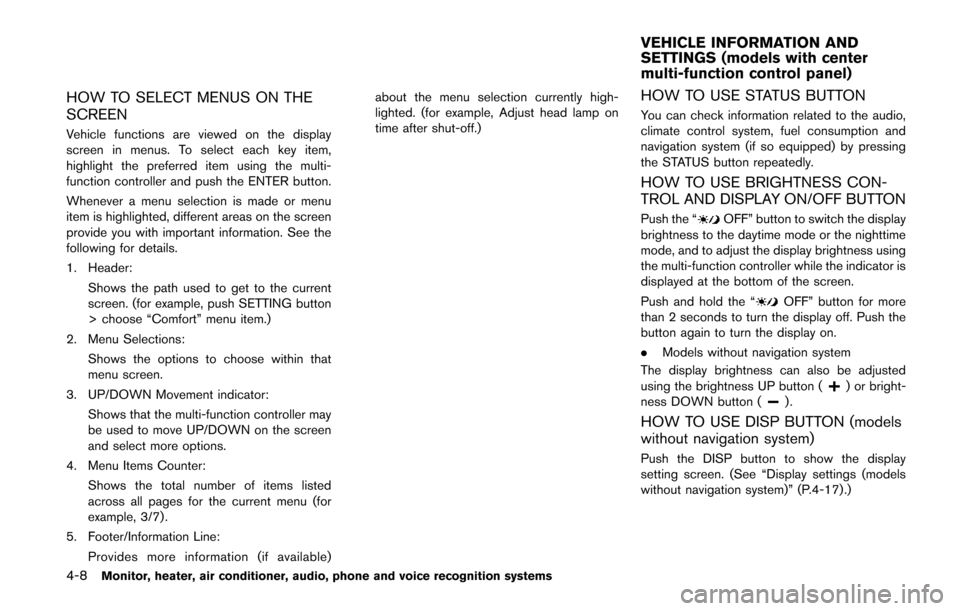
LOOSE FUEL CAP warning
The LOOSE FUEL CAP warning appears on the
dot matrix liquid crystal display when the fuel-
filler cap is not tightened correctly after the
vehicle has been refueled. It may take a few
driving trips for the message to be displayed. To
turn off the warning, perform the following steps:
1. Remove and install the fuel-filler cap as soonas possible. (See “Fuel-filler cap” (P.3-30) .)
2. Tighten the fuel-filler cap until it clicks.
3. Push the reset switch
*Aon the right side
of the combination meter for about 1 second
to turn off the LOOSE FUEL CAP warning
after tightening the fuel cap.
WARNING
. Do not adjust the steering wheel
while driving. You could lose control
of your vehicle and cause an acci-
dent.
. Do not adjust the steering wheel
any closer to you than is necessary
for proper steering operation and
comfort. The driver’s air bag inflates
with great force. If you are unrest-
rained, leaning forward, sitting side-
ways or out of position in any way,
you are at greater risk of injury or
death in a crash. You may also
receive serious or fatal injuries from
the air bag if you are up against it
when it inflates. Always sit back
against the seatback and as far
away as practical from the steering
wheel. Always use the seat belts.
SPA2854
TILT OR TELESCOPIC OPERATION
While pulling the lock lever down*1, adjust the
steering wheel up, down, forward or rearward
*2until the desired position is achieved.
Push the lock lever up
*3firmly to lock the
steering wheel in place.
TILT/TELESCOPIC STEERING
Page 191 of 482
4-8Monitor, heater, air conditioner, audio, phone and voice recognition systems
HOW TO SELECT MENUS ON THE
SCREEN
Vehicle functions are viewed on the display
screen in menus. To select each key item,
highlight the preferred item using the multi-
function controller and push the ENTER button.
Whenever a menu selection is made or menu
item is highlighted, different areas on the screen
provide you with important information. See the
following for details.
1. Header:Shows the path used to get to the current
screen. (for example, push SETTING button
> choose “Comfort” menu item.)
2. Menu Selections: Shows the options to choose within that
menu screen.
3. UP/DOWN Movement indicator: Shows that the multi-function controller may
be used to move UP/DOWN on the screen
and select more options.
4. Menu Items Counter: Shows the total number of items listed
across all pages for the current menu (for
example, 3/7) .
5. Footer/Information Line: Provides more information (if available) about the menu selection currently high-
lighted. (for example, Adjust head lamp on
time after shut-off.)
HOW TO USE STATUS BUTTON
You can check information related to the audio,
climate control system, fuel consumption and
navigation system (if so equipped) by pressing
the STATUS button repeatedly.
HOW TO USE BRIGHTNESS CON-
TROL AND DISPLAY ON/OFF BUTTON
Push the “OFF” button to switch the display
brightness to the daytime mode or the nighttime
mode, and to adjust the display brightness using
the multi-function controller while the indicator is
displayed at the bottom of the screen.
Push and hold the “
OFF” button for more
than 2 seconds to turn the display off. Push the
button again to turn the display on.
. Models without navigation system
The display brightness can also be adjusted
using the brightness UP button (
) or bright-
ness DOWN button ().
HOW TO USE DISP BUTTON (models
without navigation system)
Push the DISP button to show the display
setting screen. (See “Display settings (models
without navigation system)” (P.4-17).)
VEHICLE INFORMATION AND
SETTINGS (models with center
multi-function control panel)
Page 192 of 482
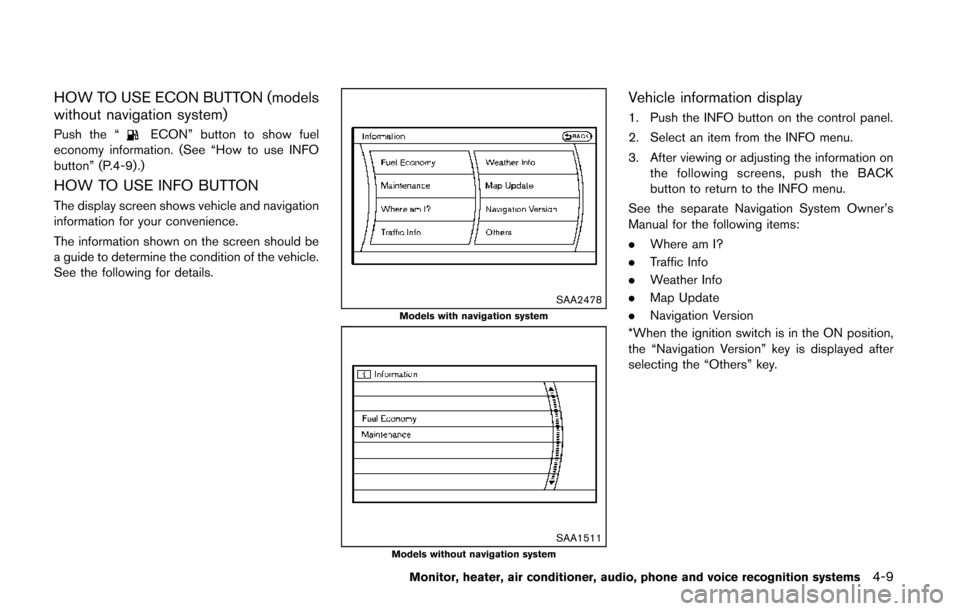
HOW TO USE ECON BUTTON (models
without navigation system)
Push the “ECON” button to show fuel
economy information. (See “How to use INFO
button” (P.4-9).)
HOW TO USE INFO BUTTON
The display screen shows vehicle and navigation
information for your convenience.
The information shown on the screen should be
a guide to determine the condition of the vehicle.
See the following for details.
SAA2478Models with navigation system
SAA1511Models without navigation system
Vehicle information display
1. Push the INFO button on the control panel.
2. Select an item from the INFO menu.
3. After viewing or adjusting the information on
the following screens, push the BACK
button to return to the INFO menu.
See the separate Navigation System Owner’s
Manual for the following items:
. Where am I?
. Traffic Info
. Weather Info
. Map Update
. Navigation Version
*When the ignition switch is in the ON position,
the “Navigation Version” key is displayed after
selecting the “Others” key.
Monitor, heater, air conditioner, audio, phone and voice recognition systems4-9
Page 193 of 482
4-10Monitor, heater, air conditioner, audio, phone and voice recognition systems
SAA2479
SAA2480Models with navigation system
JVH0180M
JVH0181MModels without navigation system
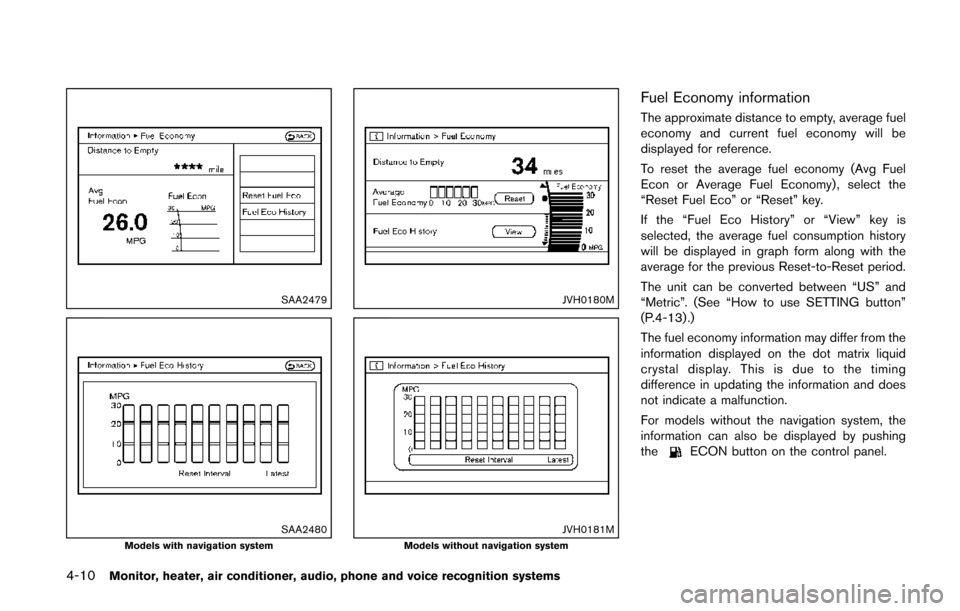
Fuel Economy information
The approximate distance to empty, average fuel
economy and current fuel economy will be
displayed for reference.
To reset the average fuel economy (Avg Fuel
Econ or Average Fuel Economy) , select the
“Reset Fuel Eco” or “Reset” key.
If the “Fuel Eco History” or “View” key is
selected, the average fuel consumption history
will be displayed in graph form along with the
average for the previous Reset-to-Reset period.
The unit can be converted between “US” and
“Metric”. (See “How to use SETTING button”
(P.4-13) .)
The fuel economy information may differ from the
information displayed on the dot matrix liquid
crystal display. This is due to the timing
difference in updating the information and does
not indicate a malfunction.
For models without the navigation system, the
information can also be displayed by pushing
the
ECON button on the control panel.
Page 215 of 482
4-32Monitor, heater, air conditioner, audio, phone and voice recognition systems
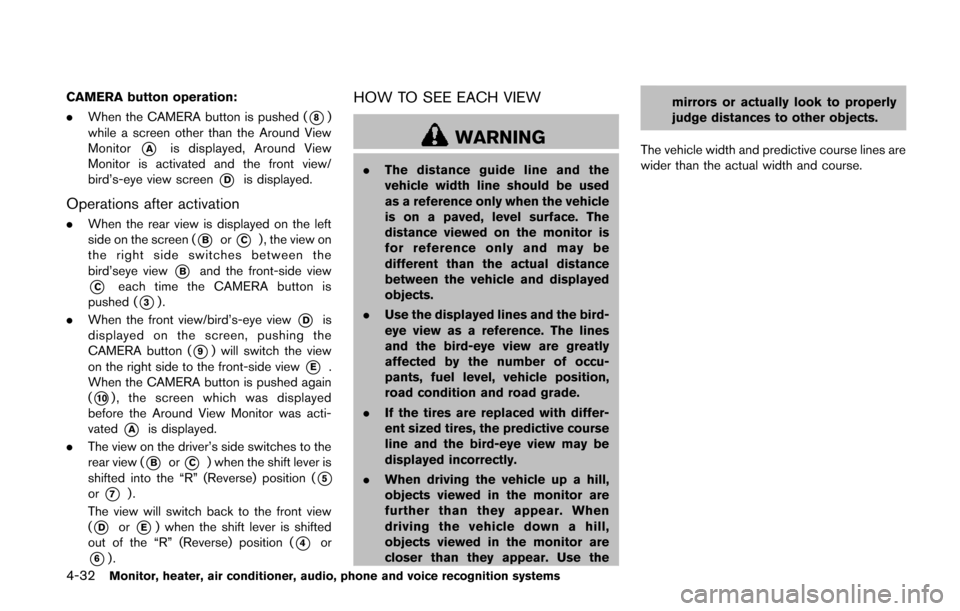
CAMERA button operation:
.When the CAMERA button is pushed (
*8)
while a screen other than the Around View
Monitor
*Ais displayed, Around View
Monitor is activated and the front view/
bird’s-eye view screen
*Dis displayed.
Operations after activation
. When the rear view is displayed on the left
side on the screen (
*Bor*C) , the view on
the right side switches between the
bird’seye view
*Band the front-side view
*Ceach time the CAMERA button is
pushed (
*3).
. When the front view/bird’s-eye view
*Dis
displayed on the screen, pushing the
CAMERA button (
*9) will switch the view
on the right side to the front-side view
*E.
When the CAMERA button is pushed again
(
*10), the screen which was displayed
before the Around View Monitor was acti-
vated
*Ais displayed.
. The view on the driver’s side switches to the
rear view (
*Bor*C) when the shift lever is
shifted into the “R” (Reverse) position (
*5or*7).
The view will switch back to the front view
(
*Dor*E) when the shift lever is shifted
out of the “R” (Reverse) position (
*4or
*6).
HOW TO SEE EACH VIEW
WARNING
. The distance guide line and the
vehicle width line should be used
as a reference only when the vehicle
is on a paved, level surface. The
distance viewed on the monitor is
for reference only and may be
different than the actual distance
between the vehicle and displayed
objects.
. Use the displayed lines and the bird-
eye view as a reference. The lines
and the bird-eye view are greatly
affected by the number of occu-
pants, fuel level, vehicle position,
road condition and road grade.
. If the tires are replaced with differ-
ent sized tires, the predictive course
line and the bird-eye view may be
displayed incorrectly.
. When driving the vehicle up a hill,
objects viewed in the monitor are
further than they appear. When
driving the vehicle down a hill,
objects viewed in the monitor are
closer than they appear. Use the mirrors or actually look to properly
judge distances to other objects.
The vehicle width and predictive course lines are
wider than the actual width and course.
Page 326 of 482
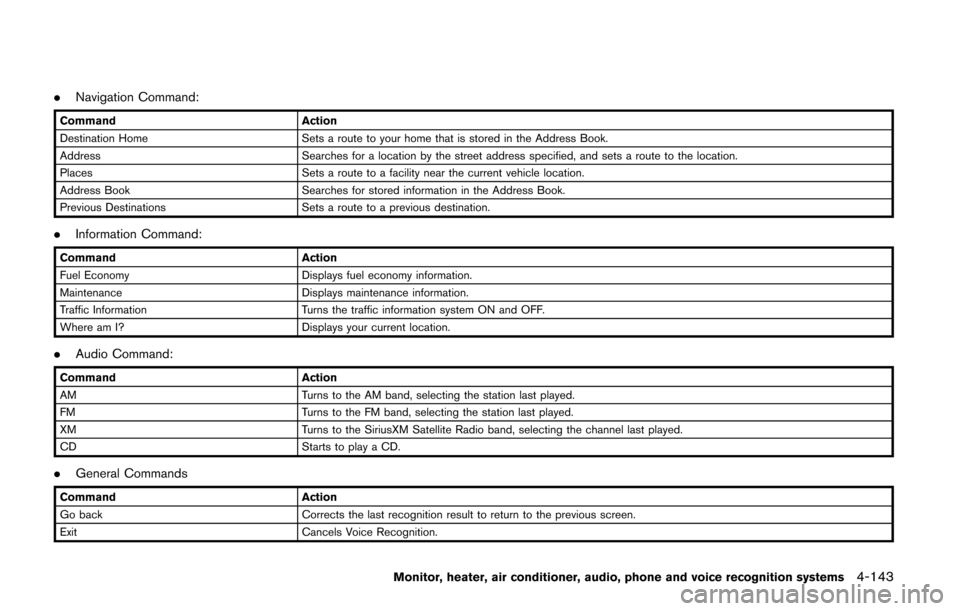
.Navigation Command:
Command Action
Destination Home Sets a route to your home that is stored in the Address Book.
Address Searches for a location by the street address specified, and sets a route to the location.
Places Sets a route to a facility near the current vehicle location.
Address Book Searches for stored information in the Address Book.
Previous Destinations Sets a route to a previous destination.
.Information Command:
Command Action
Fuel Economy Displays fuel economy information.
Maintenance Displays maintenance information.
Traffic Information Turns the traffic information system ON and OFF.
Where am I? Displays your current location.
.Audio Command:
Command Action
AM Turns to the AM band, selecting the station last played.
FM Turns to the FM band, selecting the station last played.
XM Turns to the SiriusXM Satellite Radio band, selecting the channel last played.
CD Starts to play a CD.
.General Commands
Command Action
Go back Corrects the last recognition result to return to the previous screen.
Exit Cancels Voice Recognition.
Monitor, heater, air conditioner, audio, phone and voice recognition systems4-143