2014 NISSAN QUEST language
[x] Cancel search: languagePage 294 of 482
Setting keys
Select the “Settings” key with the multi-function
controller and push the ENTER button to adjust
the following settings.
The items indicated with “ * ” can also be set
from the rear display. Push the “ DVD” button on
the remote controller while a DVD is being
played. Select the preferred item using the
joystick “
” on the remote controller and
push the ENTER “” button.
Key (DVD-VIDEO) (models with navigation
system):
Keys for the DVD menu operation are displayed.
: Move the cursor to select a DVD menu.
Enter: Enter the selected menu.
Move: Change the display location by moving
the operation key.
Back: Return to the previous screen.
Hide: Hide the operation key.
Title Menu (front)/Menu (rear) (DVD-VI-
DEO):
Menus specific to each disc will be shown. For
details, see the instructions attached to the disc.
Title Search (DVD-VIDEO):
A scene that belongs to a specified title will be
displayed each time the “+” side or “−” side is selected.
10 Key Search (DVD-VIDEO, VIDEO-CD,
CD-DA):
Select the “10 Key Search” key and push the
ENTER button to open the number entry screen.
Input the number you want to search for and
select the “OK” key with the multi-function
controller. Then push the ENTER button. The
specified Title/Chapter or Group/Track will be
played.
Angle (DVD-VIDEO):
If the DVD contains different angles (such as
moving images), the current image angle can be
switched to another one.
Select the “Angle” key and push the ENTER
button. When the “+” side or “−
” side is
selected, the angle will change.
Angle Mark (DVD-VIDEO):
When this item is turned on, an angle mark will
be shown on the bottom of the screen if the
scene can be seen from a different angle.
Menu Skip (DVD-VIDEO):
DVD menus are automatically configured and
the contents will be played directly when the
“Menu Skip” key is turned on. Note that some
discs may not be played directly even if this item
is turned on. CM Skip (DVD-VIDEO) (models with navi-
gation system):
The number of seconds for CM Skip can be set
to 15, 30 or 60 seconds.
DRC (DVD-VIDEO):
DRC (Dynamic Range Compression) allows
tuning of the dynamic range of sound recorded
in the Dolby Digital format.
DVD Language (DVD-VIDEO, VIDEO-CD):
Select the “DVD Language” key and push the
ENTER button to open the number entry screen.
Input the number corresponding to the preferred
language and select the “OK” key with the multi-
function controller. Then push the ENTER
button. The DVD top menu language will be
changed to the one selected.
Display:
Adjust the image quality of the screen, select the
preferred adjustment items and push the ENTER
button.
Audio:
Choose the preferred language using the multi-
function controller and push the ENTER button.
Subtitle (DVD-VIDEO):
Choose the preferred language using the multi-
function controller and push the ENTER button.
Monitor, heater, air conditioner, audio, phone and voice recognition systems4-111
Page 295 of 482
4-112Monitor, heater, air conditioner, audio, phone and voice recognition systems
To turn off the subtitles, push and hold the
ENTER button until a beep sounds.
Display Mode (DVD-VIDEO, VIDEO-CD):
Choose from the “Full”, “Wide”, “Normal” or
“Cinema” mode using the multi-function con-
troller and push the ENTER button again.
Play Mode:
Choose the preferred play mode using the multi-
function controller and push the ENTER button.
Remote controller operation
Use the remote controller to adjust the following
items.
Rear display open/close:
To open or close the flip-down rear display, push
the “
” button.
Joystick:
Use the joystick “
” to select the items
displayed on the rear screen.
ENTER button:
Push the ENTER “
” button to make the
selected item complete on the rear screen.
BACK button:
Push to go back to the previous screen or
cancel the selection. Display tilt:
Adjust the display angle by pushing the DIS-
PLAY TILT button “
”.
DVD mode:
To select the DVD mode, push the DVD button.
USB mode (if so equipped):
To select the USB mode, push the USB button.
AUX mode:
To select the AUX (auxiliary input jacks) , mode,
push the AUX button.
Volume:
To control the speaker volume level, push the
VOL button “
”.
Display:
To adjust the rear display screen (aspect, color
system, 3D Y/C filter and picture mode etc.) ,
push the DISP button.
Sound:
To change the language, push the SOUND
button. Each time the button is pushed, the
language will change to each language stored in
the DVD.
Track/Channel:
To skip to the previous or next DVD scene
selection, push the TRACK CH button “
”. Keypad:
: PLAY/PAUSE button
: STOP button
: FORWARD button
: REWIND button
: FORWARD button for commercial skip (for
DVD-VIDEO and DVD-VR)
: REWIND button for commercial skip (for
DVD-VIDEO and DVD-VR)
Rear display settings
To adjust rear display setting, select the
preferred key and push the ENTERbutton.
The following settings are available:
Aspect:
Select the display size from “CINEMA”, “WIDE”,
“FULL” or “NORMAL” using the joystick on the
remote controller.
Picture Mode:
To adjust the display brightness automatically,
select the “Brightness” key and then select from
“DARKER”, “NORMAL” or “BRIGHTER”. When
adjusting manually, select “OFF” and adjust
using the joystick on the remote controller and
tilt the joystick to the right or left.
To adjust tint, color, contrast or black level,
select a key using the joystick on the remote
Page 311 of 482
4-128Monitor, heater, air conditioner, audio, phone and voice recognition systems
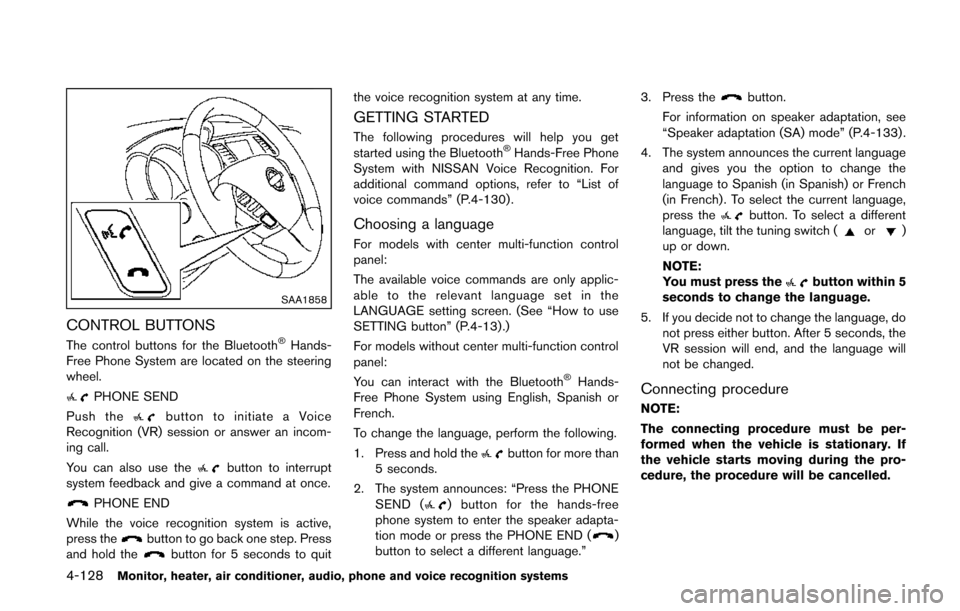
SAA1858
CONTROL BUTTONS
The control buttons for the Bluetooth®Hands-
Free Phone System are located on the steering
wheel.
PHONE SEND
Push the
button to initiate a Voice
Recognition (VR) session or answer an incom-
ing call.
You can also use the
button to interrupt
system feedback and give a command at once.
PHONE END
While the voice recognition system is active,
press the
button to go back one step. Press
and hold thebutton for 5 seconds to quit the voice recognition system at any time.
GETTING STARTED
The following procedures will help you get
started using the Bluetooth®Hands-Free Phone
System with NISSAN Voice Recognition. For
additional command options, refer to “List of
voice commands” (P.4-130) .
Choosing a language
For models with center multi-function control
panel:
The available voice commands are only applic-
able to the relevant language set in the
LANGUAGE setting screen. (See “How to use
SETTING button” (P.4-13).)
For models without center multi-function control
panel:
You can interact with the Bluetooth
®Hands-
Free Phone System using English, Spanish or
French.
To change the language, perform the following.
1. Press and hold the
button for more than
5 seconds.
2. The system announces: “Press the PHONE SEND (
) button for the hands-free
phone system to enter the speaker adapta-
tion mode or press the PHONE END (
)
button to select a different language.” 3. Press the
button.
For information on speaker adaptation, see
“Speaker adaptation (SA) mode” (P.4-133) .
4. The system announces the current language and gives you the option to change the
language to Spanish (in Spanish) or French
(in French) . To select the current language,
press the
button. To select a different
language, tilt the tuning switch (or)
up or down.
NOTE:
You must press the
button within 5
seconds to change the language.
5. If you decide not to change the language, do not press either button. After 5 seconds, the
VR session will end, and the language will
not be changed.
Connecting procedure
NOTE:
The connecting procedure must be per-
formed when the vehicle is stationary. If
the vehicle starts moving during the pro-
cedure, the procedure will be cancelled.
Page 317 of 482
4-134Monitor, heater, air conditioner, audio, phone and voice recognition systems
Training procedure
1. Position the vehicle in a reasonably quietoutdoor location.
2. Sit in the driver’s seat with the engine running, the parking brake on, and the
transmission in Park.
3. Press and hold the
button for more than
5 seconds.
4. The system announces: “Press the PHONE SEND (
) button for the hands-free
phone system to enter the speaker adapta-
tion mode or press the PHONE END (
)
button to select a different language.”
5. Press the
button.
For information on selecting a different
language, see “Choosing a language” (P.4-
128).
6. If the connected phone is already in use, the system will prompt you to overwrite. Follow
the instructions provided by the system.
7. When preparation is complete and you are ready to begin, press the
button.
8. The SA mode will be explained. Follow the instructions provided by the system.
9. When training is finished, the system will tell you an adequate number of phrases have
been recorded. 10. The system will announce that speaker
adaptation has been completed and the
system is ready.
The SA mode will stop if:
. The
button is pressed for more than 5
seconds in SA mode.
. The vehicle is driven during SA mode.
. The ignition switch is turned to the OFF or
LOCK position.
Training phrases
During the SA mode, the system instructs you to
say the following phrases.
(The system will prompt you for each phrase.)
.phonebook transfer entry
. dial 30429
. delete call back number
. Incoming
. Transfer entry
. 8 pause 9 3 2 pause 7
. delete all entries
. call 7 2409
. phonebook delete entry
. next entry
. dial star 2170
. yes .
no
. select
. Missed
. dial 85692
. Bluetooth on
. Outgoing
. call 3 1902
. 9 7 pause pause 3 0 8
. cancel
. call back number
. call star 2095
. delete phone
. dial 83051
. Record Name
. 4 3 pause 2 9 pause 0
. delete redial number
. phonebook list names
. call 8 0541
. correction
. connect phone
. dial 74018
. previous entry
. delete
. dial 97266
. call 7 6301