2014 NISSAN QUEST ECO mode
[x] Cancel search: ECO modePage 297 of 482
4-114Monitor, heater, air conditioner, audio, phone and voice recognition systems
CAUTION
.Keep the antenna as far away as
possible from the electronic control
modules.
. Keep the antenna wire more than 8
in (20 cm) away from the electronic
control system harness. Do not
route the antenna wire next to any
harness.
. Adjust the antenna standing-wave
ratio as recommended by the man-
ufacturer.
. Connect the ground wire from the
CB radio chassis to the body.
. For details, consult a NISSAN deal-
er.
WARNING
.Use a phone after stopping your
vehicle in a safe location. If you
have to use a phone while driving,
exercise extreme caution at all
times so full attention may be given
to vehicle operation.
. If you find yourself unable to devote
full attention to vehicle operation
while talking on the phone, pull off
the road to a safe location and stop
your vehicle before doing so.
CAUTION
To avoid draining the vehicle battery,
use a phone after starting the engine.
Your NISSAN is equipped with Bluetooth
®
Hands-Free Phone System. If you are an owner
of a compatible Bluetooth®enabled cellular
phone, you can set up the wireless connection
between your cellular phone and the in-vehicle
phone module. With Bluetooth
®wireless tech-
nology, you can make or receive a telephone call
with your cellular phone in your pocket. Once a cellular phone is connected to the in-
vehicle phone module, no phone connecting
procedure is required anymore. Your phone is
automatically connected with the in-vehicle
phone module when the ignition switch is
pushed to the ON position with the registered
cellular phone turned on and carried in the
vehicle.
You can register up to 5 different Bluetooth
®
cellular phones in the in-vehicle phone module.
However, you can talk on only one cellular phone
at a time.
The NISSAN Voice Recognition system sup-
ports the phone commands, so dialing a phone
number using your voice is possible. For more
details, see “NISSAN voice recognition system
(models with navigation system)” (P.4-137).
Before using the Bluetooth
®Hands-Free Phone
System, refer to the following notes.
. Wireless LAN (Wi-Fi) and the Bluetooth
®
functions share the same frequency band
(2.4 GHz) . Using the Bluetooth®and the
wireless LAN functions at the same time may
slow down or disconnect the communica-
tion and cause undesired noise. It is
recommended that you turn off the wireless
LAN (Wi-Fi) when using the Bluetooth
®
functions.
Bluetooth®HANDS-FREE PHONE
SYSTEM (models with navigation
system)
Page 299 of 482
4-116Monitor, heater, air conditioner, audio, phone and voice recognition systems
Bluetooth trademark:
Bluetooth®is a trademark owned
by Bluetooth SIG, Inc., and
licensed to Clarion Co., Ltd.
VOICE COMMANDS
You can use voice commands to operate various
Bluetooth®Hands-Free Phone System features
using the NISSAN Voice Recognition system.
For more details, see “NISSAN voice recogni-
tion system (models with navigation system)”
(P.4-137) .
SAA3603
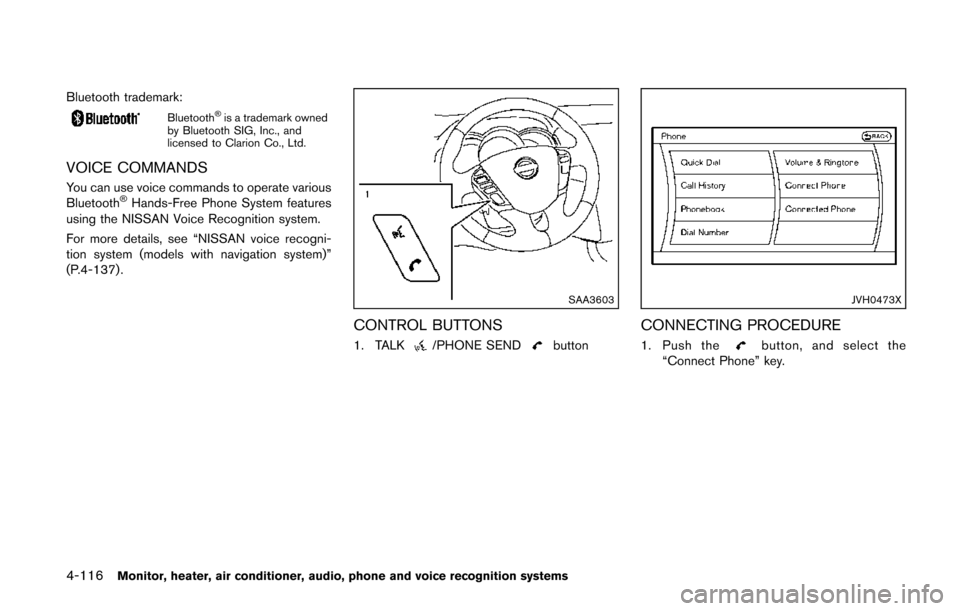
CONTROL BUTTONS
1. TALK/PHONE SENDbutton
JVH0473X
CONNECTING PROCEDURE
1. Push thebutton, and select the
“Connect Phone” key.
Page 301 of 482
4-118Monitor, heater, air conditioner, audio, phone and voice recognition systems
JVH0475X
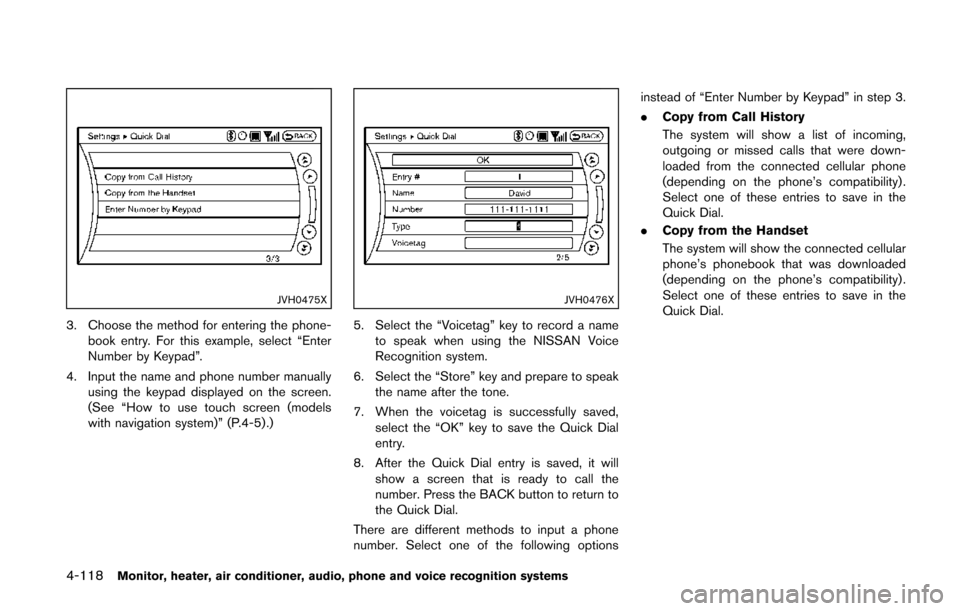
3. Choose the method for entering the phone-book entry. For this example, select “Enter
Number by Keypad”.
4. Input the name and phone number manually using the keypad displayed on the screen.
(See “How to use touch screen (models
with navigation system)” (P.4-5) .)
JVH0476X
5. Select the “Voicetag” key to record a name
to speak when using the NISSAN Voice
Recognition system.
6. Select the “Store” key and prepare to speak the name after the tone.
7. When the voicetag is successfully saved, select the “OK” key to save the Quick Dial
entry.
8. After the Quick Dial entry is saved, it will show a screen that is ready to call the
number. Press the BACK button to return to
the Quick Dial.
There are different methods to input a phone
number. Select one of the following options instead of “Enter Number by Keypad” in step 3.
.
Copy from Call History
The system will show a list of incoming,
outgoing or missed calls that were down-
loaded from the connected cellular phone
(depending on the phone’s compatibility) .
Select one of these entries to save in the
Quick Dial.
. Copy from the Handset
The system will show the connected cellular
phone’s phonebook that was downloaded
(depending on the phone’s compatibility) .
Select one of these entries to save in the
Quick Dial.
Page 302 of 482
JVH0477X
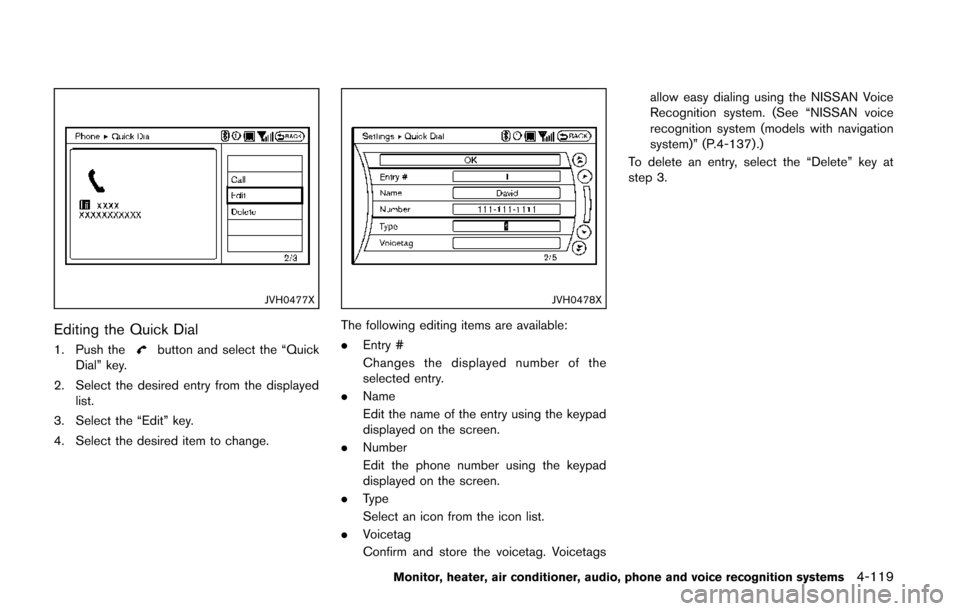
Editing the Quick Dial
1. Push thebutton and select the “Quick
Dial” key.
2. Select the desired entry from the displayed list.
3. Select the “Edit” key.
4. Select the desired item to change.
JVH0478X
The following editing items are available:
. Entry #
Changes the displayed number of the
selected entry.
. Name
Edit the name of the entry using the keypad
displayed on the screen.
. Number
Edit the phone number using the keypad
displayed on the screen.
. Type
Select an icon from the icon list.
. Voicetag
Confirm and store the voicetag. Voicetags allow easy dialing using the NISSAN Voice
Recognition system. (See “NISSAN voice
recognition system (models with navigation
system)” (P.4-137) .)
To delete an entry, select the “Delete” key at
step 3.
Monitor, heater, air conditioner, audio, phone and voice recognition systems4-119
Page 303 of 482
4-120Monitor, heater, air conditioner, audio, phone and voice recognition systems
JVH0479X
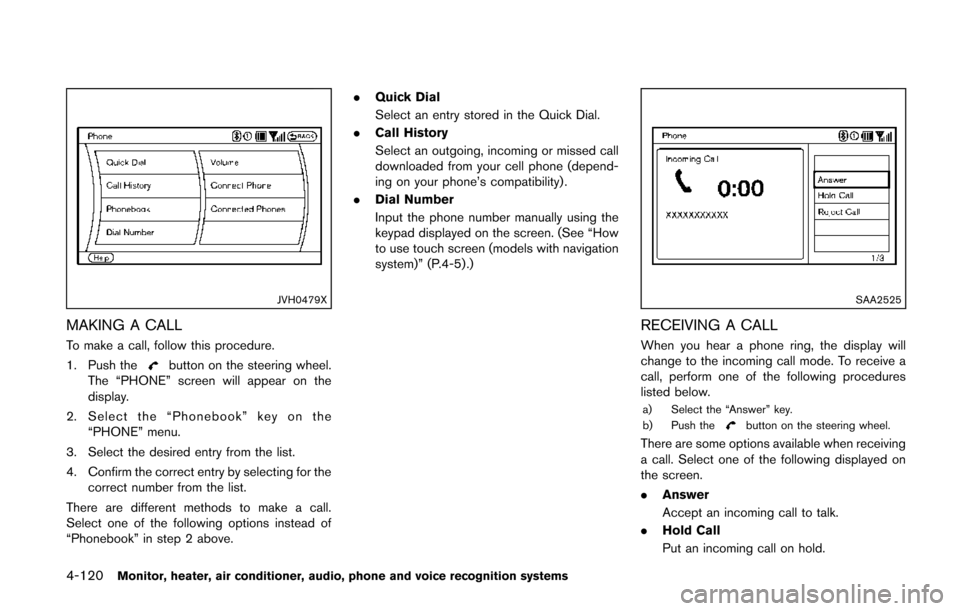
MAKING A CALL
To make a call, follow this procedure.
1. Push the
button on the steering wheel.
The “PHONE” screen will appear on the
display.
2. Select the “Phonebook” key on the “PHONE” menu.
3. Select the desired entry from the list.
4. Confirm the correct entry by selecting for the correct number from the list.
There are different methods to make a call.
Select one of the following options instead of
“Phonebook” in step 2 above. .
Quick Dial
Select an entry stored in the Quick Dial.
. Call History
Select an outgoing, incoming or missed call
downloaded from your cell phone (depend-
ing on your phone’s compatibility) .
. Dial Number
Input the phone number manually using the
keypad displayed on the screen. (See “How
to use touch screen (models with navigation
system)” (P.4-5) .)
SAA2525
RECEIVING A CALL
When you hear a phone ring, the display will
change to the incoming call mode. To receive a
call, perform one of the following procedures
listed below.
a) Select the “Answer” key.
b) Push thebutton on the steering wheel.
There are some options available when receiving
a call. Select one of the following displayed on
the screen.
.Answer
Accept an incoming call to talk.
. Hold Call
Put an incoming call on hold.
Page 304 of 482
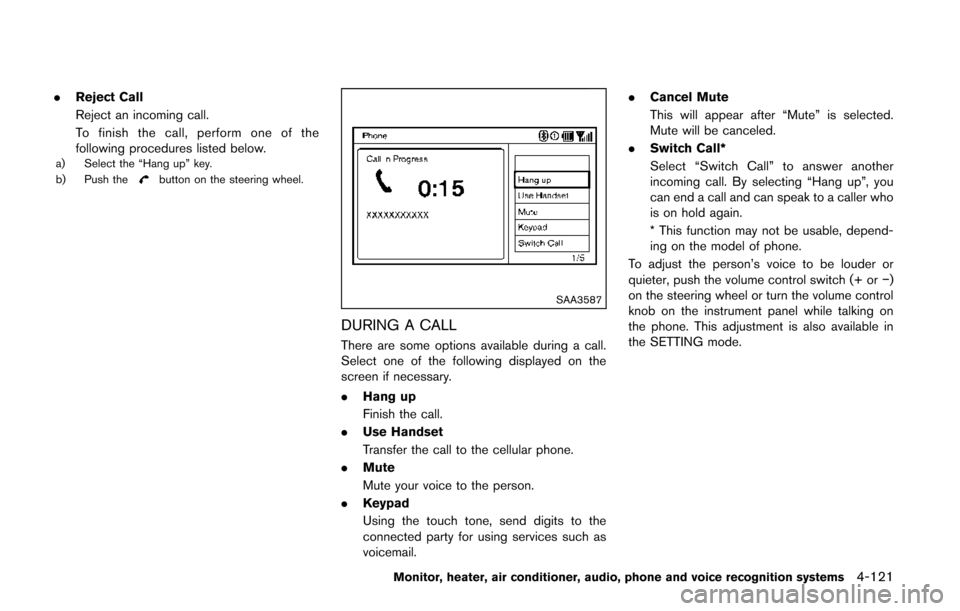
.Reject Call
Reject an incoming call.
To finish the call, perform one of the
following procedures listed below.
a) Select the “Hang up” key.
b) Push thebutton on the steering wheel.
SAA3587
DURING A CALL
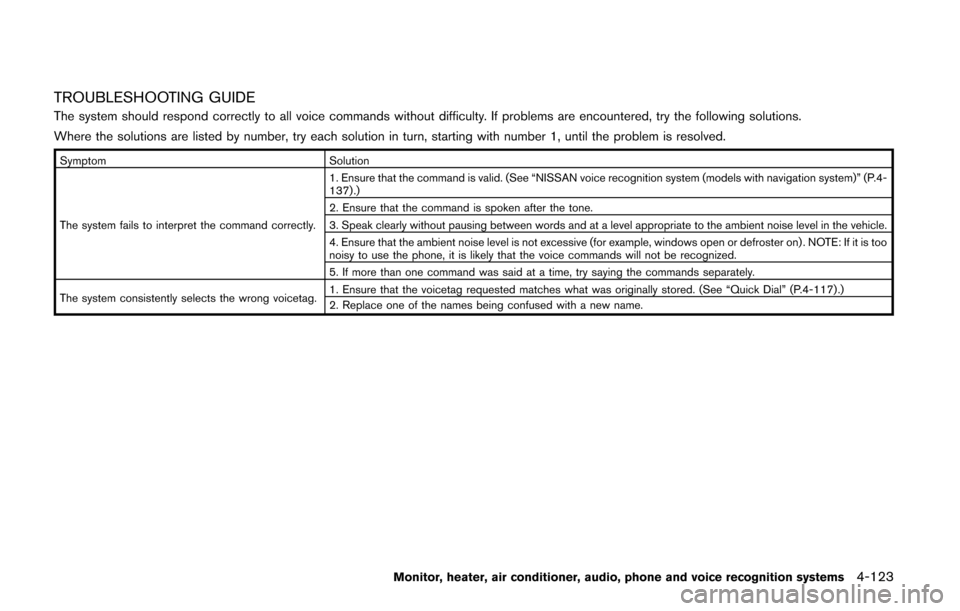
There are some options available during a call.
Select one of the following displayed on the
screen if necessary.
.Hang up
Finish the call.
. Use Handset
Transfer the call to the cellular phone.
. Mute
Mute your voice to the person.
. Keypad
Using the touch tone, send digits to the
connected party for using services such as
voicemail. .
Cancel Mute
This will appear after “Mute” is selected.
Mute will be canceled.
. Switch Call*
Select “Switch Call” to answer another
incoming call. By selecting “Hang up”, you
can end a call and can speak to a caller who
is on hold again.
* This function may not be usable, depend-
ing on the model of phone.
To adjust the person’s voice to be louder or
quieter, push the volume control switch (+ or −)
on the steering wheel or turn the volume control
knob on the instrument panel while talking on
the phone. This adjustment is also available in
the SETTING mode.
Monitor, heater, air conditioner, audio, phone and voice recognition systems4-121
Page 306 of 482
TROUBLESHOOTING GUIDE
The system should respond correctly to all voice commands without difficulty. If problems are encountered, try the following solutions.
Where the solutions are listed by number, try each solution in turn, starting with number 1, until the problem is resolved.
SymptomSolution
The system fails to interpret the command correctly. 1. Ensure that the command is valid. (See “NISSAN voice recognition system (models with navigation system)” (P.4-
137) .)
2. Ensure that the command is spoken after the tone.
3. Speak clearly without pausing between words and at a level appropriate to the ambient noise level in the vehicle.
4. Ensure that the ambient noise level is not excessive (for example, windows open or defroster on) . NOTE: If it is too
noisy to use the phone, it is likely that the voice commands will not be recognized.
5. If more than one command was said at a time, try saying the commands separately.
The system consistently selects the wrong voicetag. 1. Ensure that the voicetag requested matches what was originally stored. (See “Quick Dial” (P.4-117) .)
2. Replace one of the names being confused with a new name.
Monitor, heater, air conditioner, audio, phone and voice recognition systems4-123
Page 307 of 482
4-124Monitor, heater, air conditioner, audio, phone and voice recognition systems
WARNING
.Use a phone after stopping your
vehicle in a safe location. If you
have to use a phone while driving,
exercise extreme caution at all
times so full attention may be given
to vehicle operation.
. If you find yourself unable to devote
full attention to vehicle operation
while talking on the phone, pull off
the road to a safe location and stop
your vehicle before doing so.
CAUTION
To avoid draining the vehicle battery,
use a phone after starting the engine.
SAA3677
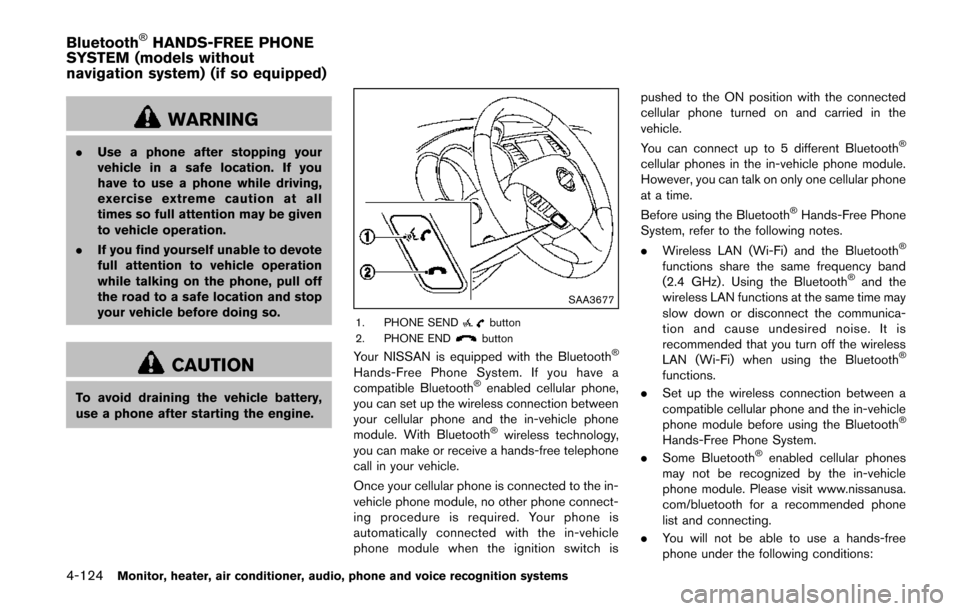
1. PHONE SENDbutton
2. PHONE ENDbutton
Your NISSAN is equipped with the Bluetooth®
Hands-Free Phone System. If you have a
compatible Bluetooth®enabled cellular phone,
you can set up the wireless connection between
your cellular phone and the in-vehicle phone
module. With Bluetooth
®wireless technology,
you can make or receive a hands-free telephone
call in your vehicle.
Once your cellular phone is connected to the in-
vehicle phone module, no other phone connect-
ing procedure is required. Your phone is
automatically connected with the in-vehicle
phone module when the ignition switch is pushed to the ON position with the connected
cellular phone turned on and carried in the
vehicle.
You can connect up to 5 different Bluetooth
®
cellular phones in the in-vehicle phone module.
However, you can talk on only one cellular phone
at a time.
Before using the Bluetooth
®Hands-Free Phone
System, refer to the following notes.
. Wireless LAN (Wi-Fi) and the Bluetooth
®
functions share the same frequency band
(2.4 GHz) . Using the Bluetooth®and the
wireless LAN functions at the same time may
slow down or disconnect the communica-
tion and cause undesired noise. It is
recommended that you turn off the wireless
LAN (Wi-Fi) when using the Bluetooth
®
functions.
. Set up the wireless connection between a
compatible cellular phone and the in-vehicle
phone module before using the Bluetooth
®
Hands-Free Phone System.
. Some Bluetooth®enabled cellular phones
may not be recognized by the in-vehicle
phone module. Please visit www.nissanusa.
com/bluetooth for a recommended phone
list and connecting.
. You will not be able to use a hands-free
phone under the following conditions:
Bluetooth®HANDS-FREE PHONE
SYSTEM (models without
navigation system) (if so equipped)