2014 NISSAN PATHFINDER key
[x] Cancel search: keyPage 278 of 492
– Select the directional keys to move thecursor on the DVD menu.
– Select the “Enter” key to fix the selected menu item.
– Select the “Move” key to move the loca- tion of the operation keys on the screen.
– Select the “Back” key to return to the previous menu screen.
– Select the “Hide” key to hide the opera- tion keys.
● Title Menu (DVD-VIDEO)
Some menus specific to each disc will be
shown. For details, see the instructions at-
tached to the disc.
● Title Search (DVD-VIDEO, DVD-VR)
The scene with the specified title will be
displayed the number of times the “+” or “-”
side is selected.
● Group Search (VIDEO CD)
The scene with the specified group will be
displayed the number of times the “+” or “-”
side is selected. ●
10 Key Search (DVD-VIDEO, VIDEO CD,
CD-DA, DVD-VR)
Select the “10 Key Search” key to open the
number entry screen. Input the number you
want to search for and select the “OK” key.
The specified Title/Chapter or Group/Track
will be played.
● Select No. (VIDEO CD)
Select the “Select No.” key to open the
number entry screen. Input the number you
want to search for and select the “OK” key.
The specified scene will be played.
● Angle (DVD-VIDEO)
If the DVD contains different angles (such as
moving images) , the current image angle
can be switched to another one. Select the
“Angle” key and use the “+” or “-” key to
change the angle.
● Angle Mark (DVD-VIDEO)
When this item is turned on, an angle mark
will be shown on the bottom of the screen if
the scene can be seen from a different angle.
● Menu Skip (DVD-VIDEO)
DVD menus are automatically configured
and the contents will be played directly
when the “Menu Skip” key is turned on. Note
that some discs may not be played directly
even if this item is turned on. ●
CM Skip (DVD-VIDEO)
Select the “CM Skip” key to choose the
setting time for CM backward and forward
operations. Use the “+” or “-” key to choose
a setting time of 15, 30 or 60 seconds.
● DRC (DVD-VIDEO, DVD-VR)
DRC (Dynamic Range Compression) auto-
matically adjusts the soundtrack volume
level to maintain a more even sound to the
speakers.
● DVD Language (DVD-VIDEO, VIDEO CD)
Select the “DVD Language” key to open the
number entry screen. Input the number cor-
responding to the preferred language and
select the “OK” key. The DVD top menu
language will be changed to the one speci-
fied.
● Display
Adjust the image quality of the screen by
selecting the preferred adjustment items.
● Audio
Choose the preferred language for the au-
dio.
● Subtitle (DVD-VIDEO, DVD-VR)
Choose the preferred language for the sub-
titles.
Monitor, climate, audio, phone and voice recognition systems4-87
Page 282 of 492
SEEK/CAT and TRACKbuttons:
Press the SEEK/CAT button
while an au-
dio file on the USB device is playing to return to
the beginning of the current track. Press the
SEEK/CAT button
several times to skip
backward several tracks.
Press the TRACK button
while an audio
file on the USB device is playing to advance one
track. Press the TRACK button
several
times to skip forward several tracks. If the last
track in a folder on the USB device is skipped, the
first track of the next folder is played.
Folder selection:
To change to another folder in the USB memory,
turn the TUNE/FOLDER knob or choose a folder
displayed on the screen.
RPT/RDM button:
When the RPT/RDM button is pressed while the
USB memory is playing, the play pattern can be
changed as follows:
Normal →1 Folder Repeat →1 Track Repeat →
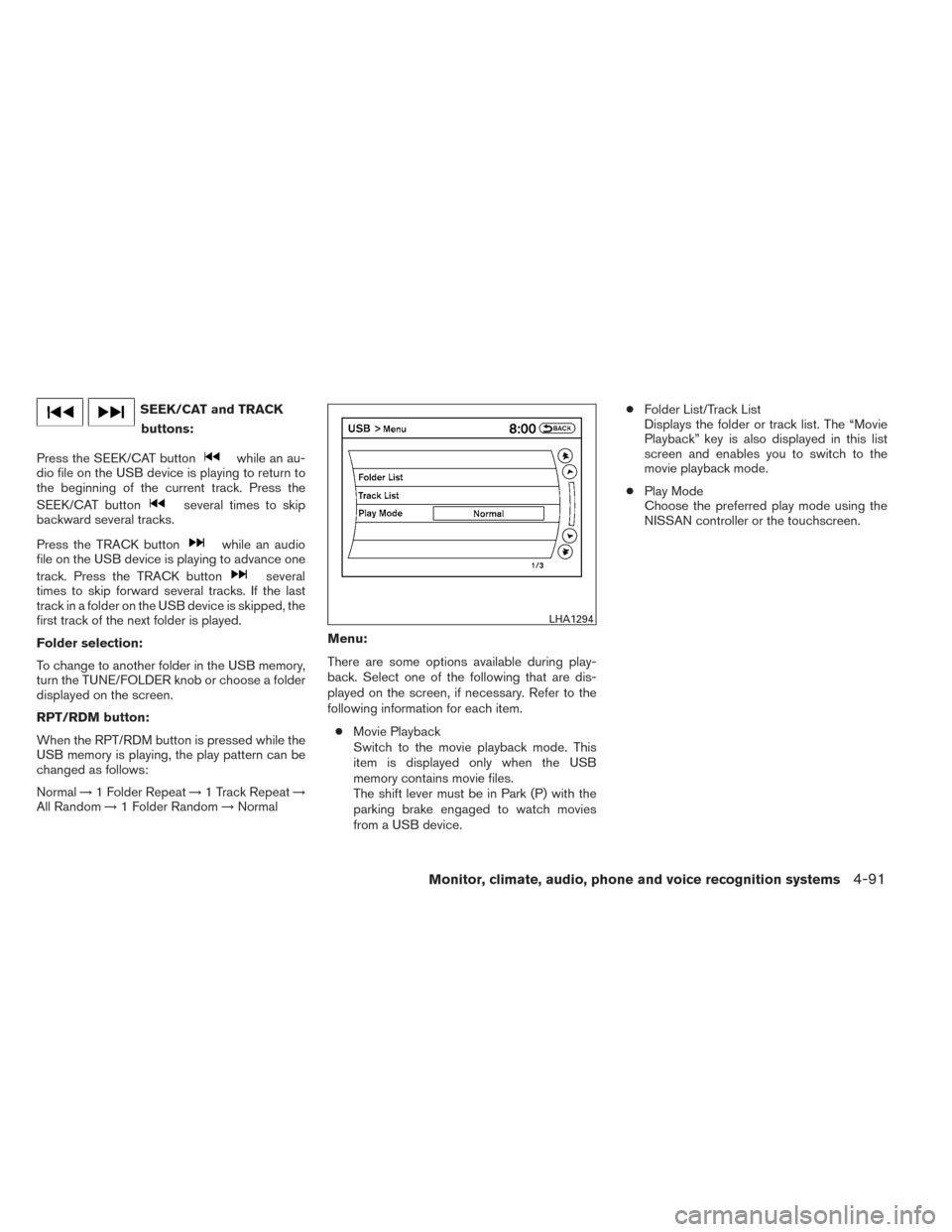
All Random →1 Folder Random →Normal Menu:
There are some options available during play-
back. Select one of the following that are dis-
played on the screen, if necessary. Refer to the
following information for each item.
● Movie Playback
Switch to the movie playback mode. This
item is displayed only when the USB
memory contains movie files.
The shift lever must be in Park (P) with the
parking brake engaged to watch movies
from a USB device. ●
Folder List/Track List
Displays the folder or track list. The “Movie
Playback” key is also displayed in this list
screen and enables you to switch to the
movie playback mode.
● Play Mode
Choose the preferred play mode using the
NISSAN controller or the touchscreen.
LHA1294
Monitor, climate, audio, phone and voice recognition systems4-91
Page 283 of 492
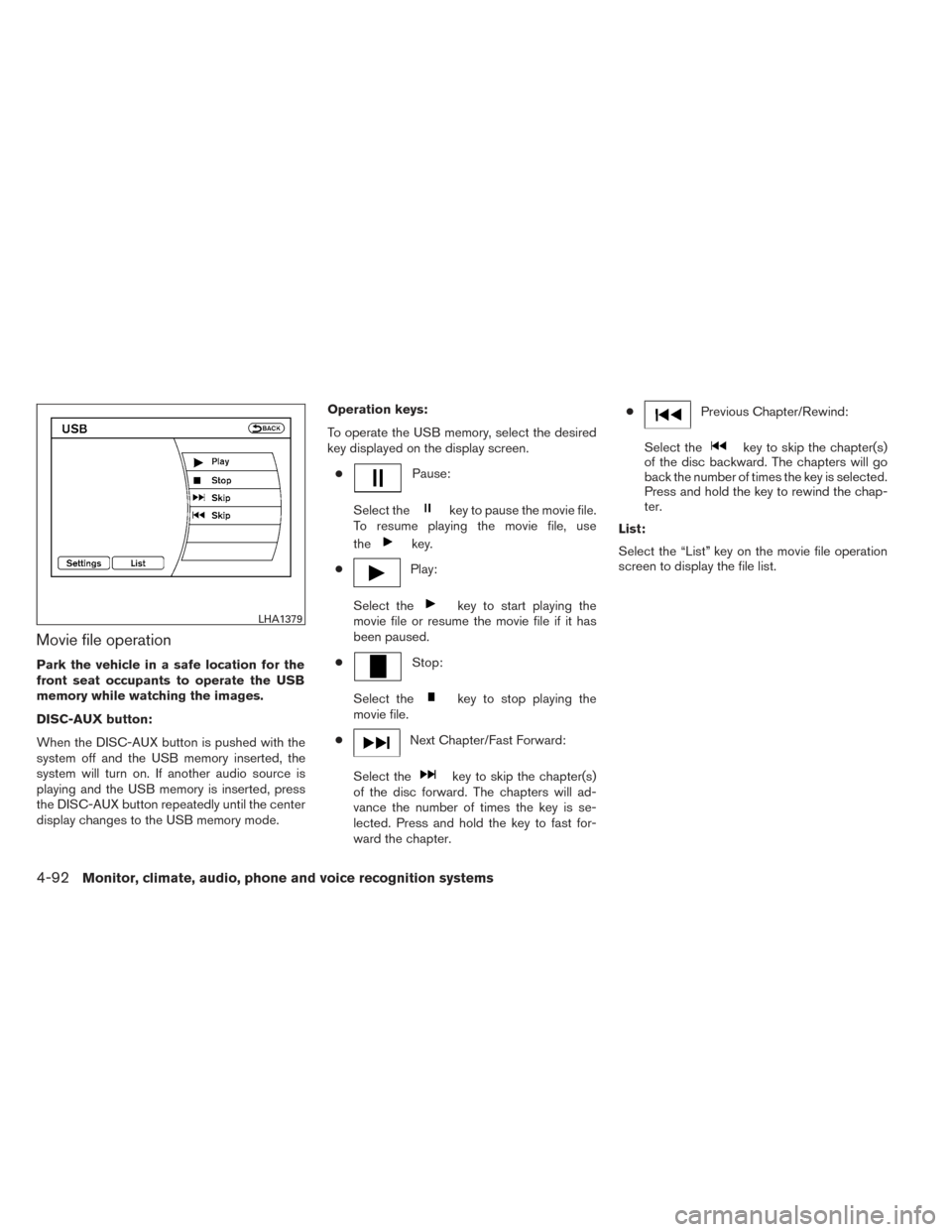
Movie file operation
Park the vehicle in a safe location for the
front seat occupants to operate the USB
memory while watching the images.
DISC-AUX button:
When the DISC-AUX button is pushed with the
system off and the USB memory inserted, the
system will turn on. If another audio source is
playing and the USB memory is inserted, press
the DISC-AUX button repeatedly until the center
display changes to the USB memory mode.Operation keys:
To operate the USB memory, select the desired
key displayed on the display screen.
●
Pause:
Select the
key to pause the movie file.
To resume playing the movie file, use
the
key.
●
Play:
Select the
key to start playing the
movie file or resume the movie file if it has
been paused.
●
Stop:
Select the
key to stop playing the
movie file.
●
Next Chapter/Fast Forward:
Select the
key to skip the chapter(s)
of the disc forward. The chapters will ad-
vance the number of times the key is se-
lected. Press and hold the key to fast for-
ward the chapter. ●
Previous Chapter/Rewind:
Select the
key to skip the chapter(s)
of the disc backward. The chapters will go
back the number of times the key is selected.
Press and hold the key to rewind the chap-
ter.
List:
Select the “List” key on the movie file operation
screen to display the file list.
LHA1379
4-92Monitor, climate, audio, phone and voice recognition systems
Page 284 of 492
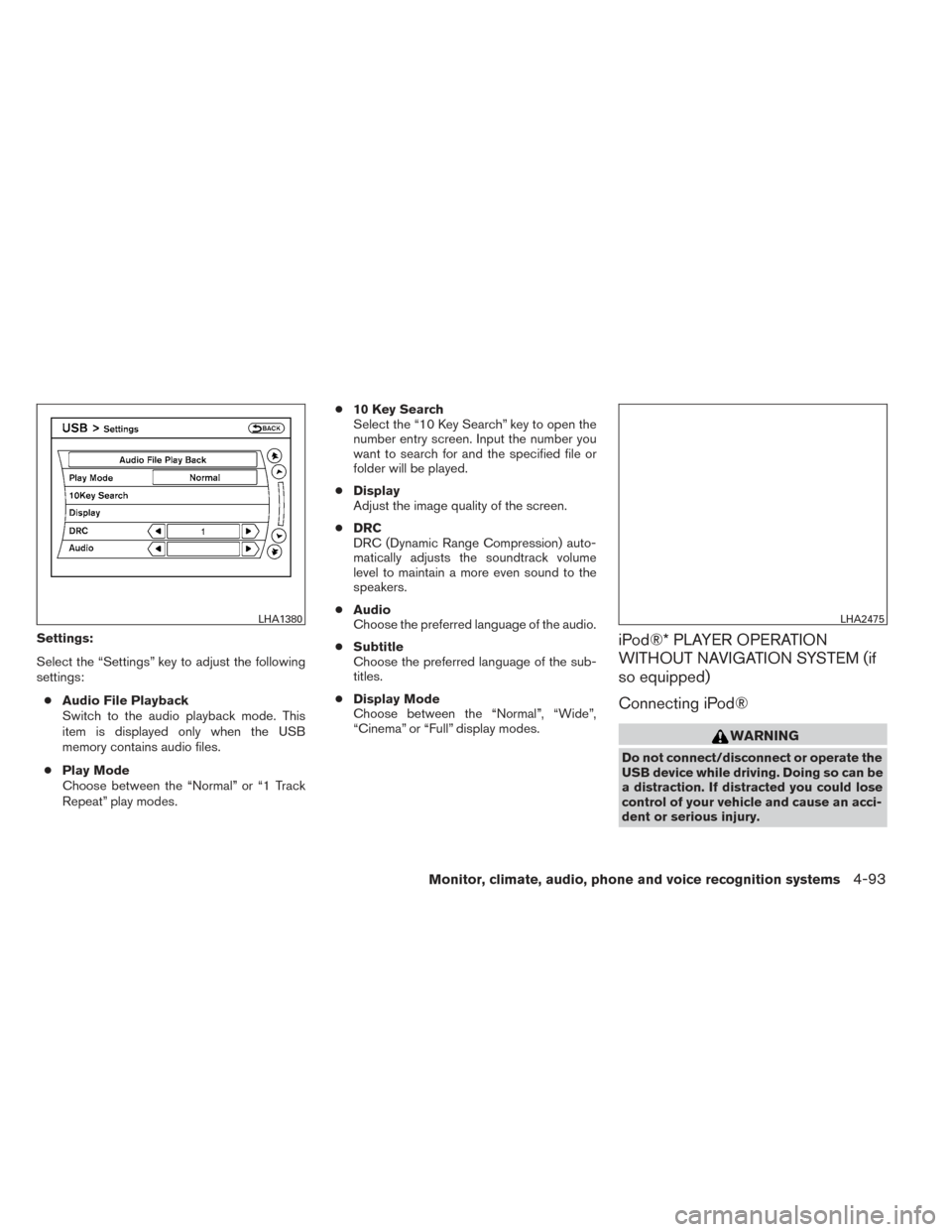
Settings:
Select the “Settings” key to adjust the following
settings:● Audio File Playback
Switch to the audio playback mode. This
item is displayed only when the USB
memory contains audio files.
● Play Mode
Choose between the “Normal” or “1 Track
Repeat” play modes. ●
10 Key Search
Select the “10 Key Search” key to open the
number entry screen. Input the number you
want to search for and the specified file or
folder will be played.
● Display
Adjust the image quality of the screen.
● DRC
DRC (Dynamic Range Compression) auto-
matically adjusts the soundtrack volume
level to maintain a more even sound to the
speakers.
● Audio
Choose the preferred language of the audio.
● Subtitle
Choose the preferred language of the sub-
titles.
● Display Mode
Choose between the “Normal”, “Wide”,
“Cinema” or “Full” display modes.iPod®* PLAYER OPERATION
WITHOUT NAVIGATION SYSTEM (if
so equipped)
Connecting iPod®
WARNING
Do not connect/disconnect or operate the
USB device while driving. Doing so can be
a distraction. If distracted you could lose
control of your vehicle and cause an acci-
dent or serious injury.
LHA1380LHA2475
Monitor, climate, audio, phone and voice recognition systems4-93
Page 286 of 492
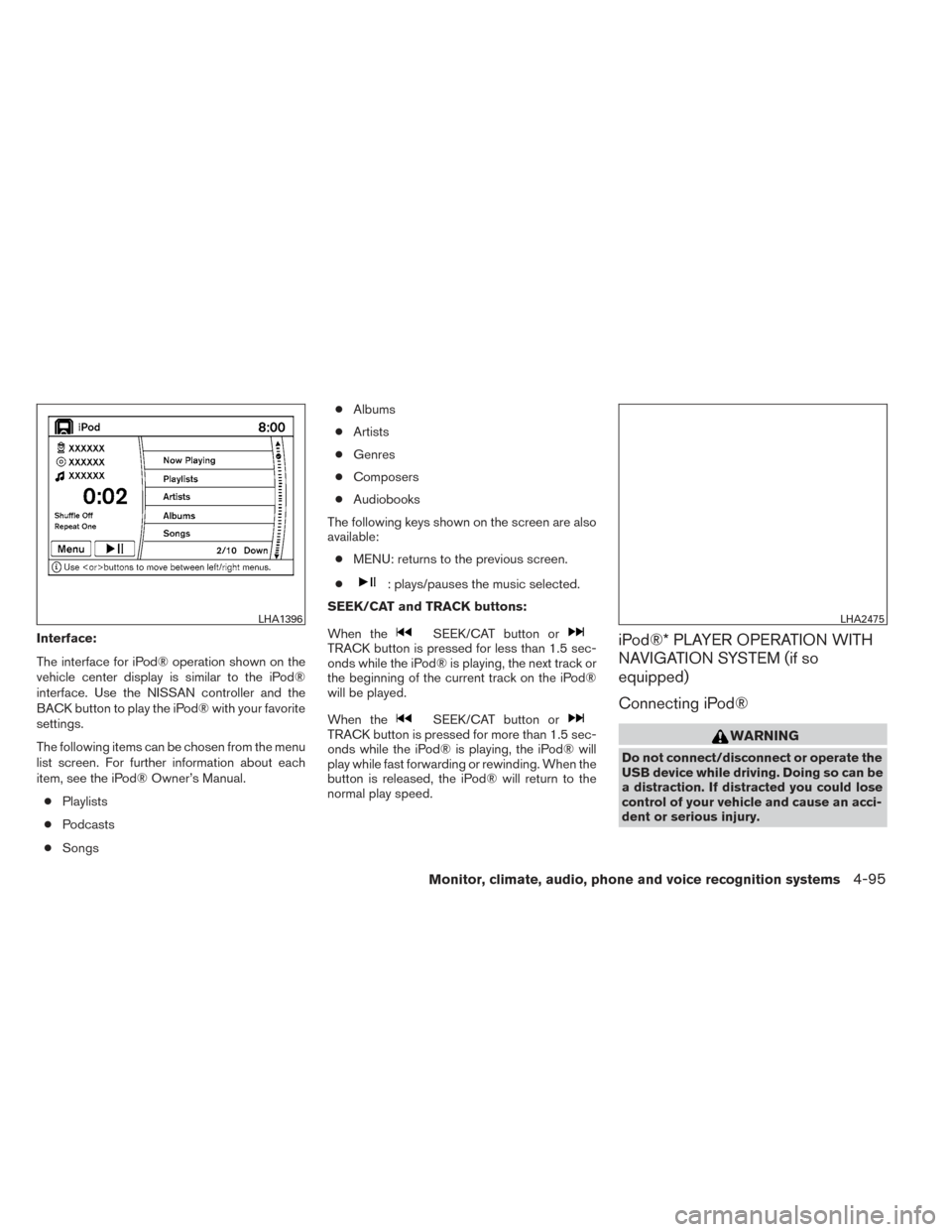
Interface:
The interface for iPod® operation shown on the
vehicle center display is similar to the iPod®
interface. Use the NISSAN controller and the
BACK button to play the iPod® with your favorite
settings.
The following items can be chosen from the menu
list screen. For further information about each
item, see the iPod® Owner’s Manual.● Playlists
● Podcasts
● Songs ●
Albums
● Artists
● Genres
● Composers
● Audiobooks
The following keys shown on the screen are also
available: ● MENU: returns to the previous screen.
●
: plays/pauses the music selected.
SEEK/CAT and TRACK buttons:
When the
SEEK/CAT button orTRACK button is pressed for less than 1.5 sec-
onds while the iPod® is playing, the next track or
the beginning of the current track on the iPod®
will be played.
When the
SEEK/CAT button orTRACK button is pressed for more than 1.5 sec-
onds while the iPod® is playing, the iPod® will
play while fast forwarding or rewinding. When the
button is released, the iPod® will return to the
normal play speed.
iPod®* PLAYER OPERATION WITH
NAVIGATION SYSTEM (if so
equipped)
Connecting iPod®
WARNING
Do not connect/disconnect or operate the
USB device while driving. Doing so can be
a distraction. If distracted you could lose
control of your vehicle and cause an acci-
dent or serious injury.
LHA1396LHA2475
Monitor, climate, audio, phone and voice recognition systems4-95
Page 289 of 492
●Albums
● Songs
● Podcasts
● Genres
● Composers
● Audiobooks
● Shuffle Songs
The following keys shown on the screen are also
available: ● MENU: returns to the previous screen.
●
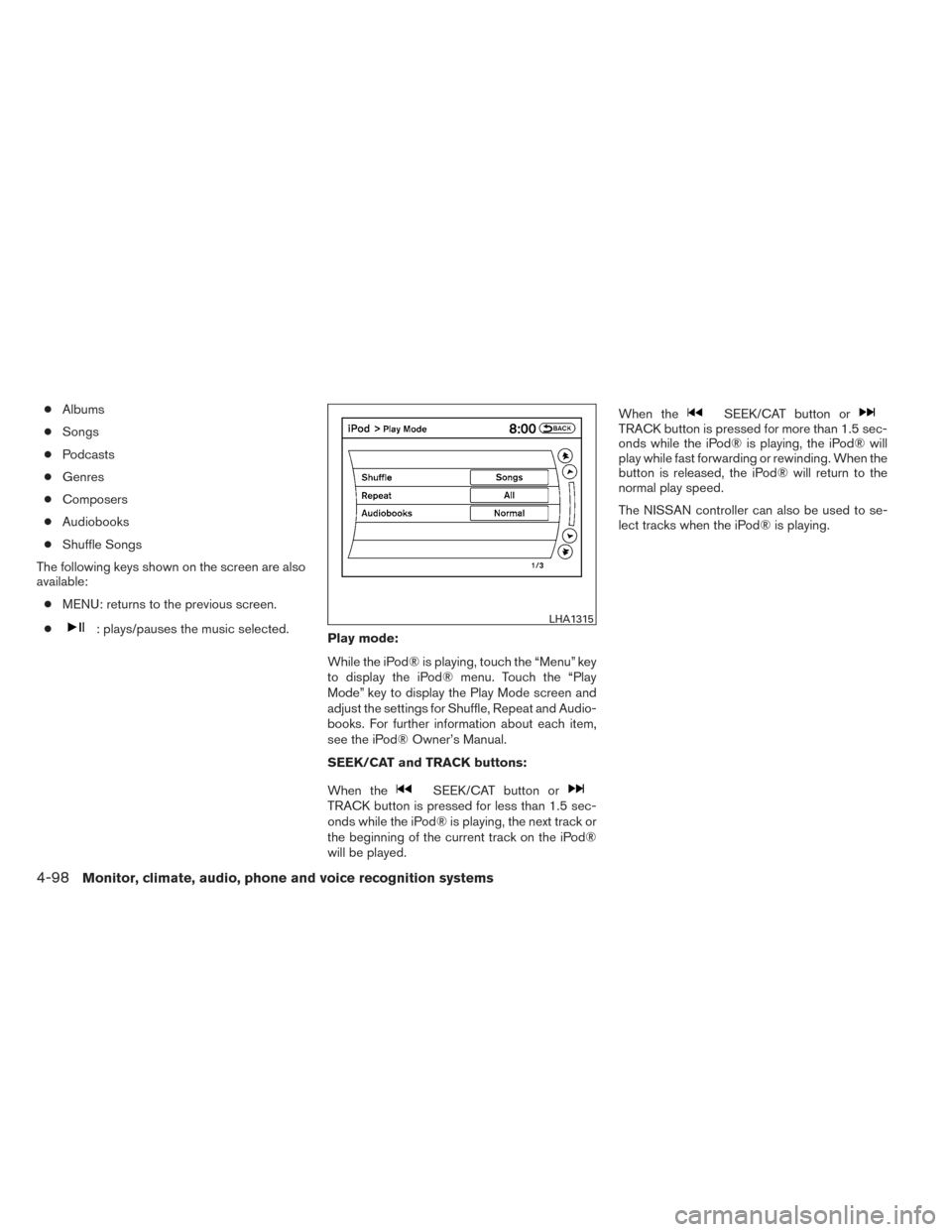
: plays/pauses the music selected. Play mode:
While the iPod® is playing, touch the “Menu” key
to display the iPod® menu. Touch the “Play
Mode” key to display the Play Mode screen and
adjust the settings for Shuffle, Repeat and Audio-
books. For further information about each item,
see the iPod® Owner’s Manual.
SEEK/CAT and TRACK buttons:
When the
SEEK/CAT button orTRACK button is pressed for less than 1.5 sec-
onds while the iPod® is playing, the next track or
the beginning of the current track on the iPod®
will be played. When the
SEEK/CAT button orTRACK button is pressed for more than 1.5 sec-
onds while the iPod® is playing, the iPod® will
play while fast forwarding or rewinding. When the
button is released, the iPod® will return to the
normal play speed.
The NISSAN controller can also be used to se-
lect tracks when the iPod® is playing.
LHA1315
4-98Monitor, climate, audio, phone and voice recognition systems
Page 290 of 492
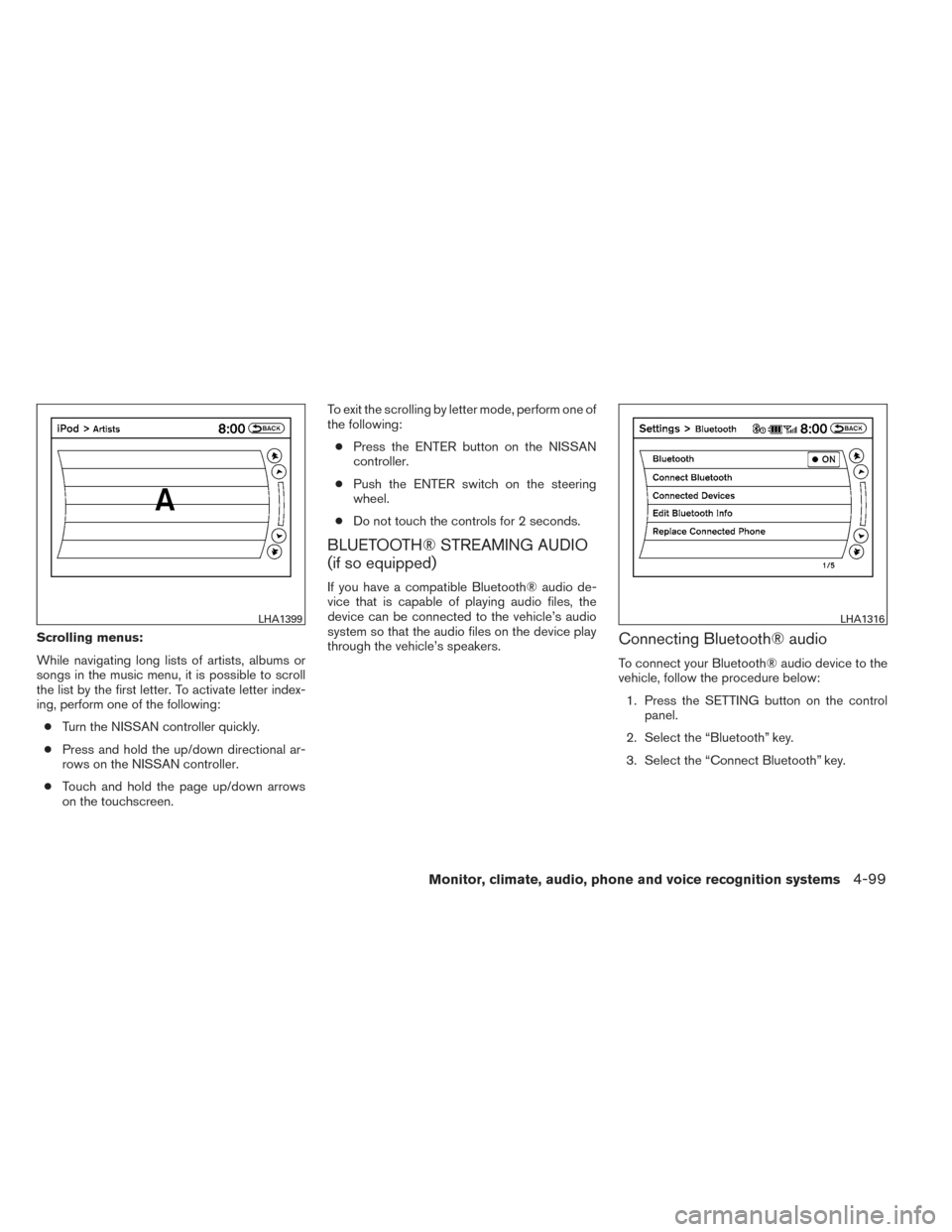
Scrolling menus:
While navigating long lists of artists, albums or
songs in the music menu, it is possible to scroll
the list by the first letter. To activate letter index-
ing, perform one of the following:● Turn the NISSAN controller quickly.
● Press and hold the up/down directional ar-
rows on the NISSAN controller.
● Touch and hold the page up/down arrows
on the touchscreen. To exit the scrolling by letter mode, perform one of
the following:
● Press the ENTER button on the NISSAN
controller.
● Push the ENTER switch on the steering
wheel.
● Do not touch the controls for 2 seconds.
BLUETOOTH® STREAMING AUDIO
(if so equipped)
If you have a compatible Bluetooth® audio de-
vice that is capable of playing audio files, the
device can be connected to the vehicle’s audio
system so that the audio files on the device play
through the vehicle’s speakers.
Connecting Bluetooth® audio
To connect your Bluetooth® audio device to the
vehicle, follow the procedure below:
1. Press the SETTING button on the control panel.
2. Select the “Bluetooth” key.
3. Select the “Connect Bluetooth” key.
LHA1399LHA1316
Monitor, climate, audio, phone and voice recognition systems4-99
Page 291 of 492
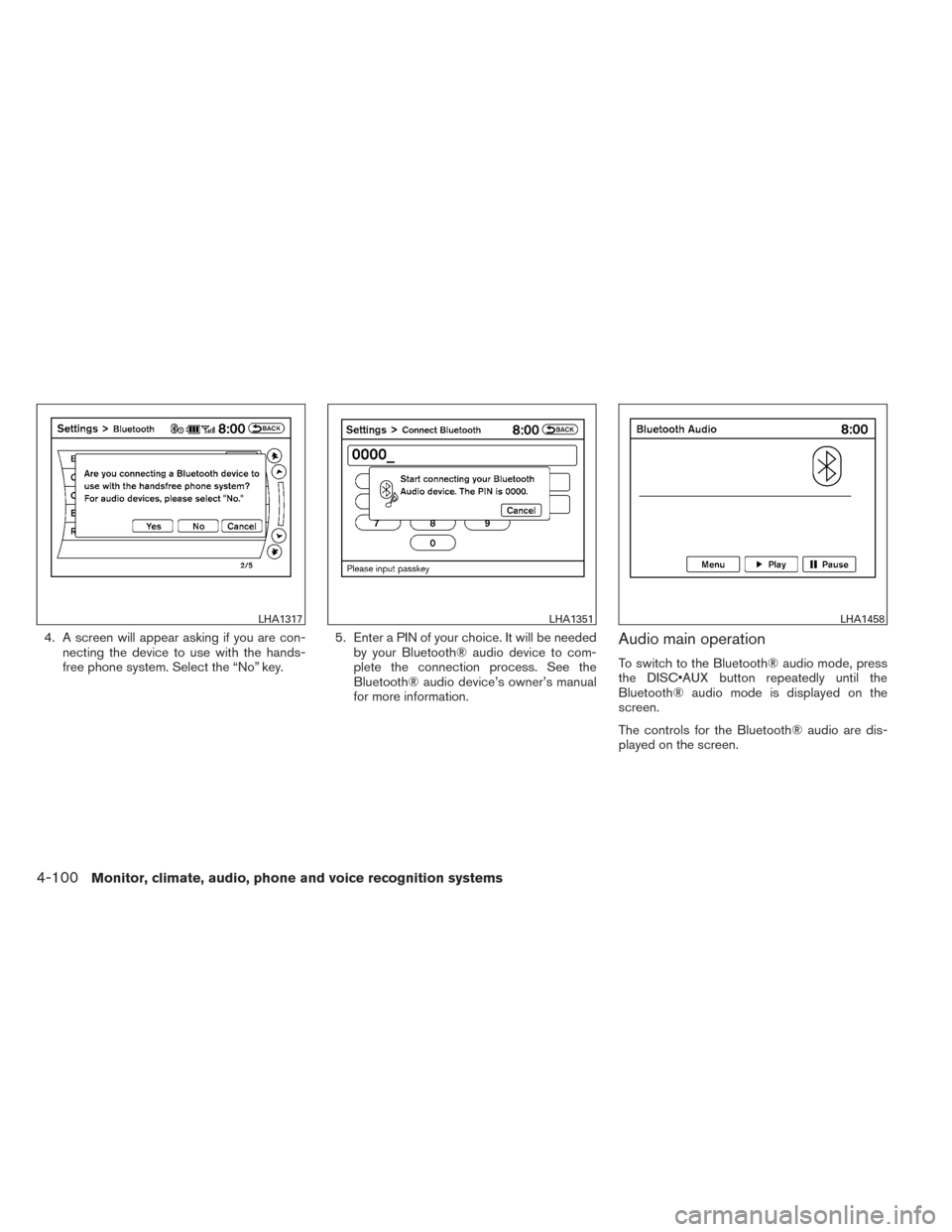
4. A screen will appear asking if you are con-necting the device to use with the hands-
free phone system. Select the “No” key. 5. Enter a PIN of your choice. It will be needed
by your Bluetooth® audio device to com-
plete the connection process. See the
Bluetooth® audio device’s owner’s manual
for more information.Audio main operation
To switch to the Bluetooth® audio mode, press
the DISC•AUX button repeatedly until the
Bluetooth® audio mode is displayed on the
screen.
The controls for the Bluetooth® audio are dis-
played on the screen.
LHA1317LHA1351LHA1458
4-100Monitor, climate, audio, phone and voice recognition systems