Page 266 of 432
10. The system will announce that voice adap-tation has been completed and the system is
ready.
The VA mode will stop if:
● The
button is pressed for more than
5 seconds in VA mode.
● The vehicle begins moving during VA mode.
● The ignition switch is placed in the OFF or
LOCK position.
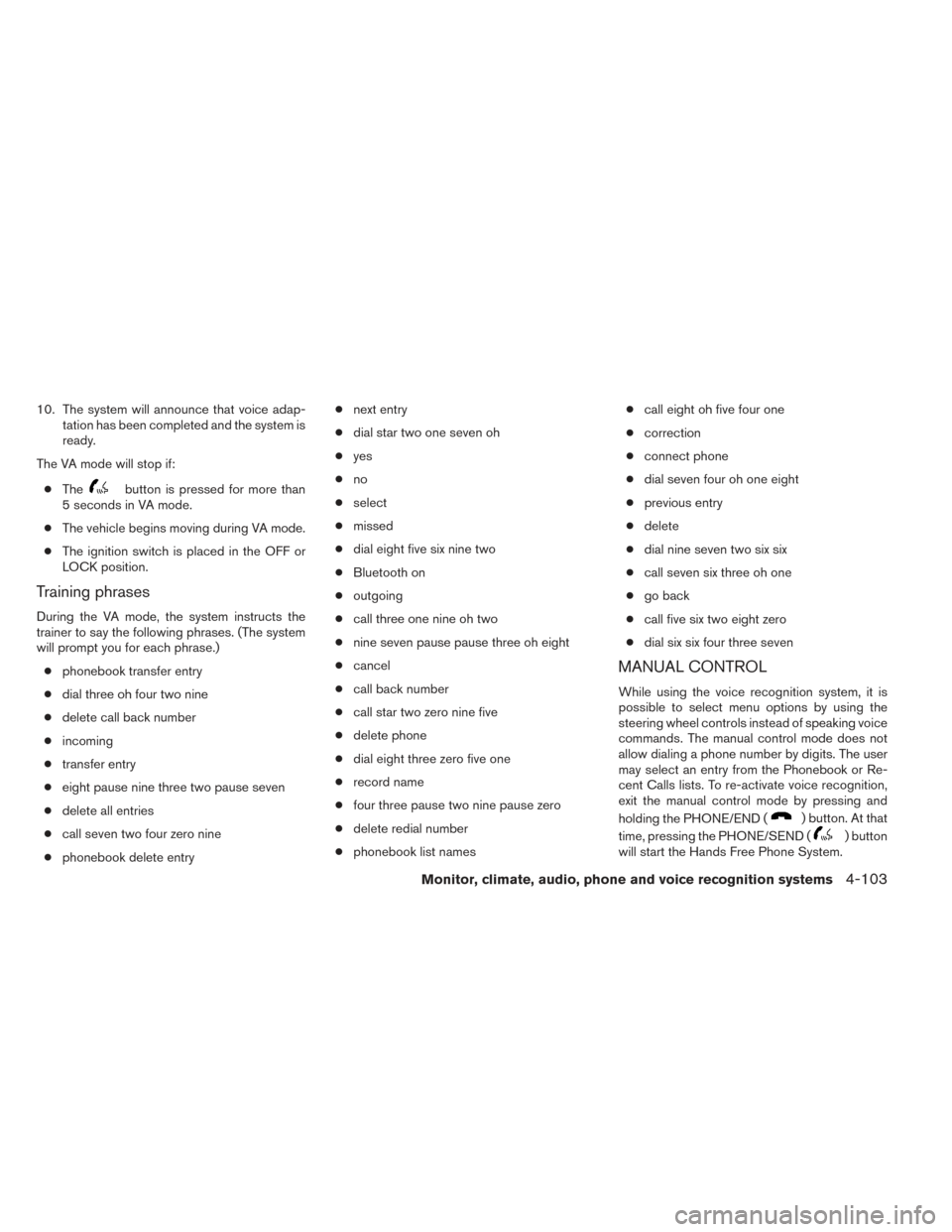
Training phrases
During the VA mode, the system instructs the
trainer to say the following phrases. (The system
will prompt you for each phrase.)
● phonebook transfer entry
● dial three oh four two nine
● delete call back number
● incoming
● transfer entry
● eight pause nine three two pause seven
● delete all entries
● call seven two four zero nine
● phonebook delete entry ●
next entry
● dial star two one seven oh
● yes
● no
● select
● missed
● dial eight five six nine two
● Bluetooth on
● outgoing
● call three one nine oh two
● nine seven pause pause three oh eight
● cancel
● call back number
● call star two zero nine five
● delete phone
● dial eight three zero five one
● record name
● four three pause two nine pause zero
● delete redial number
● phonebook list names ●
call eight oh five four one
● correction
● connect phone
● dial seven four oh one eight
● previous entry
● delete
● dial nine seven two six six
● call seven six three oh one
● go back
● call five six two eight zero
● dial six six four three seven
MANUAL CONTROL
While using the voice recognition system, it is
possible to select menu options by using the
steering wheel controls instead of speaking voice
commands. The manual control mode does not
allow dialing a phone number by digits. The user
may select an entry from the Phonebook or Re-
cent Calls lists. To re-activate voice recognition,
exit the manual control mode by pressing and
holding the PHONE/END (
) button. At that
time, pressing the PHONE/SEND (
) button
will start the Hands Free Phone System.
Monitor, climate, audio, phone and voice recognition systems4-103
Page 271 of 432
REGULATORY INFORMATION
FCC Regulatory information
– CAUTION: To maintain compliance withFCC’s RF exposure guidelines, use only the
supplied antenna. Unauthorized antenna,
modification, or attachments could damage
the transmitter and may violate FCC regula-
tions.
– Operation is subject to the following two con- ditions:
1. This device may not cause interference and
2. this device must accept any interference, including interference that may cause unde-
sired operation of the device.
IC Regulatory information
– Operation is subject to the following two con- ditions: (1) this device may not cause interfer-
ence, and (2) this device must accept any
interference, including interference that may
cause undesired operation of the device.
– This Class B digital apparatus meets all re- quirements of the Canadian Interference-
Causing Equipment Regulations.
BLUETOOTH® is a
trademark owned by
Bluetooth SIG, Inc.
and licensed to
Clarion.
VOICE COMMANDS
You can use voice commands to operate various
Bluetooth® Hands-Free Phone System features
using the NISSAN Voice Recognition system. For
more details, see “NISSAN Voice Recognition
System (if so equipped)” in this section.
Voice Prompt Interrupt
In most cases you can interrupt the voice feed-
back to speak the next command by pressing
the
button on the steering wheel. After
interrupting the system, wait for a beep before
speaking your command.
One Shot Call
To use the system faster, you may speak the
second level commands with the main menu
command on the main menu. For example, press
the
button and after the tone say, “Call
Redial”.
NOTE:
Voice recognition system must be in Alter-
nate Command Mode in order for One Shot
Calling to operate. See “NISSAN Voice
Recognition Alternate Command Mode” for
more information.
4-108Monitor, climate, audio, phone and voice recognition systems
Page 272 of 432
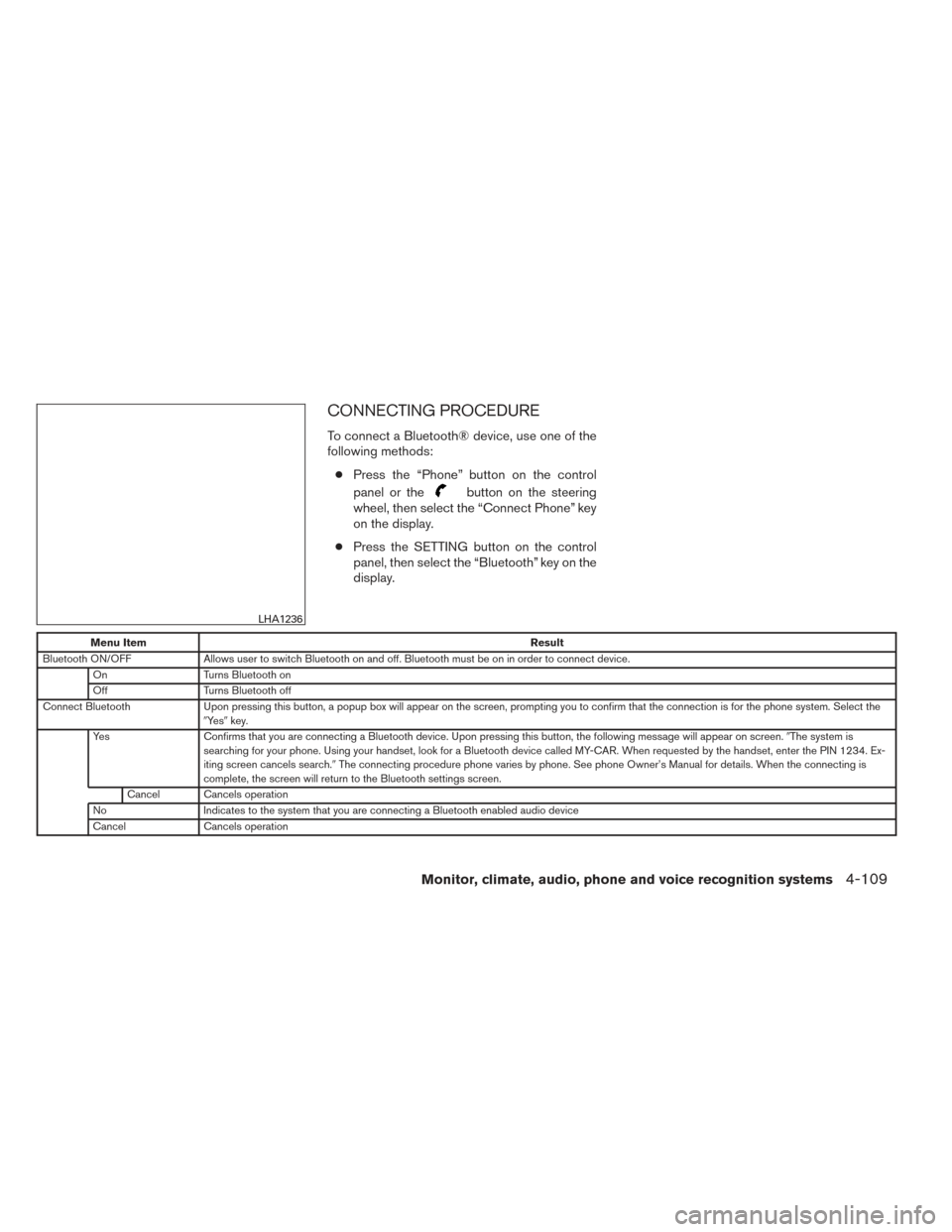
CONNECTING PROCEDURE
To connect a Bluetooth® device, use one of the
following methods:● Press the “Phone” button on the control
panel or the
button on the steering
wheel, then select the “Connect Phone” key
on the display.
● Press the SETTING button on the control
panel, then select the “Bluetooth” key on the
display.
Menu Item Result
Bluetooth ON/OFF Allows user to switch Bluetooth on and off. Bluetooth must be on in order to connect device.
On Turns Bluetooth on
Off Turns Bluetooth off
Connect Bluetooth Upon pressing this button, a popup box will appear on the screen, prompting you to confirm that the connection is for the phone system. Select the
�Ye s �key.
Yes Confirms that you are connecting a Bluetooth device. Upon pressing this button, the following message will appear on screen. �The system is
searching for your phone. Using your handset, look for a Bluetooth device called MY-CAR. When requested by the handset, enter the PIN 1234. Ex-
iting screen cancels search. �The connecting procedure phone varies by phone. See phone Owner’s Manual for details. When the connecting is
complete, the screen will return to the Bluetooth settings screen.
Cancel Cancels operation
No Indicates to the system that you are connecting a Bluetooth enabled audio device
Cancel Cancels operation
LHA1236
Monitor, climate, audio, phone and voice recognition systems4-109
Page 273 of 432
VEHICLE PHONEBOOK
This vehicle has two phonebooks available for
your use. Depending on your phone, the system
may automatically download your entire cell
phone’s phonebook into the “Handset Phone-
book”. For the details on downloading your
phonebook, see “Handset Phonebook”, in thissection. If your phonebook does not automati-
cally download, you may set up the vehicle
phonebook with up to 40 entries. This phone-
book allows you to record a name to speak while
using voice recognition.
Press the
button on the steering wheel or
the “Phone” button on the control panel and then select the
�Vehicle Phonebook� key. Select the
�Add New� key at the top of the screen. This will
allow the user to add new phonebook content via
the methods listed below:
Menu Item Result
Copy from Call History The system will show a list of your incoming, outgoing, or missed calls that were downloaded from your cell phone (depending on your
phone’s compatibility) . You may select one of these entries to save in the vehicle phonebook.
Copy from the Handset The system will show your cell phone’s phonebook that was downloaded (depending on your phone’s compatibility) . You may select one of
these entries to save in the vehicle phonebook.
Enter Number by Keypad Allows manual entry of phonebook contacts
Ok Saves the phonebook entry and then will show a screen that is ready to call the number. Press the BACK button to return to the Vehicle
Phonebook
Entry # Allows user to choose the entry number
Name Allows user to enter the contact name
Number Allows user to enter the contact number
Type Allows user to choose a type from the icon list
Voicetag Select the�Voicetag� key to record a name to speak when using the Voice Recognition system
Store Select the�Store�key and prepare to speak the name after the tone
OK When the voicetag is successfully saved, select the �OK�key to save the phonebook entry
4-110Monitor, climate, audio, phone and voice recognition systems
Page 274 of 432
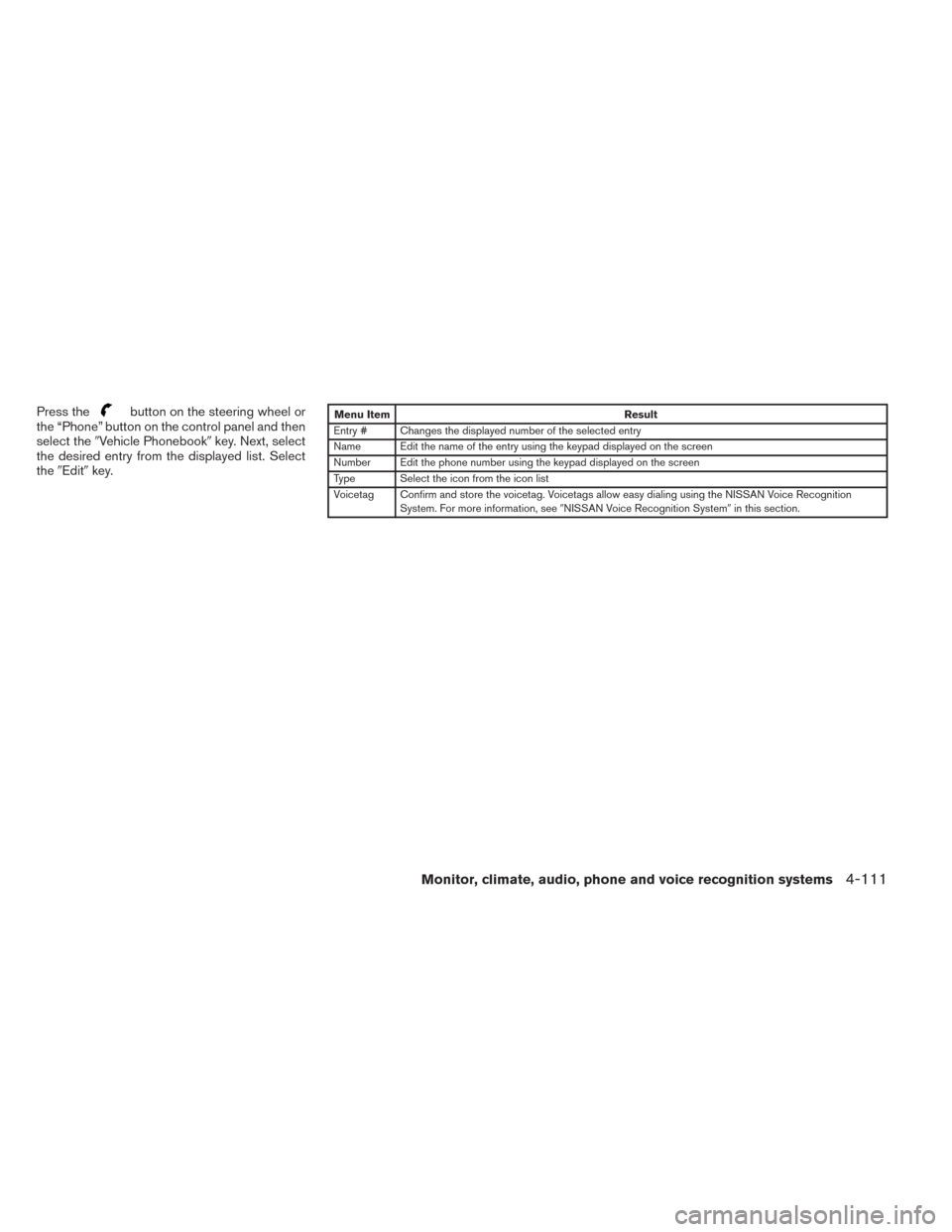
Press thebutton on the steering wheel or
the “Phone” button on the control panel and then
select the �Vehicle Phonebook� key. Next, select
the desired entry from the displayed list. Select
the �Edit� key.Menu Item Result
Entry # Changes the displayed number of the selected entry
Name Edit the name of the entry using the keypad displayed on the screen
Number Edit the phone number using the keypad displayed on the screen
Type Select the icon from the icon list
Voicetag Confirm and store the voicetag. Voicetags allow easy dialing using the NISSAN Voice Recognition System. For more information, see �NISSAN Voice Recognition System �in this section.
Monitor, climate, audio, phone and voice recognition systems4-111
Page 275 of 432
HANDSET PHONEBOOK
Many phones will support an automatic down-
load of the cellular phone’s phonebook. Since
this method allows for up to 1000 numbers to be
stored and entries are automatically assigned
voice tags by the system, this is a useful function
for easy dialing supported by the Voice Recogni-
tion system.
Transferring the handset phonebook
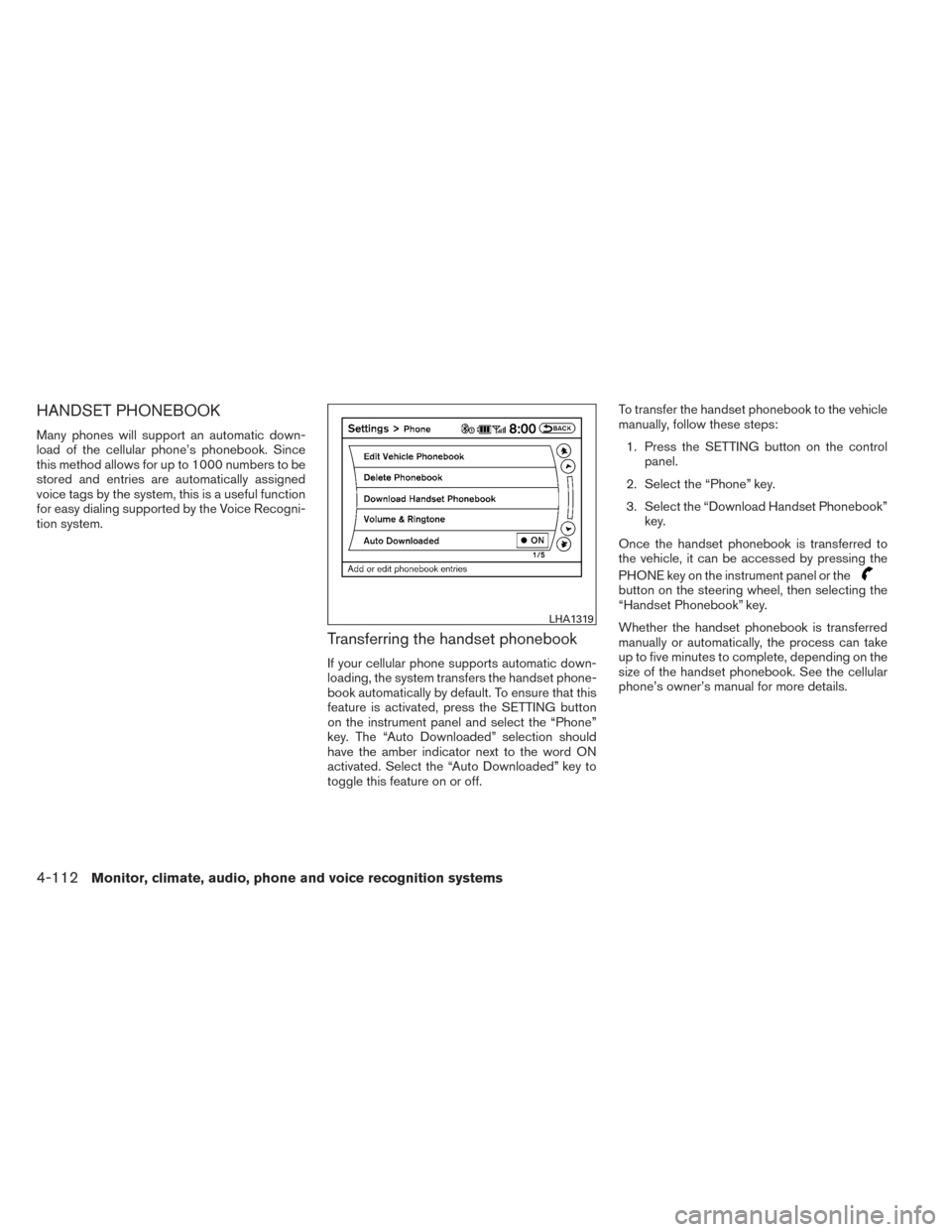
If your cellular phone supports automatic down-
loading, the system transfers the handset phone-
book automatically by default. To ensure that this
feature is activated, press the SETTING button
on the instrument panel and select the “Phone”
key. The “Auto Downloaded” selection should
have the amber indicator next to the word ON
activated. Select the “Auto Downloaded” key to
toggle this feature on or off.To transfer the handset phonebook to the vehicle
manually, follow these steps:
1. Press the SETTING button on the control panel.
2. Select the “Phone” key.
3. Select the “Download Handset Phonebook” key.
Once the handset phonebook is transferred to
the vehicle, it can be accessed by pressing the
PHONE key on the instrument panel or the
button on the steering wheel, then selecting the
“Handset Phonebook” key.
Whether the handset phonebook is transferred
manually or automatically, the process can take
up to five minutes to complete, depending on the
size of the handset phonebook. See the cellular
phone’s owner’s manual for more details.
LHA1319
4-112Monitor, climate, audio, phone and voice recognition systems
Page 276 of 432
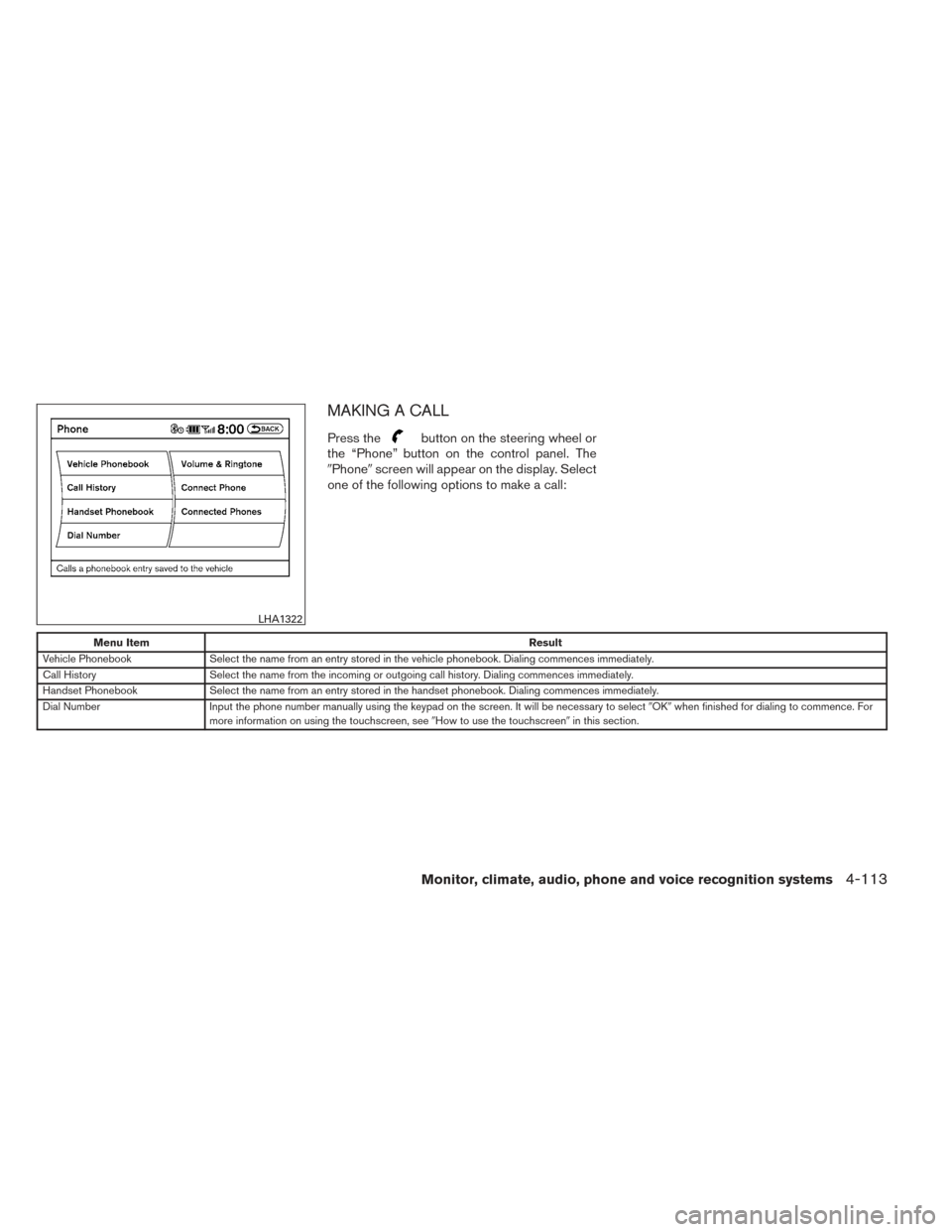
MAKING A CALL
Press thebutton on the steering wheel or
the “Phone” button on the control panel. The
�Phone� screen will appear on the display. Select
one of the following options to make a call:
Menu Item Result
Vehicle Phonebook Select the name from an entry stored in the vehicle phonebook. Dialing commences immediately.
Call History Select the name from the incoming or outgoing call history. Dialing commences immediately.
Handset Phonebook Select the name from an entry stored in the handset phonebook. Dialing commences immediately.
Dial Number Input the phone number manually using the keypad on the screen. It will be necessary to select �OK�when finished for dialing to commence. For
more information on using the touchscreen, see �How to use the touchscreen�in this section.
LHA1322
Monitor, climate, audio, phone and voice recognition systems4-113
Page 277 of 432
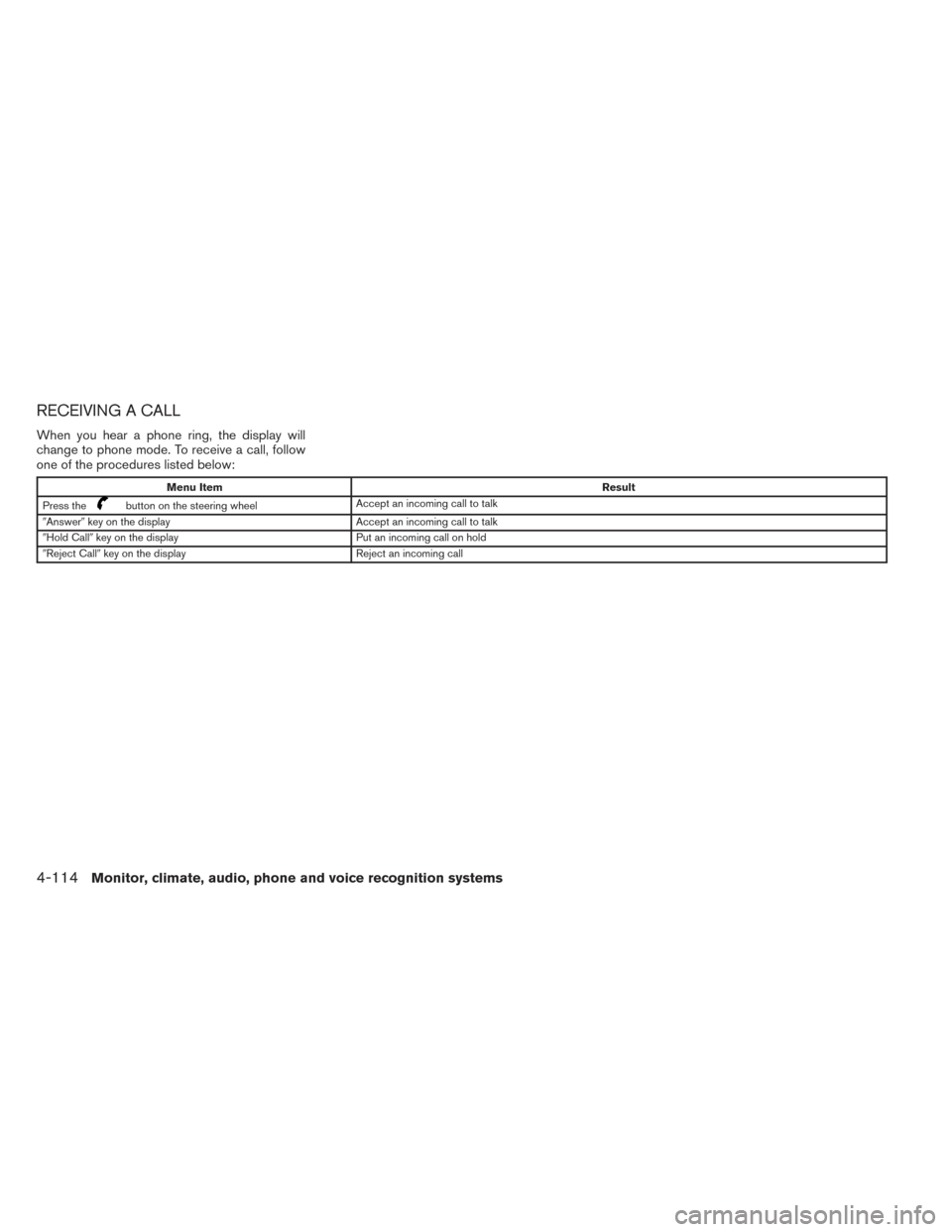
RECEIVING A CALL
When you hear a phone ring, the display will
change to phone mode. To receive a call, follow
one of the procedures listed below:
Menu ItemResult
Press the
button on the steering wheel Accept an incoming call to talk
�Answer� key on the display Accept an incoming call to talk
�Hold Call� key on the display Put an incoming call on hold
�Reject Call� key on the display Reject an incoming call
4-114Monitor, climate, audio, phone and voice recognition systems