2014 NISSAN LEAF phone
[x] Cancel search: phonePage 260 of 397
If the radio is already operating, it will automati-
cally turn off and the CD will play.
If the system has been turned off while the CD
was playing, pressing the PWR button will start
the CD.
Do not use 3.1 in (8 cm) discs.
CD·AUX button:
When the CD·AUX button is pressed with the
system off and the CD loaded, the system will
turn on and the CD will start to play.
With the CD·AUX button is pressed with the CD
loaded and the radio playing, the radio will auto-
matically be turned off and the CD will start to
play.
Next/Previous Track and Fast
Forward/Rewind:
When the FF or REW button is pressed for more
than 1.5 seconds while the CD is being played,
the CD will play while fast forwarding or rewind-
ing. When the button is released, the CD will
return to normal play speed.
When the FF or REW button is pressed for less
than 1.5 seconds while the CD is being played,
the next track or the beginning of the current track
on the CD will be played.Repeat (RPT):
When the RPT play button is pressed while the
CD is played, the play pattern can be changed as
follows:
(CD)
Normal↔1 Track Repeat
(CD with compressed audio files)
Normal→1 Folder Repeat→1 Track Repeat-
→Normal
Random (RDM):
When the RDM play button is pressed while a
CD is being played, the play pattern can be
changed as follows:
(CD)
Normal↔1 Disc Random
(CD with compressed audio files)
Normal→1 Disc Random→1 Folder Random-
→Normal
CD EJECT:
When the CD EJECT button is pressed with a
compact disc loaded, the CD will be ejected.
When this button is pressed while the CD is
being played, the CD will be ejected.If the CD comes out and is not removed, it
will be pulled back into the slot to protect it.
AUX IN jack:
The AUX IN jack is located on the audio unit. The
AUX IN audio jack accepts any standard analog
audio input such as from a portable cassette
tape/CD player, MP3 player or laptop computer.
CD·AUX button:
When the CD•AUX button is pressed with no
device plugged into the jack, the audio system
does not change to the AUX mode.
NISSAN strongly recommends using a stereo
mini plug cable when connecting your music
device to the audio system. Music may not play
properly when a monaural cable is used.
4-36Heater, air conditioner, audio and phone systems
Page 261 of 397
USB MEMORY OPERATION
Audio main operation:
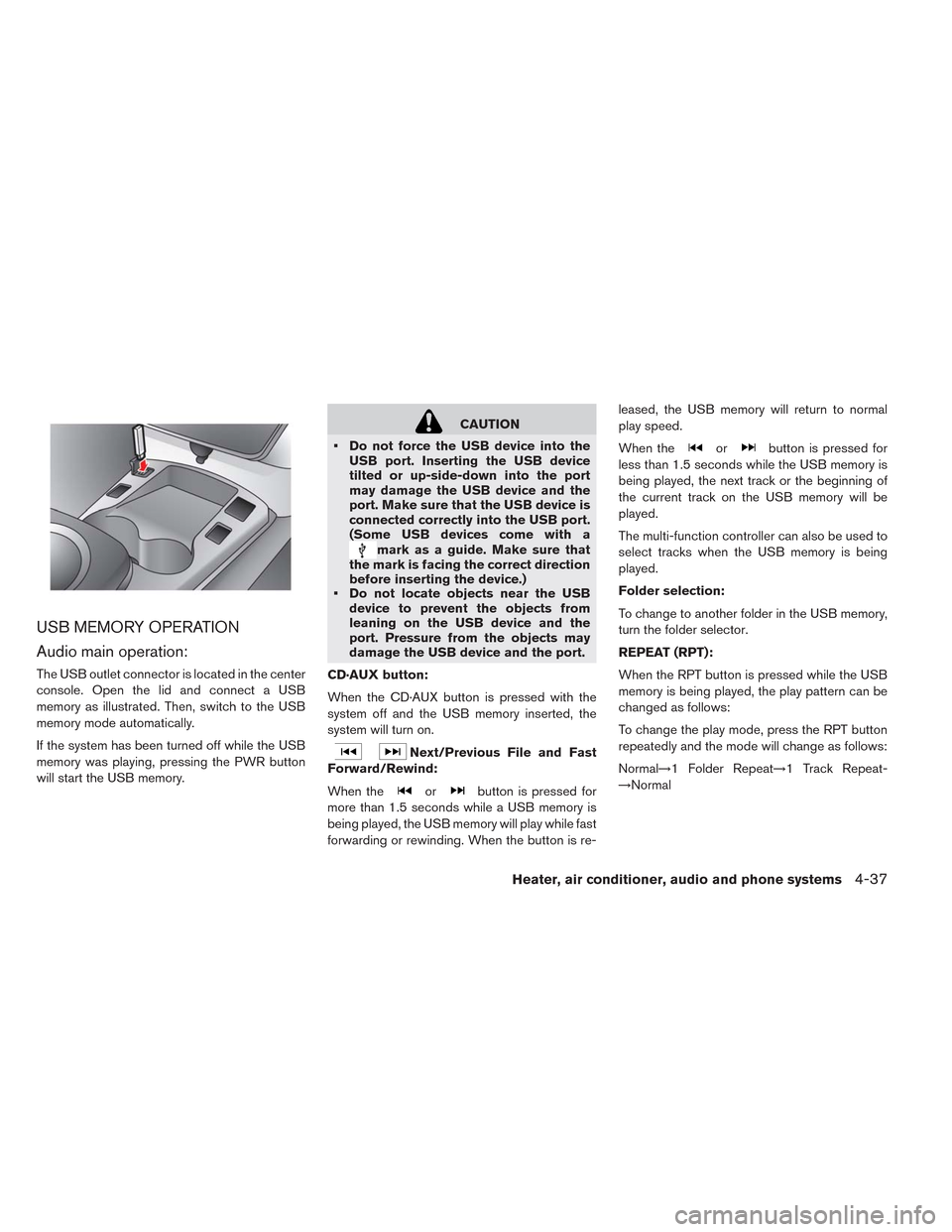
The USB outlet connector is located in the center
console. Open the lid and connect a USB
memory as illustrated. Then, switch to the USB
memory mode automatically.
If the system has been turned off while the USB
memory was playing, pressing the PWR button
will start the USB memory.
CAUTION
• Do not force the USB device into the
USB port. Inserting the USB device
tilted or up-side-down into the port
may damage the USB device and the
port. Make sure that the USB device is
connected correctly into the USB port.
(Some USB devices come with a
mark as a guide. Make sure that
the mark is facing the correct direction
before inserting the device.)
• Do not locate objects near the USB
device to prevent the objects from
leaning on the USB device and the
port. Pressure from the objects may
damage the USB device and the port.
CD·AUX button:
When the CD·AUX button is pressed with the
system off and the USB memory inserted, the
system will turn on.
Next/Previous File and Fast
Forward/Rewind:
When the
orbutton is pressed for
more than 1.5 seconds while a USB memory is
being played, the USB memory will play while fast
forwarding or rewinding. When the button is re-leased, the USB memory will return to normal
play speed.
When the
orbutton is pressed for
less than 1.5 seconds while the USB memory is
being played, the next track or the beginning of
the current track on the USB memory will be
played.
The multi-function controller can also be used to
select tracks when the USB memory is being
played.
Folder selection:
To change to another folder in the USB memory,
turn the folder selector.
REPEAT (RPT):
When the RPT button is pressed while the USB
memory is being played, the play pattern can be
changed as follows:
To change the play mode, press the RPT button
repeatedly and the mode will change as follows:
Normal→1 Folder Repeat→1 Track Repeat-
→Normal
Heater, air conditioner, audio and phone systems4-37
Page 262 of 397
RANDOM (RDM):
When the RDM button is pressed while a USB
memory device is being playing, the play pattern
can be changed as follows:
To change the play mode, press the RDM button
repeatedly and the mode will change as follows:
Normal→All Random→1 Folder Random→Nor-
mal
BACK button:
When the BACK button is pressed, it returns to
the previous display.
IPOD® PLAYER OPERATION
Connecting iPod®:
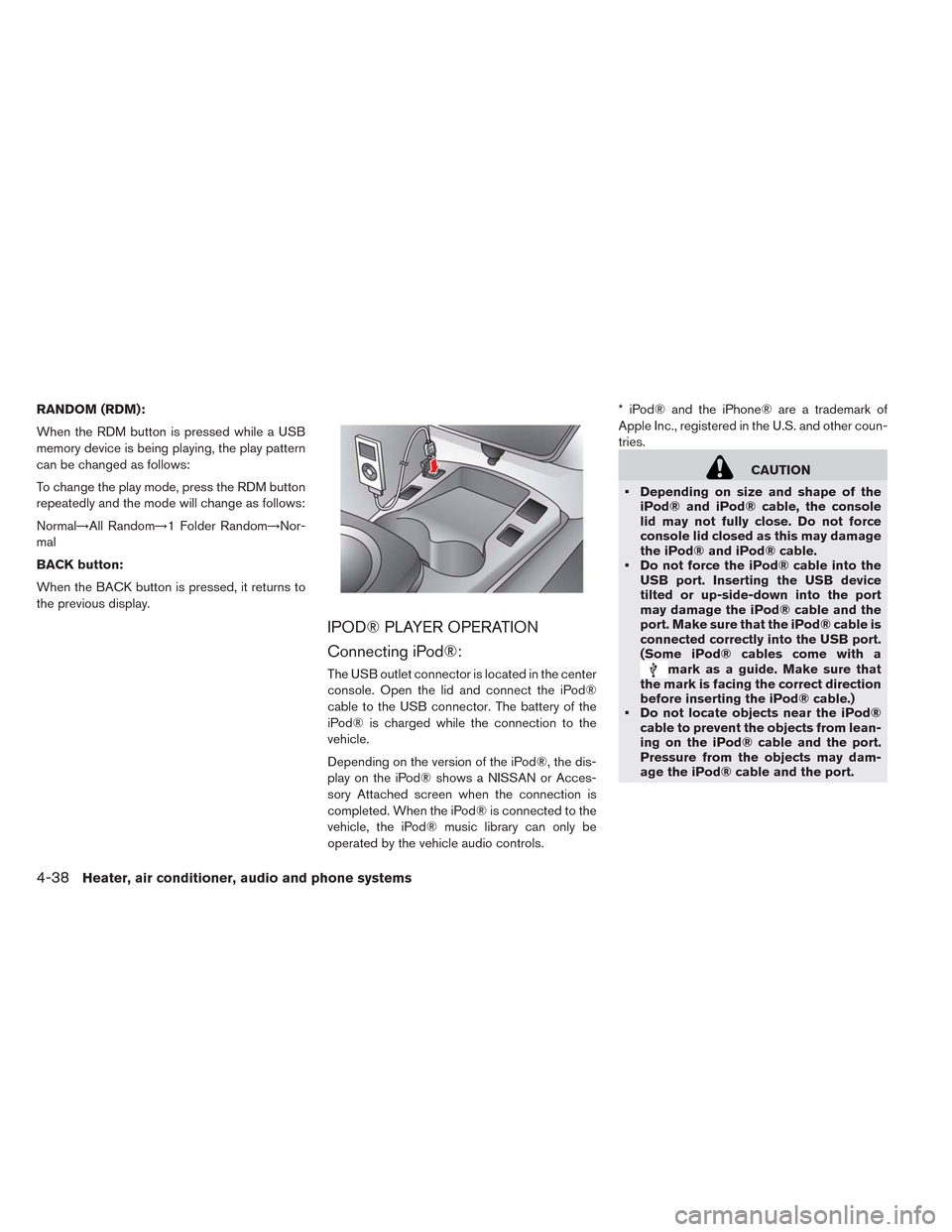
The USB outlet connector is located in the center
console. Open the lid and connect the iPod®
cable to the USB connector. The battery of the
iPod® is charged while the connection to the
vehicle.
Depending on the version of the iPod®, the dis-
play on the iPod® shows a NISSAN or Acces-
sory Attached screen when the connection is
completed. When the iPod® is connected to the
vehicle, the iPod® music library can only be
operated by the vehicle audio controls.* iPod® and the iPhone® are a trademark of
Apple Inc., registered in the U.S. and other coun-
tries.
CAUTION
• Depending on size and shape of the
iPod® and iPod® cable, the console
lid may not fully close. Do not force
console lid closed as this may damage
the iPod® and iPod® cable.
• Do not force the iPod® cable into the
USB port. Inserting the USB device
tilted or up-side-down into the port
may damage the iPod® cable and the
port. Make sure that the iPod® cable is
connected correctly into the USB port.
(Some iPod® cables come with a
mark as a guide. Make sure that
the mark is facing the correct direction
before inserting the iPod® cable.)
• Do not locate objects near the iPod®
cable to prevent the objects from lean-
ing on the iPod® cable and the port.
Pressure from the objects may dam-
age the iPod® cable and the port.
4-38Heater, air conditioner, audio and phone systems
Page 263 of 397
Compatibility
The following models are available:
• Third generation iPhone® (Firmware version
IOS4/4.0)
• Fourth generation iPhone® (Firmware version
IOS4/4.0)
• Fifth generation iPod® (Firmware version 1.3)
• First generation iPod Classic® (Firmware ver-
sion 1.1.1 or 1.1.2PC)
• Second generation iPod Classic® (Firmware
version 2.0.1)
• First generation iPod touch® (Firmware version
1.1.5 or 2.2.1)
• Second and third generation iPod touch®
(Firmware version 2.2.1 or IOS4/4.0.0)
• First generation iPod nano® (Firmware version
1.1.3)
• Second generation iPod nano® (Firmware ver-
sion 1.1.3)
• Third generation iPod nano® (Firmware version
1.1.2PC or 1.1.3PC)
• Fourth generation iPod nano® (Firmware ver-
sion 1.0.2 or 1.0.4)
• Fifth generation iPod nano® (Firmware version
1.0.1 or 1.0.2)The iPod touch® may not respond quickly with
the system in some cases.
Make sure that the iPod® firmware is updated.
Audio main operation
Place the power switch in the ACC or ON posi-
tion. Then, press the CD·AUX button repeatedly
to switch to the iPod® mode.
If the system has been turned off while the iPod®
was playing, pressing the PWR button will start
the iPod®.
iPod® MENU button:
Place the power switch in the ACC or ON posi-
tion. Then, press the iPod® button to switch to
the iPod® mode.
If another audio source is playing and the iPod®
is connected, pressing the iPod® button
changes to the iPod® mode.
If the system has been turned off while the iPod®
was playing, pressing the PWR button will start
the iPod®.
When the iPod® MENU button is pressed while
the iPod® is connected, the interface for iPod®
operation is shown on the audio display. The
items on the menu list can be scrolled by turning
the TUNE/SCROLL dial while the iPod® is op-erational. To select an item, press ENTER. Items
in the iPod® menu appear on the display in the
following order:
• Now Playing
• Playlists
• Artists
• Albums
• Songs
• Podcasts
• Genres
• Composers
• Audiobooks
• Shuffle Songs
For more information about each item, see the
iPod® Owner’s Manual.
Next/Previous Track and Fast
Forward/Rewind
When the
orbutton is pressed for
more than 1.5 seconds while the iPod® is play-
ing, the iPod® will play while fast forwarding or
rewinding. When the button is released , the
iPod® will return to the normal play speed.
When the
orbutton is pressed for
less than 1.5 seconds while the iPod® is playing,
Heater, air conditioner, audio and phone systems4-39
Page 264 of 397
the next track or the beginning of the current track
on the iPod® will be played.
REPEAT (RPT):
When the RPT play button is pressed while a
track is being played, the play pattern can be
changed as follows:
Repeat Off→1 Track Repeat→All Repeat→Re-
peat Off
RANDOM (RDM):
When the RDM play button is pressed while a
track is being played, the play pattern can be
changed as follows:
Shuffle Off→Track Shuffle→Album Shuffle-
→Shuffle Off
BACK button:
When the BACK button is pressed, it returns to
the previous display.
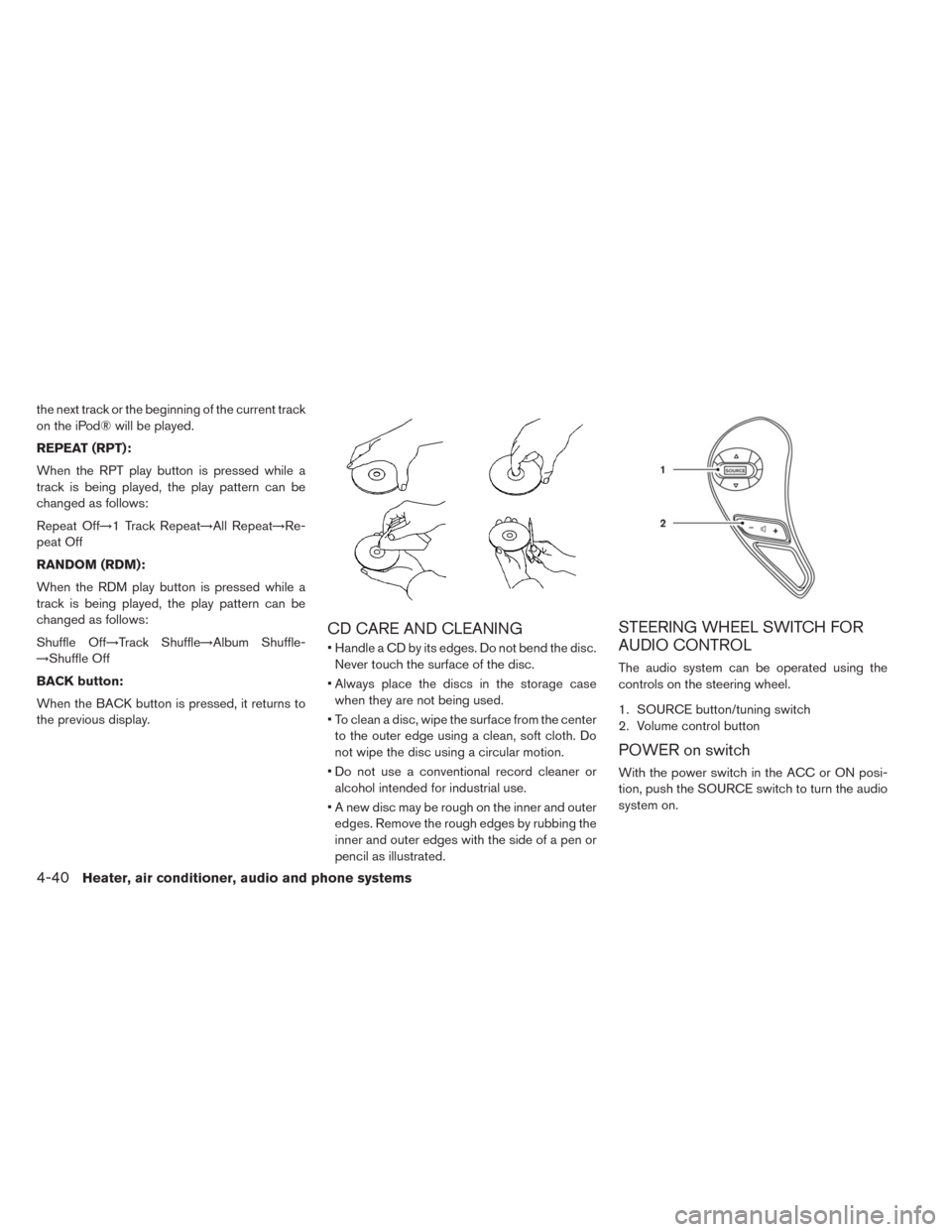
CD CARE AND CLEANING
• Handle a CD by its edges. Do not bend the disc.
Never touch the surface of the disc.
• Always place the discs in the storage case
when they are not being used.
• To clean a disc, wipe the surface from the center
to the outer edge using a clean, soft cloth. Do
not wipe the disc using a circular motion.
• Do not use a conventional record cleaner or
alcohol intended for industrial use.
• A new disc may be rough on the inner and outer
edges. Remove the rough edges by rubbing the
inner and outer edges with the side of a pen or
pencil as illustrated.
STEERING WHEEL SWITCH FOR
AUDIO CONTROL
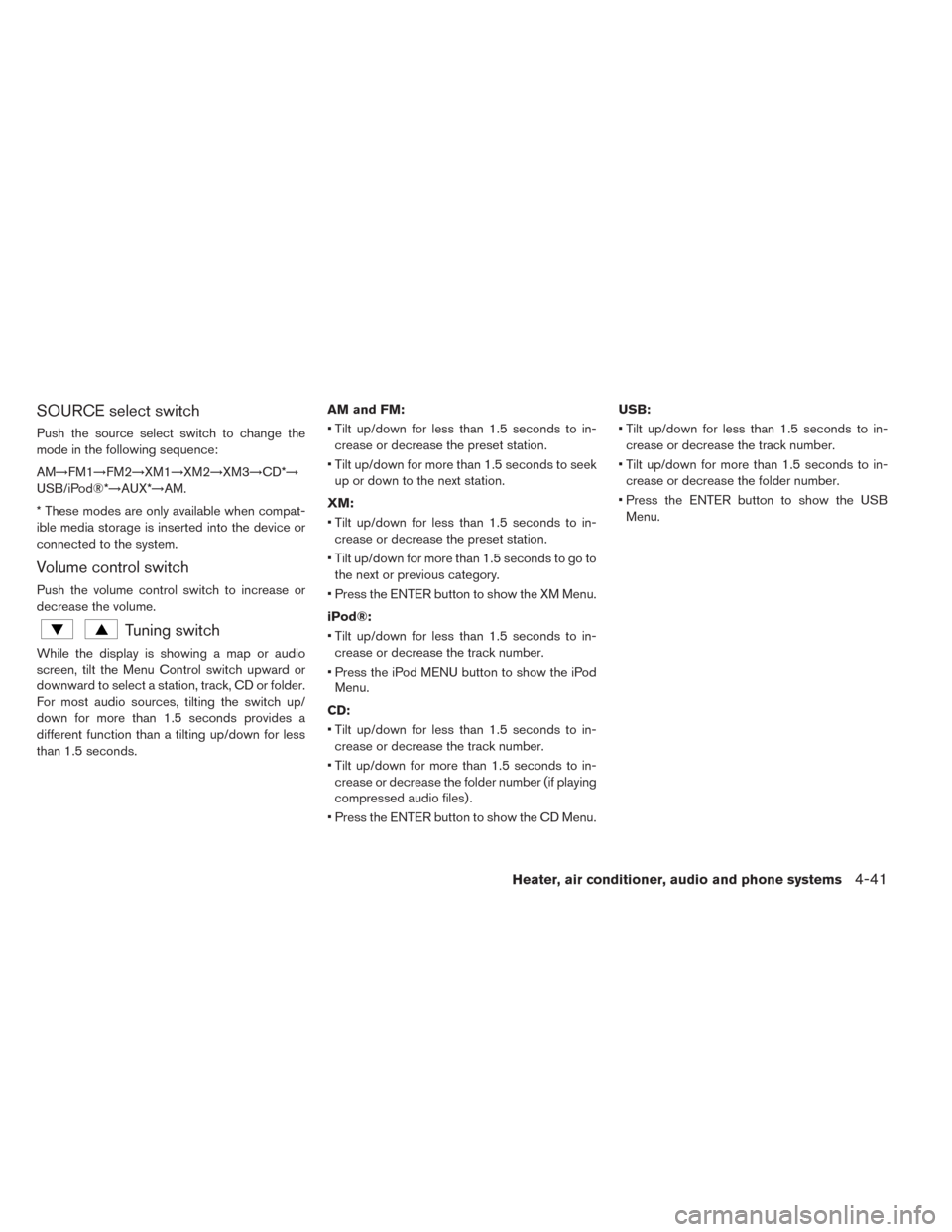
The audio system can be operated using the
controls on the steering wheel.
1. SOURCE button/tuning switch
2. Volume control button
POWER on switch
With the power switch in the ACC or ON posi-
tion, push the SOURCE switch to turn the audio
system on.
4-40Heater, air conditioner, audio and phone systems
Page 265 of 397
SOURCE select switch
Push the source select switch to change the
mode in the following sequence:
AM→FM1→FM2→XM1→XM2→XM3→CD*→
USB/iPod®*→AUX*→AM.
* These modes are only available when compat-
ible media storage is inserted into the device or
connected to the system.
Volume control switch
Push the volume control switch to increase or
decrease the volume.
Tuning switch
While the display is showing a map or audio
screen, tilt the Menu Control switch upward or
downward to select a station, track, CD or folder.
For most audio sources, tilting the switch up/
down for more than 1.5 seconds provides a
different function than a tilting up/down for less
than 1.5 seconds.AM and FM:
• Tilt up/down for less than 1.5 seconds to in-
crease or decrease the preset station.
• Tilt up/down for more than 1.5 seconds to seek
up or down to the next station.
XM:
• Tilt up/down for less than 1.5 seconds to in-
crease or decrease the preset station.
• Tilt up/down for more than 1.5 seconds to go to
the next or previous category.
• Press the ENTER button to show the XM Menu.
iPod®:
• Tilt up/down for less than 1.5 seconds to in-
crease or decrease the track number.
• Press the iPod MENU button to show the iPod
Menu.
CD:
• Tilt up/down for less than 1.5 seconds to in-
crease or decrease the track number.
• Tilt up/down for more than 1.5 seconds to in-
crease or decrease the folder number (if playing
compressed audio files) .
• Press the ENTER button to show the CD Menu.USB:
• Tilt up/down for less than 1.5 seconds to in-
crease or decrease the track number.
• Tilt up/down for more than 1.5 seconds to in-
crease or decrease the folder number.
• Press the ENTER button to show the USB
Menu.
Heater, air conditioner, audio and phone systems4-41
Page 266 of 397
ANTENNA
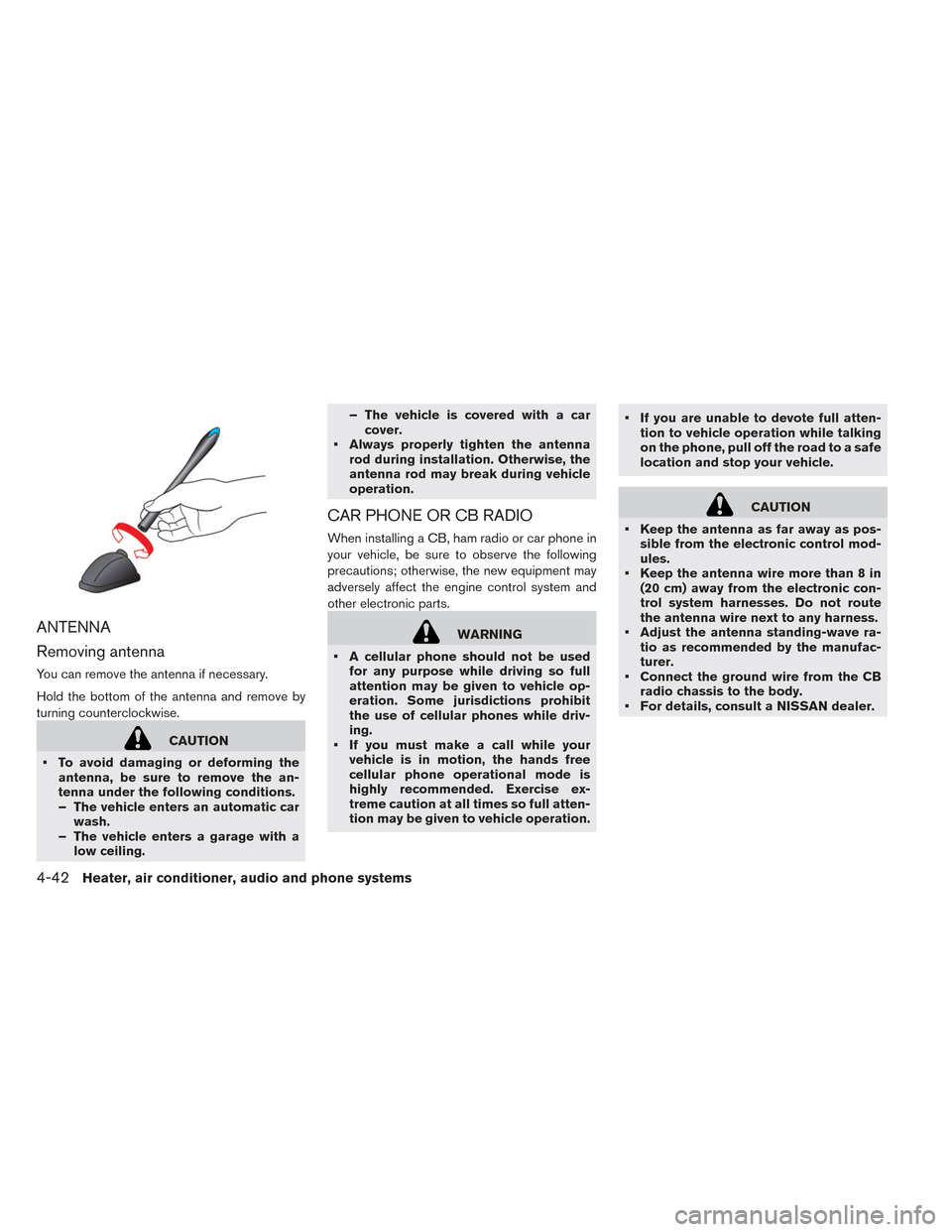
Removing antenna
You can remove the antenna if necessary.
Hold the bottom of the antenna and remove by
turning counterclockwise.
CAUTION
• To avoid damaging or deforming the
antenna, be sure to remove the an-
tenna under the following conditions.
– The vehicle enters an automatic car
wash.
– The vehicle enters a garage with a
low ceiling.– The vehicle is covered with a car
cover.
• Always properly tighten the antenna
rod during installation. Otherwise, the
antenna rod may break during vehicle
operation.
CAR PHONE OR CB RADIO
When installing a CB, ham radio or car phone in
your vehicle, be sure to observe the following
precautions; otherwise, the new equipment may
adversely affect the engine control system and
other electronic parts.
WARNING
• A cellular phone should not be used
for any purpose while driving so full
attention may be given to vehicle op-
eration. Some jurisdictions prohibit
the use of cellular phones while driv-
ing.
• If you must make a call while your
vehicle is in motion, the hands free
cellular phone operational mode is
highly recommended. Exercise ex-
treme caution at all times so full atten-
tion may be given to vehicle operation.• If you are unable to devote full atten-
tion to vehicle operation while talking
on the phone, pull off the road to a safe
location and stop your vehicle.
CAUTION
• Keep the antenna as far away as pos-
sible from the electronic control mod-
ules.
• Keep the antenna wire more than 8 in
(20 cm) away from the electronic con-
trol system harnesses. Do not route
the antenna wire next to any harness.
• Adjust the antenna standing-wave ra-
tio as recommended by the manufac-
turer.
• Connect the ground wire from the CB
radio chassis to the body.
• For details, consult a NISSAN dealer.
4-42Heater, air conditioner, audio and phone systems
Page 267 of 397
WARNING
• Use a phone after stopping your ve-
hicle in a safe location. If you have to
use a phone while driving, exercise ex-
treme caution at all times so full atten-
tion may be given to vehicle operation.
• If you are unable to devote full atten-
tion to vehicle operation while talking
on the phone, pull off the road to a safe
location and stop your vehicle.
CAUTION
To avoid draining the vehicle battery, use
a phone after the READY to drive indica-
tor light is on.
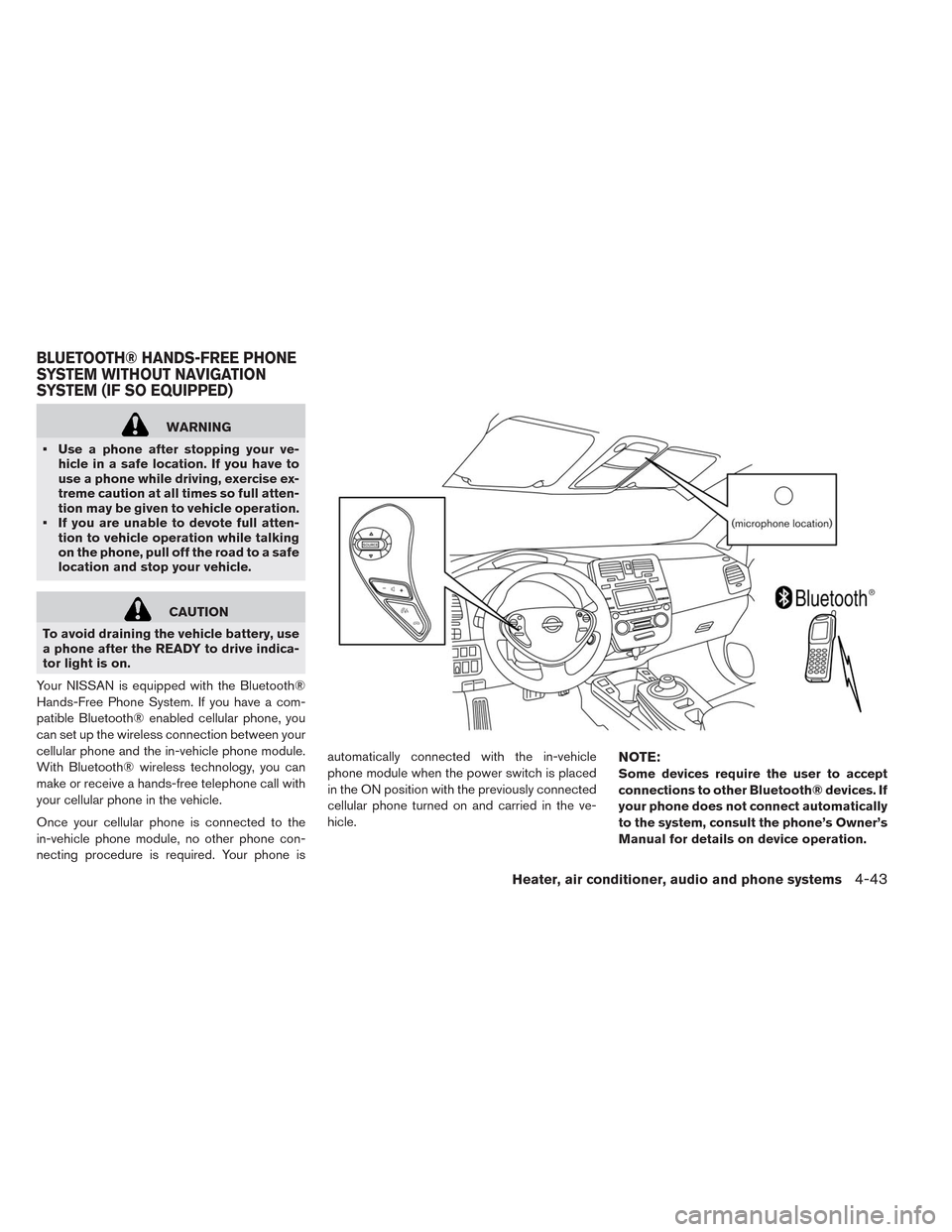
Your NISSAN is equipped with the Bluetooth®
Hands-Free Phone System. If you have a com-
patible Bluetooth® enabled cellular phone, you
can set up the wireless connection between your
cellular phone and the in-vehicle phone module.
With Bluetooth® wireless technology, you can
make or receive a hands-free telephone call with
your cellular phone in the vehicle.
Once your cellular phone is connected to the
in-vehicle phone module, no other phone con-
necting procedure is required. Your phone isautomatically connected with the in-vehicle
phone module when the power switch is placed
in the ON position with the previously connected
cellular phone turned on and carried in the ve-
hicle.
NOTE:
Some devices require the user to accept
connections to other Bluetooth® devices. If
your phone does not connect automatically
to the system, consult the phone’s Owner’s
Manual for details on device operation.
BLUETOOTH® HANDS-FREE PHONE
SYSTEM WITHOUT NAVIGATION
SYSTEM (IF SO EQUIPPED)
Heater, air conditioner, audio and phone systems4-43