2014 NISSAN JUKE program
[x] Cancel search: programPage 4 of 402
MODIFICATION OF YOUR VEHI-
CLE
This vehicle should not be modified.
Modification could affect its performance,
safety or durability, and may even violate
governmental regulations. In addition,
damage or performance problems result-
ing from modification may not be covered
under NISSAN warranties.
WHEN READING THE MANUAL
This manual includes information for all
features and equipment available on this
model. Features and equipment in your
vehicle may vary depending on model, trim
level, options selected, order, date of
production, region or availability. There-
fore, you may find information about
features or equipment that are not in-
cluded or installed on your vehicle.
All information, specifications and illustrations in
this manual are those in effect at the time of
printing. NISSAN reserves the right to change
specifications, performance, design or compo-
nent suppliers without notice and without
obligation. From time to time, NISSAN may
update or revise this manual to provide Owners
with the most accurate information currently
available. Please carefully read and retain withthis manual all revision updates sent to you by
NISSAN to ensure you have access to accurate
and up-to-date information regarding your ve-
hicle. Current versions of vehicle Owner’s
Manuals and any updates can also be found in
the Owner section of the NISSAN website at
https://owners.nissanusa.com/nowners/naviga-
tion/manualsGuide. If you have questions con-
cerning any information in your Owner’s Manual,
contact NISSAN Consumer Affairs. See the
NISSAN CUSTOMER CARE PROGRAM page
in this Owner’s Manual for contact information.IMPORTANT INFORMATION ABOUT
THIS MANUAL
You will see various symbols in this manual. They
are used in the following ways:
WARNING
This is used to indicate the presence of
a hazard that could cause death or
serious personal injury. To avoid or
reduce the risk, the procedures must
be followed precisely.
CAUTION
This is used to indicate the presence of
a hazard that could cause minor or
moderate personal injury or damage to
your vehicle. To avoid or reduce the risk,
the procedures must be followed care-
fully.
Page 6 of 402
NISSAN CARES ...
Both NISSAN and your NISSAN dealer are dedicated to serving all your automotive needs. Your satisfaction with your vehicle and your NISSAN dealer are
our primary concerns. Your NISSAN dealer is always available to assist you with all your automobile sales and service needs.
However, if there is something that your
NISSAN dealer cannot assist you with or you
would like to provide NISSAN directly with
comments or questions, please contact the
NISSAN Consumer Affairs Department using
our toll-free number:For U.S. customers1-800-NISSAN-1
(1-800-647-7261)
For Canadian customers 1-800-387-0122
The Consumer Affairs Department will ask for
the following information:
. Your name, address, and telephone number
. Vehicle identification number (attached to
the top of the instrument panel on the
driver’s side)
. Date of purchase
. Current odometer reading
. Your NISSAN dealer’s name
. Your comments or questions
OR You can write to NISSAN with the information at:
For U.S. customersNissan North America, Inc.
Consumer Affairs Department
P.O. Box 685003
Franklin, TN 37068-5003
or via e-mail at:
[email protected]
For Canadian customers Nissan Canada Inc.
5290 Orbitor Drive
Mississauga, Ontario L4W 4Z5
or via e-mail at:
information.centre@nissancanada.
com If you prefer, visit us at:
www.nissanusa.com
(for U.S. customers) or
www.nissan.ca (for Canadian customers)
We appreciate your interest in NISSAN and
thank you for buying a quality NISSAN vehicle.
NISSAN CUSTOMER CARE
PROGRAM
Page 198 of 402
during this 5 seconds period will stop SCAN
tuning and the radio will remain tuned to that
station.
If the SCAN tuning button is not pushed within 5
seconds, SCAN tuning moves to the next
station.
toStation memory operations:
12 stations can be set for the FM band (6 each
for FM1 and FM2) , 18 for SiriusXM Satellite
Radio (6 each for XM1, XM2 and XM3)* and 6
can be set for the AM band for easy access.
1. Choose the radio band using the radio band select button.
2. Tune to the desired station using the SEEK, SCAN or TUNE button.
3. Push and hold the desired radio station preset button
tountil a beep sound is
heard. (The radio mutes when the radio
station preset button is pushed.)
4. The station indicator will then come on and the sound will resume. Memorizing is now
complete.
5. Other buttons can be set in the same manner.
If the battery cable is disconnected, or if the fuse
opens, the radio memory will be erased. In that
case, reset the desired stations. *: if so equipped
Radio Data System (RDS):
RDS stands for Radio Data System, and is a
data information service transmitted by some
radio stations on the FM band (not AM band)
encoded within a regular radio broadcast.
Currently, most RDS stations are in large cities,
but many stations are now considering broad-
casting RDS data.
RDS can display:
.
Station call sign, such as “WHFR 98.3”.
. Station name, such as “The Groove”.
. Music or programming type such as “Clas-
sical”, “Country” or “Rock”.
. Traffic reports about delays or construction.
If the station broadcasts RDS information, the
RDS icon is displayed.
RADIO DISPLAY change:
When the DISP/TEXT button is pushed during
the FM or SAT radio mode, the radio display will
change in the following order.
. For FM radio:
Frequency ↔PS (Programme Service)/PTY
(Programme type)
. For SiriusXM Satellite Radio*:
Category Name ?Channel Name ?Artist/ Feature
?Song/Program
In the FM radio mode, pushing the DISP/TEXT
button will switch the frequency display to the
PTY display (if available) , and if the DISP/TEXT
button is not pushed again within 5 seconds, it
will automatically switch to the PS display. If PTY
is not available, pushing the DISP/TEXT button
will only switch between the frequency display
and the PS display.
*: if so equipped
Heater, air conditioner, audio and phone systems4-43
Page 199 of 402
4-44Heater, air conditioner, audio and phone systems
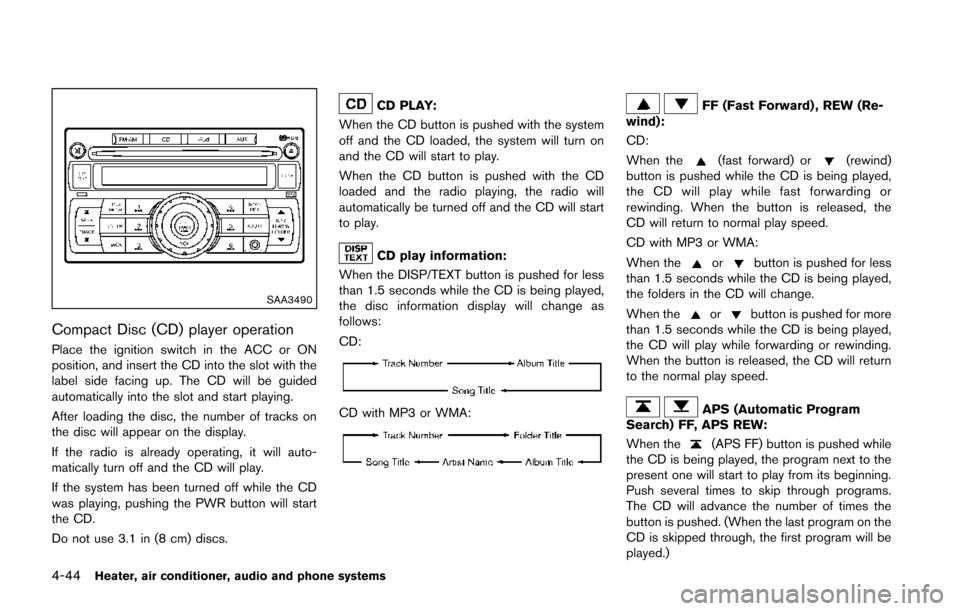
SAA3490
Compact Disc (CD) player operation
Place the ignition switch in the ACC or ON
position, and insert the CD into the slot with the
label side facing up. The CD will be guided
automatically into the slot and start playing.
After loading the disc, the number of tracks on
the disc will appear on the display.
If the radio is already operating, it will auto-
matically turn off and the CD will play.
If the system has been turned off while the CD
was playing, pushing the PWR button will start
the CD.
Do not use 3.1 in (8 cm) discs.
CD PLAY:
When the CD button is pushed with the system
off and the CD loaded, the system will turn on
and the CD will start to play.
When the CD button is pushed with the CD
loaded and the radio playing, the radio will
automatically be turned off and the CD will start
to play.
CD play information:
When the DISP/TEXT button is pushed for less
than 1.5 seconds while the CD is being played,
the disc information display will change as
follows:
CD:
CD with MP3 or WMA:
FF (Fast Forward) , REW (Re-
wind):
CD:
When the
(fast forward) or(rewind)
button is pushed while the CD is being played,
the CD will play while fast forwarding or
rewinding. When the button is released, the
CD will return to normal play speed.
CD with MP3 or WMA:
When the
orbutton is pushed for less
than 1.5 seconds while the CD is being played,
the folders in the CD will change.
When the
orbutton is pushed for more
than 1.5 seconds while the CD is being played,
the CD will play while forwarding or rewinding.
When the button is released, the CD will return
to the normal play speed.
APS (Automatic Program
Search) FF, APS REW:
When the
(APS FF) button is pushed while
the CD is being played, the program next to the
present one will start to play from its beginning.
Push several times to skip through programs.
The CD will advance the number of times the
button is pushed. (When the last program on the
CD is skipped through, the first program will be
played.)
Page 200 of 402
When the(APS REW) button is pushed,
the program being played returns to its begin-
ning. Push several times to skip back through
programs. The CD will go back the number of
times the button is pushed.
SCAN tuning:
When the SCAN tuning button is pushed for
more than 1.5 seconds while the CD is being
played, the beginning of all the tracks of CD will
be played for 10 seconds in sequence.
Pushing the button again during this 10 second
period will stop SCAN tuning.
If the SCAN tuning button is not pushed within
10 seconds, SCAN tuning moves to the next
disc program.
RANDOM (RDM)/REPEAT (RPT):
When the RPT button is pushed for less than
1.5 seconds while the CD is being played, the
play pattern can be changed as follows:
CD:
CD with MP3 or WMA:
CD EJECT:
When the CD EJECT button is pushed with the
CD loaded, the CD will be ejected.
When this button is pushed while the CD is
being played, the CD will come out and the
system will turn off.
If the CD comes out and is not removed, it
will be pulled back into the slot to protect
it.
SAA3442
Interface system for iPod®operation
Connecting iPod®:
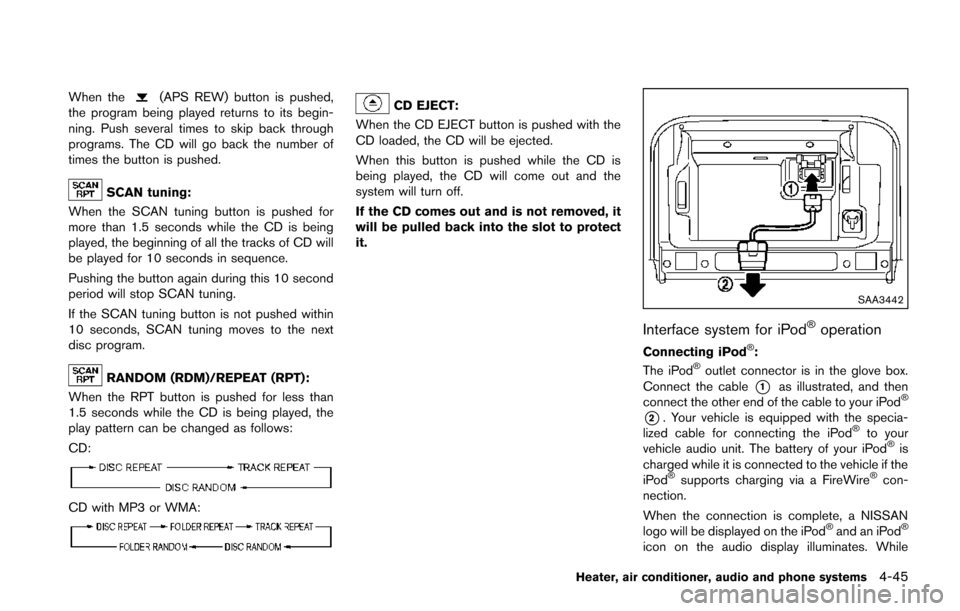
The iPod®outlet connector is in the glove box.
Connect the cable
*1as illustrated, and then
connect the other end of the cable to your iPod®
*2. Your vehicle is equipped with the specia-
lized cable for connecting the iPod®to your
vehicle audio unit. The battery of your iPod®is
charged while it is connected to the vehicle if the
iPod
®supports charging via a FireWire®con-
nection.
When the connection is complete, a NISSAN
logo will be displayed on the iPod
®and an iPod®
icon on the audio display illuminates. While
Heater, air conditioner, audio and phone systems4-45
Page 201 of 402
4-46Heater, air conditioner, audio and phone systems
connecting the iPod®to the vehicle, the iPod®
can only be operated by the vehicle audio
controls.
To disconnect the cable from the vehicle outlet,
fully depress the center connector button to
unlatch the connector and pull the connector
straight out of the outlet. To disconnect the
cable from the iPod
®, fully depress the side
connector buttons and pull the iPod®connector
straight out of the iPod®.
*iPod®, iPhone®and FireWire®are a trademark
of Apple Inc., registered in the U.S. and other
countries.
Compatibility:
The following models are available:
. Third generation iPod
®(Firmware version
2.3 or later) (Audiobook and Podcast are not
available)
. Fourth generation iPod
®(Firmware version
3.1.1 or later)
. Fifth generation iPod
®(Firmware version
1.1.2 or later)
. iPod mini
®(Firmware version 1.41 or later)
. iPod photo®(Firmware version 1.2.1 or
later)
. iPod nano
®(Firmware version 1.2 or later)
The fourth generation iPod nano®, iPod touch®,
the second generation iPod Classic®and iPhone
®3G may not work with the system in
some cases.
Make sure that your iPod
®firmware is updated.
* 12V-charge iPod®s are not chargeable with
this system.
iPod®button:
Place the ignition switch in the ACC or ON
position. Then, push the iPod
®button to switch
to the iPod®mode.
If another audio source is playing and the iPod®
is connected, pushing the iPod®button changes
to the iPod®mode.
If the system has been turned off while the iPod®
was playing, pushing the PWR button will start
the iPod®.
Top menu item selecting:
When the iPod®MENU button is pushed while
the iPod®is connected, the interface for iPod®
operation is shown on the audio display. The
items on the menu list can be scrolled by
pushing the SEEK button
orand the
TUNE buttonorwhile the iPod®is
operational. To select an item, push ENTER. The
display can be changed as follows:
For more information about each item, see the
iPod®Owner’s Manual.
BACK, ENTER button:
. When the ENTER button is pushed while
the top menu is displayed, program details
are shown on the audio display.
. To select the program, push to search using
the SEEK
orand ENTER button.
. When the BACK button is pushed, it returns
to the previous display.
iPod®play information:
When the DISP/TEXT button is pushed while a
program is being played, the program informa-
tion display will change as follows:
* Artist Name will not be displayed for a Podcast.
FF (Fast Forward) , REW (Re-
wind) button:
When the
orbutton is pushed for more
than 1.5 seconds while the iPod®is playing, the
iPod®will play while fast forwarding or rewind-
ing. When the button is released, the iPod®will
return to the normal play speed.
When the
orbutton is pushed for less
Page 202 of 402
than 1.5 seconds while the iPod®is playing, the
next track or the beginning of the current track
on the iPod
®will be played.
APS (Automatic Program
Search) FF, APS REW button:
When the
orbutton is pushed for more
than 1.5 seconds while the iPod®is playing,
numbers of tracks can be skipped through.
When the
orbutton is pushed for less
than 1.5 seconds while iPod®is playing, the next
track or the beginning of the current track on the
iPod
®will be played.
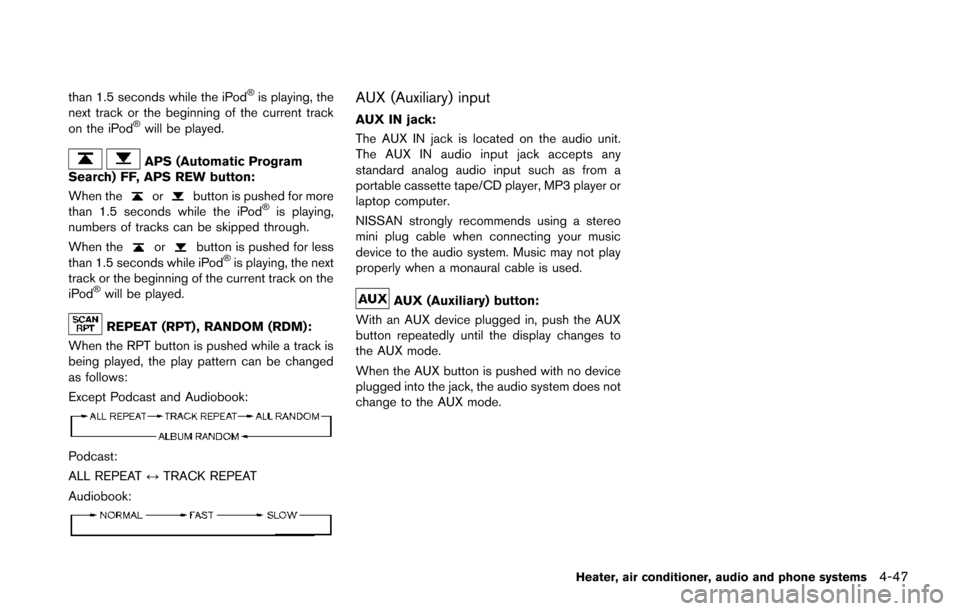
REPEAT (RPT) , RANDOM (RDM):
When the RPT button is pushed while a track is
being played, the play pattern can be changed
as follows:
Except Podcast and Audiobook:
Podcast:
ALL REPEAT ↔TRACK REPEAT
Audiobook:
AUX (Auxiliary) input
AUX IN jack:
The AUX IN jack is located on the audio unit.
The AUX IN audio input jack accepts any
standard analog audio input such as from a
portable cassette tape/CD player, MP3 player or
laptop computer.
NISSAN strongly recommends using a stereo
mini plug cable when connecting your music
device to the audio system. Music may not play
properly when a monaural cable is used.
AUX (Auxiliary) button:
With an AUX device plugged in, push the AUX
button repeatedly until the display changes to
the AUX mode.
When the AUX button is pushed with no device
plugged into the jack, the audio system does not
change to the AUX mode.
Heater, air conditioner, audio and phone systems4-47
Page 215 of 402
4-60Heater, air conditioner, audio and phone systems
3. The channel indicator will then come on andthe sound will resume. Programming is now
complete.
4. Other keys can be set in the same manner.
If the battery cable is disconnected or if the fuse
opens, the radio memory will be canceled. In
that case, reset the desired stations.
Presets can also be selected by touching the
desired preset number on the screen.
Compact Disc (CD) player operation
If the radio is already operating, it automatically
turns off and the compact disc begins to play.
CD button:
When the CD button is pushed with the system
off and the compact disc loaded, the system will
turn on and the compact disc will start to play.
When the CD button is pushed with a compact
disc loaded and the radio playing, the radio will
automatically be turned off and the compact
disc will start to play. CD/MP3/WMA display mode:
Menu item
CD/MP3 display mode While listening to a CD or an MP3/WMA CD, certain text may be displayed (when a
CD encoded with text is being used) . Depending on how the CD or MP3/WMA CD
is encoded, the text is displayed listing the artist, album and song title. There are
other keys displayed on the screen when a CD is playing:
Random Touch the “Random” key to apply a random play pattern to the CD. If an MP3 CD is
playing, touching “Random” or alternates between Random Folder, and Random All.
This text will appear on the display. To cancel Random mode, touch the “Random”
key until the key is no longer highlighted.
Repeat Touch the “Repeat” key to apply a repeat play pattern to the CD. If an MP3 CD is
playing, touching “Repeat” alternates between repeating the current song and
repeating the current folder. This text will appear on the display. To cancel Repeat
mode, touch the “Repeat” key until the key is no longer highlighted.
Browse Touch the “Browse” key to display the titles on the CD in list format. Touch the title of
a song in the list to begin playing that song. If an MP3 CD is playing, touching the
“Browse” key will also list the folders on the disc. Follow the procedure for selecting a
song with the touch-screen to choose a folder.