2014 NISSAN JUKE change time
[x] Cancel search: change timePage 199 of 402
4-44Heater, air conditioner, audio and phone systems
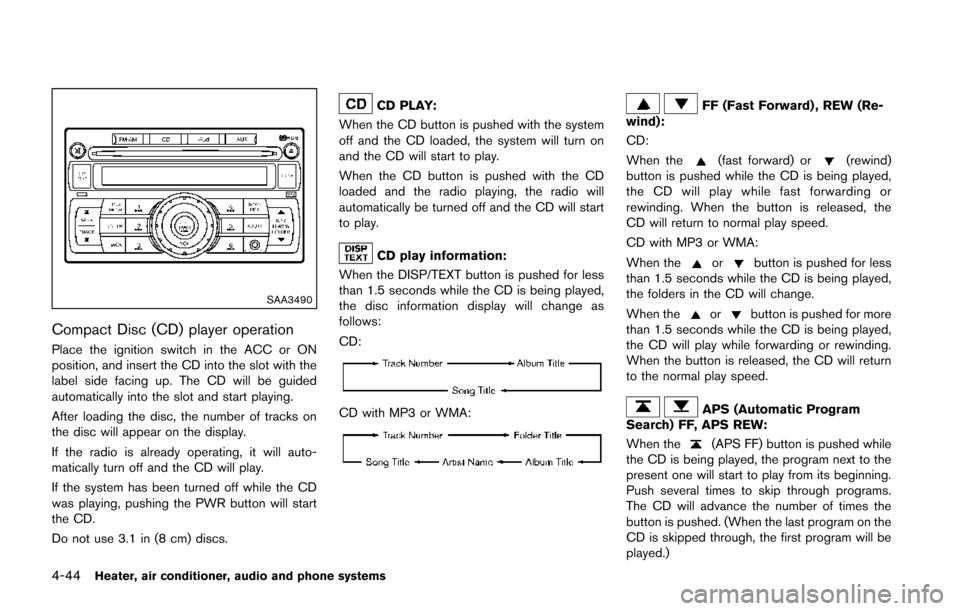
SAA3490
Compact Disc (CD) player operation
Place the ignition switch in the ACC or ON
position, and insert the CD into the slot with the
label side facing up. The CD will be guided
automatically into the slot and start playing.
After loading the disc, the number of tracks on
the disc will appear on the display.
If the radio is already operating, it will auto-
matically turn off and the CD will play.
If the system has been turned off while the CD
was playing, pushing the PWR button will start
the CD.
Do not use 3.1 in (8 cm) discs.
CD PLAY:
When the CD button is pushed with the system
off and the CD loaded, the system will turn on
and the CD will start to play.
When the CD button is pushed with the CD
loaded and the radio playing, the radio will
automatically be turned off and the CD will start
to play.
CD play information:
When the DISP/TEXT button is pushed for less
than 1.5 seconds while the CD is being played,
the disc information display will change as
follows:
CD:
CD with MP3 or WMA:
FF (Fast Forward) , REW (Re-
wind):
CD:
When the
(fast forward) or(rewind)
button is pushed while the CD is being played,
the CD will play while fast forwarding or
rewinding. When the button is released, the
CD will return to normal play speed.
CD with MP3 or WMA:
When the
orbutton is pushed for less
than 1.5 seconds while the CD is being played,
the folders in the CD will change.
When the
orbutton is pushed for more
than 1.5 seconds while the CD is being played,
the CD will play while forwarding or rewinding.
When the button is released, the CD will return
to the normal play speed.
APS (Automatic Program
Search) FF, APS REW:
When the
(APS FF) button is pushed while
the CD is being played, the program next to the
present one will start to play from its beginning.
Push several times to skip through programs.
The CD will advance the number of times the
button is pushed. (When the last program on the
CD is skipped through, the first program will be
played.)
Page 200 of 402
When the(APS REW) button is pushed,
the program being played returns to its begin-
ning. Push several times to skip back through
programs. The CD will go back the number of
times the button is pushed.
SCAN tuning:
When the SCAN tuning button is pushed for
more than 1.5 seconds while the CD is being
played, the beginning of all the tracks of CD will
be played for 10 seconds in sequence.
Pushing the button again during this 10 second
period will stop SCAN tuning.
If the SCAN tuning button is not pushed within
10 seconds, SCAN tuning moves to the next
disc program.
RANDOM (RDM)/REPEAT (RPT):
When the RPT button is pushed for less than
1.5 seconds while the CD is being played, the
play pattern can be changed as follows:
CD:
CD with MP3 or WMA:
CD EJECT:
When the CD EJECT button is pushed with the
CD loaded, the CD will be ejected.
When this button is pushed while the CD is
being played, the CD will come out and the
system will turn off.
If the CD comes out and is not removed, it
will be pulled back into the slot to protect
it.
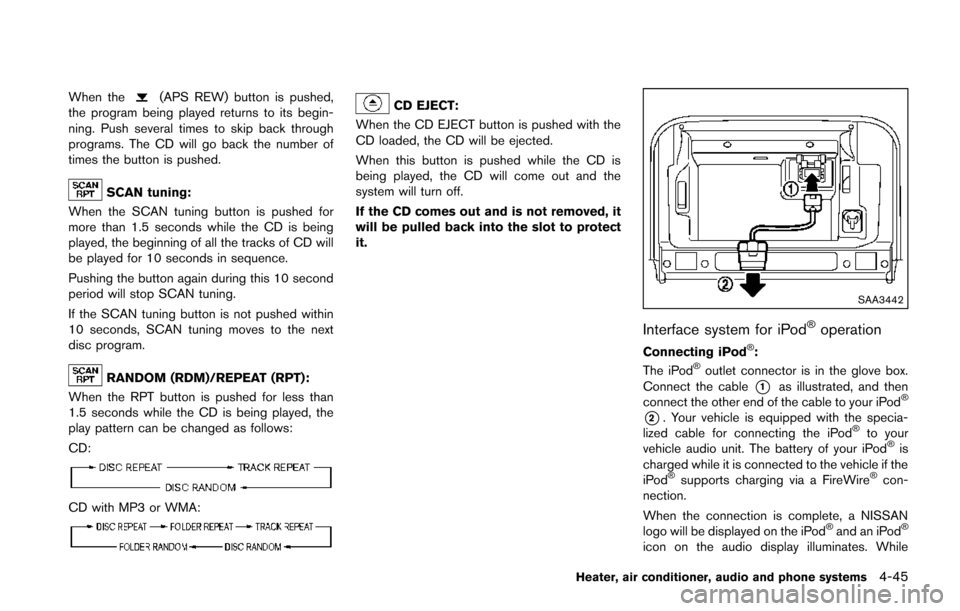
SAA3442
Interface system for iPod®operation
Connecting iPod®:
The iPod®outlet connector is in the glove box.
Connect the cable
*1as illustrated, and then
connect the other end of the cable to your iPod®
*2. Your vehicle is equipped with the specia-
lized cable for connecting the iPod®to your
vehicle audio unit. The battery of your iPod®is
charged while it is connected to the vehicle if the
iPod
®supports charging via a FireWire®con-
nection.
When the connection is complete, a NISSAN
logo will be displayed on the iPod
®and an iPod®
icon on the audio display illuminates. While
Heater, air conditioner, audio and phone systems4-45
Page 208 of 402
WARNING
Do not connect, disconnect or operate
the USB device while driving. Doing so
can be a distraction. If distracted you
could lose control of your vehicle and
cause an accident or serious injury.
CAUTION
.Do not force the USB device into the
USB port. Inserting the USB device
tilted or up-side-down into the port
may damage the port. Make sure
that the USB device is connected
correctly into the USB port.
. Do not grab the USB port cover (if
so equipped) when pulling the USB
device out of the port. This could
damage the port and the cover.
. Do not leave the USB cable in a
place where it can be pulled unin-
tentionally. Pulling the cable may
damage the port.
Refer to your device manufacturer’s owner
information regarding the proper use and care of the device.
PLAY:
When the AUX button is pushed with the system
off and the USB memory inserted, the system
will turn on.
If another audio source is playing and a USB
memory is inserted, push the AUX button
repeatedly until the center display changes to
the USB memory mode.
SEEK/CATEGORY button:
Push the SEEK/CATEGORY button
while
an audio file on the USB device is playing to
return to the beginning of the current track. Push
the SEEK/CATEGORY button
several
times to skip backward several tracks.
Push the SEEK/CATEGORY button
while
an audio file on the USB device is playing to
advance one track. Push the SEEK/CATEGORY
button
several times to skip forward several
tracks. If the last track in a folder on the USB
device is skipped, the first track of the next folder
is played.
Push and hold the SEEK/CATEGORY button
orfor 1.5 seconds while an audio file
on the USB device is playing to reverse or fast
forward the track being played. The track plays
at an increased speed while reversing or fast forwarding. When the button is released, the
audio file returns to normal play speed.
Heater, air conditioner, audio and phone systems4-53
Page 224 of 402
.A new disc may be rough on the inner and
outer edges. Remove the rough edges by
rubbing the inner and outer edges with the
side of a pen or pencil as illustrated.
USB memory
.Do not touch the terminal portion of the USB
memory.
. Do not place heavy objects on the USB
memory.
. Do not store the USB memory in very humid
locations.
. Do not expose the USB memory to direct
sunlight.
. Do not spill any liquids on the USB memory.
Refer to the USB memory Owner’s Manual for
the details.
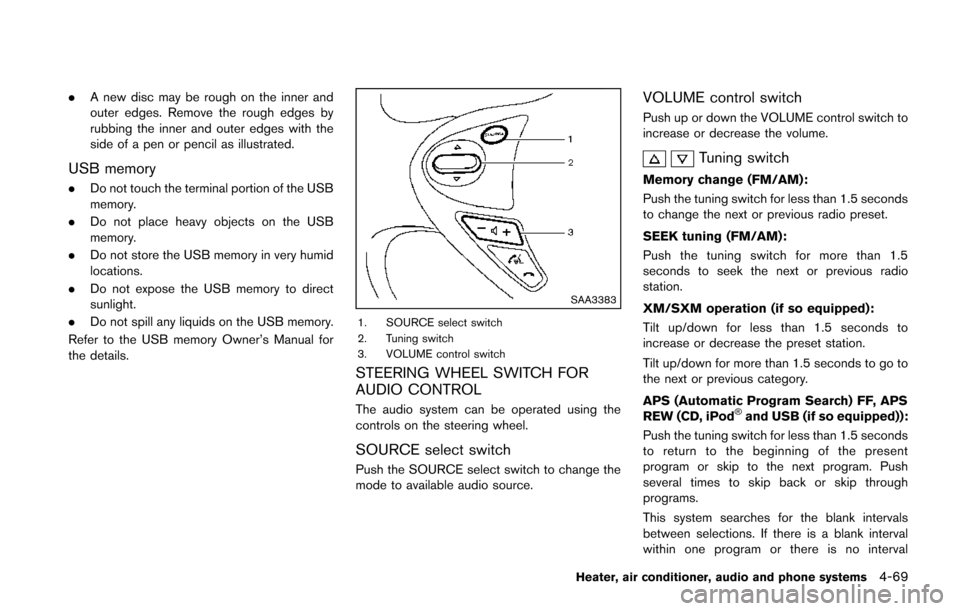
SAA3383
1. SOURCE select switch
2. Tuning switch
3. VOLUME control switch
STEERING WHEEL SWITCH FOR
AUDIO CONTROL
The audio system can be operated using the
controls on the steering wheel.
SOURCE select switch
Push the SOURCE select switch to change the
mode to available audio source.
VOLUME control switch
Push up or down the VOLUME control switch to
increase or decrease the volume.
Tuning switch
Memory change (FM/AM):
Push the tuning switch for less than 1.5 seconds
to change the next or previous radio preset.
SEEK tuning (FM/AM):
Push the tuning switch for more than 1.5
seconds to seek the next or previous radio
station.
XM/SXM operation (if so equipped):
Tilt up/down for less than 1.5 seconds to
increase or decrease the preset station.
Tilt up/down for more than 1.5 seconds to go to
the next or previous category.
APS (Automatic Program Search) FF, APS
REW (CD, iPod
®and USB (if so equipped)):
Push the tuning switch for less than 1.5 seconds
to return to the beginning of the present
program or skip to the next program. Push
several times to skip back or skip through
programs.
This system searches for the blank intervals
between selections. If there is a blank interval
within one program or there is no interval
Heater, air conditioner, audio and phone systems4-69
Page 231 of 402
4-76Heater, air conditioner, audio and phone systems
INFO
.If you are controlling the telephone system
by voice command for the first time or do not
know the appropriate voice command,
speak “Help”. The system announces the
available commands.
. When you speak numbers, you can speak
both “zero” or “oh” for “0”.
Manual command selection
Commands can be selected manually. While the
commands are displayed on the audio screen,
select a command by operating the audio tuning
switch, and then push the
switch. Once a
command is manually selected, the voice
command function is cancelled. To return to
voice command mode, push the
switch to
cancel the current operation, and then perform
the first procedure of voice command.
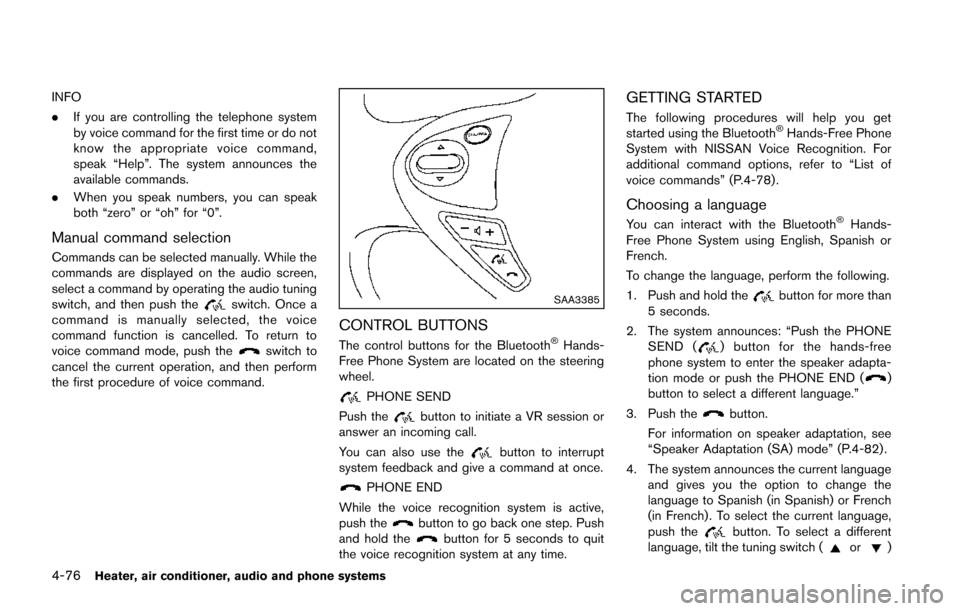
SAA3385
CONTROL BUTTONS
The control buttons for the Bluetooth®Hands-
Free Phone System are located on the steering
wheel.
PHONE SEND
Push the
button to initiate a VR session or
answer an incoming call.
You can also use the
button to interrupt
system feedback and give a command at once.
PHONE END
While the voice recognition system is active,
push the
button to go back one step. Push
and hold thebutton for 5 seconds to quit
the voice recognition system at any time.
GETTING STARTED
The following procedures will help you get
started using the Bluetooth®Hands-Free Phone
System with NISSAN Voice Recognition. For
additional command options, refer to “List of
voice commands” (P.4-78) .
Choosing a language
You can interact with the Bluetooth®Hands-
Free Phone System using English, Spanish or
French.
To change the language, perform the following.
1. Push and hold the
button for more than
5 seconds.
2. The system announces: “Push the PHONE SEND (
) button for the hands-free
phone system to enter the speaker adapta-
tion mode or push the PHONE END (
)
button to select a different language.”
3. Push the
button.
For information on speaker adaptation, see
“Speaker Adaptation (SA) mode” (P.4-82) .
4. The system announces the current language and gives you the option to change the
language to Spanish (in Spanish) or French
(in French) . To select the current language,
push the
button. To select a different
language, tilt the tuning switch (or)
Page 236 of 402
system.
“Next Name”
*C
Use the Next Name command to move the next
name of list.
“Previous Name”
*D
Use the Previous Name command to move the
previous name of list.
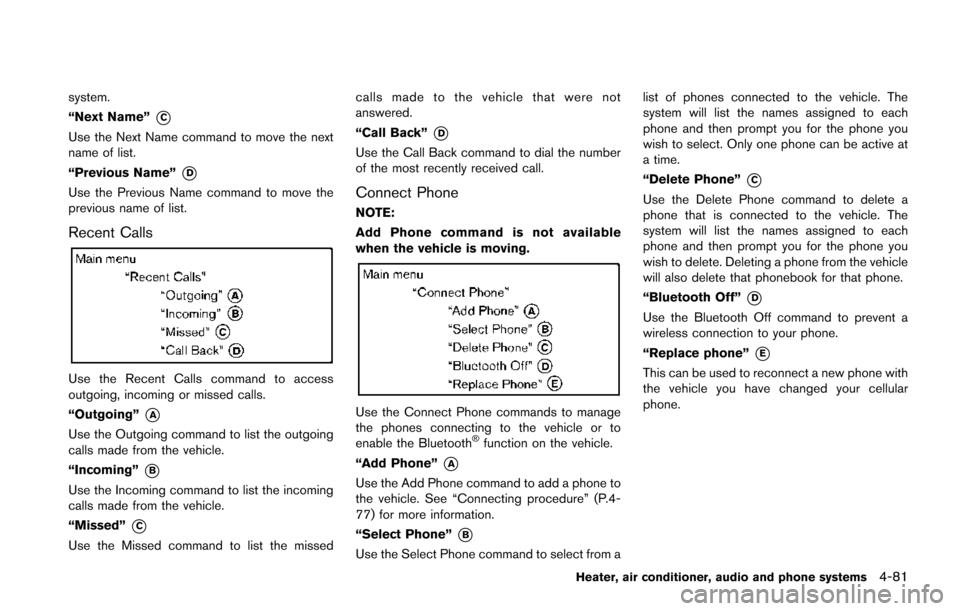
Recent Calls
Use the Recent Calls command to access
outgoing, incoming or missed calls.
“Outgoing”
*A
Use the Outgoing command to list the outgoing
calls made from the vehicle.
“Incoming”
*B
Use the Incoming command to list the incoming
calls made from the vehicle.
“Missed”
*C
Use the Missed command to list the missedcalls made to the vehicle that were not
answered.
“Call Back”
*D
Use the Call Back command to dial the number
of the most recently received call.
Connect Phone
NOTE:
Add Phone command is not available
when the vehicle is moving.
Use the Connect Phone commands to manage
the phones connecting to the vehicle or to
enable the Bluetooth
®function on the vehicle.
“Add Phone”
*A
Use the Add Phone command to add a phone to
the vehicle. See “Connecting procedure” (P.4-
77) for more information.
“Select Phone”
*B
Use the Select Phone command to select from a list of phones connected to the vehicle. The
system will list the names assigned to each
phone and then prompt you for the phone you
wish to select. Only one phone can be active at
a time.
“Delete Phone”
*C
Use the Delete Phone command to delete a
phone that is connected to the vehicle. The
system will list the names assigned to each
phone and then prompt you for the phone you
wish to delete. Deleting a phone from the vehicle
will also delete that phonebook for that phone.
“Bluetooth Off”
*D
Use the Bluetooth Off command to prevent a
wireless connection to your phone.
“Replace phone”
*E
This can be used to reconnect a new phone with
the vehicle you have changed your cellular
phone.
Heater, air conditioner, audio and phone systems4-81
Page 243 of 402
4-88Heater, air conditioner, audio and phone systems
2. Select one of the following options to makea call:
. “Phonebook”: Select the name from an entry
stored in the vehicle phonebook.
. “Call Lists”: Select the name from the
incoming, outgoing or missed.
. “Redial”: Dial the last outgoing call from the
vehicle.
. “
”: Input the phone number manually
using a keypad displayed on the screen. For
information on how to use the touch-screen,
see “How to use touch screen” (P.4-10) .
RECEIVING A CALL
When a call is placed to the connected phone,
the display will change to phone mode.
To accept the incoming call, either:
. Push the
button on the steering wheel.
. Touch the green phone icon on the screen.
To reject the incoming call, either:
To reject the incoming call, either:
. Push the
button on the steering wheel,
or
. Touch the red phone icon on the screen.
DURING A CALL
While a call is active, the following options are
available on the screen:
.“Handset”
Select this option to switch control of the
phone call over to the handset.
. “Mute Mic.”
Select this option to mute the microphone.
Select again to unmute the microphone.
. Red phone (
) icon
Select to end the phone call.
ENDING A CALL
To end a phone call, select the red phone ()
icon on the screen or push thebutton on
the steering wheel.
TEXT MESSAGING
WARNING
. Laws in some jurisdictions may
restrict the use of some of the
applications and features, such as
social networking and texting.
. Laws in some jurisdictions may
restrict the use of “Text-to-Speech”.
Check local regulations before
using this feature. .
Use the text messaging feature after
stopping your vehicle in a safe
location. If you have to use the
feature while driving, exercise ex-
treme caution at all times so full
attention may be given to vehicle
operation.
. If you are unable to devote full
attention to vehicle operation while
using the text messaging feature,
pull off the road to a safe location
and stop your vehicle.
The system allows for the sending and receiving
of text messages through the vehicle interface.
Sending a text message
1. Push thebutton on the steering wheel.
2. Say “Phone” after the tone.
3. Say “Send Text” after the tone.
4. The system will provide a list of available commands in order to determine the reci-
pient of the text message. Choose from the
following:
.To (a name).Enter Number.Missed Calls
Page 256 of 402
WARNING
.Do not leave children or adults who
would normally require the support
of others alone in your vehicle. Pets
should not be left alone either. They
could accidentally injure themselves
or others through inadvertent op-
eration of the vehicle. Also, on hot,
sunny days, temperatures in a
closed vehicle could quickly become
high enough to cause severe or
possibly fatal injuries to people or
animals.
. Properly secure all cargo with ropes
or straps to help prevent it from
sliding or shifting. Do not place
cargo higher than the seatbacks. In
a sudden stop or collision, unse-
cured cargo could cause personal
injury.
EXHAUST GAS (carbon monoxide)
WARNING
.Do not breathe exhaust gases; they
contain colorless and odorless car-
bon monoxide. Carbon monoxide is
dangerous. It can cause uncon-
sciousness or death.
. If you suspect that exhaust fumes
are entering the vehicle, drive with
all windows fully open, and have the
vehicle inspected immediately.
. Do not run the engine in closed
spaces such as a garage.
. Do not park the vehicle with the
engine running for any extended
length of time.
. Keep the lift gate closed while
driving, otherwise exhaust gases
could be drawn into the passenger
compartment. If you must drive with
the lift gate open, follow these
precautions:
1. Open all the windows.
2. Set the
air recirculation to off
and the fan control to high to circulate the air.
. If electrical wiring or other cable
connections must pass to a trailer
through the seal on the lift gate or
the body, follow the manufacturer’s
recommendation to prevent carbon
monoxide entry into the vehicle.
. If a special body, camper or other
equipment is added for recreational
or other usage, follow the manufac-
turer’s recommendation to prevent
carbon monoxide entry into the
vehicle. (Some recreational vehicle
appliances such as stoves, refrig-
erators, heaters, etc. may also gen-
erate carbon monoxide.)
. The exhaust system and body
should be inspected by a qualified
mechanic whenever:
— The vehicle is raised for service.
— You suspect that exhaust fumes
are entering into the passenger
compartment.
— You notice a change in the sound of the exhaust system.
— You have had an accident invol- ving damage to the exhaust
Starting and driving5-3
PRECAUTIONS WHEN STARTING
AND DRIVING