2014 MITSUBISHI OUTLANDER specifications
[x] Cancel search: specificationsPage 1 of 451

N09200102042
Thank you for buying a MITSUBISHI OUTLANDER. We are confident you will enjoy your
vehicle. It has
been engineered
for optimum performance, durability and comfort. By thoroughlyreading this Owner’s Manual, you w
ill gain an understanding of the
many features that are included in the OUTLANDER. The Owner’s Manual contains descripti
ons and illustrations that will assist in the
operation and maintenance of your vehicle. Your Authorized Mitsubishi Motors
Dealer will be
happy to assist you
with any further questions you ma
y have regarding the operation of
your vehicle.Please note that this manual appl
ies to all OUTLANDER models and
explains all features in
cluding options. Some feat
ures explained in this
manual may not be inst
alled on your vehicle.
Please leave this Owner’s Manual in the vehicle at the time of resale. The next owner will appreciate ha
ving access to the information con-
tained here. This manual includes instructions fo
r standard and optional equipment
available at the time of printing. Mitsubishi Motors Corporationreserves the right to make changes
in design and specifications and to
make additions or improvements in
its product without assuming any
obligation to install these on pr
eviously manufac
tured products.
Introduction
Throughout this manual the words
WARNING
and
CAUTION
appear.These are reminders to be especially careful. Failure to follow the instructions could result in persona
l injury or damage to your vehi-
cle. Indicates a strong possibility of se
vere personal injury or death if
instructions are not followed. Points out hazards or unsafe pr
actices that could cause minor
personal injury
or damage to your vehicle.
You will see another important symbol: NOTE Gives helpful information. As with other vehicles of
this type, failure to
operate this vehicle cor-
rectly may result in loss of contro
l or an accident. Be sure to read
“on-pavement” and “off-road” driv
ing guidelines in the “Driving
safety” and “Features an
d controls” sections.
WA R N I N GEngine exhaust, some of its constituents, and certain vehicle compo- nents contain or emit chemicals kn
own to the State of California to
cause cancer and birth defects and reproductive harm. In addition, certain fluids contained in vehicles and certain products of compo- nent wear contain or emit chemic
als known to the State of Califor-
nia to cause cancer and birth defects or other reproductive harm.
©2013 Mitsubishi Motors Corp
oration Printed in Japan
BK0200500US.book 1 ページ 2013年2月12日 火曜日 午前9時46分
Page 2 of 451
Table of contents
123456789101112
Overview Quick indexGeneral information Seat and restraint systems Features and controlsDriving safetyComfort controlsFor emergenciesVehicle care a
nd maintenance
Customer assistance/
Reporting Safety Defects
SpecificationsAlphabetical index
BK0200500US.book 1 ページ 2013年2月12日 火曜日 午前9時46分
Page 284 of 451

Bluetooth® 2.0 interface (if so equipped) 5-206 Features and controls
5
5. The voice guide will say “Importing the contact list from the mobile phonebook.This may take several minutes to com- plete. Would you li
ke to continue?”
Answer “Yes,” transferring to the mobilephonebook the phonebook stored in the cellular phone will start. Answer “No,” the system will return tothe main menu.
6. When the transfer is complete, the voice guide will say “Import complete” andthen the system will return to the main menu.
N00566300066
MODEL: MMC FCC ID: CB2MDGMY10IC: 279B-MDGMY10 Your Bluetooth
® 2.0 interface operates on a
radio frequency subject to Federal Communi- cations Commission (FCC)
Rules (For vehi-
cles sold in U.S.A.
) and Industry Canada
Rules (For vehicles so
ld in Canada). This
device complies with Part 15 of the FCCRules and RSS-210 of the Industry Canada Rules. Operation is subject to the following two conditions: This device may not
cause harmful inter-
ference. This device must ac
cept any interference
received, including interference that maycause undesired operation.
NOTE
The transfer may take some time to complete depending on the number of contacts. If the Bluetooth
® 2.0 interface could not be
connected to the Bluetooth
® compatible cel-
lular phone, the voice gui
de will sa
y “Unable
to transfer contact list from phone” and thenthe system will return to the main menu. If you press the HANG-UP button or press and hold the SPEECH button during the data transfer, the transfer will be cancelled and the system will return to the main menu. If an error occurs during the data transfer, all transfer will be canc
elled and the voice guide
will say “Unable to complete the phonebook import” and then the system will return to the main menu. If there are no contacts in the phonebook, the voice guide will say
“There are no contacts
on the connected phone.”
General information
CAUTION Changes or modifica
tions not expressly
approved by the manufacturer for compli- ance could void the user’s authority to oper- ate the equipment.
The term “IC:” before
the radio certification
number only signifies th
at Industry Canada
technical specifications were met. The antenna used for this transmitter must not be co-located or operating in conjunctionwith any other antenna
or transmitter. End-
users and installers must be provided with installation instructions
and transmitter oper-
ating conditions for sa
tisfying RF exposure
compliance.
N00566401080
Enrollment commands
BK0200500US.book 206 ページ 2013年2月12日 火曜日 午前9時46分
Page 287 of 451
USB input terminal (if so equipped)
Features and controls 5-209
5
* : “iPod,” “iPod classic,” “iPod nano,” “iPod touch,” and “iPhone”
are registered trade-
marks of Apple Inc. in the United States and other countries.
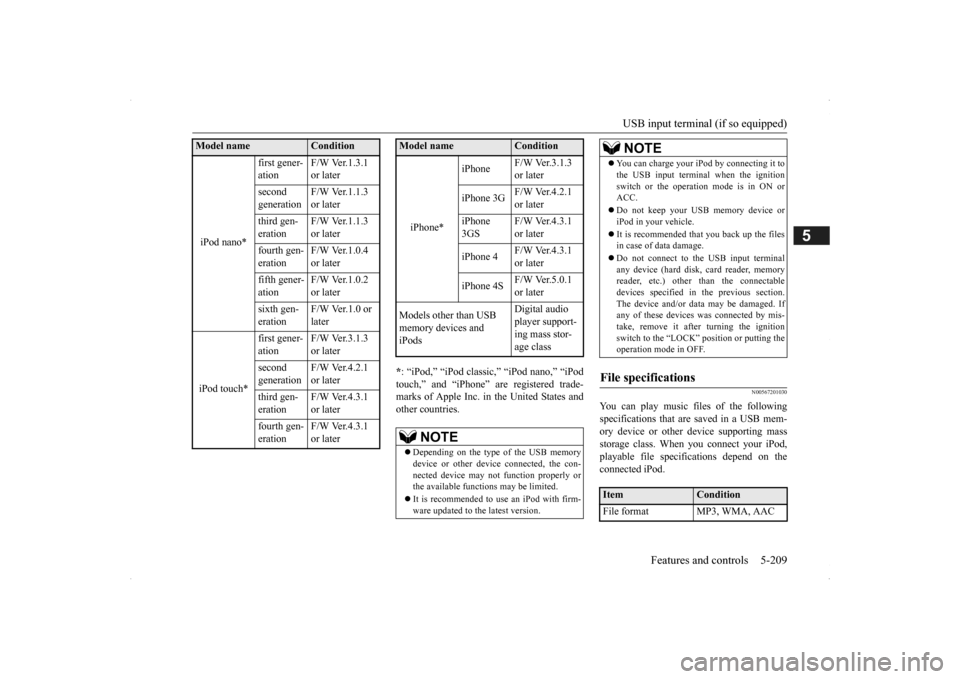
N00567201030
You can play music files of the followingspecifications that are saved in a USB mem- ory device or other
device supporting mass
storage class. When
you connect your iPod,
playable file specif
ications depend on the
connected iPod.
iPod nano*
first gener- ation
F/W Ver.1.3.1 or later
second generation
F/W Ver.1.1.3 or later
third gen- eration
F/W Ver.1.1.3 or later
fourth gen- eration
F/W Ver.1.0.4 or later
fifth gener- ation
F/W Ver.1.0.2 or later
sixth gen- eration
F/W Ver.1.0 or later
iPod touch*
first gener- ation
F/W Ver.3.1.3 or later
second generation
F/W Ver.4.2.1 or later
third gen- eration
F/W Ver.4.3.1 or later
fourth gen- eration
F/W Ver.4.3.1 or later
Model name
Condition
iPhone*
iPhone
F/W Ver.3.1.3 or later
iPhone 3G
F/W Ver.4.2.1 or later
iPhone 3GS
F/W Ver.4.3.1 or later
iPhone 4
F/W Ver.4.3.1 or later
iPhone 4S
F/W Ver.5.0.1 or later
Models other than USB memory devices and iPods
Digital audio player support-ing mass stor- age class
NOTE
Depending on the type of the USB memory device or other devi
ce connected, the con-
nected device may not
function properly or
the available functi
ons may be limited.
It is recommended to use an iPod with firm- ware updated to th
e latest version.
Model name
Condition
You can charge your iP
od by connecting it to
the USB input terminal
when the ignition
switch or the operation mode is in ON orACC. Do not keep your USB memory device or iPod in your vehicle. It is recommended that you back up the files in case of data damage. Do not connect to the USB input terminal any device (hard disk
, card reader, memory
reader, etc.) other
than the connectable
devices specified in the previous section.The device and/or data
may be damaged. If
any of these devices
was connected by mis-
take, remove it after turning the ignitionswitch to the “LOCK” position or putting the operation mode in OFF.
File specifications
Item
Condition
File format MP3, WMA, AAC
NOTE
BK0200500US.book 209 ページ 2013年2月12日 火曜日 午前9時46分
Page 338 of 451
Audio Files (MP3/WMA/AAC) 7-22 Comfort controls
7
N00715900020
MP3 is an abbreviation of “MPEG-1 Audio Layer 3”. MPEG is an abbreviation of “Motion Picture Experts Group”, and this is avideo compression standard used in video CDs, etc. MP3 is one of the audio compression meth-ods contained in the MPEG audio standard, and reduces the quality
of sounds that are
beyond the auditory resolution of the human ear and that are hidden by louder sounds, thus creating high-qua
lity data with a lower data
size. Because this can co
mpress CD audio to
approximately 1/10 its orig
inal data size with-
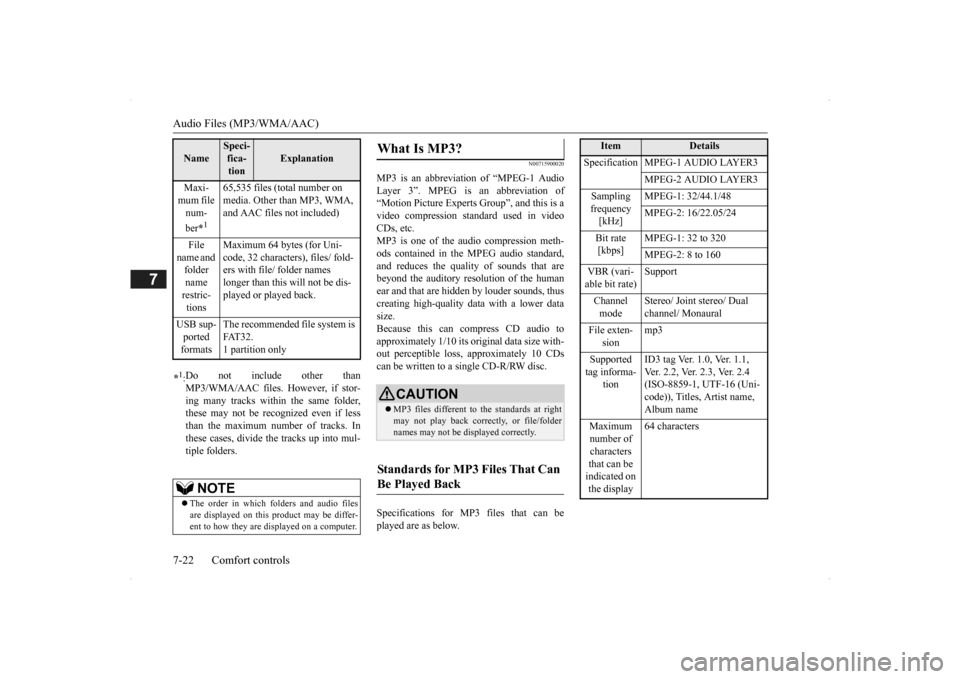
out perceptible loss, approximately 10 CDs can be written to a single CD-R/RW disc. Specifications for MP3 files that can be played are as below.
Maxi- mum file num- ber
*1
65,535 files (total number on media. Other than MP3, WMA, and AAC files not included)
File
name and folder name restric-tions
Maximum 64 bytes (for Uni- code, 32 characters), files/ fold-ers with file/ folder names longer than this will not be dis- played or played back.
USB sup- ported formats
The recommended file system is FAT32. 1 partition only
*1: Do not include other than MP3/WMA/AAC files. However, if stor- ing many tracks within the same folder,these may not be recognized even if less than the maximum number of tracks. In these cases, divide the tracks up into mul-tiple folders.
NOTE
The order in which folders and audio files are displayed on this product may be differ- ent to how they are displayed on a computer.Name
Speci- fica- tion
Explanation
What Is MP3?
CAUTION MP3 files different to the standards at right may not play back corr
ectly, or file/folder
names may not be di
splayed correctly.
Standards for MP3 Files That Can Be Played Back
Item
Details
Specification MPEG-1 AUDIO LAYER3
MPEG-2 AUDIO LAYER3
Sampling frequency [kHz]
MPEG-1: 32/44.1/48 MPEG-2: 16/22.05/24
Bit rate [kbps]
MPEG-1: 32 to 320 MPEG-2: 8 to 160
VBR (vari- able bit rate)
Support
Channel mode
Stereo/ Joint stereo/ Dual channel/ Monaural
File exten-
sion
mp3
Supported tag informa-
tion
ID3 tag Ver. 1.0, Ver. 1.1, Ver. 2.2, Ver. 2.3, Ver. 2.4 (ISO-8859-1, UTF-16 (Uni-code)), Titles, Artist name, Album name
Maximum number of characters that can be indicated on the display
64 characters
BK0200500US.book 22 ページ 2013年2月12日 火曜日 午前9時46分
Page 339 of 451

Audio Files (MP3/WMA/AAC)
Comfort controls 7-23
7
N00716000028
WMA is an abbreviation of Windows Media Audio, and this is an
audio compression for-
mat from Microsoft. This is a compressionformat that has a higher compression ratio than MP3. Specifications for WMA files that can be played are as below.
N00716100029
AAC is an abbreviation of Advanced Audio Coding, and this is
an audio compression
standard used in “MPEG-2” and “MPEG-4”. This features 1.4x th
e compression of MP3,
with comparable audio quality.
Specifications for AAC files that can be played are as below.
What Is WMA?
NOTE
Microsoft, Windows Media, and Windows are registered trademarks of Microsoft Cor- poration (USA) and in
other countries.
CAUTIONWMA supports digita
l rights management
(DRM). This product cannot play back WMA files protected
using this system.
WMA files different to the standards at right may not play back correctly, or file/folder names may not be displayed correctly. “Pro”, “Lossless”, and “Voice” are not sup- ported.
Standards for WMA Files That Can Be Played Back
Item
Details
Specification Windows Media Audio
Version7.0/8.0/9.0
Sampling fre- quency [kHz]
32/44.1/48
Bit rate [kbps] 48 to 320
VBR
(variable bit rate)
Support
Channel mode Stereo/Monaural File extension wma Supported tag information
WMA tags Title name, Artist name, Album name
Maximum num- ber of characters that can be indi- cated on the dis-
play
64 characters
What Is AAC?
CAUTION AAC supports digita
l rights management
(DRM). This product cannot play back AACfiles protected using this system. AAC files different to
the standards at right
may not play back correctly, or file/foldernames may not be displayed correctly.
Standards for AAC Files That Can Be Played Back
Item
Details
Specification Advanced Audio
CodingMPEG4/AAC-LC MPEG2/AAC-LC
Sampling
fre- quency [kHz]
MPEG4 8/11.025/12/16/22.05/
24/32/44.1/48
MPEG2 8/11.025/12/16/22.05/
24/32/44.1/48
Bit rate [kbps]
MPEG4 8 to 320 MPEG2 8 to 320
VBR
(variable bit rate)
Support
Channel mode Stereo/Monaural
BK0200500US.book 23 ページ 2013年2月12日 火曜日 午前9時46分
Page 350 of 451

Listen to an iPod 7-34 Comfort controls
7
Press the MEDIA key to set the iPod as the source. The selected source is
indicated on the dis-
play. Press the key or key to select the track. This enables selection of the next or previous track.
Hold down the 3 key or the 4 key. Fast forward/rewind is possible. Repeat playback and
shuffle playback are
possible. Press the 1RPT key. Repeat playback of th
e track currently being
played. Press the 2RDM key. Play tracks in the category currently being played in a random order.
Regarding details such as types of iPod/iPhone that can be
connected to equip-
ment by type (vehicle
s with a Bluetooth
® 2.0
interface), and types
of files that can be
played back, refer to “Types of connectable devices and supported fi
le specifications” on
page 5-208. Regarding how to c
onnect the iPod/iPhone,
refer to “How to c
onnect an iPod” on page
5-208. When connecting th
e iPod/iPhone, use a
commercially-available iPod connection cable. Set up the device in order that no unsafe actions, such as pluggi
ng in the connection
cable are taken while driving. When inserting and removing the iPod/iPhone, for safety’s
sake first stop the
vehicle. Depending on the status
of the iPod/iPhone,
it may take some time
until the device is rec-
ognized, or playback starts. Buttons on the product will not operate while iPod/iPhone is
connected.
iPod/iPhone spec
ifications and settings may
mean that connection
is not possible, or
result in differences in
operation or display.
Depending on audio data
in the iPod/iPhone,
track information may
not be displayed cor-
rectly. Depending on the status of the vehicle and device, the iPod/iPhone
may not play back
after starting
the engine.
NOTE
Data containing copyri
ght information may
not play back. It is recommended
that the iPod/iPhone
equalizer settings be set to flat. Operate the iPod/iPhone while connected to this product. If the iPod/iPhone is
connected via Bluetooth
as a Bluetooth-capable
audio device, then do
not connect the iPod/iP
hone using an iPod
cable. Connection us
ing both methods will
result in erroneous operation. If an iPod/iPhone does
not operate
correctly,
then remove the iPod/iPhone from the prod- uct, reset, then reconnect.
Play iPod Select the Track (File)
NOTE
Fast Forward or Rewind Switch Playback Mode Repeat Playback (RPT)
NOTE
Pressing again will cancel.
Shuffle Playback (RDM)
BK0200500US.book 34 ページ 2013年2月12日 火曜日 午前9時46分
Page 354 of 451
Listen to Bluetooth Audio (if so equipped) 7-38 Comfort controls
7
N00717500020
This product can play back tracks on com- mercially-available Bl
uetooth-capable audio
devices.
Regarding how to connect your Bluetooth device, refer to “Connecting the Bluetooth
®
2.0 interface and Blue
tooth device” on page
5-192.Operation methods belo
w describe situations
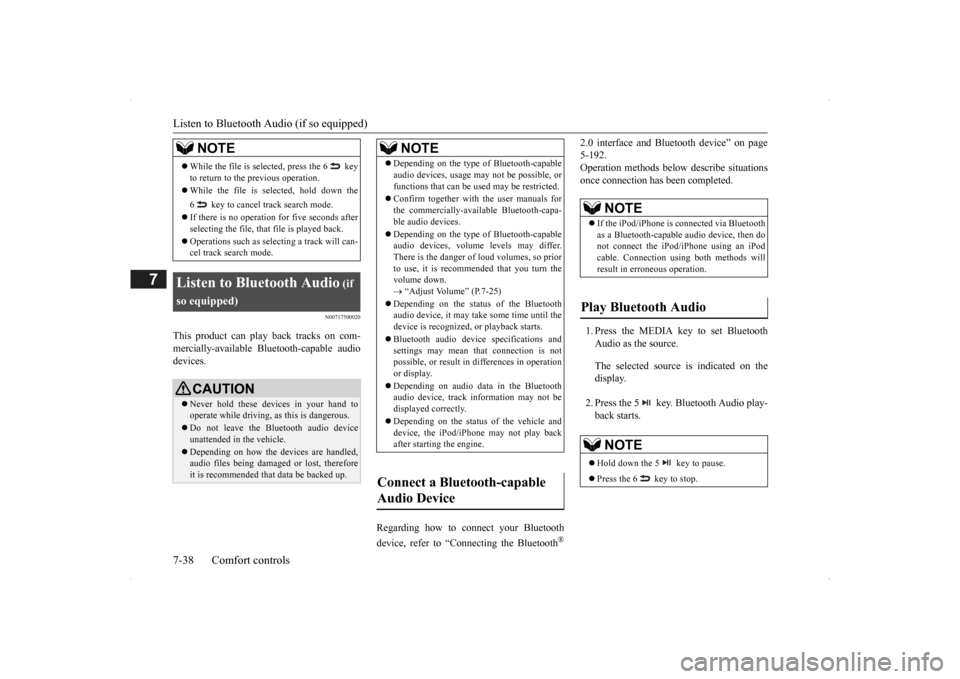
once connection has been completed. 1. Press the MEDIA key to set Bluetooth Audio as the source. The selected source is indicated on the display. 2. Press the 5 key. Bluetooth Audio play- back starts.
While the file is selected, press the 6 key to return to the
previous operation.
While the file is se
lected, hold down the
6 key to cancel track search mode. If there is no operation for five seconds after selecting the file, that file is played back. Operations such as sele
cting a trac
k will can-
cel track search mode.
Listen to Bluetooth Audio
(if
so equipped)
CAUTION Never hold these devices in your hand to operate while driving, as this is dangerous. Do not leave the Bluetooth audio device unattended in the vehicle. Depending on how the devices are handled, audio files being damage
d or lost, therefore
it is recommended that
data be backed up.
NOTE
NOTE
Depending on the type of
Bluetooth-capable
audio devices, usage ma
y not be possible, or
functions that can be us
ed may be restricted.
Confirm together with the user manuals for the commercially-availab
le Bluetooth-capa-
ble audio devices. Depending on the type of
Bluetooth-capable
audio devices, volume
levels may differ.
There is the danger of loud volumes, so prior to use, it is recommended that you turn thevolume down. “Adjust Volume” (P.7-25)
Depending on the status of the Bluetooth audio device, it may ta
ke some time until the
device is recognized,
or playback starts.
Bluetooth audio device
specifications and
settings may mean th
at connection is not
possible, or result in
differences in operation
or display. Depending on audio data in the Bluetooth audio device, track in
formation may not be
displayed correctly. Depending on the status of the vehicle and device, the iPod/iPhone
may not play back
after starting the engine.
Connect a Bluetooth-capable Audio Device
NOTE
If the iPod/iPhone is c
onnected via Bluetooth
as a Bluetooth-capable
audio device, then do
not connect the iPod/
iPhone using an iPod
cable. Connection us
ing both methods will
result in err
oneous operation.
Play Bluetooth Audio
NOTE
Hold down the 5 key to pause. Press the 6 key to stop.
BK0200500US.book 38 ページ 2013年2月12日 火曜日 午前9時46分