2014 MITSUBISHI LANCER EVOLUTION change time
[x] Cancel search: change timePage 201 of 338

Bluetooth® 2.0 interface 5-140 Features and controls
5
to make hands-free calls with voice com- mands.
N00564101100
The Bluetooth
® 2.0 interface is equipped
with a voice recognition function.Simply say voice commands and you can per- form various operations and make or receive hands-free calls. With the Bluetooth
® 2.0 interface, voice rec-
ognition is possible for US English, North American Spanish and Canadian French. The factory setting is “English.”
1. Press the SPEECH button (except for vehicles with Mitsubishi Multi-Commu- nication System) or PICK-UP button (for vehicles with Mitsubishi Multi-Commu-nication System). 2. Say “Setup.” 3. Say “Language.”4. The voice guide will say “Select a lan- guage: English, Spanish or French.” Say the desired language. (Example: “Eng-lish”)
5. The voice guide will say “English (Span- ish or French) selected. Is this correct?” Say “Yes.” If you say “No,” the system will return toStep 4. 6. When the voice guide says “English (Spanish or French) selected,” the lan-guage change process will be completed and the system will return to the main menu.
NOTE
If a cellular phone is within close proximity of the microphone, it may distort the sound quality. In this case, place the cellular phoneas far as possible from the microphone.
Voice recognition function
NOTE
If the voice command that you say differs from the predefined command or cannot berecognized due to ambient noise or some other reason, the Bluetooth
® 2.0 interface
will ask you for the voice command again upto 3 times.
For best performance and further reduction of ambient noise, the vehicle windows should be closed, lower the blower speed and refrain from conversation with your passen- gers while engaging the voice recognitionfunction. Some voice commands have alternative commands. Depending on the selected language, some functions may not be available.
Selecting the language
NOTE
NOTE
The voice guide will repeat the same mes- sage twice. The first message is in the cur-rent language, and the second message is in the selected language. If many entries are registered in the vehicle phonebook, changing the language will take a longer time. Changing the language deletes the mobile phonebook imported to the Bluetooth
® 2.0
interface. If you wish to use it, you will have to import it again.
BK0200800US.book
140 ページ 2013年2月14日 木曜日 午後2時28分
Page 205 of 338

Bluetooth® 2.0 interface 5-144 Features and controls
5
N00564901065
You can turn a voice model registered with the speaker enrollment function on and off whenever you want.You can also retrain the system. Use the following procedure to perform these actions. 1. Press the SPEECH button (except for vehicles with Mitsubishi Multi-Commu-nication System) or PICK-UP button (for vehicles with Mitsubishi Multi-Commu- nication System).2. Say “Voice training.” 3. If you have completed a speaker enroll- ment process once already, the voiceguide will say either “Enrollment is enabled. Would you like to disable or retrain?” or “Enrollment is disabled.Would you like to enable or retrain?” 4. When enrollment is “enabled,” the voice model is on; when enrollment is “dis-abled,” the voice model is off. Say the command that fits your needs. Say “Retrain” to start the speaker enroll-ment process and recreate a new voice model. (Refer to “Speaker enrollment” on page 5-142.)
N00565001210
Before you can make or receive hands-free calls or play music using the Bluetooth
® 2.0
interface function, you must pair the Blue- tooth
® device and Bluetooth
® 2.0 interface.
Up to 7 Bluetooth
® devices can be paired
with the Bluetooth
® 2.0 interface.
If multiple paired Bluetooth
® devices are
available in the vehicle, the cellular phone or music player most recently connected is auto- matically connected to the Bluetooth
® 2.0
interface. You can also change a Bluetooth
® device to
be connected.
To pair a Bluetooth
® device with the Blue-
tooth
® 2.0 interface, follow the steps below.
1. Stop your vehicle in a safe area, put the gearshift lever in the “N” (Neutral) posi- tion (manual transaxle), or the gearshift lever in the “P” (PAR
K) position (Twin
Clutch SST) and pull the parking brake lever. 2. Press the SPEECH button (except for vehicles with Mitsubishi Multi-Commu- nication System) or PICK-UP button (for vehicles with Mitsubishi Multi-Commu-nication System).3. Say “Setup.” 4. Say “Pairing Options.”
Enabling and disabling the voice model and retraining
Connecting the Bluetooth
® 2.0
interface and Bluetooth
® device
NOTE
Pairing is required only when the device is used for the first time. Once the device has been paired with the Bluetooth
® 2.0 inter-
face, all you need is
to bring the device into
the vehicle next time and the device will connect to the Bluetooth
® 2.0 interface auto-
matically (if supported by the device). The device must have Bluetooth
® turned ON to
connect.
To p a i r
NOTE
You cannot pair any Bluetooth
® device with
the Bluetooth
® 2.0 interface unless the vehi-
cle is parked. Before pairing a Bluetooth
®
device with the Bluetooth
® 2.0 interface,
confirm that the vehicle is parked in a safe location.
BK0200800US.book
144 ページ 2013年2月14日 木曜日 午後2時28分
Page 206 of 338

Bluetooth® 2.0 interface
Features and controls 5-145
5
5. The voice guide will say “Select one of the following: pair, edit, delete, or list.” Say “Pair.” 6. The voice guide will say “Please say a 4- digit pairing code.” Say a 4-digit number.When the confirmation function is on, the system will confirm whether the number said is acceptable. Answer “Yes.”Answer “No” to return to pairing code selection.
7. The voice guide will say “Start pairing procedure on the device. See the device manual for instructions.” Enter in the Bluetooth
® device the 4-digit number you
have registered in Step 6.
8. The voice guide will say “Please say the name of the device after the beep.” You can assign a desired name for the Blue- tooth
® device and register it as a device
tag. Say the name you want to register after the beep. 9. The voice guide will say “Pairing com- plete,” after which a beep will be playedand the pairing process will end.
N00565101077
If multiple paired Bluetooth
® devices are
available in the vehicle, the cellular phone or music player most recently connected is auto-
NOTE
If 7 devices have already been paired, the voice guide will say “Maximum devices paired” and then the system will end thepairing process. To register a new device, delete one device and then repeat the pairing process.(Refer to “Selecting a device: Deleting a device” on page 5-147.)NOTE
Some Bluetooth
® devices require a specific
pairing code. Please refer to the device man- ual for pairing code requirements.
The pairing code entered here is only used for the Bluetooth
® connection certification.
It is any 4-digit number the user would like to select. Remember the pairing code as it needs to be keyed into the Bluetooth
® device later in the
pairing process. Depending on the connection settings of the Bluetooth
® device, this code may have to be
entered each time you connect the Blue- tooth
® device to the Bluetooth
® 2.0 inter-
face. For the default connection settings, refer to the instructions for the device.NOTE
Depending on the Bluetooth
® device, it may
take a few minutes to pair it with the Blue- tooth
® 2.0 interface.
If the Bluetooth
® 2.0 interface cannot recog-
nize the Bluetooth
® device, the voice guide
will say “Pairing has timed out” and the pair-ing process will be cancelled. Confirm that the device you are pairing sup- ports Bluetooth
®, and try pairing it again.
NOTE
If you enter the wrong number, the voice guide will say “Pairing failed” and the pair- ing process will be cancelled. Confirm the number is right, and try pairing it again.NOTE
When the confirmation function is on, after repeating the device tag you have said, the voice guide will ask “Is this correct?” Answer “Yes.”To change the device tag, answer “No” and then say the device tag again.
Selecting a device
NOTE
BK0200800US.book
145 ページ 2013年2月14日 木曜日 午後2時28分
Page 207 of 338

Bluetooth® 2.0 interface 5-146 Features and controls
5
matically connected to the Bluetooth
® 2.0
interface. You can connect to the other paired cellular phone or music player by following settingchange procedures.
N00582200021
1. Press the SPEECH button (except forvehicles with Mitsubishi Multi-Commu-nication System) or PICK-UP button (forvehicles with Mitsubishi Multi-Commu- nication System). 2. Say “Setup.”3. Say “Select phone.”
4. After the voice guide says “Please say,” the numbers of the cellular phones and device tags of corresponding cellular phones will be read out in order, startingwith the cellular phone that has been most recently connected. Say the number of the cellular phone thatyou want to connect to. When the confirmation function is on, the system will ask you again whether thephone that you want to connect to is cor-rect. Answer “Yes” to continue and con- nect to the cellular phone. Answer “No,” and the voice guide willsay “Please say.” Say the number of the phone that you want to connect to. 5. The selected phone will be connected to the Bluetooth
® 2.0 interface. The voice
guide will say “
N00582300022
1. Press the SPEECH button (except forvehicles with Mitsubishi Multi-Commu- nication System) or PICK-UP button (forvehicles with Mitsubishi Multi-Commu- nication System). 2. Say “Setup.”3. Say “Select music player.” 4. After the voice guide says “Please say,” the numbers of the music players anddevice tags of corresponding music play-ers will be read out in order, starting with the music player that has been most recently connected.Say the number of the music player that you want to connect to. When the confirmation function is on, thesystem will ask you again whether the music player that you want to connect to is correct. Answer “Yes” to continue andconnect to the music player. Answer “No,” and the voice guide will say “Please say.” Say the number of themusic player that you want to connect to.
To select a cellular phone
NOTE
You can connect to a phone at any time by pressing the SPEECH button and saying the number, even before all of the paired num- bers and device tags of corresponding cellu-lar phones are read out by the system.
To select a music player NOTE
You can connect to a music player at any time by pressing the SPEECH button andsaying the number, even before all of the paired numbers and device tags of corre- sponding music players are read out by thesystem.
BK0200800US.book
146 ページ 2013年2月14日 木曜日 午後2時28分
Page 212 of 338

Bluetooth® 2.0 interface
Features and controls 5-151
5
“
N00565800019
If an incoming phone call is received whilethe ignition switch is in the “ACC” or “ON”position, the audio system will be automati- cally turned on and switched to the incoming call, even when the audio system was origi-nally off. The voice guide announcement for the incoming call will be output from the frontpassenger’s seat speaker. If the CD player or radio was playing when the incoming call was received, the audio sys-tem will mute the sound from the CD player or radio and output only the incoming call. To receive the call, press the PICK-UP buttonon the steering wheel control switch. When the call is over,
the audio system will
return to its previous state.
N00565900010
At any time during a call, you can mute thevehicle microphone. Pressing the SPEECH button and then saying “Mute” during a call will turn ON the mute function and mute the microphone.Saying “Mute off” in the same way will turn off the mute function and cancel the mute on the microphone.
N00566600014
The Bluetooth
® 2.0 interface can switch
between hands-free mode (hands-free calls) and private mode (calls using cellular phone). If you press the SPEECH button and say“Transfer call” during a hands-free call, you can stop the hands-free mode and talk in pri- vate mode. To return to hands-free mode, press the SPEECH button again and say “Transfer call.”
N00566000018
The Bluetooth
® 2.0 interface has 2 types of
unique phonebooks that are different from thephonebook stored in the cellular phone. They
are the vehicle phonebook and the mobile phonebook. These phonebooks are used to register tele- phone numbers and make calls to desirednumbers via voice recognition function.
N00566101117
This phonebook is us
ed when making calls
with the voice recognition function. Up to 32 names can be registered in the vehi- cle phonebook per language.Also, each entry has 4 locations associated with: home, work, mobile and other. You can register one telephone number for each loca-tion. You can register a desired name as a name for any phonebook entry registered in the vehicle phonebook.Names and telephone numbers can be changed later on. The vehicle phonebook can be used with all paired cellular phones.
Receiving calls
Mute function Switching between hands-free mode and private mode Phonebook function
NOTE
Disconnecting the battery cable will not delete information registered in the phone- book.
Vehicle phonebook
BK0200800US.book
151 ページ 2013年2月14日 木曜日 午後2時28分
Page 219 of 338

USB input terminal 5-158 Features and controls
5
5. The voice guide will say “Importing the contact list from the mobile phonebook. This may take several minutes to com- plete. Would you like to continue?”Answer “Yes,” transferring to the mobile phonebook the phonebook stored in the cellular phone will start.Answer “No,” the system will return to the main menu.
6. When the transfer is complete, the voice guide will say “Import complete” and then the system will return to the main menu.
N00566300037
MODEL: MMC FCC ID: CB2MDGMY10IC: 279B-MDGMY10 Your Bluetooth
® 2.0 interface operates on a
radio frequency subject to Federal Communi- cations Commission (FCC) Rules (For vehi- cles sold in U.S.A.) and Industry CanadaRules (For vehicles sold in Canada). This device complies with Part 15 of the FCC Rules and RSS-210 of the Industry CanadaRules. Operation is subject to the following two conditions: This device may not cause harmful inter- ference. This device must accept any interference received, including interference that may cause undesired operation.
The term “IC:” before the radio certification number only signifies that Industry Canada technical specifications were met. The antenna used for this transmitter must notbe co-located or operating in conjunction with any other antenna or transmitter. End- users and installers must be provided withinstallation instructions and transmitter oper- ating conditions for satisfying RF exposure compliance.
N00566401093 N00566701038
You can connect your USB memory device or iPod
* to play music files stored in the USB
memory device or iPod. The following explains how to connect andremove a USB memory device or iPod.
NOTE
The transfer may take some time to complete depending on the number of contacts. If the Bluetooth
® 2.0 interface could not be
connected to the Bluetooth
® compatible cel-
lular phone, the voice guide will say “Unable to transfer contact list from phone” and then the system will return to the main menu. If you press the HANG-UP button or press and hold the SPEECH button during the datatransfer, the transfer will be cancelled and the system will return to the main menu. If an error occurs during the data transfer, all transfer will be cancelled and the voice guide will say “Unable to complete the phonebookimport” and then the system will return to the main menu. If there are no contacts in the phonebook, the voice guide will say “There are no contacts on the connected phone.”
General information
CAUTION Changes or modifications not expressly approved by the manufacturer for compli-ance could void the user’s authority to oper- ate the equipment.
Enrollment commands USB input terminal
BK0200800US.book
158 ページ 2013年2月14日 木曜日 午後2時28分
Page 244 of 338

Automatic air conditioning with
Fahrenheit scale (if so equipped)
Comfort controls 7-5
7
N00737000223
Use this dial to adjust the temperature in the passenger compartment. Turn the temperaturecontrol dial clockwise to make the air warmer. Turn it counterclockwise to make the air cooler.
The above indicates the factory settings. You can personalize the air selection switch and air conditioning switch to match your per-sonal preferences. Contact your Mitsubishi Motors dealer or a repair facility of your choice for assistance.Refer to “Personalizing the air conditioning switch (Changing the function setting)” on page 7-7.Refer to “Personalizing the air selection (Changing the function setting)” on page 7-6.
N00737100093
To change the amount of air flowing from the vents, turn the mode selection dial. Refer to“Changing the mode selection” on page 7-2.
N00737200238
Normally, use the outside air position to keepthe windshield and side windows clear and toquickly remove fog or frost from the wind- shield. To change the air selection, simply press the air selection switch. A sound will be madeevery time you press the switch. Outside air {Indicator light (A) OFF} Outside air is introduced into the passen- ger compartment.
Temperature control dial
NOTE
While the engine coolant temperature is low, the temperature of the air from the heater will be cool/cold until the engine warms up, even if you have selected warm air with the dial. When the temperature is set to the highest or the lowest setting under the AUTO opera-tion, the air selection and the air conditioning will be automatically changed as follows. Also, if the air selection is operated manuallyafter an automatic changeover, manual oper- ation will be selected. • Quick Heating (When the temperature is set to the highest setting) Outside air will be introduced and the airconditioning will stop. • Quick Cooling (When the temperature is set to the lowest setting) Inside air will be recirculated and the air conditioning will operate.
Mode selection dial
Air selection switch
BK0200800US.bo
ok 5 ページ 2013年2月14日 木曜日 午後2時28分
Page 245 of 338
Automatic air conditioning with
Fahrenheit scale (if so equipped)
7-6 Comfort controls
7
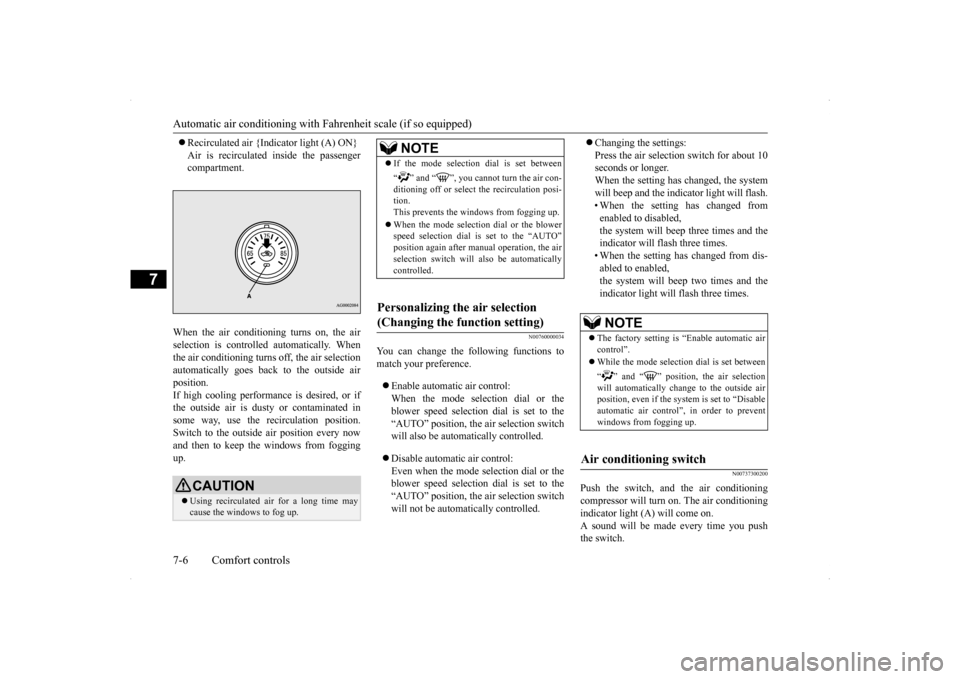
Recirculated air {Indicator light (A) ON} Air is recirculated inside the passenger compartment.
When the air conditioning turns on, the air selection is controlled automatically. When the air conditioning turns off, the air selection automatically goes back to the outside airposition.If high cooling performance is desired, or if the outside air is dusty or contaminated in some way, use the recirculation position.Switch to the outside air position every now and then to keep th
e windows from fogging
up.
N00760000034
You can change the following functions tomatch your preference. Enable automatic air control: When the mode selection dial or the blower speed selection dial is set to the“AUTO” position, the air selection switch will also be automatically controlled. Disable automatic air control: Even when the mode selection dial or theblower speed selection dial is set to the “AUTO” position, the air selection switch will not be automatically controlled.
Changing the settings: Press the air selection switch for about 10 seconds or longer. When the setting has changed, the systemwill beep and the indicator light will flash. • When the setting has changed from enabled to disabled,the system will beep three times and the indicator will flash three times. • When the setting has changed from dis-abled to enabled,the system will beep two times and the indicator light will flash three times.
N00737300200
Push the switch, and the air conditioning compressor will turn on. The air conditioning indicator light (A) will come on. A sound will be made every time you pushthe switch.
CAUTION Using recirculated air for a long time may cause the windows to fog up.
NOTE
If the mode selection dial is set between “ ” and “ ”, you cannot turn the air con- ditioning off or select the recirculation posi- tion.This prevents the windows from fogging up. When the mode selection dial or the blower speed selection dial is set to the “AUTO” position again after manual operation, the air selection switch will also be automatically controlled.
Personalizing the air selection (Changing the function setting)
NOTE
The factory setting is “Enable automatic air control”. While the mode selection dial is set between “ ” and “ ” position, the air selection will automatically change to the outside airposition, even if the sy
stem is set to “Disable
automatic air control”, in order to prevent windows from fogging up.
Air conditioning switch
BK0200800US.bo
ok 6 ページ 2013年2月14日 木曜日 午後2時28分