2014 MITSUBISHI LANCER EVOLUTION audio
[x] Cancel search: audioPage 200 of 338

Bluetooth® 2.0 interface
Features and controls 5-139
5
Press this button to increase the volume. Press this button to decrease the volume. Press this button to change to voice recog- nition mode. While the system is in voice recognitionmode, “Listening” will appear on the audio display. If you press the button briefly while in voice recognition mode, it will interrupt prompting and allow voice commandinput. Pressing the button longer will deactivate the voice recognition mode.
Pressing this button briefly during a call will enable voice recognition and allow voice command input. Press this button when an incoming call is received to answer the telephone. When another call is received during a call, press this button to put the first caller on hold and talk to the new caller. • In such circumstances, you can press the button briefly to switch between callers. You will switch to the first caller and theother caller will be put on hold. • To establish a three-way call in such situ- ations, press the SPEECH button to entervoice recognition mode and then say“Join calls.”
Press this button when an incoming call is received to refuse the call. Press this button during a call to end the current call. When another call is on hold, you will switch to that call. If this button is pressed in the voice recog- nition mode, the voice recognition mode will be deactivated.
N00575800025
Your voice will be recognized by a micro-phone in the overhead console, allowing you
Volume up button Volume down button SPEECH button
NOTE
On a vehicle equipped with a Mitsubishi Multi-Communication System, pressing the SPEECH button will beep and activated the voice recognition mode of Mitsubishi Multi-Communication System. When you use the voice recognition of the Bluetooth
® 2.0
interface, press the PICK-UP button.
PICK-UP button
NOTE
On a vehicle equipped with a Mitsubishi Multi-Communication System, pressing thePICK-UP button except when an incoming call is received to answer the telephone will activate the voice recognition of the Blue- tooth
® 2.0 interface.
HANG-UP button
NOTE
When you press the SPEECH button to enter voice recognition mode with a cellular phonepaired to the system, current information on the cellular phone, such as “remaining bat- tery life,” “signal strength” or “roaming,”will be displayed on the audio display.
*
* : Some cellular phones will not send this information to the Bluetooth
® 2.0 interface.
Call waiting and three-way calls can be used by the Bluetooth
® 2.0 interface, only if it is
possible to use those services with your cel- lular phone.
Microphone
BK0200800US.book
139 ページ 2013年2月14日 木曜日 午後2時28分
Page 209 of 338

Bluetooth® 2.0 interface 5-148 Features and controls
5
N00565301024
You can change the device tag of a paired cel- lular phone or music player. Follow the steps below to change a devicetag.
1. Press the SPEECH button (except for vehicles with Mitsubishi Multi-Commu- nication System) or PICK-UP button (for vehicles with Mitsubishi Multi-Commu-nication System). 2. Say “Setup.” 3. Say “Pairing Options.”4. The voice guide will say “Select one of the following: pair, edit, delete, or list.” Say “Edit.”5. The voice guide will say “Please say,” and read out the numbers of the Bluetooth
®
devices and device tags of corresponding devices in order, starting with the Blue- tooth
® that has been most recently con-
nected. After all paired device tags have beenread, the voice guide will say “Which device, please?” Say the number of the device tag you want to change.
6. The voice guide will say “New name, please.” Say the name you want to regis- ter as a new device tag. When the confirmation function is on, thevoice guide will say “
N00565401038
For the operation of a music player connected via Bluetooth
®, refer to the separate owner’s
manual for a DISPLAY AUDIO.
N00565500074
You can make or receive hands-free calls using a Bluetooth
® compatible cellular phone
connected to the Bluetooth
® 2.0 interface.
You can also use the phonebooks in the Blue- tooth
® 2.0 interface to make calls without
dialing telephone numbers.
NOTE
If you press and release the SPEECH button and say “Continue” or “Previous” while the list is being read, the system will advance or rewind the list. Say “Continue” to proceed to the device withthe next highest number or “Previous” to return to the phone with the previous num- ber. You can change the device tag by pressing and releasing the SPEECH button and thensaying “Edit” while the list is being read. You can change the phone to be connected by pressing and releasing the SPEECH but- ton and then saying “S
elect phone” while the
list is being read. You can change the music player to be con- nected by pressing and releasing theSPEECH button and then saying “Select music player” while the list is being read.
Changing a device tag
NOTE
You can press and release the SPEECH but- ton while the list is being read, and immedi-ately say the number of the device tag you want to change.
Operating a music player con- nected via Bluetooth
®
How to make or receive hands- free calls
BK0200800US.book
148 ページ 2013年2月14日 木曜日 午後2時28分
Page 212 of 338

Bluetooth® 2.0 interface
Features and controls 5-151
5
“
N00565800019
If an incoming phone call is received whilethe ignition switch is in the “ACC” or “ON”position, the audio system will be automati- cally turned on and switched to the incoming call, even when the audio system was origi-nally off. The voice guide announcement for the incoming call will be output from the frontpassenger’s seat speaker. If the CD player or radio was playing when the incoming call was received, the audio sys-tem will mute the sound from the CD player or radio and output only the incoming call. To receive the call, press the PICK-UP buttonon the steering wheel control switch. When the call is over,
the audio system will
return to its previous state.
N00565900010
At any time during a call, you can mute thevehicle microphone. Pressing the SPEECH button and then saying “Mute” during a call will turn ON the mute function and mute the microphone.Saying “Mute off” in the same way will turn off the mute function and cancel the mute on the microphone.
N00566600014
The Bluetooth
® 2.0 interface can switch
between hands-free mode (hands-free calls) and private mode (calls using cellular phone). If you press the SPEECH button and say“Transfer call” during a hands-free call, you can stop the hands-free mode and talk in pri- vate mode. To return to hands-free mode, press the SPEECH button again and say “Transfer call.”
N00566000018
The Bluetooth
® 2.0 interface has 2 types of
unique phonebooks that are different from thephonebook stored in the cellular phone. They
are the vehicle phonebook and the mobile phonebook. These phonebooks are used to register tele- phone numbers and make calls to desirednumbers via voice recognition function.
N00566101117
This phonebook is us
ed when making calls
with the voice recognition function. Up to 32 names can be registered in the vehi- cle phonebook per language.Also, each entry has 4 locations associated with: home, work, mobile and other. You can register one telephone number for each loca-tion. You can register a desired name as a name for any phonebook entry registered in the vehicle phonebook.Names and telephone numbers can be changed later on. The vehicle phonebook can be used with all paired cellular phones.
Receiving calls
Mute function Switching between hands-free mode and private mode Phonebook function
NOTE
Disconnecting the battery cable will not delete information registered in the phone- book.
Vehicle phonebook
BK0200800US.book
151 ページ 2013年2月14日 木曜日 午後2時28分
Page 220 of 338

USB input terminal
Features and controls 5-159
5
Refer to the following sections for details on how to play music files: Refer to the separate owner’s manual for a DISPLAY AUDIO.
N00566800074
1. Park your vehicle in a safe place and turn the ignition switch to the “LOCK” posi- tion.2. Open the USB input terminal cover (A) in the glove compartment.
3. Connect a commercially available USB connector cable (C)
to the USB memory
device (B). 4. Connect the USB connector cable (C) to the USB input terminal (D).
5. To remove the USB connector cable, turn the ignition switch to the “LOCK” posi- tion first and perform the installation steps in reverse.
N00566900046
1. Park your vehicle in a safe place and turnthe ignition switch to the “LOCK” posi- tion.
* : “iPod” is a registered trademark of Apple Inc. in the United States and other coun-tries.
How to connect a USB memory device
WA R N I N G An open glove compartment door can cause a serious injury or death to the front passenger in an accident, even if the pas- senger is wearing his/her seat belt. Always keep the glove compartment door closedwhen driving.NOTE
Do not connect the USB memory device to the USB input terminal directly.The USB memory device may be damaged. When closing the glove compartment, be careful not to trap the USB connector cable.
How to connect an iPod
BK0200800US.book
159 ページ 2013年2月14日 木曜日 午後2時28分
Page 221 of 338
USB input terminal 5-160 Features and controls
5
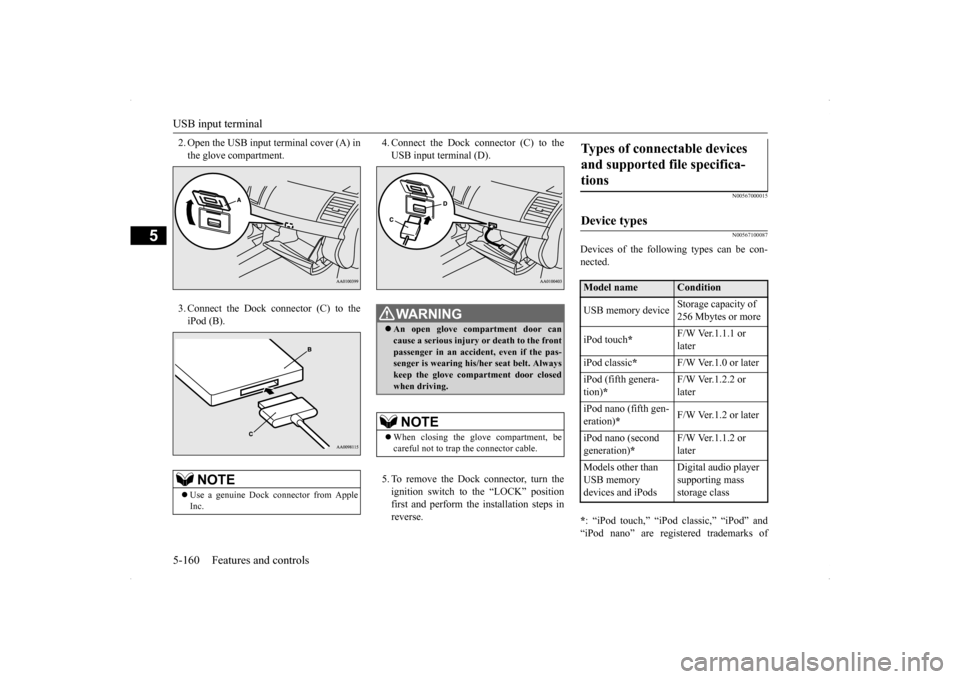
2. Open the USB input terminal cover (A) in the glove compartment. 3. Connect the Dock connector (C) to the iPod (B).
4. Connect the Dock connector (C) to the USB input terminal (D). 5. To remove the Dock connector, turn the ignition switch to the “LOCK” positionfirst and perform the installation steps in reverse.
N00567000015 N00567100087
Devices of the following types can be con- nected. * : “iPod touch,” “iPod classic,” “iPod” and “iPod nano” are registered trademarks of
NOTE
Use a genuine Dock connector from Apple Inc.
WA R N I N G An open glove compartment door can cause a serious injury
or death to the front
passenger in an accident, even if the pas-senger is wearing his/her seat belt. Always keep the glove compartment door closed when driving.NOTE
When closing the glove compartment, be careful not to trap the connector cable.
Types of connectable devices and supported file specifica- tions Device types Model name
Condition
USB memory device
Storage capacity of 256 Mbytes or more
iPod touch
*
F/W Ver.1.1.1 or later
iPod classic
*
F/W Ver.1.0 or later
iPod (fifth genera- tion)
*
F/W Ver.1.2.2 or later
iPod nano (fifth gen- eration)
*
F/W Ver.1.2 or later
iPod nano (second generation)
*
F/W Ver.1.1.2 or later
Models other than USB memory devices and iPods
Digital audio player supporting mass storage class
BK0200800US.book
160 ページ 2013年2月14日 木曜日 午後2時28分
Page 298 of 338
Fuses
Vehicle care and maintenance 9-27
9
* - Fusible link Some fuses may not be installed on your vehicle, depending on the vehicle model or specifications. The table above shows the main equip- ment corresponding to each fuse.
There are no 7.5 A, 25 A or 30 A spare fuses. If a fuse of one of
these capacities blows,
replace it temporarily by borrowing one of the fuses indicated below.7.5 A: 10 A spare fuse 25 A: 20 A spare fuse 30 A: 30 A audio amplifier fuseReplace the borrowed fuse with a fuse that has the correct capacity as soon as possible.
N00901100052 N00954900027
1. Before replacing a fuse, always turn off the electrical item connected to the fuse and turn the ignition switch to the“LOCK” position.
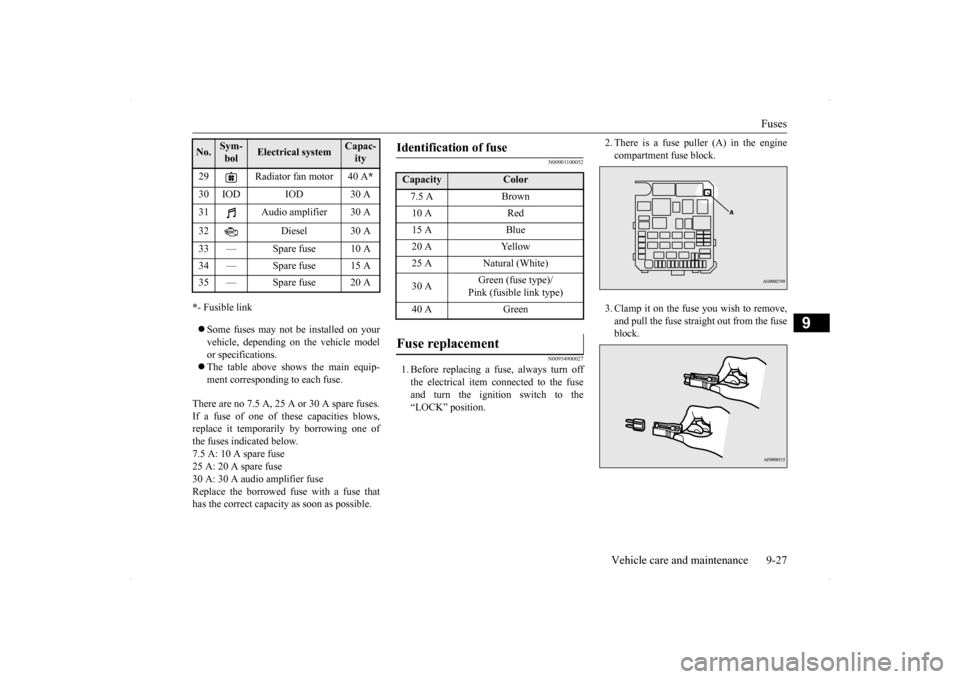
2. There is a fuse puller (A) in the engine compartment fuse block. 3. Clamp it on the fuse you wish to remove, and pull the fuse straight out from the fuse block.
29 Radiator fan motor 40 A
*
30 IOD IOD 30 A 31 Audio amplifier 30 A 32 Diesel 30 A 33 — Spare fuse 10 A 34 — Spare fuse 15 A35 — Spare fuse 20 ANo.
Sym- bol
Electrical system
Capac-ity
Identification of fuse Capacity
Color
7.5 A Brown10 A Red15 A Blue20 A Yellow25 A Natural (White) 30 A
Green (fuse type)/ Pink (fusible link type)
40 A Green
Fuse replacement
BK0200800US.bo
ok 27 ページ 2013年2月14日 木曜日 午後2時28分