2014 MERCEDES-BENZ SLK-Class mp3
[x] Cancel search: mp3Page 201 of 270

Multisession CDs
For multisession CDs, the content of the first
session determines how COMAND will proc-
ess the CD. COMAND plays only one session
and gives priority to the audio CD session.
If possible, use COMAND to play only CDs
that have been written in one session.
File structure of a data carrier When you create a disc with compressed
music files, the tracks can be organized in
folders. A folder may also contain subfolders.
The disc may contain no more than eight
directory levels. Files beyond the eighth level
will not be recognized by the system.
i COMAND loads up to 15,000 tracks from
an SD memory card or USB storage
medium.
Track and file names When you create a disc with compressed
music files, you can assign names to the
tracks and folders.
COMAND uses these names accordingly for
the display. Folders that contain data other
than MP3 or WMA tracks are not displayed by
COMAND.
If MP3 or WMA files are stored in the root
directory itself, the root directory will also be
treated as a folder. COMAND will then show
the name of the root directory as the folder
name.
You should observe the following when
assigning track names:
R track names must have at least one char-
acter.
R track names must have the extension
"mp3" or "wma".
R there must be a dot between the track
name and the extension.
Example of a correct track name:
"Track1.mp3". Permissible formats COMAND supports the following formats:
R
MPEG1 Audio Layer 3 (MP3)
R Microsoft Windows Media Audio V8 and V9
(WMA) without copy protection
Microsoft Windows Media Audio V2, V7, V8
and V9 (WMA)
R additional music files in AAC format with
the file extensions .aac, .mp4, .m4a
and .m4b, but not copy-protected iTunes
music files with the extension .m4p.
i If, in addition to MP3 files, there are other
music files in these audio formats stored on
the disc, the loading process may require a
longer time before the first track is played.
i The MP3 audio encoding method is under
license from Fraunhofer IIS (Institut Integ-
rierte Schaltungen – Institute for Integrated
Circuits) and Thomson.
Permissible bit and sampling rates COMAND supports
MP3files of the following
types:
R fixed and variable bit rates from 32 kbit/s
to 320 kbit/s
R sampling rates of 8 kHz to 48 kHz
COMAND supports WMAfiles of the follow-
ing types:
R fixed bit rates from 5 kbit/s to 384 kbit/s
R sampling rates of 8 kHz to 48 kHz
COMAND does notsupport WMAfiles of the
following types:
R DRM (Digital Rights Management)
encrypted files
R variable bit rate
R WMA Pro
R 5.1 surround sound
i Only use tracks with a bit rate of at least
128 kbit/s and a sampling rate of at least
44.1 kHz. Lower rates can cause a notice-
able deterioration in quality. This is espe- CD/audio DVD and MP3 mode
199Audio Z
Page 202 of 270

cially the case if you have activated a sur-
round sound function.
Notes on copyright MP3 or WMA tracks that you create or play
back are generally subject to copyright pro-
tection in accordance with the applicable
international and national regulations.
In many countries, reproductions, even for
private use, are not permitted without the
prior consent of the copyright holder.
Make sure that you know about the applicable
copyright regulations and that you comply
with these.
If you own these rights yourself, e.g. for your
own compositions and recordings, or if the
copyright holder has granted you permission,
these restrictions do not apply.
Notes on CDs/DVDs !
COMAND is designed to play discs that
comply with the EN 60908 standard. There-
fore, you can only use discs with a maxi-
mum thickness of 1.3 mm.
If you insert thicker discs, e.g. those that
contain data on both sides (DVD on one
side and audio data on the other), they can-
not be ejected and can damage the device.
Only use round discs with a diameter of
12 cm. Do not use discs with a diameter of
8 cm, even with an adapter.
Discs with copy protection are not compati-
ble with the audio CD standard and therefore
may not be able to be played by COMAND.
Playback problems may occur when playing
copied discs. There is a wide range of data
carriers, disc-writing software and writers
available. This variety means that there is no
guarantee that the system will be able to play
discs that you have copied yourself.
There may be playback problems if you play
CDs that you have copied yourself with a stor-
age capacity of more than 700 MB. CDs of
this type do not conform to the currently
applicable standards. i
On many DVD audio discs, the last track
does not contain any music. If COMAND
then switches to the next disc, it is normal
system behavior and does not mean that
there is a malfunction.
i COMAND is able to play back audio CDs
in multichannel audio format. Music search
Calling up a category list
Category list
X
Switch on an audio source and call up the
basic display, e.g. MP3 mode
(Y page 191).
X Select Search Search by sliding 00520064and turning
00790052007A the COMAND controller and press
0098 to confirm.
The category list appears.
The categories are displayed according to the
data available. The categories Current
Current
Tracklist
Tracklist, Folder
Folder,Playlists
Playlists (if available)
and Photos
Photos (if available) are already
assigned. The other available categories are
filled by the music search. Selecting a category
Starting a music search Select music via categories (e.g. album,
artist) with the music search function. 200
Music searchAudio
Page 203 of 270
If you select a category, COMAND starts a
music search under the following conditions:
R the data carriers are inserted or connected
R the music tracks on these data carriers are
not yet in the COMAND music database.
COMAND reads music tracks from the fol-
lowing data carriers:
R Disc (CD/audio DVD/MP3)
R Memory card
R MUSIC REGISTER
R USB storage device X
Select a category in the category list by
turning 00790052007Athe COMAND controller and
press 0098to confirm.
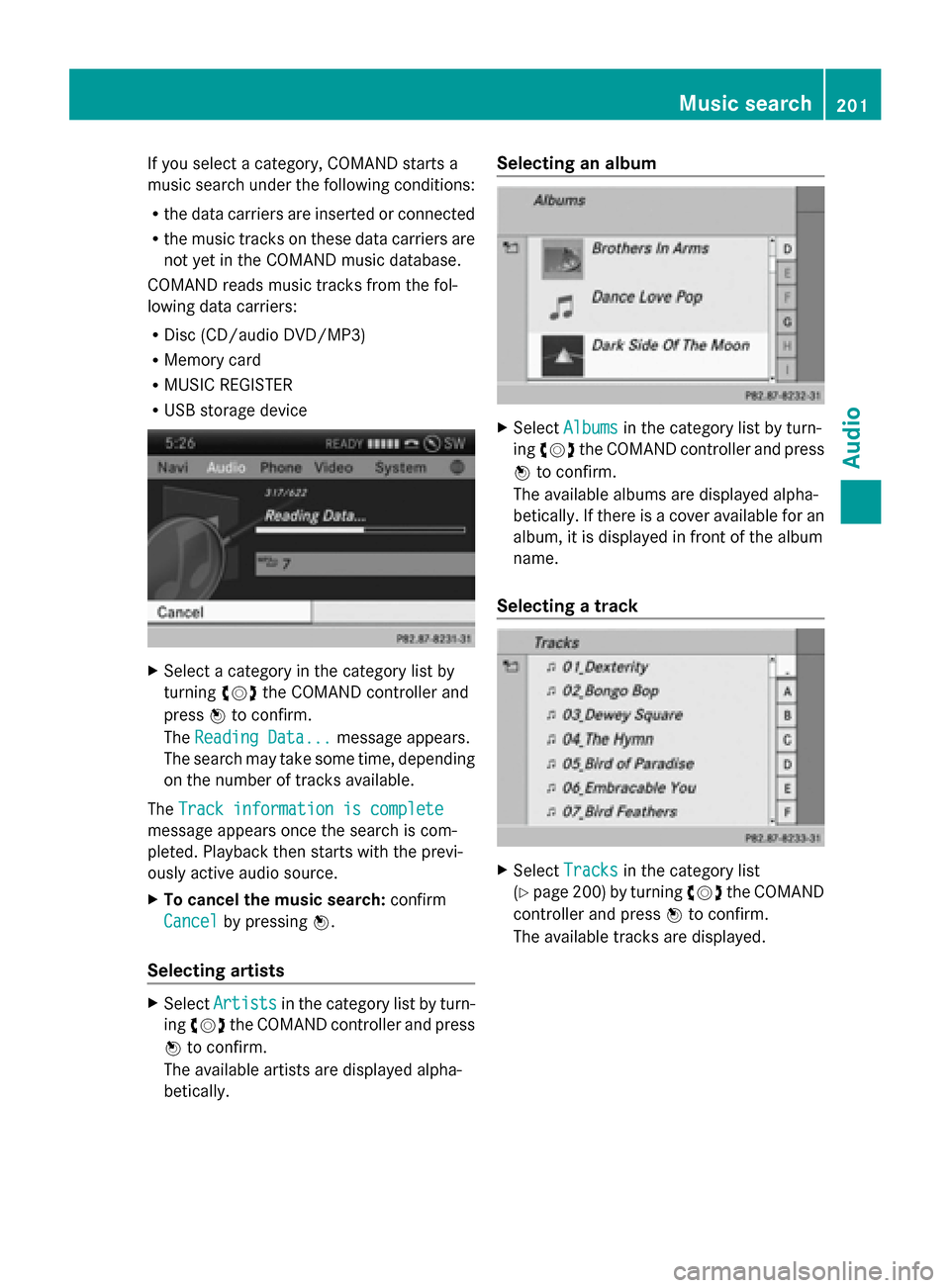
The Reading Data...
Reading Data... message appears.
The search may take some time, depending
on the number of tracks available.
The Track information is complete Track information is complete
message appears once the search is com-
pleted. Playback then starts with the previ-
ously active audio source.
X To cancel the music search: confirm
Cancel
Cancel by pressing 0098.
Selecting artists X
Select Artists
Artists in the category list by turn-
ing 00790052007A the COMAND controller and press
0098 to confirm.
The available artists are displayed alpha-
betically. Selecting an album
X
Select Albums Albums in the category list by turn-
ing 00790052007A the COMAND controller and press
0098 to confirm.
The available albums are displayed alpha-
betically. If there is a cover available for an
album, it is displayed in front of the album
name.
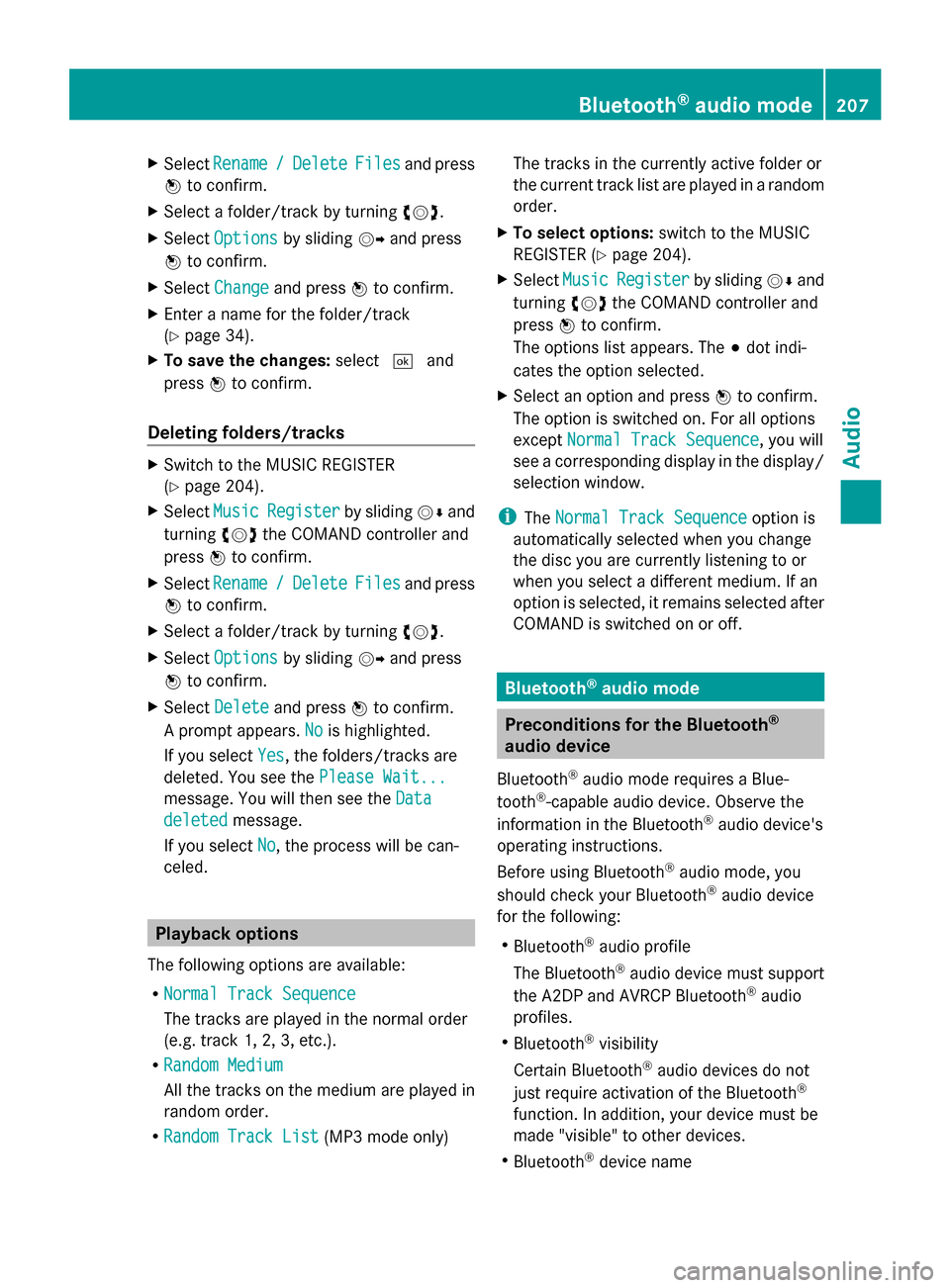
Selecting a track X
Select Tracks Tracks in the category list
(Y page 200) by turning 00790052007Athe COMAND
controller and press 0098to confirm.
The available tracks are displayed. Music search
201Audio Z
Page 206 of 270

Switching to the MUSIC REGISTER
MUSIC REGISTER basic display Example: MUSIC REGISTER
0043
Cover (if available)
0044 Track time
0087 Track number and name
0085 Graphic time and track display
0083 Position of the medium in the media list
and name of the medium, followed by the
current playback option (no display for
Normal Track Sequence
Normal Track Sequence)
0084 Artist
006B MUSIC REGISTER menu bar
Switching modes using the function
button X
Press the 003Afunction button repeatedly
until the MUSIC REGISTER is switched on.
By pressing the function button repeatedly,
you can change the operating mode in the
following order:
R CD/audio DVD/MP3 (disc)
R Memory card mode
R MUSIC REGISTER
R USB storage device
R Media Interface or audio AUX mode
R Bluetooth ®
audio mode
If music files are available, playback begins at
the point last listened to.
If there are no music files, you will see a mes-
sage to this effect. X
Confirm the message by pressing 0098and
store the music data (Y page 204).
Switching modes via the audio menu X
Select Audio Audioin the main function bar by
sliding 00970052and turning 00790052007Athe COMAND
controller and press 0098to confirm.
If MUSIC REGISTER was the last mode
selected, it is now switched on.
If another audio source is switched on, you
can now switch on the MUSIC REGISTER in
the audio menu.
X Select Audio Audioby sliding 00970052and turning
00790052007Athe COMAND controller and press
0098 to confirm.
The audio menu appears.
X Select Music Register Music Register and press0098to
confirm.
Switching on with the number buttons X
Make sure that neither radio nor disc is
activated.
X Press the 0088(for a DVD changer) or
0083 (for a single DVD drive) number key.
The MUSIC REGISTER is switched on. Importing music files
Introduction You can copy music files from the data carrier
in the single DVD drive or in the DVD changer
in the following file formats:
R
MP3
R WMA
R AAC (with file extensions .m4p, .m4a, .m4b
and .aac)
X Switch on CD mode (Y page 191).
X With an audio CD inserted, select REC RECin the
basic CD display by sliding 00520064and turning
00790052007A the COMAND controller and press
0098 to confirm. 204
MUSIC REGISTERAudio
Page 208 of 270

Deleting all music files
! In order to prevent malfunctions, do not
use COMAND during this time.
This function deletes all music files from the
MUSIC REGISTER.
X Switch to the MUSIC REGISTER
(Y page 204).
X Select Music
Music Register Register by sliding00520064and
turning 00790052007Athe COMAND controller and
press 0098to confirm.
X Select Delete All Music Files
Delete All Music Files and
press 0098to confirm.
A prompt appears. No
No is highlighted.
If you select Yes
Yes, all music files are deleted.
You see the Please Wait...
Please Wait... message.
You will then see the Data deleted
Data deleted mes-
sage.
If you select No
No, the process will be can-
celed. Calling up memory space info
X Switch to the MUSIC REGISTER
(Y page 204).
X Select Music
Music Register Register by sliding00520064and
turning 00790052007Athe COMAND controller and
press 0098to confirm.
X Select Memory Info
Memory Info and press0098to con-
firm.
The following is displayed:
R storage capacity
R available memory
R occupied memory
R content (folders, tracks) Music search
Introduction The music search finds tracks via all available
media. The search begins with the audio
source that is currently active. The following media are included for the
music search:
R
Disc (CD/audio DVD/MP3)
R Memory card
R MUSIC REGISTER
R USB storage device
X Switch to the MUSIC REGISTER
(Y page 204).
X Select Search
Search by sliding 00520064and turning
00790052007A the COMAND controller and press
0098 to confirm.
The category list appears.
X Select a track in a category (Y page 200).
Example: opening a folder X
Select Folder Folder in the category list by turn-
ing 00790052007A the COMAND controller and press
0098 to confirm.
You see the content of the current folder. The name of the current folder is at the top
and the track currently playing is indicated by
a 003B dot.
X To switch to the next folder up: press the
0038 back button or slide 00950052the
COMAND controller.
Changing the folder/track name X
Switch to the MUSIC REGISTER
(Y page 204).
X Select Music Music Register
Register by sliding00520064and
turning 00790052007Athe COMAND controller and
press 0098to confirm. 206
MUSIC REGISTERAudio
Page 209 of 270
X
Select Rename
Rename /
/Delete
Delete Files
Filesand press
0098 to confirm.
X Select a folder/track by turning 00790052007A.
X Select Options
Options by sliding 00520096and press
0098 to confirm.
X Select Change
Change and press 0098to confirm.
X Enter a name for the folder/track
(Y page 34).
X To save the changes: select0054and
press 0098to confirm.
Deleting folders/tracks X
Switch to the MUSIC REGISTER
(Y page 204).
X Select Music Music Register Register by sliding00520064and
turning 00790052007Athe COMAND controller and
press 0098to confirm.
X Select Rename
Rename /
/Delete
Delete Files
Filesand press
0098 to confirm.
X Select a folder/track by turning 00790052007A.
X Select Options
Options by sliding 00520096and press
0098 to confirm.
X Select Delete
Delete and press 0098to confirm.
A prompt appears. No
No is highlighted.
If you select Yes
Yes , the folders/tracks are
deleted. You see the Please Wait...
Please Wait...
message. You will then see the Data
Data
deleted
deleted message.
If you select No
No, the process will be can-
celed. Playback options
The following options are available:
R Normal Track Sequence Normal Track Sequence
The tracks are played in the normal order
(e.g. track 1, 2, 3, etc.).
R Random Medium
Random Medium
All the tracks on the medium are played in
random order.
R Random Track List
Random Track List (MP3 mode only) The tracks in the currently active folder or
the current track list are played in a random
order.
X To select options: switch to the MUSIC
REGISTER (Y page 204).
X Select Music
Music Register Register by sliding00520064and
turning 00790052007Athe COMAND controller and
press 0098to confirm.
The options list appears. The 003Bdot indi-
cates the option selected.
X Select an option and press 0098to confirm.
The option is switched on. For all options
except Normal Track Sequence Normal Track Sequence, you will
see a corresponding display in the display/
selection window.
i The Normal Track Sequence Normal Track Sequence option is
automatically selected when you change
the disc you are currently listening to or
when you select a different medium. If an
option is selected, it remains selected after
COMAND is switched on or off. Bluetooth
®
audio mode Preconditions for the Bluetooth
®
audio device
Bluetooth ®
audio mode requires a Blue-
tooth ®
-capable audio device. Observe the
information in the Bluetooth ®
audio device's
operating instructions.
Before using Bluetooth ®
audio mode, you
should check your Bluetooth ®
audio device
for the following:
R Bluetooth ®
audio profile
The Bluetooth ®
audio device must support
the A2DP and AVRCP Bluetooth ®
audio
profiles.
R Bluetooth ®
visibility
Certain Bluetooth ®
audio devices do not
just require activation of the Bluetooth ®
function. In addition, your device must be
made "visible" to other devices.
R Bluetooth ®
device name Bluetooth
®
audio mode 207Audio Z
Page 214 of 270
Using the function button
X
Press the 003Afunction button one or more
times.
By pressing the function button repeatedly,
you can change the operating mode in the
following order:
R CD/audio DVD/MP3 (disc)
R Memory card mode
R MUSIC REGISTER
R USB storage device
R Media Interface or audio AUX mode
R Bluetooth ®
audio mode
Using the media list X
Select Bluetooth Audio Bluetooth Audio in the media list
by turning 00790052007Athe COMAND controller
and press 0098to confirm (Y page 193).
COMAND activates the connected device.
You will see a message to this effect. The
basic display then appears. Starting/stopping playback
X To start playback: select00D0by sliding
00520064 and turning 00790052007Athe COMAND con-
troller and press 0098to confirm.
Playback starts. 00DBis selected.
X To stop playback: select00DBby turning
00790052007A the COMAND controller and press
0098 to confirm.
A message appears. 00D0is selected.
X To continue playback: select00D0by
turning 00790052007Athe COMAND controller and
press 0098to confirm.
A message appears. 00DBis selected. Restarting playback after stopping
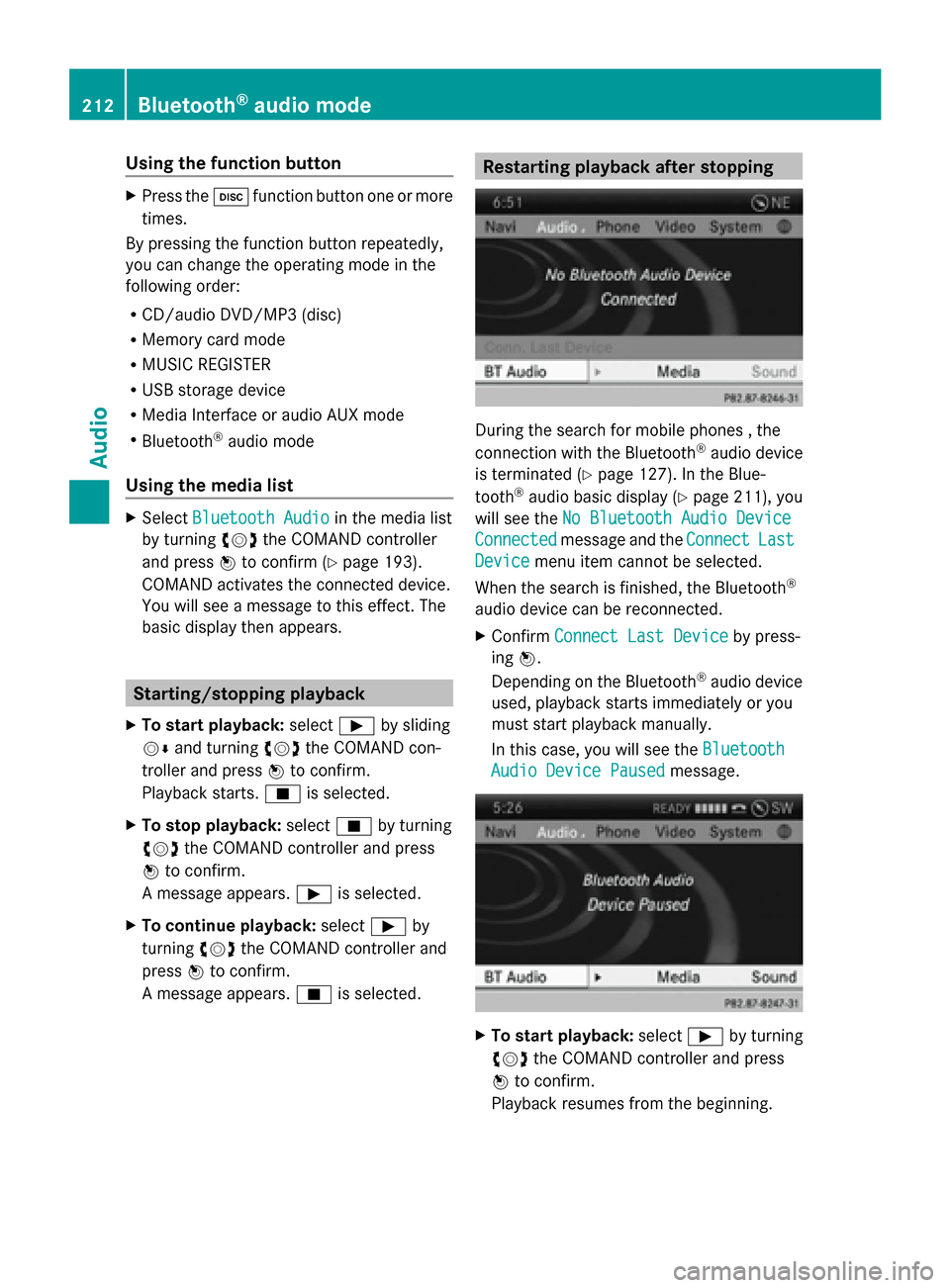
During the search for mobile phones , the
connection with the Bluetooth
®
audio device
is terminated (Y page 127). In the Blue-
tooth ®
audio basic display (Y page 211), you
will see the No Bluetooth Audio Device
No Bluetooth Audio Device
Connected Connected message and the Connect
ConnectLast
Last
Device
Device menu item cannot be selected.
When the search is finished, the Bluetooth ®
audio device can be reconnected.
X Confirm Connect Last Device
Connect Last Device by press-
ing 0098.
Depending on the Bluetooth ®
audio device
used, playback starts immediately or you
must start playback manually.
In this case, you will see the Bluetooth Bluetooth
Audio Device Paused
Audio Device Paused message. X
To start playback: select00D0by turning
00790052007A the COMAND controller and press
0098 to confirm.
Playback resumes from the beginning. 212
Bluetooth ®
audio modeAudio
Page 215 of 270
Selecting a track
The function is not supported by all Blue-
tooth ®
audio devices.
X To skip forward or back to a track: press
the 0048 or0049 button on COMAND.
or
X Press the 0063or0064 button briefly on
the multifunction steering wheel.
X Rapid scroll: press and hold the 0063
or 0064 button on the multifunction steer-
ing wheel until the desired track is reached.
If you press and hold the 0063or0064 but-
ton, the rapid scrolling speed is increased. Selecting playback options
If the Bluetooth ®
audio device supports the
corresponding function, the following options
are available:
R Normal Track Sequence Normal Track Sequence
The tracks are played in the normal order
(e.g. track 1, 2, 3, etc.).
Audio data playback is determined by the
order in which the tracks are written to the
data carrier. Alphabetical order is the most
common. Once all the tracks in a folder
have been played, the tracks in the next
folder are played.
R Random Tracks
Random Tracks
All the tracks on the medium are played in
random order (e.g. track 3, 8, 5 etc.).
X Select BT BTAudio
Audio by sliding 00520064and turning
00790052007A the COMAND controller and press
0098 to confirm.
The 003Bdot indicates the option selected.
X Select the option by turning 00790052007Athe
COMAND controller and press 0098to con-
firm.
If you select Random Tracks
Random Tracks, you will see
a corresponding symbol in the display/
selection window. Increasing the volume on COMAND
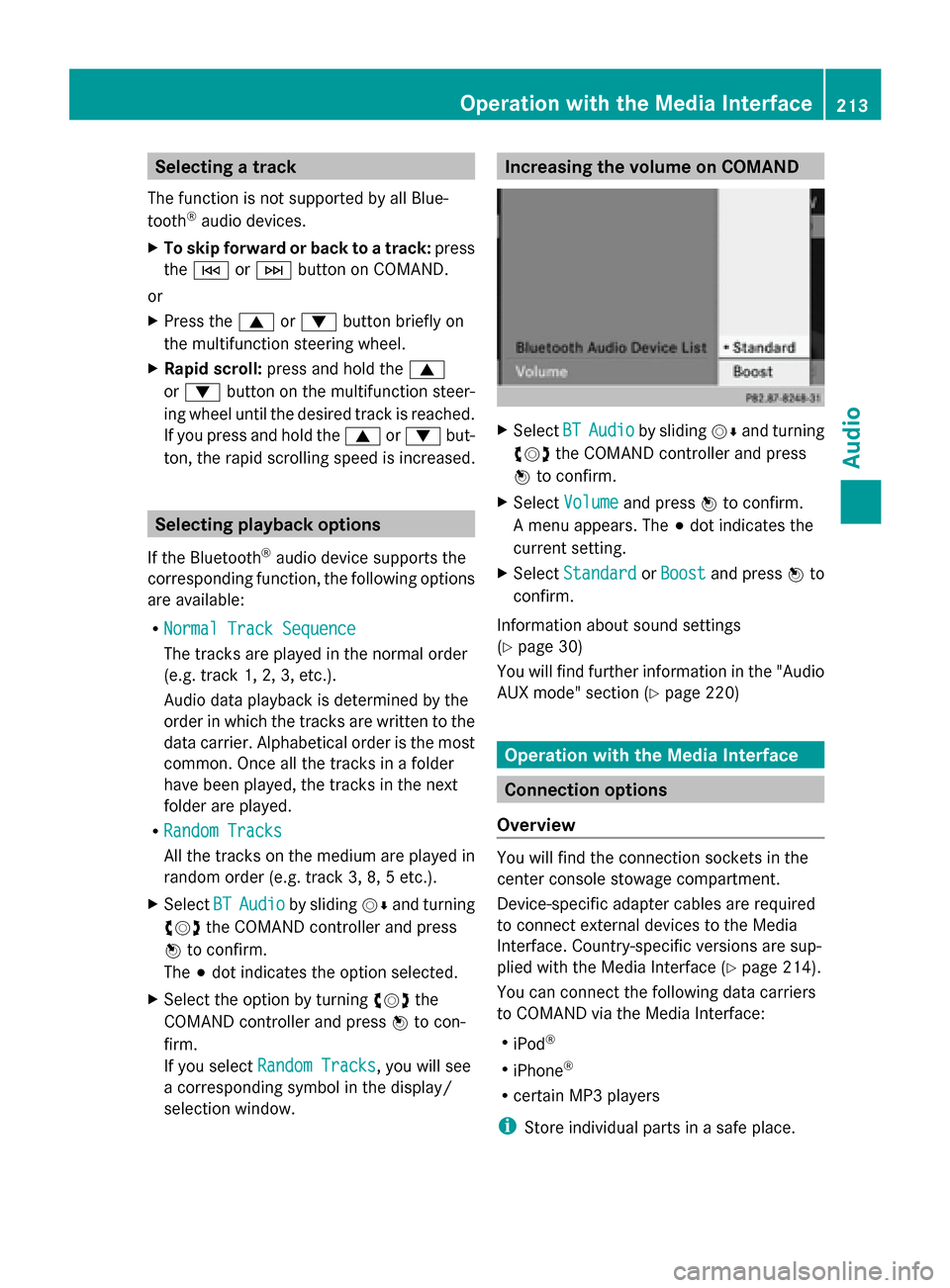
X
Select BT
BT Audio Audio by sliding 00520064and turning
00790052007A the COMAND controller and press
0098 to confirm.
X Select Volume
Volume and press 0098to confirm.
A menu appears. The 003Bdot indicates the
current setting.
X Select Standard
Standard orBoost
Boost and press 0098to
confirm.
Information about sound settings
(Y page 30)
You will find further information in the "Audio
AUX mode" section (Y page 220) Operation with the Media Interface
Connection options
Overview You will find the connection sockets in the
center console stowage compartment.
Device-specific adapter cables are required
to connect external devices to the Media
Interface. Country-specific versions are sup-
plied with the Media Interface (Y
page 214).
You can connect the following data carriers
to COMAND via the Media Interface:
R iPod ®
R iPhone ®
R certain MP3 players
i Store individual parts in a safe place. Operation with the Media Interface
213Audio Z