2014 MERCEDES-BENZ SLK-Class mp3
[x] Cancel search: mp3Page 33 of 270

The fader function is used to control whether
the sound is louder in the front or the rear of
the vehicle.
You can adjust the fader depending on the
vehicle model.
Equipped with Bang & Olufsen sound sys-
tem: for the best sound focus, choose the
setting 0 0.
X Select Bal/Fad
Bal/Fad (balance/fader) in the
sound menu by turning 00790052007Athe COMAND
controller and press 0098to confirm.
X Select a balance setting by sliding 009500520096the
COMAND controller and press 0098to con-
firm. Surround
General notes If your vehicle is equipped with surround
sound, you can use one of two sound sys-
tems:
R harman/kardon ®
Logic 7 ®
Surround
Sound system
The harman/kardon ®
Logic 7 ®
Surround
Sound system allows you to set the opti-
mum surround sound in the vehicle interior
(Y page 32).
R Bang & Olufsen sound system
(Y page 33)
Both sound systems are available for the fol-
lowing operating modes:
R radio (FM only)
R satellite radio
R audio CD
R audio DVD (MLP, dts, PCM and Dolby Digi-
tal audio formats)
R MP3 (including SD memory card and USB
storage device)
R Media Interface
R Bluetooth ®
audio mode R
video DVD (PCM, dts and Dolby Digital
audio formats)
R AUX
Because some DVDs contain both stereo and
multichannel audio formats, it may be neces-
sary to set the audio format (Y page 229).
Discs which support the audio formats men-
tioned have the following logos: Basic COMAND functions
31At a glance
Page 34 of 270

harman/kardon
®
Logic 7 ®
Surround
Sound system The example describes how to set the sur-
round sound for radio mode.
X To switch surround sound on/off: press
the 002A button.
The radio display appears. You will hear the
last station played on the last waveband.
X Select Sound
Sound by sliding 00520064and turning
00790052007A the COMAND controller and press
0098 to confirm.
X Select Surround Surround and press0098to confirm.
X Select Logic7
Logic7 ®
®
On
On orLogic7
Logic7 ®
®
Off
Off by turn-
ing 00790052007A the COMAND controller and press
0098 to confirm.
Depending on your selection, surround
sound is switched on or off and the menu
is exited.
X To exit the menu without saving: press
the 003D back button or slide 009500520096the
COMAND controller.
i Please note the following: for the opti-
mum audio experience for all passengers when Logic7
®
is switched on, the balance
should be set to the center of the vehicle
interior.
You will achieve the best sound results by
playing high-quality audio and video DVDs.
MP3 tracks should have a bit rate of at least
128 kbit/s.
Surround sound playback does not func-
tion for mono signal sources, such as for
AM radio mode.
If radio reception is poor, e.g. in a tunnel,
you should switch off Logic7 ®
, since it may
otherwise switch dynamically between
stereo and mono and cause temporary
sound distortions.
On some stereo recordings, the sound
characteristics may differ from conven-
tional stereo playback.
i The Logic7
Logic7 ® ®
On
On function creates a sur-
round sound experience for every
passenger when playing stereo recordings,
for example. It enables optimum playback
of music and films on CD, audio DVD or
video DVD with multichannel audio for-
mats, such as MLP, dts or Dolby Digital.
This results in sound characteristics like
those intended by the sound engineer
when the original was recorded.
i If you select Logic7
Logic7 ® ®
Off
Off, the sound sys-
tem plays the tracks as stored on the
medium. Due to the design of the
passenger compartment, an optimum
audio experience cannot be guaranteed for
all passengers. 32
Basic COMAND functionsAt a glance
Page 35 of 270

Bang & Olufsen sound system
You can optimize the sound in the vehicle with
the Bang & Olufsen sound system and the
True
True Image
Image™s ound technology. The Sound
Sound
Mode
Mode function enables you to focus the
selected sound setting within the vehicle.
The example describes how to set the opti-
mum sound for radio mode.
Selecting the sound setting for True
Image™
X Press a number key, such as 002A.
X Select Sound Soundby sliding 00520064and turning
00790052007A the COMAND controller and press
0098 to confirm.
X Select Bang&Olufsen
Bang&Olufsen and press0098to con-
firm.
A menu appears. A 003Bdot marks the current
setting for True Image™.
X Select reference
reference orsurround surround and press
0098 to confirm.
R reference
reference
This setting provides a crisp, clear, luxury
high-end sound setting for a studio atmos-
phere in your vehicle.
R surround
surround
This setting enables a wide-ranging sound
experience for playing music and videos. 0043
Current position of the sound setting
For the optimum musical enjoyment, you can
focus the sound image precisely on one seat.
This means you are right at the center of the
listening experience, with all system param-
eters being precisely calculated for the
selected position. The result is authentic
music reproduction inside the vehicle.
Focusing the sound setting
X Press the 002Abutton.
X Select Sound Soundby sliding 00520064and turning
00790052007A the COMAND controller and press
0098 to confirm.
X Select Bang&Olufsen
Bang&Olufsen and press0098to con-
firm.
A menu appears. A 003Bdot marks the current
setting for Sound Mode.
Depending on the vehicle model series
X Select left left,all
allorrear
rear and press 0098to
confirm.
or
X Select left left,all
allorright
right and press 0098to
confirm.
X To exit the menu: press the003Dback
button or slide 009500520096the COMAND control-
ler.
i Please note the following: you will achieve
the best sound results on your Bang & Oluf-
sen sound system by playing high-quality
audio DVDs and CDs.
MP3 tracks should have a bit rate of at least
224 kbit/s. Basic COMAND functions
33At a glance
Page 179 of 270

Your COMAND equipment
................178
Radio mode ........................................ 178
Satellite radio .................................... 182
CD/audio DVD and MP3 mode ........187
Music search ..................................... 200
MUSIC REGISTER .............................. 203
Bluetooth ®
audio mode .................... 207
Operation with the Media Inter-
face .................................................... 213
Audio AUX mode ............................... 220 177Audio
Page 189 of 270
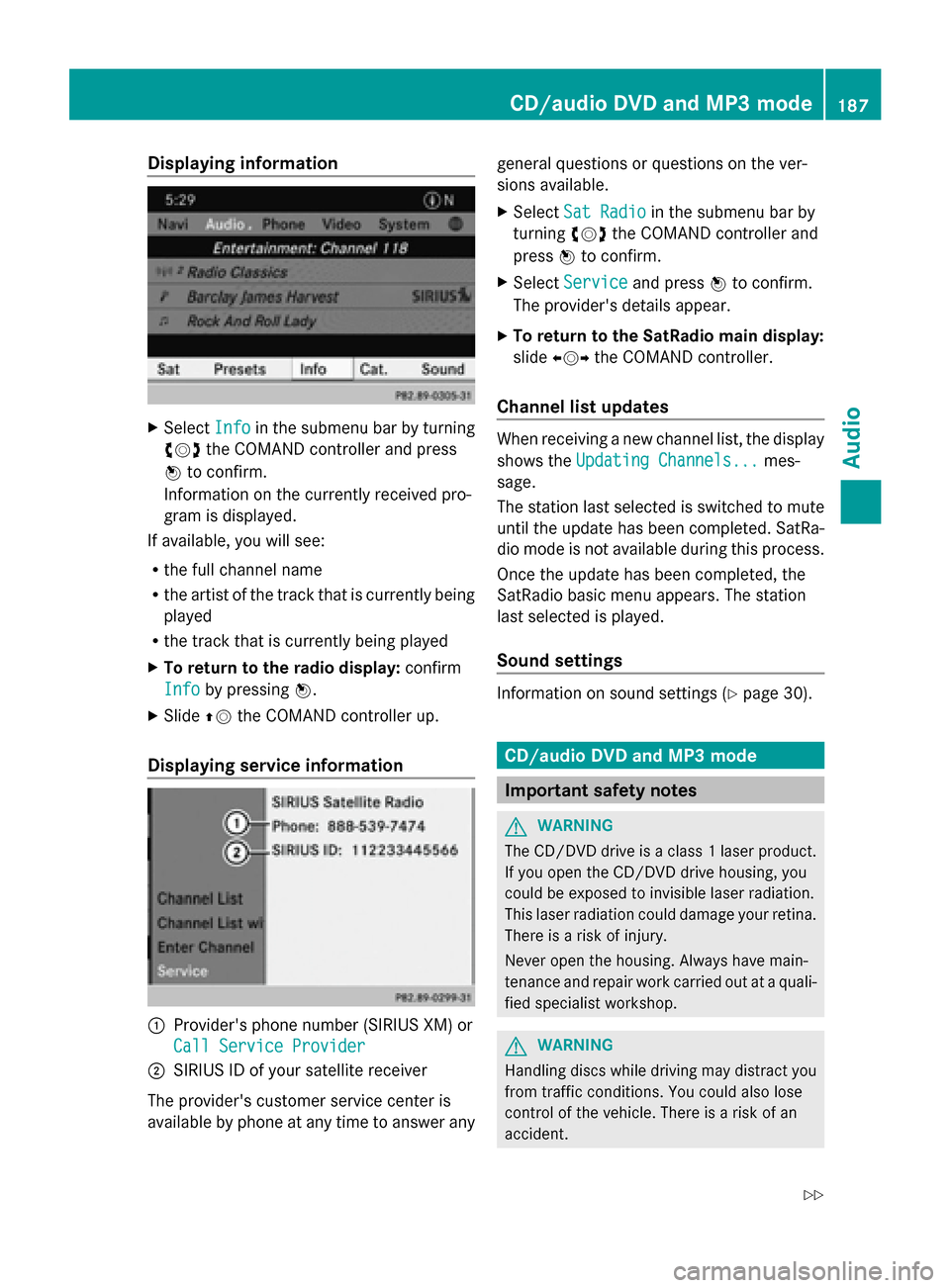
Displaying information
X
Select Info
Infoin the submenu bar by turning
00790052007A the COMAND controller and press
0098 to confirm.
Information on the currently received pro-
gram is displayed.
If available, you will see:
R the full channel name
R the artist of the track that is currently being
played
R the track that is currently being played
X To return to the radio display: confirm
Info
Info by pressing 0098.
X Slide 00970052the COMAND controller up.
Displaying service information 0043
Provider's phone number (SIRIUS XM) or
Call Service Provider
Call Service Provider
0044 SIRIUS ID of your satellite receiver
The provider's customer service center is
available by phone at any time to answer any general questions or questions on the ver-
sions available.
X
Select Sat Radio
Sat Radio in the submenu bar by
turning 00790052007Athe COMAND controller and
press 0098to confirm.
X Select Service Service and press 0098to confirm.
The provider's details appear.
X To return to the SatRadio main display:
slide 009500520096 the COMAND controller.
Channel list updates When receiving a new channel list, the display
shows the
Updating Channels... Updating Channels... mes-
sage.
The station last selected is switched to mute
until the update has been completed. SatRa-
dio mode is not available during this process.
Once the update has been completed, the
SatRadio basic menu appears. The station
last selected is played.
Sound settings Information on sound settings (Y
page 30). CD/audio DVD and MP3 mode
Important safety notes
G
WARNING
The CD/DVD drive is a class 1 laser product.
If you open the CD/DVD drive housing, you
could be exposed to invisible laser radiation.
This laser radiation could damage your retina.
There is a risk of injury.
Never open the housing. Always have main-
tenance and repair work carried out at a quali-
fied specialist workshop. G
WARNING
Handling discs while driving may distract you
from traffic conditions. You could also lose
control of the vehicle. There is a risk of an
accident. CD/audio DVD and MP3
mode
187Audio
Z
Page 190 of 270
Handle discs only when the vehicle is station-
ary.
Bear in mind that at a speed of just 30 mph
(approximately 50 km/h), your vehicle is cov-
ering a distance of 44 feet (approximately
14 m) every second. G
WARNING
SD cards are small objects measuring 24 x 32
x 2.1 mm. Small parts can be swallowed and
are a choking hazard. There is a risk of fatal
injury.
Keep SD cards out of the reach of children. If
an SD card is swallowed, seek immediate
medical attention. Inserting/ejecting CDs/DVDs
Notes If the CD/DVD has a printed side, this must
face upwards when the CD/DVD is inserted.
If neither side is printed, the side to be played
should face downwards. The system may not
be able to play CDs/DVDs with copy protec-
tion.
i If a medium contains other files in addi-
tion to music files, the loading time before
the first track starts to play may be longer.
Inserting a disc into the single DVD
drive X
Press the 0062eject button.
If there is a disc already inserted, it will be
ejected.
X Take the disc out of the slot.
X Insert a disc into the slot.
If the disc is correctly inserted and is a suit-
able disc, it is drawn in by the drive and
played. Ejecting a disc from the single DVD
drive X
Press the 0062eject button.
X Take the disc out of the slot.
If you do not take the disc out of the slot, it
is drawn in again automatically after a short
while and reloaded.
Inserting discs into the DVD changer The DVD changer has a fixed magazine with
six trays.
X
To insert a CD/DVD into the magazine
tray: press the 0065load/eject button.
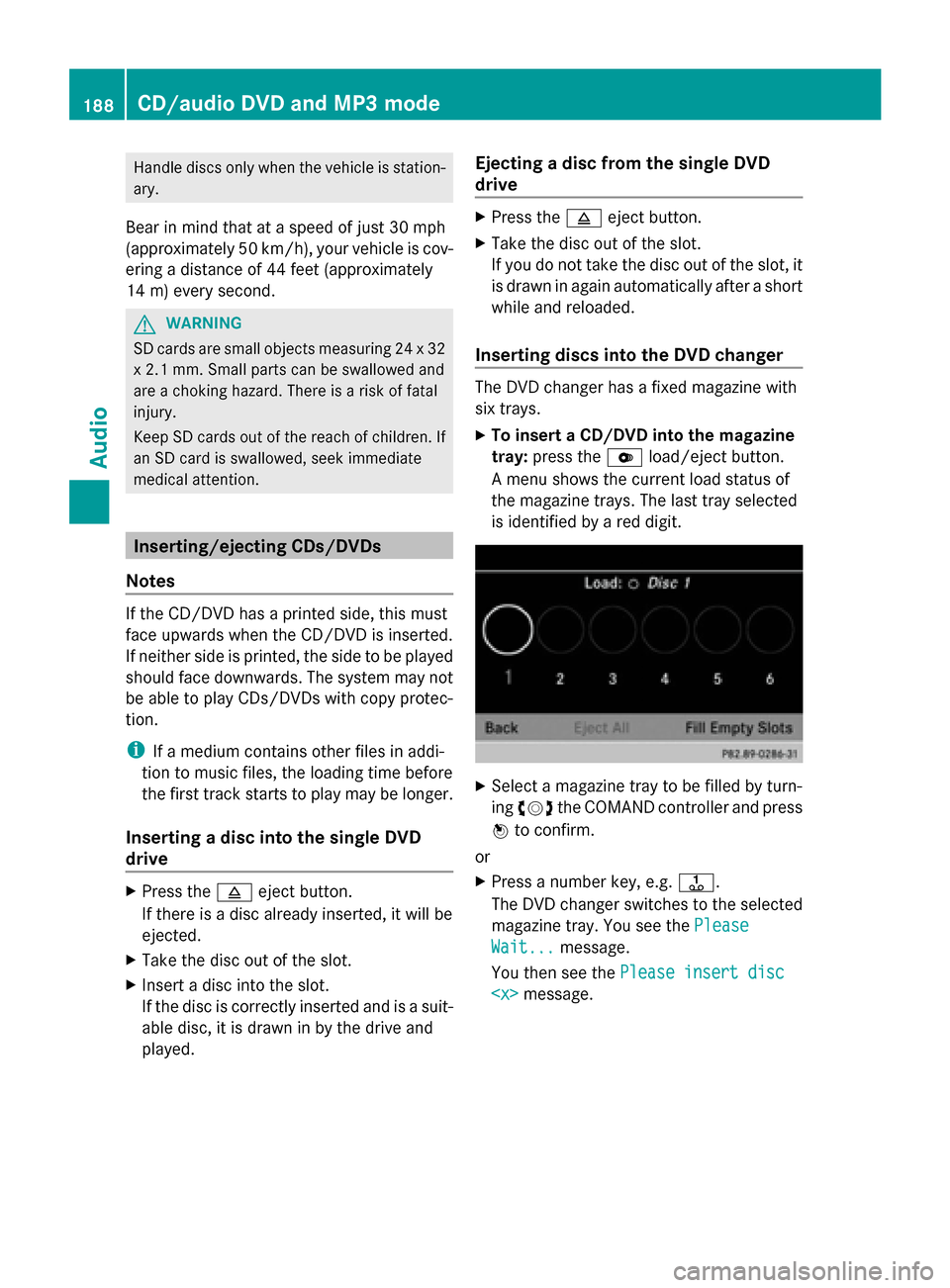
A menu shows the current load status of
the magazine trays. The last tray selected
is identified by a red digit. X
Select a magazine tray to be filled by turn-
ing 00790052007A the COMAND controller and press
0098 to confirm.
or
X Press a number key, e.g. 0080.
The DVD changer switches to the selected
magazine tray. You see the Please Please
Wait...
Wait... message.
You then see the Please insert disc
Please insert disc
CD/audio DVD and MP3 modeAudio
Page 191 of 270
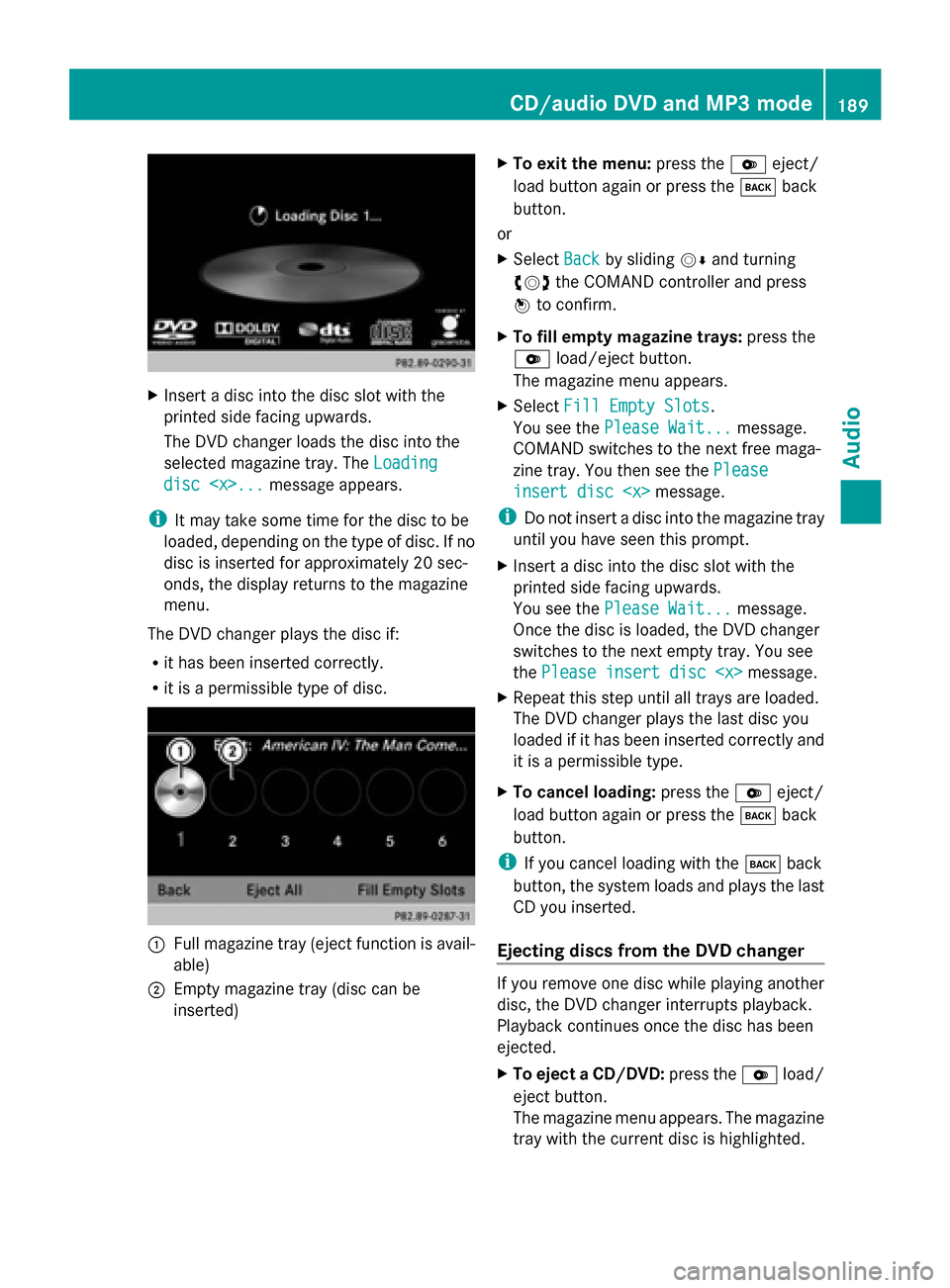
X
Insert a disc into the disc slot with the
printed side facing upwards.
The DVD changer loads the disc into the
selected magazine tray. The Loading
Loading
disc
i It may take some time for the disc to be
loaded, depending on the type of disc. If no
disc is inserted for approximately 20 sec-
onds, the display returns to the magazine
menu.
The DVD changer plays the disc if:
R it has been inserted correctly.
R it is a permissible type of disc. 0043
Full magazine tray (eject function is avail-
able)
0044 Empty magazine tray (disc can be
inserted) X
To exit the menu: press the0065eject/
load button again or press the 003Dback
button.
or
X Select Back
Back by sliding 00520064and turning
00790052007A the COMAND controller and press
0098 to confirm.
X To fill empty magazine trays: press the
0065 load/eject button.
The magazine menu appears.
X Select Fill Empty Slots
Fill Empty Slots.
You see the Please Wait... Please Wait... message.
COMAND switches to the next free maga-
zine tray. You then see the Please
Please
insert disc
insert disc
i Do not insert a disc into the magazine tray
until you have seen this prompt.
X Insert a disc into the disc slot with the
printed side facing upwards.
You see the Please Wait... Please Wait... message.
Once the disc is loaded, the DVD changer
switches to the next empty tray. You see
the Please insert disc
X Repeat this step until all trays are loaded.
The DVD changer plays the last disc you
loaded if it has been inserted correctly and
it is a permissible type.
X To cancel loading: press the0065eject/
load button again or press the 003Dback
button.
i If you cancel loading with the 003Dback
button, the system loads and plays the last
CD you inserted.
Ejecting discs from the DVD changer If you remove one disc while playing another
disc, the DVD changer interrupts playback.
Playback continues once the disc has been
ejected.
X
To eject a CD/DVD: press the0065load/
eject button.
The magazine menu appears. The magazine
tray with the current disc is highlighted. CD/audio DVD and MP3 mode
189Audio Z
Page 192 of 270
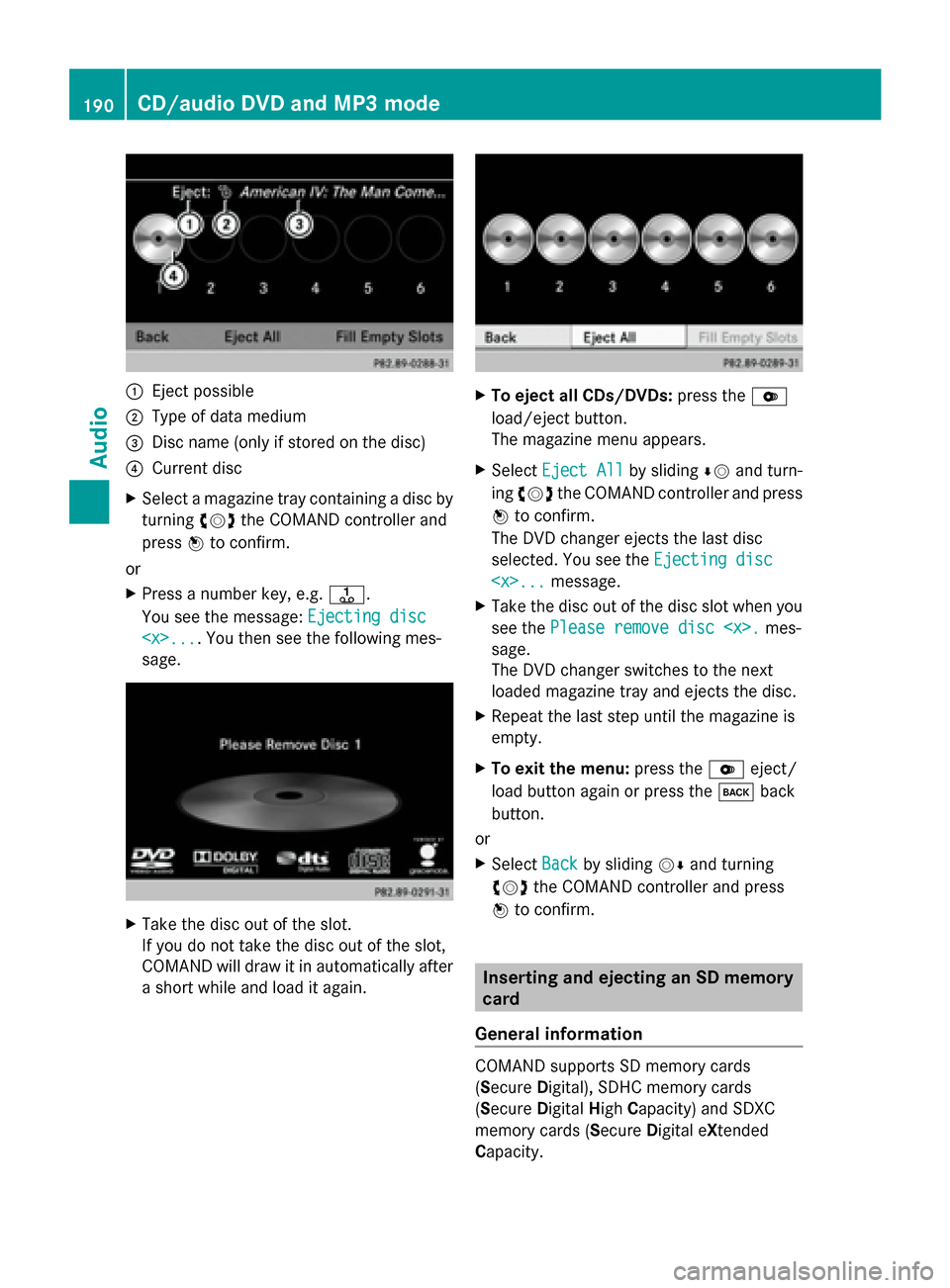
0043
Eject possible
0044 Type of data medium
0087 Disc name (only if stored on the disc)
0085 Current disc
X Select a magazine tray containing a disc by
turning 00790052007Athe COMAND controller and
press 0098to confirm.
or
X Press a number key, e.g. 0080.
You see the message: Ejecting disc
Ejecting disc
sage. X
Take the disc out of the slot.
If you do not take the disc out of the slot,
COMAND will draw it in automatically after
a short while and load it again. X
To eject all CDs/DVDs: press the0065
load/eject button.
The magazine menu appears.
X Select Eject All Eject All by sliding00640052and turn-
ing 00790052007A the COMAND controller and press
0098 to confirm.
The DVD changer ejects the last disc
selected. You see the Ejecting disc Ejecting disc
X Take the disc out of the disc slot when you
see the Please remove disc
sage.
The DVD changer switches to the next
loaded magazine tray and ejects the disc.
X Repeat the last step until the magazine is
empty.
X To exit the menu: press the0065eject/
load button again or press the 003Dback
button.
or
X Select Back Backby sliding 00520064and turning
00790052007A the COMAND controller and press
0098 to confirm. Inserting and ejecting an SD memory
card
General information COMAND supports SD memory cards
(Secure
Digital), SDHC memory cards
(Secure DigitalHighCapacity) and SDXC
memory cards (Secure Digital eXtended
Capacity. 190
CD/audio
DVD and MP3 modeAudio