Page 399 of 506

When you select: You can:
Media SettingsChoose to shuffle or repeat your music and
select your Autoplay settings. Once these
selections are turned on, they remain on until
turned off. Press SEEK to play the previous or
next track.
Note:Some digital media players require both
USB and line in ports to stream data and music
separately. Press OK to select and then scroll to
choose from:
Shuffle
: Press OK to shuffle available media
files in the current playlist.Note:To shuffle
all media tracks, you must select Play All in
the Play Menu and then select Shuffle.
Repeat: Press OK to repeat any song.
Autoplay: Press OK to listen to music which
has already been randomly indexed during
the indexing process.
Mobile AppsInteract with SYNC-capable mobile applications
on your smart phone. SeeSYNC AppLink
earlier in this chapter for more information.
System SettingsAccess Bluetooth Device menu listings (add,
connect, set as primary, on/off, delete) as well
as Advanced menu listings (prompts, languages,
defaults, master reset, install application and
system information).
Note:See System Settings for more information.
Exit Media MenuPress OK to exit the media menu.
Accessing Your Play Menu
This menu allows you to select and play your media by artist, album,
genre, playlist, track, similar music or even to explore what is on your
USB device.
1. Make sure that your device is plugged into the USB port and is
turned on.
2. Press AUX and then MENU to enter the Media Menu.
3. Scroll to select the Play Menu and press OK.
398SYNC®
2014 Navigator(nav)
Owners Guide gf, 1st Printing, June 2013
USA(fus)
Page 401 of 506

When you select: You can:
TracksSearch for and play a specific track which has
been indexed. SYNC lists your tracks
alphabetically in flat file mode. If there are more
than 255, SYNC automatically organizes them
into alphabetical categories.
Press OK to select. Then scroll to select the
desired track and press OK.
Explore USBExplore all supported digital media on your
media device connected to the USB port.
You can only view media content which is
compatible with SYNC; other files saved are not
visible.
Press OK to select. Then scroll to explore
indexed media on your flash drive.
Similar MusicPlay music similar to what is currently playing
from the USB port. The system uses the
metadata information of each song to compile a
playlist for you.
Press OK to select. The system creates a new
list of similar songs and begins playing. The
metadata tags must be populated for this feature
to include each track.
Note:With certain playing devices, if your
metadata tags are not populated, the tracks
won’t be available in voice recognition, play
menu or similar music. However, if you place
these tracks onto your playing device in “Mass
Storage Device Mode”, they are available in
voice recognition, play menu browsing and
similar music. Unknowns are placed into any
unpopulated metadata tag.
ReturnExit the current menu.
System Settings
System settings provide access to your Bluetooth Devices and
Advanced menu features.
The Bluetooth Devices menu allows you to add, connect and delete a
device as turn the Bluetooth feature on and off.
Your Advanced menu allows you to access and set prompts, languages,
defaults and perform a master reset.
400SYNC®
2014 Navigator(nav)
Owners Guide gf, 1st Printing, June 2013
USA(fus)
Page 404 of 506
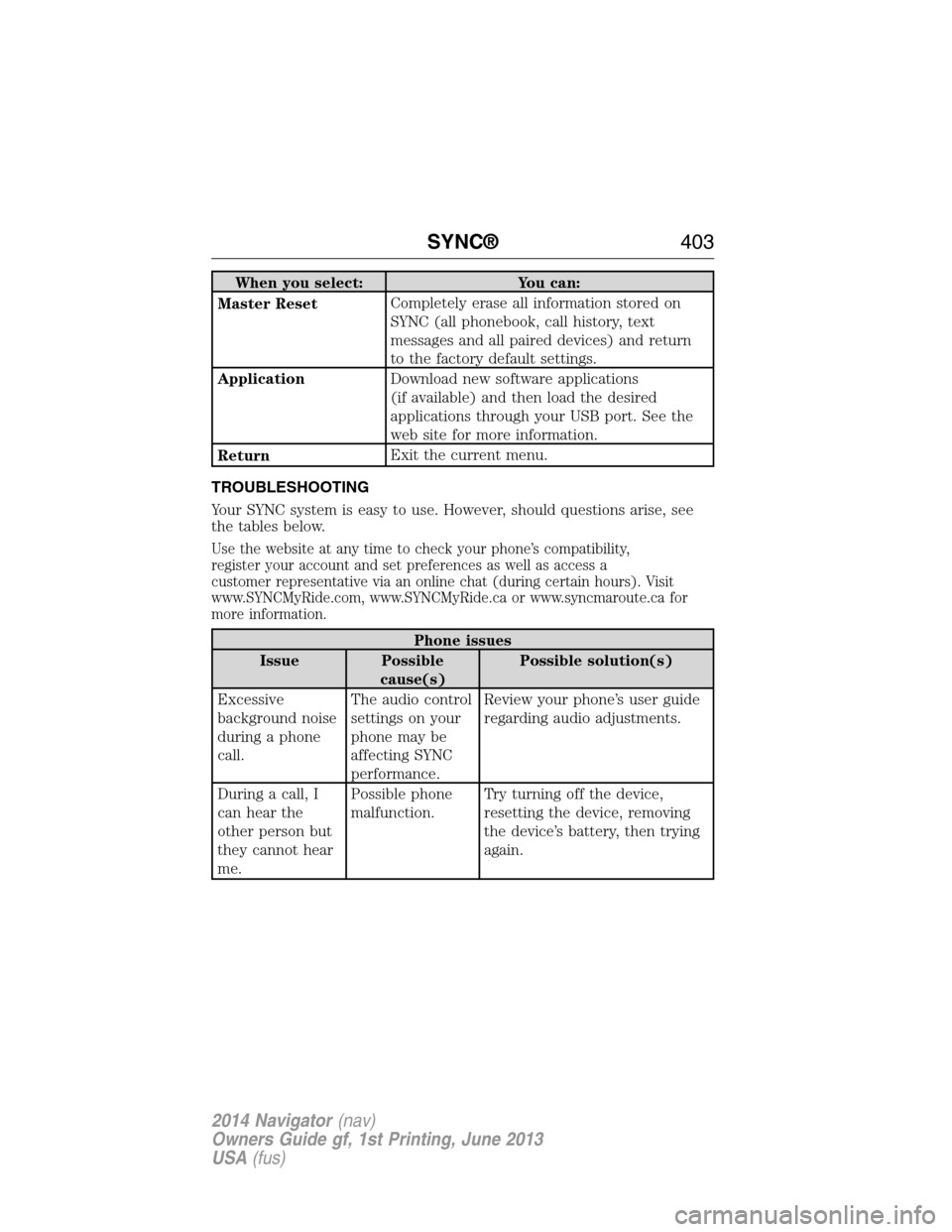
When you select: You can:
Master ResetCompletely erase all information stored on
SYNC (all phonebook, call history, text
messages and all paired devices) and return
to the factory default settings.
ApplicationDownload new software applications
(if available) and then load the desired
applications through your USB port. See the
web site for more information.
ReturnExit the current menu.
TROUBLESHOOTING
Your SYNC system is easy to use. However, should questions arise, see
the tables below.
Use the website at any time to check your phone’s compatibility,
register your account and set preferences as well as access a
customer representative via an online chat (during certain hours). Visit
www.SYNCMyRide.com, www.SYNCMyRide.ca or www.syncmaroute.ca for
more information.
Phone issues
Issue Possible
cause(s)Possible solution(s)
Excessive
background noise
during a phone
call.The audio control
settings on your
phone may be
affecting SYNC
performance.Review your phone’s user guide
regarding audio adjustments.
During a call, I
can hear the
other person but
they cannot hear
me.Possible phone
malfunction.Try turning off the device,
resetting the device, removing
the device’s battery, then trying
again.
SYNC®403
2014 Navigator(nav)
Owners Guide gf, 1st Printing, June 2013
USA(fus)
Page 407 of 506
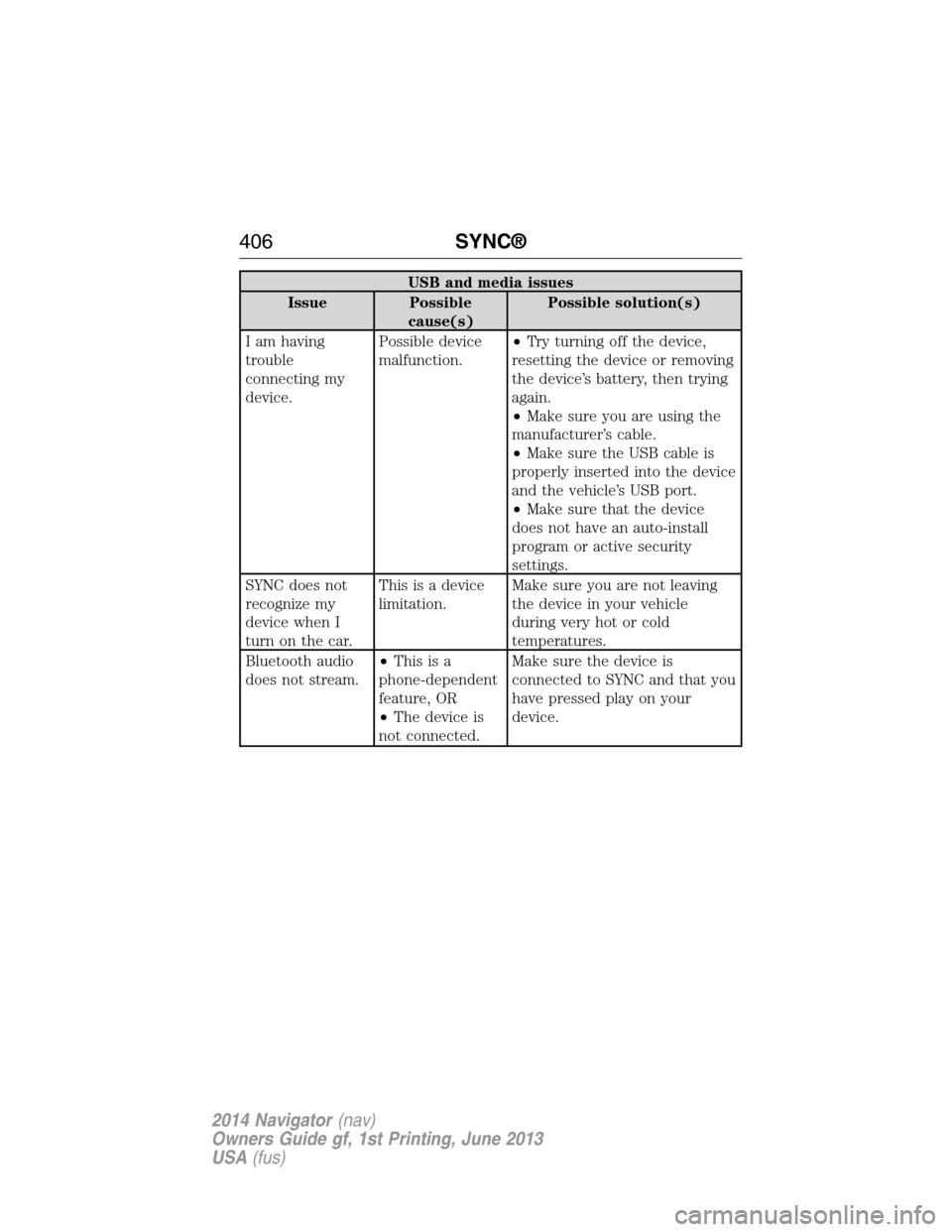
USB and media issues
Issue Possible
cause(s)Possible solution(s)
I am having
trouble
connecting my
device.Possible device
malfunction.•Try turning off the device,
resetting the device or removing
the device’s battery, then trying
again.
•Make sure you are using the
manufacturer’s cable.
•Make sure the USB cable is
properly inserted into the device
and the vehicle’s USB port.
•Make sure that the device
does not have an auto-install
program or active security
settings.
SYNC does not
recognize my
device when I
turn on the car.This is a device
limitation.Make sure you are not leaving
the device in your vehicle
during very hot or cold
temperatures.
Bluetooth audio
does not stream.•Thisisa
phone-dependent
feature, OR
•The device is
not connected.Make sure the device is
connected to SYNC and that you
have pressed play on your
device.
406SYNC®
2014 Navigator(nav)
Owners Guide gf, 1st Printing, June 2013
USA(fus)
Page 408 of 506
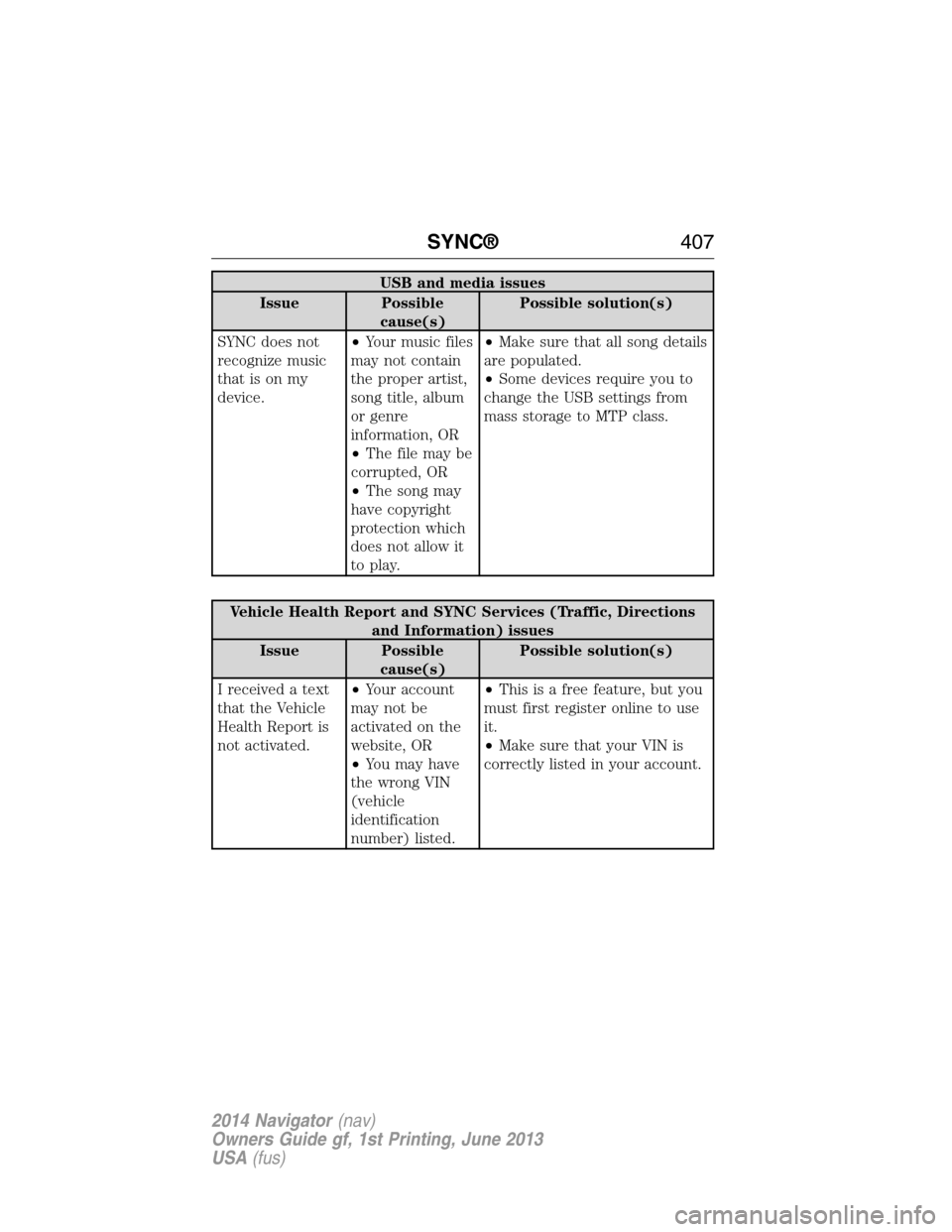
USB and media issues
Issue Possible
cause(s)Possible solution(s)
SYNC does not
recognize music
that is on my
device.•Your music files
may not contain
the proper artist,
song title, album
or genre
information, OR
•The file may be
corrupted, OR
•The song may
have copyright
protection which
does not allow it
to play.•Make sure that all song details
are populated.
•Some devices require you to
change the USB settings from
mass storage to MTP class.
Vehicle Health Report and SYNC Services (Traffic, Directions
and Information) issues
Issue Possible
cause(s)Possible solution(s)
I received a text
that the Vehicle
Health Report is
not activated.•Your account
may not be
activated on the
website, OR
•You may have
the wrong VIN
(vehicle
identification
number) listed.•This is a free feature, but you
must first register online to use
it.
•Make sure that your VIN is
correctly listed in your account.
SYNC®407
2014 Navigator(nav)
Owners Guide gf, 1st Printing, June 2013
USA(fus)
Page 412 of 506
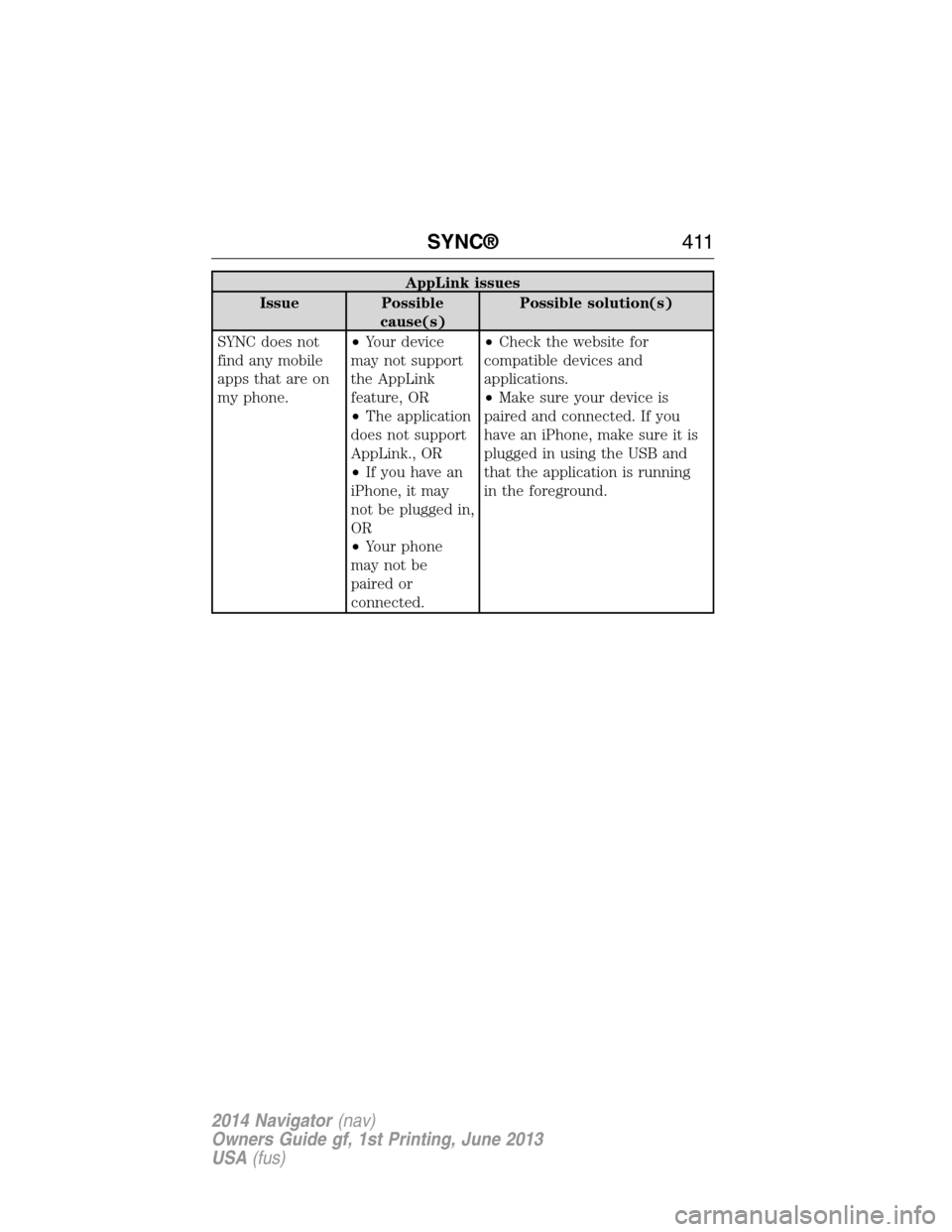
AppLink issues
Issue Possible
cause(s)Possible solution(s)
SYNC does not
find any mobile
apps that are on
my phone.•Your device
may not support
the AppLink
feature, OR
•The application
does not support
AppLink., OR
•If you have an
iPhone, it may
not be plugged in,
OR
•Your phone
may not be
paired or
connected.•Check the website for
compatible devices and
applications.
•Make sure your device is
paired and connected. If you
have an iPhone, make sure it is
plugged in using the USB and
that the application is running
in the foreground.
SYNC®411
2014 Navigator(nav)
Owners Guide gf, 1st Printing, June 2013
USA(fus)
Page 423 of 506

If you select: You can:
System Settings Languageallows you to choose between
English, Spanish and French.
Unitsallows you to choose between English
and Metric measurements.
Keyboard Layoutallows you to choose
between an ABC and QWERTY keyboard.
Delete Stored Itemsallows you to choose
to delete all of the entries from Address Book,
Previous Destinations, Avoid Areas, Saved
Photos and Voice Recognition Profiles. Touch
View to see what entries have been stored.
Restore Factory Default Settingsallows
you to restore factory default settings.
Valet ModeLock and unlock the system using a four-digit
PIN.
Note:You can reset the PIN by
simultaneously pressing and holding presets 1
and 5 while on the PIN entry screen. After
approximately five seconds, the system
transitions to the valet mode screen indicating
that you reset the PIN. Once you have reset
the PIN, the system then allows you to set a
new PIN.
Voice ControlSet the system to listen automatically for USB
or SYNC voice commands first. This
eliminates the need to say “USB” or “User
Device” before any SYNC media commands.
422Navigation System (If Equipped)
2014 Navigator(nav)
Owners Guide gf, 1st Printing, June 2013
USA(fus)
Page 425 of 506

When you select: You can:
Show PresetsView the preset stations. Save a station by
pressing and holding one of the memory
preset areas. There is a brief mute while the
radio saves the station. Sound returns when
finished.
Set PTY/AllSelect a category of music you would like to
search for and then choose to either seek or
scan for the stations.
**
Note:The system scans the frequency band
three times for the chosen program type.
If the program type is unavailable in your
reception range, the system returns to the
previous station.
*This feature is only available in the United States.
**This feature is only available on the FM1 and FM2 radio tabs in the
United States.
Audio and Radio Voice Commands
If you are listening to the audio system, press the voice button
on the steering wheel control. When prompted, say any of the
commands in the following chart.
If you are not listening to the audio system, press the voice button and,
after the tone, say “Audio”, then any of the commands in the following
chart.
“AUDIO”
“CD” “Line in” “Sirius”
“Disc” “Off ” “SYNC”
“DVD” “On” “USB”
“Headphones” “Phone” “User Device”
“Headphones off” “Radio” “Video CD”
“Jukebox” “Read Message” “Help”
424Navigation System (If Equipped)
2014 Navigator(nav)
Owners Guide gf, 1st Printing, June 2013
USA(fus)