Page 353 of 846

352
GS350_OM_OM30D41U_(U)
5-1. Remote Touch screen
■Adjusting the volume
The volume of the Mobile Assistant can be adjusted using the “PWR/VOL” knob or
steering wheel volume switches. The Mobile Assistant and phone call volumes are
synchronized.
■Microphone
●Wait for the listening beeps before using the Mobile Assistant.
●The Mobile Assistant may not recognize commands in the following situations:
• When spoken too quickly.
• When spoken at a low or high volume.
• When the roof or windows are open.
• When passengers are talking while the Mobile Assistant is being used.
• When the air conditioning system’s fan speed is set high.
• When the air conditioning vents are turned toward the microphone.
■Mobile Assistant precautions
●The available features and functions may vary based on the iOS version installed on
the connected device.
●Some Siri features are limited in Eyes Free mode. If you attempt to use an unavail-
able function, Siri will inform you that the function is not available.
●If Siri is not enabled on the cellular phone connected via Bluetooth®, an error mes-
sage will be displayed on the screen.
●While a phone call is active, the Mobile Assistant cannot be used.
●If using the navigation feature of the cellular phone, ensure the active audio source
is Bluetooth® audio or iPod in order to hear turn by turn direction prompts.
It is not necessary to speak directly into the
microphone when using the Mobile Assistant.
GS350_OM_OM30D41U_(U).book Page 352 Monday, July 29, 2013 2:22 PM
Page 379 of 846
378
GS350_OM_OM30D41U_(U)
5-3. Using the audio system
Press to operate the voice
command system. (→P. 3 4 0 /
“Navigation System Owner’s Man-
ual”)
Ti t l ePa g e
Using the radioP. 3 9 9
Using the CD/DVD playerP. 4 2 1
Playing an audio CD and MP3/WMA discsP. 4 2 3
Playing DVD videoP. 4 2 9
CD/DVD player and DVD video disc informationP. 441
Listening to Bluetooth® audioP. 4 5 2
Listening to a USB memoryP. 4 6 3
Listening to an iPodP. 4 7 3
Optimal use of the audio/video systemP. 4 8 3
Using the AUX portP. 4 8 5
Using the steering wheel audio switchesP. 4 9 2
Using the voice command system
GS350_OM_OM30D41U_(U).book Page 378 Monday, July 29, 2013 2:22 PM
Page 493 of 846
492
GS350_OM_OM30D41U_(U)
5-3. Using the audio system
Using the steering wheel audio switches
Radio mode: Selects a radio sta-tion
Audio CD mode: Selects a track
MP3/WMA disc mode: Selects a file and
folder
DVD mode: Selects a chapter
Bluetooth
® audio mode: Selects a track and
album
iPod mode: Selects a track
USB memory mode: Selects a file and
folder/album
Vo l u m e
Turns the power on, selects audio
source, mute or pause
Some audio features can be controll ed using the switches on the steer-
ing wheel.
1
2
3
GS350_OM_OM30D41U_(U).book Page 492 Monday, July 29, 2013 2:22 PM
Page 495 of 846
494
GS350_OM_OM30D41U_(U)
5-3. Using the audio system
Press to select the audio CD, MP3/WMA disc, DVD,
Bluetooth
® audio, iPod, or USB memory mode.
Press or to select.
To return to the beginning of the current track, file or chapter, press the
switch once quickly.
Press to select Bluetooth® audio or USB memory mode.
Press and hold or until a beep is heard to select.
Press to select the MP3/W MA disc or USB memory mode.
Press and hold or until a beep is heard to select.
Selecting a track/file or chapter
Selecting an album
Selecting a folder
CAUTION
■To reduce the risk of an accident
Exercise care when operating the audio switches on the steering wheel.
1
2
1
2
1
2
GS350_OM_OM30D41U_(U).book Page 494 Monday, July 29, 2013 2:22 PM
Page 504 of 846
503
GS350_OM_OM30D41U_(U)5-4. Using the hands-free phone system (for cellular phone)
5
Interior features
Using a Bluetooth® phone
Device name
Bluetooth
® connection status
Character deletion
Make a call
To display the screen shown above, press the “MENU” button on the
Remote Touch, then select “Phone” or press on the steering wheel.
1
2
3
4
GS350_OM_OM30D41U_(U).book Page 503 Monday, July 29, 2013 2:22 PM
Page 510 of 846
GS350_OM_OM30D41U_(U)
5095-4. Using the hands-free phone system (for cellular phone)
5
Interior features
Once the Bluetooth® phone is registered, you can make a call using the
following procedure:
■Dialing
Display the “Phone” screen. ( →P. 503)
Input the phone number.
To delete the inputted phone num-
ber, select .
Select or press on the steering wheel.
Depending on the type of Bluetooth® phone being connected, it may be nec-
essary to perform additional steps on the phone.
■Dialing from the phonebook
You can dial a number from the phonebook data imported from your
cellular phone. The system has one phonebook for each phone. Up to
1000 entries may be stored in each phonebook. ( →P. 5 2 6 )
Display the “Phone” screen. ( →P. 503)
Select “Contacts” on the “Phone” screen.
Choose the desired data to
call from the list.
Making a call
1
2
3
1
2
3
GS350_OM_OM30D41U_(U).book Page 509 Monday, July 29, 2013 2:22 PM
Page 511 of 846
510
GS350_OM_OM30D41U_(U)
5-4. Using the hands-free phone system (for cellular phone)
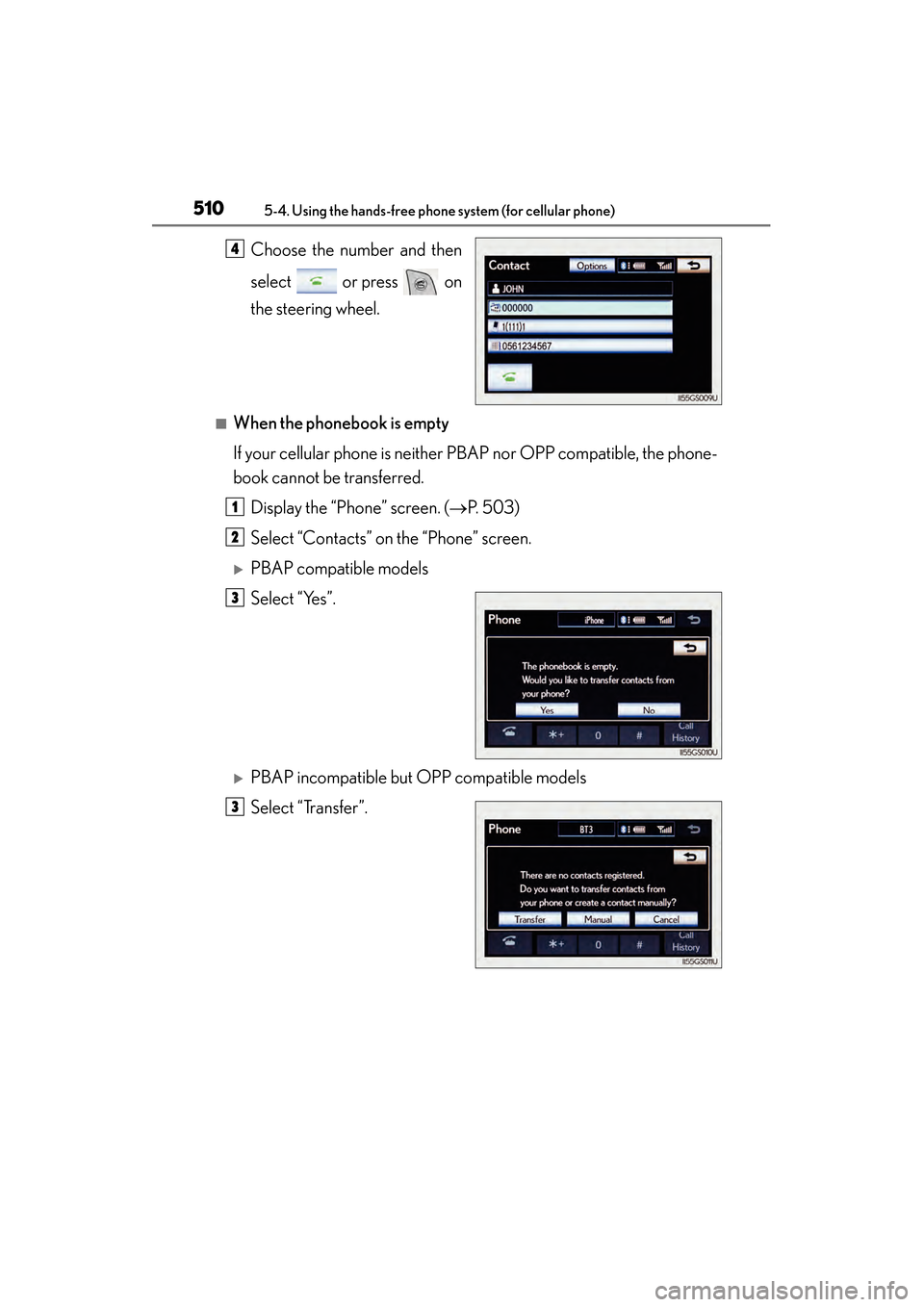
Choose the number and then
select or press on
the steering wheel.
■When the phonebook is empty
If your cellular phone is neither PBAP nor OPP compatible, the phone-
book cannot be transferred.Display the “Phone” screen. ( →P. 503)
Select “Contacts” on the “Phone” screen.
XPBAP compatible models
Select “Yes”.
XPBAP incompatible but OPP compatible models
Select “Transfer”.
4
1
2
3
3
GS350_OM_OM30D41U_(U).book Page 510 Monday, July 29, 2013 2:22 PM
Page 514 of 846
GS350_OM_OM30D41U_(U)
5135-4. Using the hands-free phone system (for cellular phone)
5
Interior features
■Dialing from history
You can call using the call history which has the 4 functions below.
“All”: All the numbers below which were memorized
“Missed”: Calls which you missed
“Incoming”: Calls which you received
“Outgoing”: Numbers which you called
You can call using the 25 most recently called numbers shown by “All”
tab while driving.Display the “Phone” screen. ( →P. 503)
Select “Call History” on the “Phone” screen.
Select the desired tab and
choose the desired data from
the list.
Select or press on
the steering wheel.
1
2
3
4
GS350_OM_OM30D41U_(U).book Page 513 Monday, July 29, 2013 2:22 PM