Page 402 of 918
401
ES350_300h_OM_OM33A60U_(U)
5-3. Using the Lexus Display Audio system
5
Interior features
Playing an audio CD and MP3/WMA discs
Pressing the “MEDIA” button or the “AUDIO” button on the Lexus Display
Audio controller displays the audio control screen from any screens of the
selected source.
Audio source selection screen appears
Displaying the track/file list
Select: Playing the previous track/file
Select and hold: Reversing a track/file
Pa u s e
Select to play
Select: Playing the next track/file
Select and hold: Fast-forwarding a track/file
Repeat play
Random playback
Setting the sound ( →P. 4 4 6 )
Displaying the folder list
Insert a disc or press the “MEDIA” button or the “AUDIO” button on
the Lexus Display Audio controller and then select “CD” with a disc
inserted.
Audio control screen
XAudio CDXMP3/WMA disc
1
2
3
4
5
6
7
8
9
Page 404 of 918
ES350_300h_OM_OM33A60U_(U)
4035-3. Using the Lexus Display Audio system
5
Interior features
■Selecting a file from the file listSelect “Files” on the screen.
Select the desired file number.
Select “Folders” on the screen.
Select the desired folder number.
Select the desired file number.
1
2
Selecting a folder (MP3/WMA disc)
1
2
3
Page 406 of 918

ES350_300h_OM_OM33A60U_(U)
4055-3. Using the Lexus Display Audio system
5
Interior features
■Displaying the title and artist name
If a CD-TEXT disc is inserted, the title of the disc and track will be displayed.
■Error messages
If the following error messages appear on the screen, refer to the table and take the
appropriate measures. If the problem is not rectified, take the vehicle to your Lexus
dealer.
■Discs that can be used
Discs with the marks shown below can be used.
Playback may not be possible depending on recording format or disc features, or
due to scratches, dirt or deterioration.
CDs with copy-protection features may not play correctly.
■CD player protection feature
To protect the internal components, playback is automatically stopped when a prob-
lem is detected.
■If disc is left inside the CD player or in the ejected position for extended periods
Disc may be damaged and may not play properly.
MessageCauseCorrection procedures
Check DISC
• The disc is dirty or dam-aged.
• The disc is inserted upside down.
• The disc is not playable with the player.
• Clean the disc.
• Insert the disc correctly.
•Confirm the disc isplayable with the player.
DISC ErrorThere is a malfunction
within the system.Eject the disc.
No music files found.
This indicates that no
playable data is included
in the disc.
Eject the disc.
Page 408 of 918

ES350_300h_OM_OM33A60U_(U)
4075-3. Using the Lexus Display Audio system
5
Interior features
●Compatible disc formats
The following disc formats can be used.
•Disc formats:CD-ROM Mode 1 and Mode 2
CD-ROM XA Mode 2, Form 1 and Form 2
• File formats: ISO9660 Level 1, Level 2, (Romeo, Joliet)
UDF (2.01 or lower)
MP3 and WMA files written in any format other than those listed above may not
play correctly, and their file names and folder names may not be displayed cor-
rectly.
Items related to standards and limitations are as follows.
• Maximum directory hierarchy: 8 levels (including the root)
• Maximum length of folder names/file names: 32 characters
• Maximum number of folders: 192 (including the root)
• Maximum number of files per disc: 255
●File names
The only files that can be recognized as MP3/WMA and played are those with
the extension .mp3 or .wma.
●Discs containing multi-session recordings
As the audio system is compatible with multi-sessions, it is possible to play discs
that contain MP3 and WMA files. However, only the first session can be played.
●ID3 and WMA tags
ID3 tags can be added to MP3 files, making it possible to record the track title,
artist name, etc.
The system is compatible with ID3 Ver. 1.0, 1.1, and Ver. 2.2, 2.3 ID3 tags. (The
number of characters is based on ID3 Ver. 1.0 and 1.1.)
WMA tags can be added to WMA files, making it possible to record the track title
and artist name in the same way as with ID3 tags.
Page 410 of 918
ES350_300h_OM_OM33A60U_(U)
4095-3. Using the Lexus Display Audio system
5
Interior features
NOTICE
■CDs and adapters that cannot be used
Do not use the following types of CDs.
Also, do not use 3 in. (8 cm) CD adapters, DualDiscs or printable discs.
Doing so may damage the CD player and/or the CD load/eject function.
●CDs that have a diameter that is not 4.7 in.
(12 cm)
●Low-quality and deformed CDs
●CDs with a transparent or translucent
recording area
●CDs that have had tape, stickers or CD-R
labels attached to them, or that have had
the label peeled off
Page 412 of 918
411
ES350_300h_OM_OM33A60U_(U)
5-3. Using the Lexus Display Audio system
5
Interior features
Listening to an iPod
Push the knob to release the lock,
and lift the armrest to open fully.
Open the cover and connect an
iPod using an iPod cable.
Turn on the power of the iPod if it is not
turned on.
Connecting an iPod enables you to enjoy music from the vehicle speak-
ers.
Press the “MEDIA” button or the “AUDIO” button on the Lexus Display
Audio controller and then select “iPod” with an iPod connected.
Connecting an iPod
1
2
Page 414 of 918
ES350_300h_OM_OM33A60U_(U)
4135-3. Using the Lexus Display Audio system
5
Interior features
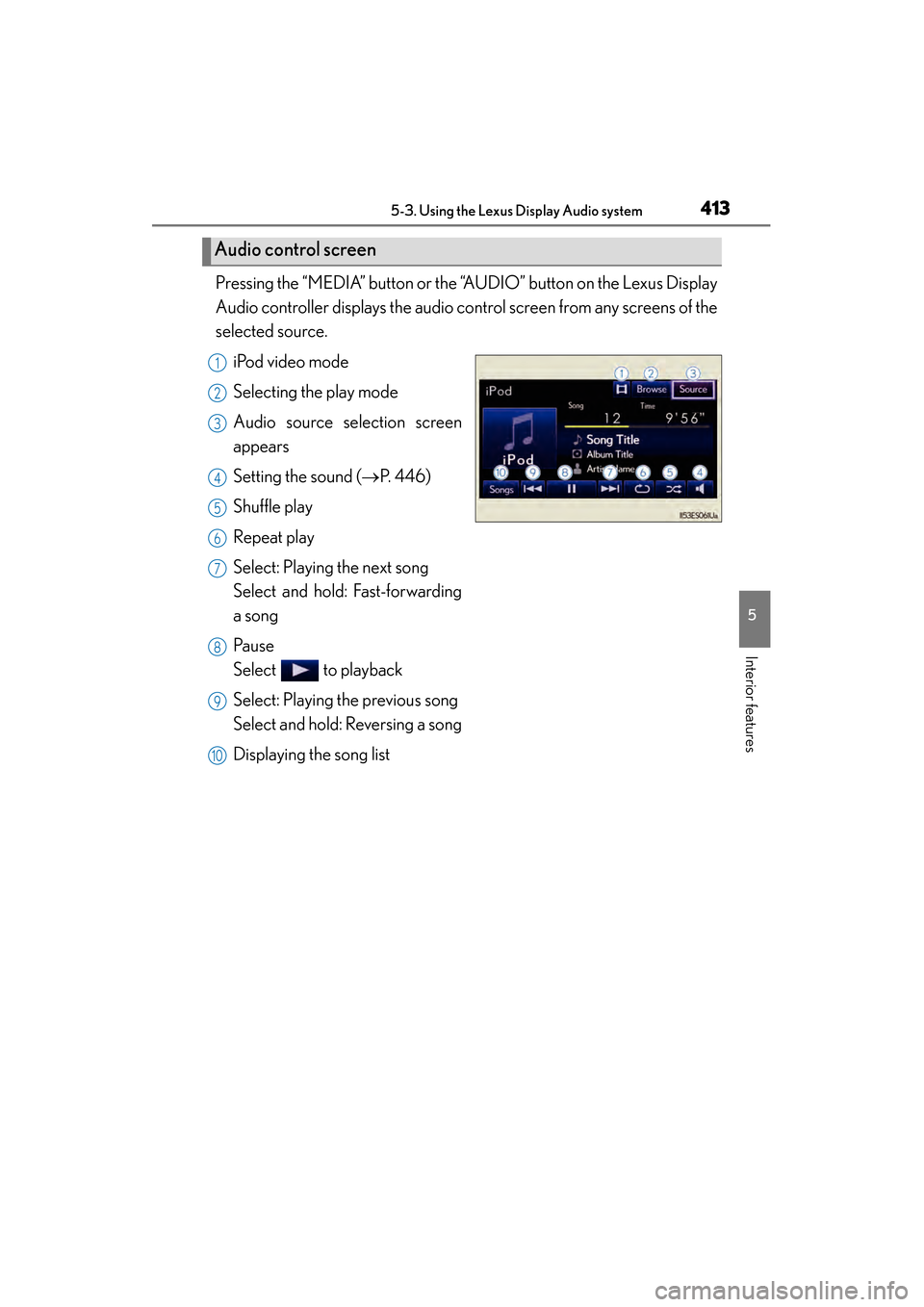
Pressing the “MEDIA” button or the “AUDIO” button on the Lexus Display
Audio controller displays the audio control screen from any screens of the
selected source.iPod video mode
Selecting the play mode
Audio source selection screen
appears
Setting the sound ( →P. 4 4 6 )
Shuffle play
Repeat play
Select: Playing the next song
Select and hold: Fast-forwarding
a song
Pa u s e
Select to playback
Select: Playing the previous song
Select and hold: Reversing a song
Displaying the song list
Audio control screen
1
2
3
4
5
6
7
8
9
10
Page 416 of 918
ES350_300h_OM_OM33A60U_(U)
4155-3. Using the Lexus Display Audio system
5
Interior features
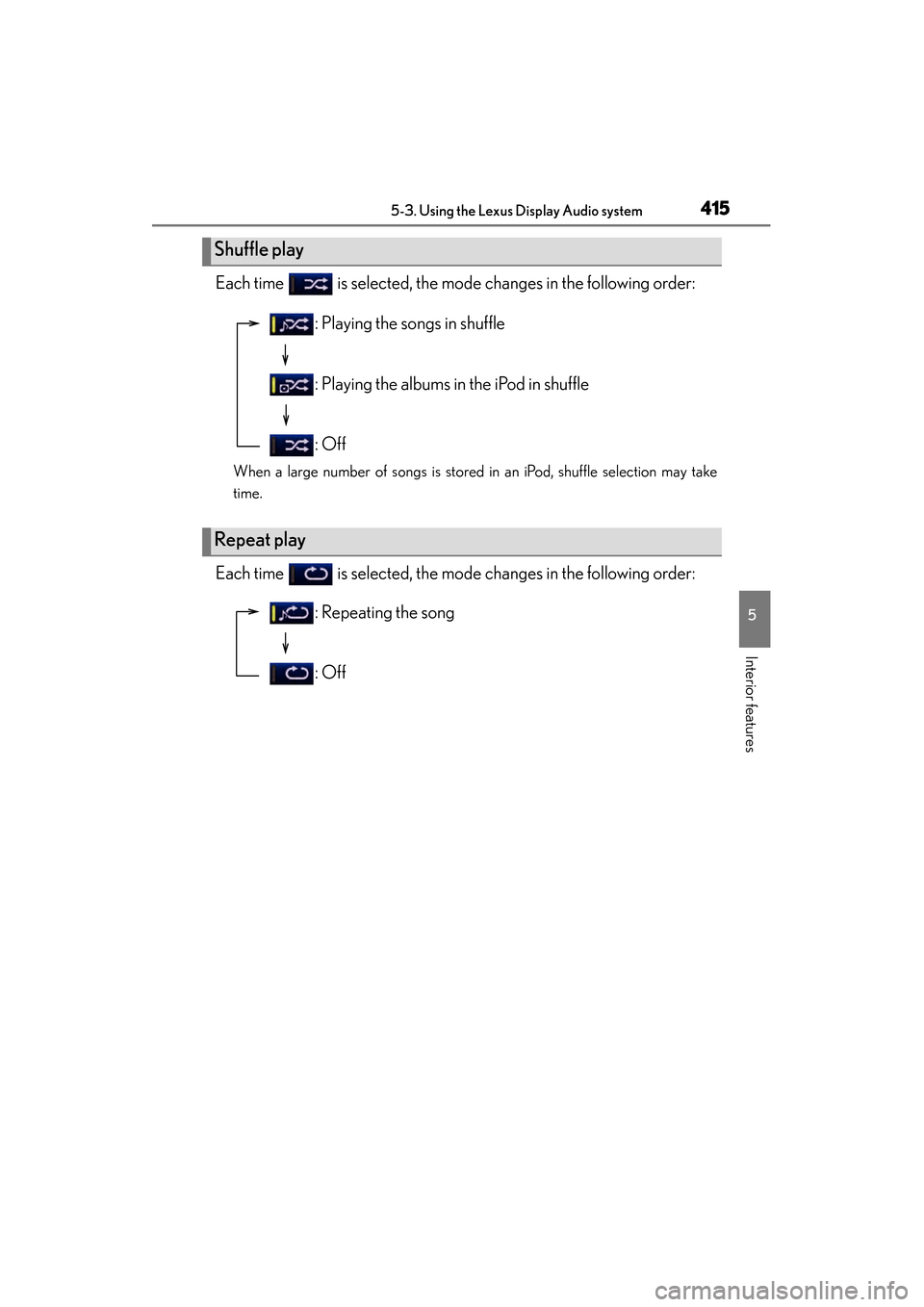
Each time is selected, the mode changes in the following order:
When a large number of songs is stored in an iPod, shuffle selection may take
time.
Each time is selected, the mode changes in the following order:
Shuffle play
Repeat play
: Playing the songs in shuffle
: Playing the albums in the iPod in shuffle
: Off
: Repeating the song
: Off